
How to Use Nano Banana: Gemini's Image Model, Step by Step
How to use Nano Banana in Gemini: pick the right mode, prompt, edit in plain words and download, with which mode runs which model and what free users get.
Contents
How to use Nano Banana, in short
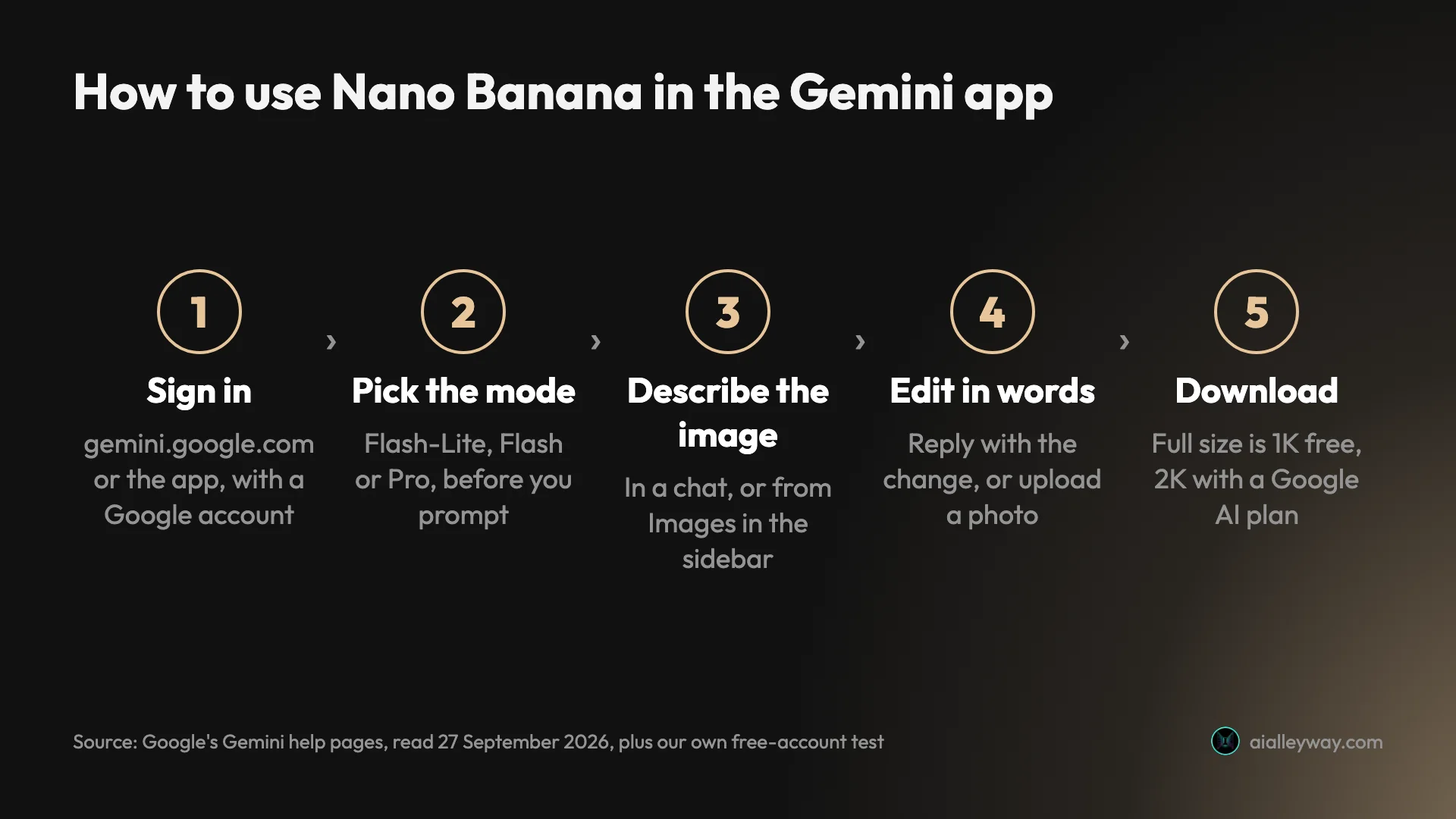
To use Nano Banana, sign in to the Gemini app with a Google account, choose a chat mode, and describe the picture you want; to change it, reply in plain words. It is free, and the mode you pick decides which Nano Banana model draws your image: Flash-Lite uses Nano Banana 2 Lite, while Flash and Pro use Nano Banana 2. Nano Banana Pro is a paid “redo” option, and developers reach all three through Google’s API.
How Nano Banana works in Gemini
Nano Banana is not an app. It is Google’s name for the image models inside Gemini, and you never switch to it: you ask Gemini for a picture, and Gemini hands the job to a Nano Banana model.
Which model depends on the Gemini mode you have selected, and that is the detail most guides miss. Google’s help page on creating images is specific. In Flash-Lite mode, Gemini uses Nano Banana 2 Lite, which Google says is not designed for multiple reference images or repeated edits. In Flash or Pro mode, it uses Nano Banana 2, which accepts multiple reference images. Nano Banana Pro, the most capable model, is offered to paid subscribers as a way to redo an image, not as a starting choice.
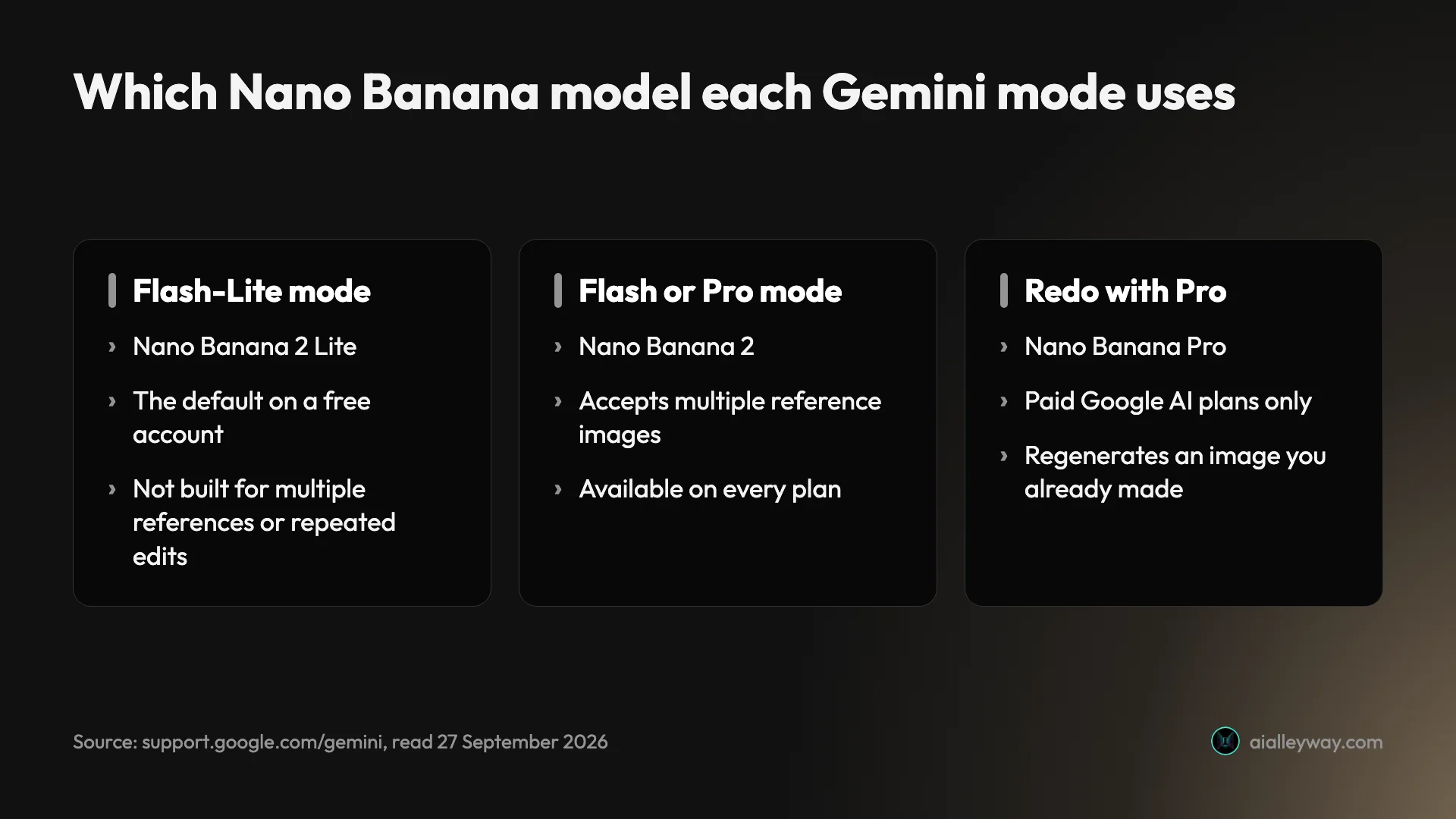
Here is Google’s mapping as of September 2026, with what each mode suited in my test:
| Gemini mode | Nano Banana model | Good for | Plans |
|---|---|---|---|
| Flash-Lite (the default) | Nano Banana 2 Lite | Quick single images | Every plan, including free |
| Flash | Nano Banana 2 | Text, multiple references, edits | Every plan, including free |
| 3.1 Pro | Nano Banana 2 | Exact counts, slower | Every plan, including free |
| Redo with Pro | Nano Banana Pro | Regenerating a finished image | Google AI Plus and above |
The name has also moved on. Nano Banana began as the nickname for Gemini 2.5 Flash Image, and many tutorials still treat the two as the same thing. That model is now the legacy one, and Google’s API pricing page says it shuts down on 2 October 2026. Anything built on it needs updating.
Usage is metered by compute rather than by image count. Google’s limits page describes five-hour and weekly limits that paid plans raise, and it publishes no number of images. On my free account, twelve image requests in one session never hit a limit.
Paying changes four things for images, by Google’s own pages: a higher usage allowance (Plus doubles the standard level, the AI Pro plan quadruples it), downloads at 2K instead of 1K, the option to redo an image with Nano Banana Pro, and, in India, South Korea and Vietnam, access to the setting that hides the visible watermark, which there needs AI Ultra. The model you start with, Nano Banana 2 Lite or Nano Banana 2 depending on the mode, is the same on every plan.
Step 1: Sign in to Gemini
To access Nano Banana, open gemini.google.com in a browser, or the Gemini app on Android or iPhone, and sign in with a Google account. That is all the setup there is: no separate Nano Banana account, and no paid plan needed. Google’s help page lists image generation on every plan, including no plan at all.
Two age rules apply, according to the same page: you must be 13 or over to create images, and 18 or over to edit them.
Be careful which site you are on. Sites with Nano Banana in their names sell their own plans and are not Google; our Nano Banana review covers the resellers that rank for Google’s model. The official routes are the Gemini app, Google AI Studio and Google’s API.
On iPhone and Android
The phone app works the same way as the web, with the controls in different places. Google’s help page says to open the menu and choose Images to start from a template, or you can ask for a picture in any chat. You can also ask for images while talking to Gemini Live. To keep a result, touch and hold it and choose save; the share option in the same menu creates a public link, so avoid it for anything private. I did not run my test on a phone, so this part rests on Google’s documentation. Gemini is also available as a Windows app, which Google says can create images with Nano Banana.
Step 2: Choose the mode before you prompt
This is the step that changes your results, and Google’s help page says to do it first: switch your Gemini model before you make the image request. On my free account the mode picker offered 3.5 Flash-Lite, the default, then 3.6 Flash, 3.1 Pro and Extended thinking.
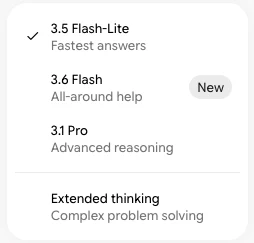
Flash-Lite for quick single images. It is the default and it was fast in my test, with most pictures ready in about 30 seconds. By Google’s description it runs Nano Banana 2 Lite, so it is the wrong choice for combining reference images or making a string of edits. My single edit in Flash-Lite worked; Google’s warning is about chains of edits and reference images.
Flash or 3.1 Pro for references and edits. Both use Nano Banana 2. The 3.1 Pro mode is slower because Gemini reasons about the request first; in my test it took about 80 seconds against 17 or less for the same prompt in Flash-Lite, and it fixed a counting mistake the default mode had made.
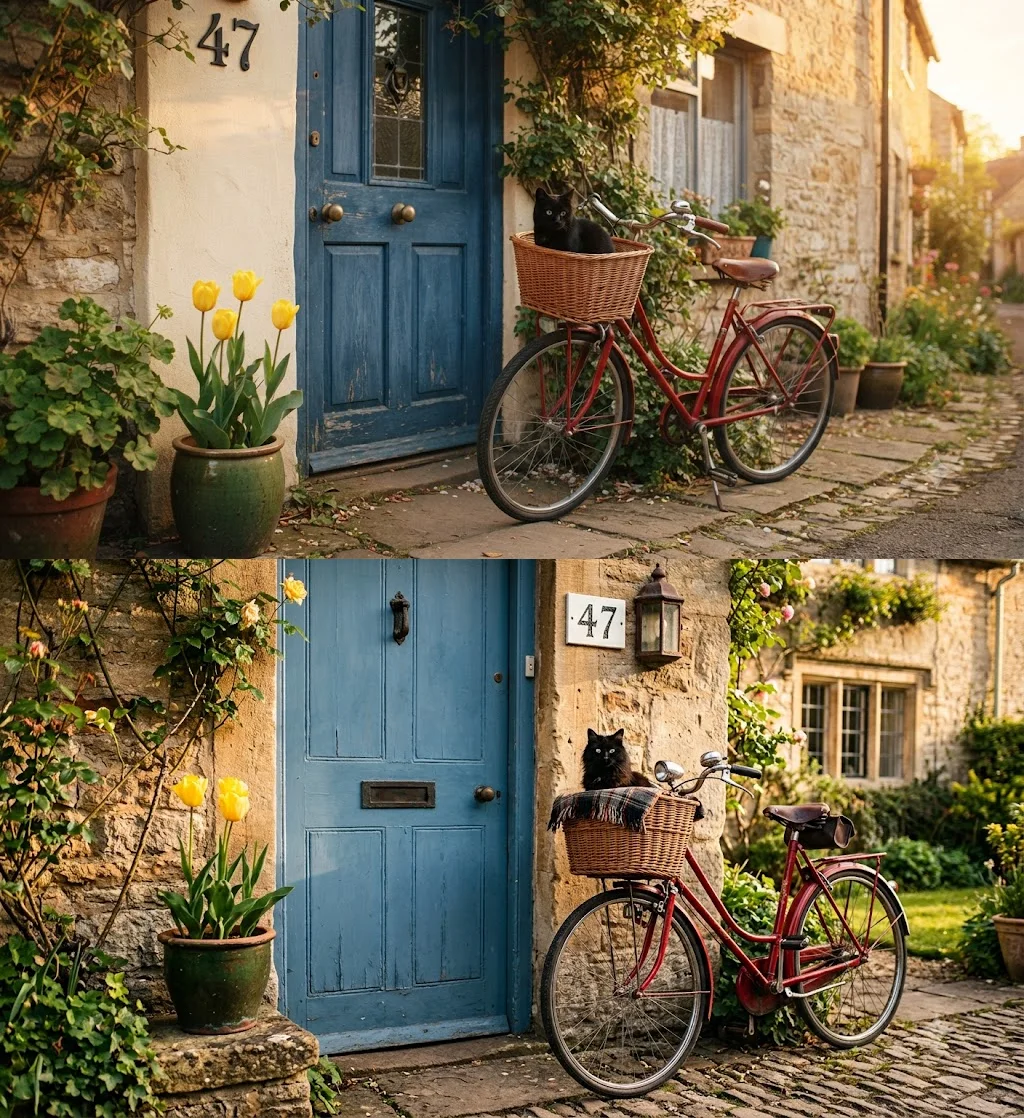
My own tests ran in the default Flash-Lite mode, so by Google’s mapping they most likely came from Nano Banana 2 Lite, apart from the one rerun in 3.1 Pro mode.
Step 3: Describe the image
There are two ways in. You can type a request into any Gemini chat, which is how I made every image in my test, or open the sidebar and choose Images, where Google’s help page says you can pick a template or enter a prompt. On a phone, Images is in the menu.
Google’s own advice is to start with a word like draw, generate or create, name a style, and describe the subject, what it is doing and where. Our Nano Banana prompts guide has 15 tested prompts with their results. From my test, three more habits helped:
Give numbers and positions. Nano Banana is looser than ChatGPT with crowded briefs: asked for three tulips, the default mode drew four. If counts matter, say them plainly and use 3.1 Pro mode.
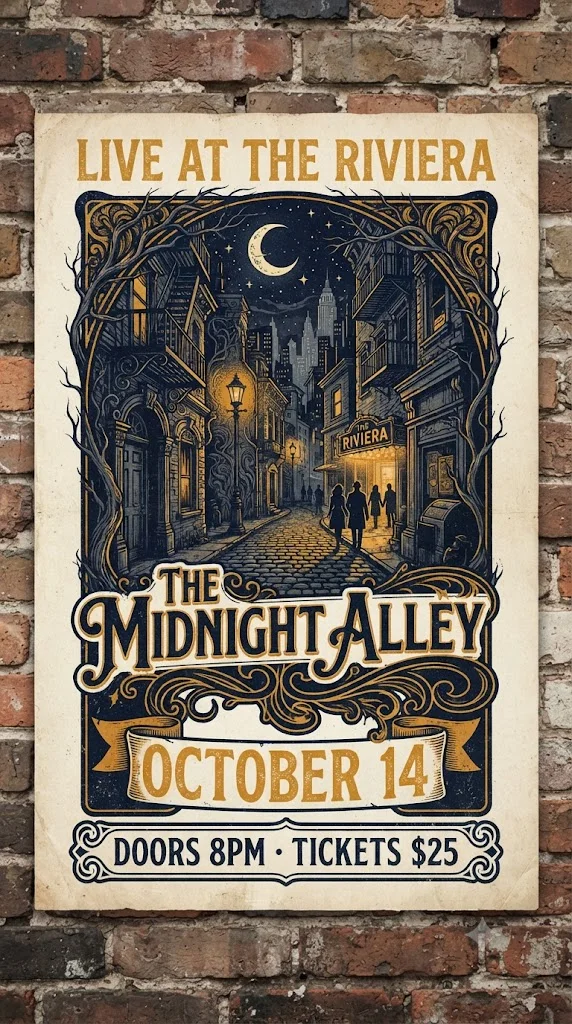
Say where text may go. It spelled every string I gave it, but it also added text of its own: a venue sign on a poster, a shop name on a café, and the signature of the real artist Hiroshige on a woodblock-style print. Ending a prompt with “no other text, no signature” is worth trying, though I did not test it.
Name the shape. With no aspect ratio in my prompts, Gemini chose a wide landscape frame for eleven of twelve images. Ask for “square” or “vertical 9:16” if the picture is for a feed or a phone screen.
Step 4: Edit images in Gemini in plain words
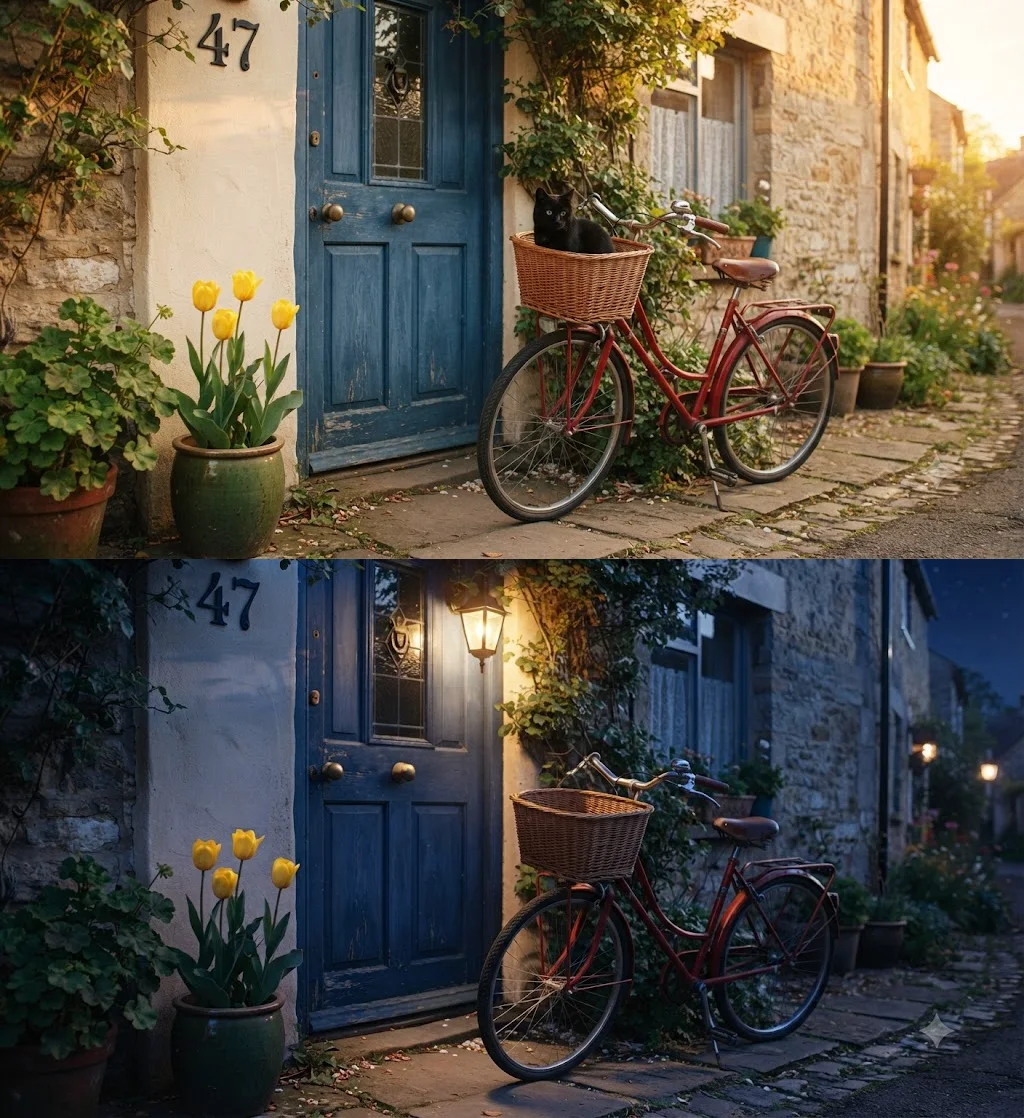
Editing is where Nano Banana is strongest, and it works the same way as creating: you describe the change. In the chat where the image was made, I asked Gemini to turn the scene into night, switch on a lamp above the door and remove the cat. It produced a real night sky with a lit lantern, removed the cat, and left everything else as it was.
Google’s help page lists three kinds of edit: changing an image Gemini made, uploading your own image and asking for changes, and uploading several images and asking Gemini to combine them into a new one. To go back to an earlier image, it says to find it in your Library and open it in a chat. For multi-image edits or a series of edits, use Flash or Pro mode, since Google says the Lite model behind Flash-Lite is not built for multiple references or repeated edits. I edited only images Gemini had made, not uploaded photos.
Step 5: Redo with Nano Banana Pro (paid plans)
Nano Banana Pro is not in the mode picker. On a paid Google AI plan, Plus or above, Google’s help page says to set the Gemini model to Pro, make the image, then click More at the bottom right of the picture and choose Redo with Pro. Gemini regenerates it with the Pro model.
One rule catches people out: if you have used up your daily Nano Banana 2 quota, you cannot redo any more images with Pro. I have not tested Redo with Pro, because my test ran on a free account.
Step 6: Download and share
On the web, hover over the image and choose Download full size; on a phone, touch and hold it and choose to save or share. Google’s help page says downloads come at 2K resolution with a Google AI plan and 1K without, and my free full-size download measured 1408×768. It also warns that sharing creates a public link, and offers an Export to Docs option.
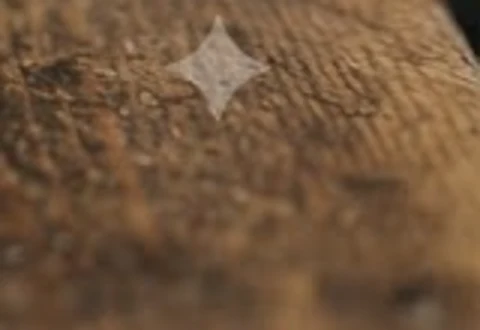
Free images carry a small four-point sparkle in the corner. Google’s watermark settings page lets most users switch it off under Settings, then Media Watermark, but says accounts in India, South Korea and Vietnam only see the setting with an AI Ultra plan. Press coverage of the August rollout reported that EU accounts do not get the toggle at all, citing the EU AI Act’s labelling rules. Switching it off does not remove Google’s invisible SynthID watermark or the C2PA credentials, which my downloaded file carried.
Three jobs, step by step
The steps above are the same whatever you make. What changes is the mode and the wording. These three walkthroughs combine Google’s documented features with what worked in my test.
| Job | Mode | Prompt pattern | Watch for |
|---|---|---|---|
| Social graphic with text | Flash | Format, scene, exact words in quotes, “no other text” | Words it adds on its own |
| Editing your own photo | Flash or 3.1 Pro | One clear instruction per reply | You must be 18 or over |
| Exact product or scene | 3.1 Pro | Every number and position spelled out | About 80 seconds a picture |
A social graphic with a headline. Choose Flash mode, which uses Nano Banana 2 and is quicker than 3.1 Pro. Ask for the format first, “a square social post”, then the scene, then the exact headline in quotation marks, and end with “no other text”. In my test Nano Banana spelled all 15 text strings I asked for, across a poster, a café menu, a coffee-bag label and a house number, so the risk is less the words you give it than the words it adds. Read the result before you post it.
Changing a photo you already have. Switch to Flash or 3.1 Pro mode, since Google says the Lite model isn’t designed for multiple references or a string of edits. Upload the photo in a chat and describe the change as one instruction, “make it evening and add warm light in the windows”. Google’s help page says you must be 18 or over to edit. If the first result is close, reply with the next change rather than starting again; my one edit kept everything I had not asked to change.
An exact product or scene brief. Use 3.1 Pro mode: it fixed my tulip count, reasoning about the prompt first on the full Nano Banana 2 model rather than the Lite one. Spell out every number and position: how many items, which side, what is above what. Expect about 80 seconds rather than 17 or less. If a detail is still wrong, as my house number stayed beside the door even in 3.1 Pro mode, correct just that detail in a follow-up.
The prompts behind my results
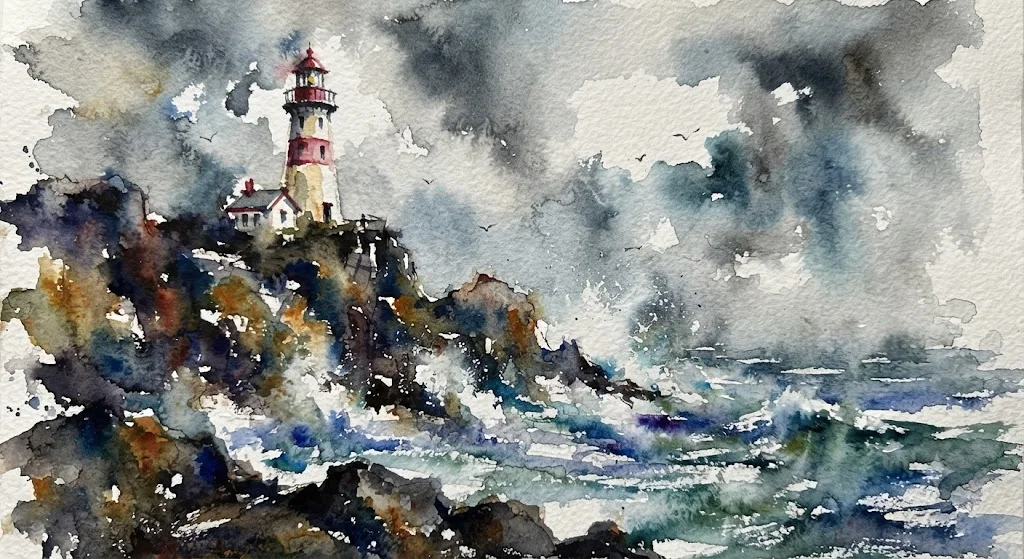
My test used the same wording in Gemini as in our ChatGPT review. The crowded scene asked for, among other things, “three yellow tulips in a green pot on the left of the door”. The portrait specified an 85mm lens at f/1.8, and the watercolour asked for wet-on-wet washes and bleeding edges. The watercolour lighthouse was, to my eye, the best image in either tool’s test. In that one comparison, naming the medium seemed to help more than naming the mood.
Using Nano Banana in AI Studio and the API
Developers can skip the app. Google’s image generation docs list the current model IDs: gemini-3.1-flash-lite-image for Nano Banana 2 Lite, gemini-3.1-flash-image for Nano Banana 2 and gemini-3-pro-image for Nano Banana Pro. Requests can set the image size, 1K by default with 2K and 4K available (Nano Banana 2 Lite is 1K only), and an aspect ratio, and can include up to 14 reference images.
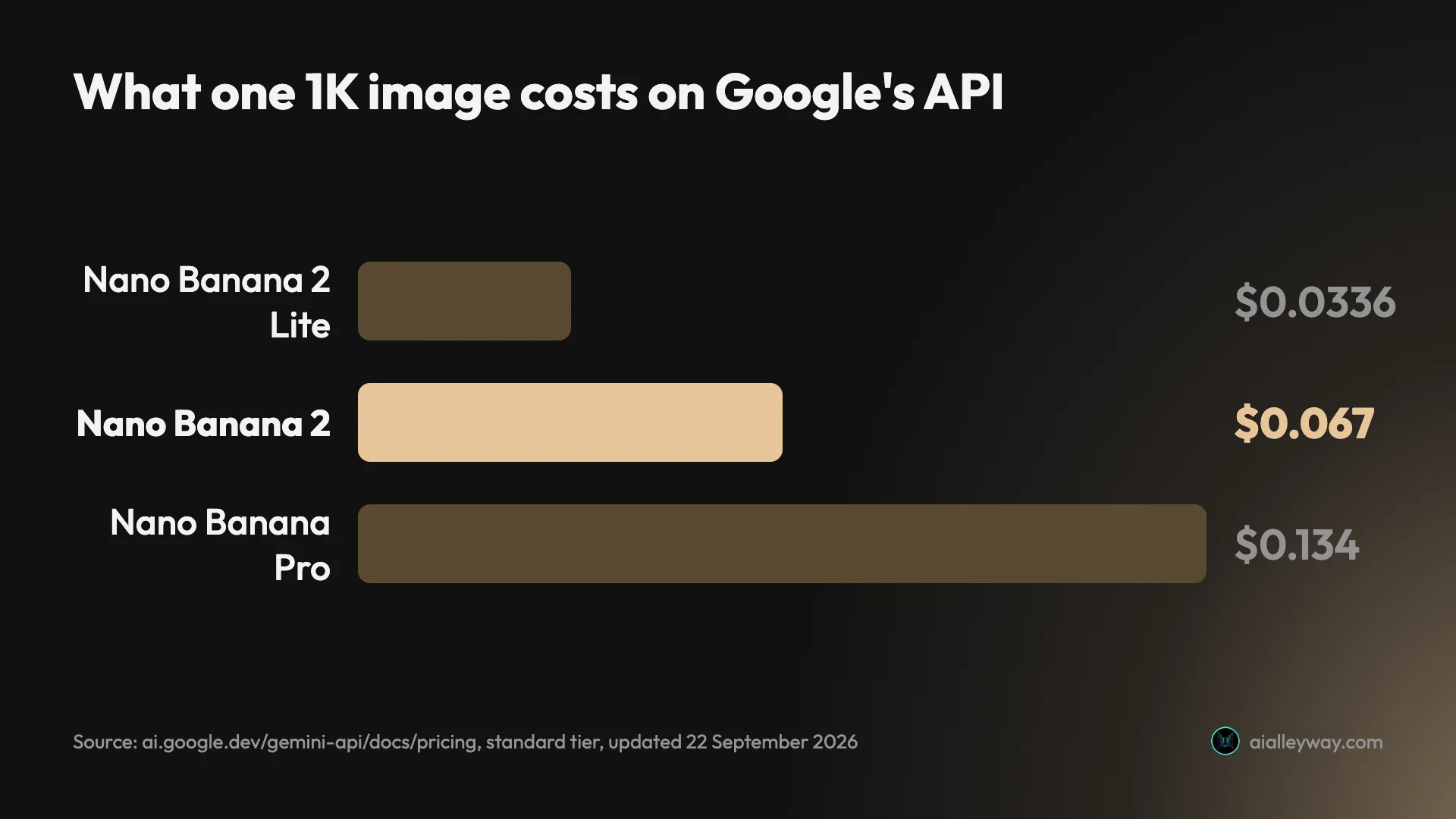
There is no free API tier for any of them, according to Google’s pricing page: Nano Banana 2 Lite costs $0.0336 for a 1K image, Nano Banana 2 $0.045 to $0.151 by size, and Nano Banana Pro $0.134 to $0.24. Google AI Studio lets you try models in a browser; Google’s plans page lists Nano Banana among the premium models on its AI Pro tier, but does not say what free AI Studio users get for images, so do not assume it is free.
Limits, and why an image might not appear
Gemini will tell you when you hit a limit, but it will not tell you in advance how many images you have left. Google’s limits page says usage runs on five-hour and weekly windows, that making images draws more than chatting does, and that you can check your usage under Settings, in Usage Limits. Plus doubles the standard allowance, the AI Pro plan quadruples it, and Ultra raises it again.
If an image does not appear, the usual causes are these:
- You have reached a usage limit. Wait for the window to refresh, or upgrade.
- You are under the age for the task. Creating images needs you to be 13 or over, and editing 18 or over, by Google’s rules.
- You tried Redo with Pro after using up the day’s Nano Banana 2 quota. Google says the Pro redo stops at the same point.
- The request breaks Google’s policies. Rephrase it; a paid plan does not change what is allowed.
Mistakes to avoid
Most problems with Nano Banana come from a handful of settings, not from the model.
- Prompting before choosing the mode. Google says to switch the mode first, and the default Flash-Lite runs the Lite model.
- Using Flash-Lite for multi-image edits. Google says its model is not designed for multiple references or repeated edits.
- Expecting a Pro model picker. Google’s help page describes Nano Banana Pro as a redo on paid plans, and it stops when your daily Nano Banana 2 quota runs out.
- Sharing instead of saving. Google’s help page warns that Share creates a public link, so a private image shared by mistake is open to anyone with the address.
- Trusting old tutorials. Google’s API pricing page marks gemini-2.5-flash-image as deprecated, shutting down on 2 October 2026, and guides that equate Nano Banana with that model, or use preview model IDs that Google’s current docs no longer list, are out of date.
- Not reading added text. It added a real artist’s signature to one of my images without being asked.
Which way to use it
- For free, everyday images: the Gemini app in Flash-Lite or Flash mode. It is the quickest route, and in my test the free tier never ran out across twelve requests.
- For accurate counts: 3.1 Pro mode, accepting about 80 seconds a picture. It is the mode that reasons about the request before drawing.
- For multi-image edits: Flash or 3.1 Pro mode, since both use Nano Banana 2.
- For the best model and 2K downloads: a Google AI plan, with Redo with Pro. It is worth it if you need print-size files or regenerate images often.
- For your own product: the API, priced per image with no free tier. Google’s pricing page lists batch jobs at roughly half the price if you can wait for results.
- Skip Nano Banana if you need a brief followed to the letter; ChatGPT was more literal in our Nano Banana vs ChatGPT test.
Final word
Using Nano Banana comes down to one decision most people never notice they are making: the Gemini mode. Pick it first, describe the picture, edit by talking to it, and download at 1K for free. If a result is close but not right, correct the one thing that is wrong in a follow-up rather than starting again, and switch to 3.1 Pro mode when counts have to be exact, then check positions yourself. For everything else, our Nano Banana review has the full test, and our best AI image generator guide shows how it compares with seven other tools.
Frequently asked questions
How do I use Nano Banana for free?
Sign in to the Gemini app at gemini.google.com, or in the Gemini mobile app, with any Google account, and ask for a picture in plain words. No paid plan is needed: Google's help page lists image generation with Nano Banana 2 on every plan, including no plan at all. On my free account, twelve image requests in one session went through without a refusal.
The free route has limits you cannot see in advance. Gemini meters usage by compute, with a five-hour window and a weekly ceiling, and publishes no image count. Free downloads come at 1K resolution, and free images carry a small visible sparkle watermark unless you switch it off where Google offers that setting. Google's API, unlike the app, has no free tier for any Nano Banana model.
How do I use Nano Banana on my phone?
Open the Gemini app on Android or iPhone, sign in, and either type a request for an image in a chat or open the menu and choose Images to start from a template. Google's help page says you can also create images from Gemini Live. Editing works the same way as on the web: reply to the image with the change you want, or upload a photo and describe the edit.
To save a picture on a phone, touch and hold it and choose to save or share. Google's help page notes that sharing creates a public link, so use save rather than share for anything private. Downloads without a Google AI plan come at 1K resolution.
How do I use Nano Banana Pro?
In the Gemini app, Nano Banana Pro is not a model you pick from a list. Google's help page describes it as a way to regenerate an image you have already made: with the Gemini model set to Pro, click More at the bottom right of the image and choose Redo with Pro. It requires a paid Google AI plan, Plus or above.
There is a catch: if you have used up your daily Nano Banana 2 quota, you cannot redo more images with Pro either. On a free account the closest you can get is Gemini's 3.1 Pro mode, which in my test reasoned about the prompt before drawing and fixed a counting mistake, at about 80 seconds against 17 or less for the same prompt in Flash-Lite mode. Developers can call Nano Banana Pro directly on the API as gemini-3-pro-image.
How do I edit a photo with Nano Banana?
Upload the photo in a Gemini chat and describe the change in plain words, for example: make it night, switch on the lamp above the door and remove the cat. Google's help page says editing needs you to be 18 or over, and that you can edit a generated image, edit an uploaded one, or upload several images and ask Gemini to combine them into a new one.
Choose the mode first. Google says Flash-Lite mode, which uses Nano Banana 2 Lite, is not designed for multiple reference images or repeated edits, while Flash and Pro modes use Nano Banana 2 and accept multiple references. In my test a single three-part edit came back as a convincing night scene, with only the requested changes.
Is Nano Banana the same as Gemini 2.5 Flash Image?
Not any more. Nano Banana started as the nickname for Gemini 2.5 Flash Image, and many tutorials still describe it that way. The name now covers a family: Nano Banana 2 (gemini-3.1-flash-image), Nano Banana 2 Lite (gemini-3.1-flash-lite-image) and Nano Banana Pro (gemini-3-pro-image), with the original as the legacy model.
Google's API pricing page says gemini-2.5-flash-image is deprecated and shuts down on 2 October 2026, so code or guides built on it need updating; Google's current docs list only the non-preview IDs. In the Gemini app the change is invisible: you pick a chat mode, and Google chooses the Nano Banana model behind it.
Keep reading
Nano Banana Review and Pricing: Fast, Free, Nearly Exact
Nano Banana pricing, tested: 12 prompts on Gemini's free tier, no limit hit. 15 of 15 text strings right, most images in 30 seconds, and one tulip too many.
Nano Banana Prompts: 15 I Tested, With the Results
Nano Banana prompts for headshots, product shots, thumbnails, stickers, logos and edits, each tested in Gemini with the result, and what it ignored.
Nano Banana vs ChatGPT: 12 Prompts, Two Different Winners
Nano Banana vs ChatGPT, tested with the same 12 prompts: ChatGPT follows a brief exactly, Nano Banana is twice as fast and free. Which one to use, and when.
Nano Banana vs Midjourney: Free Precision or Paid Style?
Nano Banana vs Midjourney: Google's model is free, fast and spelled every word right in our test; Midjourney sells style from $10 a month. Which to use.
Best AI Image Generator: 8 Picks, Two Tested Head to Head
The best AI image generator is ChatGPT for exact briefs and Nano Banana for free, fast images, both tested. Plus Midjourney, Ideogram, FLUX and three more.