
How to Use Google Flow: A Hands-On Beginner's Guide
How to use Google Flow, tested on a free account: start a project, make free images, build a character with a voice, turn it into video and download it.
Contents

How to use Google Flow: open flow.google.com in Chrome, start a project, and type what you want into the agent panel on the right. Flow made images for free in my tests and shows a credit price before every video, which you approve. On 4 October 2026 I learned it on a free account by making images, editing one, building a fisherman character with a voice, and turning him into a clip.
Google Flow is an AI filmmaking app from Google Labs. Veo 3.1 and Gemini Omni Flash make the video, Nano Banana models make the images, and everything sits in one project with an editor. This guide walks through it in the order I would learn it, with what each step cost.
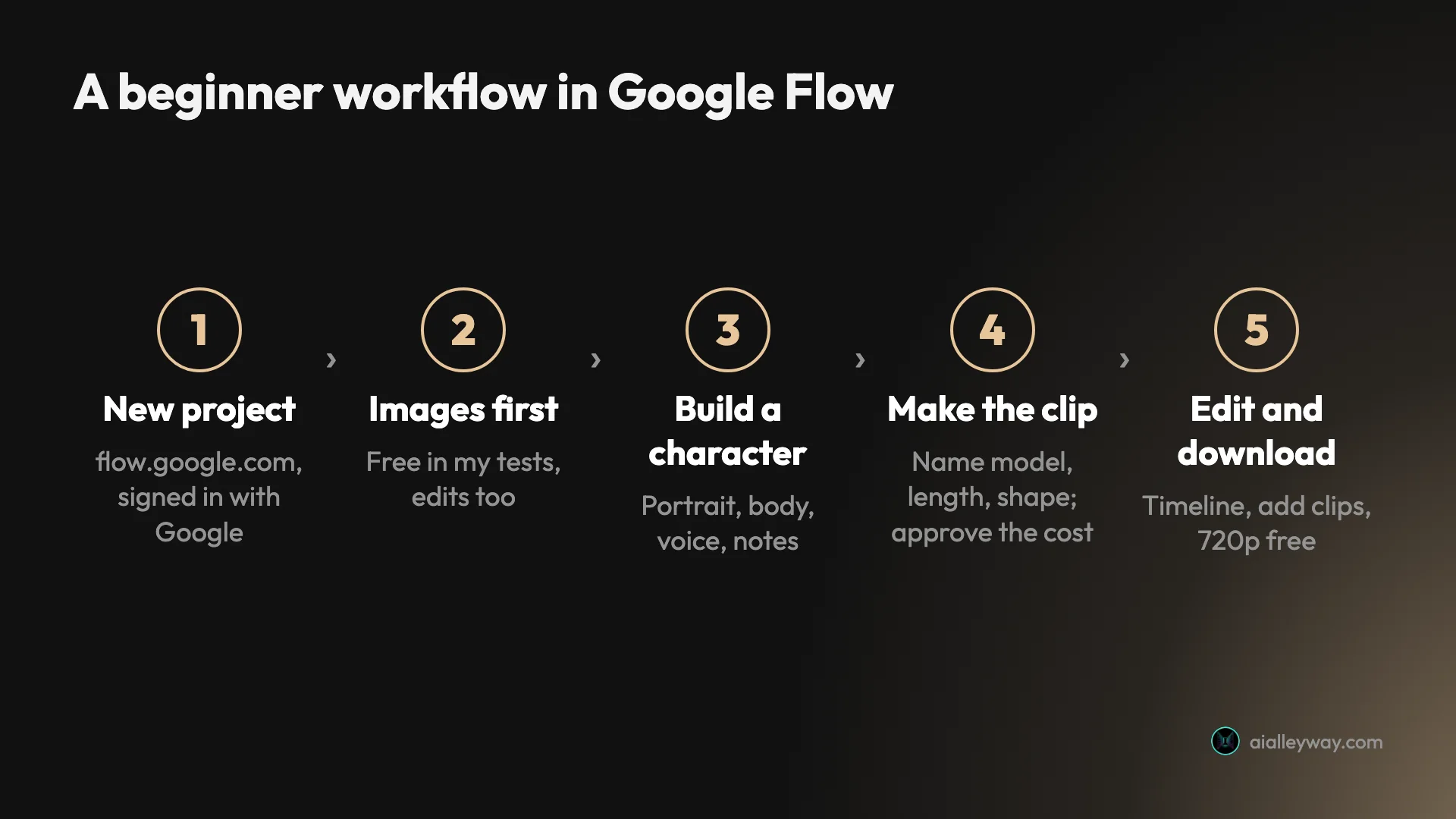
| Step | What you do | Credits it cost me |
|---|---|---|
| 1. Start a project | flow.google.com, New project | 0 |
| 2. Talk to the agent | Describe what you want, check settings | 0 |
| 3. Images and edits | Make a picture, change it in words | 0 |
| 4. Build a character | Portrait, body, voice, notes | 0 |
| 5. Make a clip | Name the model and length, approve the cost | 4 to 20 per clip |
| 6. Edit and download | Timeline, add clips; free downloads go up to 720p | 0 (my 720p download went through with 0 credits left) |
Google Flow requirements and the free allowance
You need a Google account, a computer and a Chromium browser such as Chrome. Google’s getting-started page also asks you to be 18 or older with your age verified, and in a country where Flow is offered. The same page still lists a Google AI plan as a requirement; Google’s credits page and my free account disagree with it, and our free guide explains. There is a Google Flow app for phones, which I did not test; Google recommends the computer for the full editor.
You do not need a paid plan to follow this guide. Every account gets 50 Google Flow credits a day, and our Google Flow free guide shows exactly what my 50 bought. The short version is that images cost nothing in my tests and video clips cost between 4 and 100 credits each.
Step 1: Open Flow and start a project
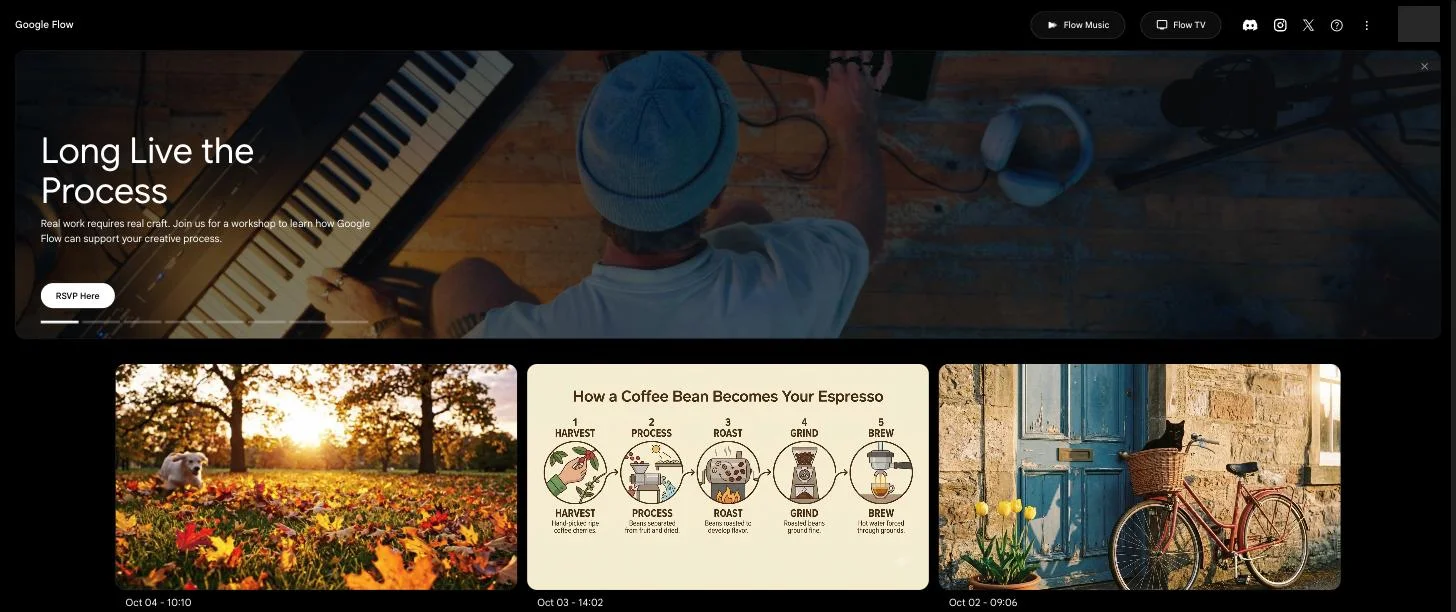
Go to Google Flow and sign in with your normal Google account. The home screen shows a banner carousel along the top, your projects as large cards named by date and time, and a New project button. Flow Music and Flow TV sit in the top bar as separate apps, and you can ignore them for now.
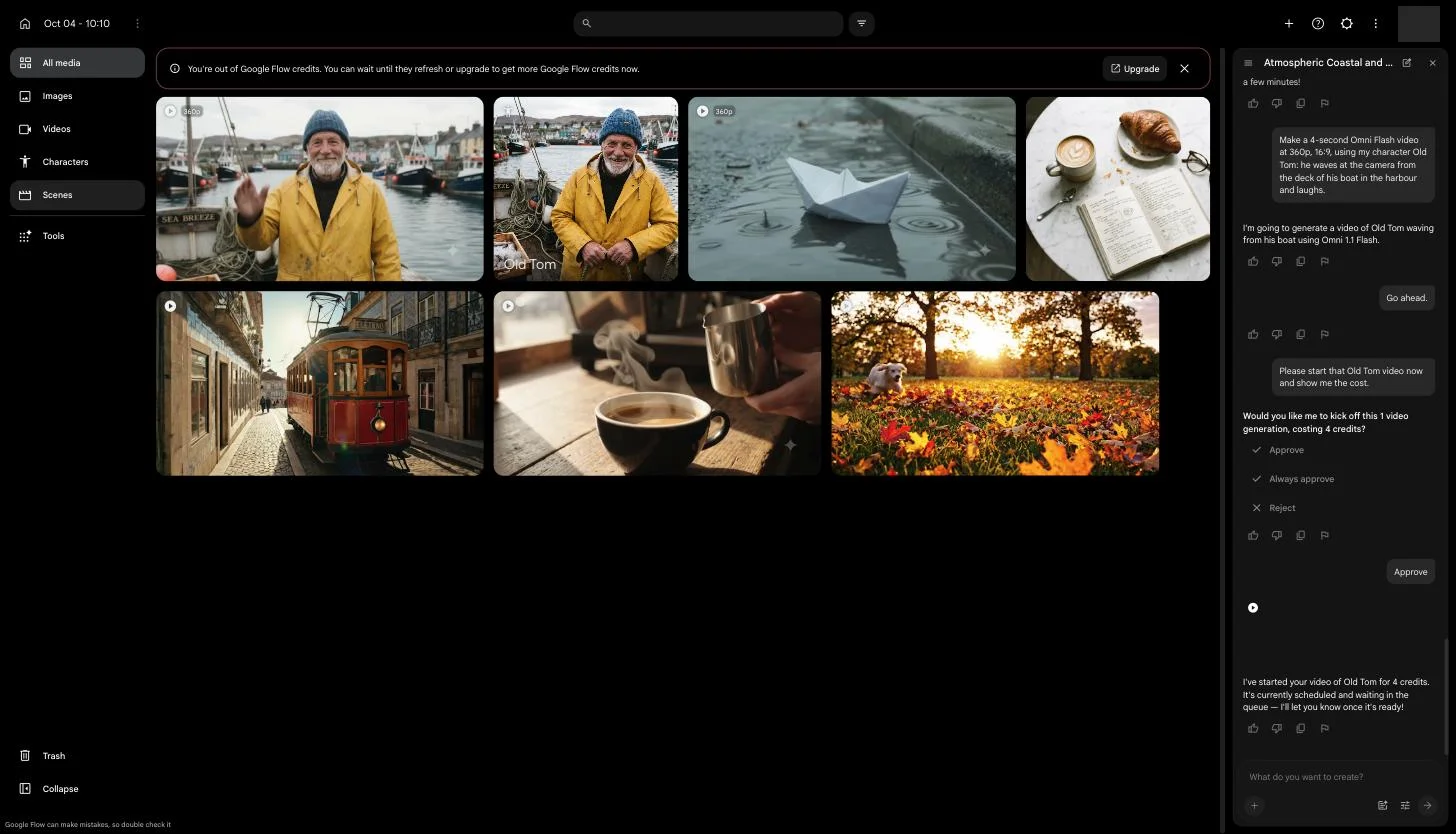
Click New project. Inside, the left sidebar holds All media, Images, Videos, Characters, Scenes and Tools, plus Trash. The middle is a grid of everything you make. The right is the agent panel with a box that asks “What do you want to create?”. Projects keep their media together, so one project per idea works well.
Step 2: Talk to the Google Flow agent
Almost everything in Flow now goes through its agent. You type a request in plain words, it decides how to make it, and for anything that costs credits it asks first. My first video request came back as a card reading “Would you like me to kick off this 1 video generation, costing 10 credits?” with Approve, Always approve and Reject.
Before your first request, click the settings icon in the prompt box. It sets the defaults the agent uses: aspect ratio, how many images or clips per request, and the model. On a new project mine defaulted to two 16:9 images on Nano Banana 2 Lite, and one 16:9 clip on Omni 1.1 Flash. The same panel has “Confirm before generating”, set to Always. Keep it there. The other option, Never, lets the agent spend your credits without asking.
Three habits made the agent easier to work with:
- Say the model, length and shape in the prompt. “A 4-second Omni Flash video at 360p, 16:9” got me exactly that, and the price on the card confirmed it before I paid.
- Nudge it if it stalls. Three times, after I named a model, the agent said it was “going to generate” the video and then stopped without a card. “Go ahead” fixed it twice. The third time it took “Please start that Old Tom video now and show me the cost.”
- Read the card every time. It is the only place the price appears before you spend, and Flow showed me cards I could not afford. Those clips failed without charging me, but they wasted a few minutes.
Google’s create-videos help page also describes a route without the agent, where you pick Video from the model menu, add start and end frames or reference images, and press Generate. My project went straight to the agent, so everything below uses it.
Step 3: Make images first, then edit them
Start with an image, because in my tests they cost nothing. Ask the agent for “1 square image with Nano Banana Pro” of anything, and it comes back with no approval card. I have made 35 images on this account in four days and none of them cost a credit, which is why I recommend learning Flow’s prompting here before you spend video credits.
Editing works the same way. I asked the agent to edit a flat-lay of a coffee cup, a croissant and an open notebook: “make it evening, with a lit candle on the table. Keep everything else the same.” About a minute later the new version kept every object where it was, warmed the light and added a lit candle in a holder. My balance was already at 0 credits when I did it, and the edit still went through.

Two image tips that carried over from our other tests. Quote any words you want printed and say the shape in the prompt, because the agent can override your default aspect ratio otherwise. Our Nano Banana Pro prompts test has 16 tested prompts for text and layouts, and our Nano Banana guide covers prompting in the Gemini app. And if you want the strongest image model, ask for Nano Banana Pro by name; the default is Nano Banana 2 Lite, and our free Nano Banana Pro guide shows Pro costing nothing in Flow.
Step 4: Build Google Flow characters with a voice
Characters are how Flow keeps the same person across shots. Click Characters in the sidebar and you get a page headed “Build and reuse characters for consistent videos”, six sample characters with names like The Eccentric and The Familiar, and a box to describe your own.
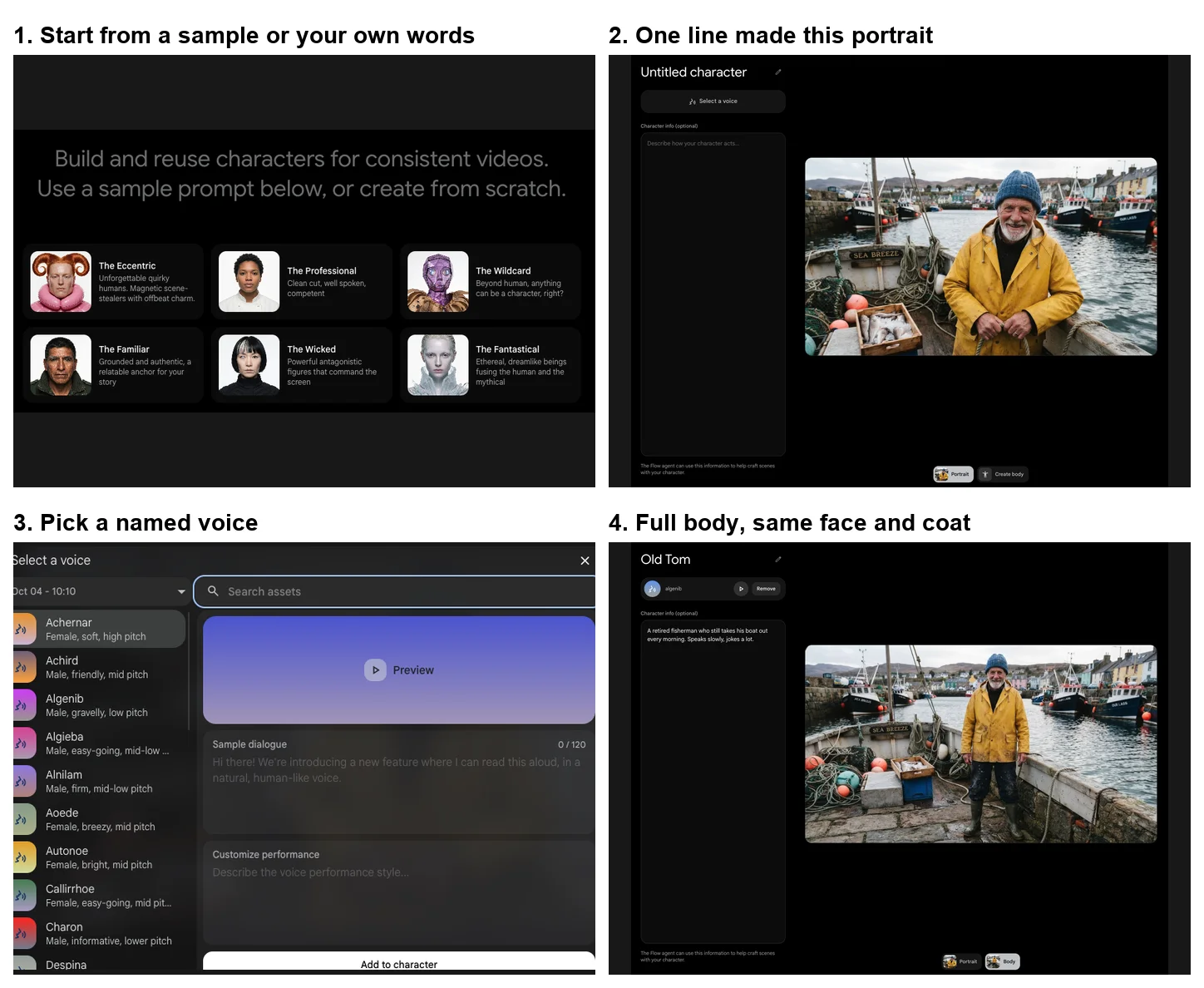
I typed one sentence: “A friendly elderly fisherman with a short white beard, yellow raincoat and knitted blue hat, weathered face, warm smile.” About 20 seconds later Flow had made a portrait of him standing on a boat called Sea Breeze in a busy harbour. The character page then offered four things to fill in:
- A name. I called him Old Tom.
- A voice. “Select a voice” opens a list of named voices, each with a short description such as “Male, gravelly, low pitch”. There is a Preview button, a box for sample dialogue and a box to describe the performance. I picked Algenib but did not play the preview.
- Character info. A free-text note that, in Flow’s words, the agent “can use this information to help craft scenes with your character”. Mine said he was a retired fisherman who speaks slowly and jokes a lot.
- A body. “Create body” makes a full-length image from a description.
The full-body image took about 25 seconds and kept the same face, hat and coat. It did not follow the prompt exactly: I asked for him standing on the harbour wall and got him on the boat’s deck. None of the character steps used any credits, and Old Tom then appeared in the project grid under his name.
Step 5: Generate a clip with your character
Now spend credits. I asked for “a 4-second Omni Flash video at 360p, 16:9, using my character Old Tom: he waves at the camera from the deck of his boat in the harbour and laughs.” It needed two nudges before the agent showed the card, which asked for 4 credits, my last 4. About 50 seconds after I approved it, the clip was in the grid.
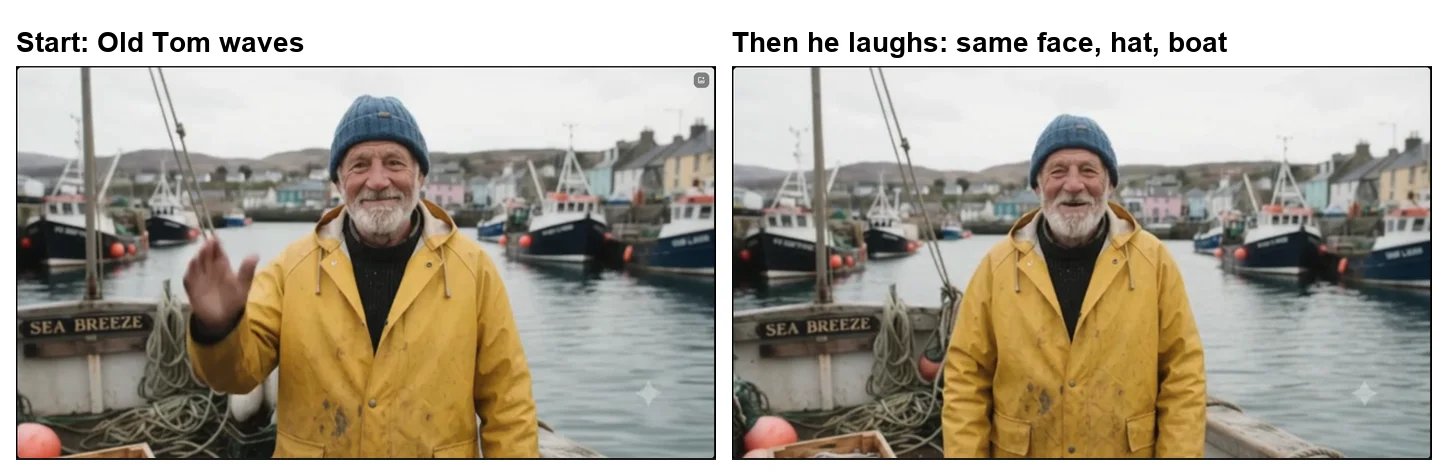
It is the best demonstration of why characters matter. The man in the clip is the same man from the portrait, down to the hat, the stains on the raincoat and the boat’s name board. He waves, then laughs, in a four-second shot at 360p. I did not check the clip’s audio, so I cannot say whether Flow used the voice I picked; Google’s help page says voice references can only be added to video generations that use ingredients.
Choose the model by budget:
| Model | Lengths | Credits for an 8-second clip | Good for |
|---|---|---|---|
| Gemini Omni Flash, 360p | 4 to 10 s | 6 | Cheap drafts |
| Gemini Omni Flash, 720p | 4 to 10 s | 12 | Sharper final versions |
| Veo 3.1 Lite | 4 to 8 s | 10 | Cheapest Veo, can extend clips |
| Veo 3.1 Fast | 4 to 8 s | 20 | Better motion, more cinematic |
| Veo 3.1 Quality | 8 s | 100 | Out of reach on the free 50 |
Costs come from Google’s credits page, and every card I was shown matched it. You can also start a clip from images rather than a character: Google’s help page describes start and end frames, and reference images it calls ingredients. I did not test those this time.
Step 6: Edit, extend and download
Click a clip and it opens in Flow’s editor: a large preview, a timeline marked in seconds, a history panel showing the prompt and any character used, and a box at the bottom that says “Describe how to edit this video”. Flow gave my clip its own title, “Man waving on boat”, and a 360P badge.
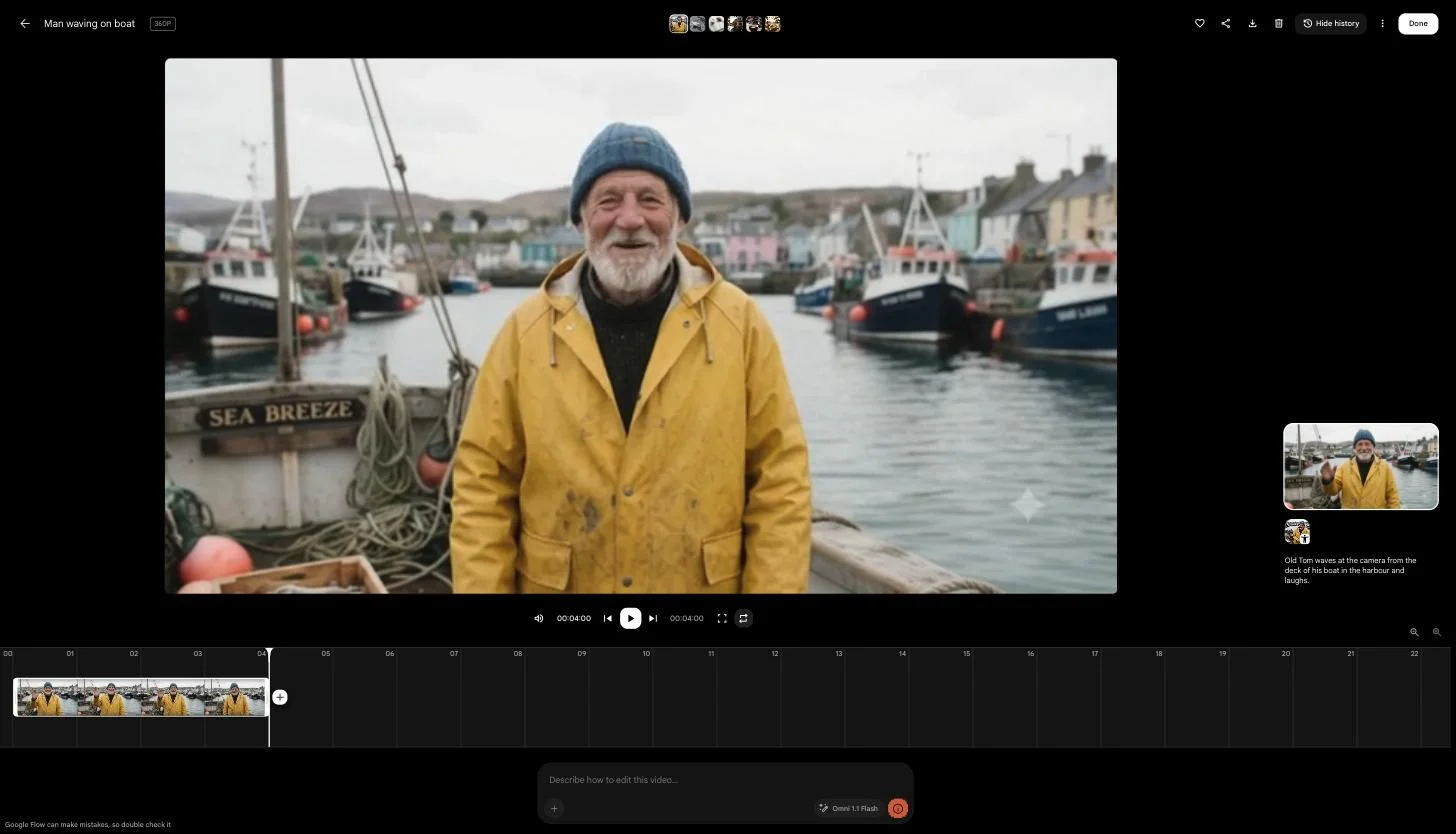
The plus button at the end of the timeline offers “Add clip” and “Extend (Veo 3.1 - Lite)”. Extend was greyed out on my Omni clip, which matches Google’s models page: only 8-second Veo 3.1 clips can be extended, and Lite does the extending. Editing a clip with a prompt uses Omni Flash and costs 40 credits per Google’s credits page, so I did not try it with my balance at zero.
To save a clip, use the download icon at the top right. On my free account a 720p clip offered a 270p animated GIF or the 720p original, with 1080p and 4K behind Upgrade. The 360p clip offered 360p. The three-dot menu also has “Download project”, Google’s help centre and a “Learn Flow” link.
One thing to know before you share anything. Google says every Flow output carries an invisible SynthID watermark, and a visible one is applied automatically in India, South Korea and Vietnam. I tested from Vietnam, where the visible watermark switch was greyed out, and a Veo 3.1 Lite clip I downloaded from the same account at 720p carried a small white “Veo” mark in the bottom-right corner. Outside India, South Korea and Vietnam, Google’s help page says a toggle in the profile menu controls the visible watermark.
What the Tools tab is
Tools is the newest part of Flow and the least necessary for a beginner. It holds small creative apps built inside Flow, in three tabs: My Tools, Community and Templates. The Community tab showcased tools such as CaptionCast, which adds captions to videos, and CollageMotion Pro, which makes collage-style animations.
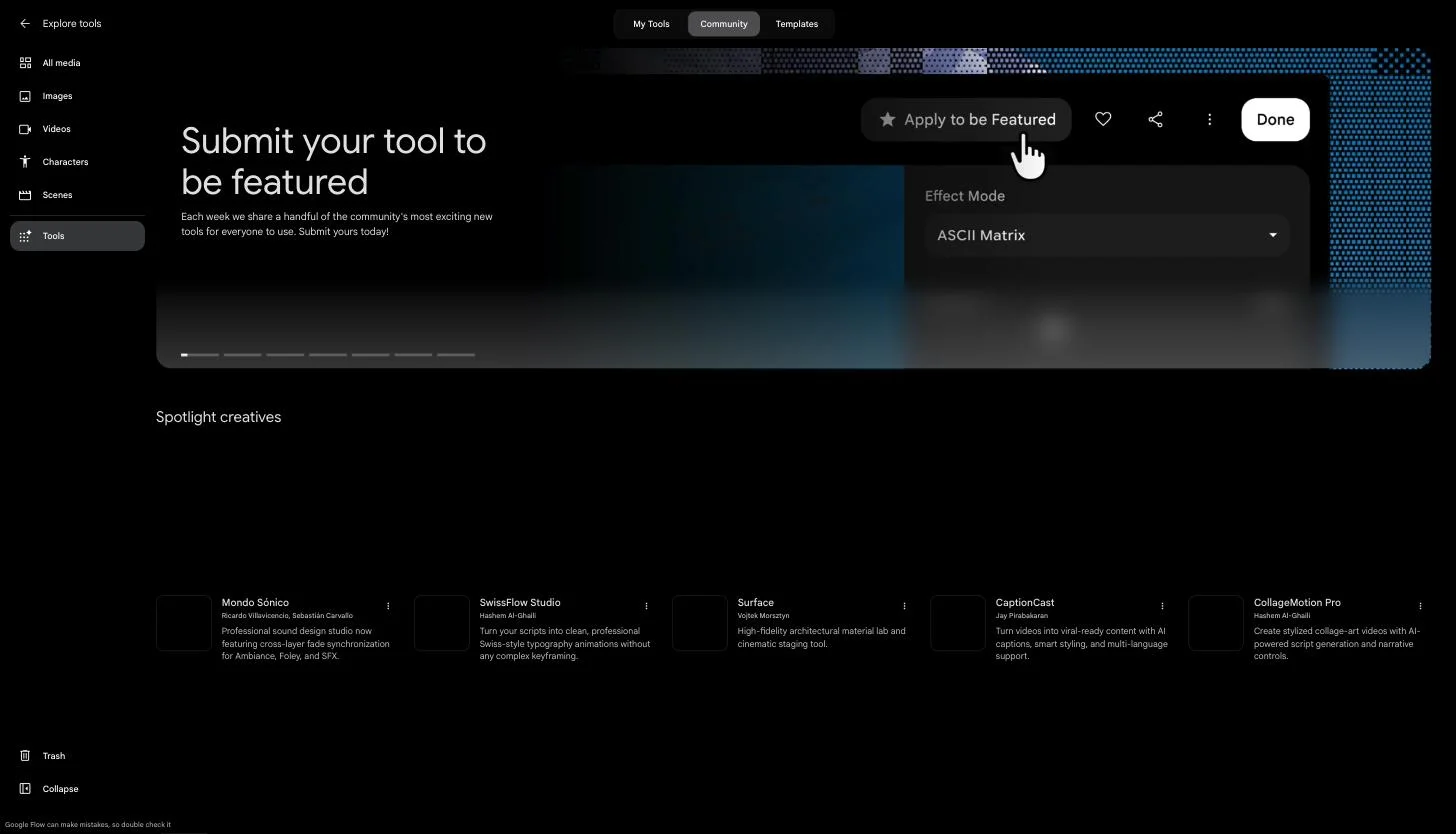
On a free account, My Tools showed “Upgrade to create”, so building your own tool needs a paid plan. I did not run any community tool, so I cannot tell you what they cost in credits. Scenes, the other sidebar item, did not open a separate view when I clicked it, and I did not explore it further.
What costs credits in Google Flow
Once you know which actions spend credits, the free 50 go much further.
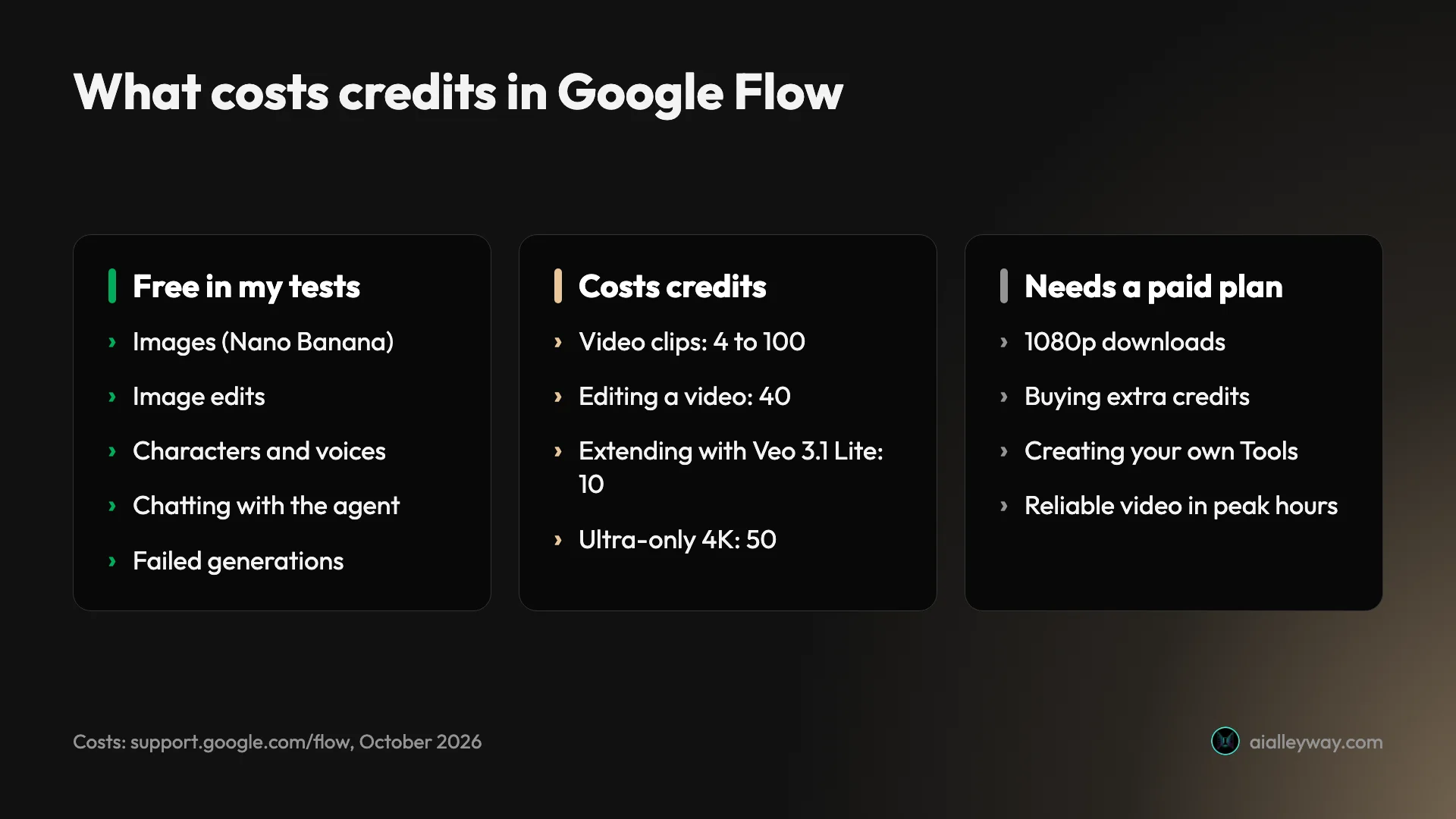
Google’s credits page adds two rules worth knowing. The daily 50 refresh 24 hours after your first generation, not at midnight, and unused credits do not roll over. And between roughly 2 PM and 5 PM UTC, people without a subscription may not be able to generate video at all, though images and the agent keep working. When my balance hit zero, Flow put a banner across the top of the project: “You’re out of Google Flow credits. You can wait until they refresh or upgrade to get more Google Flow credits now.”
A first project you can copy
If you want a short Google Flow tutorial for your first session, here is a script built from prompts I typed on 4 October. I ran them at different points in the day, between other clips, not as one session. As a plan it uses one video clip, so it fits inside a single day’s free credits with plenty to spare.
- One image to test your scene. “Now make 1 square image with Nano Banana Pro: a flat-lay of a ceramic coffee cup, croissant and open notebook on a marble table, soft morning light.” Cost: 0 credits. My first attempt failed with “Something went wrong” and the retry worked, so do not give up after one error.
- One edit to learn how changes work. “Edit the flat-lay image with the croissant and notebook: make it evening, with a lit candle on the table. Keep everything else the same.” Cost: 0 credits, about a minute.
- One character. In Characters: “A friendly elderly fisherman with a short white beard, yellow raincoat and knitted blue hat, weathered face, warm smile.” Then a name, a voice, a line of character info and “Create body”. Cost: 0 credits.
- One cheap clip. “Make a 4-second Omni Flash video at 360p, 16:9, using my character Old Tom: he waves at the camera from the deck of his boat in the harbour and laughs.” Cost: 4 credits.
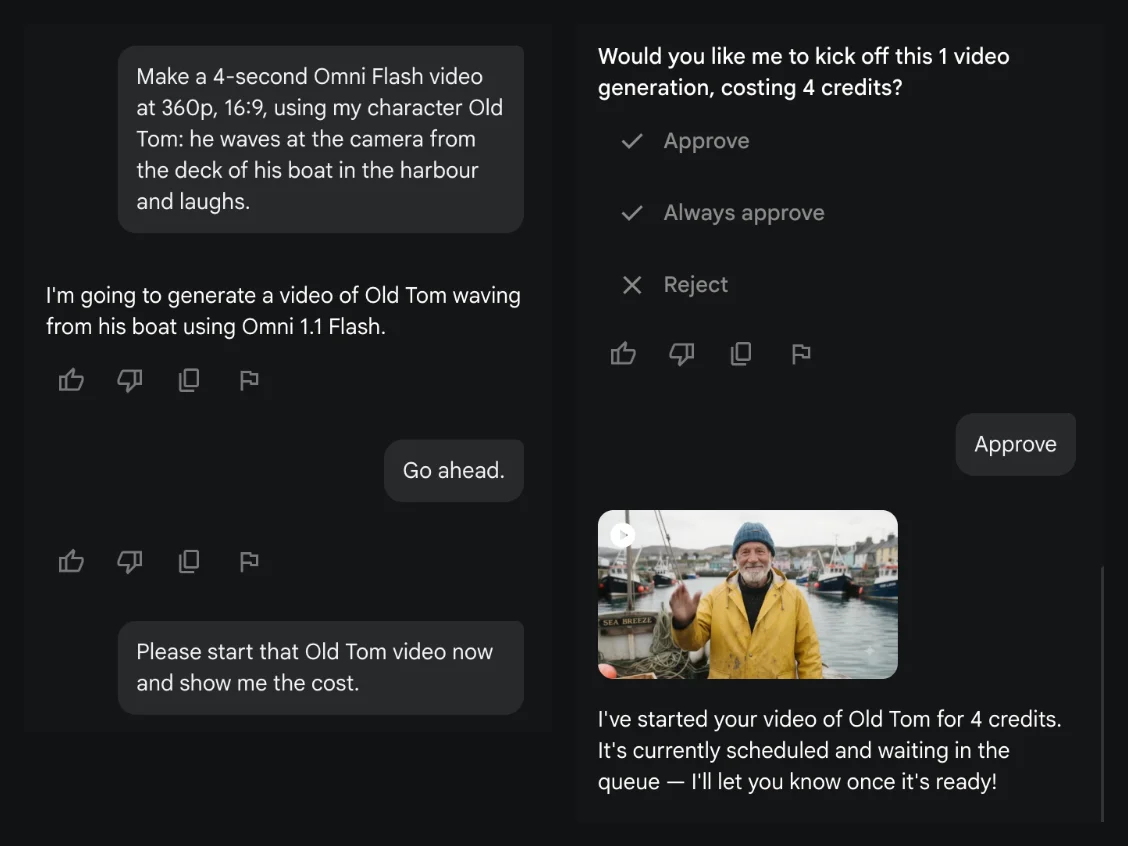
On a fresh day that plan leaves 46 of your 50. A good next move is to rerun step 4 as an eight-second clip at 720p for 12 credits, or on Veo 3.1 Fast for 20, once you are happy with the draft. Swap in your own subject at every step; the structure is what matters. Each prompt names the subject and the details that matter to you, and the video prompt also names the model, length, resolution and shape, so the approval card tells you the price before anything runs.
Beginner errors that waste Flow credits
- Spending credits on your first idea. Make an image of the scene first. It costs nothing in my tests and shows you how Flow reads your prompt.
- Turning approvals off. “Never” in the settings lets the agent spend without asking, and a misunderstood request can take your whole day.
- Leaving the model to chance. Name the model, length and shape in the prompt. Otherwise the agent uses your defaults, which were Omni Flash at 720p on my project.
- Waiting on a stalled agent. If it says it is starting and nothing happens, a short “Go ahead” usually brings up the card.
- Expecting exact obedience. Flow put Old Tom on the deck when I asked for the harbour wall. Check the first result before asking for variations.
- Forgetting the 720p ceiling. Free downloads stop at the clip’s original size, so a 360p draft stays 360p unless you pay.
Should you learn Flow or pay for a plan?
| Free | Google AI Plus | Google AI Pro | |
|---|---|---|---|
| Price a month (US) | $0 | $4.99 | $19.99 |
| Flow credits | 50 a day | 50 a day + 200 a month | 50 a day + 1,000 a month |
| Downloads | Up to 720p | 1080p at 0 credits | 1080p at 0 credits |
| Buy extra credits | No | Yes | Yes |
| Create your own Tools | No (“Upgrade to create”) | Not tested | Not tested |
- Use Flow if you want to learn AI video without paying, make short clips for social posts, or keep the same character across several shots. The free images and characters make it the most generous place I have found to practise.
- Pay for a Google AI plan if you need 1080p files, more than a few clips a day, or Veo 3.1 Quality. Plus starts at $4.99 a month; our Veo 3 pricing guide shows what each plan’s credits buy.
- Look elsewhere if you need long single takes or precise frame-by-frame editing. Flow’s clips are 4 to 10 seconds, and our Google Veo review covers how the underlying model performs.
Final word
Google Flow is easier to learn than it looks, as long as you learn it in the right order. Make images first, because they cost nothing. Build a character, because that is what keeps your clips looking like one story. Then spend your daily credits on short, deliberate clips, naming the model and length so the price on the card is the price you expected.
My afternoon session, from one sentence describing a fisherman to a clip of him waving and laughing on his own boat, cost 4 credits for the clip and nothing else. That is a good reason to try it before you pay for anything.
Frequently asked questions
What is Google Flow?
Google Flow is an AI filmmaking app from Google Labs at flow.google.com. It makes video with Veo 3.1 and Gemini Omni Flash and images with Nano Banana models, with an agent you talk to, reusable characters and a timeline editor in one project. Every account gets 50 free credits a day; you need to be 18 or older, and Google recommends a computer with a Chromium browser such as Chrome.
Is Google Flow the same as Veo?
No. Veo is Google's video model, and Flow is the app where you use it. Flow also runs Gemini Omni Flash for video and Nano Banana for images, and adds the agent, characters and the editor around them. Veo 3.1 comes in Lite, Fast and Quality versions inside Flow, at 10, 20 and 100 credits a clip without Ultra.
How do I use Google Flow for the first time?
Go to flow.google.com in Chrome on a computer, sign in with your Google account and click New project. Type what you want into the prompt box on the right, which talks to Flow's agent. For a video, the agent shows the cost in credits and waits for you to approve it.
I would start with an image rather than a video. Images cost no credits in my tests, so you can learn how Flow reads prompts before you spend any of your 50 free daily credits.
Is Google Flow free to use?
Yes, within a daily limit. Google's credits page says every account gets 50 Google Flow credits a day, and my free account had them. Video clips cost between 4 and 100 credits each; images, image edits and characters cost nothing in my tests.
Paid Google AI plans add monthly credits on top, plus 1080p downloads and the option to buy extra credits. Our Google Flow free guide shows what the 50 credits bought on my account.
What can you do in Google Flow?
Make images with Nano Banana models, edit them in plain words, build reusable characters with a portrait, a full-body image and a voice, and turn any of it into short video clips with Veo 3.1 or Gemini Omni Flash. Clips open in an editor with a timeline where you can add more clips, and Omni clips can be edited with a prompt.
There is also a Tools area of community-made mini apps. Creating your own tool needs a paid plan.
How do I make a consistent character in Google Flow?
Open Characters in the left sidebar and describe the person in one sentence, or start from one of the six sample characters. Flow makes a portrait, and you can add a full-body image, a named voice and a short description the agent can use. Then ask for a video using the character by name.
In my test a fisherman I called Old Tom kept the same face, hat, coat and boat from portrait to body shot to video clip.
Why does the Google Flow agent not start my video?
In my testing the agent sometimes replied that it was going to make the video and then stopped without showing the approval card. It happened three times, each time after I named a model in the prompt. A short follow-up such as "Go ahead" or, once, "Please start that Old Tom video now and show me the cost." brought the card up.
If a clip fails after you approve it, Google says you are not charged, and that matched both failed attempts I saw.
Can you download Google Flow videos for free?
Yes, up to the clip's original resolution. On my free account a 720p clip offered a 270p animated GIF or the 720p original, with 1080p and 4K behind Upgrade buttons. A 360p clip offered the 360p original. A Veo clip I downloaded at 720p carried a small 'Veo' mark in the corner, which Google applies automatically in Vietnam, where I tested.
Google's credits page says 1080p upscaling costs 0 credits for Plus, Pro and Ultra subscribers and is not available without a plan.
Keep reading
Google Flow Free: What 50 Daily Credits Buy, Tested
Google Flow free, tested on a free account: 50 credits a day bought four AI video clips, images cost nothing, and Veo 3.1 Quality was out of reach.
Google Veo 3 Pricing: What It Really Costs Per Clip
Google Veo 3 pricing, decoded: free to try, but the real cost is Flow credits — a Quality clip is about $2. Full per-clip, per-plan math, measured hands-on.
Google Veo 3 Review: Cinematic AI Video, Brutal Credit Math
Google Veo makes the West's most cinematic AI video, but a top clip costs 100 credits. My hands-on take on quality, the Flow workflow, and real pricing.
Nano Banana Pro Prompts: 16 Tested for Text and Layouts
16 Nano Banana Pro prompts for posters, labels, charts, comics, app screens and headshots, tested free in Google Flow, with every result and two fixes.