
Google Veo 3 Review: Cinematic AI Video, Brutal Credit Math
Google Veo makes the West's most cinematic AI video, but a top clip costs 100 credits. My hands-on take on quality, the Flow workflow, and real pricing.
Contents
Is Google Veo worth it?

Google Veo makes the most convincing AI video you can get in the West right now, and since OpenAI pulled Sora offline in 2026, it is effectively the default. In testing, even the cheapest Veo tier turned a one-line prompt into an eight-second café scene with clean hands on a milk pitcher, realistic chrome and denim, and natural window light. That is the kind of shot that used to break AI video.
The reason it does not score a perfect five is money. Veo lives inside Google Flow and runs on credits, and a single eight-second clip on the top Quality model costs 100 of them. The 1,000 credits on the $19.99 Pro plan buy ten of those a month. The video is a category leader; the credit meter is the part nobody warns you about.
If you want the safest, most cinematic result and you are willing to either work on the cheaper Fast tier or pay for Ultra, Veo is the one to beat. If you generate video in volume or care most about cost per clip, read the pricing section before you commit, and compare Kling first.
What is Google Veo, and how do you use it?
Veo is Google’s text-to-video and image-to-video model. You do not use it in a standalone “Veo” app. You reach it through Google Flow, Google’s AI creative studio at labs.google, which is where the generation, editing, and project management all happen.
Its position in the market shifted in 2026. OpenAI shut down Sora that year, which removed Veo’s main Western rival and left it as the model most creators reach for first. The Chinese models still push it on raw benchmarks, but on the combination of quality, native audio, and easy access, nothing in the West is currently ahead of it.
Open Flow today and the first thing it pushes is a newer model called Gemini Omni Flash (our Gemini Omni test covers it). That matters, because a lot of older reviews assume Veo 3.1 is the flagship. It is still there, but the video model dropdown now lists four options: Omni Flash, Veo 3.1 Lite, Veo 3.1 Fast, and Veo 3.1 Quality. Every one of them carries a native-audio marker.
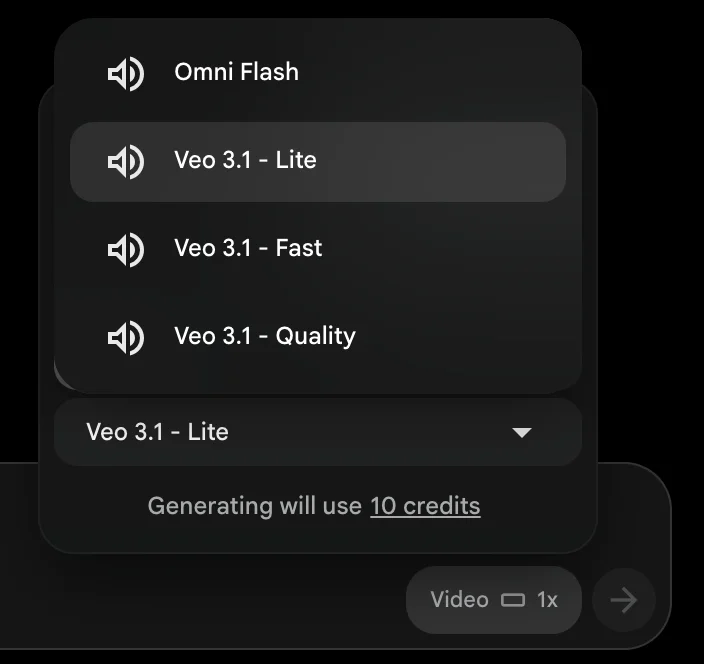
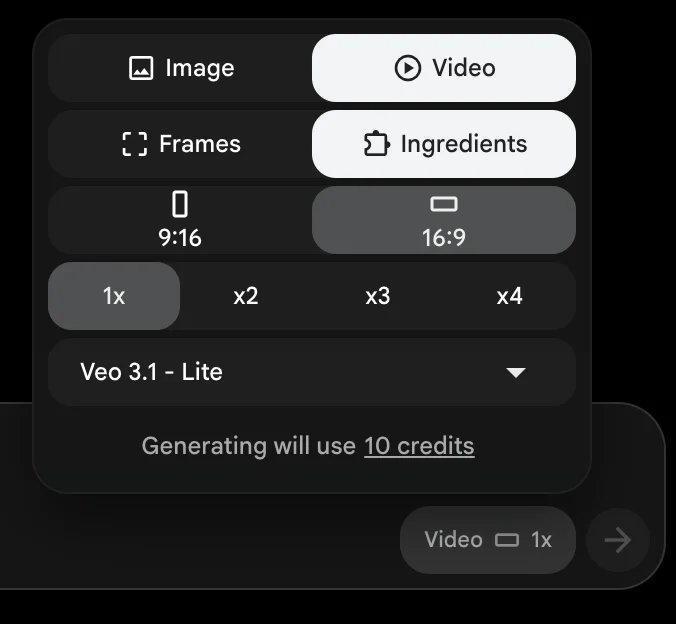
In practice you type a prompt, pick a model, choose an aspect ratio (16:9 or 9:16) and a clip length (4, 6, 8, or 10 seconds), and generate. Flow also has an agent panel that will storyboard and chain shots for you, plus image generation through a separate model called Nano Banana 2 Lite.
The studio is built around projects rather than one-off clips. A left rail holds All Media, Characters, and Scenes, so you can build a cast and reuse it across shots for consistency, and a conversational panel greets you by name and offers to develop a storyboard or explain the keyboard shortcuts. A settings toggle called “confirm before generating” is on by default, which means the agent asks before it spends any credits rather than burning them automatically. That default is worth leaving alone.
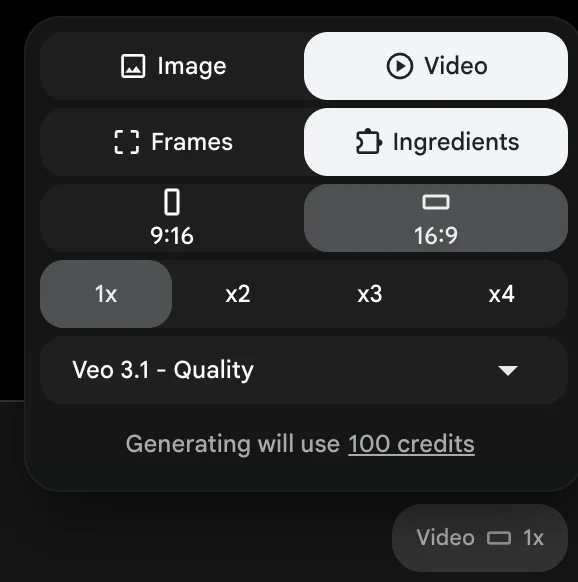
Credit costs are also shown up front, which is a genuinely good piece of design. Before you generate, the panel spells out exactly what a clip will cost, so you see “Generating will use 10 credits” on the Lite model or “100 credits” on Quality, and stills read “0 credits.” You always know the price before you pay it, and switching models or clip length updates the number live. It is a small thing that saves you from nasty surprises on your monthly allowance.
Choosing between the four models is the main decision, and it is less about which is “best” than which trade-off you want. Here is how they line up in practice.
| Model | Best for | Native audio | Notes |
|---|---|---|---|
| Gemini Omni Flash | Fast drafts, the new default | Yes | Newest model, cheapest paid video option |
| Veo 3.1 Lite | Cheap tests, quick social clips | Yes | Lowest credit cost, entry-level fidelity |
| Veo 3.1 Fast | Everyday production | Yes | The speed-to-quality balance most work needs |
| Veo 3.1 Quality | Final, cinematic shots | Yes | Highest fidelity, upscales toward 4K |
You are not limited to typing a prompt, either. Alongside text-to-video, the Flow interface exposes a Frames option for animating from a starting image and an Ingredients option for feeding reference images so a character or object stays consistent. Because still images through the Nano Banana model cost nothing, the natural workflow is to nail a look on free frames first, then spend video credits animating it.
The output is the headline feature. Veo generates dialogue, sound effects, and ambient audio in the same pass as the picture, so a café prompt comes back with the room tone already attached. Prompt adherence is strong, the cinematic look is consistent, and the top tier upscales toward 4K. The main structural limit is length: clips top out at eight seconds natively, and longer pieces are stitched together in the editor.
How much does Google Veo cost?
Google Veo is free to try, and paid plans run from $4.99 to $99.99 a month, plus 10 to 100 Google Flow credits per eight-second clip depending on which model you pick. There are two layers to understand: the subscription plan you buy, and the credits each generation spends.
There is a real free path first. Any Google account gets 50 Flow credits a day, and in testing a free account generated a full eight-second clip on Veo 3.1 Lite without hitting a paywall. The catch is that 50 credits buy about five Lite clips and a 100-credit Quality clip never fits, so free access works as a trial rather than a workflow. Once you generate more than a handful of clips, you move to a paid plan.
The plans are Google AI tiers, priced below for the US market (they vary by region).
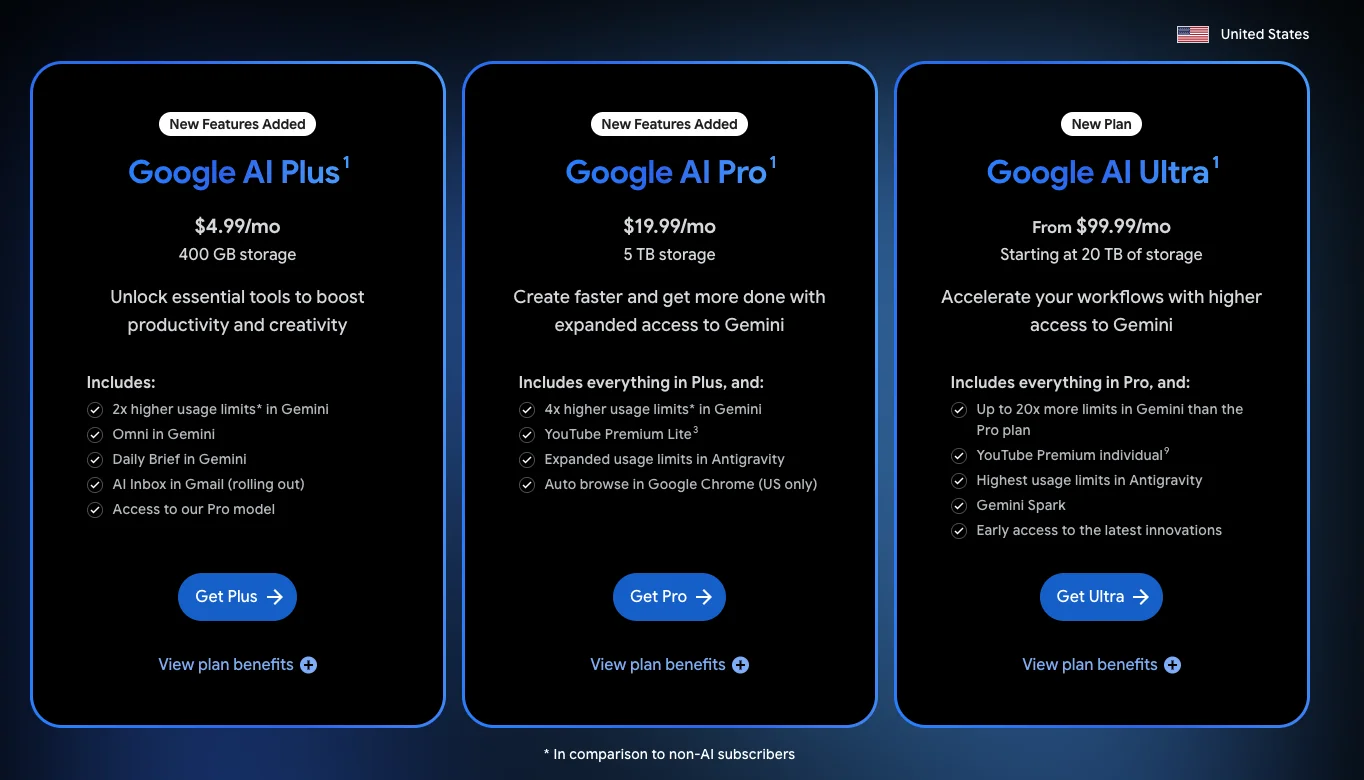
- Free — any Google account, 50 Flow credits a day, which cannot cover a 100-credit Quality clip.
- Google AI Plus — $4.99 a month, 200 Flow credits.
- Google AI Pro — $19.99 a month, 1,000 Flow credits.
- Google AI Ultra — from $99.99 a month, 10,000 to 25,000 Flow credits.
Paid plans add these monthly credits on top of the same 50 daily credits every account gets.
The second layer is the credit cost per clip, and this is the number that decides whether a plan is generous or stingy. I measured it directly in the Flow interface for an eight-second clip at single quantity.
| Model | Credits per 8s clip | Clips from Pro’s 1,000 credits |
|---|---|---|
| Veo 3.1 Lite | 10 | 100 |
| Gemini Omni Flash | 12 | ~83 |
| Veo 3.1 Fast | 20 | 50 |
| Veo 3.1 Quality | 100 | 10 |
| Still image (Nano Banana 2 Lite) | 0 | unlimited |
Read that table and the real cost of Veo becomes obvious. On the Pro plan, the flagship Quality model gives you ten clips a month, roughly eighty seconds of your best footage. Fast stretches to fifty clips, and Lite to a hundred. If your work leans on Quality, Ultra is not a luxury tier, it is the plan you actually need.
It helps to think in finished projects rather than single clips. Because Veo caps a native clip at eight seconds, a one-minute video is roughly eight generations stitched together. The table below shows what that single minute costs against Pro’s monthly 1,000 credits.
| One minute of video (~8 clips) | Credits | Share of Pro’s monthly 1,000 |
|---|---|---|
| Veo 3.1 Quality | ~800 | 80% |
| Veo 3.1 Fast | ~160 | 16% |
| Veo 3.1 Lite | ~80 | 8% |
A single polished minute on the Quality model eats most of a Pro month. That is before you count re-rolls for prompts that miss, and the quantity toggle (x2, x3, x4) multiplies the cost each time.
The one genuinely free lever is still images. Generating a frame with Nano Banana 2 Lite cost zero credits in testing, so you can storyboard, test compositions, and lock a look on free stills before you ever spend a video credit. Used well, that keeps your credit pool for the shots that actually ship.
So which plan makes sense? Plus, with 200 credits, is barely a step above free and really only buys a couple of Quality clips, so treat it as an extended trial. Pro at 1,000 credits is the right home for most individual creators who draft on Fast and finish on Quality. Ultra is for anyone whose output depends on the top model at volume, or for a team sharing one account. The honest rule is to pick your plan from the credit table, not the headline price.
Who is Google Veo for?
Google Veo is for creators who want the most photorealistic, audio-complete clip from a text prompt and value a result that just works over squeezing the lowest price. If that is you, three groups fit best. Filmmakers and video artists get the cinematic grade and native audio that make Veo feel closest to real footage. Ad and brand teams get output polished enough for client work without a production crew, plus the Flow editor to assemble it. Social creators who post occasional hero clips rather than daily volume can lean on the free tier and the cheaper Fast model.
It is a weaker fit for others. If you generate video at scale, the credit math punishes heavy Quality use and cheaper models get close on raw fidelity. If you need continuous clips longer than a few seconds, the eight-second cap and stitching workflow will frustrate you. Match yourself to the first list, and Veo is an easy recommendation; see yourself in the second, and one of the alternatives below fits better.
What does Google Veo get right?
Cinematic realism, even on the cheapest tier
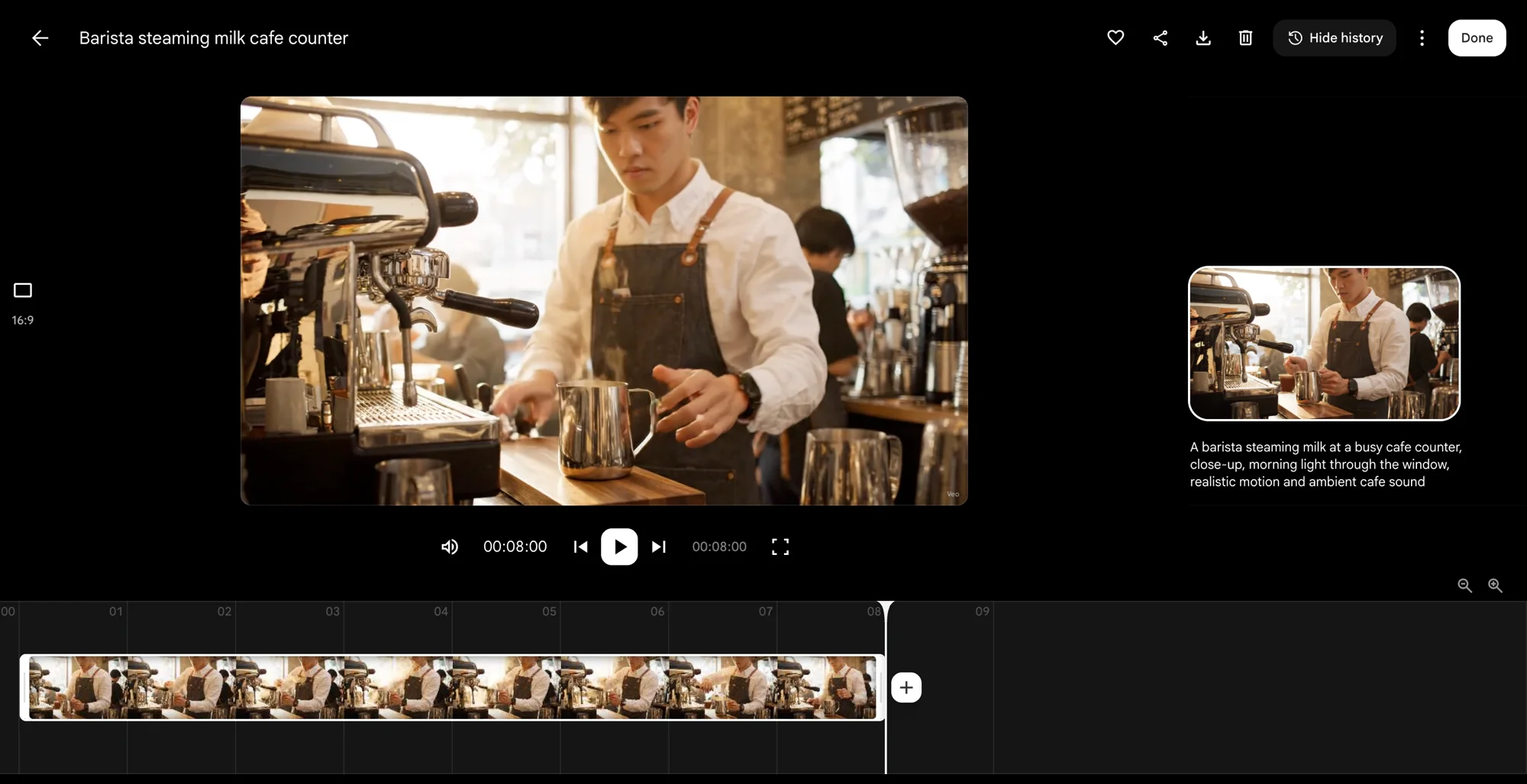
The surprise in testing was how good the entry-level output looked. My prompt for a barista steaming milk went through Veo 3.1 Lite, the 10-credit option, and came back photorealistic: coherent hands wrapped around the pitcher, believable reflections on the espresso machine, soft background bokeh with other patrons, and warm morning light through the window. Hands and fine motion are exactly where AI video usually falls apart, and this held together. Here is what that single generation actually involved:
| Test detail (Veo 3.1 Lite, one prompt) | Result |
|---|---|
| Credits spent | 10 |
| Clip length | 8 seconds, 16:9 |
| Render time (under a “high demand” banner) | ~60–70 seconds |
| Hand and pitcher anatomy | Clean, no distortion |
| Materials and lighting | Photorealistic |
| Visible watermark | None on our July export; small “Veo” mark on an Oct export from a region where Google applies one automatically |
I generated on the Lite model, not Quality, so treat what follows as reasoned inference rather than a tested claim: if the cheapest tier is already this convincing, the Quality model above it should only build on that. That headroom is the core of why Veo reads as a category leader.
Native audio in a single pass
Veo generates sound with the picture instead of leaving you to add it later. Every model in the Flow dropdown is marked for native audio, and a prompt that mentions ambient noise comes back with the room tone baked in. The system handles three things at once, all generated in the same pass as the video.
| Veo generates in one pass | Example |
|---|---|
| Dialogue | Spoken lines matched to lip movement |
| Sound effects | A steam-wand hiss, footsteps, a door |
| Ambient audio | Room tone, street noise, weather |
The barista clip above carries its own café ambience, generated with the picture rather than dropped in afterward.
Lip-sync is where this pays off most. Matching mouth movement to speech is the detail that usually gives AI video away, and it is one of Veo’s strongest areas. Rival models like Kling and Seedance now generate audio too, but Veo’s synchronization stays a step ahead.
That single-pass audio is a real time saver. It removes an entire post-production step that tools without native sound force back onto you, and for talking-head or dialogue-driven clips it is the feature that makes Veo worth its price.
A real free tier and easy access
Unlike most top-tier models, Veo has a genuine free path. Any Google account gets 50 Flow credits a day, and in testing a free account generated a full eight-second clip without a paywall in the way. Our Google Flow free guide shows what those 50 credits buy. Beyond that, access ladders up cleanly through plans people may already pay for.
The bigger advantage is how deeply Veo sits inside Google. The same model surfaces in the Gemini app, in Google Vids for slide-style video, and through the Vertex AI API for developers who want to build on it. It even reaches third-party tools; our InVideo review covers one script-based workflow that generates through Veo. If your team already lives in Google Workspace, video generation shows up where you already work rather than in yet another standalone subscription.
That reach is a quiet edge. A creator can try the real thing before spending anything, and a business can adopt it through infrastructure it already trusts, which is not true of a Chinese model reached through an unfamiliar app.
Prompt adherence and consistency
Veo follows instructions closely and keeps a scene coherent. Framing, lighting, and subject stay stable across a clip, and the cinematic grade is consistent rather than a lucky roll. Prompt adherence and scene consistency are the axes where Veo most often leads.
Flow is a studio, not just a generator
The thing that separates Veo from a bare model endpoint is Flow itself. Generated clips drop onto a timeline, and a “describe your edits” box lets you revise a shot in plain language. Characters and Scenes let you save a subject and carry it across generations, which is how you keep the same person or set consistent across a sequence. Our step-by-step Google Flow tutorial builds a character and turns it into a clip.
| Flow feature | What it does |
|---|---|
| Timeline | Assemble and stitch clips into a sequence |
| Describe your edits | Revise a shot in plain language |
| Characters | Save a subject and reuse it across shots |
| Scenes | Keep a set or location consistent |
That workflow matters for real projects. Stitching eight-second clips into something longer, keeping a character stable, and revising by prompt are the difference between a novelty and a tool you can actually deliver client work in.
Where does Google Veo fall short?
The credit math is the real price
The subscription number is not the cost that matters. At 100 credits per Quality clip, the Pro plan’s 1,000 credits are gone after ten clips, and heavy users hit that wall fast. It is easy to sign up at $19.99 thinking you have bought a month of video and discover you have bought about eighty seconds of your best footage.
Picture a realistic project: a thirty-second promo on the Quality model. That is about four clips, or 400 credits, nearly half a Pro month, and that assumes every generation lands on the first try. Add the re-rolls that any prompt-driven tool needs and a single short deliverable can consume most of your allowance. This is why so many creators end up drafting on the cheaper tiers and reserving Quality for the final shots.
The eight-second ceiling
Clips cap at eight seconds natively, so anything longer means stitching shots together in the editor rather than generating one continuous take. For a montage that is fine, but for a single flowing shot it is a real limit the marketing glosses over.
On watermarks, our July export from the free Lite tier carried no visible mark, but an October export (tested from a region where Google applies a visible watermark automatically) carried a small “Veo” label in the bottom-right corner. Why the two exports differ is not established. Google’s help page says users elsewhere control the visible watermark with a toggle in the profile menu, so check your own export. Everywhere, Google also embeds an invisible SynthID provenance tag, as it does across its AI models.
It buckles under load
During testing, Flow ran a standing banner reading that it was experiencing high demand affecting video generation. My eight-second Lite clip took roughly sixty to seventy seconds to render, slower than the tool’s usual pace. When Google’s capacity is stretched, generations slow down or need retrying, which is a real consideration if you are working to a deadline.
The best model is out of free reach, and regions vary
The top Veo 3.1 Quality tier costs 100 credits a clip for every user, which a free account’s 50 daily credits can never cover, so the free path gives you Lite, Fast and Omni Flash, not the flagship. Pricing and available features also shift by region and plan, so what you see and pay depends on where your account is set. That is worth checking before you assume a given tier is included.
The lineup is confusing
Google’s naming does you no favors. You open Flow to make a “Veo” video and the default model is called Gemini Omni Flash, with three separate Veo 3.1 tiers beside it. Working out which model to pick, what each costs, and why the newest one is not called Veo takes a few minutes of poking around that a first-time user should not have to. The tool is powerful; the on-ramp is cluttered.
Here is the short version of what to watch for before you commit.
| Watch out for | The catch |
|---|---|
| Quality clip cost | 100 credits each, about 10 per month on Pro |
| Clip length | 8 seconds native, longer means stitching |
| Confusing lineup | Omni Flash vs three Veo 3.1 tiers |
| Peak-load slowdowns | Slower or retried renders under “high demand” |
| Best model access | Veo 3.1 Quality costs 100 credits, more than the free 50 a day |
Alternatives worth considering
If Veo’s credit costs or eight-second limit do not fit, three models are worth a look. Here is how they stack up against Veo at a glance.
| Tool | Where it beats Veo | Where Veo wins | Best for |
|---|---|---|---|
| Kling | Native 4K, lower cost per clip | Native audio, prompt adherence | Cinematic motion on a budget |
| Runway | Editing suite, ProRes, an affiliate program | Raw fidelity, native audio | Edit-heavy client work |
| Seedance | Benchmark scores, price | Trust, ease of access, polish | Frontier quality for less |
Kling is the closest rival on raw quality, and it beats Veo on two fronts: native 4K at high frame rates and a lower cost per clip. The trade-off is trust. Kling’s motion and detail are genuinely elite, but user complaints about its billing, from charges after cancellation to credits that expire, surface often enough that the fine print is worth reading before you subscribe. If you want cinematic motion at a friendlier price and do not need Google’s ecosystem, it is the first tool to compare. See Kling or Kling vs Veo.
Runway is the pick when editing control matters more than raw fidelity. It has fallen behind the frontier on pure output quality, but its Aleph editing model, inpainting, and ProRes export make it the tool of choice for client-facing, edit-heavy work, and it plugs into Adobe apps. It is also the only one of the three with a real affiliate program, which tells you it is built for professional users. See our full Runway review or Runway vs Veo 3.
Seedance ranks among the top on public video-model benchmarks and undercuts Veo sharply on price. Two cautions come with it. There is no first-party “Seedance” site, so you reach it through ByteDance’s Dreamina or CapCut apps, and the model has reportedly drawn cease-and-desist letters from major studios and calls from US lawmakers to shut it down. It is worth a look if you want frontier quality for less and can accept that uncertainty. See our full Seedance review or Seedance vs Veo 3.
The final word
Google Veo 3 earns its Category Leader rating. It produces the most complete, cinematic AI video available to Western creators, native audio and all, and with Sora gone it has the field largely to itself on trust and polish. In hands-on testing, even the cheapest 10-credit tier returned a photorealistic result, which bodes well for the pricier Quality model above it. The free tier means you can confirm that yourself before paying a cent.
The honest caveat is the credit economy. Veo is priced for people who value the best result over the lowest cost, and if you live on the Quality tier you will need Ultra, not Pro. Go in understanding that a clip costs credits, not just a subscription, and Veo is the safest bet in AI video today. Go in expecting unlimited generation for $19.99, and the meter will surprise you.
My recommendation is simple. Start on the free tier and generate a few clips to see the quality for yourself. If it earns a spot, draft on Fast and save Quality for the shots that ship, then size your plan from the credit table, not the sticker price. Do that, and Veo delivers the most cinematic AI video available today without the budget shock that catches so many new users off guard.
For more, see our Google Veo pricing guide, the best Veo 3 alternatives, the Sora vs Veo 3 pivot, and our best AI video generator hub.
Frequently asked questions
Is Google Veo free to use?
Yes, there is a genuine free tier. Any Google account gets 50 Google Flow credits a day, and in testing a free account was able to generate an eight-second Veo 3.1 Lite clip that cost 10 credits. That is about five Lite clips a day, and a Veo 3.1 Quality clip costs 100 credits, more than the daily 50, so free access is best treated as a trial rather than a workflow.
For regular use you upgrade through a Google AI plan. Pro at $19.99 a month includes 1,000 Flow credits, and Ultra, which starts at $99.99, unlocks the largest credit pool and the highest-quality output. Because video is metered in credits, the free tier runs out fast once you move past a few test clips.
What is the difference between Google Veo and Gemini Omni Flash?
Inside Google Flow you now choose between several video models. Gemini Omni Flash is Google's newest and the current default, and the Veo 3.1 family sits alongside it in three tiers: Lite, Fast, and Quality. All of them generate native audio.
Veo 3.1 Quality remains the model to pick when you want the most cinematic, highest-fidelity result, while Omni Flash and the Lite and Fast Veo tiers trade some polish for a much lower credit cost. The naming is confusing, but the short version is that Veo is not gone; it is one lineup of models inside Flow, with Omni Flash as the newer, cheaper default.
How much does a Google Veo video actually cost?
Video is billed in Google Flow credits, and the cost depends on the model. Measured directly in the Flow interface, an eight-second clip at single quantity costs 10 credits on Veo 3.1 Lite, 12 on Omni Flash, 20 on Veo 3.1 Fast, and 100 on Veo 3.1 Quality. Still images cost nothing.
That makes the plan math the real story. The 1,000 credits on the Pro plan translate to about ten Quality clips, fifty Fast clips, or a hundred Lite clips per month. If your work depends on the top Quality tier, you burn through a Pro allowance quickly and Ultra becomes the realistic plan.
Is Google Veo better than Kling or Sora?
With OpenAI's Sora discontinued in 2026, the real comparison is Veo versus the Chinese models, mainly Kling and Seedance. Veo generally leads on cinematic polish, native audio, and prompt adherence, which is why it reads as the safest all-round pick.
On raw benchmarks and price, though, Kling and Seedance often match or beat it. Kling offers native 4K and a lower cost per clip, and Seedance ranks among the top on public video-model leaderboards. Veo wins on completeness and trust; the Chinese models win on value. Which is better depends on whether you are optimizing for polish or for budget.
Keep reading
Google Whisk AI Is Gone: Do It in Flow Instead, Tested
Google Whisk shut down on 30 April 2026 and now redirects to Flow. I rebuilt a Whisk subject, scene and style remix in Flow, free, and tested ImageFX prompts.
Google Flow Free: What 50 Daily Credits Buy, Tested
Google Flow free, tested on a free account: 50 credits a day bought four AI video clips, images cost nothing, and Veo 3.1 Quality was out of reach.
Google Flow Music Review: Free Songs, Real Files
Google Flow Music, tested on a free account: 5 credits a song, 30 free credits a day, free MP3, WAV and stems, and a 15-second music video for 188 credits.
How to Use Google Flow: A Hands-On Beginner's Guide
How to use Google Flow, tested on a free account: start a project, make free images, build a character with a voice, turn it into video and download it.