
Gemini Omni Flash, Tested: Google's Video Model, Free
Gemini Omni Flash, tested free in Google Flow: 10-second clips, vertical video, image and character references, and a prompt edit that added snow.
Contents

Gemini Omni Flash is Google’s newest video model, and you can use it free in Google Flow. On 6 October 2026 my free account used it to make a 10-second clip for 7 credits, a vertical clip for 4, and then to edit that clip by prompt: I asked for snow, and the new version kept the scene and added it, for 10 credits. Getting the edit to run took three tries, which is the part Google’s launch post does not mention.
Omni is the model behind Google’s “create anything from any input” pitch: text, images, video and audio in, video out, with changes made by describing them. Here is what it actually did across nine Omni clips I made over three days: eight new clips and one edit.
| What I tried | Result | Credits |
|---|---|---|
| 10-second clip from text, 360p | Worked; cut between several camera angles | 7 |
| Vertical 9:16 clip, 360p, 4 s | Worked; the push-in I asked for | 4 |
| Edit a clip: “add falling snow” | Worked on the third attempt | 10 |
| Clip from a saved character | Same face, hat and coat as the character | 4 |
| An image as a reference, 720p | Same subject in a new scene | 12 |
| Gemini app on a free plan | Not available; Google says it needs a plan | n/a |
Gemini Omni explained: Google’s any-input video model
Gemini Omni is a family of Google video models, sometimes searched as Google Omni video, announced at Google I/O 2026. Google’s launch post describes it as a model that “can create anything from any input — starting with video”. You can feed it images, audio, video and text, and then “easily edit your videos through conversation”.
The first and so far only model is Gemini Omni Flash. On 27 August 2026, Google released Omni 1.1 Flash, which its developer post says added start and end frames, a 360p draft mode “up to 60% faster and at a third of the cost” of 720p in the API, 1080p and 4K output, and scene extensions up to 40 seconds. In Flow’s model menu it appears as Omni 1.1 Flash.
Omni is not a replacement for Veo so much as a sibling. Flow lists both, and Google’s models page gives each different features. The short version: Omni is the one that edits video and makes 10-second clips, and Veo 3.1 is the one with Lite, Fast and Quality tiers and clip extension.
In practice, from my tests, Omni is good for five jobs, and for two it hands over to Veo:
| Job | Omni Flash in Flow | Veo 3.1 in Flow |
|---|---|---|
| 10-second clips | Yes | No, 8 s maximum |
| Cheap 360p drafts | Yes, from 4 credits | No |
| Vertical 9:16 video | Yes | Yes |
| Keep a character or reference subject | Yes, with references | Yes, 8 s clips only (Lite and Fast) |
| Change a finished clip by prompt | Yes | No |
| Extend a clip | Coming, per Google | Yes, with Lite |
| Google’s top-tier model | No | Yes, Quality |
Where you can use Gemini Omni, and what it costs
There are four official routes, and only one of them was free for me.
- Google Flow. Every account gets 50 Google Flow credits a day, and Google’s models page says “All users can access Gemini Omni models.” This is where I tested it, on a free account with no plan.
- The Gemini app. Google’s Gemini video page says “Not on a paid plan yet? Upgrade to unlock access to Gemini Omni and more.” My free account had no video option in Gemini.
- YouTube Shorts and the YouTube Create app. Google’s launch post said Omni would be available there at no cost. I did not test either.
- The Gemini API. Developers can call it as gemini-omni-1.1-flash, per Google’s API documentation. I did not test the API.
In Flow, Google’s credits page prices Omni Flash by length and resolution, and every card for a new clip matched it.
| Omni Flash clip | 360p | 720p |
|---|---|---|
| 4 seconds | 4 credits | 7 credits |
| 6 seconds | 5 credits | 10 credits |
| 8 seconds | 6 credits | 12 credits |
| 10 seconds | 7 credits | 15 credits |
With 50 credits a day, that is anything from three 10-second 720p clips to twelve 4-second 360p drafts. Our Google Flow free guide covers the daily allowance in full.
Test 1: a 10-second clip, the length only Omni makes
Omni Flash is the only model in Flow that makes 10-second clips; Veo 3.1 stops at 8. I asked for “a 10-second Omni Flash video at 360p, 16:9: a basketball player takes a free throw in an empty gym, the ball arcs, hits the rim, bounces once and drops through the net”. The agent went straight to a 7-credit card, and the clip was ready in under a minute.
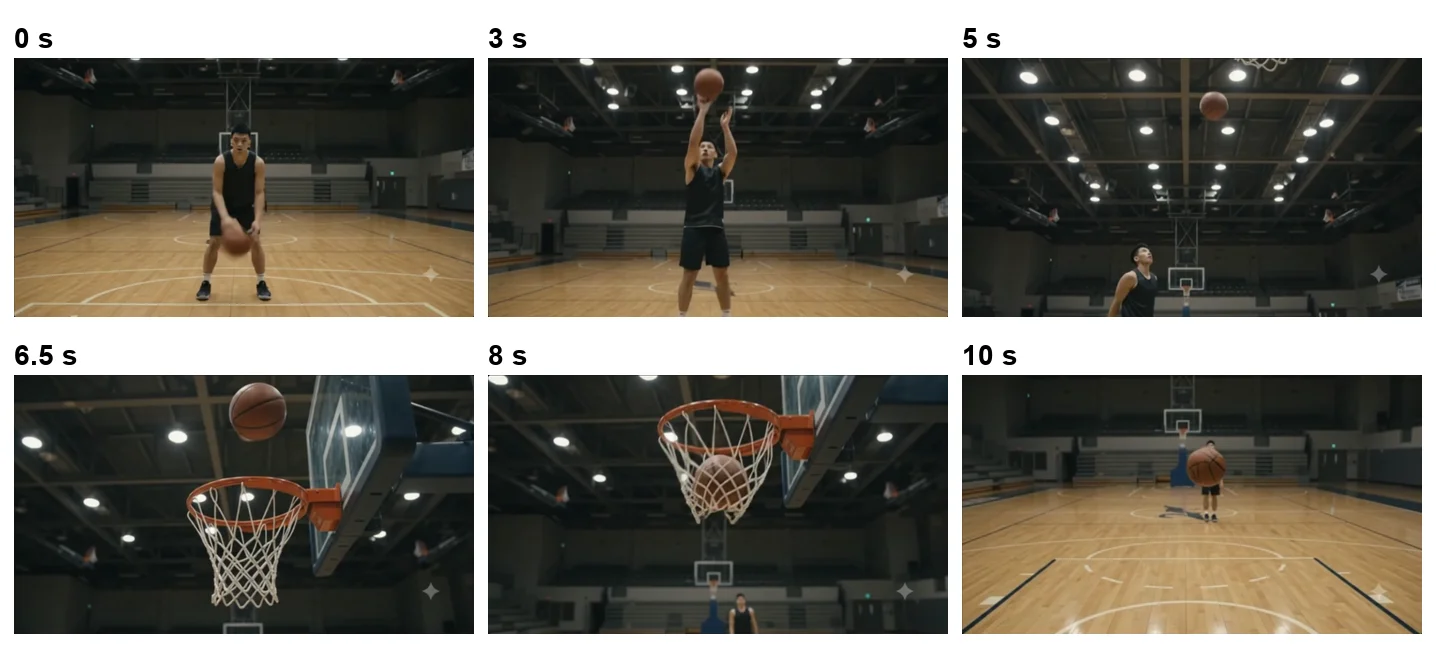
The surprise was the editing. Omni did not hold one shot for 10 seconds; it cut between angles like a sports replay. The clip opens on the player dribbling, shows the release from the front, cuts to a low angle as the ball rises, then a close-up at the rim, then a shot from behind the basket with the ball in the net and the player small at the far end. That is a lot of coverage for 7 credits.
It also showed the limits of reading a clip from a handful of frames. The last frame has the ball floating close to the camera in an otherwise empty wide shot, which looks odd, and I cannot tell from the frames I checked whether the ball really hit the rim and bounced once as I asked. I looked at six frames, not every frame, and I did not check the audio.
Test 2: vertical 9:16 video with a camera move
Omni makes 16:9 and 9:16 video, so I asked for “a 4-second Omni Flash video at 360p in vertical 9:16: a street musician plays violin under a stone bridge at night, warm lamp light, slow push-in”. The agent’s first reply was blank, with no text and no card. A nudge, “Please start that vertical violin video now and show me the cost”, brought up a 4-credit card.
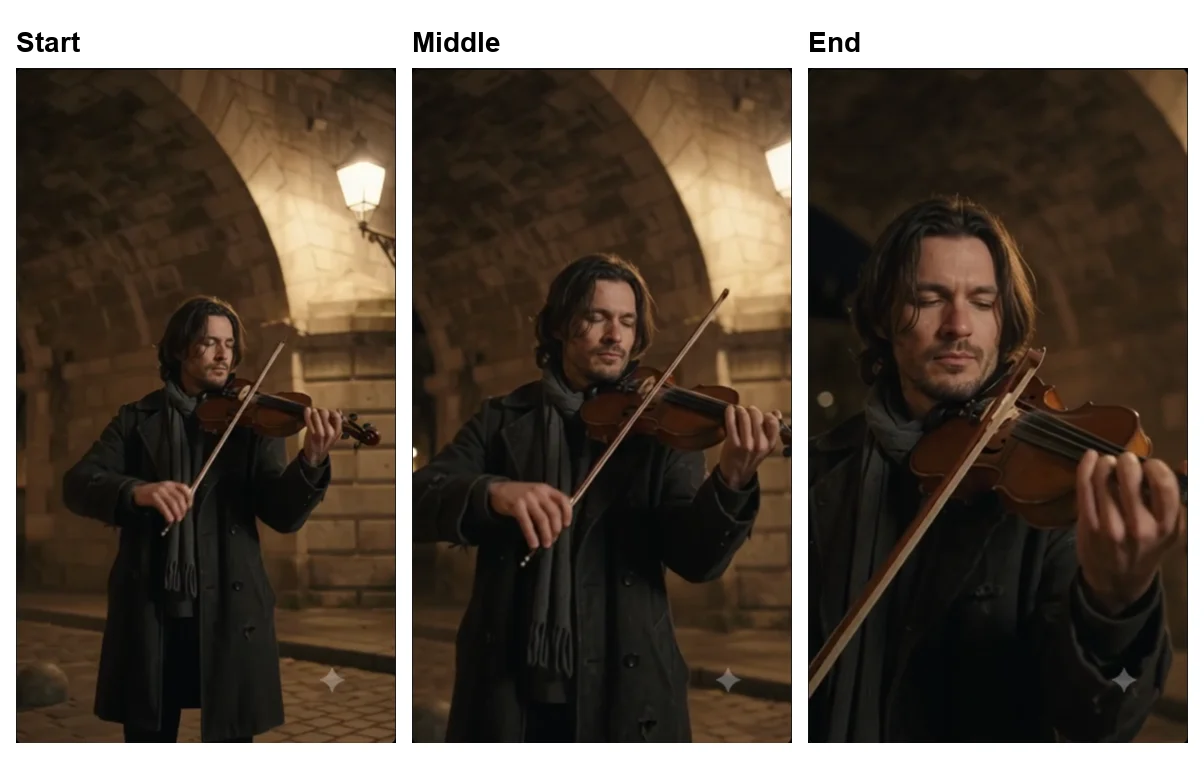
The push-in is there. The first frame is a full-length shot under the arch with the lamp on the wall, the middle is waist-up, and the last is a close-up of his face and the violin. For a 4-second, 360p clip, the lighting and the stone texture held up well, though it looked softer than the 720p clips I made. For phone-first video, this is the cheapest useful shot Flow makes.
Test 3: changing a finished clip by prompt
Editing is Omni’s headline feature: Google says you can change a video by talking to it, and its models page says Omni is the only model in Flow that does video-to-video editing. It took me three attempts to get one to run.
Attempt 1: the clip’s own edit box. Opening the violin clip shows an edit box reading “Describe how to edit this video”. On this clip its model chip said “Veo 3.1 - Lite” and would not change. I typed “Make it snow: snowflakes falling through the lamp light, a little snow on his coat. Keep everything else the same.” Within seconds the history panel showed “Failed. Sorry, this video failed to generate.” No credits were taken. Google’s models page lists video-to-video editing as unsupported on Veo 3.1 Lite, which may explain it, but I cannot confirm the cause.
Attempt 2: asking the agent. In the same project, two plain edit requests to the agent got blank replies, and so did a later request for a new 720p clip. The agent had stopped answering in that project.
Attempt 3: a fresh project and the Omni suggestion. A new project’s empty agent panel offered three suggestions: “Develop a storyboard”, “Teach me about what you can do” and “Edit a video with Omni”. I clicked the third. The agent asked whether to generate a new video with Omni or upload one, so I generated the violin clip again for 4 credits.
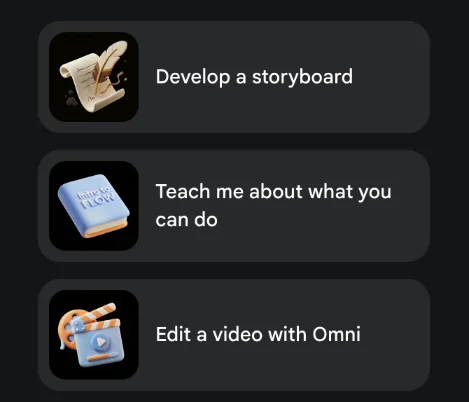
My first edit request in that project, “Now edit that video: make it snow”, got another blank reply. What worked was naming the feature: “Use Omni 1.1 Flash video editing on the street musician video: add falling snow. Show me the cost.” The agent answered “Editing your video with Omni 1.1 Flash at 360p costs 10 credits. Shall I proceed with adding the falling snow?” I said yes, approved a 10-credit card, and the edit was ready in about two minutes.
The edit result: snow, and a longer clip
The edit did what I asked. The new clip starts on the same composition as the original, with the same lamp, arch, coat and violin case, and adds small white flakes drifting in the dark under the arch. Later in the clip, as it moves in close, there is snow on his hair, his coat shoulders and the violin.
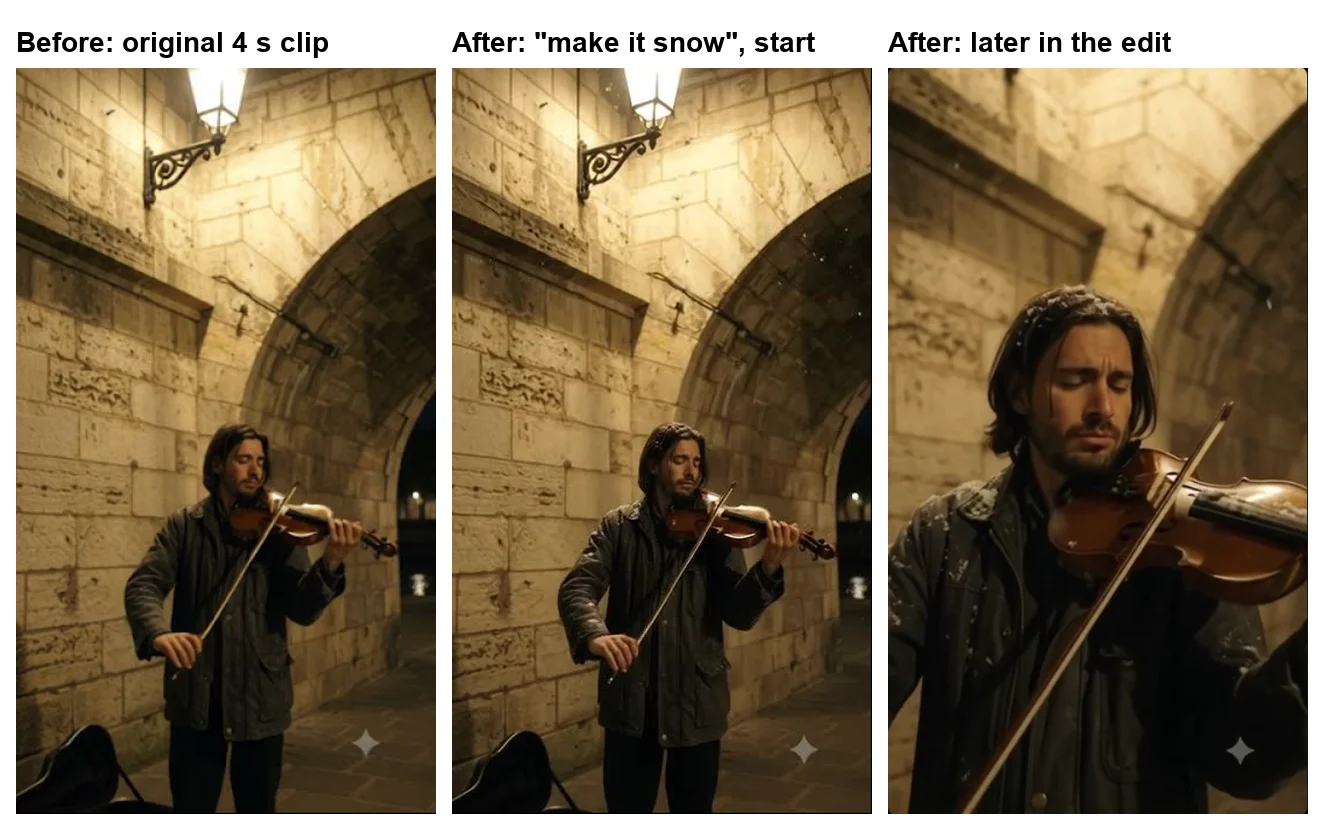
Two details were not what I expected. First, the edited clip was 8 seconds long, while the original was 4, so the edit came back as a new, longer clip that starts on the original’s composition; I did not check it frame by frame against the original. Second, the cost: the agent’s card asked for 10 credits, and my balance went from 50 to 36 across the 4-credit clip and the edit, so the edit took 10, matching the card. Google’s credits page lists Omni edits at 40 credits for all users, so the price I paid was well under the published one. I would not plan around that until Google’s page catches up.
For anyone editing their own footage, one more limit from Google’s API documentation: editing uploaded videos is restricted in the EEA, Switzerland and the UK. I edited a clip Flow had made, not an upload.
Characters and image references with Omni
Two earlier tests on the same free account used Omni Flash with a reference rather than a text prompt alone, and both kept the subject well.
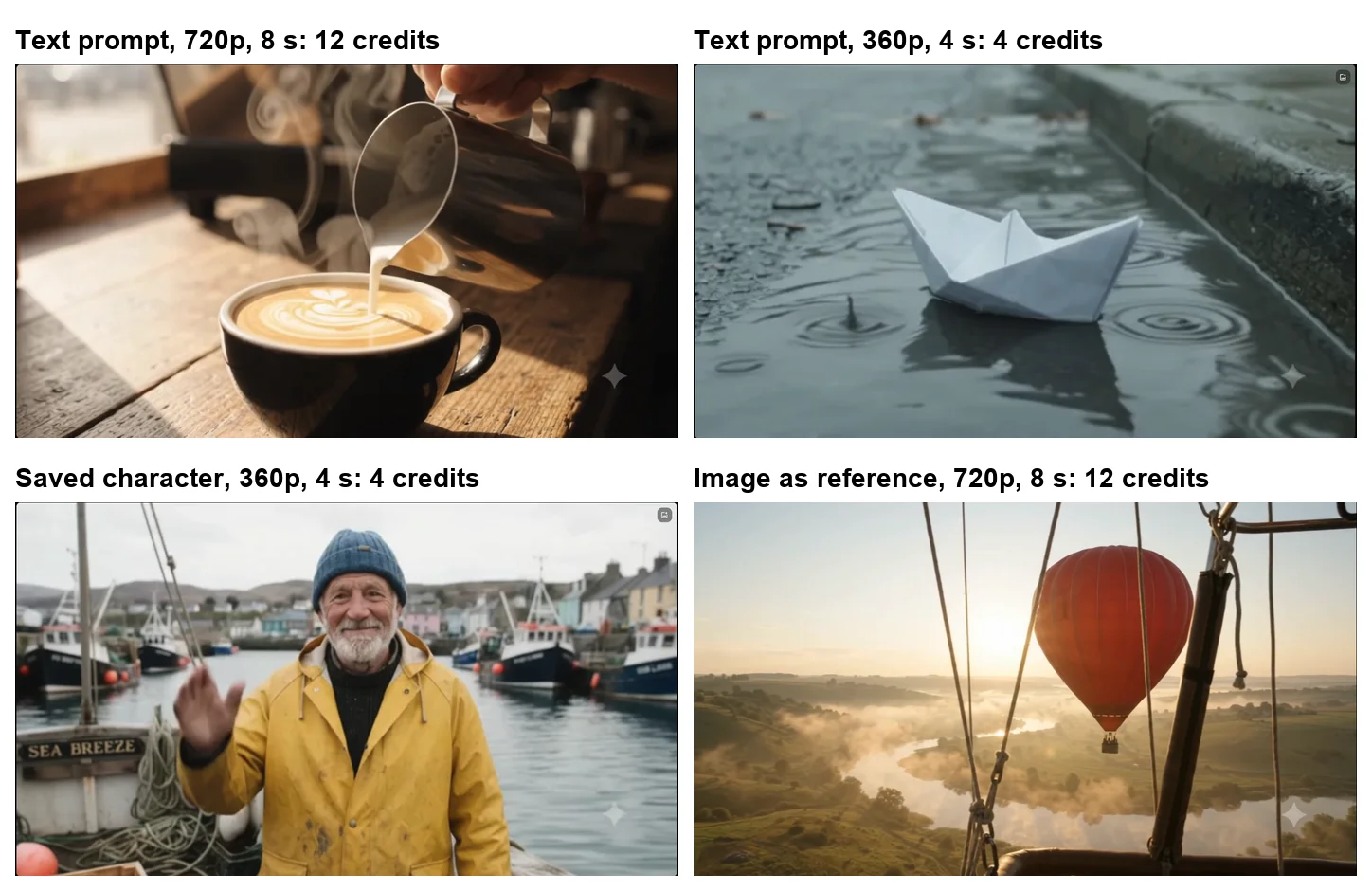
In one, I built a character in Flow, a fisherman called Old Tom, and asked for a 4-second Omni clip of him waving from his boat. He kept the same face, knitted hat and yellow coat from his portrait, and the boat’s name board was still on the hull. Our Google Flow tutorial walks through that test.
In the other, I gave Omni a Nano Banana image of a red hot-air balloon as a reference, not a start frame, and asked for the same balloon over a river seen from a second balloon. The new scene kept the balloon’s colour and shape in a shot the image never showed. Our Nano Banana video guide compares that with start and end frames on Veo.
Both tests point at the same strength. Omni holds on to what a subject looks like when you hand it one, whether that is a saved character or a single picture, which matters more for a series of clips than any one shot does. If you plan several scenes with the same person or product, build the character or make the reference image first, at no cost, and then spend credits on Omni clips that use it.
What Omni does in the Gemini app and the API
I tested Omni only in Flow, so for the paid routes I am relying on Google’s own pages. They describe a broader feature set than Flow’s agent exposed to me.
| Route | Who can use it | What Google lists | Tested here |
|---|---|---|---|
| Google Flow | Every account, 50 credits a day | Clips, references, characters, editing | Yes |
| Gemini app | Google AI Plus, Pro or Ultra | Up to 5 images, editing, extensions, avatars | No (needs a plan) |
| YouTube Shorts and Create | Free, per Google’s launch post | Omni video in YouTube’s apps | No |
| Gemini API | Developers | gemini-omni-1.1-flash, up to 3 reference clips | No |
Google’s Gemini video page lists what Omni does inside the Gemini app for plan holders: clips of up to 10 seconds, turning “images into video (up to 5 images)”, scene extensions, video-to-video editing, multi-turn editing, and an avatar feature. It also says Omni is “For ages 18 and older” and that “features vary by tier and geographic location”, which matches the regional caveats on Flow’s own help pages.
For developers, Google’s API documentation is more specific about limits. The model, gemini-omni-1.1-flash, takes up to three reference clips of up to three seconds each, makes 16:9 or 9:16 video at 360p or 720p with 1080p and 4K upscaling, and keeps a thread so you can refine an edit over several turns. Among its stated limits: “Referencing or reasoning across multiple videos is not supported”, “Voice editing is not supported”, and editing uploaded videos is restricted in the EEA, Switzerland and the UK.
In Flow, the free download menu on my 360p paper boat clip offered a GIF and the 360p original, with 720p Upscaled behind Upgrade; Google’s models page reserves the 0-credit 360p-to-720p upscale for Pro and Ultra subscribers.
360p drafts or 720p finals?
Omni is the only model in Flow with a 360p mode, and it changes how you can spend a free day. Google’s models page says 360p costs half as much as 720p in Flow, and its developer post says the draft mode is “up to 60% faster”. My 360p clips were ready in about a minute or less.
The trade is sharpness. In the frames I checked, my 360p clips (the paper boat, the violin and a balloon clip) looked softer than my 720p ones (the barista and the balloon reference), though composition and lighting held up. These were different prompts viewed in Flow’s preview, not the same shot at both resolutions. For a phone screen that can be enough. For anything you will crop, zoom or show large, it is not.
The way I would use the two on a 50-credit day: draft the shot at 360p for 4 to 7 credits, check the motion and framing, then spend 12 or 15 credits on the 720p version you keep. Google says Pro and Ultra subscribers can upscale a 360p Omni clip to 720p for 0 credits, which removes the need to regenerate; free accounts do not get that option.
Gemini Omni vs Veo 3.1
Both models live in Flow’s model menu, and the choice comes down to what you need the clip to do.
| Feature | Gemini Omni Flash | Veo 3.1 |
|---|---|---|
| Clip lengths in Flow | 4, 6, 8 or 10 seconds | 4, 6 or 8 seconds |
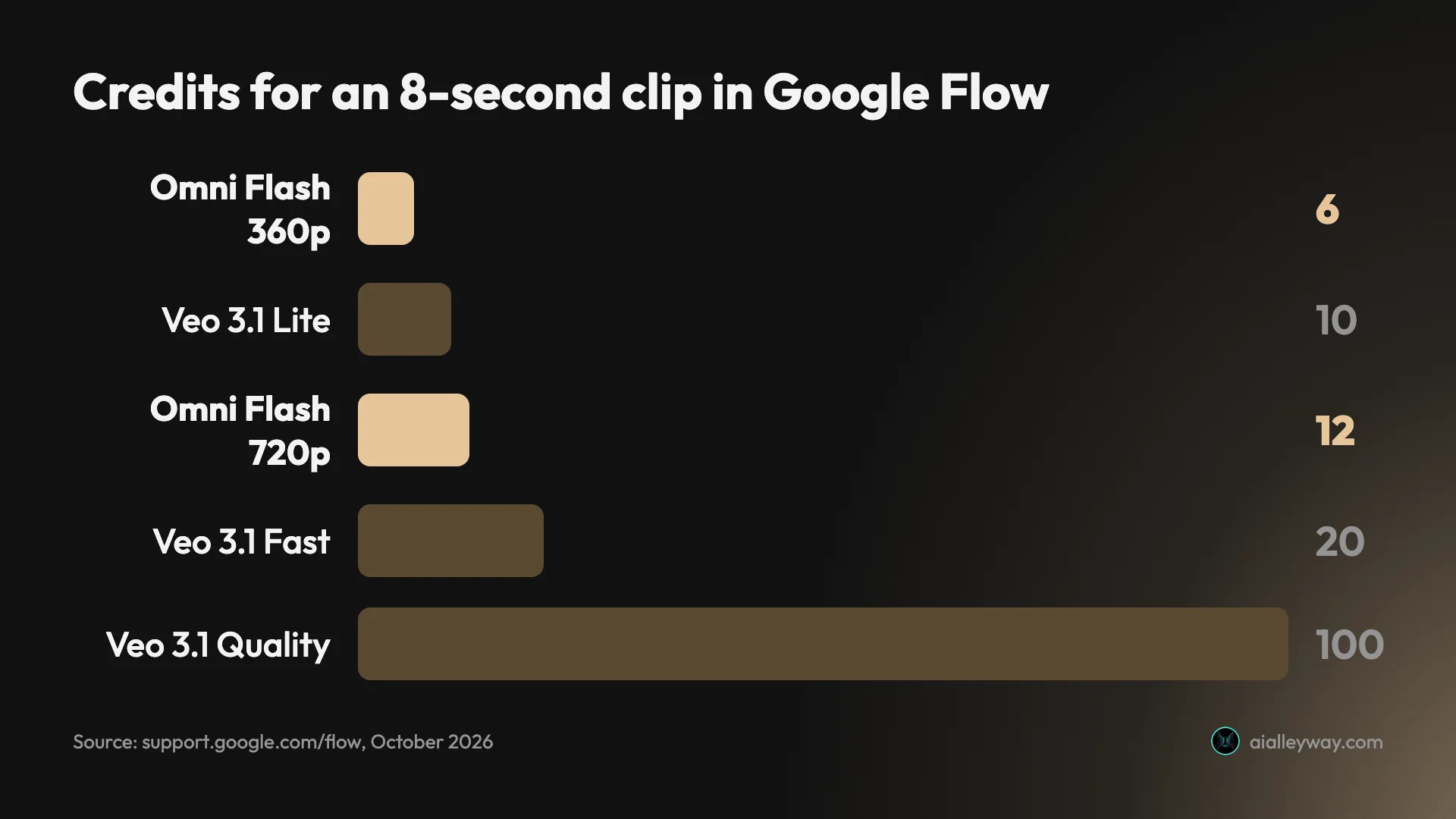
| 8-second clip cost | 6 credits (360p), 12 (720p) | 10 (Lite), 20 (Fast), 100 (Quality) |
| Edit a video by prompt | Yes | No |
| Extend a clip | Coming, per Google’s models page | Yes, with Veo 3.1 Lite |
| Image references | Yes, 4 to 10 s | 8-second clips only (Lite and Fast) |
| 360p draft mode | Yes | No |
| Shapes | 16:9 and 9:16 | 16:9 and 9:16 |
The practical split in my testing: Omni for anything you plan to change later, for 10-second shots, and for cheap 360p drafts; Veo when you need clip extension (Lite) or Google’s top-tier Quality model. Our Google Veo review covers Veo’s quality in detail.
How to use Gemini Omni in Google Flow
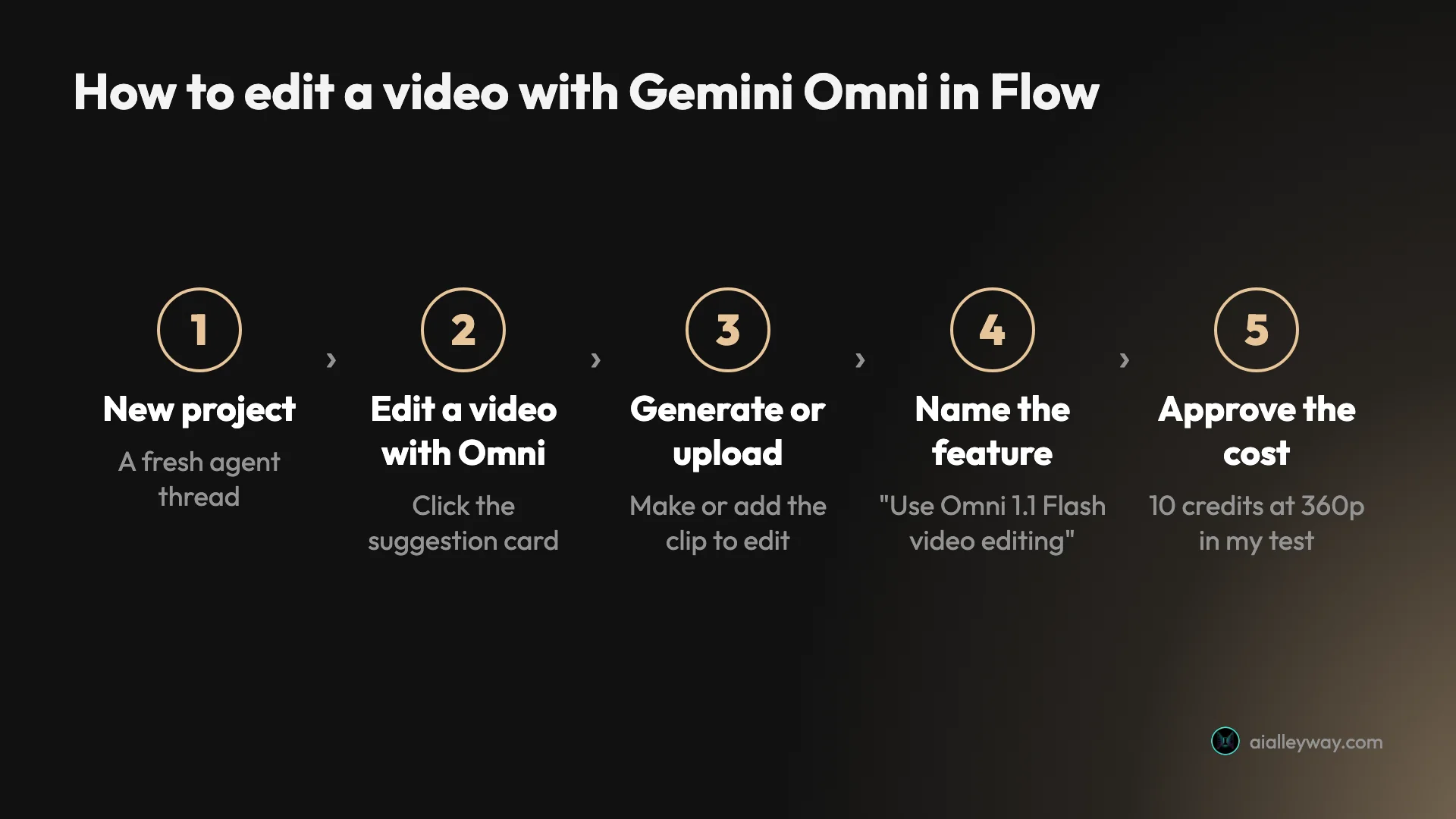
- Open Google Flow, sign in with your Google account and start a new project.
- For a new clip, name the model, length, resolution and shape: “a 10-second Omni Flash video at 360p, 16:9”.
- For an edit, click “Edit a video with Omni” in a fresh project, generate or upload a clip, then ask for “Omni 1.1 Flash video editing” by name.
- Read the card and approve it. Nothing is spent until you do.
- If the agent replies with nothing, ask again and include “show me the cost”. If it keeps going blank, start a new project.
How to prompt Omni Flash
- Name the model, length, resolution and shape. “A 10-second Omni Flash video at 360p, 16:9” got exactly that, and the card’s price confirmed it before anything ran.
- Describe the camera. “Slow push-in” gave a push-in, from full length to a close-up across the frames I checked. Omni also chose its own cuts in the 10-second clip, so if you want one continuous shot, say “single continuous shot”.
- Give each beat a place in time. My basketball prompt packed four beats into one sentence, and I could not confirm the rim bounce. For a precise sequence, split it across clips or describe fewer beats.
- For edits, name the feature. “Use Omni 1.1 Flash video editing on the street musician video” worked where “edit that video” did not.
- Say what must not change. My edit prompt ended “Keep everything else the same”, and the lamp, arch and violin case stayed while the snow went where I asked.
- Ask for the cost. Adding “show me the cost” brought up the approval card in some of my tests, but not every time.
Rough edges I hit with Omni Flash
- The agent goes quiet. Six of my Omni requests got a blank reply (five on 6 October alone), and in one project the agent stopped answering altogether. A new project fixed it.
- Edits are fussy to start. On these clips, the clip editor’s edit box showed Veo 3.1 Lite, would not change, and failed. The working route was the agent, with the feature named.
- Edits change the length. My 4-second clip came back as an 8-second edit. Plan for that if the timing matters.
- Endings can go odd. The 10-second basketball clip ended on a ball floating near the camera.
- The published price and the card disagreed. Google lists edits at 40 credits; my card said 10. Check the card each time.
- Free Gemini app users miss out. Omni in the Gemini app needs a plan, so Flow is the free route.
Omni, Veo or a Google AI plan: my pick
- Use Omni in Flow if you want to try Google’s newest video model for free, make 10-second or vertical clips, or change a clip after you have made it. Nothing else in Flow edits video by prompt.
- Use Veo instead if you need clip extension (Lite) or Google’s top-tier Quality model, and can spend 10 to 100 credits a clip. In my testing Omni’s clear strengths were the 10-second length, the cheap 360p drafts and the edit; I did not run the same prompt through Veo and Omni side by side, so I am not ranking their picture quality here.
- Pay for a Google AI plan if you want Omni inside the Gemini app, 1080p downloads, or more than 50 credits a day.
Final word
Gemini Omni Flash does what Google says it does: it makes video from text, images and characters, and it can change a video when you describe the change. My free account got a 10-second multi-angle clip for 7 credits, a vertical push-in for 4, and a snow edit for 10 that kept the scene and added the weather. That is a lot of capability for nothing.
The rough edges are in the interface, not the model. Edits took three tries, the agent sometimes answered with silence, and the published edit price did not match the card. Start in a fresh Flow project, use the “Edit a video with Omni” suggestion, and name the feature in your request.
Frequently asked questions
What is Gemini Omni?
Gemini Omni is Google's video model family, announced at Google I/O 2026. Google describes it as a model that "can create anything from any input — starting with video": you can give it text, images, video and audio, and edit the result by describing changes in plain words. The first model is Gemini Omni Flash, now at version 1.1, released on 27 August 2026.
Is Gemini Omni free?
In Google Flow, yes, within a daily limit. Every account gets 50 Google Flow credits a day, and on 6 October 2026 my free account made Omni Flash clips for 4 and 7 credits and a prompt edit for 10.
In the Gemini app it is not free: Google's page says you need a paid plan to use Gemini Omni. Google's launch post also said Omni would be available at no cost in YouTube Shorts and the YouTube Create app, which I did not test.
Is Gemini Omni real?
Yes. Google announced Gemini Omni at Google I/O 2026 and released Omni 1.1 Flash on 27 August 2026. It is live in Google Flow, where I used it, and per Google in the Gemini app for Google AI plan holders and in the Gemini API as gemini-omni-1.1-flash. I made nine Omni clips with it on a free account between 4 and 6 October 2026.
What is Gemini Omni good for?
In my testing: 10-second clips, cheap 360p drafts, vertical 9:16 video, keeping a character or an object from a reference image consistent in a new scene, and changing a finished clip by prompt. It is the only model in Google Flow that edits video and makes 10-second clips. For clip extension or Google's top-tier Quality model, Veo 3.1 is the one to use.
How do I get Gemini Omni?
The free route is Google Flow at flow.google.com: open a project and ask the agent for an Omni Flash video, or click its "Edit a video with Omni" suggestion. With a Google AI Plus, Pro or Ultra plan you can also use it in the Gemini app. Developers can call it through the Gemini API as gemini-omni-1.1-flash.
What is the difference between Gemini Omni and Veo?
Both are Google video models, and both sit in Google Flow's model menu. Omni Flash is the newer one and the only model in Flow that makes 10-second clips and edits existing video with a prompt. Veo 3.1 comes in Lite, Fast and Quality versions for clips up to 8 seconds, and Veo 3.1 Lite can extend clips.
On price, in Flow an 8-second Omni Flash clip at 720p costs 12 credits, between Veo 3.1 Lite at 10 and Veo 3.1 Fast at 20.
Can Gemini Omni edit videos?
Yes, and it is the feature that sets it apart. I made a 4-second clip of a violinist under a bridge, then asked Flow's agent to use Omni 1.1 Flash editing to add falling snow. It quoted 10 credits at 360p, I approved, and the new clip kept the scene and added flakes in the air and snow on his hair, coat and violin.
It took three tries to get there: two plainer requests got no reply from the agent, and the edit box in the clip editor failed outright.
How long can a Gemini Omni video be?
Up to 10 seconds per clip in Google Flow, per Google's models page, against 8 seconds for Veo 3.1. My 10-second Omni clip at 360p cost 7 credits. Google's August 2026 post on Omni 1.1 Flash says scenes can be extended up to 40 seconds in 10-second steps, which I did not test.
Keep reading
Google Flow Free: What 50 Daily Credits Buy, Tested
Google Flow free, tested on a free account: 50 credits a day bought four AI video clips, images cost nothing, and Veo 3.1 Quality was out of reach.
How to Use Google Flow: A Hands-On Beginner's Guide
How to use Google Flow, tested on a free account: start a project, make free images, build a character with a voice, turn it into video and download it.
Nano Banana Video: Turn Images Into Clips Free, Tested
Nano Banana video, tested: Nano Banana makes images, not video, but Google Flow animated mine free. Start frame, end frame and reference, with credit costs.
Google Veo 3 Review: Cinematic AI Video, Brutal Credit Math
Google Veo makes the West's most cinematic AI video, but a top clip costs 100 credits. My hands-on take on quality, the Flow workflow, and real pricing.