
Free AI Photo Editor: 3 Edits on 2 Tools, 5 Ranked
The best free AI photo editor: Google Flow and Meta AI ran the same three edits on one photo, plus what Gemini, ChatGPT and Bing allow free, tested 8 October.
Contents
The best free AI photo editor for most people is Google Flow: I uploaded one photo and asked for three edits, a red raincoat, a plain studio backdrop and the boats removed, and Flow kept the framing on every one at no credit cost. Meta AI was the faster runner-up and better at leaving the rest of the scene alone when it removed the boats.
- Best overall: Google Flow, edits that keep the photo’s framing, free
- Best for speed: Meta AI, about 30 seconds an edit in a chat
- Best for small precise fixes: Gemini app, seven edits on a free account in our earlier test
- Best for real cutouts: ChatGPT, transparent PNGs on Plus; three free requests at a time
- Best one-click tools: Bing Image Creator, presets such as Background Remover, after signing in
One photo, three edits: the method
A photo editor is only as good as what it leaves alone, so I gave two free tools the same photo and the same three changes, and judged both what changed and what should not have.
The photo was one of our own AI images, a bearded fisherman in a yellow raincoat on a stormy harbour, uploaded as an ordinary JPEG file the way you would upload a phone picture.
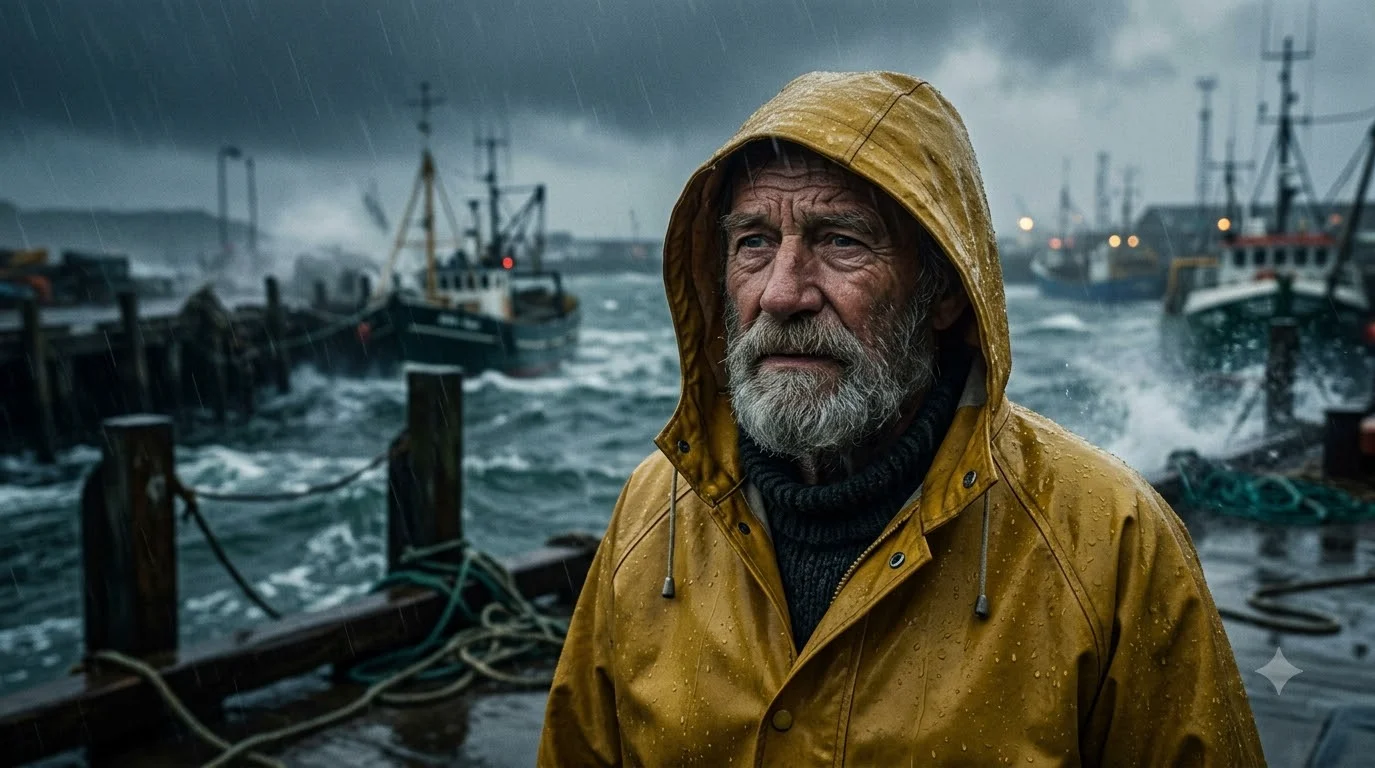
The three edits test three different jobs. A recolour: “change his raincoat to red. Keep everything else exactly the same.” A background swap: “replace the background with a plain light grey studio backdrop. Keep his face and raincoat exactly the same.” And an object removal: “remove all the boats from the background. Keep everything else exactly the same.” Each edit started from the original photo, not from the previous edit.
Uploading a photo is also where the terms start to matter. Google Flow showed a “Rights to use this image” notice asking me to confirm I had the rights to the image, and Bing asked me to sign in before it would accept an upload at all. I used one of our own AI images precisely so that no real person’s photo went into several companies’ systems; if you edit photos of people, read each tool’s terms on how uploads are used before you start.
Those three jobs cover most of what people use a free photo editor for. Recolouring tests whether a tool can change one thing without touching anything else. A background swap is the most common request of all, for headshots, product listings and profile pictures, and it tests whether the subject survives being cut out and placed somewhere new. Object removal is the hardest, because the tool has to invent what was behind the object, and it shows how literally the tool reads an instruction.
I judged each result against the original side by side, looking at the change I asked for and then at everything I did not ask to change: the face, the framing, the size of the subject and the background details. A free editor that makes the requested change but quietly redraws the rest is less useful than it looks, because you cannot trust it with a photo you care about.
I ran all three on Google Flow and Meta AI on 8 October 2026, on free accounts. Bing Image Creator stopped me at a sign-in screen when I uploaded the photo. The Gemini app would not accept the upload through my test setup, so for Gemini and ChatGPT I am relying on our earlier hands-on editing tests of their free plans, which used different photos.
This roundup does not cover Pixlr, Adobe Firefly, Canva, DeepAI or Picsart, which also offer AI photo editing; I did not test them here, and our Adobe Firefly review covers Firefly separately. I ranked the five on edit accuracy, what changed that should not have, speed, the free allowance, and whether you need an account.
| Google Flow | Meta AI | Gemini app | ChatGPT free | Bing | |
|---|---|---|---|---|---|
| Account needed | Meta | OpenAI | Microsoft, for uploads | ||
| Red raincoat (my test) | Exact, nothing else moved | Exact, nothing else moved | Not run | Not run | Not run |
| Studio backdrop (my test) | Clean, same framing | Clean, man shifted toward centre | Not run | Not run | Not run |
| Boats removed (my test) | Also took the pier | Pier kept | Not run | Not run | Not run |
| Time per edit | About 40 seconds | About 30 seconds | 30 to 47 seconds (earlier test) | Not timed on free | Not reached |
| Free limit | 0 credits per edit | None hit in three edits | None hit in seven edits | 3 requests, then 24 hours | Sign-in wall |
| Tested | 8 Oct 2026 | 8 Oct 2026 | Sept 2026 test | 23 Sep 2026 | 8 Oct 2026 |
1. Google Flow — best for edits that keep the photo intact

Google Flow is Google’s AI filmmaking tool, and it is also the most careful free photo editor I tested. You drop a photo onto a project, open it, and type the change into a box that reads “What do you want to change?”. Each edit appears as a new version beside the original in a history panel, so you can always step back to the photo you started with and try a different change from there.
That history is Flow’s quiet advantage. I clicked the original in the history before each edit and started clean every time, without uploading the photo again, which is how you would want to try several different looks for the same picture.
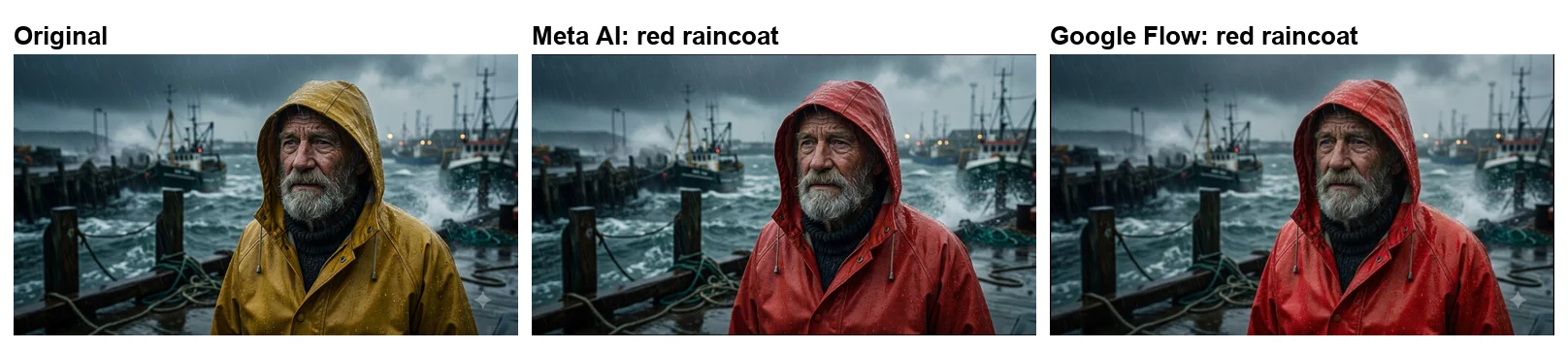
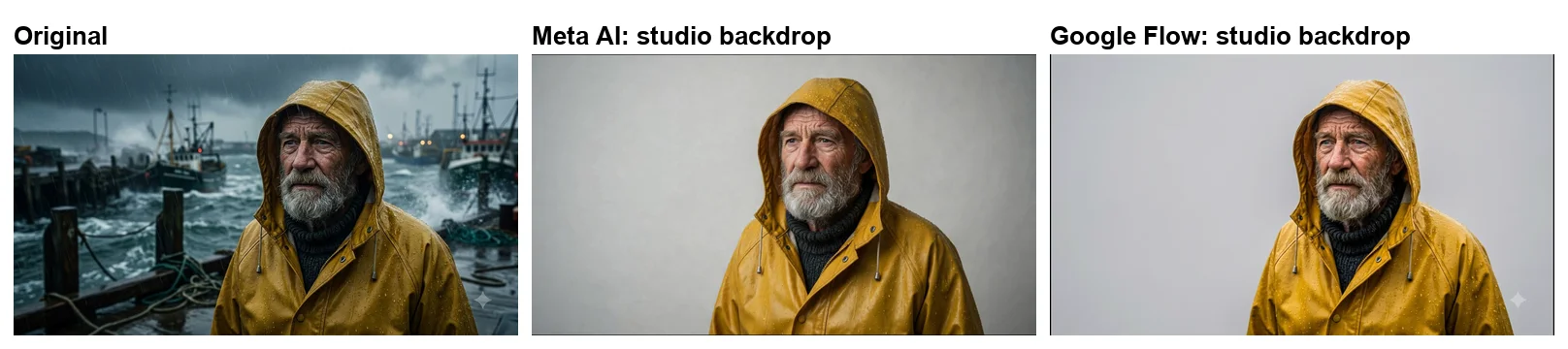
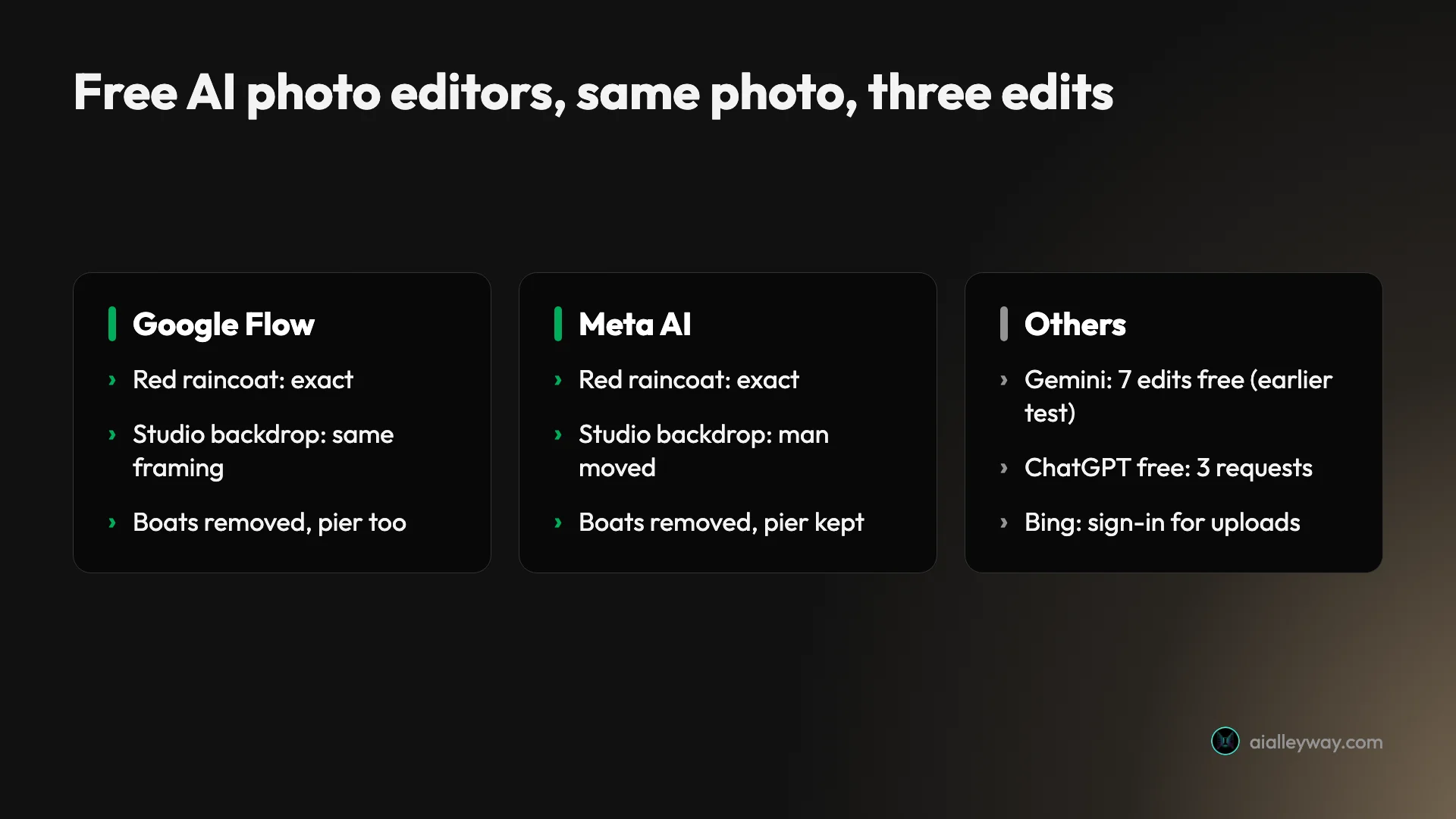
Each edit took about 40 seconds. On the recolour, Flow’s Nano Banana 2.1 turned the raincoat red and changed nothing else I could see: the same rain, the same boats, the same face, the same framing. On the studio backdrop, it swapped the whole stormy harbour for plain light grey and left the man exactly where and how big he was, which is what you want for a headshot or a product listing.
The boat removal was its one overreach. The boats went, but so did the pier on the left and the harbour buildings behind them; Flow turned a busy harbour into open sea and a distant shore. The wooden posts, ropes and the man stayed. “Remove all the boats” was taken as “clear the background”, which is a reasonable reading and not the one I meant.
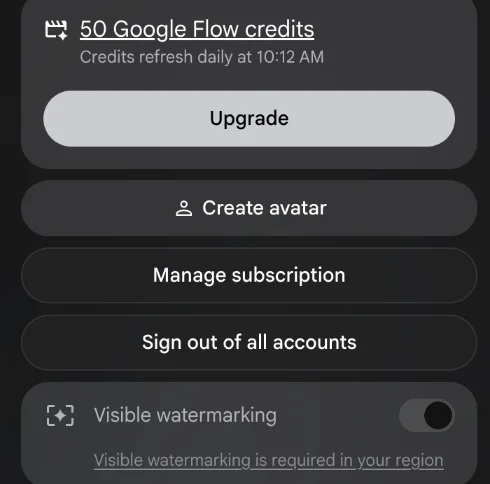
None of it cost anything. Flow’s free account still showed its full 50 daily credits after the three edits; credits on Flow are spent on video, not images. Uploading did bring up a notice asking me to confirm I had the rights to the photo, and edited images carry a small sparkle mark, which Google requires in some countries, including the one I tested from.
The catch is that Flow is built for film projects, so it takes a few more clicks than a chat app, and its edit box needed the send arrow rather than the Enter key. Free access is also not guaranteed: Google’s getting-started page still says Flow needs a paid plan, my account has had a Flow project since November 2025, and Flow needs a verified age of 18 or over and a supported region. Our Google Flow free guide explains the account, and our free AI image generator roundup covers its image quality.
The lesson for prompting: name what must stay. “Remove the boats; keep the pier, the posts and the harbour buildings” is the safer instruction for any of these tools, because each one redraws the area it changes rather than erasing pixels.
Good for: careful recolours and background swaps that must keep the framing. Not for: removals where you want the rest of the scene untouched; say exactly what to keep.
2. Meta AI — best for speed, about 30 seconds an edit
Meta AI edits photos inside its chat assistant, free with a Meta account, and it was the fastest editor I tested: each of the three edits came back in about 30 seconds, at 2112 by 1168 pixels. You attach a photo through a ”+” button, which opens an “Add media and files” panel with a drop zone and your recent uploads, then type the change.
Its recolour matched Flow’s: a red raincoat with the same wet texture and droplets, and the scene untouched. Its reply described the change in a line, “Done — the yellow raincoat is now red with the same wet texture and droplets”, and offered follow-up suggestions. A “Hold to compare” control shows the original and the edit in the same spot.
The studio backdrop is where it took liberties. The harbour became a clean light grey wall, and the face, beard and raincoat held, but the man was redrawn slightly further left, closer to the centre of the frame. Its reply said everything was “preserved exactly as in the original”, which was not quite true of his position.
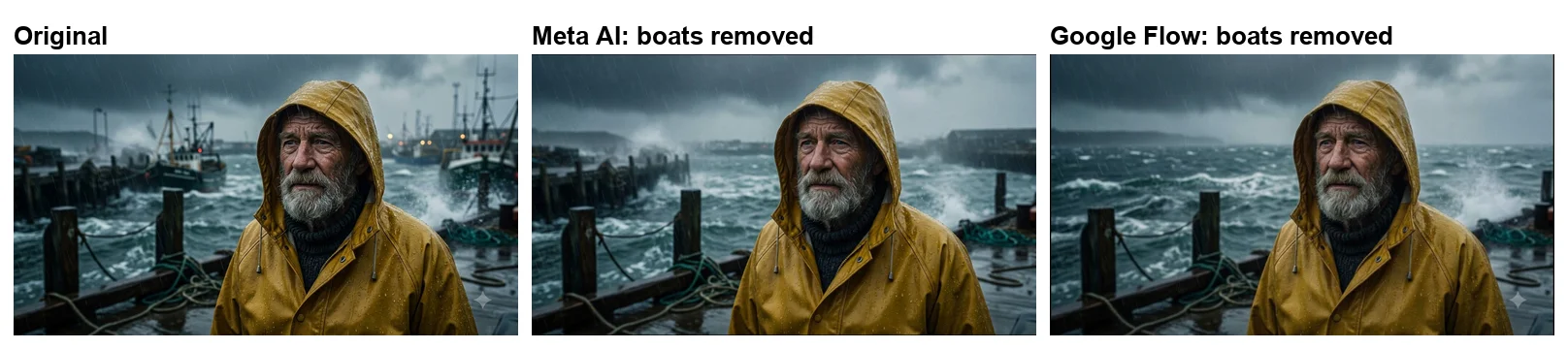
On the boats, Meta AI did better than Flow. The boats disappeared, the pier and posts on the left stayed, and a plain harbour wall filled the space on the right where the trawlers had been. It is the result that best matches “remove the boats, keep everything else”, even if the harbour wall is new.
Meta AI also listed recent uploads in the attach panel, so reusing the same photo did not need a new upload. That made it the quickest tool to iterate with: three edits took about a minute and a half of waiting in total.
For a quick social post, a small position shift like the studio edit’s will not matter; for anything that sits next to the original, such as a before-and-after, it will.
Good for: quick edits where speed matters and small shifts do not. Not for: headshots or product photos where position must not change.
3. Gemini app — best for small precise fixes
The Gemini app is Google’s other free editing route, and the easiest on a phone: you upload a photo in the chat and describe the change. My test setup could not upload this test’s photo to it, so this section draws on our Gemini image editing guide, which ran seven real edits on a free account in September 2026.
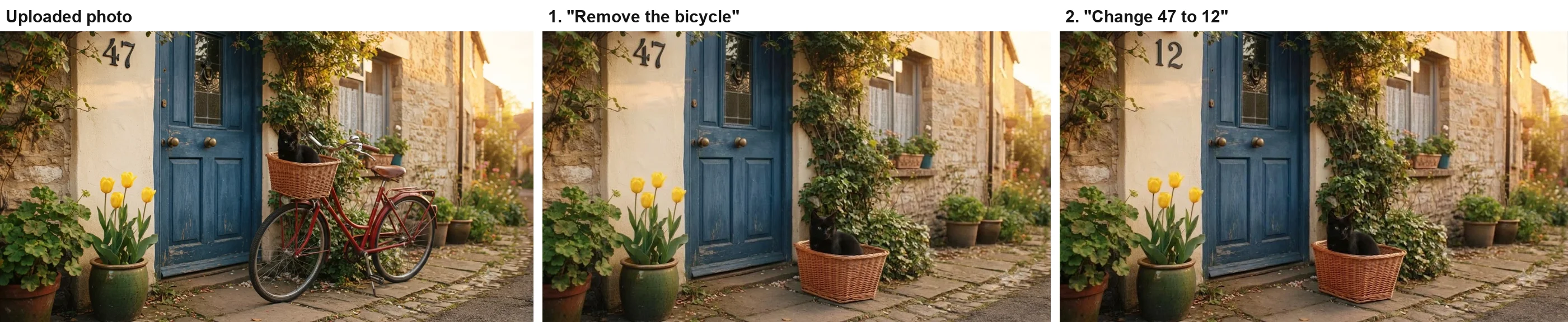
Those edits are a good guide to what it does well. Asked to remove a bicycle with a cat in its basket, Gemini removed the bike, kept the basket, set it on the ground beside the door and left the cat sitting in it, while the door, the house number and the tulips stayed put. Asked to change a house number, it changed exactly that and nothing else. Each edit took between 30 and 47 seconds.
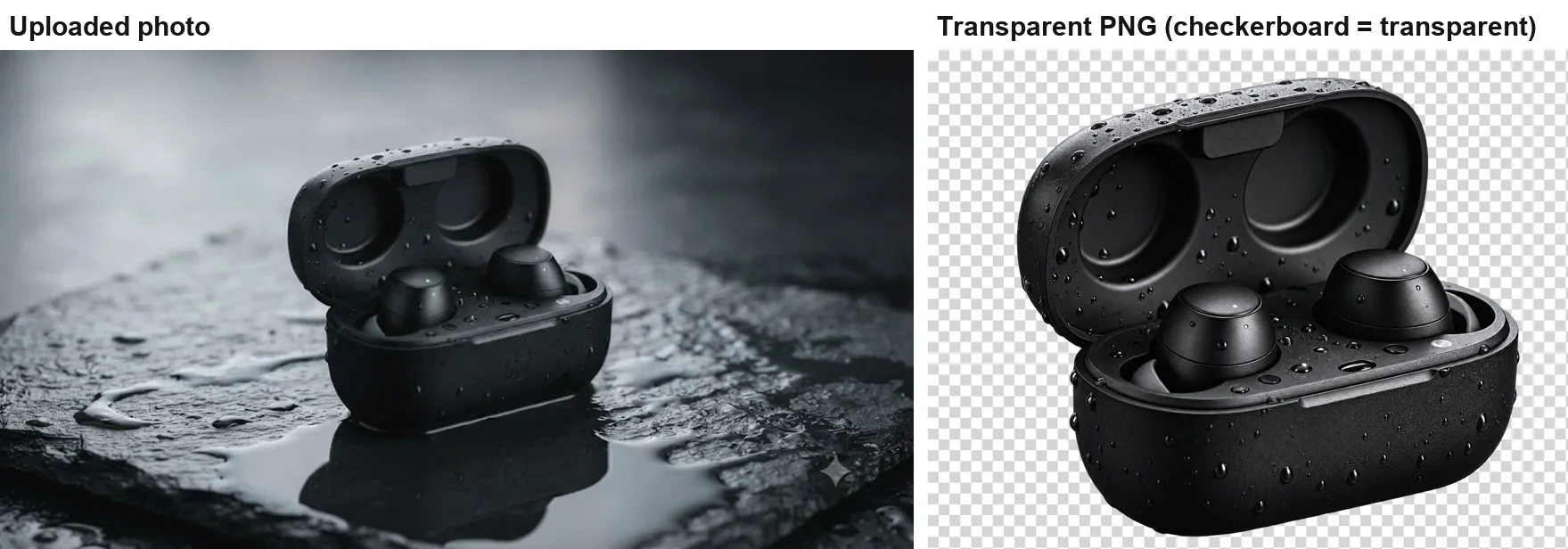
Its weak spot is the cutout. Asked for a product on a transparent background, it returned the product on a grey and white checkerboard painted into the image, which looks transparent in a preview and is not. For a real cutout, use a tool that exports transparency.
Free downloads come at 1K resolution with a small visible mark in the corner, and Gemini meters use by computing time rather than a fixed number of edits; our test hit no limit across seven. Like Flow, it runs Google’s Nano Banana models, so the editing style is similar; Flow is the better choice when you want Nano Banana Pro without a paid plan.
Because the app and Flow share Google’s image models, the two make a natural pair: use the app for a quick fix on the go, and Flow when you are at a computer and want the history panel and the free Pro model for new images. Google’s help page on images describes the same editing in the Android and iPhone apps.
Good for: quick edits on a phone, small precise changes such as a number. Not for: transparent cutouts.
4. ChatGPT — best for real transparent cutouts on Plus

ChatGPT’s standout in our earlier tests was the cutout, and its free plan is the most rationed of the five. In our ChatGPT free test, three image requests went through, one of them an edit, and the fourth was refused until 24 hours after the first. That edit asked for three changes at once, night, a lit lamp and no cat, and ChatGPT handled all three in one image, though night came out closer to dusk.
Our fuller ChatGPT image editing test ran on the paid Plus plan, so its results show what the tool can do rather than what free gets. There, changing a house number was exact, and asking for a background removal produced real transparency, the one thing Gemini faked. Edits took up to about 90 seconds, slower than the others, and the editor’s brush-based Erase tool failed in our one attempt.
Signed out, ChatGPT asks you to log in before it will take an upload, so a free account is the minimum. Once signed in, you attach the photo to a message and describe the change, and each edit counts as one of the three image requests.
That makes ChatGPT the last stop rather than the first. Experiment in Flow or Meta AI, where it costs nothing, and save ChatGPT’s three free requests for the edit you actually need.
If you edit photos every day, Plus at $20 a month allowed 155 images before it locked in a separate test of ours, far more room than the free three. On the free plan, the practical move is to fold several changes into one request, as that three-change edit did, so a single request does the work of three.
Good for: a real transparent cutout, if you pay for Plus. Not for: experimenting, or more than three requests a day on the free plan.
5. Bing Image Creator — best for one-job presets, with a Microsoft account

Bing works differently. Instead of typing a change, you pick a preset from its AI Photo Editor row, such as Restore old photo, Background Remover, Image Retouch or Image Expander, upload a picture into the slot, and press Generate. For someone who wants one job done without writing a prompt, that is the simplest approach here.
The catch is the account. Bing Image Creator made new images without signing in when I tested it for our image generator roundup, but photo editing is different: when I uploaded the fisherman photo to Background Remover on 8 October 2026 and pressed Generate, a panel said “Sign in to Bing to unlock uploads and create your image”, with a note that signing in brings emails about Microsoft Rewards.

I did not sign in, so I cannot say how well its presets work, and I have no speed, size or watermark figures for Bing’s edits. Treat this section as a map of what Bing offers, not a verdict on its quality. The presets themselves are a different idea from the other four tools: rather than describing a change, you choose a named job, which suits tasks like restoring a faded family photo or extending a picture’s edges where writing a good prompt is harder than picking a button. What the test does show is that “free with no sign-up” applies to Bing’s image generator, not to editing your own photos.
If you already have a Microsoft account, the trade is reasonable: signing in once opens all the presets, and Bing’s image generator gave the most images per prompt in our earlier test, four. If you do not, the four tools above edit photos with an account, mostly a Google or Meta login you probably already have.
Good for: one-click jobs if you already have a Microsoft account. Not for: editing without an account.
How to pick a free AI photo editor
- If the framing must not change, such as a headshot or product photo, pick Google Flow.
- If you want the fastest result in a chat, pick Meta AI.
- If you are editing on your phone, pick the Gemini app.
- If you need a real transparent cutout, use ChatGPT; our cutout test ran on Plus, so we have not confirmed it within the three free requests.
- If you want one-click presets and have a Microsoft account, try Bing’s AI Photo Editor.
- If you are making a new image, not editing one, our best AI image generator guide ranks nine tools, paid ones included.
- Whatever you pick, end every prompt with “keep everything else exactly the same”, and compare the result with the original.
Final word
For free AI photo editing, start with Google Flow: in my test it made all three edits without moving the photo’s framing, and charged nothing.
Frequently asked questions
What is the best free AI photo editor?
For most people, Google Flow. On 8 October 2026 I uploaded the same photo to Flow and Meta AI and asked both for three edits: a red raincoat, a plain studio backdrop and the boats removed. Flow kept the framing on all three and the edits used no credits on a free account; it only overdid the boat removal, taking the pier with them.
Meta AI was faster, about 30 seconds an edit, and kept the pier, but it moved the man slightly toward the centre on the studio backdrop. Both are free with an account. The Gemini app is the easiest on a phone, and ChatGPT produced a real transparent cutout in our earlier test on the paid Plus plan, where Gemini faked one, and its free plan allowed only three requests before a 24-hour lock.
Is there a free AI photo editor with no sign-up?
Not among the tools I tested, for editing your own photo. Bing Image Creator makes new images without signing in, but when I uploaded a photo to its Background Remover on 8 October 2026 it showed "Sign in to Bing to unlock uploads and create your image". Google Flow, Meta AI, the Gemini app and ChatGPT all need an account too.
Can I edit a photo with AI for free by describing the change?
Yes. Google Flow, Meta AI, the Gemini app and ChatGPT all let you upload a photo and type the change in plain words, such as "change his raincoat to red, keep everything else the same". In my test Flow and Meta AI both made that exact change on a free account in under a minute. The phrase "keep everything else exactly the same" matters: it is what stops the tool from redrawing the whole photo.
Which free AI photo editor removes backgrounds?
Several can replace a background, but a true transparent cutout is harder. In my test Google Flow and Meta AI both swapped a stormy harbour for a plain grey studio backdrop. In our earlier Gemini test, a request for a transparent PNG came back with a grey and white checkerboard painted into the image, not real transparency. ChatGPT gave real transparency in our earlier test on its Plus plan. Bing has a one-click Background Remover, but it needs a Microsoft sign-in for uploads.
Do free AI photo editors keep the original photo unchanged?
Not entirely. Every edit is a redraw, so details outside the change can move. In my test Google Flow's red raincoat and studio backdrop edits kept the framing exactly, but its boat removal also took out a pier and harbour buildings. Meta AI's studio edit moved the man slightly toward the centre. Always compare the result with the original before you use it.
Can ChatGPT edit photos for free?
Yes, with a free account, but only a few at a time. Signed out, ChatGPT asks you to log in before it takes an upload. On the free account we tested on 23 September 2026, three image requests went through, one of them a photo edit with three changes, and the fourth was refused until 24 hours after the first. Each edit counts as one request, so fold several changes into one message.
Which free AI photo editors add a watermark?
In my test, Google Flow's edited images carried a small sparkle mark in the corner, which Flow's settings said is required in my region. Free Gemini app downloads also carry a small visible mark, in our earlier test. Meta AI's edited images showed no visible mark. All of these tools may also add invisible markers or metadata, so assume an edit can be identified as AI-made.
Keep reading
Free AI Image Generator: 3 Run Head to Head, 5 Ranked
The best free AI image generators: Google Flow, Bing Image Creator and Meta AI run on the same two prompts, plus the Gemini and ChatGPT free limits we measured.
Gemini Image Editing: 7 Photo Edits on a Free Account
How Gemini image editing works on a free account: upload a photo, pick the right mode, describe the change, and what held or failed in seven real edits.
ChatGPT Image Editing: 7 Photo Edits Tested
How ChatGPT image editing works: upload a photo, describe the change, use the editor tools, and what held or slipped in seven real edits on ChatGPT Plus.
Google Flow Free: What 50 Daily Credits Buy, Tested
Google Flow free, tested on a free account: 50 credits a day bought four AI video clips, images cost nothing, and Veo 3.1 Quality was out of reach.