
ChatGPT Image Editing: 7 Photo Edits Tested
How ChatGPT image editing works: upload a photo, describe the change, use the editor tools, and what held or slipped in seven real edits on ChatGPT Plus.
Contents
ChatGPT image editing, in short

To edit an image in ChatGPT, upload the photo or pick one ChatGPT made, then describe the change in plain words and say what must stay the same. You can also open the image in ChatGPT’s editor, which offers one-click tools such as Remove BG and Erase. I ran seven edits on 28 September 2026. Typed instructions did almost everything I asked, including a transparent cutout and a changed house number. The Erase brush was the one tool that failed.
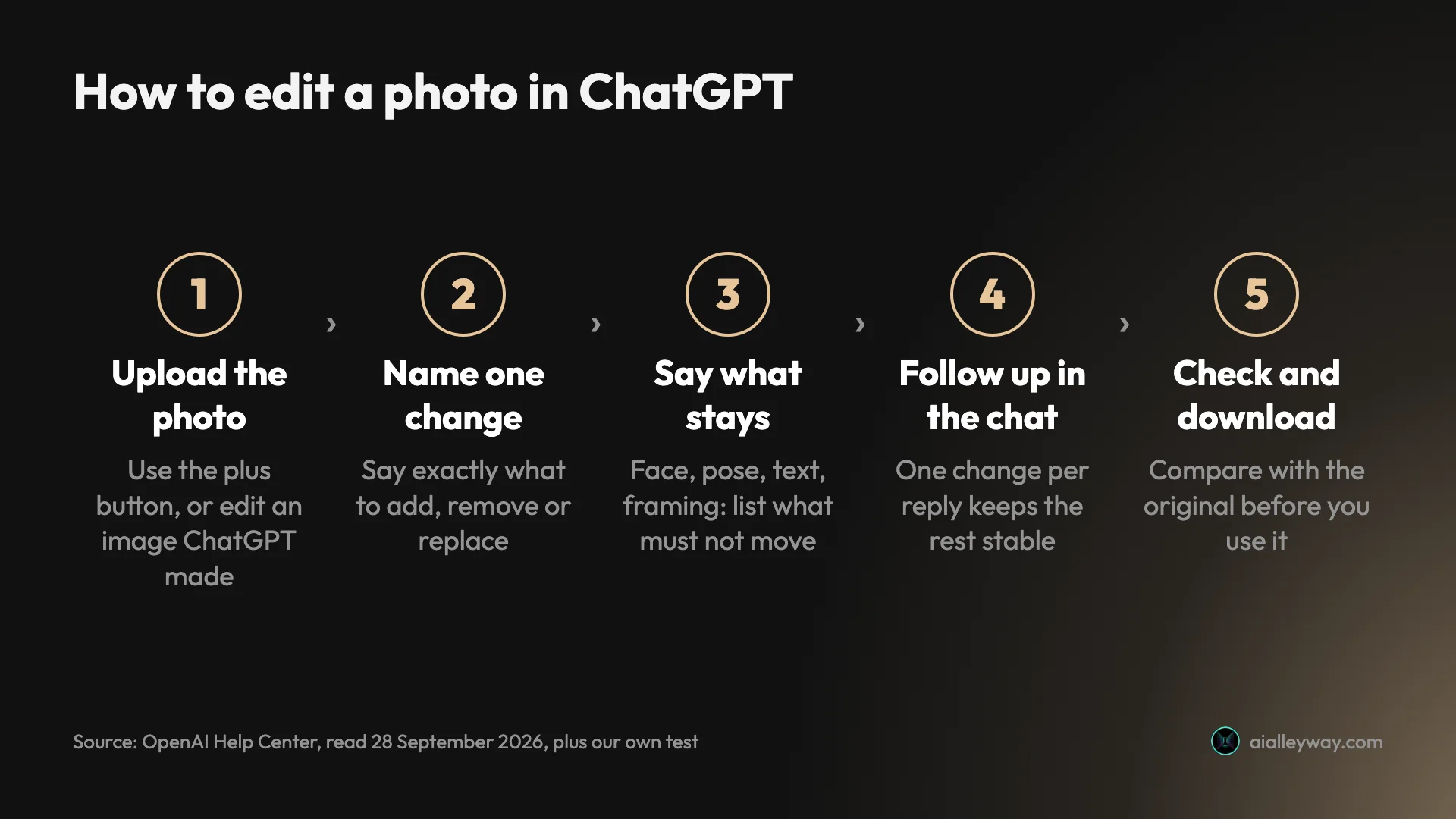
Every edit regenerates the whole picture, so expect small changes in detail, and a new shape for cutouts, even from a one-change prompt. That is the trade for editing by conversation instead of by pixel.
How I tested ChatGPT’s editing
I used a ChatGPT Plus account with the model picker left on its default, Instant, running the current model, ChatGPT Images 2.5, which OpenAI released on 8 September. I uploaded three pictures and made seven edits in about 40 minutes, with no refusals and no limit warnings.
The pictures are not camera photos. They are AI-generated images from our Nano Banana test, a fisherman at a harbour, a blue door with a bicycle and a cat, and an earbud case on wet slate. I used them because they are ours to publish and they contain the things people most often want to change: a face, an object, a number and a background. I uploaded each as a PNG through ChatGPT’s photo attachment, 1,480 by 812 pixels. The edited files came back at roughly 1,692 by 930.
Each edit finished within about a minute and a half; the quickest was done within 50 seconds. OpenAI’s help centre warns that image generation may take a few minutes depending on the request, and you can keep chatting while it works.
For the free plan I rely on our earlier test, run on a free account on 23 September. There, ChatGPT allowed three image requests in a rolling 24 hours, and an edit counted as one of the three. Our ChatGPT image generator free guide covers that limit in detail.
How editing works in ChatGPT
OpenAI’s help page on images in ChatGPT describes two ways to edit. You can select part of the image with the selection tool and describe the change, or skip the selection and describe the edit directly in the chat. Either way, you can start from an image ChatGPT made or upload your own, and the feature is available on every plan, including free.
The editor opens when you click an image. On the web, mine showed five tools: Markup, Comment, Remove BG, Erase and Resize. The help page, updated in September, describes a slightly different set, with Select, Aspect ratio and Save, so the layout is clearly still changing. On mobile, the help page says the image controls also include Resize and Remove.
The one-click tools are not filters. When I pressed Remove BG, ChatGPT posted a prompt into the chat on my behalf, asking to remove the background, keep the subject intact with clean edges and make the background transparent, and then generated a new image. The Erase brush works the same way, turning your brush strokes into a request to remove the selected area. So every tool, typed or clicked, ends in the same place: a fresh generation from the model.
That explains most of what follows. ChatGPT is good at understanding what you want changed, and less good at leaving every other pixel alone.
Edit a photo by describing the change
The simplest edit is a sentence. I uploaded the fisherman photo and typed:
Edit this photo: make it a snowy winter morning, with snow on the harbour wall, the boats and the nets. Keep the man, his face, beard, clothes and pose exactly the same.
Then, in the same chat:
Now make it night, with lights on in the boats and the harbour. Keep everything else the same.
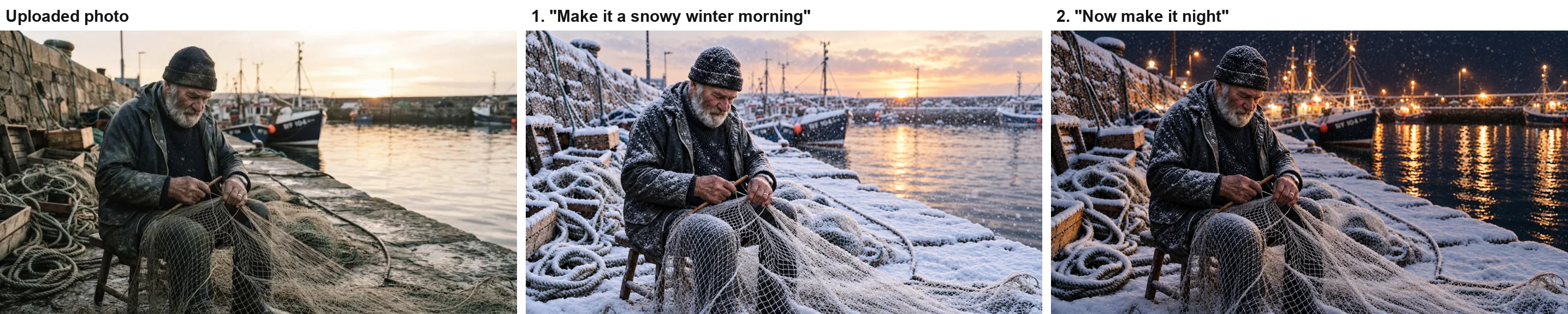
The snow is convincing, down to the crates and the coiled ropes, and the man is recognisably the same person, with the same hat, beard, hands and pose. Two things slipped. The sky stayed a sunset, not a morning, and snow settled on his coat and hat even though I asked for his clothes to stay the same. That is arguably the realistic choice, but it is not what I wrote.
The follow-up was the more impressive edit. Turning the scene to night changed the sky, the water and the boats while leaving the man, the nets and the framing almost exactly as they were in the snowy version. The only giveaway is the light: he is still lit as if it were daytime. For a series of changes to one photo, making them one at a time in the same chat worked well.
Remove an object from a photo
Removing things is one of the most common edits, and ChatGPT handled a hard one. The bicycle in my second photo had a cat sitting in its basket, so removing the bicycle meant deciding what to do with the cat.
Remove the bicycle from this photo. Keep everything else exactly the same, including the cat, the door and the flowers.
ChatGPT removed the bicycle and its basket cleanly and filled the gap with climbing plants and stone wall that match the rest of the street. It kept the cat by moving it to a window ledge beside the door, a sensible solution but a change I did not ask for. The door, the house number and the pot of tulips stayed put.
Two lessons came out of that result. First, when the thing you remove is holding or touching something else, say where the other thing should go: “move the cat to the doorstep” would have kept control with me rather than the model. Second, if you care what fills the gap, say so, for example “fill the space with the stone wall behind it”. Left to itself, ChatGPT chose climbing plants, which suited the street but added greenery that was not there before.
Change text in a photo
In the same chat I asked for one more change:
Change the house number from 47 to 12. Keep everything else the same.
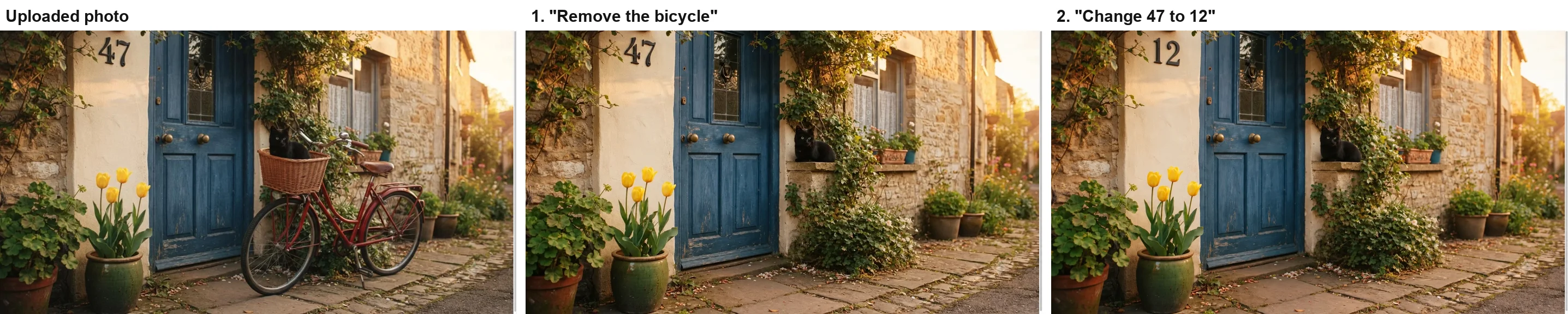
The new number is in the same black metal style and the same spot, and the cat, door and flowers survived. The framing held too: the file came back larger, at about 1,692 by 930, but with the same crop as my upload. If you are editing a picture that has to line up with something else, such as a product image in a fixed layout, still check the size and crop every time.
A house number is large, simple text. Google’s AI Overview for “chatgpt image editing” warns against using these edits for tiny text fixes, and that matches how the model works: small print on a label or a sign is redrawn along with everything else, so read it closely before you trust it.
Remove a background
ChatGPT can hand back a real transparent PNG, which is useful for product shots and stickers. I uploaded the earbud case and asked:
Remove the background from this product photo and give me the earbud case on a transparent background as a PNG.
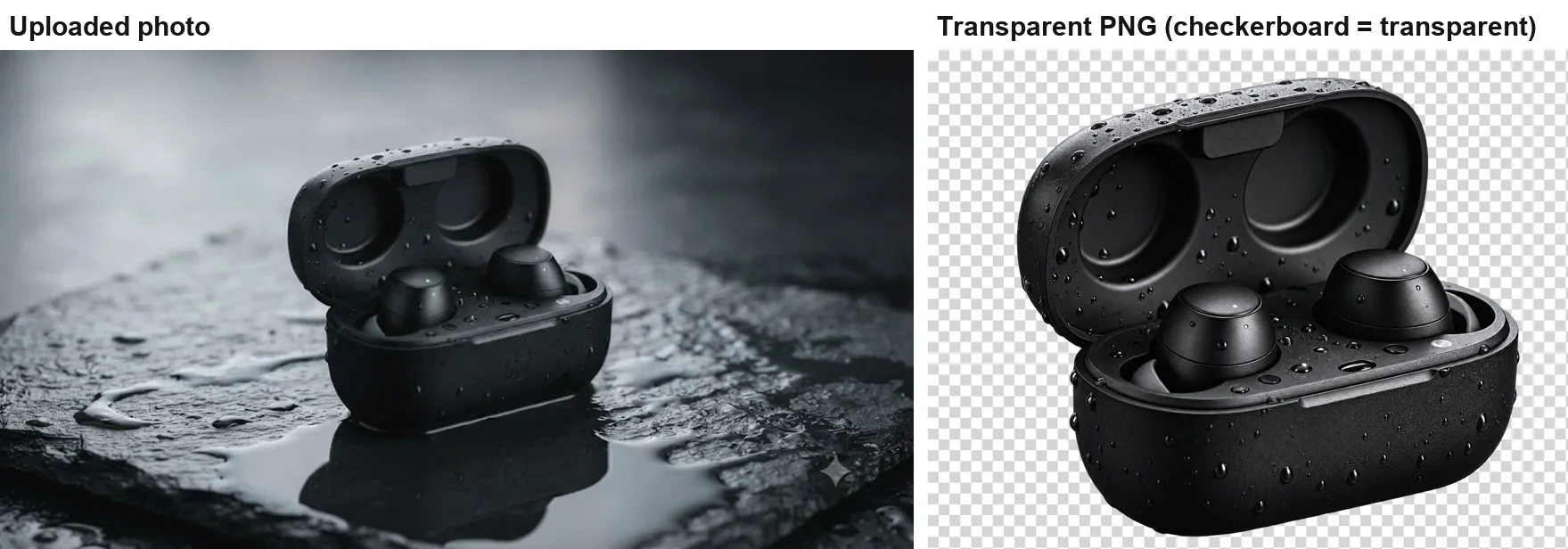
The file came back with an alpha channel, and about 45 percent of its pixels fully transparent. The slate, the reflection and the small watermark in the corner of my upload were gone. The case itself was redrawn as a tighter close-up with its water droplets, which looks good but is not a cutout of my original. If you need the exact product from your photo, compare the logo, the finish and the proportions before you use it.
Then I tried the editor’s Remove BG button on the night version of the fisherman.
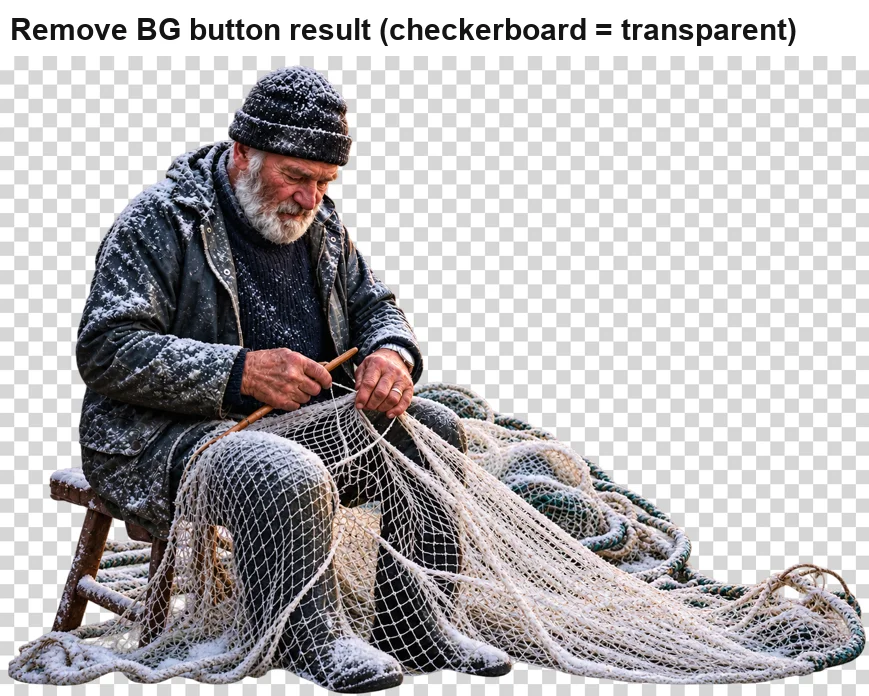
This was the better of the two cutouts. The man, his stool, the coiled ropes and the net came out cleanly, with the background showing through the mesh of the net, the kind of edge that is tedious to mask by hand. It took about a minute and a half, and the frame changed shape again.
The Erase brush: the tool that failed
The editor’s Erase tool asks you to brush over what you want removed. I opened the blue-door image, brushed over the cat on the window ledge and pressed Send.
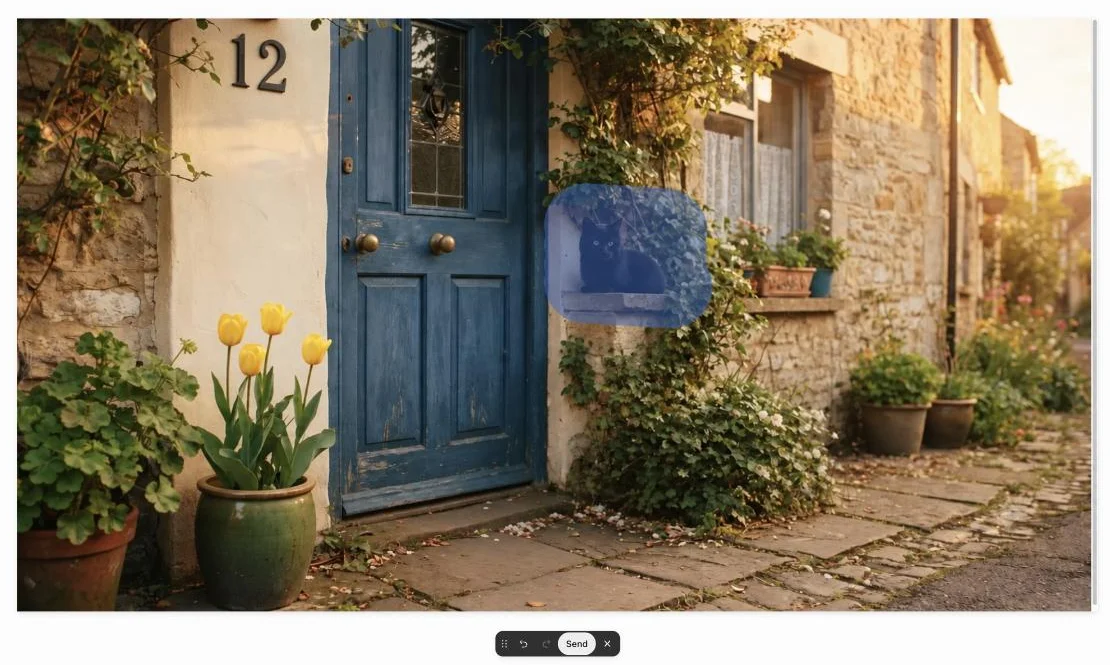
ChatGPT logged the request as removing the selected area, generated for about a minute and a half, and then asked which of two images I preferred. Both still had the cat.
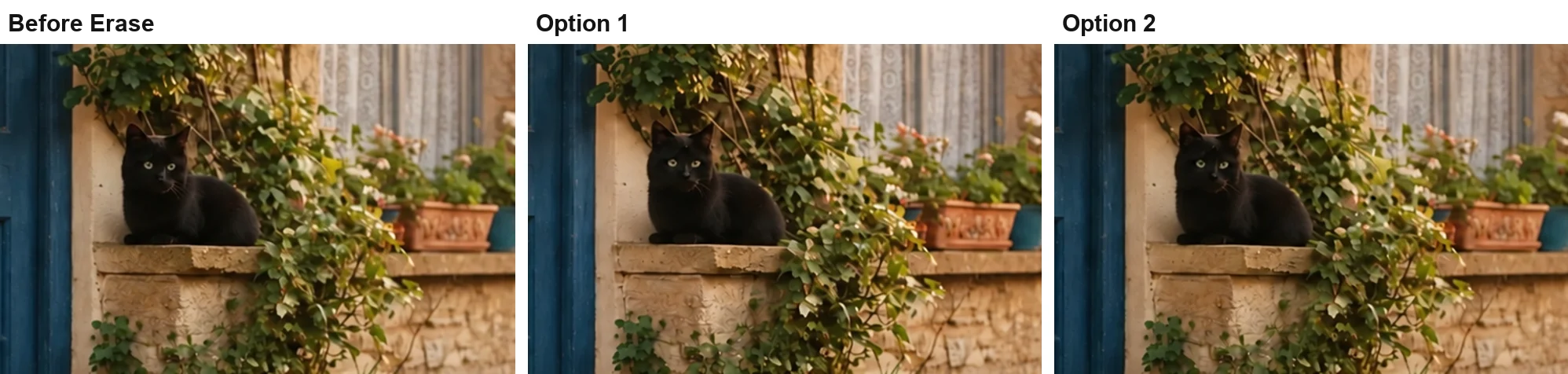
One attempt is not a verdict on the tool, and OpenAI’s help page does warn that highlights are not always precise. But the same removal typed as a sentence, on the bicycle, worked first time. If Erase misses, fall back to describing the change: “remove the black cat from the window ledge, keep everything else the same”.
Edit an image ChatGPT made
Everything above started from an upload, but you can edit ChatGPT’s own images the same way, by replying in the chat that made them. Our earlier review tested this on a free account: asked to turn a street scene into night, switch on a lamp and remove the cat, ChatGPT removed the cat, added the lamp and kept the scene intact, though the result read more like dusk than night.
The difference from uploads is small but useful. The picture and its prompt are already in the chat, so a follow-up such as “make the sky darker” or “swap the headline” needs no description of the scene. If a result drifts too far, scroll back and edit from the earlier version rather than stacking more changes on the bad one.
Editing on the ChatGPT app
The phone app follows the same idea with touch controls. OpenAI’s help page says you tap an image to open it full-screen, then choose Edit to describe the change or Select to paint over an area, using a slider to size the brush and Undo or Redo to adjust it. After selecting, you tap Next and describe the change for the highlighted area. The mobile controls also include Resize and Remove.
The help page describes one more option for the mobile app: you can type @ in the message box, choose Sketch, draw a rough shape and ask ChatGPT to turn it into a finished image. I did not test the phone app, so this part rests on OpenAI’s documentation.
What happens to the photos you upload
Uploading a photo puts it in your ChatGPT history like any other message. OpenAI’s data controls page says your conversations can be used to train its models unless you turn off Improve the model for everyone under Settings, then Data controls. Turning it off applies to new conversations and does not delete old ones. OpenAI’s images help page says the way to remove an image is to delete the conversation it came from.
Two details matter for editing. The same page says that if you give feedback, such as a thumbs up or down, the whole conversation may be used for training even after you opt out. It does not say whether choosing between two images, as the Erase tool asked me to, counts as feedback, so skip that question if it matters to you. And a Temporary Chat is not a workaround for images: in our earlier test, a Temporary Chat set to ignore memory refused to generate images at all.
ChatGPT photo editing prompts that worked
| Edit | Prompt pattern | Result in my test |
|---|---|---|
| Change the scene | ”Make it [season or time]. Keep [person, pose, clothes] exactly the same.” | Scene changed, person held, snow landed on clothes |
| Follow-up change | ”Now [one change]. Keep everything else the same.” | Almost no drift from the previous version |
| Remove an object | ”Remove the [object]. Keep everything else exactly the same, including [list].” | Clean removal, one item moved |
| Change text | ”Change the [text] from [old] to [new]. Keep everything else the same.” | Right text, same style, same spot |
| Transparent cutout | ”Remove the background and give me the [subject] on a transparent background as a PNG.” | Real transparency, subject redrawn |
| Remove BG button | One click in the editor | Clean cutout, new shape |
Two habits made the difference. Each prompt named one change, and each listed what should stay. Items I named mostly stayed, though the cat was moved and the coat got snow; anything I left out was fair game, like the climbing plants that filled the gap.
Limits, time and cost
Image editing costs the same as creating: every edit is an image request against your plan’s allowance. On our free test account that allowance was three requests in a rolling 24 hours, so a photo and two fixes would use the whole day. Paid plans raise it. ChatGPT’s own limit card offers Plus at 120 images a day, Go costs $8 a month in the US, and Plus costs $20.
Expect each edit to take around a minute, sometimes more. Mine ranged from under a minute to about a minute and a half on Plus. OpenAI’s help page says image generation can take a few minutes.
The output is a new file, not your original with changes. My edits came back at roughly 1,692 by 930 pixels from a 1,480 by 812 upload, and the two cutouts came back in different shapes again. ChatGPT also saves every image you create under Images in the sidebar, and the help page says the way to delete one is to delete the conversation that made it.
ChatGPT editing mistakes to avoid
- Asking for several changes at once. My single-change follow-ups held best. OpenAI’s help page recommends including the specific area in your prompt when an edit should apply to one part of the image. On the free plan’s three requests, batching changes into one edit saves allowance at the cost of some precision; on paid plans, one change per message holds better.
- Not saying what stays. The cat moved because I asked to keep it without saying where. Google’s AI Overview for “chatgpt image editing” gives the same advice: state what must remain identical.
- Trusting the brush. Erase missed the cat in both of its results, and the help page warns that highlights are not always precise.
- Assuming the output matches your file. My in-place edits kept the crop but came back at a larger size, and both cutouts came back in a new shape. Check the size before you drop the image into a layout.
- Treating a cutout as your product. The transparent earbud case was redrawn, not cut out. Compare logos and proportions with the original.
- Spending the free allowance on retries. On our free account an edit counted as one of three daily requests, as our ChatGPT image generator free guide records.
When to use ChatGPT for editing
- For scene changes, removals and quick cutouts: ChatGPT, typed in plain words. It acted on every typed instruction, though not always to the letter, and the transparent PNG output saves a trip to another app.
- For a series of changes to one picture: stay in the same chat and make one change per message. My night edit barely moved anything from the snowy version.
- For free, heavier editing: Google’s Gemini app also edits by description, and its free plan publishes no fixed daily image count. Our how to use Nano Banana guide covers it.
- Skip ChatGPT if you need pixel-exact retouching of a real photo, such as fixing skin or keeping a product label identical. Every edit is a regeneration, so a traditional editor is the safer tool.
Our ChatGPT image generator review covers how it creates images from scratch, and our Nano Banana vs ChatGPT comparison puts its editing against Google’s on the same prompts.
Final word
ChatGPT’s editing is best treated as a conversation. Upload the photo, ask for one change, say what must stay, and follow up in the same chat. In my test that produced convincing weather changes, a clean removal, a corrected number and two usable transparent cutouts, all without touching a selection tool. The Erase brush was the weak spot, and every result was a new file, larger and in a new shape for the cutouts, so compare each edit with your original before you use it.
Frequently asked questions
Is there a free ChatGPT photo editor?
Yes. OpenAI's help centre says ChatGPT Images is available on all tiers and that you can upload an existing image and describe the change you want. The catch is the allowance: on the free account we tested on 23 September 2026, ChatGPT stopped after three image requests in a rolling 24 hours, and an edit counted as one of the three.
That is enough for one photo and a couple of fixes. If you need to try several versions, Plus at $20 a month offered 120 images a day according to ChatGPT's own limit card. Several sites that rank for "GPT photo editor" are third-party tools, not OpenAI; the editor built into ChatGPT is the official one.
How do I edit only part of an image in ChatGPT?
Open the image in the editor and brush over the area, then describe the change, or name the area in your prompt, for example "change only the house number". OpenAI's help centre warns that highlights are not always precise and edits may extend beyond the area you selected.
In my test the plain-language route was the more reliable one. Asking ChatGPT to change a house number worked first time, while the editor's Erase brush over a cat returned two versions that both still had the cat.
Can ChatGPT remove a background and make it transparent?
Yes, and it produces a real transparent PNG rather than a white background. When I asked for an earbud case on a transparent background, the file came back with about 45 percent of its pixels fully transparent. The editor's Remove BG button did the same for a fisherman sitting on a stool, cutting around the mesh of his net.
Both took around a minute or more, because ChatGPT regenerates the subject rather than masking it, and both came back in a new shape. Check the edges and the size of the subject before you use the file.
Why does ChatGPT change parts of my image I didn't ask it to?
Because every edit is a new generation of the whole picture, not a pixel-level change. In my test the cutouts came back in a new shape, a cat moved to a new spot when the bicycle it sat on was removed, and snow landed on a man's coat when I asked for his clothes to stay the same.
You can limit the drift by listing what must stay the same in every prompt and making one change per message, but you cannot switch it off. For pixel-exact retouching, a traditional editor is still the right tool.
Does ChatGPT keep a person's face the same when editing?
In my test, yes, closely enough to read as the same person. I asked ChatGPT to turn a harbour scene snowy, then to make it night, and the man's face, beard, hat and pose held through both edits.
That test used an AI-generated portrait rather than a real person's photo, so treat it as a good sign rather than proof. For a real portrait, name the features that must not change, such as the eyes, nose and mouth, as I did with the face, beard and pose.
Keep reading
ChatGPT Image Generator Review: Perfect Text, Pushy Slogans
I tested the ChatGPT image generator (Images 2.5) with 12 prompts on Free and Plus. It spelled all 15 text strings right, and added slogans I never asked for.
ChatGPT Image Generator Free: The Limits, Tested
Is the ChatGPT image generator free? Yes, with an account: my free plan allowed three image requests, then locked for 24 hours. What free gets, and when to pay.
Nano Banana vs ChatGPT: 12 Prompts, Two Different Winners
Nano Banana vs ChatGPT, tested with the same 12 prompts: ChatGPT follows a brief exactly, Nano Banana is twice as fast and free. Which one to use, and when.
Best AI Image Generator: 8 Picks, Two Tested Head to Head
The best AI image generator is ChatGPT for exact briefs and Nano Banana for free, fast images, both tested. Plus Midjourney, Ideogram, FLUX and three more.