
Gemini Image Editing: 7 Photo Edits on a Free Account
How Gemini image editing works on a free account: upload a photo, pick the right mode, describe the change, and what held or failed in seven real edits.
Contents
How to edit a photo in Gemini
To edit a photo in Gemini, switch the mode to Flash, upload the photo with the plus button, and describe the change in plain words, saying what must stay the same. For another change, reply in the same chat. I made seven edits with Gemini’s photo editor on a free account on 29 September 2026, five of them with the same prompts as our ChatGPT editing test. Gemini handled scene changes, object removal, a text swap and a two-photo blend well. It failed at a transparent background, painting a fake checkerboard instead, and its watercolour barely changed the photo.
Every edit took under a minute, and none needed a paid plan.
My test: seven Gemini edits, no paid plan
I used a free Gemini account with no Google AI plan, and set the mode picker to Flash before the first upload. The test ran the same five prompts I had put through ChatGPT the day before, so the two can be compared directly, plus two Gemini-only edits: a watercolour restyle and combining two photos into one. Using identical wording matters, because small changes in a prompt can change an edit more than the choice of tool.
The photos are not camera shots. They are three stand-ins from our earlier Nano Banana test: a harbour portrait, a doorstep with a bike and a cat, and a product shot. They’re ours to publish, and between them they test a face, an object, a number and a background. I uploaded each as a full-window screenshot saved as a file, into the same upload field the plus button’s Upload files option opens. The images below are the display-size results Gemini showed, 1,024 pixels on the long side.
Each edit was done within 30 to 47 seconds. The account took eight requests in about 15 minutes, the seven edits plus one duplicate sent by a stuck send button, with no refusal and no limit message.
Switch Gemini to Flash before you upload
Gemini’s mode picker matters more for editing than for creating. Google’s help page on images says the default Flash-Lite mode uses Nano Banana 2 Lite, which is not designed for multiple image references or for multiple edits. Flash and Pro modes use Nano Banana 2, which can accept multiple reference images. For anything more than a single tweak, switch to Flash first.
Google’s page names three ways in: edit something Gemini drew, upload your own photo, or give it several images to merge into one. Editing is limited to people aged 18 and over, and you can reopen an older image from your Library to keep editing it in a chat. Our how to use Nano Banana guide covers the mode choice and the rest of the app step by step.
Snow, then night: a scene change in Gemini
Edit this photo: make it a snowy winter morning, with snow on the harbour wall, the boats and the nets. Keep the man, his face, beard, clothes and pose exactly the same.
Then, in the same chat:
Now make it night, with lights on in the boats and the harbour. Keep everything else the same.
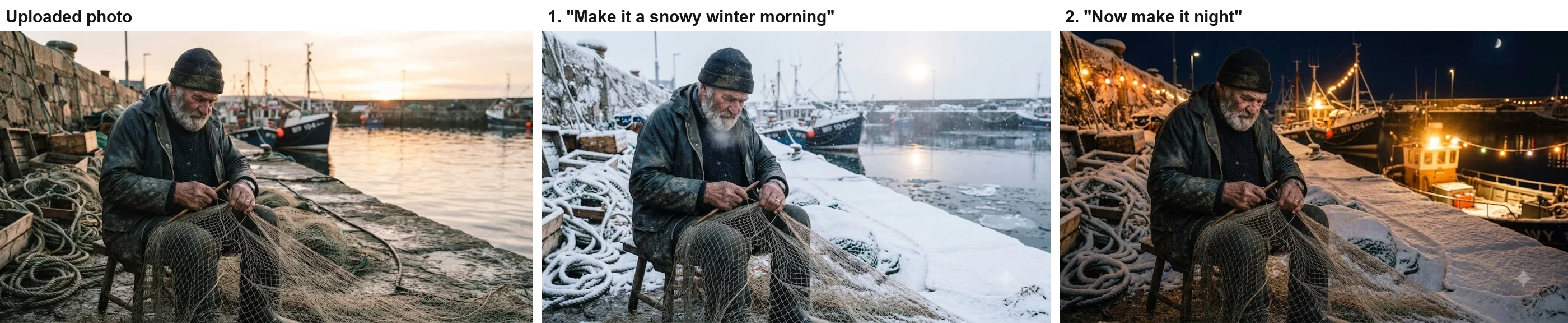
This was the most faithful scene change of the test. Gemini made it a real winter morning, with a grey sky, a pale sun, falling snow and ice floes in the water, and kept the man exactly as he was, with no snow settled on his jacket or hat. The snow sits where I asked: on the wall, the boats, the crates and the nets on the ground.
The night follow-up kept him, the nets and the framing in place and lit him warmly, as if by the harbour lamps. It also went further than asked. Told to put lights on in the boats, Gemini strung lights along the wall and the rigging and added a whole lit fishing boat in the right foreground that was not in the photo.
Removing the bicycle, keeping the cat
Remove the bicycle from this photo. Keep everything else exactly the same, including the cat, the door and the flowers.
The cat sat in the bicycle’s basket, so this edit had to decide what to do with it. Gemini’s answer was the most literal one possible: it removed the bicycle, kept the basket, set it on the ground beside the door and left the cat sitting in it. The door, the number and the tulips stayed where they were, and climbing plants filled the space where the bike had leaned.
Swapping a house number
In the same chat:
Change the house number from 47 to 12. Keep everything else the same.
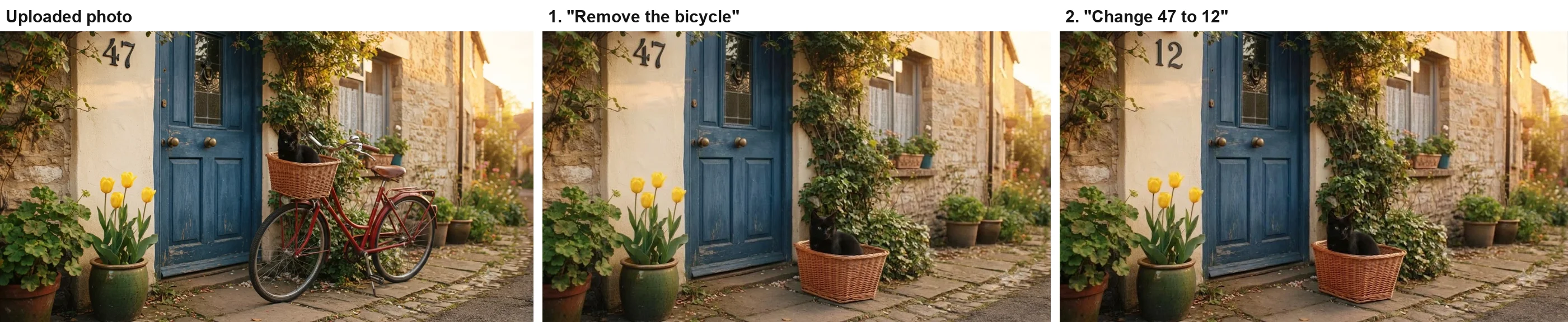
The new number matches the old one’s black metal style and position, and nothing else moved: same cat, same basket, same door, same framing. For a sign, a label or a price on an otherwise finished image, this is the kind of edit Gemini is good at. Short, large text like a house number is the safe case; check smaller print closely.
A watercolour that stayed a photo
Still in the same chat:
Turn this photo into a watercolour painting. Keep the composition exactly the same.
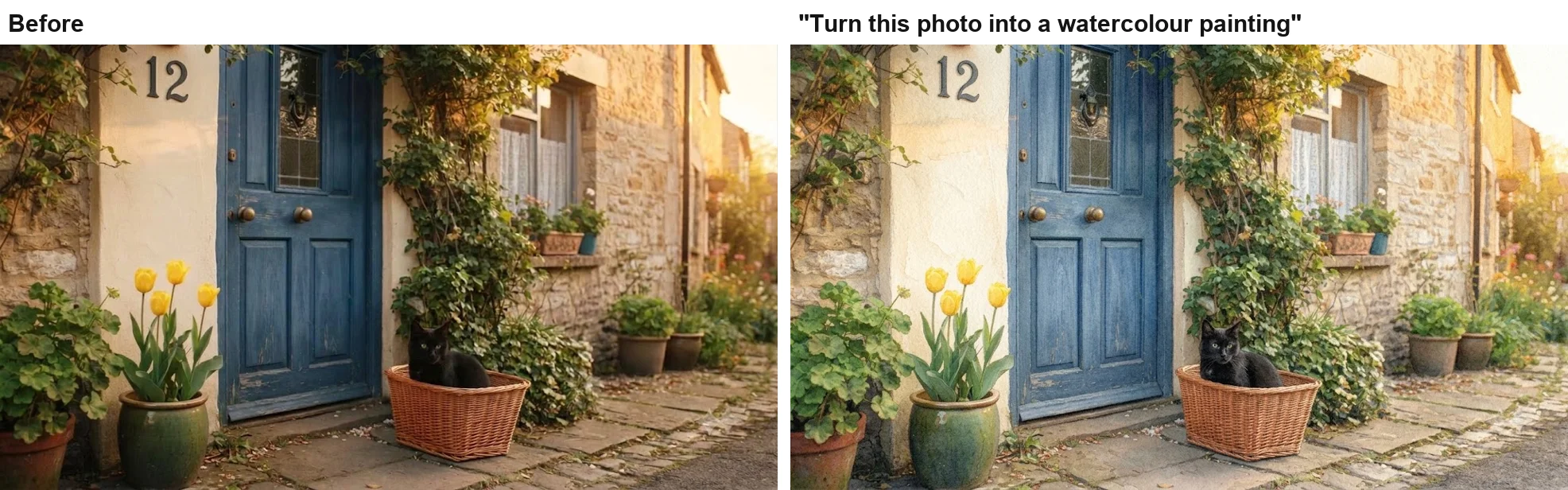
This was the weakest edit. Gemini honoured “keep the composition exactly the same” so closely that it barely changed anything: the result has a faint painterly texture on the walls and door but still reads as a photograph, not a loose watercolour with washes and paper showing through. When the style change matters more than the layout, relax the instruction, for example “a loose watercolour painting of this scene, with visible washes and white paper”.
The transparent background that wasn’t
Remove the background from this product photo and give me the earbud case on a transparent background as a PNG.
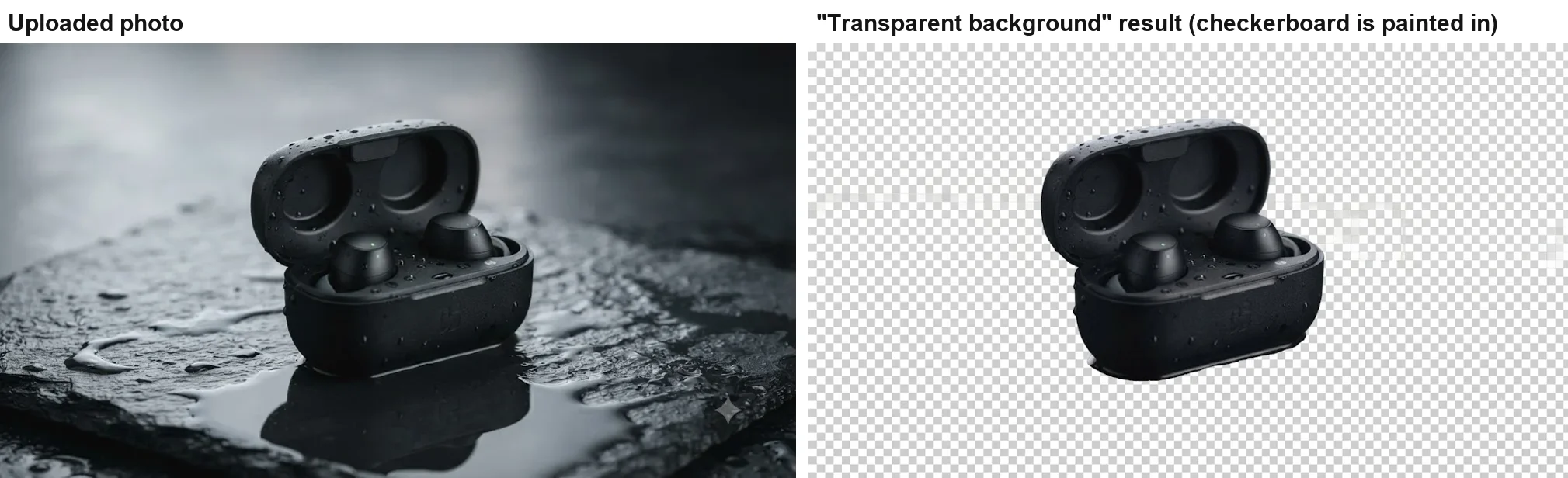
Gemini cut the case out cleanly and removed the slate, the puddle and the reflection. But the “transparent background” is a picture of one: a grey-and-white checkerboard, the pattern design apps use to show transparency, painted into the pixels. When I checked the image, not a single pixel was transparent, and a smeared band runs across the pattern. Drop this onto a coloured web page and the checkerboard comes with it.
This is the clearest difference from ChatGPT, which returned a genuine transparent PNG for the same prompt in our ChatGPT image editing test. For cutouts, use a dedicated background remover or ChatGPT, and open the file in an editor to check that transparency is real.
Blending a product into a second photo
Combining several images into one is among the three kinds of edit Google’s help page lists, so I added one test. I uploaded the fisherman photo first and the earbud case second, then asked:
Put the earbud case from the second image on the wooden crate beside the fisherman in the first image. Match the lighting of the harbour scene and keep everything else in the first image the same.
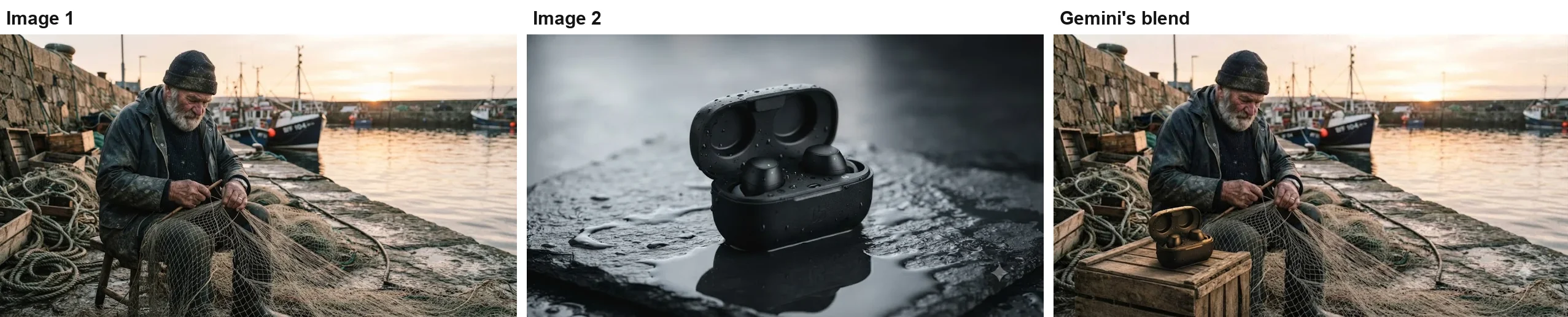
The composite is convincing at a glance: Gemini added a crate in the foreground, set the case on it and lit it from the same low sun, and the fisherman, nets and boats are otherwise unchanged. The catch is the product itself. Matching the golden light turned the black case bronze, so the product in the picture is no longer the product in the box. For product placement, add the colour and finish to the “keep” list, such as “keep the case matte black”.
Two images is the simple case. Google’s developer docs say requests to the underlying models can include up to 14 reference images, and that the Nano Banana 2 model keeps the fidelity of up to ten objects and the resemblance of up to four characters in one workflow. In the app, refer to each upload by its order, as I did, and describe where each element goes: in front of, behind, on the left, on the crate. The more precisely you place things, the less Gemini has to invent and the fewer surprises you get.
Reworking a picture Gemini created
Uploads are only half of it. You can also edit a picture Gemini created, by replying in the chat that made it, and Google’s help page says you can reopen an older image from your Library and carry on in a chat. Our Nano Banana review tested this on 23 September: asked to turn a sunset street into night, switch on a lamp and remove a cat, Gemini produced a real night sky, a lit lantern by the door and no cat, with the rest of the scene intact, within 20 seconds.
That edit ran in the default Flash-Lite mode and still worked, but it was a single edit. Google’s warning about Flash-Lite is about chains of edits and multiple reference images, which is exactly what a longer editing session turns into, so switch to Flash before the second change.
Google’s own editing templates
Google’s image generation docs for developers include editing templates that work just as well typed into the app. The most useful is the one for changing a single thing: “Using the provided image, change only the [specific element] to [new element/description]. Keep everything else in the image exactly the same, preserving the original style, lighting, and composition.” The docs also have templates for adding or removing an element and for restyling a photo; our Nano Banana prompts guide quotes all three.
My prompts followed the same shape, one change plus a list of what stays, and the edits that held were the ones where the list was complete. Google’s restyle template is also the fix for my weak watercolour: it asks you to describe the stylistic elements you want, which gives the model permission to change the look rather than preserve it.
Gemini photo editing on your phone
There is no separate photo-editor download: the regular Gemini app for Android and iPhone does the editing, with touch controls. Google’s help page says you open an image from Library and tap Chat to edit it, or upload one from your device, and that to keep a result you touch and hold it and tap Save. It warns that sharing an image creates a public link, so save private photos rather than sharing them. I ran this test on the web, not a phone, so this part rests on Google’s documentation.
Redoing an edit with Nano Banana Pro
Subscribers to Google AI Plus or a higher plan get one more option: regenerating a finished edit with Nano Banana Pro, Google’s strongest image model, through the Redo with Pro option in the More menu, which Google says stops working once the day’s Nano Banana 2 allowance is spent. Our how to use Nano Banana guide walks through it. Every result on this page came from Nano Banana 2 in Flash mode on a free account.
Same prompts, Gemini against ChatGPT
Running identical prompts through both tools shows where each image editor is stronger.
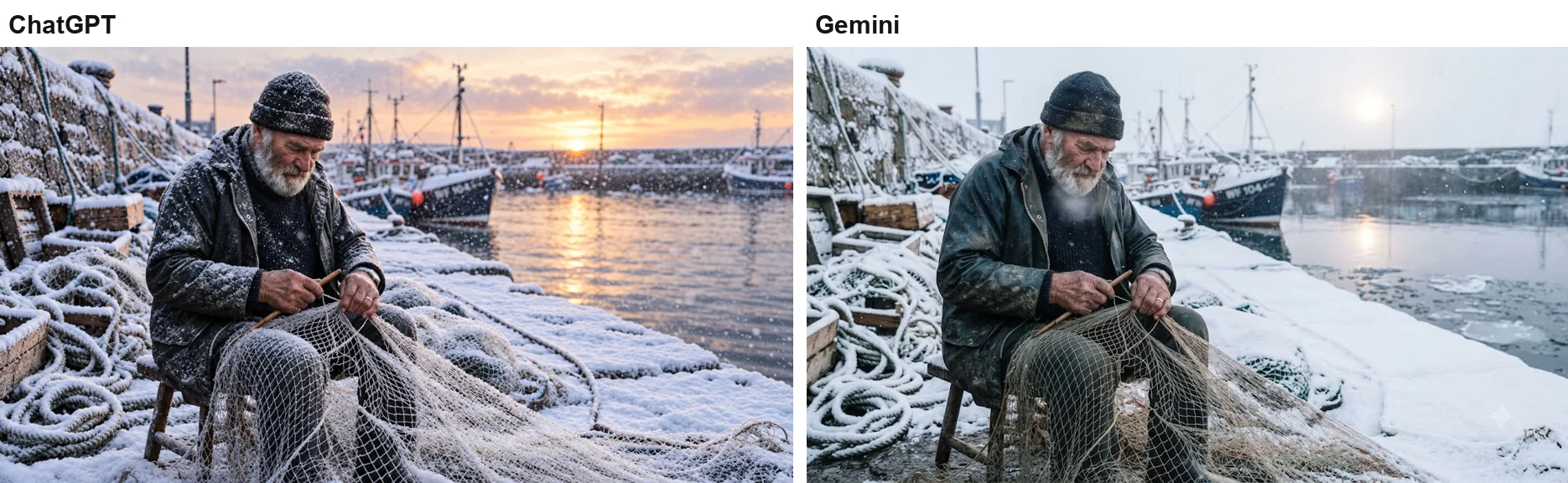
On the snow edit, Gemini followed the prompt more closely: a true morning, and his clothes left alone. ChatGPT kept the sunset and dusted his coat with snow.
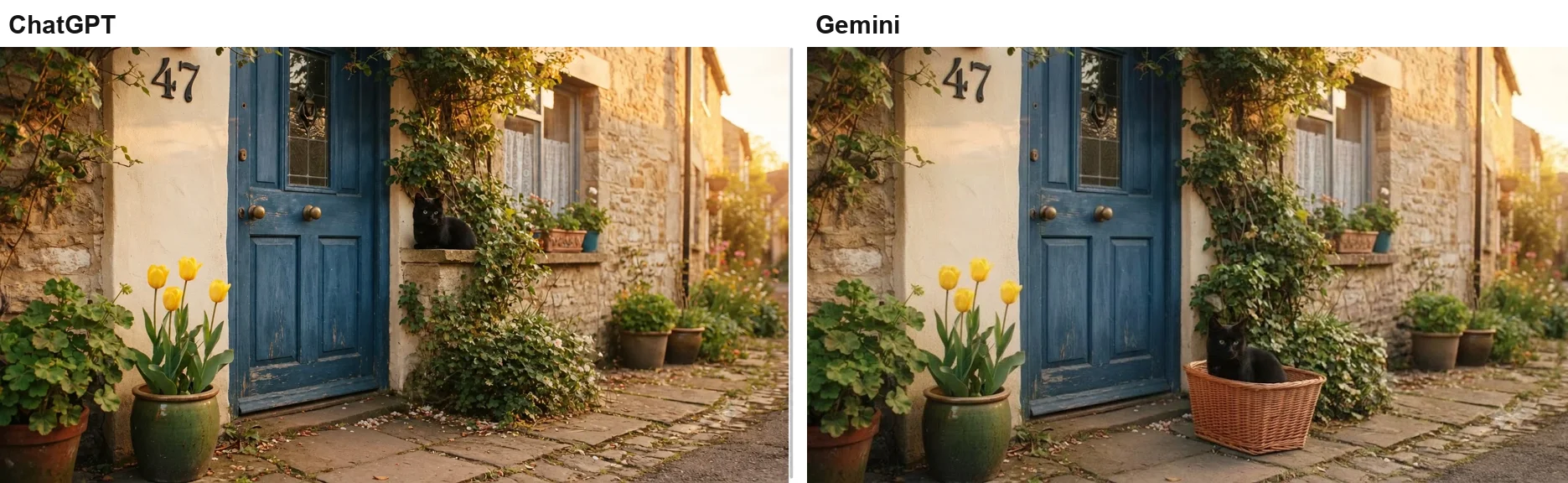
On the removal, both kept the cat, in different ways: ChatGPT moved it to a window ledge, Gemini kept it in the basket.
| Edit | Gemini (free, Flash) | ChatGPT (Plus, Instant) |
|---|---|---|
| Snow scene | Morning sky, clothes untouched | Sunset kept, snow on his coat |
| Night follow-up | Lit to match, added a boat | Scene held, man lit like day |
| Remove the bicycle | Cat kept in the basket | Cat moved to a ledge |
| Change 47 to 12 | Exact, nothing moved | Exact, nothing moved |
| Transparent PNG | Fake checkerboard | Real transparency |
| Style change | Barely changed | Not tested on ChatGPT |
| Speed | 30 to 47 seconds | Up to about 90 seconds |
The short version: Gemini kept the man and the cat closer to the originals on the snow and removal edits and was faster, on a free account, though it added a boat on the night follow-up. ChatGPT was the one to trust for transparent cutouts.
Gemini edit prompts worth copying
| Job | Prompt pattern | What to add |
|---|---|---|
| Change the scene | ”Turn it into [season or time]; leave [person, pose, clothes] untouched.” | The sky or light you want |
| Follow-up | ”Next, [one change]. Nothing else changes." | "Don’t add anything new” |
| Remove an object | ”Take out the [object]; [list] stay exactly where they are.” | Where attached items should go |
| Change text | ”Change the [text] from [old] to [new]. Keep everything else the same.” | Nothing; this held perfectly |
| Style change | ”A loose [style] painting of this scene, with [texture].” | Leave out “exactly the same” |
| Blend two photos | ”Put the [item] from the second image on the [place] in the first image.” | The item’s exact colour and finish |
For trend edits of a portrait, such as a retro studio shot, a figurine or a LinkedIn headshot, our Gemini AI photo prompts test has nine more prompts with their results.
Free limits, download size and the sparkle
Editing uses the same allowance as creating. Google’s limits page describes compute-based limits with five-hour and weekly windows, and publishes no image count, so there is no fixed number of free edits. My eight requests never triggered a warning.
Every result kept my photo’s shape: a 1,456 by 834 upload came back at 1,024 by 586, the same proportions, and the blend’s 1,480 by 812 first image came back at 1,024 by 562. Free downloads come at 1K resolution, while a Google AI plan raises that to 2K, according to Google’s help page. Free images also get Google’s small sparkle mark in one corner; according to Google’s watermark settings page, most accounts can turn it off in Settings under Media Watermark, while the hidden SynthID watermark remains in every image.
Our Gemini watermark remover guide tests what happens when the setting is missing, including cropping and asking Gemini to remove the mark.
Where Gemini edits go wrong
- Editing in Flash-Lite. Google’s help page says its model is not designed for multiple edits. Switch to Flash first.
- Trusting a “transparent” result. My cutout had a painted checkerboard and zero transparent pixels. Open the file in an editor before you use it.
- Leaving colours off the keep list. The blend turned a black product bronze. Name the colours that matter.
- Over-constraining a style change. “Keep the composition exactly the same” made the watercolour barely a watercolour. Loosen it for style edits.
- Assuming “lights on” means only lights. The night edit added a boat. Add “don’t add new objects” when the scene must stay as it is.
- Clicking send twice. When Gemini’s send button seemed not to respond, one of my repeat clicks sent the same edit again as a second chat. Wait a few seconds and check the chat list before you click again, especially on a plan with limits.
- Sharing instead of saving. Google’s help page warns that Share creates a public link, so save private edits instead.
Is Gemini a good photo editor?
- For scene, time-of-day and weather changes: Gemini. It changed the whole mood while leaving the person untouched.
- For removing objects and fixing numbers or signs: Gemini, on a free account, each in under a minute.
- For combining a product with a scene: Gemini, with the product’s colour spelled out.
- Skip Gemini if you need a transparent PNG. In my test it faked the transparency; use ChatGPT or a dedicated background remover instead.
For creating images from scratch rather than editing, our Nano Banana prompts guide has 15 tested prompts, and our Nano Banana review covers the model’s wider strengths and limits.
Final word
Of the two editors I tested, Gemini followed most photo edits more closely. It changed a sunset to a snowy morning without touching the man in the frame, removed a bicycle while keeping the cat in its basket, and swapped a house number cleanly, each in under a minute on a free account. Its weak spots were a watercolour that barely changed, a product that changed colour in a blend, and a transparent background that was only a picture of one. Name what must stay the same, colours included, and check every cutout before you trust it.
Frequently asked questions
Can Gemini edit photos for free?
Yes. Google's help page lists image editing in the Gemini app, including editing an uploaded photo, and image generation with Nano Banana 2 is available without a Google AI plan. I made seven edits on a free account on 29 September 2026 with no refusal and no limit message.
The free plan has two catches. Gemini meters use by compute rather than by image count, so there is no fixed number of edits, and free downloads come at 1K resolution with a small visible watermark in the corner unless you switch it off where Google offers that setting.
How do I edit a photo in Gemini?
Click the plus button in the prompt box, choose Upload files, pick your photo, then describe the change in plain words and say what must stay the same. Make further changes by replying in the same chat: in my test, a follow-up turning a snowy harbour scene to night kept the man, the nets and the framing exactly as they were.
Run the edits in Flash mode rather than the default, and note that Google's help page restricts image editing to users aged 18 and over.
Did Gemini remove photo editing?
No. On 29 September 2026 I uploaded and edited photos in the Gemini web app on a free account, and Google's help page still lists uploading and editing your own images, along with editing images Gemini made and combining several images into one.
If editing seems to be missing, check that you are signed in and aged 18 or over, which Google requires for editing. For more than one edit in a chat, switch the mode picker from Flash-Lite to Flash. Google's help page describes the same editing in the Gemini app for Android and iPhone, so there is nothing separate to download.
Can Gemini make a transparent background?
Not in my test. When I asked for an earbud case on a transparent background as a PNG, Gemini cut the case out cleanly but painted a grey-and-white checkerboard into the image, the pattern design apps use to show transparency. The image Gemini returned had no transparent pixels at all.
If you need a real cutout, use a dedicated background remover or ChatGPT, which returned a genuine transparent PNG for the same request in our ChatGPT editing test.
Which Gemini model is best for image editing?
Use Flash or Pro mode, not the default Flash-Lite. Google's help page says Flash-Lite runs Nano Banana 2 Lite, which is not designed for multiple image references or repeated edits, while Flash and Pro run Nano Banana 2, which accepts multiple reference images.
On a paid Google AI plan you can also redo an image with Nano Banana Pro. I ran every edit in this test in Flash mode on a free account.
Why did Gemini change parts of my photo I didn't ask for?
Because each edit is a fresh generation, and Gemini can change things you did not name. In my test it added a lit boat when I asked for lights in the harbour, and when it placed a black earbud case into a sunset scene it tinted the case bronze to match the light.
List what must not change in every prompt, including colours you care about, and check the result against your original before you use it.
Keep reading
How to Use Nano Banana: Gemini's Image Model, Step by Step
How to use Nano Banana in Gemini: pick the right mode, prompt, edit in plain words and download, with which mode runs which model and what free users get.
ChatGPT Image Editing: 7 Photo Edits Tested
How ChatGPT image editing works: upload a photo, describe the change, use the editor tools, and what held or slipped in seven real edits on ChatGPT Plus.
Nano Banana Review and Pricing: Fast, Free, Nearly Exact
Nano Banana pricing, tested: 12 prompts on Gemini's free tier, no limit hit. 15 of 15 text strings right, most images in 30 seconds, and one tulip too many.
Nano Banana Prompts: 15 I Tested, With the Results
Nano Banana prompts for headshots, product shots, thumbnails, stickers, logos and edits, each tested in Gemini with the result, and what it ignored.