
Gemini Watermark Remover: What Works, Tested Free
Gemini watermark remover options on a free account: the Media Watermark setting (missing for me), cropping, asking Gemini, and what SynthID still shows.
Contents
How to remove the Gemini watermark
The official Gemini watermark remover is a switch: in the Gemini app, open Settings, find Media Watermark and turn it off, and new images come out without the small sparkle in the corner. According to Google, it applies to newly generated images, and in India, South Korea and Vietnam it only appears for Google AI Ultra subscribers. No setting, including that switch, removes the invisible SynthID watermark Google adds to everything Gemini makes.
I tried every route I could on a free Gemini account on 30 September 2026. My account is in Vietnam, and as Google’s page predicts, the setting simply is not there. So I tried the fallbacks instead. Cropping the corner off removed the sparkle. Asking Gemini to remove its own watermark gave me a near-identical picture with a sparkle in the same place. And when I uploaded the cropped version back to Gemini and asked where it came from, it still answered that the image was made with Google AI.
What the Gemini watermark actually is
When people search for a Gemini watermark remover, they almost always mean one thing: the small four-point sparkle that sits in the bottom-right corner of pictures made with Nano Banana, Gemini’s image model (our how to use Nano Banana guide covers the model itself). But a Gemini image carries three separate marks, and it helps to know which one a given fix touches.
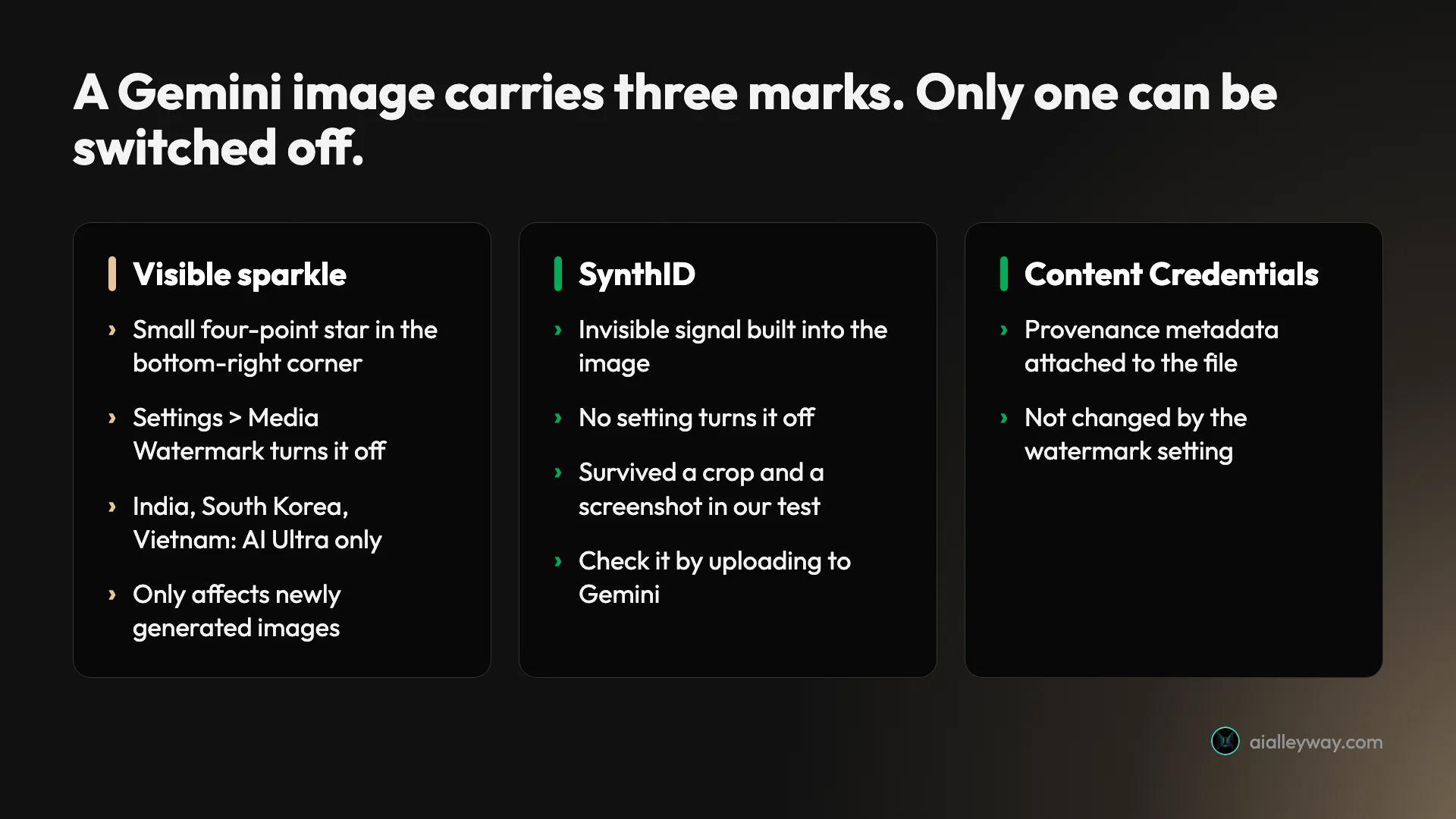
- The visible sparkle. A semi-transparent star in the corner. Google’s watermark settings page says newly generated images get one, videos get it as a persistent overlay, and music gets it on the player. This is the only mark the setting controls.
- SynthID. An invisible watermark built into the image itself. Google’s page says all media created or edited with Gemini includes it, and that the watermark setting does not affect it.
- Content Credentials (C2PA). Provenance metadata that travels with the file, based on the C2PA standard. Google’s page says the setting does not affect these either. Metadata of this kind can be fragile: OpenAI’s help page on the same standard notes that it can be removed by platforms, editing tools or file conversions.
So “removing the watermark” usually means removing a small logo, while the image can still identify itself to anyone who checks.
Turning the watermark off in Settings
Google added the Media Watermark setting in mid-August 2026, with the watermark still on by default. Here is how to turn it off, per Google’s help page:
- Go to gemini.google.com and sign in.
- Click Settings at the bottom left.
- Click Media Watermark and turn it off.
- Generate your image as usual. It should come out without the sparkle.
In the Android and iPhone apps, Google’s page puts the same setting under the menu’s Settings. Because it covers newly generated images, it should not clean up pictures already in your Library; generate anything you need again after switching it off.
Google’s page adds one big exception. In India, South Korea and Vietnam, the setting only appears with a Google AI Ultra subscription, and everyone else in those countries automatically gets the visible watermark on all visual media.
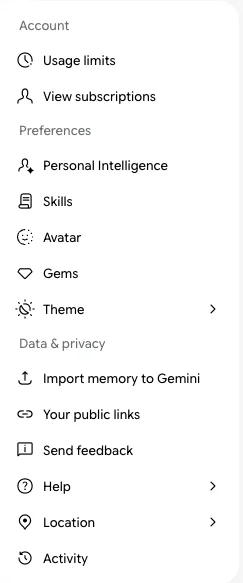
That is exactly what my account showed. It is a free account whose Location setting reads Vietnam, and its Settings menu runs from Usage limits to Activity with no Media Watermark item anywhere. If yours looks the same, check the Location entry in that menu before you assume the feature is broken. In those three countries, upgrading to Ultra is the only official way to get the switch.
Why you might not even see the sparkle
Before you reach for any remover, look closely at your image, because at normal size the sparkle can be close to invisible.
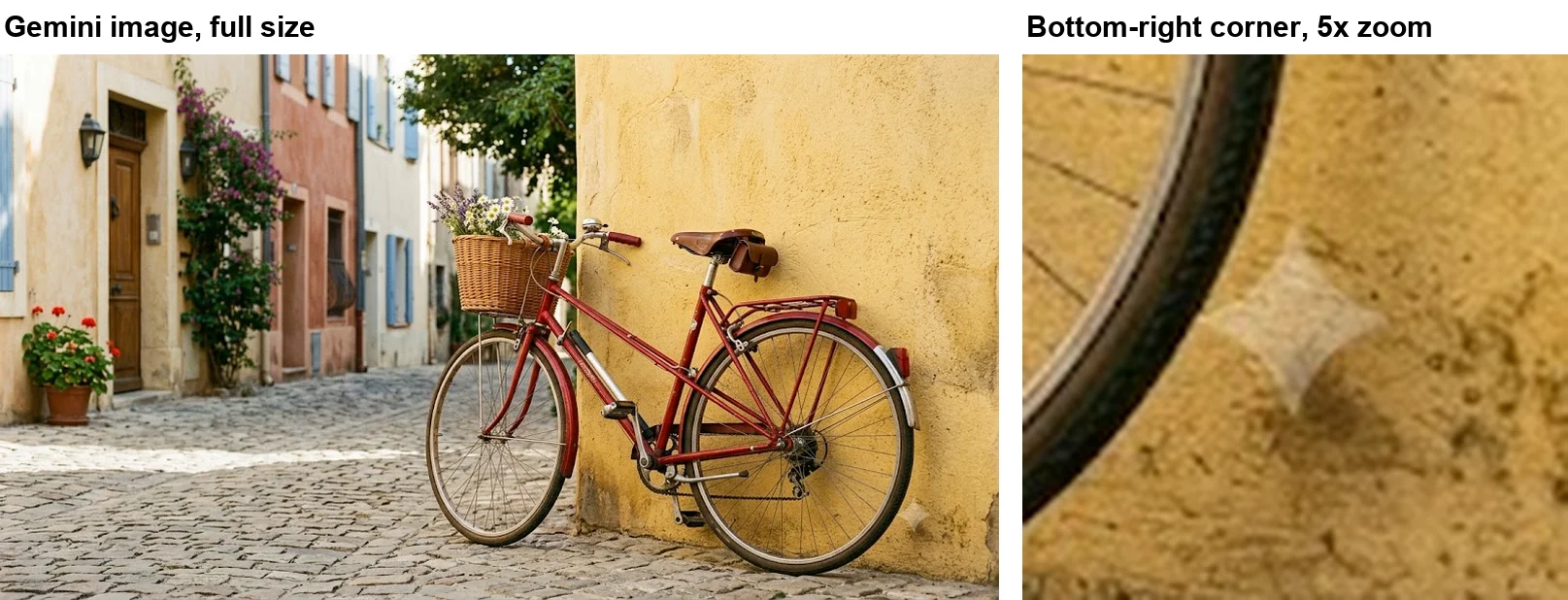
For this test I asked Gemini for a red vintage bicycle against a sunny yellow wall. The image was ready in about 38 seconds, and at normal size I could not find the sparkle at all. Zoomed in five times, the star is recognisable as a pale shape on the plaster, but at the size most people view an image, it blends into the wall.
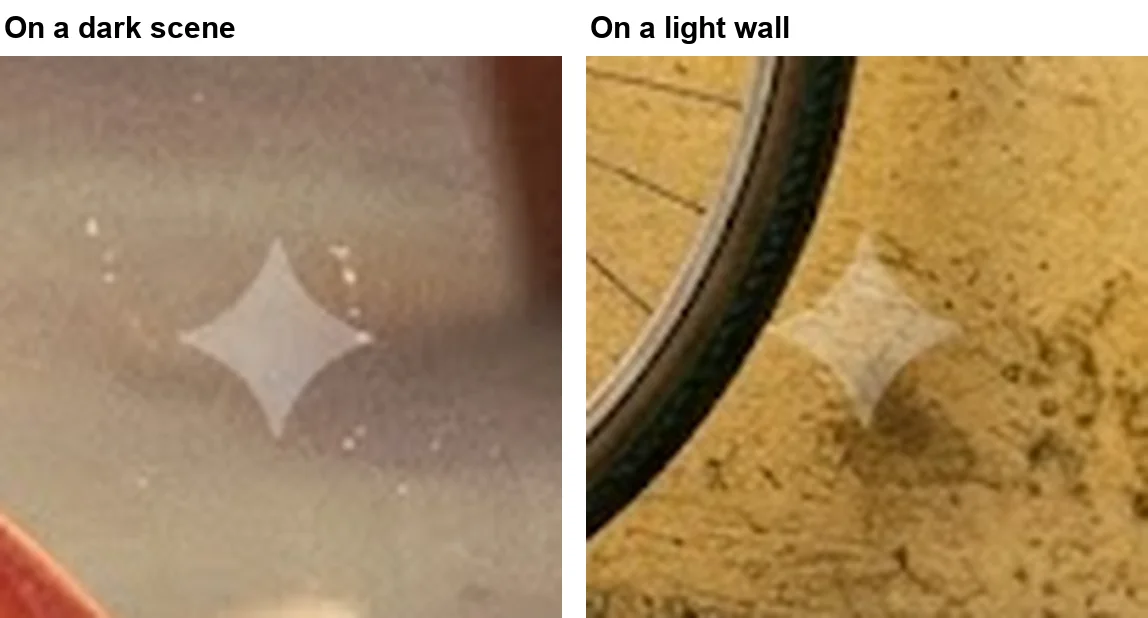
On a darker scene the story is different. The close-up on the left comes from a retro portrait I made in Gemini the same morning for our Gemini AI photo prompts test, and the star is plain to see. The mark is a pale, semi-transparent shape, so it fades into light, busy textures and stands out against darker, smoother ones. If your picture has a light corner, you may not need to do anything.
Can you ask Gemini to remove it?
It is the obvious thing to try, so I replied under the bicycle image:
Remove the Gemini sparkle watermark from the bottom-right corner of this image. Keep everything else exactly the same.
Gemini did not refuse and did not reply in words. It simply generated a new image, about 30 seconds later, that was almost identical to the first: same bicycle, same basket of flowers, same wall and street. And in the same corner, there was a sparkle.
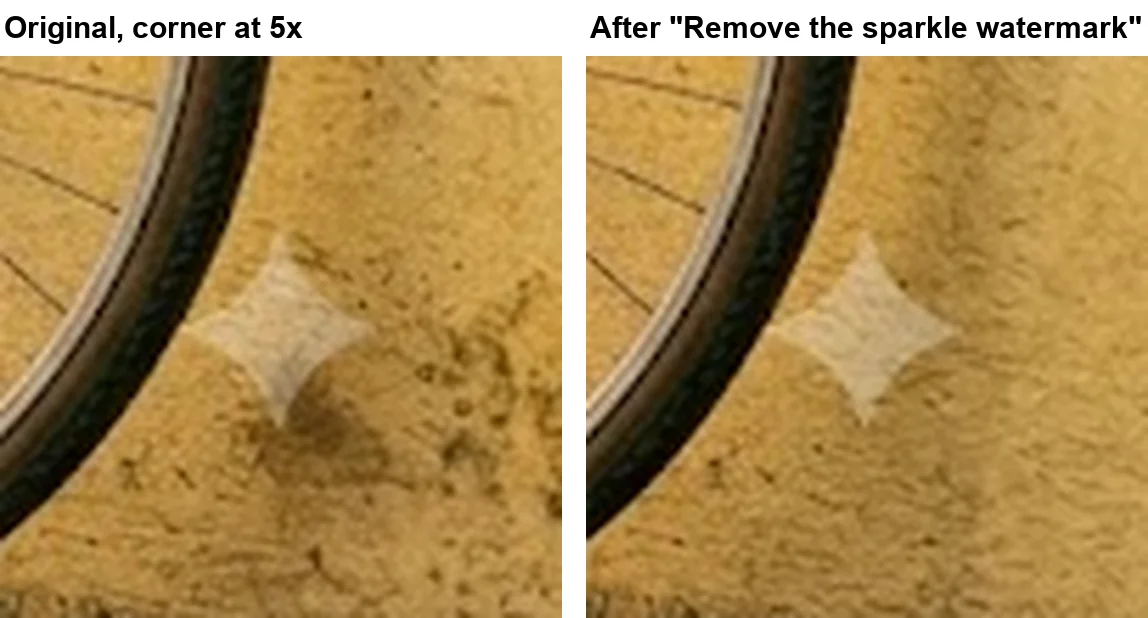
My reading is that the result is simply a new image, and Google’s page says newly generated images get the visible mark while the setting is on. Asking Gemini to remove the watermark produced another generated image, so it came back marked. On an account without the switch, the request cannot give you a clean picture.
Watermarks on Gemini videos and music
The sparkle is not only an image problem. Google’s watermark page says Gemini applies visible marks differently depending on the media: images get the corner star, generated videos get it as a persistent overlay, and music gets it on the video or visual player created with the track. The Media Watermark switch covers visual media in general, so turning it off applies to new videos and song visuals as well as images.
That matters more for video than for pictures, because an overlay that stays on screen for a whole clip means cropping every frame, and re-encoding a video every time you want a clean version costs quality. The same country rule applies: without the switch, the mark stays. SynthID, according to Google, is in all media Gemini creates or edits, whatever the setting says. I tested images only; I did not generate a video or a song for this article.
Cropping, and what third-party removers do
Without the setting, the simplest fix is also the oldest: crop the corner off. The sparkle sits in the bottom-right, so trimming a strip from the bottom and the right edge removes it completely.
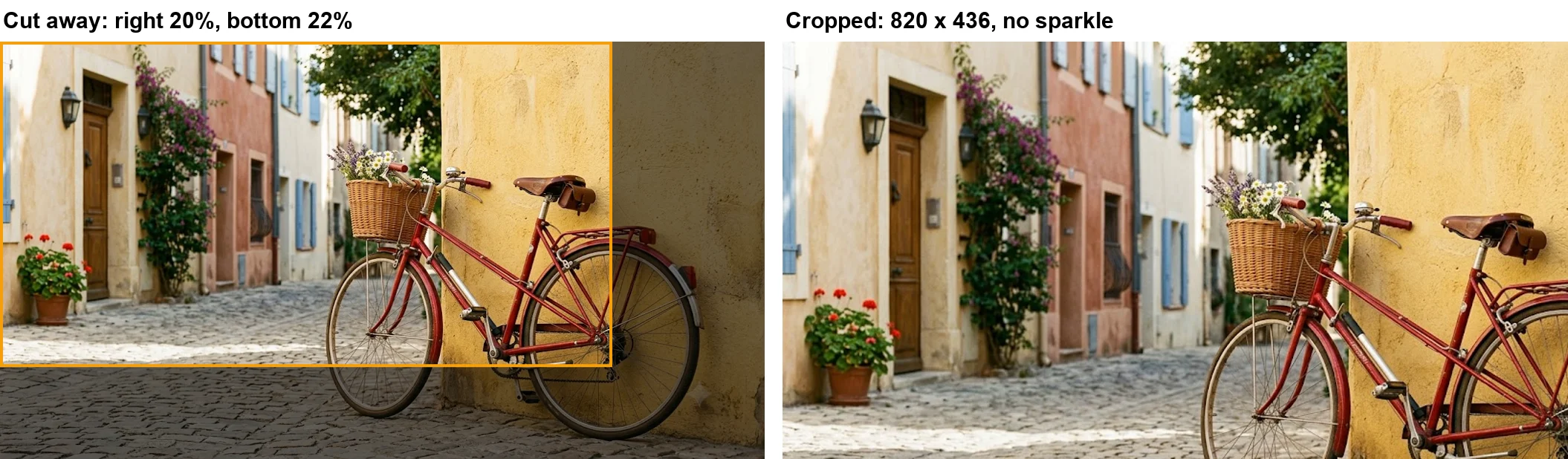
For my test I cut the bicycle image from 1,024 by 559 pixels down to 820 by 436, which took the whole corner with it. You do not need special software: the crop tool built into the photo app on your phone or computer does the job in a few seconds. The cost is obvious, though. You lose part of the picture and change its shape, which may not suit a thumbnail or a product shot.
The search results for this topic are full of remover websites, browser extensions and phone apps that promise to take the sparkle out without cropping. I did not test them. Using one usually means uploading your images to a service you know nothing about, and that is a privacy question before it is a quality one. If you do try one, prefer a tool that processes the image on your own device without uploading it, needs no account, and publishes its code so you can see what it does.
Keep your expectations realistic, too. These tools target the visible sparkle. SynthID is a different kind of mark, and nothing on Google’s page suggests that painting out the corner star removes it. In my own test, it survived a crop that took out far more than the star.
SynthID survived the crop: my three checks
Google lets anyone check an image for its invisible watermark. On its verification help page, the method is to upload the file to Gemini and ask whether it was created or edited by Google AI. I ran that check three times, each in a new chat, with the same question. Each image went in as a full-window screenshot rather than the original file, so every upload was already a re-encoded copy.
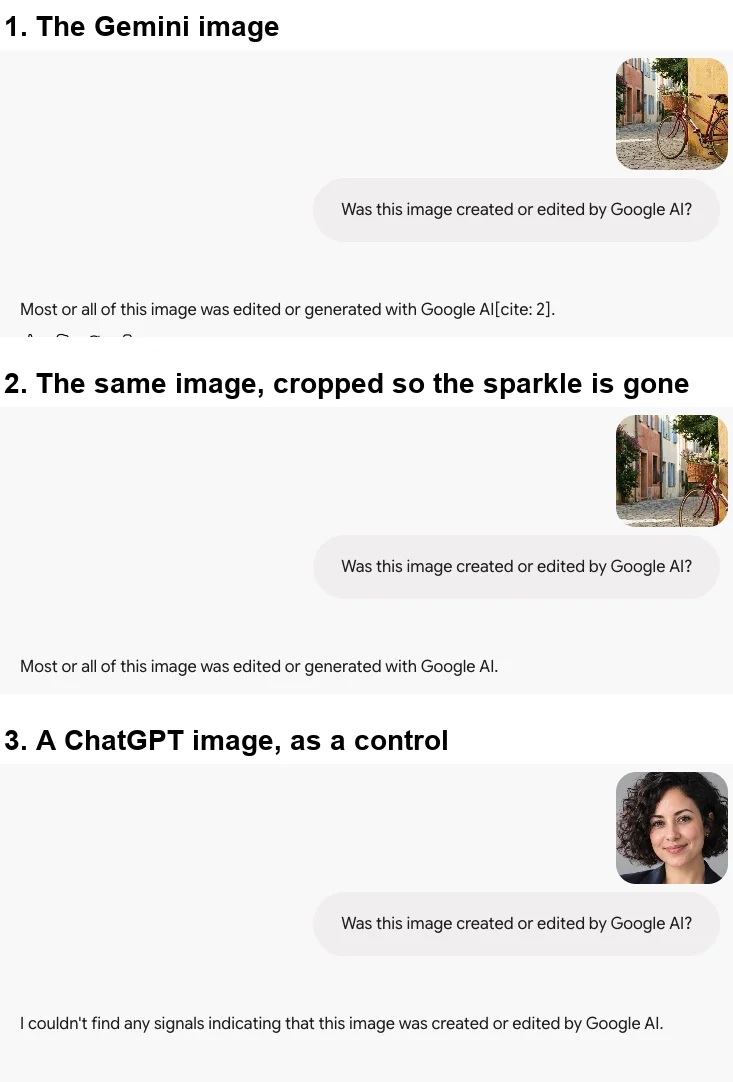
- The bicycle image. Gemini answered: “Most or all of this image was edited or generated with Google AI.” The reply ended with a stray “[cite: 2]”, a formatting slip in the answer rather than anything meaningful.
- The cropped copy, sparkle gone. Same answer. This copy had been cropped by a fifth on two sides, enlarged to fill my screen, and uploaded as a screenshot. The SynthID signal survived all of it.
- A ChatGPT image, as a control. A headshot made with ChatGPT the day before. Gemini said it “couldn’t find any signals indicating that this image was created or edited by Google AI.”
The third result is correct but easy to misread. Google’s page says Gemini can only recognise content made by Google’s tools, and that “not detected” does not mean an image is human-made; it could come from another AI. The ChatGPT headshot is AI-generated, just not by Google.
Two limits are worth knowing before you rely on the check. Google’s page caps it at roughly 10 checks per file type every 24 hours, and says some results come back unclear, for example when an edit is too small to judge.
How to check any image yourself
You do not need to trust a remover’s claims, or mine. Google’s check is free inside the Gemini app:
- Go to gemini.google.com and sign in.
- Click the plus button in the prompt box, choose Upload files and add the file: one image or video up to 100 MB, with videos under 90 seconds, or an audio file under an hour.
- Ask: “Was this image created or edited by Google AI?” (or video, or audio).
- Read the answer. A detection means all or part of the file was made or edited with Google’s AI. No detection means it was not made by Google’s AI, and says nothing about other AI tools.
Each of my three checks came back in under a minute. Run it on any image you have cleaned up before you publish it, so you know what a curious reader would find.
| Gemini’s check | OpenAI’s check | |
|---|---|---|
| Where | Upload to gemini.google.com and ask | openai.com/verify |
| Looks for | Google’s SynthID | OpenAI’s provenance signals (SynthID, C2PA) |
| Said about my ChatGPT image | No signals of Google AI | Not tested |
| Limits | About 10 checks per file type per 24 hours; 100 MB | See OpenAI’s page |
Does ChatGPT watermark its images?
Not visibly, by default. OpenAI’s help page on provenance signals says images from ChatGPT, Codex and the OpenAI API carry both C2PA Content Credentials and a SynthID watermark. If you want a visible mark, OpenAI suggests asking for one in the prompt, for example “Include a visible OpenAI watermark in the image.”
So a ChatGPT image carries a SynthID watermark too, yet Gemini’s check found no Google signal in mine. That fits Google’s own description: its check answers one question, whether Google’s AI made or edited the file. For ChatGPT images, OpenAI points to its own checker at openai.com/verify, which its help page says looks for OpenAI’s SynthID watermark or a trusted C2PA manifest. I did not test it. OpenAI’s page is frank about the gaps: metadata can be stripped during editing or sharing, and a watermark can be degraded by compression, cropping, noise or other edits. My cropped bicycle came through a crop and a screenshot intact, but a heavier edit might not.
For a wider look at how the two image tools compare, see our Nano Banana vs ChatGPT test.
Is it legal to remove an AI watermark?
I am not a lawyer, and the rules depend on your country and on what you do with the image, so take this as orientation rather than advice.
Turning the sparkle off with Google’s own switch is plainly allowed; Google built it and documents it. The line Google draws is about deception. Its Generative AI Prohibited Use Policy forbids “misrepresenting the provenance of generated content by claiming it was created solely by a human, in order to deceive.”
In practice, that splits uses in two. A clean AI image in a slide deck, a blog header or a mock-up, where nobody is misled about what it is, is the use the setting exists for. Passing an AI picture off as a real photograph, a real event or your own hand-made artwork is the problem, whether you removed the mark with a setting, a crop or a website. And because SynthID can survive edits like a crop, anyone who checks may still find out.
Google does not explain on its help page why India, South Korea and Vietnam are treated differently. If you are in one of those countries, the visible mark is simply the default you work with, unless you pay for Ultra.
Common Gemini watermark mistakes
| Mistake | What actually happens |
|---|---|
| Expecting the setting to fix old images | It covers newly generated images; generate again after switching it off |
| Asking Gemini to erase its own sparkle | In my test, a new image came back with the star in the same place |
| Assuming the switch is broken | Check your Location first; three countries need Ultra |
| Uploading private images to unknown removers | You hand them to a service you cannot vet, and SynthID is a separate mark |
| Treating “not detected” as “human-made” | Gemini only recognises Google’s AI; my ChatGPT image passed cleanly |
The right fix for your account
| Your situation | What to do |
|---|---|
| Media Watermark is in Settings | Switch it off, then generate the image |
| No setting, the corner is light | Check at normal size; the sparkle may already be invisible |
| No setting, the sparkle shows | Crop the bottom-right corner off |
| The image is private or client work | Skip third-party removers entirely |
| You must not mislead anyone about AI | Keep the mark, or label the image |
If your account shows Media Watermark in Settings, that is the answer: switch it off, make the image, and switch it back on later if you want the sparkle on other work. Outside the three countries, it is free on any plan.
If the setting is missing, look at the corner first; on light backgrounds the sparkle may already be invisible at normal size. If it shows, crop it off. It is free and private, and if you know you will crop, ask for a little extra space around the subject in your prompt. Our Gemini image editing test covers how Gemini handles follow-up changes. And whatever route you take, assume the image may still be identified as AI-made, because in my test it was.
Final word
The Gemini watermark remover most people are looking for already exists, and it is free: a switch under Settings called Media Watermark. The catch is who gets it. It was missing on my free account in Vietnam, exactly as Google’s page says it will be in India, South Korea and Vietnam without Ultra. For everyone else without the switch, cropping works and asking Gemini itself does not. None of the methods I tried touched SynthID: I cut the sparkle off, re-saved the picture as a screenshot, and Gemini still recognised it as its own work. Remove the logo if you need a clean image, but plan on the picture still being identifiable as AI-made.
Frequently asked questions
Is it possible to remove the Gemini watermark?
The visible one, yes. Google added a Media Watermark setting that turns off the small sparkle in the corner of new images, videos and songs. You find it under Settings in the Gemini app, and in India, South Korea and Vietnam it only appears for Google AI Ultra subscribers.
No setting removes the invisible SynthID watermark. In my test it survived a crop that cut the sparkle off, and Gemini still identified the picture as its own.
How do I remove the Gemini watermark for free?
If your account shows Media Watermark under Settings, switch it off before you generate; that is free on any plan outside India, South Korea and Vietnam. It only affects images made after you change it.
Without the setting, the only free fix that involves no third-party tool is cropping the bottom-right corner out of the image. Asking Gemini to remove its own sparkle did not work in my test: it returned a near-identical image with a fresh sparkle in the same spot.
Does Gemini AI leave a watermark?
Yes, up to three. Every new image gets a small visible sparkle in the bottom-right corner unless the Media Watermark setting is off. Every image made or edited in the Gemini app also carries an invisible SynthID watermark, according to Google, and the watermark setting does not affect Content Credentials, the provenance metadata attached to the file.
The sparkle can be hard to see. On a light yellow wall in my test it was almost invisible at normal size, while on a darker scene it stood out clearly.
Can you ask AI to remove a watermark?
You can ask, but Gemini will not deliver a clean image. When I asked it to remove the sparkle from its own picture, it did not refuse or reply in words. It generated a new, near-identical version, and that version had a sparkle in the same corner. The result is a newly generated image, and Google's page says those get the visible mark while the setting is on.
No setting removes the invisible SynthID watermark, so even a clean-looking copy can still be identified as Google AI.
Does ChatGPT leave watermarks on images?
Not a visible one by default. OpenAI's help page says images made with ChatGPT, Codex and the OpenAI API carry C2PA Content Credentials metadata and a SynthID watermark, and you can ask for a visible watermark in the prompt if you want one. OpenAI runs its own checker at openai.com/verify.
Gemini's check did not recognise mine. When I uploaded a ChatGPT image, Gemini said it found no signals of Google AI, which is correct: its checker only looks for content made by Google's own tools.
Is it illegal to remove an AI watermark?
I can't give legal advice, and the answer depends on where you live and how you use the image. Turning the sparkle off with Google's own setting is plainly allowed, since Google built the switch. What Google's generative AI policy forbids is misrepresenting the provenance of generated content by claiming it was made solely by a human in order to deceive.
So a clean image on a slide is fine, while passing an AI picture off as a real photograph or your own artwork is where the trouble starts, whatever tool removed the mark.
Keep reading
Gemini Image Editing: 7 Photo Edits on a Free Account
How Gemini image editing works on a free account: upload a photo, pick the right mode, describe the change, and what held or failed in seven real edits.
How to Use Nano Banana: Gemini's Image Model, Step by Step
How to use Nano Banana in Gemini: pick the right mode, prompt, edit in plain words and download, with which mode runs which model and what free users get.
Nano Banana Review and Pricing: Fast, Free, Nearly Exact
Nano Banana pricing, tested: 12 prompts on Gemini's free tier, no limit hit. 15 of 15 text strings right, most images in 30 seconds, and one tulip too many.
Gemini AI Photo Prompts: 9 Trends Tested on a Free Account
Gemini AI photo prompts for 9 selfie trends, tested free with every result shown: the face mostly held, but Gemini invented a name, jewellery and new hair.