
ChatGPT Image Prompts: 15 Tested, With the Results
ChatGPT image prompts for headshots, product shots, thumbnails, logos, stickers and edits, each tested on ChatGPT Plus with the result it gave.
Contents
How to write a ChatGPT image prompt

A good ChatGPT image prompt opens with a verb, says what the picture is and what it is for, adds the setting, style and light, then states the shape, any exact words in quotes, and what to leave out. I ran 15 prompts through ChatGPT Plus on 29 September 2026, the same 15 I had run through Nano Banana the day before. Every requested shape came back right and every quoted headline was spelled exactly. The misses came from what the prompts left open: logos on a laptop screen, a misspelt name on a toy box, and step labels that never appeared.
Each prompt below is copied exactly as I sent it, next to the image it produced. Nothing was retouched. One prompt was rerun: the first product-shot request went in with a second copy of the prompt pasted into the middle by a typing glitch, so I sent it again cleanly, with its edit, and the images shown are from that clean run.
The test: the same 15 prompts on ChatGPT Plus
The account was ChatGPT Plus, left on the default Instant setting. Every prompt started a fresh chat apart from the two edits and two follow-ups, which I typed as replies under the first image. ChatGPT took the 15 prompts in about 20 minutes, plus the clean rerun, with no refusals and no limit warnings. Most images were ready within 40 seconds; the pencil sketch took about 50 and the collectible figure, the slowest, just under a minute.
Using the prompts from our Nano Banana prompts test makes this a fair comparison as well as a prompt guide. The prompts cover the jobs people most often search for: a headshot, a product shot and an edit, a thumbnail, an infographic, a logo, a sticker, a toy figure, a room, a short prompt against a long one, and a character drawn twice.
The files are the full-size images ChatGPT produced. Square images came back at 1,254 pixels a side, landscape ones at 1,536 by 1,024, the 16:9 thumbnail at 1,672 by 941, the vertical infographic at 1,024 by 1,536, and the collectible figure, with no shape named, at 1,402 by 1,122, a mildly wide 5:4. When I did not name a shape, ChatGPT chose square for the sticker, the logo and the robot, landscape for the room and the coffee shops, and a 5:4 frame for the figure.
OpenAI’s rules for a ChatGPT image prompt
OpenAI’s own guide, Creating images with ChatGPT, says a good image prompt does not need to be long, and that one to three clear sentences are usually enough. It suggests covering the purpose of the image, the subject, what is happening, where it takes place and the style, then adding framing, lighting or constraints if they matter. Its example of clarity is worth copying: “soft natural light from a window on the left” works better than “beautiful lighting”.
Three pieces of its advice turned out to matter in my test. First, constraints: the guide says that if you do not want extra text, logos or visual changes, you should say so directly. Second, text: put the words in quotes or capitals, keep them short, and spell brand names or unusual words letter by letter. Third, brands: when in doubt, ask for a generic or ownable design rather than one that imitates a real brand. Most of my misses below trace back to one of those three.
Headshot and product-shot prompts for ChatGPT
Photographic prompts work best when they read like a note to a photographer: who or what is in the frame, what they are wearing or made of, what is behind them, where the light comes from, and which lens. ChatGPT took each of those instructions seriously in my test, so the misses came from the words I left loose or open.
LinkedIn headshot.
Create a professional LinkedIn headshot of a woman in her 30s with short curly black hair, wearing a navy blazer over a white t-shirt, soft smile, plain light-grey studio background, soft key light from the left, 85mm lens, shallow depth of field, square format.
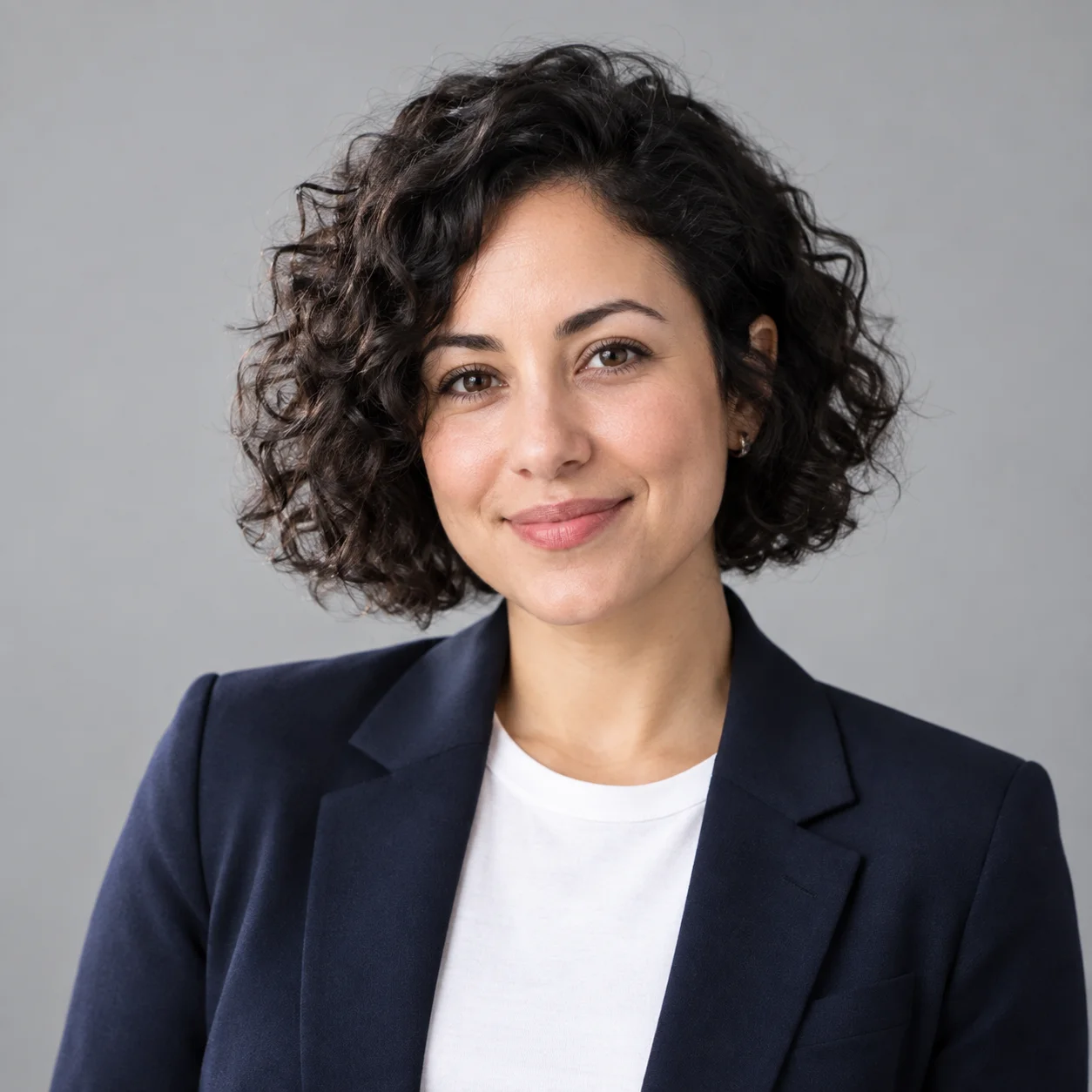
The lighting instruction landed clearly: the left side of her face is brighter, with a soft falloff to the right. The blazer, t-shirt, background and square frame are all as asked. The hair is curly and black, cut in a chin-length bob, which counts as short but may not be the length you meant. If a detail matters, give it a measure, such as “cropped short above the ears”.
Product shot, then an edit.
Studio product photo of a matte sage-green ceramic coffee mug on a white seamless background, soft diffused light, subtle shadow under the mug, no text, no logo, square format.
Then, in the same chat:
Keep the mug exactly the same. Place it on a white marble kitchen counter next to a small plate of croissants, with morning window light from the right.
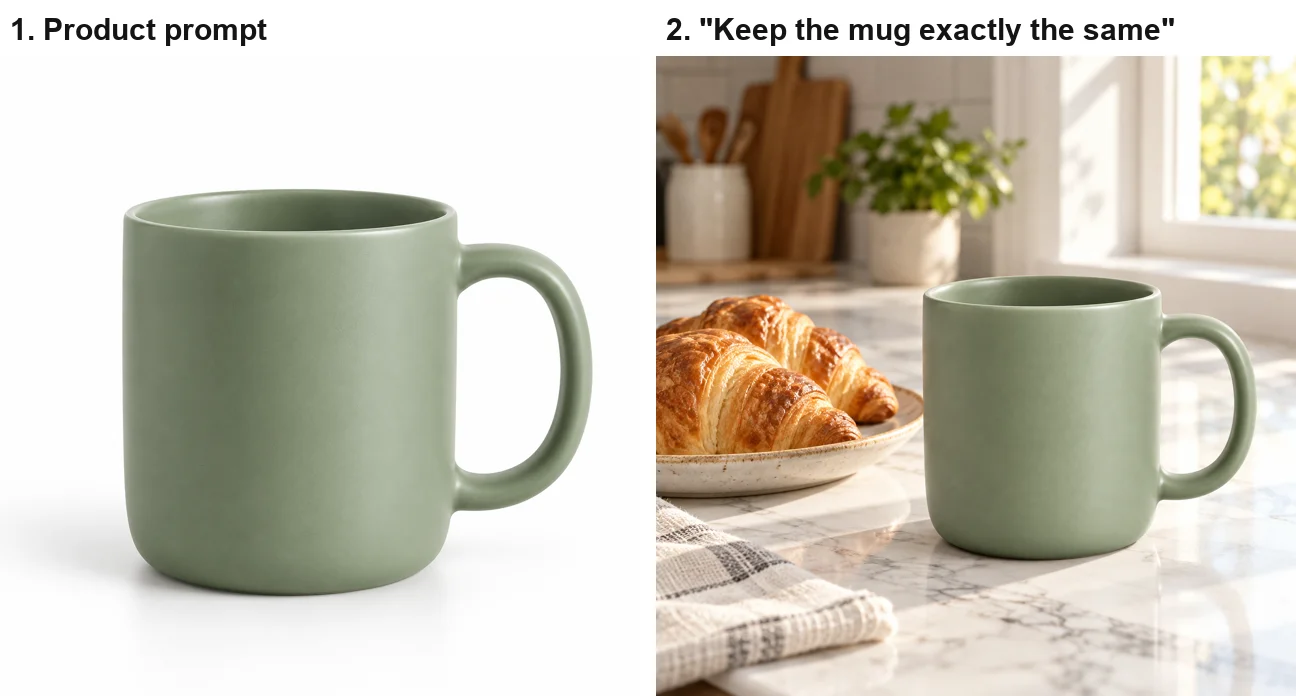
The studio shot is ready for a shop listing, with no text and no logo. ChatGPT’s edit held on to the mug’s form, glaze and handle, which is exactly what OpenAI’s “keep everything else exactly the same” pattern is for. ChatGPT added a potted plant, a utensil jar, a chopping board and a linen towel, props that suit a kitchen but that I did not ask for.
Headlines, labels and a logo in ChatGPT
Text is where ChatGPT image prompts need the most care, because every surface in a picture is a place the model may write something. Quote the exact words you want, describe their style and position, and say what the remaining surfaces should show.
YouTube thumbnail.
YouTube thumbnail, 16:9: a surprised man in his 20s pointing at a giant glowing laptop screen, bright yellow background, bold white headline with a black outline reading “I TRIED 5 AI TOOLS”, no other text.
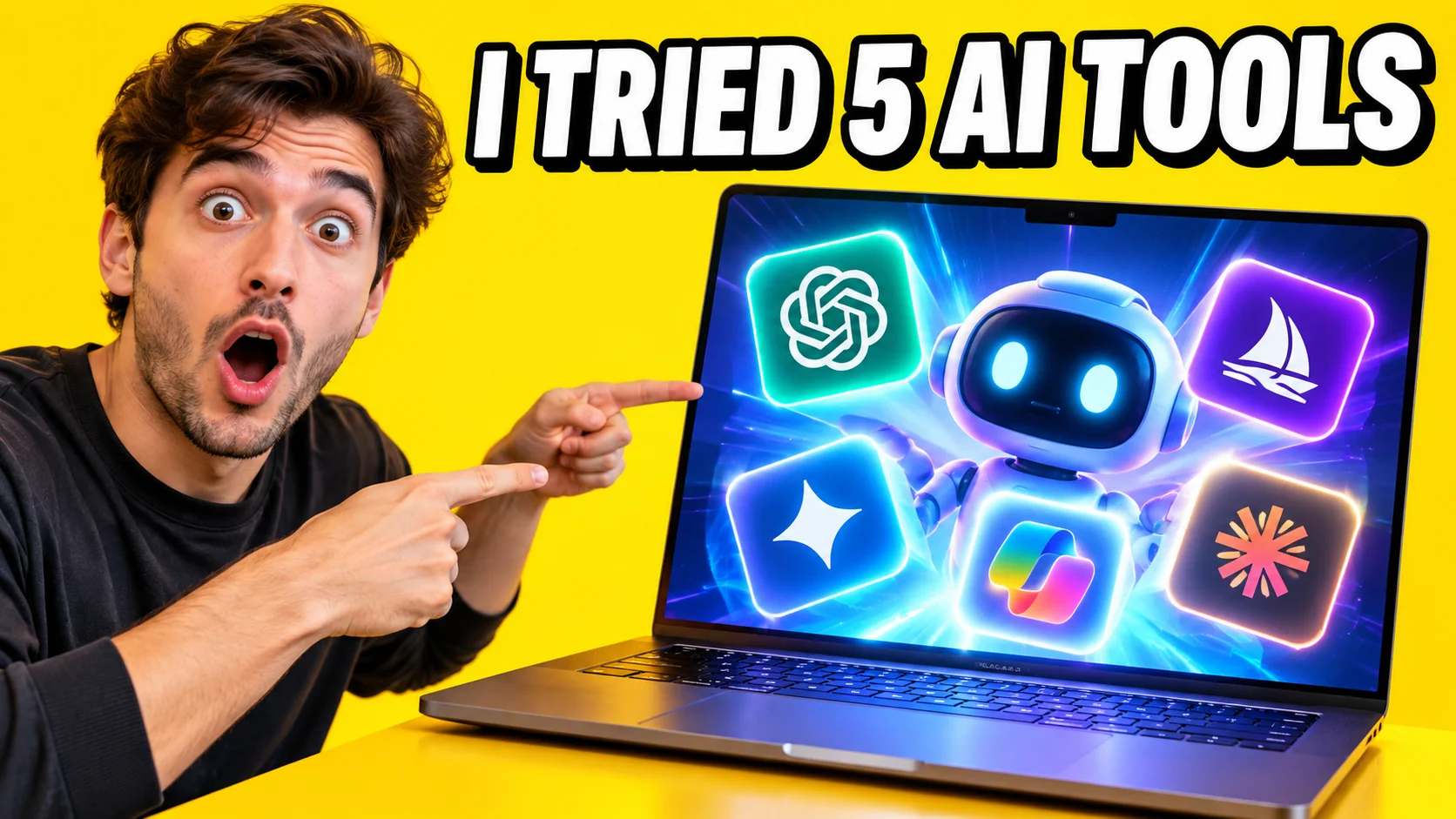
ChatGPT spelled the headline letter for letter and delivered a proper 16:9 frame. “No other text” held, too: there is not a single readable stray word. What filled the screen instead was a set of glowing app icons around a cartoon robot, and one of them is unmistakably OpenAI’s own logo; others look close to real brands. That is the gap OpenAI’s guide warns about. A prompt that says no text but not “no logos” leaves the door open to icons, so add both, or describe the screen outright.
Infographic.
A clean vertical infographic titled “How Coffee Is Made” with four numbered steps: 1 Harvest, 2 Dry, 3 Roast, 4 Brew. One simple icon per step, brown and cream colours, no other text.
The layout is handsome, the frame is vertical and the title is spelled right; you can see it next to Nano Banana’s version in the comparison further down. But the four step names never appear. ChatGPT drew four numbered panels with illustrations of picking, drying, roasting and brewing, and left the words Harvest, Dry, Roast and Brew out entirely. My guess is that “no other text” was read as covering them. OpenAI’s guide recommends asking for “sharp text rendering” in dense layouts, and quoting each label, such as “label step 1 ‘Harvest’”, would leave no room for doubt.
Logo.
A minimalist logo for a bakery called “Maple & Rye”: a simple wheat stalk icon above the name in an elegant serif font, dark brown on cream, flat vector, no other text.
This one was exact: the wheat stalk, the name with its ampersand, the serif font and the colours, with nothing extra. The logo appears beside the sticker in the next section. As with any image model, “flat vector” describes a look, not a file; the download is a PNG.
A cartoon sticker and a toy figure in ChatGPT
Die-cut sticker.
A die-cut sticker of a cheerful cartoon avocado wearing sunglasses and giving a thumbs up, thick white border, flat vector style, plain background, no text.
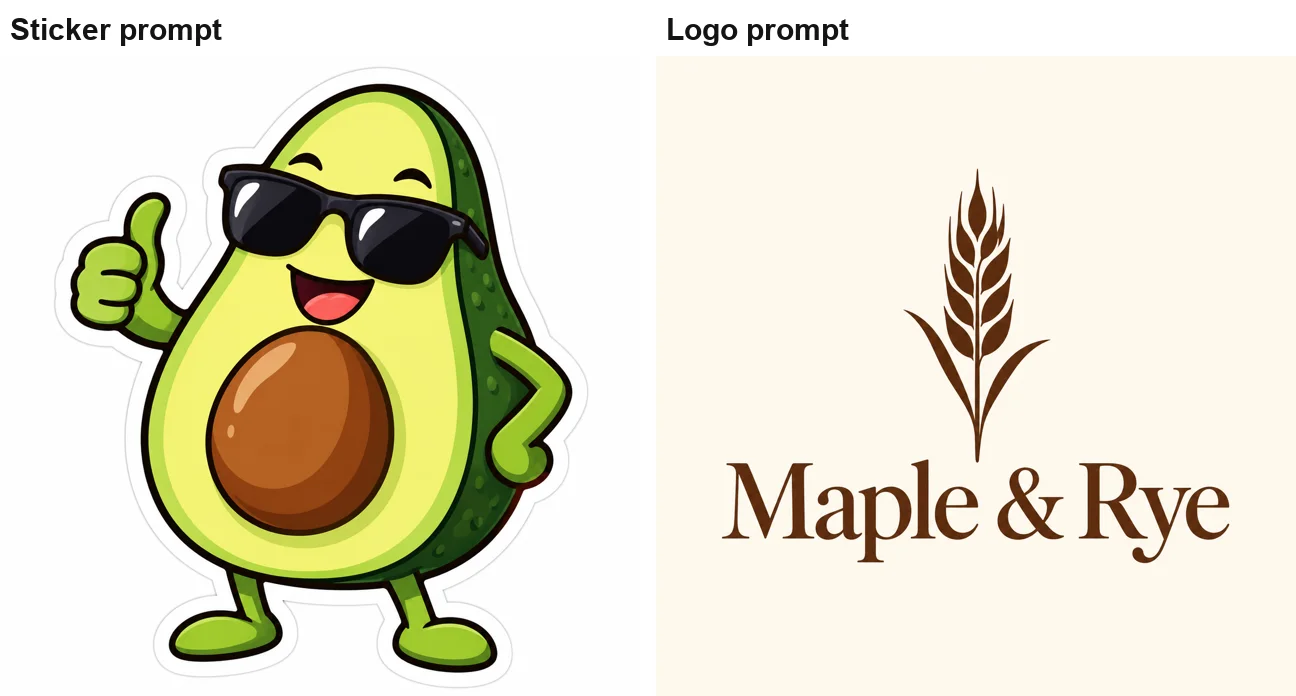
A clean, usable sticker with a thick border and no text, in a square frame that suits a sticker sheet. The avocado’s stone is plain, with no extra face.
Collectible figure.
Create a 1/7 scale collectible figure of a red-haired female astronaut in a white spacesuit, standing on a round clear acrylic base on a wooden desk. Behind it, a computer monitor shows the figure’s 3D model, and next to it is a toy packaging box printed with the astronaut’s artwork. Realistic photo, soft indoor light.
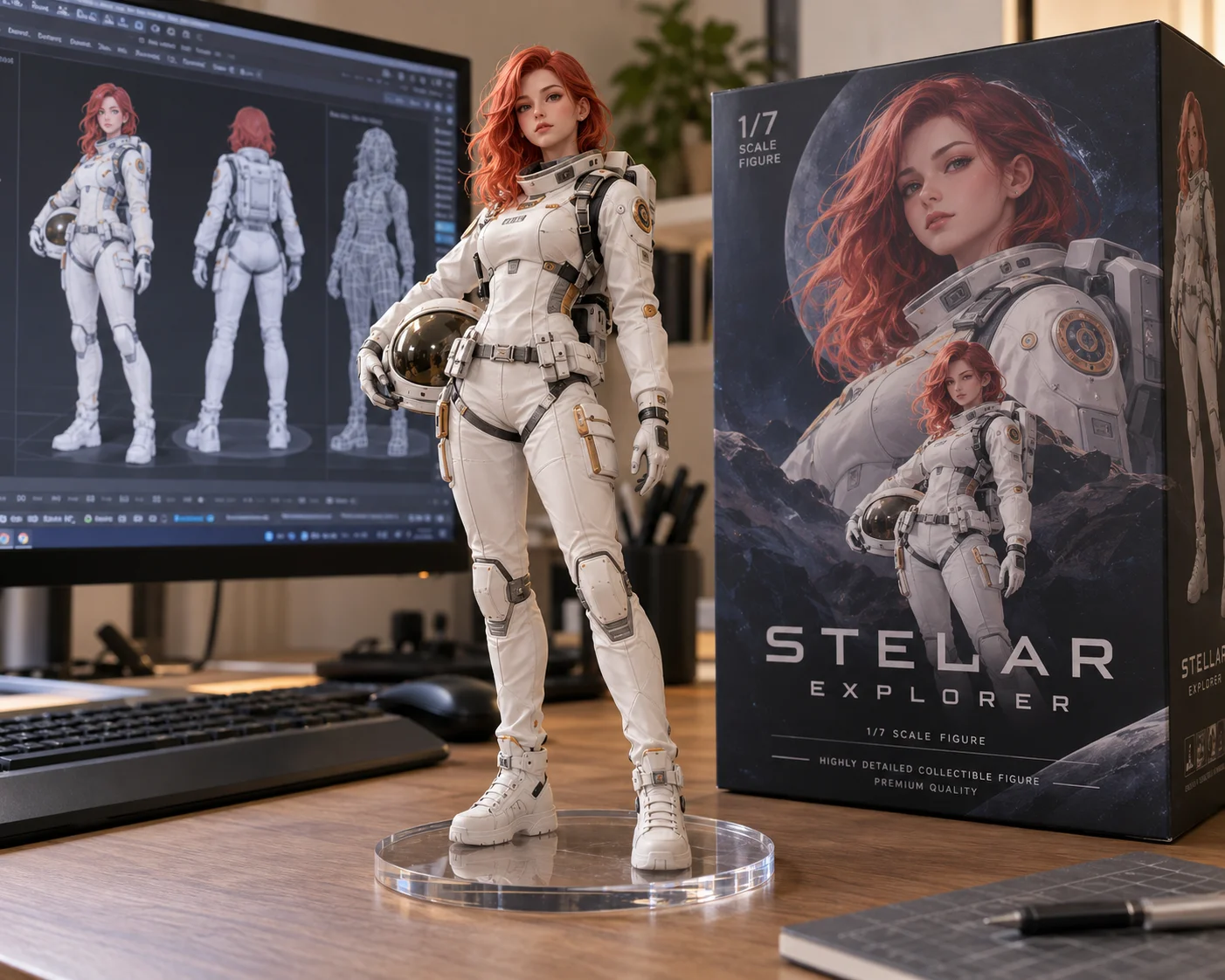
This is the most polished image of the test, with the monitor showing three views of the model, including a wireframe. It is also where the text rule bites. ChatGPT invented a product name for the box and spelled it two ways: “STELAR EXPLORER” on the front, a misspelling of stellar, and “STELLAR” on the side panel, along with “1/7 scale figure” and “premium quality” taglines. The suit’s round badge is generic, with no real agency logo. OpenAI’s advice to spell unusual words letter by letter applies here: if you want a name on the box, give it, in quotes, and spell it out.
Scene prompts: an interior and a coffee shop
Interior render, then a style change.
Interior design render of a small Scandinavian living room: light oak floor, white walls, a grey linen sofa, a round wooden coffee table, a large monstera plant by a tall window, late afternoon sunlight, wide-angle, photorealistic.
Then, in the same chat:
Turn this image into a pencil sketch. Keep the composition exactly the same.
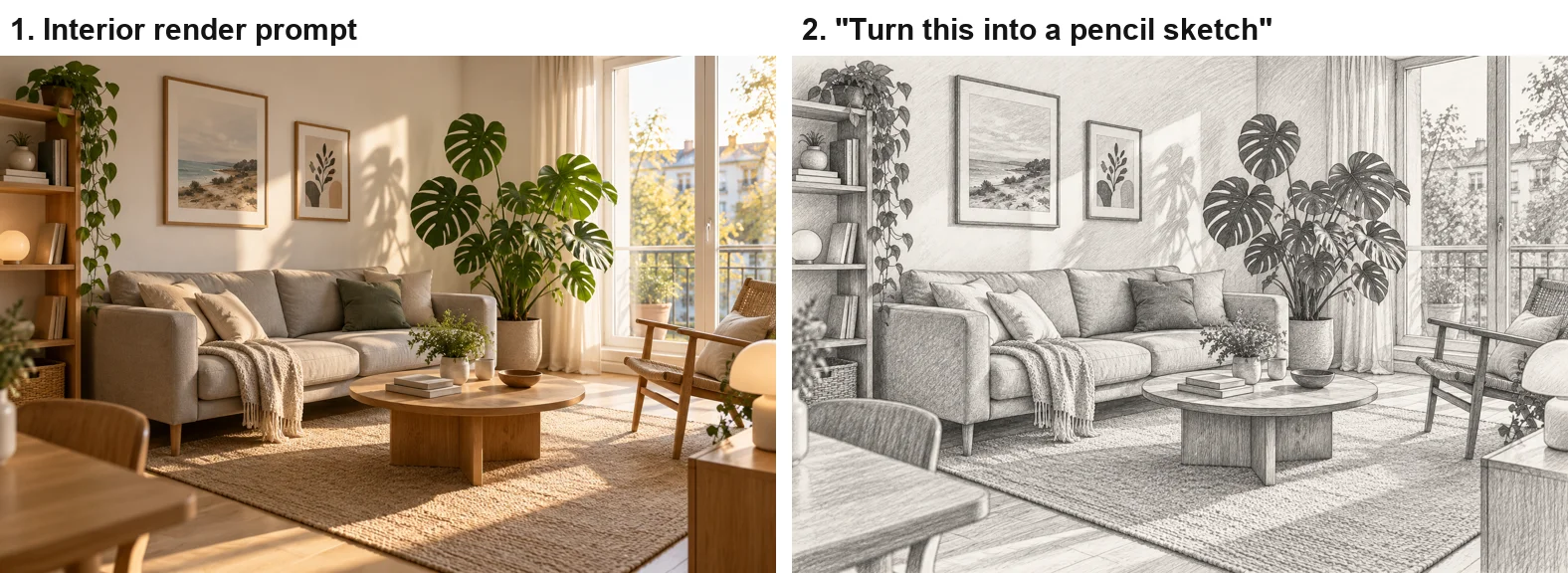
Every listed element is there, dressed with a shelf, framed prints, a rattan chair and a rug that fit the style. The sketch kept the composition object for object and came back as monochrome graphite on warm paper, with none of the photo’s colour left.
Short prompt against structured prompt. First I typed three words with no verb:
a cozy coffee shop
ChatGPT drew nothing. It replied with a single paragraph that read like an image prompt, listing amber pendant lights, dark oak tables, exposed brick, books, plants and rain-speckled windows. In the same chat I asked:
Create an image of a cozy coffee shop
Then, in a new chat, the structured version:
Interior of a cozy coffee shop on a rainy evening, seen from a corner table: warm tungsten pendant lights, rain streaks on the front window, a barista behind a wooden counter, steam rising from a cup in the foreground, shot on a 35mm lens at f/2, shallow depth of field, cinematic colour grading with warm ambers and teal shadows.
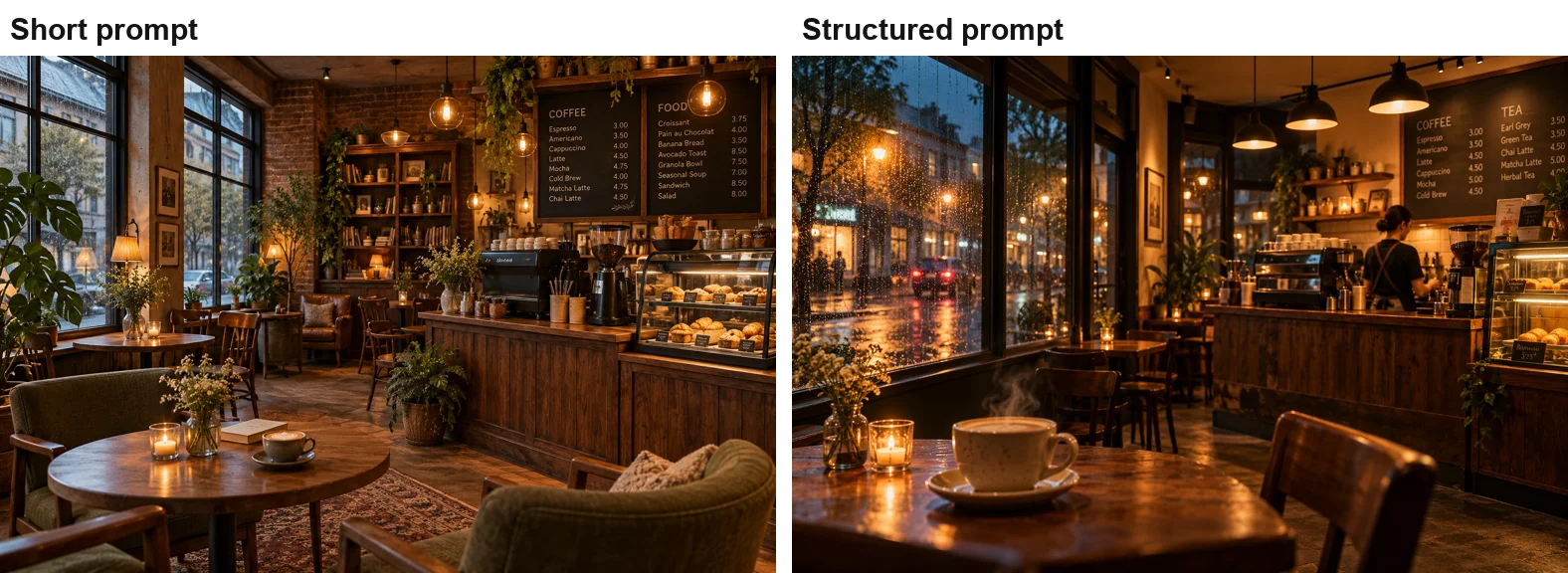
The short prompt still produced an attractive picture, but it borrowed nearly every detail from the paragraph ChatGPT had just written, so it is not a clean test of a short prompt on its own. The long prompt delivered everything on its list: the corner table, the steaming cup in the foreground, rain on the glass, the barista and the amber-and-teal colour. Both added chalkboard menus with full price lists, text I never mentioned, which is harmless in a mood image and a problem in anything you publish as a real café.
Keeping a character the same across images
Create an image of a friendly cartoon robot named Bolt with a round blue body, one large yellow eye and a short antenna, flat illustration style, standing in a park.
Then, in the same chat:
Now show Bolt, the same robot, reading a book in a library. Keep his design exactly the same.
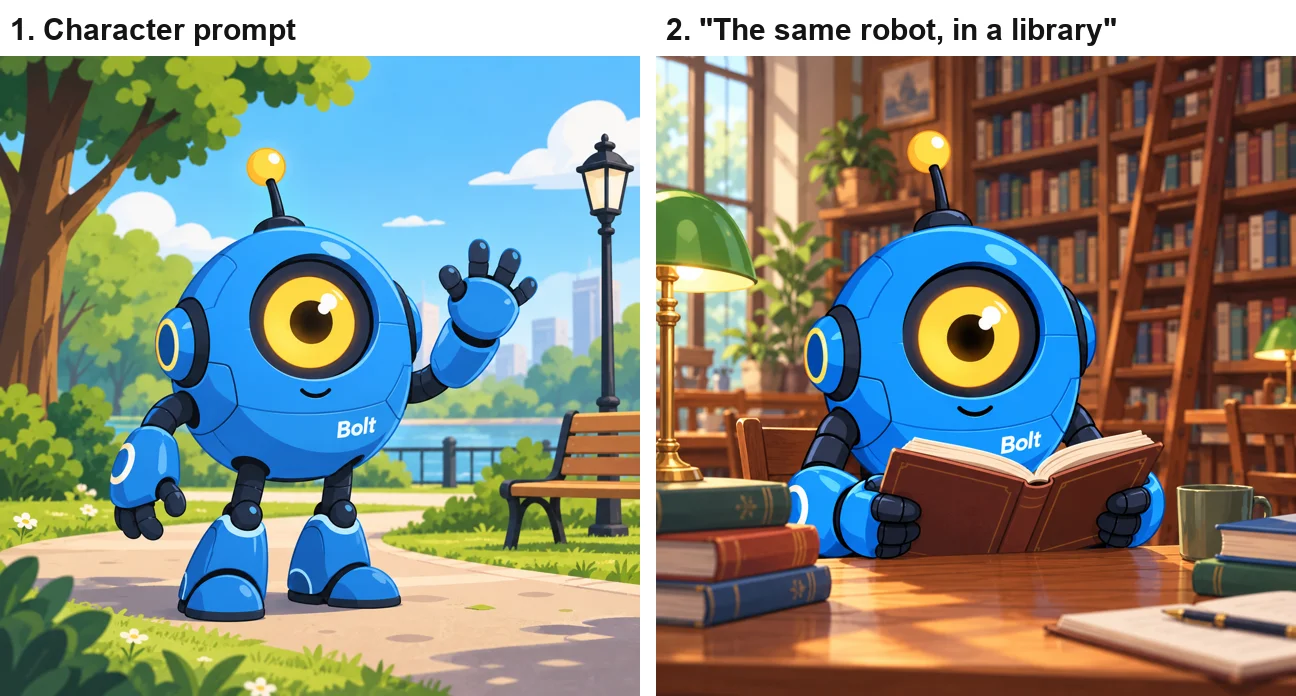
This was ChatGPT’s strongest result. The robot is genuinely round, and the second image keeps everything: the body, the eye, the antenna with its yellow ball, the joints, and the same flat illustration style. It also printed the name “Bolt” on the robot’s chest in both images. OpenAI’s guide suggests repeating the most important details as you refine to stop drift; here one line, “keep his design exactly the same”, was enough.
Let ChatGPT draft the prompt first
The coffee shop test turned up a useful trick by accident. When a prompt reads like a topic rather than a request, ChatGPT answers in words, and in my test those words were a ready-made image prompt, with the lights, furniture, materials, weather and camera style already filled in. You can do the same on purpose: describe what you need, ask ChatGPT to write an image prompt for it, edit that prompt, and only then ask for the picture.
This is worth doing on the free plan in particular. OpenAI’s free-tier help page says image generation has its own usage limit, separate from ordinary chat, so drafting and refining the wording in text costs nothing from your image allowance. On our free test account that allowance was three image requests in a rolling 24 hours.
Getting the size and shape right
ChatGPT honoured every shape I named: square for the headshot and the product, 16:9 for the thumbnail, and vertical for the infographic. OpenAI’s help page on images in ChatGPT says you can also choose a shape with the aspect ratio picker, or simply include the ratio in the prompt.
When I left the shape out, ChatGPT made a sensible guess each time, square for the sticker, logo and robot, landscape for the room and the cafés, and a mildly wide 5:4 for the figure. That is a better default than a fixed wide frame, but it is still a guess. If the picture is going into a feed, a story or a banner, name the ratio.
Editing an uploaded photo in ChatGPT
The two edits in this test worked on images ChatGPT had made. For uploaded photos, our ChatGPT image editing guide tests seven more edits, from removing an object to a transparent cutout, and our ChatGPT photo prompts test runs nine trend looks on an uploaded portrait. The prompts that held there follow the same pattern as here: one change per message, then a line naming what must stay the same.
ChatGPT vs Nano Banana on the same prompts
Running identical prompts through both tools shows that each fails differently.
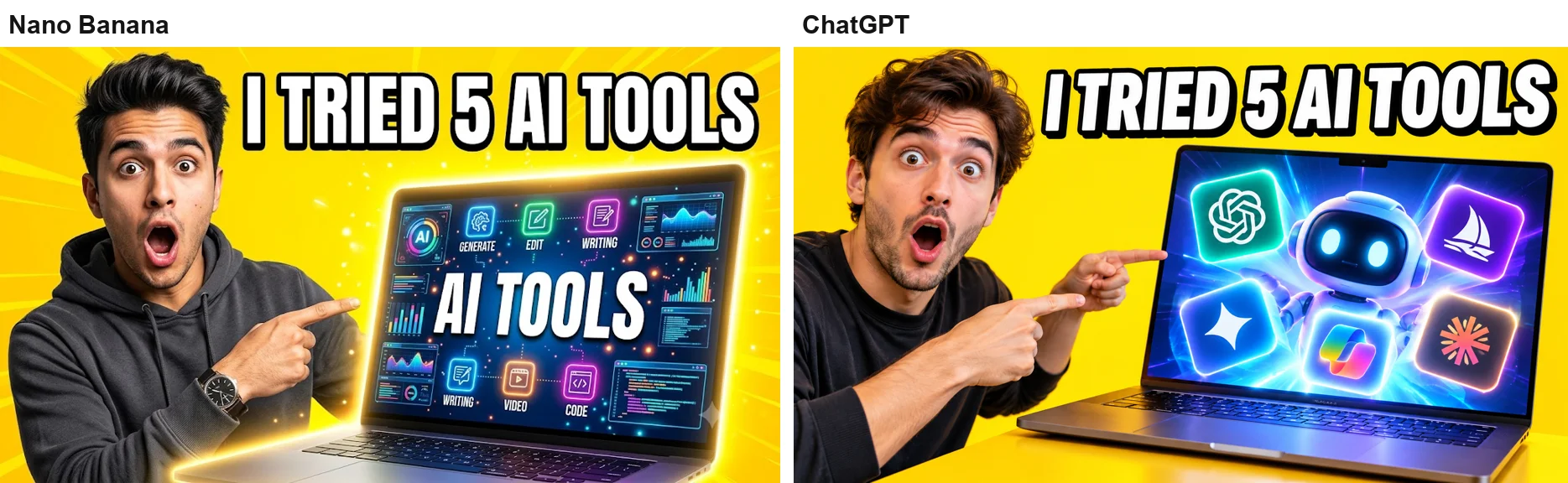
On the thumbnail, Nano Banana ignored “no other text” and filled the laptop with labels, while ChatGPT kept the words out but filled the space with logo-like icons. Neither left the screen plain.
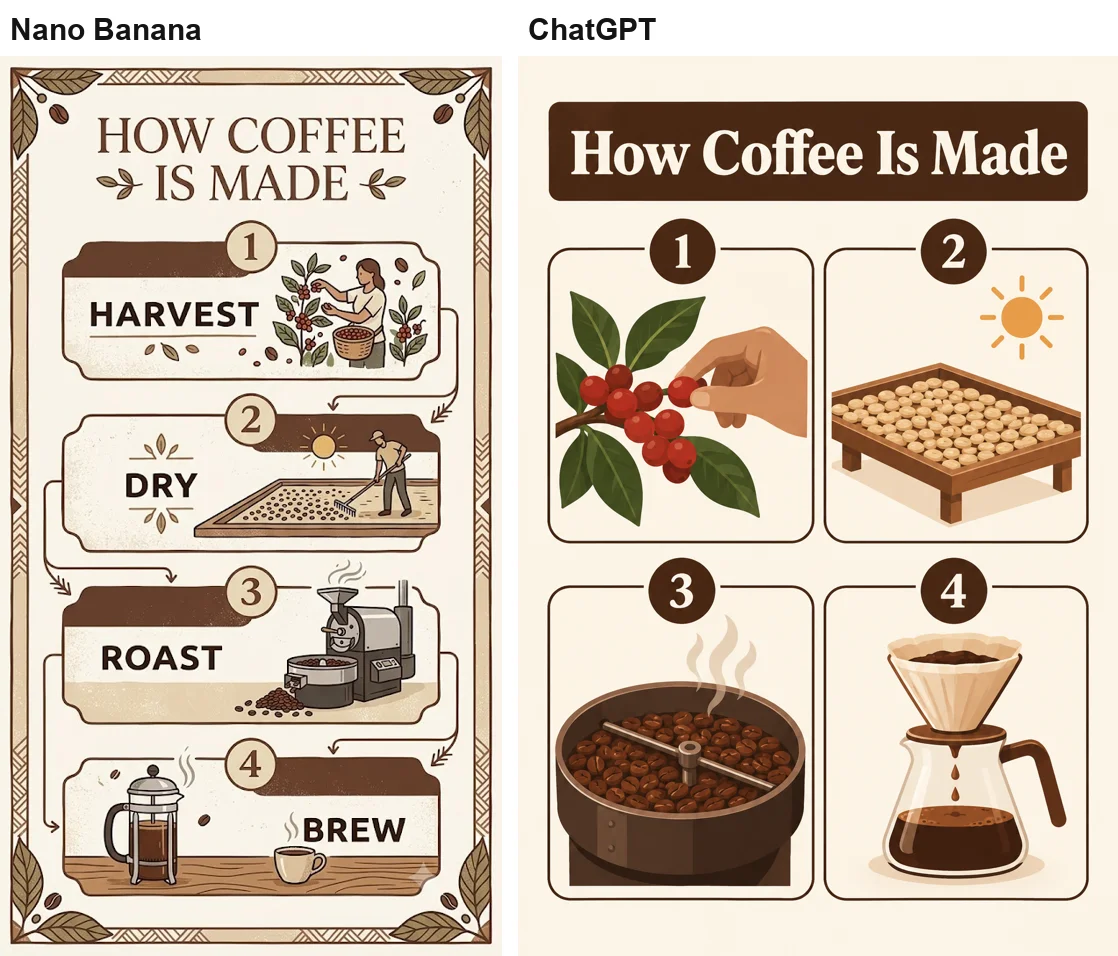
On the infographic, the result flipped: Nano Banana spelled all four step names, and ChatGPT dropped them.
| Prompt | ChatGPT | Nano Banana |
|---|---|---|
| Headshot | Chin-length bob, light as asked | Every detail, light subtle |
| Thumbnail | No stray words, logo-like icons | Extra words on the screen |
| Infographic | Step labels missing | Every label spelled |
| Sticker | Clean, square | Clean, wide frame |
| Collectible figure | Made-up name spelt two ways | Invented names, a real agency patch |
| Character follow-up | Same style | Style drifted |
| No-verb prompt | Wrote a prompt instead | Wrote a description instead |
The pattern: ChatGPT was steadier on style and kept stray words off the thumbnail, though it still filled the café walls with menus, while Nano Banana rendered every word it was asked to write, including the step labels ChatGPT dropped. Both invent text and branding when a prompt leaves a surface empty. For the full test of each tool, see our ChatGPT image generator review and our Nano Banana vs ChatGPT comparison.
Mistakes that cost you a ChatGPT image
- Leaving out the verb. Three words with no verb produced a written prompt and no image. Start with create, draw or generate.
- Banning text but not logos. OpenAI’s guide says to state it directly if you do not want extra text, logos or changes. My thumbnail proved the difference.
- Letting “no other text” cover your labels. Quote every label you want, step by step, or the ban may swallow them, as it did on my infographic.
- Leaving names to chance. ChatGPT invented and misspelt a brand on the toy box. OpenAI’s guide suggests spelling unusual words letter by letter.
- Vague measures. “Short hair” came back as a chin-length bob. Say how short, how many or how big.
- Skipping “keep everything else the same” in edits. OpenAI’s guide recommends that phrasing, and both of my edits held their subject with a “keep … exactly the same” line.
Which ChatGPT prompt to start from
| Job | Open with | Must include | Watch for |
|---|---|---|---|
| Headshot | ”Create a professional headshot of” | Hair length, clothing, background, light side | Loose measures |
| Product shot | ”Studio product photo of” | Finish, colour, backdrop, “no logo” | Background props after an edit |
| Thumbnail | ”YouTube thumbnail, 16:9:“ | Headline in quotes, “no other text, no logos” | Logo-like icons |
| Infographic | ”A clean vertical infographic titled” | Each label quoted, “sharp text rendering” | Missing labels |
| Logo | ”A minimalist logo for” | Brand name quoted, symbol, typeface | A raster file, not a vector |
| Sticker | ”A die-cut sticker of” | Border, style, “square” | Very little |
| Character | ”Create an image of a character named” | Shape, colours, drawing style; reply “keep his design exactly the same” | Name printed on the character |
For any picture you will publish, read every word in it before you post, and zoom into screens, boxes and signs, where invented text and logos hide.
Skip ChatGPT for this if you need exact labels on an infographic first time. In my test Nano Banana spelled all four step names and ChatGPT left them out, and OpenAI’s own guide suggests polishing dense text layouts in a design tool.
Final word
ChatGPT follows a clear brief well. It honoured every shape I asked for, spelled every quoted headline, and kept a character’s style steady from one scene to the next. Its mistakes came from gaps: an empty laptop screen became logos, an unnamed toy box got a misspelt brand, and a text ban swallowed the labels I wanted. The fix is the one OpenAI’s guide gives: say plainly what you want, quote the words, and name what to leave out, logos included.
Frequently asked questions
What is the best prompt structure for ChatGPT images?
Start with what the image is for and what it shows, then add the action, the setting and the visual style, and finish with any constraints such as the shape, exact words in quotes, or what to leave out. OpenAI's own guide says one to three clear sentences are usually enough.
In my test the constraints did the most work. Square format, 16:9 and vertical were all honoured when I asked for them, and the headline I quoted came back spelled exactly.
Why did ChatGPT reply with text instead of making an image?
Because the prompt did not ask for an image. When I typed only "a cozy coffee shop", ChatGPT answered with a paragraph that read like an expanded image prompt, listing pendant lights, brick walls and rain on the windows, but drew nothing.
Adding "Create an image of" in front produced a picture straight away. Start image prompts with a verb such as create, draw or generate.
How do I stop ChatGPT adding logos or extra text?
Say so directly, and name each thing you do not want. OpenAI's guide advises stating it outright if you do not want extra text, logos or visual changes. My thumbnail prompt said "no other text" and got no readable stray words, but the laptop screen filled with app icons that closely resemble real logos, including OpenAI's own.
Add "no logos or brand icons" as well as "no other text", and ask for generic or made-up designs when a scene includes screens, packaging or signs.
Does ChatGPT follow prompts better than Nano Banana?
On these 15 prompts, neither was clearly better; they failed in different places. In our separate 12-prompt head-to-head, ChatGPT followed a crowded seven-part brief more exactly. ChatGPT kept a character's drawing style steady across two scenes and added no stray words to a busy thumbnail, while Nano Banana filled that thumbnail's laptop screen with extra labels.
But ChatGPT left the four step labels off an infographic that Nano Banana spelled out in full, and it misspelled a made-up brand name on a toy box. Pick the tool by the job, and read every word either one produces.
What is a good ChatGPT prompt for realistic photos?
Write it like a note to a photographer: the subject and what they are wearing or made of, the background, which side the light comes from, the lens, and the depth of field. My headshot prompt named an 85mm lens, a soft key light from the left and a plain grey backdrop, and the light came back exactly where I asked.
For a scene, add the time of day and the colour grade. My rainy-evening coffee shop prompt named a 35mm lens at f/2 and warm ambers with teal shadows, and ChatGPT delivered every element. OpenAI's guide makes the same point: specific light beats a vague word like beautiful.
How long should a ChatGPT image prompt be?
Long enough to name what matters, and no longer. OpenAI's guide suggests one to three clear sentences. My longest prompt, a rainy-evening coffee shop with a named lens and colour grade, came back with every element I listed.
The short version I tried, "Create an image of a cozy coffee shop", still produced a good picture, but ChatGPT chose the time of day, the furniture and the menu boards itself. Add detail wherever you care about the result.
Keep reading
ChatGPT Image Generator Review: Perfect Text, Pushy Slogans
I tested the ChatGPT image generator (Images 2.5) with 12 prompts on Free and Plus. It spelled all 15 text strings right, and added slogans I never asked for.
ChatGPT Image Editing: 7 Photo Edits Tested
How ChatGPT image editing works: upload a photo, describe the change, use the editor tools, and what held or slipped in seven real edits on ChatGPT Plus.
Nano Banana Prompts: 15 I Tested, With the Results
Nano Banana prompts for headshots, product shots, thumbnails, stickers, logos and edits, each tested in Gemini with the result, and what it ignored.
Nano Banana vs ChatGPT: 12 Prompts, Two Different Winners
Nano Banana vs ChatGPT, tested with the same 12 prompts: ChatGPT follows a brief exactly, Nano Banana is twice as fast and free. Which one to use, and when.