
CapCut alternatives: free editors are easy, free clipping isn't
CapCut alternatives by job: four free editors replace its timeline with no watermark. Replacing its AI clipper cost me $0.85 to $2.03 per 35-minute video.
Contents
The short answer: replace CapCut by the job you used it for
The best CapCut alternative depends on the job you used CapCut for, so here are the picks by job.
Best free replacement for the editor: VN. A multi-track timeline with keyframes and auto captions, no watermark on free exports, and apps for iPhone, Android, Mac and Windows.
Best for Instagram Reels: Edits. Instagram’s own free editor exports 4K with no watermark and captions itself, but it lives only on your phone.
Best desktop editor: DaVinci Resolve. The free version is a professional editor; the paid one is a one-time $236, not a subscription.
Easiest on a Windows PC: Clipchamp. Free 1080p with no watermark, in a browser or a Windows app.
Best replacement for long video to shorts: Vizard. On my test it cut the same 35-minute panel for $0.85. Nothing free did what CapCut’s own clipper did.
That last line is the argument of this post. CapCut is two products sold under one name: a timeline editor, and a set of AI tools that cut long recordings into short clips. The editor is easy to replace for nothing. The clipper is not, because no rival I ran gave its output away the way CapCut’s free plan does.
Why are people leaving CapCut?
People rarely leave CapCut because the editor got worse. They leave because of what surrounds it. In the space of about thirteen months the app vanished from US stores, its terms of service caused a public row, and its annual plan more than doubled in price.
The removal came first. CapCut was pulled from US app stores on 18 January 2025 along with TikTok, under the law that required ByteDance to sell TikTok’s US business. It came back in February. The TikTok US joint venture closed on 22 January 2026, with ByteDance keeping 19.9%, and coverage of the deal reported that it lets CapCut keep operating. On 30 October 2026 CapCut was live on the US App Store, with the seller still listed as ByteDance Pte. Ltd.
Then came the terms. In June 2025 creators noticed the content licence in CapCut’s terms of service. The current global terms, last updated 15 April 2026, grant CapCut a licence over what you upload that is “perpetual and worldwide”, plus a separate one to use your “username, image and likeness”. CapCut’s response, dated 24 June 2025, said that section had “not changed for years.”
Two caveats on that clause, because it gets overstated. US users are governed by a separate set of CapCut US terms, which I could not read for this post. And the EU and UK supplemental terms switch those paragraphs off. A broad licence is not the same thing as ownership, but it is a reasonable thing to dislike.
The price is the newest reason. Newsweek reported in early 2026 that the annual Pro plan rose from around $77 to $179.99. Today’s US App Store listing shows a Standard plan at $9.99 a month and Pro at $19.99 a month, and CapCut’s own help pages say prices vary by region and platform. I walked through why in CapCut pricing.
The same US listing also carries a yearly subscription at $89.99 and a further monthly line at $7.99, neither tied to a named plan. When the store page itself cannot tell you which price is yours, it is fair to call the pricing confusing, and that confusion drives as many departures as the headline rise.
| Reason to leave | What happened | Does it still apply? |
|---|---|---|
| The US ban | Pulled from US stores on 18 Jan 2025, back in February 2025 | Mostly no. Live on the US App Store on 30 Oct 2026 |
| The terms of service | Perpetual, worldwide licence over uploads in the global terms | Yes, outside the EU and UK; US terms are separate |
| The price | Annual Pro reported up from about $77 to $179.99 | Yes. Pro lists at $19.99 a month on the US App Store |
| The free plan’s storage | 512MB of cloud space, not shown on any plan card | Yes, on the browser app I tested |
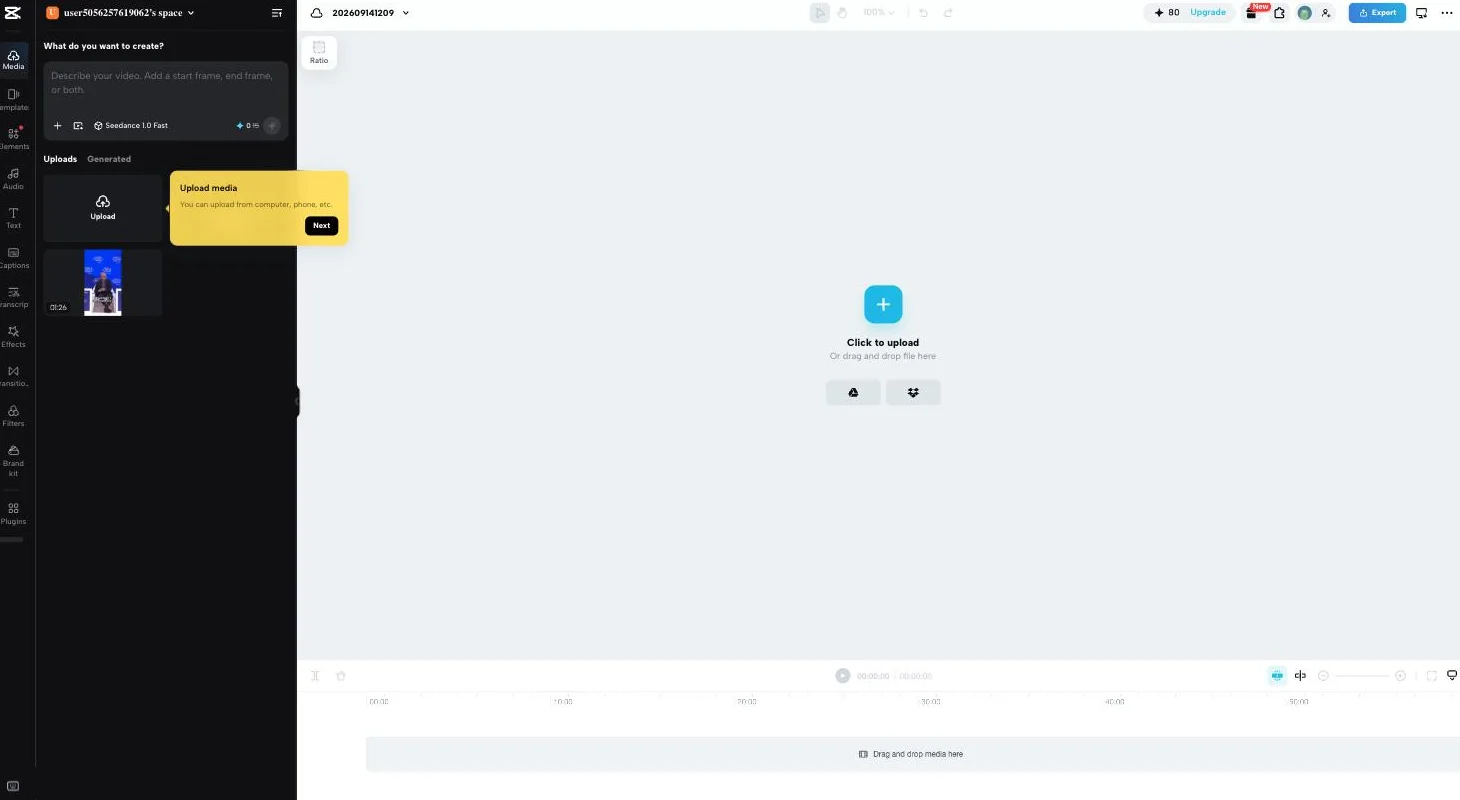
The last row is mine. When I reviewed CapCut in September, the thing that stopped me was not a watermark or a paywall but 512MB of cloud storage. Four 1080p exports filled it and the next one was refused. By then my renders had reached 633.56MB against the 512MB allowance, and the error read “Couldn’t export — Your space is almost full.” Every paid plan lists 1 TB, so the free plan’s limit is a nudge toward upgrading rather than a technical one. That ceiling lives in the browser app, which is where the clipping tool runs.
None of this makes CapCut a bad editor, and it is worth saying so before ten alternatives. On my test its free export was cleaner than most paid tiers I have tried, and its clipper did unattended what three paid tools charged for. If none of the four rows above bothers you, staying put is a reasonable answer. The rest of this post is for the people one of them does bother.
What I measured on CapCut and its rivals, and what I only read
I sorted the candidates by the half of CapCut they replace, because that decides everything else. If you used CapCut to cut your own footage, you need an editor. If you used it to turn a long recording into shorts automatically, you need a clipper, and the two categories barely overlap.
For the editor half, I set four tests. The free version has to export without a watermark, or it is not a free replacement. It has to run on the device you actually edit on. The paid tier, if there is one, has to be cheaper or simpler than CapCut’s. And it has to have the timeline features people reach for in CapCut: multiple tracks, keyframes, speed ramps and captions.
For the clipper half, I used measurements rather than feature lists. In September 2026 I put the same recording, a 35-minute 27-second World Economic Forum panel shared under a Creative Commons Attribution licence, through CapCut’s long video to shorts tool and three dedicated clipping tools. I counted what each returned, downloaded what each would release, and priced the job.
That test also set the bar every alternative has to clear, because CapCut’s free plan is generous in ways its rivals are not. On the browser app it returned eight finished vertical clips at 1080×1920 and 30 frames a second, with captions burned in and no watermark on any frame I sampled. Its clipping meter allows 60 source minutes a month free, and the convert screen tells you the cost before you spend it. The editor’s auto captions carried a “Free” badge in September; by 31 October they needed Pro to export there, though CapCut’s AI Captions page still exported them free.

So “as good as CapCut for free” is a high bar, and it is the reason the editors and the clippers split so cleanly below. Several editors match CapCut’s free export. None of the clippers matched its free output.
Here is where I draw the line on what I know. I measured CapCut, Vizard, OpusClip and Submagic on that file. Our Descript review was written from real projects, and I lean on it here. I did not test VN, Edits, InShot, DaVinci Resolve, Clipchamp or Canva’s video editor for this post. Those sections come from each vendor’s own pages and their US App Store listings, read on 30 October 2026, and they say so.
Ratings help a little where I have no test. VN holds 4.8 stars from about 322,500 ratings on the US App Store, InShot 4.8 from about 2.5 million, and Edits 4.8 from about 99,000, all read on 30 October 2026. Ratings tell you an app works for most people. They do not tell you whether its free export is clean, so I leaned on the listings’ own words for that.
Why ten and not twenty? Most published lists of CapCut alternatives run to a dozen or more editors, many of them near-duplicates of each other. I kept a tool only if it replaces a specific CapCut job better than the others on its row, or if I had measured it. Three phone editors cover the phone, two desktop editors cover the computer, Canva and Descript each cover a kind of video the others handle badly, and three clippers cover the AI half. Anything that only repeated one of those did not earn a section.
| What I checked | Tools | How |
|---|---|---|
| Clip count, export, cost per job | CapCut, Vizard, OpusClip, Submagic | Same 35:27 file, Sept 2026 |
| Real projects | Descript | Our Descript review |
| Free export terms, platforms, prices | VN, Edits, InShot, DaVinci Resolve, Clipchamp, Canva | Vendor pages and US App Store, 30 Oct 2026 |
CapCut alternatives compared
The table below lines up the ten by what they replace and where the catch sits. Read the last column first. Every tool here is good at something, and each one costs you something CapCut gave you.
| Tool | Replaces | Runs on | Free export | Paid from | The catch |
|---|---|---|---|---|---|
| VN | The editor | iPhone, Android, Mac, Windows | No watermark | VN Pro in-app purchases | AI extras use paid credit packs |
| Edits | The editor | iPhone, Android | 4K, no watermark | Free | Phone only, needs an Instagram login |
| InShot | The editor | iPhone, iPad, Mac, Android | Watermark not stated | $19.99 a year | No masks, per its listing |
| DaVinci Resolve | The editor | Windows, Mac, Linux | Up to Ultra HD 60fps | $236 once | A real learning curve |
| Clipchamp | The editor | Browser, Windows | 1080p, no watermark | Microsoft 365, $9.99 a month | 4K needs Microsoft 365 |
| Canva | Templates and social video | Browser, phone, desktop | Yes | $18 a month | Built for design, not long edits |
| Descript | Talking-head editing | Browser, Mac, Windows | 720p, watermarked | $16 a month, yearly | Two meters to watch |
| Vizard | Long video to shorts | Browser | 720p, 10 of 30 clips on my run | Creator tier, 600 credits | Paywalls clips it already found |
| OpusClip | Long video to shorts | Browser | One posted clip a day | $15 a month | My best results came on a Pro trial |
| Submagic | Long video to shorts | Browser | No free plan | $12 a month, yearly | Trial would not export |
Prices are US, read on 30 October 2026 except Canva’s, which comes from our 11 October read of its pricing page, and billed yearly where the table says so. The clipping costs further down are what my September jobs cost at the rates I read then.
The three phone editors side by side
Most CapCut users edit on a phone, so the phone apps deserve a closer look than one row each. All three are free to download, rate 4.8 on the US App Store, and add auto captions. They split on platforms and on what you pay to remove limits.
| VN | Edits | InShot | |
|---|---|---|---|
| Free export | No watermark | 4K, no watermark | Not stated |
| Desktop app | Mac and Windows | None | Mac, Apple silicon only |
| Paid | VN Pro in-app, $7.99 or $69.99 | None listed | $19.99 a year or $49.99 lifetime |
| Sign-in | Not required by the listing | Instagram account | Not required by the listing |
| Strongest at | Timeline control and masks | Reels and insights | One-tap AI tools |
The two desktop editors side by side
On a computer the choice is between learning a professional tool and staying quick. DaVinci Resolve and Clipchamp both export without a watermark for free, and they could hardly be more different after that.
| DaVinci Resolve | Clipchamp | |
|---|---|---|
| Free export ceiling | Ultra HD, 60fps | 1080p |
| Runs on | Windows, Mac, Linux, installed | Browser and Windows |
| Paid | Studio, $236 once | With Microsoft 365, $9.99 a month |
| Learning time | Days to weeks | An evening |
| Best for | Colour, audio, long projects | Quick edits on a work laptop |
Twelve months of each paid tier, side by side
Monthly prices hide the real comparison, because two of these tools sell something CapCut does not: a one-time licence. Here is a year of the cheapest paid tier that removes the main limit, using US list prices read on 30 October 2026 (Canva’s on 11 October).
| Tool | A year of the main paid tier | What that buys |
|---|---|---|
| CapCut Pro | $239.88 at $19.99 a month | Pro features; Newsweek reported $179.99 for the annual plan |
| InShot Pro | $19.99, or $49.99 once for life | The full Pro tier; removing ads alone is $3.99 |
| DaVinci Resolve Studio | $236 once, then $0 | 120fps, 32K, the AI tools |
| Clipchamp Premium | $99.99 with Microsoft 365 Personal | 4K, premium stock, plus the Office apps |
| Canva Pro | $144 | Premium templates and assets |
| Descript Hobbyist | $192 at $16 a month, yearly | 10 media hours a month, 1080p |
| Submagic Pro | $276 at $23 a month, yearly | 120 credits a month |
Two of those rows end the subscription question for good. InShot’s lifetime price is about a fifth of a year of CapCut Pro at the monthly rate, and Resolve Studio is a single payment that you never repeat. VN and Edits are left out because neither needs a paid tier for a clean export. Vizard and OpusClip are left out because their yearly prices did not show on the pages I could read today.
1. VN — best free replacement for the CapCut editor

VN is the closest thing to CapCut’s editor with the strings cut. Its App Store listing opens with the line “Free with No Watermark”, and the feature list underneath reads like CapCut’s: a multi-track timeline, keyframe animation with 19 built-in effects, curve-based speed ramps, masks, beat markers and imported LUTs.
The detail that makes it the default pick is where it runs. VN’s own site lists apps for iPhone, Android, Mac and Windows, which is the same spread of devices CapCut covers. Most free alternatives make you choose between a phone app and a desktop app. VN lets you keep one editor across both, which is what a lot of CapCut users actually relied on.
It has picked up AI tools too. The listing describes auto captions in multiple languages, filler-word and silence removal for talking-head edits, text to speech, and one-tap background cutout. Those sit beside the editor rather than replacing it, which is the right way round for someone who mostly cuts their own footage.
The money side is quiet but not absent. The US App Store lists VN Pro as in-app purchases at $7.99 and $69.99, without saying which is monthly and which is yearly, and AI credit packs from $1 for 100 credits. VN’s own site does not mention a paid tier at all. Read the purchase screen in the app before you buy, because the listing leaves the billing period to guesswork.
| VN, from its listings | Detail |
|---|---|
| Free export | No watermark, per the App Store listing and vlognow.me |
| Platforms | iPhone, iPad, Android, Mac, Windows |
| Timeline | Multi-track, keyframes, masks, speed curves, LUTs |
| AI tools | Auto captions, filler-word removal, text to speech, cutout |
| Paid | VN Pro $7.99 and $69.99 in-app; credit packs from $1 |
| US App Store | 4.8 stars, about 322,500 ratings, 30 Oct 2026 |
Who it is not for: anyone who used CapCut mainly for long video to shorts. VN edits what you give it. It does not watch a 40-minute recording and pick the moments for you.
What you lose moving from CapCut to VN is mostly the library. CapCut’s templates, its trending effects and its stock of licensed music are a big part of why edits feel fast in it. VN has beat-synced templates and its own music and effects, but a CapCut user who leaned on a specific template will be rebuilding the look by hand. Its AI extras also draw on paid credit packs rather than a monthly allowance.
I did not test VN for this post. Everything above comes from its App Store listing and its website, read on 30 October 2026. The seller on the listing is Ubiquiti Labs, LLC.
2. Edits — best free CapCut alternative for Instagram Reels

Edits is Instagram’s answer to CapCut, and it is aimed squarely at the people CapCut’s templates were built for. Meta announced it on 22 April 2025, and it is free. The App Store listing makes the two promises that matter most to a CapCut leaver in one line: “Export your videos in 4K with no watermark.”
The features read like a short-form checklist. Automatic captions you can restyle, green screen and cutout backgrounds, video overlays, single-frame trimming, voice effects, noise removal, and AI animation that turns a still image into a moving shot. You can capture clips up to 10 minutes long inside the app and start cutting straight away. The camera itself has settings for resolution, frame rate and dynamic range, plus flash and zoom controls, a hint that Meta built Edits for people who film on the phone they edit on.
What sets it apart from every other editor here is the feedback loop. Edits carries a live insights dashboard for your reels and a feed of reels using trending audio. If your goal is Instagram reach, an editor that shows you what performed sits closer to the job than one that only exports files.
The catch is where it runs and who it answers to. On Apple it is listed as “Only for iPhone”, with no iPad version, and the other half is Android. There is no desktop app. You sign in with an Instagram account, and the listing links to Meta’s terms and privacy policy, so if CapCut’s licence was the reason you left, read Meta’s before you settle.
| Edits, from its listing | Detail |
|---|---|
| Price | Free |
| Free export | Up to 4K, no watermark |
| Platforms | iPhone and Android; no iPad, no desktop |
| Captions | Automatic, customizable |
| Extras | Green screen, cutout, overlays, AI image animation, reels insights |
| US App Store | 4.8 stars, about 99,000 ratings, 30 Oct 2026 |
Choose Edits if your videos end up on Instagram and you edit on your phone. Choose VN if you also cut on a computer, or if your videos go to YouTube as often as to Reels. Edits exports to any platform, but its insights and audio browsing only pay off on Instagram.
What you lose moving from CapCut to Edits is the desktop, and with it any project longer than a phone screen comfortably handles. CapCut let you start a cut on your phone and finish it on a laptop. Edits keeps you on the phone. If that is where you already worked, you lose very little, and you gain an editor whose maker also runs the platform you are posting to.
I did not test Edits for this post; the details are from its US App Store listing and Meta’s announcement, read on 30 October 2026.
3. InShot — best cheap paid phone editor

InShot is the alternative for people who would rather pay a little once than think about CapCut’s pricing again. Its US App Store listing offers InShot Pro at $4.99 a month, $19.99 a year, or $49.99 for life. That lifetime price is the thing to notice. It is less than three months of CapCut Pro at the $19.99 monthly rate.
It is also the most popular editor on this list by some distance, with about 2.5 million ratings averaging 4.8 on the US App Store. The editor covers the essentials: trim, split, merge, speed curves from 0.1x to 100x, keyframe animation, picture-in-picture layers, chroma key, text, stickers, music and voice-over. Where it differs from VN is emphasis: its listing leads with one-tap AI tools rather than fine control.
The AI list is long for a phone app. Auto captions and bilingual subtitles, text to speech, an “AI Cut” that removes silence, filler words and breaths, video enhancement, background removal and voice cleanup. For a talking-head creator that is most of what CapCut’s AI menu was doing. It also offers voice enhancement that reduces background noise, a tool CapCut users often reach for when a clip was filmed outdoors or in a busy room.
One question I could not settle: whether the free version marks your export. Neither the App Store listing nor inshot.com says so either way. Make a test export before you commit a project to the free version, and treat Pro as the plan if a clean file matters.
| InShot, from its listing | Detail |
|---|---|
| InShot Pro | $4.99 a month, $19.99 a year, $49.99 lifetime |
| Ads only | Remove ads for $3.99 |
| Platforms | iPhone, iPad, Mac with Apple M1 or later, Android |
| AI tools | Auto captions, bilingual subtitles, AI Cut, enhance, cutout |
| Free watermark | Not stated by InShot |
| US App Store | 4.8 stars, about 2.5 million ratings, 30 Oct 2026 |
Pick InShot over VN if you want a simple app and a single payment that ends the subscription question. Pick VN if you want the more capable timeline, or a Windows app. InShot also sells individual effect and transition packs from $1.99, so you can pay for the one look you need rather than a whole tier. InShot’s Mac version needs an Apple silicon machine, so an older Intel Mac is out.
What you lose moving from CapCut to InShot is a little depth. Its listing covers keyframes, layered picture-in-picture and chroma key, but it does not mention masks, which VN’s does, so a CapCut edit built on masked layers will be harder to rebuild. For trimming, captioning and posting quickly, the gap barely shows.
I did not test InShot; the figures are from its US App Store listing, read on 30 October 2026.
4. DaVinci Resolve — best desktop CapCut alternative

DaVinci Resolve is what you move to when CapCut stops being enough. It is a professional editor, colour grader, effects compositor and audio suite in one application, and Blackmagic Design gives the main version away. It is also the only editor on this list with a Linux version, which matters to a small but loyal group of creators who were never served by CapCut at all. The current release is DaVinci Resolve 21, with a 21.1 update promoted on its site.
The free version is not a demo. Blackmagic’s product page says it handles 8-bit formats “up to 60fps in resolutions as high as Ultra HD”, and it runs on Mac, Windows and Linux. For short-form and YouTube work, that ceiling is rarely the thing that stops you.
When you do outgrow it, the upgrade is unusual for this list. DaVinci Resolve Studio is a one-time purchase, shown at $236, down from $295, on 30 October 2026. It adds 10-bit, up to 120fps and 32K, and the AI tools: magic mask, Super Scale, smart reframe, voice isolation, dialogue separation and text-based editing. No subscription, no credits.
The cost is time, not money. Resolve is organised into separate workspaces for media, cutting, editing, effects, colour, audio and delivery, and a CapCut user will find it dense. A sensible way in is to learn the edit and deliver pages first and leave colour, effects and audio until a project needs them. Blackmagic also leans on your graphics card for speed, so a modest laptop will feel it.
| DaVinci Resolve | Free | Studio |
|---|---|---|
| Price | $0 | $236 once (shown down from $295) |
| Resolution | Up to Ultra HD | Up to 32K |
| Frame rate | Up to 60fps | Up to 120fps |
| AI tools | Limited | Magic mask, Super Scale, smart reframe, voice isolation |
| Platforms | Mac, Windows, Linux | Mac, Windows, Linux |
Choose Resolve if you edit on a desktop, want to keep growing, and hate subscriptions. Skip it if you edit on your phone, or if what you liked about CapCut was getting a captioned short out in five minutes. Resolve will do that eventually, after a few evenings of learning.
What you lose moving from CapCut to Resolve is speed on day one, and on the free version most of the AI. Smart reframe, voice isolation and text-based editing are Studio features. CapCut put auto captions (now free on its AI Captions page) and background removal a click away on its free plan. Resolve will out-edit it on anything ambitious, but the quick social cut takes longer until the shortcuts become habit.
I did not test Resolve for this post; the figures are from Blackmagic Design’s pages, read on 30 October 2026.
5. Clipchamp — easiest CapCut alternative on a Windows PC

Clipchamp is the low-effort desktop pick. Microsoft owns it, it runs in the browser at app.clipchamp.com or as a Windows app, and its free plan does the one thing that knocks most browser editors out of contention. Its pricing page promises exports “up to 1080p (full HD) video resolution for free, with no watermarks”.
It is the closest thing on this list to CapCut’s browser editor in feel: a simple timeline, templates, stock media, text and transitions, all inside a web page. If you edited CapCut in a browser on a work laptop, Clipchamp is the least disruptive move.
The paid side is now tied to Microsoft 365. Microsoft’s support page says Clipchamp Premium, which adds 4K export, premium stock and a brand kit, comes with Microsoft 365 Personal and Family. Microsoft 365 Personal is $9.99 a month or $99.99 a year in the US. If you already pay for Microsoft 365, you may already have it. Microsoft 365 Family, the other plan that includes it, is $12.99 a month or $129.99 a year, so a household that already shares Office gets Clipchamp Premium at no extra cost.
What you give up is the phone. Microsoft documents Clipchamp on the web and Windows. I could not confirm a current iPhone app, so if you edit on the move as well as at a desk, VN is the better fit. Clipchamp also has no answer to long video to shorts.
| Clipchamp | Detail |
|---|---|
| Free export | Up to 1080p, no watermark |
| Premium | 4K, premium stock, brand kit |
| Premium price | With Microsoft 365 Personal, $9.99 a month or $99.99 a year |
| Platforms | Browser and Windows |
| Best for | Simple desktop edits without learning a pro tool |
Choose Clipchamp over DaVinci Resolve if you want to be finished tonight rather than good at editing in a month. Choose Resolve if 1080p will not do and you would rather pay $236 once than a monthly bill.
What you lose moving from CapCut to Clipchamp is the AI menu and the phone. CapCut’s browser editor carries captions, a transcript panel, background removal and long video to shorts. Clipchamp keeps the timeline simple and leaves the automated jobs out. For a desk-bound editor who mostly trims, adds text and exports, that trade is a fair one, and it stays free at 1080p.
I did not test Clipchamp for this post; the details are from Microsoft’s pages, read on 30 October 2026.
6. Canva — best for template-led social video

Canva belongs on this list for one kind of CapCut user: the one who opened CapCut for its templates, not its timeline. If your videos are mostly text, brand colours, stock clips and music arranged into a post, Canva does that better than any editor here, because design is what it was built for.
Its video editor sits inside the same workspace as everything else Canva makes, so a reel, its thumbnail, the carousel and the story can share one brand kit and one set of fonts. That is the gap a pure editor leaves. For a small business making social posts, it can replace CapCut and a design tool at once.
Canva Pro costs $18 a month or $144 a year in the US, which I set out in Canva pricing. The free plan covers the editor. What it does not cover well is a long, footage-heavy edit: Canva’s timeline is simpler than CapCut’s, and its AI features are metered separately from the plan.
| Canva for video | Detail |
|---|---|
| Free plan | Video editor included |
| Canva Pro | $18 a month or $144 a year, US |
| Strength | Templates, brand kit, every format in one place |
| Weakness | A simpler timeline than CapCut for footage-heavy edits |
Choose Canva if your CapCut projects started from a template. Choose VN or Clipchamp if they started from your own footage. My full take on Canva as a design tool is in the Canva review, but I have not tested its video editor for this post.
What you lose moving from CapCut to Canva is footage control. CapCut is a video editor that happens to have templates. Canva is a design tool that happens to edit video, so trimming long clips, syncing cuts to a beat and layering several video tracks are all slower. If your edits are short and graphic-led, you will barely notice. If they are footage-led, you will.
7. Descript — best for editing talking-head video by transcript

Descript is for the CapCut user whose videos are mostly someone talking: podcasts, explainers, interviews, course clips. It turns the recording into a transcript, and you edit the video by editing the words. Delete a sentence and the cut follows. For talking-head work that is faster than any timeline on this list, CapCut’s included.
Our Descript review was written from real projects, and its verdict on the editing is that it really is that direct. If most of your footage is speech, that one change of method saves more time than any feature on CapCut’s AI menu.
The pricing has two meters, which is the thing to understand before switching. Descript’s pricing page gives each plan media hours for the footage you bring in and AI credits for the generative work on top, and they run out separately. The free plan gives 1 media hour a month and 100 AI credits once, and exports 720p with a watermark. The jump that matters for video creators is Creator, at $24 a month billed yearly, because it is the first tier that exports 4K; Hobbyist stops at 1080p.
| Descript plan | Billed yearly | Monthly | Media hours | Max export |
|---|---|---|---|---|
| Free | $0 | $0 | 1 a month | 720p, watermark |
| Hobbyist | $16 | $24 | 10 a month | 1080p |
| Creator | $24 | $35 | 30 a month | 4K |
| Business | $50 | $65 | 40 a month | 4K |
So Descript is not a free CapCut replacement. It is a paid upgrade for a specific kind of video. If your CapCut projects were music edits, travel reels or anything without much speech, the transcript is no help and you should look at VN or DaVinci Resolve instead.
What you lose moving from CapCut to Descript is the free export and the visual playground. CapCut’s free plan gave you a clean 1080p file and a deep box of effects; Descript’s free plan stamps a watermark at 720p, and its strengths are words, not effects. What you gain is a much faster way to tighten a long conversation, because you cut sentences rather than scrubbing a waveform.
The full breakdown is in the Descript review and Descript pricing.
8. Vizard — cheapest replacement for long video to shorts

This is where the free options run out. CapCut’s long video to shorts tool takes a recording and returns finished vertical clips with captions, and on the free plan it gave me eight of them, at 1080p, with no watermark. None of the dedicated clipping tools I ran matched that for free. Vizard came closest on price once you pay.
Here is how the four compared on the same file. Clip counts are what each tool reported; “released free” is what you could take away without paying.
| Same 35:27 panel | Clips found | Released free | Clip length | Cost for the job |
|---|---|---|---|---|
| CapCut | 8 | All 8, 1080p, no watermark | 1:26 to 3:58 | $0 |
| Vizard | 30 | 10 | 0:32 to 0:56 | $0.85 |
| Submagic | 31 | None, trial would not export | not exported | $1.53 |
| OpusClip | 32 | Ran on a Pro trial, not the free plan | varied | $2.03 |
Costs are each tool’s annual rate as I read it between 10 and 15 September 2026: Creator for Vizard, Pro for Submagic and OpusClip. CapCut’s job fitted inside its 60 free minutes a month.
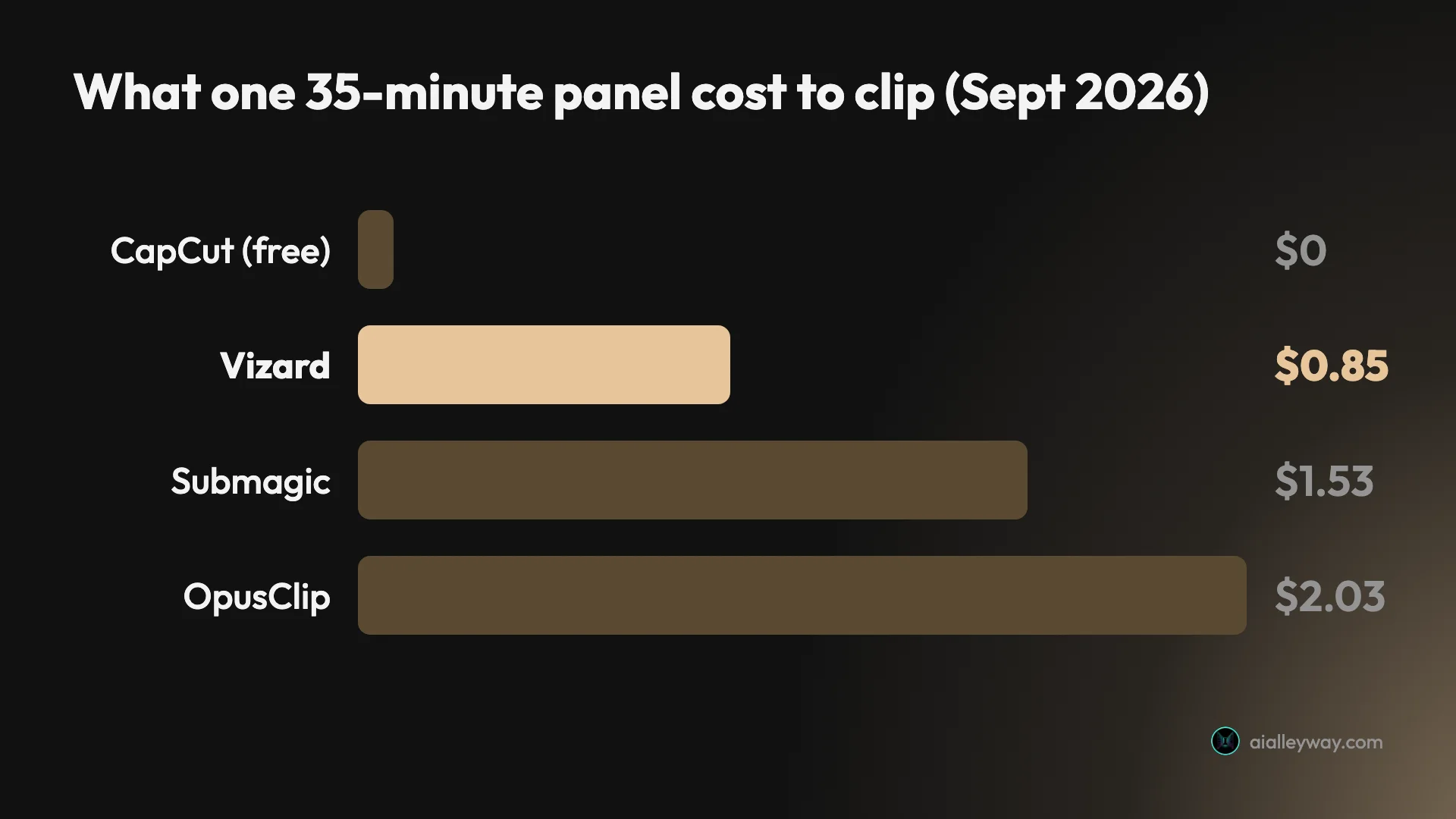
Vizard found 30 clips in that panel, against CapCut’s eight. That gap is not the whole story, though. On its default Auto setting CapCut did not pick highlights; it split the recording into eight sequential chapters covering 73.6% of the source. Vizard picked short moments, and the ten it released ran 32 to 56 seconds, the tightest of any tool I tried.
The catch is how the free plan handles those 30. The processing screen counted all of them, and the results page showed ten, with a banner offering to “Remove watermark and unlock 20 more clips”. The analysis on all 30 had already been done. The upgrade charges for the handover.

On paid plans the meter is simple. Vizard’s pricing page says one credit is one minute of video, the free plan gives 60 credits a month with 720p export, and the Creator tier starts from 600 credits a month with a yearly discount of 50%. At September’s Creator annual rate my 35-minute job came to 85 cents. Vizard is not only a clipper, either: its workspace carries a row of other AI apps and a full editor, so you can trim and recaption a clip without leaving it.
| Vizard, measured on my panel | Result |
|---|---|
| Clips found | 30 |
| Released on the free plan | 10 of the 30, the rest behind an upgrade |
| Clip length | 0:32 to 0:56 |
| Cost per job | $0.85 at September’s Creator annual rate |
| Free plan today | 60 credits a month, 720p export |
Choose Vizard if CapCut’s clipping was the reason you used CapCut, and you are ready to pay a little for tighter picks. The full run is in the Vizard review.
What you lose moving from CapCut to Vizard is the free clean export and the editor next door. CapCut’s clips landed in a full timeline editor on the same account. Vizard has its own editor, but if you finish videos elsewhere you will be downloading and re-importing. You gain clips that are highlights rather than chapters.
9. OpusClip — best clipping toolkit if you edit afterwards

OpusClip is the clipper for people who will keep editing after the AI is done. It found 32 clips in my 35-minute panel, the most of any tool, and it scored each one on four separate axes rather than one number. It also exports an XML of the cut for Premiere Pro or DaVinci Resolve, which Vizard does not.
There is a big caveat on that run. My account was badged “Free Trial (Pro Plan)”, so the 32 clips and the toolkit are trial-tier output. OpusClip’s actual free plan is much thinner. Its pricing page offers “Post one clip every day for free” with 1080p export and a three-day window to download, and its help centre gives the free plan 60 processing minutes a month.
The meter matches Vizard’s: one credit per minute of the source you import, per OpusClip’s help centre. Starter is $15 a month, billed monthly only, for 150 minutes. Pro is $29 a month for 300 minutes, or 3,600 a year on annual billing, and yearly credits come at a 50% discount. Watch the expiry rules too. The help centre says monthly credits expire after 60 days, while yearly credits stay valid for 12 months, so a creator who clips in bursts loses less on annual billing. At September’s Pro annual rate my job cost $2.03, about 2.4 times what Vizard charged.
| OpusClip | Detail |
|---|---|
| Clips found on my panel | 32, on a Pro trial account |
| Free plan | One posted clip a day, 60 processing minutes a month |
| Starter | $15 a month, monthly only, 150 minutes |
| Pro | $29 a month for 300 minutes, or billed yearly |
| Cost per job | $2.03 at September’s Pro annual rate |
| Unique | Four-axis scores, XML export to editors |
Pay the premium if you hand clips to an editor or a desktop timeline afterwards. If you post what the AI gives you as it comes, Vizard does the same job for less. More detail is in the OpusClip review and OpusClip pricing.
What you lose moving from CapCut to OpusClip is the free tier’s usefulness. One posted clip a day is a sampler, not a workflow, so OpusClip is a paid tool in practice. On my run I judged five of its 32 clips worth posting, on one file, which is a reminder that more clips is not the same as more good clips. Its value is the scoring and the XML hand-off, not the count.
10. Submagic — flat-fee clipping for long recordings

Submagic changes the shape of the bill rather than its size. Vizard and OpusClip charge by the minute of footage you submit. On the trial I ran in September, Submagic’s Magic Clips charged a flat 8 credits a job: 8 for my 35-minute panel, and 8 quoted again for a 46-minute file.
That makes it the cheap option for long recordings. At September’s rates it cost $1.53 for my 35-minute job, more than Vizard. Past roughly 26 source minutes it undercuts OpusClip, and past roughly 63 minutes it undercuts Vizard, because its charge stops growing while theirs keeps climbing. That is arithmetic on published rates. The longest file I put in front of it was 46 minutes, and that one I only had quoted, not run.
The arithmetic is simple enough to redo with your own numbers. At September’s annual rates OpusClip cost about 5.8 cents per source minute and Vizard about 2.42 cents. Divide Submagic’s $1.53 job by each and you get the length where the flat fee starts winning: about 26 minutes against OpusClip, about 63 against Vizard. If your recordings are 20-minute interviews, Submagic is the dearest of the three. If they are two-hour livestreams, it is the cheapest by a distance.
It found 31 clips and wrote a short case for each, which makes sorting them easier. All 31 scored between 90 and 97 out of 100, though, so the scores flatter its own picks.
The wall is the trial. Submagic has no free plan, and its help article, updated on 28 October 2026, describes the trial as a chance to “upload 3 short videos”, with a subscription needed to download without a watermark. My September trial would not export a file at all.
| Submagic plan | Billed yearly | Monthly | Credits a month |
|---|---|---|---|
| Starter | $12 | $19 | 45 |
| Pro | $23 | $39 | 120 |
| Business | $41 | $69 | 300 |
Choose Submagic if your recordings run past an hour and you clip them every week. For anything shorter, Vizard is cheaper. The Submagic review and Submagic pricing have the full run and the per-job maths.
What you lose moving from CapCut to Submagic is the chance to try before you pay. CapCut showed me eight finished files for nothing. Submagic showed me 31 clips I could not take away. If you are switching because of CapCut’s price, starting with a tool that has no free plan is the wrong order; prove the workflow on Vizard’s free plan first.
How to pick a CapCut alternative
Start with the half of CapCut you are replacing, then where you edit. Most people only need one tool. A few, the ones who used CapCut for both editing and clipping, will need two.
Do you need to leave at all?
Before the tree, one honest question. If you are leaving because of the January 2025 ban, that reason has mostly gone: CapCut is on the US App Store today and the TikTok deal let it keep operating. If you are leaving because of the price, check whether the free plan already covers you; the editor and 1080p exports cost nothing on the browser app I tested, and auto captions are free on CapCut’s AI Captions page.
The reasons that do hold up are the licence in the terms, the price of Pro if you need it, and the 512MB storage ceiling if you export a lot. If one of those is yours, the tree below picks the replacement.
If you used CapCut for both editing and clipping
CapCut’s real trick was doing both jobs in one account, so the honest replacement for a heavy user is often a pair. Four pairings make sense.
- VN plus Vizard: clip long recordings in Vizard, finish and caption on your phone or PC in VN. The cheapest full replacement that does not involve CapCut at all.
- DaVinci Resolve plus OpusClip: OpusClip’s XML export lands the cut in Resolve’s timeline, so the AI picks the moments and you grade and mix them properly.
- Descript plus Vizard: if your long recordings are conversations, edit the full episode by transcript in Descript and let Vizard pull the short clips from the finished cut.
- Edits plus CapCut’s free clipper: keep CapCut for the one job it does free and well, then finish Reels in Edits.
If you make video for a business
Brand consistency matters more than editing depth here. Canva keeps your colours, fonts and logo in one brand kit across video, thumbnails and posts. Clipchamp Premium adds a brand kit too, through Microsoft 365, which many small businesses already pay for. Either beats rebuilding your brand by hand in a phone editor every week.
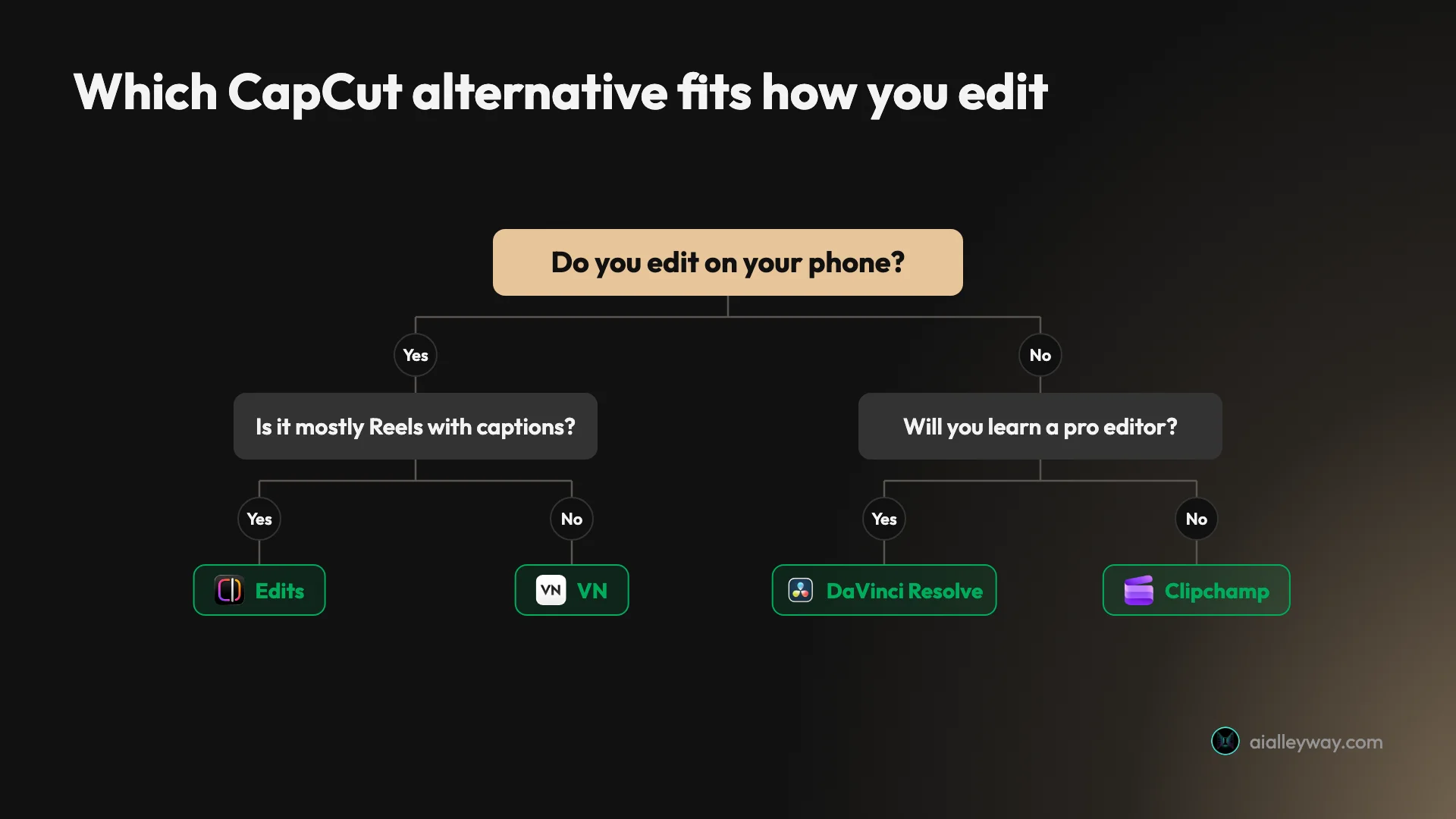
- You cut your own footage on a phone: VN. Pick Edits instead if nearly everything goes to Instagram.
- You want to pay once and stop thinking about it: InShot Pro at $49.99 for life, or DaVinci Resolve Studio at $236 once on a desktop.
- You edit on a Windows PC and want it easy: Clipchamp.
- You edit on a desktop and want to get good: DaVinci Resolve.
- Your videos start from a template: Canva.
- Your videos are mostly people talking: Descript.
- You used long video to shorts: Vizard for the lowest cost, OpusClip if you edit afterwards, Submagic if your recordings run past an hour.
- You need clean, free, automatic clips: stay on CapCut for that one job. Nothing else I ran matched it.
Before you delete CapCut
Export your projects first. Plan on your CapCut projects staying in CapCut. Before you cancel, export every project you care about as a finished video at the highest resolution your plan allows, and download your source footage. If you used the browser app, do it before you clear space, because the free plan’s 512MB fills quickly.
Make one test export on the free plan. A missing watermark is the reason most people pick an alternative, and listings do not always say. InShot’s does not. Export a ten-second test before you move a real project.
Check the licence, not just the price. If CapCut’s terms were your reason to leave, read the new tool’s terms too. Edits sits under Meta’s terms, and DaVinci Resolve processes your files on your own machine.
Keep CapCut for one job if it still does it best. Nothing stops you editing in VN or Resolve and still using CapCut’s free clipper on a long recording. The 512MB limit just means you download and clear as you go: in my test, emptying the trash freed the space at once.
If you keep CapCut’s clipper, change its preset. CapCut’s default Auto duration chapters a recording rather than picking highlights. I ran Auto against its under-60-seconds preset on a 12-minute excerpt of the same panel. Auto covered 88.3% of the source in clips of 1:09 to 2:33; the short preset covered 27.4% in separate picks of 1:04 to 1:08. That second result is much closer to what Vizard and OpusClip sell, and it costs nothing. The steps are in CapCut long video to shorts.
Move your captions, not just your video. If captions took you time to correct in CapCut, burn them into the exported video before you leave. Every editor here can add captions again, but automatic captions need checking, and a burned-in copy is the version you already fixed.
Budget for what used to be free. The real cost of leaving CapCut is rarely the editor. It is the clipping, at $0.85 to $2.03 for a 35-minute recording on my test, or Descript’s $16 a month if your work is talk-heavy. Add that up for a month of your actual output before you decide CapCut’s price rise was the expensive option.
Final word
Replace CapCut by job, not by brand: VN for free editing on any device, DaVinci Resolve if you edit on a desktop, and Vizard if what you really used was long video to shorts. The editor is the easy half. The clipper is the half that costs money, and the CapCut review explains why its free version is hard to beat at it.
Frequently asked questions
What is the best free CapCut alternative?
For editing on a phone or a computer, VN is the closest free replacement. Its App Store listing describes it as free with no watermark, it has a multi-track timeline with keyframes and auto captions, and it ships apps for iPhone, Android, Mac and Windows. That last point matters, because most free CapCut replacements cover only one kind of device.
If you mostly make Instagram Reels, Edits from Instagram is the other strong free pick: 4K export with no watermark and automatic captions, but only on iPhone and Android. For desktop work, DaVinci Resolve's free version and Clipchamp's free plan both export without a watermark. None of these replaces CapCut's automatic long video to shorts tool, which is the part of CapCut that no free rival matched in my testing.
Is CapCut banned in the US?
No. CapCut was pulled from US app stores on 18 January 2025 along with TikTok, because a US law required ByteDance to sell TikTok's US business or be banned, and it was reinstated in February 2025. When I checked the US App Store on 30 October 2026 it was live, with the seller still listed as ByteDance Pte. Ltd.
TikTok's US joint venture closed on 22 January 2026, and coverage of the deal reported that it lets ByteDance-owned apps such as CapCut keep operating in the US. If the ban is your reason for leaving, the immediate risk has passed. The reasons that remain are the price rise, the terms of service and the free plan's 512MB cloud storage.
Does CapCut own the videos you make with it?
Not outright, but its terms ask for a broad licence. CapCut's global terms of service, last updated 15 April 2026, grant it a licence over content you upload that is described as perpetual and worldwide, plus a separate licence to use your username, image and likeness.
CapCut said in June 2025 that this part of its terms had not changed for years. Two caveats apply. US users are covered by a separate set of CapCut US terms, which I could not read for this post, and the EU and UK supplemental terms disapply these paragraphs. If the licence is why you are leaving, DaVinci Resolve is the cleanest answer: it edits your files on your own computer.
What is the best CapCut alternative for PC?
DaVinci Resolve if you are willing to learn a professional editor. The free version runs on Windows, Mac and Linux and exports up to Ultra HD at 60 frames per second, which is more than most creators need, and the paid Studio version is a one-time $236 rather than a subscription.
If you want something closer to CapCut's speed, Clipchamp is the easier pick on Windows. It runs in the browser or as a Windows app and its free plan exports 1080p with no watermark. VN also has a Windows app if you want the same editor on your phone and your PC.
Is there a free alternative to CapCut's AI clipping?
Not one that gives you the same result. I put the same 35-minute panel through CapCut and three dedicated clipping tools in September 2026. CapCut's free plan returned eight finished 1080p clips with no watermark.
Vizard's free plan found 30 clips but released only 10 and offered to unlock the rest. OpusClip's free plan allows one posted clip a day. Submagic has no free plan, and its trial would not export a file. The paid tools did pick tighter highlights than CapCut's default setting, which split my recording into long chapters, but at the rates I read in September 2026 you paid for that from about $0.85 a video.
Is CapCut free on PC?
Mostly, yes. I tested CapCut's browser app on a computer in September 2026 on the free plan. The editor and 1080p exports cost nothing, and the eight clips I exported carried no watermark. Its long video to shorts tool gives 60 free source minutes a month. Auto captions needed Pro to export from the editor when I rechecked on 31 October, but CapCut's AI Captions page still exported them free.
The limit that stopped me was storage: the free plan has 512MB of cloud space, and once my exports filled it CapCut refused the next one until I cleared space. CapCut also has desktop apps for Windows and macOS, which I did not test. Paid plans add AI credits and 1 TB of storage, and CapCut prices them by region.
Which is better, VN or CapCut?
For manual editing they are close, and VN wins on terms. Both have multi-track timelines, keyframes, auto captions and speed curves. VN's free version exports with no watermark, and it has apps for iPhone, Android, Mac and Windows.
CapCut is better if you lean on its templates, its AI tools or its long video to shorts feature, none of which VN matches. Choose VN if you mainly cut your own footage and want to stop worrying about subscriptions; stay with CapCut if its automated features are what saves you time.
Keep reading
CapCut review: free 1080p exports, until 512MB stops you
I put a 35-minute panel through CapCut's AI clipping and exported all 8 clips. Watermark-free 1080p on the free plan, but the cloud ceiling bites at clip four.
CapCut pricing: there is no single price, and CapCut says so
CapCut publishes $19.99 a month on one page and says it has no fixed global price on another. Here is what the upgrade screen showed, and how to find yours.
CapCut auto captions: Pro in the editor, still free on one page
I tested CapCut auto captions on a free account. The editor now locks export behind Pro, but CapCut's AI Captions page exported free, with 2.7% of words wrong.
The best AI video clipping tool, measured on one file
Four AI video clipping tools, one identical 35-minute file. OpusClip found 32 clips, Submagic 31, Vizard 30 but delivered 10, CapCut 8. What that means.

Free AI clip generator: only one export came back clean
Four AI clip generators, one 35-minute file, two of them on genuine free plans. Only CapCut returned a file with no watermark. Here is what the rest hand back.

Opus Clip alternatives: what each one takes away
Every cheaper OpusClip alternative costs you something. I ran four tools on one 35-minute file — Vizard did it for $0.85 against $2.03 — and priced two more.