
CapCut review: free 1080p exports, until 512MB stops you
I put a 35-minute panel through CapCut's AI clipping and exported all 8 clips. Watermark-free 1080p on the free plan, but the cloud ceiling bites at clip four.
Contents
Is CapCut worth it?

Yes, for finishing short video, and the reason is narrower than “it’s free”: CapCut’s free plan exports a watermark-free 1080p file from a real timeline, which is the exact thing most rivals sell you at their first paid tier. I put a 35-minute panel through its clipping tool and downloaded all eight results clean. What stops you is not a watermark but 512MB of cloud storage, which no plan card mentions before you sign up.
What CapCut actually does
CapCut is two products wearing one name. There is a full multi-track video editor that runs in the browser, on desktop and on phones, and there is a set of one-click AI tools that sit beside it and hand their output into that editor.
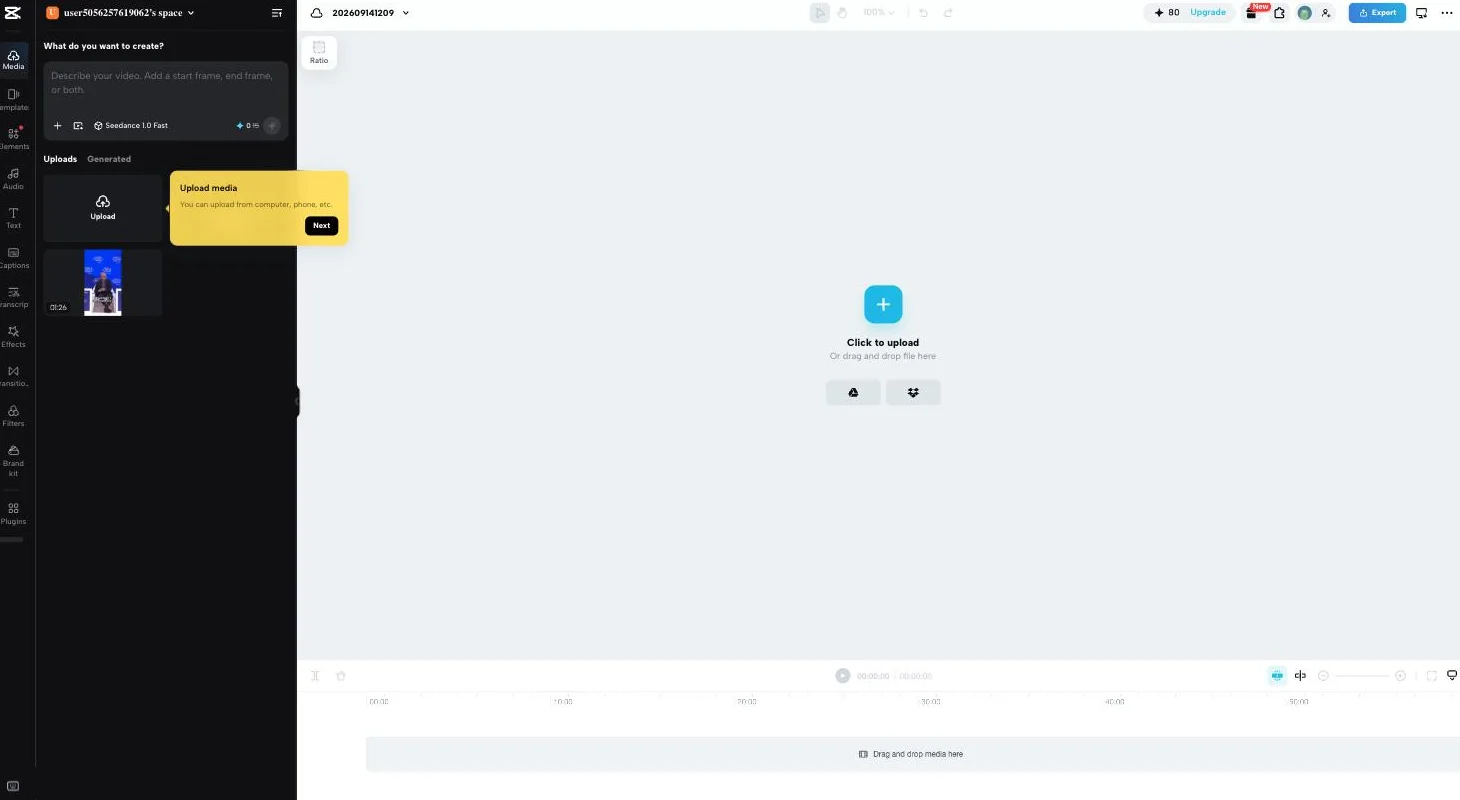
The editor is the part people know. It is a genuine timeline with a left rail covering Media, Templates, Elements, Audio, Text, Captions, Transcript, Effects, Transitions, Filters, a Brand kit and Plugins. Nothing about it feels like a toy web app.
The AI half is what has changed in the last year, and the feature this review leans on is Long video to shorts: feed it a long recording, get short vertical clips with captions burned in. That puts CapCut in direct competition with tools that charge $12 to $29 a month to do only that.
It is not the only one. The signed-in homepage promotes a Video Studio built on ByteDance’s Seedance generation models, a Design Studio, text to speech in what it advertises as 100-plus voices, background removal and a captions generator, each as its own entry point rather than buried in a menu.
Three meters, not one
This matters more than the feature list, because CapCut charges for those tools in three unrelated ways and only one of them is visible up front.
AI credits run the generative features, and the plan modal grants 650 a month on Pro, 21,215 on Ultra, and none at all on Free — the free card lists “free templates to start fast” and “basic editing tools” and stops there. Clipping minutes are separate, metered by source duration, 60 a month free. Storage is the third, and the one that bit me.
So “is CapCut free” has three answers depending on which half of the product you open. Editing: yes. Captions: Pro in the editor by 31 October, free on the AI Captions page. Clipping: 60 minutes a month. Generative AI: not really.
Three surfaces, one of them tested
CapCut ships as a browser app, a desktop app for Windows and macOS, and mobile apps, with projects syncing between them. Everything in this review comes from the browser app, which is where the clipping tool and the export pipeline live.
The desktop app advertises itself inside the web app with a one-day Pro trial, and because it renders locally it plausibly sidesteps the storage ceiling described below. I did not install it, so I am not going to claim that it does.
How I tested it
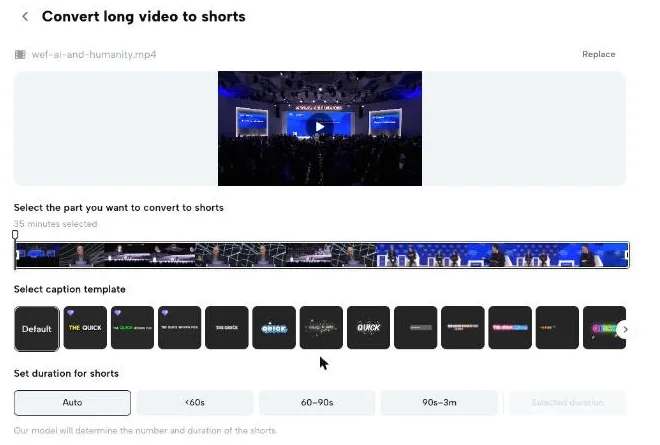
I ran the same 35-minute 27-second conference panel through CapCut that I previously ran through Submagic and OpusClip, so the three results are directly comparable. Settings were left on Auto duration with the Default caption template, which is what the tool picks for you.
Then I exported all eight clips at 1080p, downloaded every one, and probed them with ffprobe rather than trusting the preview. Everything measured below comes from that run.
What I did not test: the mobile app, the desktop app, caption accuracy against a reference transcript (measured later), or whether the 2k and 4k export options actually render on a free account. Where this review is quiet, it is because I did not measure it.
How much does CapCut cost?
Start with the thing that should be simple and is not. CapCut publishes no pricing page. The /pricing path does not resolve, and there is no pricing link in the navigation. You see prices only after signing in and clicking Upgrade.
When you do, the modal is priced for your region. On my non-US account it rendered in local currency rather than dollars, so this table carries what the cards grant and leaves the prices out:
| Plan | AI credits | Storage |
|---|---|---|
| Free | none | 512MB |
| Pro | 650/mo | 1 TB |
| Ultra | 21,215/mo | 1 TB |
| Teams | 650/mo per seat | 1 TB |
The clipping meter is shown to you before you spend it, which is the one part of CapCut’s pricing that is genuinely transparent: the convert screen quotes the cost of the job against the balance you have left.

I am not going to present my account’s local figures as CapCut’s price. They are one region on one day, with a first-term discount applied and a seven-day free trial attached to Pro. Read your own modal and note the renewal figure, not the promotional one.
Two meters matter more than the sticker anyway. The clipping tool is billed by source duration, at 60 free minutes a month, with Pro adding 240 — the same unit OpusClip uses, and the opposite of the flat per-job fee I worked through in the Submagic pricing guide. And the free plan’s 512MB of cloud storage is the number that will actually interrupt you, because it is not on any plan card you can read before you sign up.
The modal’s framing is worth reading closely too. Pro leads with a seven-day trial at zero, then a discounted first month, then the full rate — three numbers stacked in one card, with the one you will actually pay in the smallest type. The monthly and yearly toggles are labelled “up to 80% off” and “up to 30% off” respectively, which is the opposite of how annual billing usually works and is an artefact of the first-term discount rather than a real annual saving.
None of that is unusual for a consumer subscription. It is worth flagging here because billing is precisely what CapCut’s reviewers complain about, and a pricing table that leads with promotional figures is how people end up surprised by a renewal.
Who is CapCut for?
- Creators finishing short clips for social. If the job is captions, a vertical crop and a clean export, the free tier does it end to end and costs nothing, through Long video to shorts or the AI Captions page; captions added in the editor needed Pro to export by 31 October. This is the case CapCut serves better than anything else at the price.
- Anyone who wants publishable output without a subscription. Watermark-free 1080p on a free plan is genuinely unusual here, and it is the single strongest reason to start with CapCut rather than a dedicated clipper.
- People testing whether AI clipping suits their footage at all. Sixty free source minutes a month is roughly one long podcast, which is enough to learn whether automated clipping fits your material before committing to a dedicated tool with a card attached.
- Editors who want a timeline, not a black box. The clipping output drops straight into the full editor, so a clip that is nearly right can be fixed rather than re-generated. Tools that only hand back finished files cannot do that.
- Teams already living in the TikTok ecosystem. Export publishes straight to TikTok, TikTok Ads Manager, YouTube, YouTube Shorts, Facebook Pages and Instagram Reels, with a scheduler badged free. That is a publishing stack most dedicated clippers gate behind a paid plan.
- Not for volume workflows. The 512MB ceiling turns a run of exports into a cycle of download, delete, repeat. If you are producing dozens of finished videos a week, that housekeeping is the whole objection, and a paid plan elsewhere will cost less than the time.
The good
Free export is genuinely free
The resolution dropdown offers 360p through 4k with no upgrade badge on any option, and the 1080p I actually exported came back clean on all eight files: 1080×1920, 30fps, durations matching the listed figures to within a second. I sampled a mid-point frame from every clip rather than trusting the first one, and none carried a CapCut mark.
Set that against the field. OpusClip watermarks its free exports and sells removal from its first paid tier, which I confirmed by running it. Vizard and Riverside publish the same arrangement on their own pricing pages, though I have not tested either. CapCut simply does not charge for it.
It reframes to the speaker, not to a fixed crop
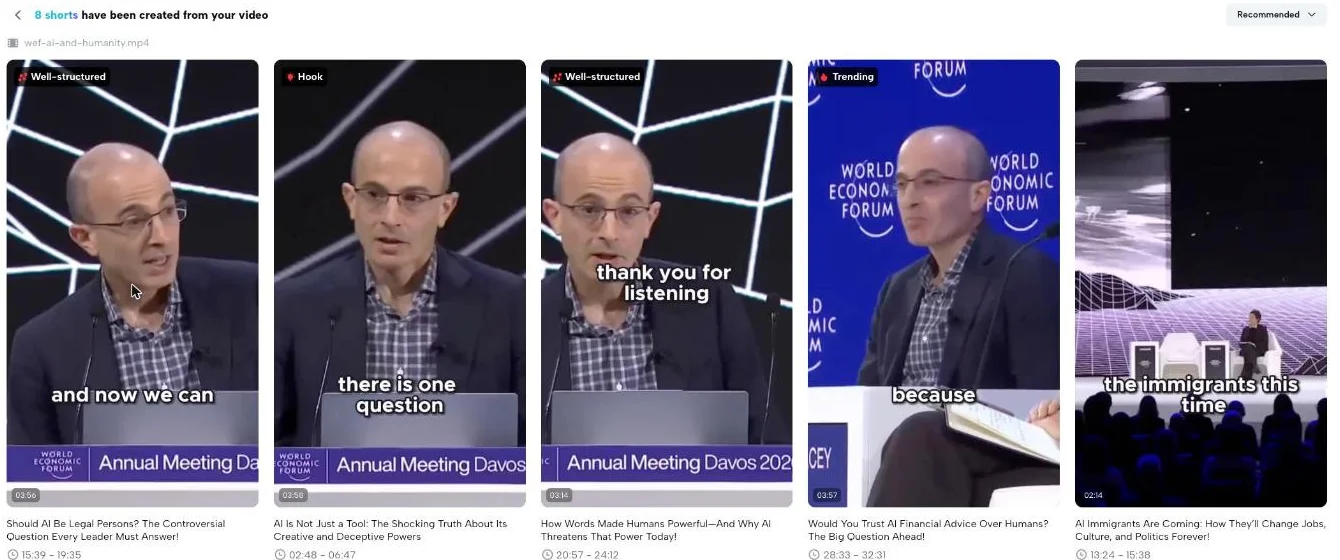
The vertical crops track whoever is talking. Sampling a frame from the middle of each of the eight files, some are framed on the panellist and some on the moderator, following whoever holds that segment — which is the difference between a usable vertical and a wide shot with a person in the corner. The source is a wide conference stage carrying the Annual Meeting Davos lower-third.
If you only want the procedure, the settings to pick and the order to export in, the CapCut long video to shorts walkthrough covers it step by step.
Captions: free in September, Pro in the editor by October
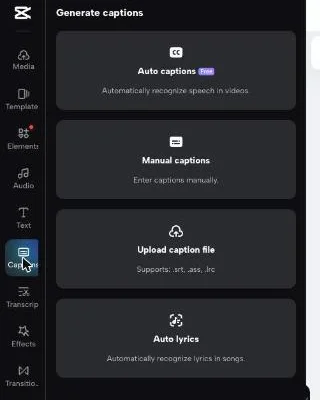
The Captions panel offers Auto captions badged Free, manual captions, imported .srt, .ass or .lrc files, and auto lyrics for music. That was the panel on 14 September, and auto-captioning is the single most common reason people open a tool like this.
Update, 31 October 2026: when I went back to the same panel on a free account, Auto captions carried a Pro diamond instead. The captions still generated, but Export listed them as a Pro feature and offered only an Upgrade button. CapCut’s separate AI Captions page made the same captions and exported them free, with no watermark. The test, the steps and the accuracy numbers are in our CapCut auto captions guide.
It does not pretend to score your clips
Four of my eight clips carried a qualitative tag — Well-structured twice, plus Hook and Trending — and four carried nothing at all. There is no 0-to-100 number anywhere.
That reads as a gap until you compare it. OpusClip scored all 32 of its clips between 80 and 99, and Submagic scored all 31 of its between 90 and 97, on scales printed out of 100. Neither ever says a clip is weak. CapCut declines to print a number it cannot justify, which is the more honest position even though it leaves the watching to you.
Publishing is built in, and not gated
CapCut’s export dialog offers direct posting to TikTok, TikTok Ads Manager, YouTube, YouTube Shorts, Facebook Pages and Instagram Reels, plus a scheduler carrying its own Free badge.
Most dedicated clippers treat scheduling and multi-account publishing as the thing that justifies their top tier. Submagic puts publishing and analytics on its Pro plan, $23 a month billed yearly or $39 monthly, and multi-account publishing on Business at $41 or $69. Here it sits in the same dialog as the download button.
It finished faster than it quoted
The progress screen estimated 13 minutes for the 35-minute source. The job was submitted at 10:53:23 and complete by 11:02:51, which is about nine and a half minutes, and the page told me I could close it and be notified by email.
Under-promising on render time is a small thing that says something about the infrastructure behind it. Individual exports were slower and more variable, running roughly two to five minutes each at 1080p, with the shortest clip the quickest.
There is no per-job risk
Every other tool here asks you to buy an allowance in advance and spend it on jobs that might return nothing. Submagic’s failed run took 8 credits, returned zero clips and refunded none of them. CapCut’s meter charges by source minutes on a free monthly allowance, so a disappointing job costs you time rather than money.
The bad
512MB of storage, and every export lands in it first
This is the finding that matters. Exports render into your cloud Space before you can download them, and the free Space is 512MB. Four 1080p exports of two-to-four-minute clips pushed the account to 633.56MB, and the next export was refused outright with an upgrade prompt: “Couldn’t export — Your space is almost full.”
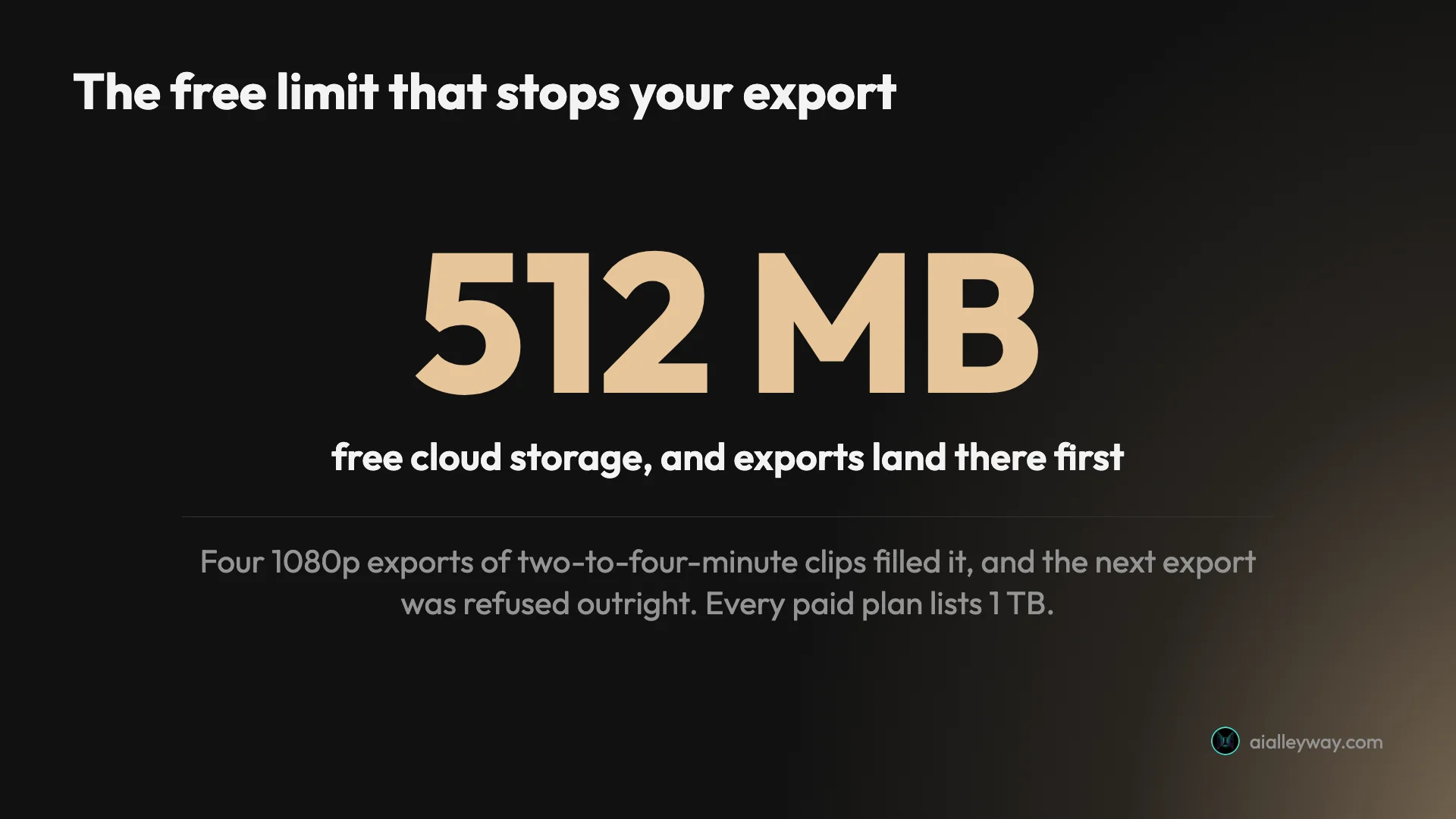
Deleting an export reclaims the quota immediately, so the workaround is real but tedious: export, download, trash, repeat. Every paid plan lists 1 TB, which tells you what the ceiling is for.
Stacked against the other two meters, the free plan’s shape looks like this:
| What the free plan limits | Figure |
|---|---|
| Cloud storage, and exports land in it first | 512MB |
| Clipping, metered by source duration | 60 min/month |
| AI credits for the generative tools | none |
| Upload size and length, free tier | 10GB / 180 min |
A finished render is only handed to you once
Minimise CapCut’s export dialog before clicking Download and the render is not given back. Reopening Export for that clip offers a fresh export instead, while the finished file sits in your Space consuming quota. It is recoverable, but only from the Space page via a right-click, and nothing in the flow says so. It does not appear under Library at all.
On Auto, the clipping is chaptering rather than highlight-picking
Eight clips from a 35-minute source is one per 266 seconds, against one per 69 for Submagic and one per 66 for OpusClip on the identical file. The eight ran 1:26 to 3:58 and totalled 26 minutes, which is 73.6% of the entire source.
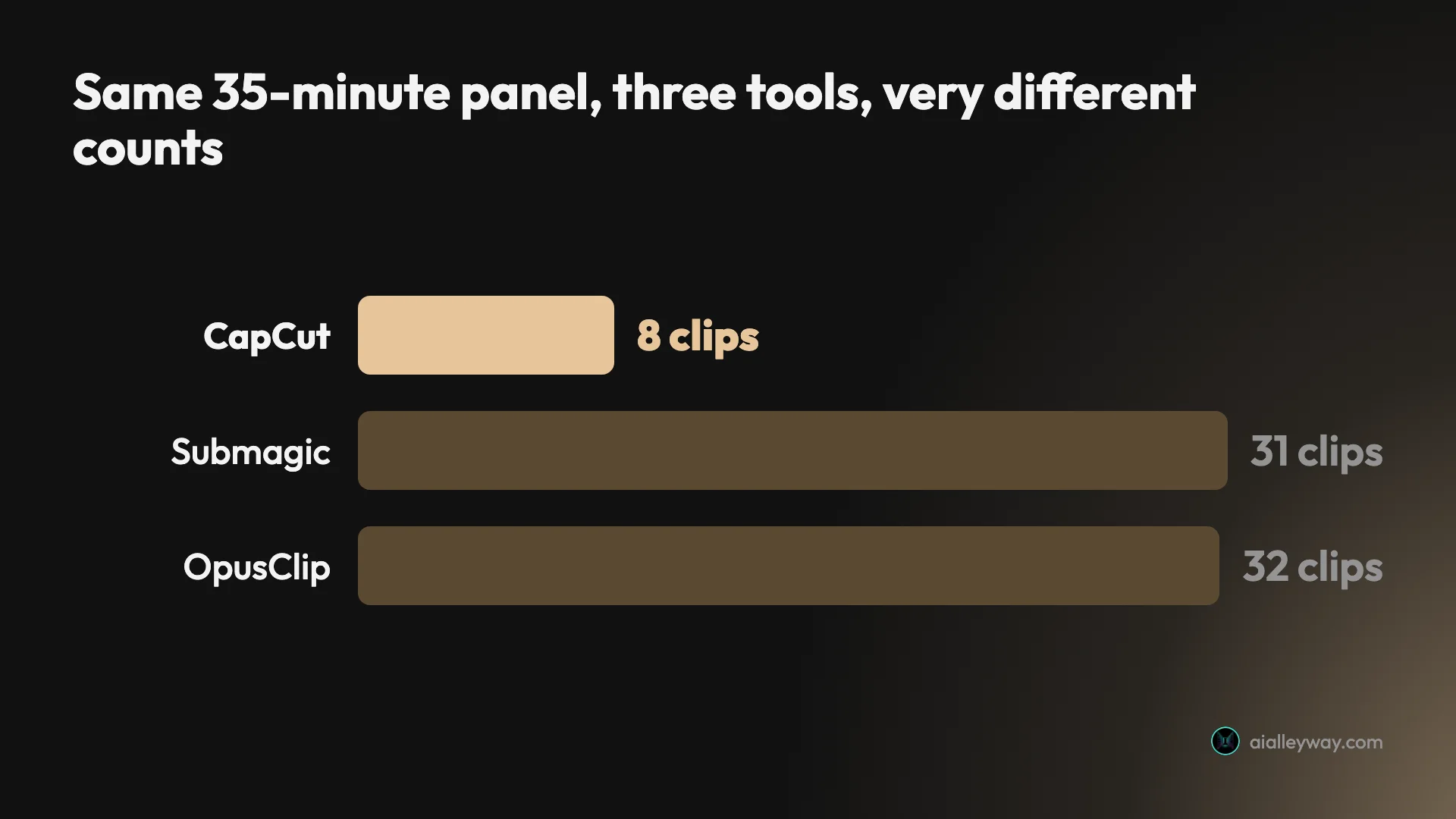
The ranges were sequential and did not overlap. That is a setting dividing a video into chapters, not one searching it for the strongest moments — and the setting matters more than the tool here. I later ran Auto and the under-60s preset against each other on a 12-minute cut of the same panel: coverage fell from 88.3% to 27.4%, and under-60s returned separate picks instead of a sequence. The step-by-step walkthrough sets that test out in full. Auto is what the screen arrives on, so it is what most people will get.
The export resolution silently resets
Pick 1080p, reload the page, and you are back on 720p. The setting persists between clips within a session but drops on every reload, and nothing announces it. I caught one export already running at 720p before noticing. Confirmed on three separate exports.
The generative features are not part of “free”
CapCut’s plan modal grants 650 AI credits a month on Pro and 21,215 on Ultra. The Free card lists no credit allowance at all, only “free templates to start fast” and “basic editing tools”.
So the Video Studio, the text-to-speech voices and the rest of the generative catalogue are effectively a paid product wearing the same interface as the free one. That is a reasonable business model and an unreasonable way to present it, because nothing distinguishes the tools you can use from the tools you cannot until you open one.
The progress screen tells you the wrong number
While the clipping job runs, CapCut’s results grid renders 30 placeholder tiles. My job returned eight. The skeleton is fixed and bears no relationship to what is coming, so anyone watching the screen fill up is reading a number the tool invented.
It cost me nothing because I waited, but it is the kind of detail that makes the nine-and-a-half-minute wait feel like a failure right up until the moment it is not.
Five of those rough edges cost me real time, so here they are together:
| The five traps | What happens |
|---|---|
| Export dialog minimised | render is not handed back, but still eats quota |
| Page reloaded | resolution silently drops to 720p |
| Job running | progress grid shows 30 tiles regardless of the real count |
| Space full | export refused outright, with an upgrade prompt |
| A finished dialog left open | it overlays the grid and swallows clicks, which cost me one accidental duplicate export |
On one wide shot, the auto-crop had nothing to follow
Speaker tracking works when there is a speaker in frame. The clip covering 10:02 to 13:22 opens on a wide shot of the presentation screen with the panellist reduced to a small figure at the edge, and the vertical crop follows it there — the result is a thumbnail that is mostly empty backdrop. I am describing the frame the results grid shows, not a shot-by-shot viewing of all eight.
CapCut gave that clip no tag at all, and gave none to three others. So the tagging is not flagging the weak output either — it is simply silent on half the batch, which leaves the quality check exactly where it started: with you, watching all eight.
You cannot read the price before you commit
Every figure in CapCut’s plan modal leads with a discounted first term rather than the renewal rate, and you cannot see any of it without an account. For a product whose reputation problem is billing, putting the numbers behind a sign-up is a choice worth noticing.
The reputation is genuinely bad, and it is about money
CapCut holds 1.2 out of 5 on Trustpilot across 1,288 ratings, and Google’s AI Overview for “capcut review” summarises the product as “praised for its easy interface but criticized for technical glitches and aggressive subscription billing”. A Reddit thread titled “CapCut is a dying app and is no longer a free, easy to…” sits on the same results page.
The complaints cluster on unexpected charges and difficult refunds rather than on the editing, which is a different failure from a bad product. It does not change what the free tier produces. It should change where and how you subscribe.
Alternatives worth considering
If the 512MB ceiling or Auto’s chaptering rules CapCut out, three tools are worth the look, and each solves a different one of those problems.
If it is the editor rather than the clipper you want to replace, CapCut alternatives covers ten options, from free phone editors to DaVinci Resolve.
| Meter | Free export | Clips from my 35-min panel | |
|---|---|---|---|
| CapCut | per source minute, 60/mo free | 1080p, no watermark | 8 |
| Submagic | flat fee per job | none, trial cannot export | 31 |
| OpusClip | per source minute, 60 credits/mo free | watermarked | 32 |
| Descript | media hours | limited | not tested |
Submagic is the answer if your sources are long. It charges a flat fee per clipping job rather than by source minute, which makes a two-hour podcast dramatically cheaper to clip, and it returned 31 clips where CapCut returned 8. It has no free plan and its trial cannot export a file.
OpusClip is the pick if you need the clips to keep moving after the tool is done. It exports XML to Premiere Pro and DaVinci Resolve, which neither CapCut nor Submagic offers, and its free plan grants 60 credits a month. Expect a watermark until you pay.
Descript fits when the clips are a by-product of editing you were doing anyway. It meters media hours rather than clips and gives you a transcript-driven timeline, so it is the wrong buy if clipping is all you want and the right one if it is not. Its free plan grants one media hour a month, which renews, plus a one-off pool of AI credits that does not.
If the free tier is the whole reason CapCut is on your list, free AI clip generator ranks the category’s free plans on one question: whether you end up with something you could publish.
Worth noting what none of the three fixes: all of them charge money where CapCut charges none, and all of them watermark or withhold the free export that CapCut hands over clean. You are trading the storage ceiling for a subscription, which is the right trade at volume and the wrong one at two clips a week.
The final word
The gap between what CapCut produces and how people talk about it is the story here. The free tier hands you a publishable 1080p vertical with burned-in captions, no watermark, from a real timeline, and that is a better deal than anything else in this category offers for nothing.
Then it puts a 512MB wall in front of the export you just made, on a plan whose limits you cannot read before signing up, from a company sitting at 1.2 on Trustpilot over billing.
None of that makes the output worse. It makes CapCut a tool to use deliberately rather than to settle into: know the ceiling, download as you go, and think twice before the card comes out.
The 3.8 is for what comes out of it, and the caveats are all about the path to getting there. It was 4.0 until auto-captions in the editor moved behind Pro in October; the captioned file is still free through the clipper and the AI Captions page, but the editor’s free tier no longer finishes the job alone, and that is what the 0.2 is for. Where that lands CapCut against the three tools I gave the same file is in the best AI clipping tool.
Frequently asked questions
Is CapCut really free?
The free plan is more generous than most rivals, and it is not unlimited. It gives you the full timeline editor and export at up to 1080p with no watermark, which is the thing OpusClip charges for at its first paid tier, and which Vizard and Riverside both price the same way on their own pages. I exported eight clips on a free account and every file came back clean.
There are two limits worth knowing before you plan around it. Cloud storage caps at 512MB, and because every export renders into that storage before you can download it, four 1080p clips of two to four minutes exhausted it and the next export was refused. The AI clipping tool is separately metered at 60 minutes of source video a month, and the generative features run on a third meter, AI credits, of which the free plan gets none. Neither the storage cap nor the clipping allowance appears on any page you can read before signing up.
How good is CapCut's AI clipping?
It works, and it does a different job than the name suggests. I fed it a 35-minute 27-second conference panel on Auto settings and it returned eight clips, not the thirty-odd that Submagic and OpusClip returned from the same file.
Those eight ran from 1 minute 26 to 3 minutes 58, and together they accounted for 26 minutes of the 35-minute source. The eight ranges were sequential and did not overlap. On Auto, that is chaptering rather than highlight-picking: it walks the video front to back and divides it, where the dedicated clippers hand back dozens of overlapping candidates ranked against each other. Four of the eight carried a qualitative tag and four carried nothing, with no numeric score anywhere. If you want a pile of sub-60-second hooks to choose from, this is not the shape of tool that produces them, and the under-60s preset does not fix it: run separately, it returned 1:04, 1:05 and 1:08, none of them actually under a minute.
Does CapCut put a watermark on exports?
No, not on the free plan, and I checked every file rather than trusting the first one. I exported all eight clips at 1080p from a free account and sampled a frame from the middle of each. All eight came back at 1080x1920, 30fps, with burned-in captions and the source broadcast's own lower-third, and nothing of CapCut's.
That is worth saying plainly because watermark removal is the standard first-tier upsell in this category. The resolution dropdown also offered 360p, 480p, 720p, 1080p, 2k and 4k with no upgrade badge on any option, though I only verified 1080p by downloading and probing the files. If a clean, publishable file at the lowest possible cost is the requirement, the free plan genuinely delivers one. What limits you is storage rather than quality: the exports land in a 512MB cloud space first, so you download and clear as you go.
Do you need CapCut Pro at all?
For clipping, probably not, and the answer starts with a fact CapCut makes hard to check: there is no public pricing page. The path /pricing does not resolve and no pricing link appears in the navigation. Prices live behind the Upgrade button once you are signed in, and they are localised to your account's region.
On the account I tested, which is a non-US one, the plan modal rendered in local currency rather than dollars: Pro billed monthly or yearly after a seven-day free trial, Ultra, and Teams priced per seat, each discounted for the first term. Quoting my local figures as the price of CapCut Pro would be wrong for most readers, so I am not going to. Open the modal on your own account, in your own country, and read the renewal figure rather than the promotional one. Each card stacks a trial price, a first-term price and the real rate, with the rate you will actually pay set in the smallest type of the three.
Why does CapCut have bad reviews?
The gap between the product and its reputation is the strangest thing about CapCut. The editor is capable and the free tier is unusually generous, yet the company holds 1.2 out of 5 on Trustpilot across 1,288 ratings, and Google's own AI Overview summarises it as praised for its easy interface but criticised for technical glitches and aggressive subscription billing.
Read the complaints and they cluster on billing rather than on editing: unexpected charges and difficult refunds. That is a different failure from a bad editor, and it changes the practical advice rather than the verdict. Staying on the free tier sidesteps the thing people are angry about almost entirely, and if you do subscribe, do it somewhere you can cancel without arguing. It is also worth separating the complaint from the product: nothing in my own testing produced a billing event, because nothing I did cost money, and the output itself was clean every time.
Is CapCut good for podcasts and long videos?
It will accept them, and it is not the cheapest way to clip them. The free clipping tool accepts uploads up to 180 minutes and 10GB, so a two-hour episode goes in without trouble. I read that ceiling on a free account and did not check whether the paid tiers lift it.
The meter is what decides it. CapCut charges by source duration, so a 35-minute video consumed exactly 35 of my 60 free minutes a month. That is the same unit OpusClip and Vizard use, and it means one long podcast a week exhausts the free allowance fast. Submagic charges a flat fee per clipping job regardless of length, which makes it materially cheaper on long recordings. For podcast workflows specifically, the flat-fee meter wins and CapCut's free tier is better read as a way to test the idea than to run it. The clip shape counts against it too: eight Auto chapters of one to four minutes is not what most podcast clipping is trying to produce.
Keep reading
CapCut auto captions: Pro in the editor, still free on one page
I tested CapCut auto captions on a free account. The editor now locks export behind Pro, but CapCut's AI Captions page exported free, with 2.7% of words wrong.
Free AI clip generator: only one export came back clean
Four AI clip generators, one 35-minute file, two of them on genuine free plans. Only CapCut returned a file with no watermark. Here is what the rest hand back.
The best AI video clipping tool, measured on one file
Four AI video clipping tools, one identical 35-minute file. OpusClip found 32 clips, Submagic 31, Vizard 30 but delivered 10, CapCut 8. What that means.
Submagic review: 31 clips, and it charged me for a failure
Submagic review: 31 clips from one 35-minute video, a score that never drops below 90, and 8 trial credits spent on a job that returned nothing.
OpusClip review: 32 clips from one video, 5 worth posting
OpusClip review from a measured run: one 35-minute video in, 32 clips out, and a virality score that never went below 80 on a scale of 100.
CapCut alternatives: free editors are easy, free clipping isn't
CapCut alternatives by job: four free editors replace its timeline with no watermark. Replacing its AI clipper cost me $0.85 to $2.03 per 35-minute video.