
OpusClip review: 32 clips from one video, 5 worth posting
OpusClip review from a measured run: one 35-minute video in, 32 clips out, and a virality score that never went below 80 on a scale of 100.
Contents
Is OpusClip worth it?

Yes, if you publish long-form video on a schedule and you treat it as a shortlisting tool rather than an editor. I gave it one 35-minute conference panel and got 32 vertical clips back for 35 credits — of which five were worth posting. That last figure is my own call after watching all 32, not a number the interface produced, and another editor might land on four or six. It is very good at the mechanical half of repurposing and no help at all with the editorial half, which is the opposite of how it is sold.
What does OpusClip actually do?
You give it a long video. It gives you back short vertical ones, captioned and reframed, ready to post.
I fed it “An Honest Conversation on AI and Humanity” from the World Economic Forum’s 2026 annual meeting — 35 minutes 27 seconds of a multi-speaker panel, published under a Creative Commons Attribution licence, which is why I can show you the output rather than describe it.
When it finished I had 32 clips ranging from 21 seconds to two and a half minutes. Each one carried a headline, a virality score out of 100, and the timestamp it was cut from.
The reframing is the part that impressed me most. The source is a wide 16:9 stage shot with speakers seated apart, and the crop tracks whoever is talking rather than sitting statically on the centre. Captions are burned in and animated, and were accurate in everything I played.
That is its own top pick out of 32. Judge the crop, the caption timing and the hook for yourself, because the rest of this review turns on whether you can tell it apart from the ones it scored lowest.
What happens after you paste a link
You give it a URL or a file. The link field cycled between prompting me for a YouTube link and a Rumble one, and Upload and Google Drive sit beneath it. It resolves the video before charging you.
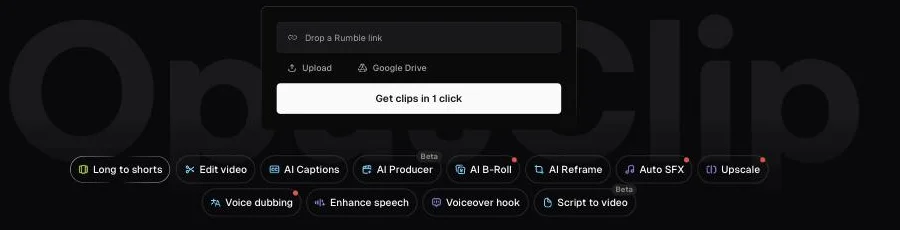
That is the whole entry point. Long to shorts is the mode this review is about; the other eleven are separate jobs drawing on the same credit balance, which is how a 35-credit run turns into a much larger bill if you start upscaling or dubbing afterwards.
The setup screen is where the useful controls live, and most of them are worth touching before you spend anything. Clip model and Genre both default to Auto. Clip length defaults to a range of 0 to 3 minutes rather than a fixed target. Auto headline is on by default, Auto zoom is off.
| Setup screen control | Default as found |
|---|---|
| Speech language | English |
| Clip model | Auto |
| Genre | Auto |
| Clip length | Auto, 0 to 3 minutes |
| Auto headline | On — but applied to the top 10 clips only |
| Auto zoom | Off |
| Processing timeframe | Whole video |
Two controls matter more than the rest. There is a free-text box labelled “include specific moments”, which lets you steer the selection with a prompt rather than accepting whatever it finds. And there is a processing timeframe slider, tagged Credit saver, which bills only the span you select. On a two-hour recording where you only care about the last forty minutes, that slider is the difference between 120 credits and 40.
A detail the banner reveals afterwards: auto headline is applied only to the top 10 ranked clips, not all of them. So on a 32-clip run, 22 come back without the burned-in hook.
I did not record the finish time, so I cannot tell you how long the run took end to end. What I can tell you is that the countdown is not to be trusted: at 29% it quoted an ETA of 8 minutes, and five minutes later it had reached 38%. On that pace the quoted eight minutes was never going to hold.
One piece of friction worth knowing about. Partway through the run a five-step onboarding survey appeared over the dashboard asking what kind of creator I am. It ignored the escape key, and navigating away from it raised a browser warning about unsaved changes. The job carried on behind it, but it is an odd thing to meet on a first run while watching a progress bar.
What you can do with a clip once it exists
Each clip opens into a panel with its score, the four sub-grades, its source timestamp and a transcript. From there you can edit it, change the aspect ratio, duplicate it, publish straight to connected social accounts, or export.
The panel also carries a scene analysis — the segment’s transcript, timestamped, with a transcript only checkbox that strips everything else away. On a panel discussion where three people talk across each other, reading the words is faster than scrubbing the clip to work out what you are looking at.
Caption styling is handled by presets rather than a full type editor. There is a row of ready-made caption looks plus a my templates tab for saved brand styles, and on Pro a brand template covers fonts and colours across every clip in a project. It is enough to stop the output looking generic and not enough to match a strict brand guide.
Every clip panel carries the same row of actions, and what they cost differs sharply:
| Action on a clip | What it does | Cost |
|---|---|---|
| Download HD | the finished vertical; I did not compare it against the preview, so I cannot say what resolution it delivers | appears free |
| Export XML | hands the cut to Premiere Pro or DaVinci Resolve | no credit badge shown |
| Upscale & download | the paid alternative to Download HD; I never bought one, so I cannot say what it delivers | 35–128 credits, per clip |
| Publish on Social | posts straight to a connected account | no credit badge; posting to X costs 1 credit |
| Edit clip / Duplicate | opens the editor, or forks a copy | no credit badge shown |
The export options are the reason this fits a real workflow rather than replacing one. Download HD sits alongside the paid upscale on the trial and appears to cost nothing, though I only ever saw one plan’s panel so I cannot say it is on every tier. Export XML hands the cut to Premiere Pro or DaVinci Resolve, so a clip can be a first draft rather than a final answer. That single feature is what separates it from tools that trap the output inside their own editor.
What did this run actually cost?
One credit buys one minute of the video you put in — not one clip out. A 35-minute upload costs 35 credits whether it returns something usable or nothing.
| Plan | Price | Credits | Per source minute |
|---|---|---|---|
| Free forever | $0 | 60 a month | — |
| Free trial | $0, 6 days left when observed | 90 credits | — |
| Starter | $15 a month, monthly only | 150 a month | $0.100 |
| Pro, monthly | $29 a month per pack | 300 a month | $0.097 |
| Pro, yearly | $17.40 a month ($208.80 a year) | 3,600 a year | $0.058 |
| Business | By quote | Custom | Not published |
Read live from opus.pro/pricing, re-checked 11 September 2026. Treat any figure here with suspicion: on one afternoon the same page briefly showed Pro yearly at $14.50 a month with a 50%-off banner, before returning to the figures above. It promo-cycles within a single day, so check it yourself on the day you buy.
My run cost 35 credits, about $2.03 on the annual plan. Rounding works in your favour on long videos: 35:27 billed as 35, not 36, because partial minutes round down. Clips under a minute round up.
Two things the plan cards do not tell you. Credits leave your balance the moment the job is accepted, not when it finishes — mine dropped from 90 to 55 while the run sat at 29%. And upscaling is priced per clip, not per plan — across six clips from this run it ran from 35 credits to 128, so the cheapest matched what processing the entire 35-minute video cost.
What separates the tiers is mostly workflow rather than volume. The three differences that decide it:
| Starter | Pro | |
|---|---|---|
| AI B-Roll | No | Yes |
| Premiere Pro / Resolve export | No | Yes |
| Aspect ratios beyond 9:16 | No | Yes |
The full plan-by-plan breakdown, the pack ladder and the per-minute maths live in our OpusClip pricing guide, which is where that argument belongs.
The practical read is that Starter is a publishing plan and Pro is a production plan. If clips go straight from OpusClip to TikTok, Starter covers it. If they pass through an editor first, the XML export alone justifies the difference.
One structural quirk worth knowing before you commit: Starter cannot be billed yearly. The page states it outright. That makes the cheapest plan the most expensive per minute of video, at 10 cents against Pro’s 5.8 on the annual cycle, because it is locked out of the discount every other tier can take.
The free trial grants 90 credits, and my dashboard counted down from 6 days remaining when I looked. I did not catch it on day zero, so six days is a floor rather than the full length. Budget on what the counter shows you, not on a number from an article. That is 90 minutes of source, which sounds generous until you notice OpusClip’s own bundled demo project is a podcast episode running past 110 minutes. Its showcase is a job its trial cannot pay for.
Who is OpusClip for?
- Podcasters and interviewers publishing weekly. One 45-minute episode is 45 credits. A single Pro pack covers a weekly show with room over.
- Anyone whose bottleneck is cutting, not choosing. If finding and captioning moments is what eats your week, this collapses that work into one upload and a wait.
- Teams who need clips in a real editor afterwards. Pro exports XML to Premiere Pro and DaVinci Resolve, so the clips are a starting point rather than a dead end.
- Marketers repurposing webinars and conference footage. Wide multi-speaker stage video is exactly what the auto-reframe handles well.
- Course creators and educators sitting on lecture recordings. Long, static, single-speaker footage is the easiest case for the reframing, and the timestamp on every clip makes it simple to check context before publishing.
- Not for you if you want the tool to decide what is good. It will hand you 32 options and rate all of them highly. The judgement stays yours, and that is the part that takes the time.
- Not for you if your source is already short. Billing is per minute of input, so feeding it clips you have already cut means paying to have short video made shorter.
The good
The reframing genuinely works on hard footage
A conference panel is the awkward case: a wide stage, several people, and whoever is talking moving between them. The 9:16 crop followed the speaker rather than parking on the middle of the frame in every clip I played, and you can judge that yourself on the six embedded here rather than take my word for it.
It quotes the price before you spend it
The setup screen showed 35 credits for my 35:27 source before I clicked anything. That is more transparent than several metered tools in this category, where you discover the cost after the fact.
Every clip carries its source timestamp
Clip 3 was cut from [07:32 – 08:21]. That sounds small until you are checking whether a 49-second extract misrepresents what someone actually said, at which point it is the difference between a usable workflow and guesswork.
Captions were accurate, including proper nouns
Across the clips I watched of accented, technical panel speech I did not find a caption error worth correcting, and the six embedded in this review carry their captions burned in so you can check the transcription against the audio. For a product whose entire output depends on the transcript, that matters more than any feature list.
The scoring is broken down, not just a single number
Opening a clip reveals four graded axes beneath the headline score — Hook, Flow, Value and Trend. Clip 3 scored 97 with an A on all four. The breakdown is more useful than the number, though as the next section covers, both flatter.
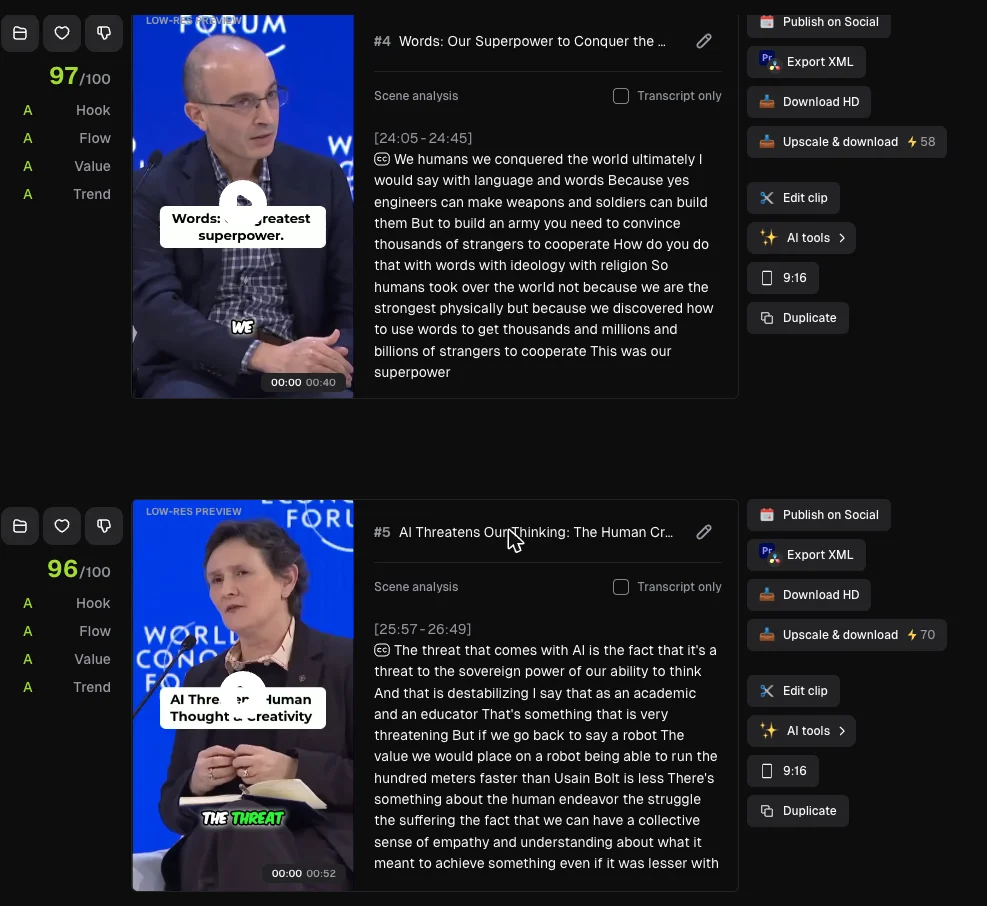
Note what the A grades are doing there. Both of those clips took an A on all four axes, and so did every one of the top six clips I opened, from the 99 down to the 95. I did not check all 32, so I cannot tell you the breakdown never drops below an A — only that it did not across the run’s best six, which is where you would least expect a tie.
The credit-saver slider is a genuine cost control
Because billing runs on source minutes, the processing timeframe slider is the single most valuable control on the setup screen. Selecting a 30-minute window inside a 2-hour recording bills 30 credits rather than 120. Most write-ups skip it, and it is the difference between the annual plan lasting three months and twelve.
The volume is real
32 clips from 35 minutes is roughly one clip per 66 seconds of source. Even at a five-in-32 hit rate, that is five publishable verticals from a single upload.
It also varies the length rather than cutting everything to a template. The shortest was 21 seconds, the longest two and a half minutes, and it picked where each one should end rather than truncating at a fixed mark.
The banner across the top of the results is worth reading: a headline is added to the first five seconds of your top 10 ranked videos only. The other 22 come back without one.
The bad
The virality score never says a clip is bad
This is the finding that shapes the whole review. Across all 32 clips the scores ran 99 down to 80, mean 88.2. Not one fell below 80 on a scale presented as 0 to 100.
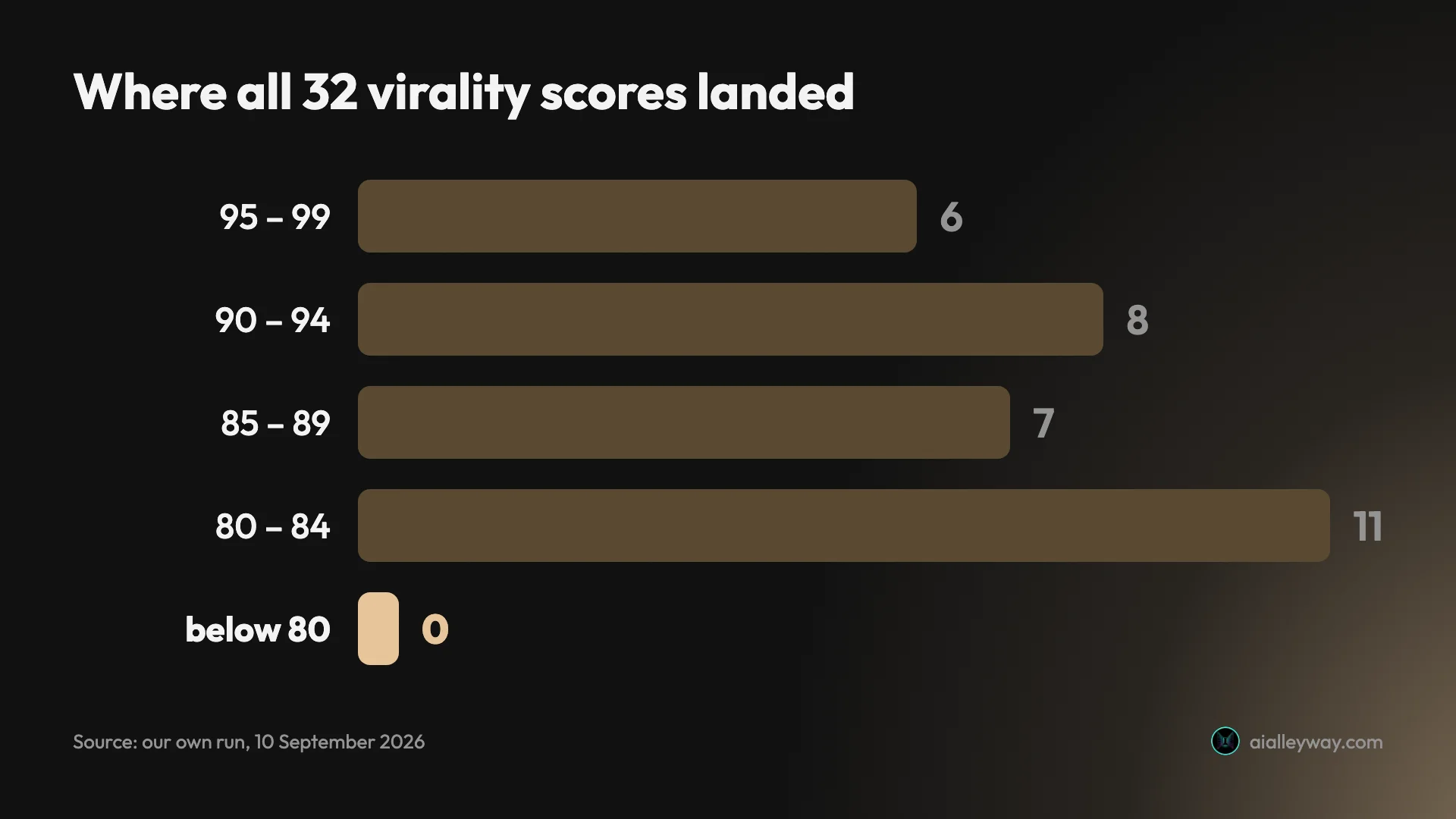
For contrast, across the 25 scores displayed on OpusClip’s own bundled demo project, the range runs 61 to 99 and 12 of the 25 sit under 80. Real footage produced a tighter band than the reel it picked to sell itself.
Four clips tied at the bottom on 80. The last eight scores in the run, in order, were 82, 82, 81, 81, 80, 80, 80 and 80 — the floor is a four-way tie, and there is nothing beneath it. Here is the last screenful of that grid, the worst OpusClip thought any of its own output was:

Here is one of those four. If you cannot confidently pick it apart from the 99 at the top of this review, that is the point:
The gap between what it makes and what you use is the real cost
Five of 32 clips were worth posting. That is a judgement, not a measurement — I watched all 32 and picked the ones I would put out, and your five would not be my five. What is not a judgement is the shape: 27 discarded, and because billing is per source minute rather than per clip, the discards cost nothing in credits and everything in attention.
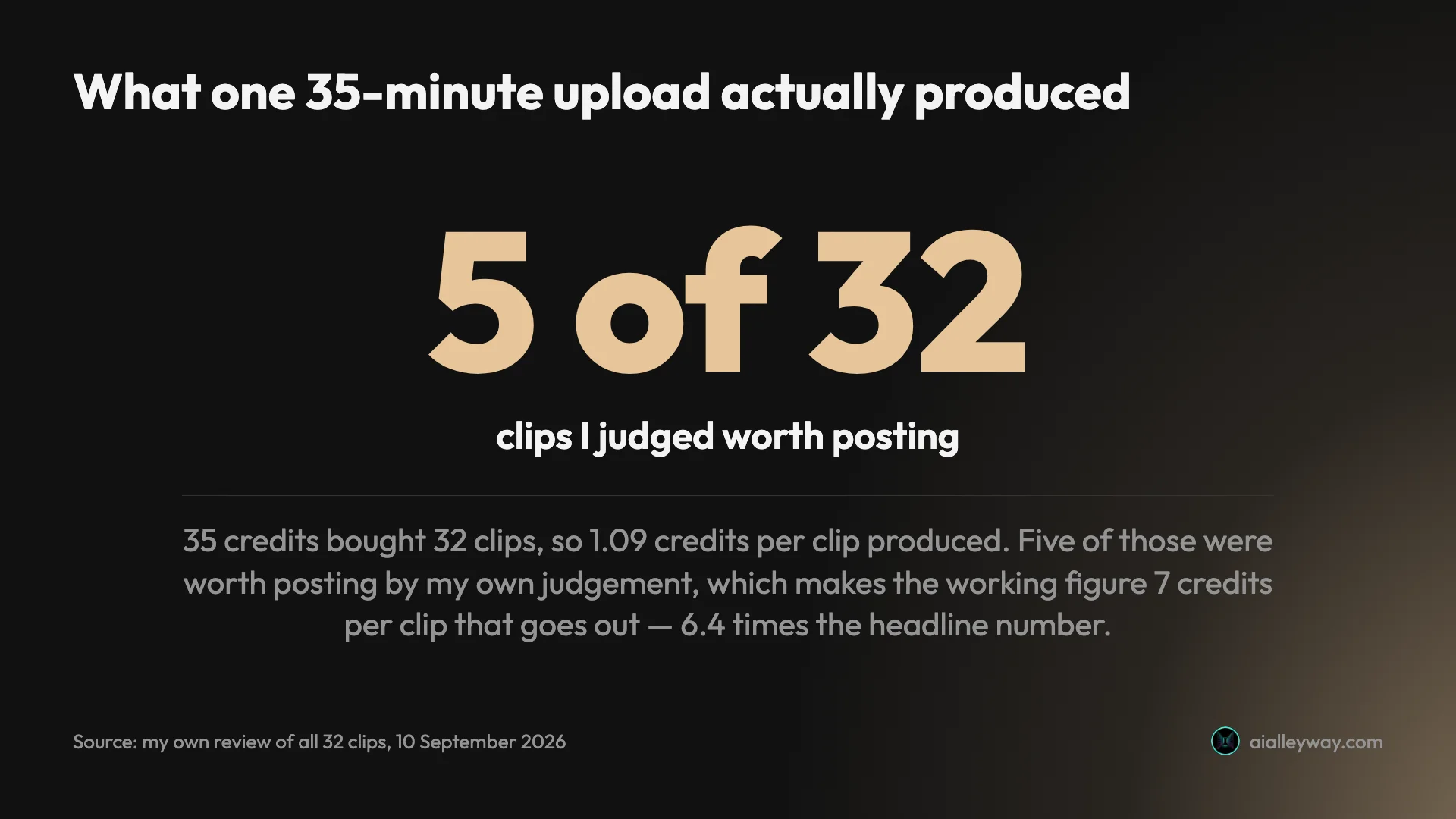
The arithmetic: 1.09 credits per clip produced, 7 credits per clip actually used — 6.4 times the headline figure. On the annual plan that is 6 cents against 41 cents. Still cheap. Just not the number on the tin.
The trial burns a watermark into your exports
Every clip I downloaded carries a Created with OpusClip mark in the top-left of the video file itself. My account was badged Free Trial (Pro Plan), and watermark removal is listed as a $15 Starter feature, with Pro sold as everything in Starter plus more. A trial presented as Pro produced output a $15 plan would not.
You can see it in every clip on this page. I have not verified whether it is trial-specific or a default you can switch off. OpusClip’s own pricing page lists “Has watermark” in the free column too, which free AI clip generator works through alongside the rest of the category.
Upscaling one clip can cost more than the whole job
The previews are labelled low-res, and each clip panel offers “Upscale & download” to fix that. The price is per clip and it moves: across six clips from this one run I saw 35, 58, 58, 70, 128 and 128 credits. It tracks clip length loosely rather than exactly, so you cannot predict it from the duration alone — you have to open each clip and look.
Set that against the 35 credits the entire 35-minute run consumed. The cheapest upscale I saw costs exactly what the whole job cost. The dearest costs more than three and a half times it, for one clip. On a 90-credit trial, upscaling two of the longer clips would exhaust the account.
Credits go the moment you submit, not when it works
The balance dropped from 90 to 55 while the job was still at 29%. Whether a failed run is refunded is not something my test could establish, because mine succeeded. Plan on the assumption that pressing the button spends the money.
Only the top 10 clips get the headline treatment
The interface tells you after the fact that auto headline was applied to “the first 5 seconds of your top 10 ranked videos”. On a 32-clip run that leaves 22 clips without the hook overlay, and since the ranking is the same flattened 80-to-99 scale, the cut-off between clip 10 and clip 11 is close to arbitrary.
The headlines lean tabloid on measured source material
The source is a considered Davos panel. Several generated headlines frame it as threat or takeover. You will be rewriting these before anything goes out, and the clip below carries a representative one.
If OpusClip isn’t for you
Three places to look if the credit model or the triage burden is the problem. Two of them, Submagic and CapCut, have since been through this same measured run; Captions has not, so treat that one as the shape of the alternative rather than a ranked verdict. For what each of these costs you relative to OpusClip — the XML export, the graded score, the per-clip transcript — Opus Clip alternatives sets the trade out tool by tool.
Submagic charges a flat 8 credits per job whatever the source length, so a 46-minute podcast costs the same as a five-minute one. That makes it much cheaper than OpusClip on long footage, but it does not make re-runs free: a second attempt costs another 8. Our Submagic review puts the same video through it.
Captions is built for talking-head clips you have already cut, rather than for finding moments in long video. The right pick if your footage is short-form to begin with.
CapCut gives you a full timeline and a caption engine for nothing, and it does shortlist — a correction to an earlier version of this line. Fed the same 35-minute panel, it returned 8 clips against OpusClip’s 32, running one to four minutes in sequential non-overlapping ranges. That is chaptering rather than the ranked candidate pile OpusClip hands back, and it is free where OpusClip watermarks.
The final word
| The pick and the rating | |
|---|---|
/picks rank | best in short-form video |
| Alley Rating | 4.2, Power Tool |
| Why they differ | nothing finds more usable moments; the virality score still does not discriminate |
OpusClip is our pick as the best short-form clipper, and it scores 4.2 rather than the 4.6 a Category Leader label implies. Both are deliberate. The best AI clipping tool sets these results against the three rivals that got the same file. Nothing else I have run the same footage through finds as many usable moments, but the virality score that headlines the product does not discriminate, and the entry plan is the most expensive minute on the price list. It leads a young category while carrying defects worth naming, so the pick and the rating are answering different questions.
OpusClip does the boring half of repurposing very well. One upload, 32 captioned and correctly reframed vertical clips, timestamps on every one, and a bill of about $2.03 — that is a genuine saving against cutting a 35-minute panel by hand.
What it does not do is the half it advertises. The virality score is the product’s signature feature and it rated everything between 80 and 99, which means it ranked my clips without ever telling me which were weak. Five of 32 were worth posting, and finding those five was still my afternoon.
OpusClip held 4.0 out of 5 across 486 Trustpilot reviews when I checked on 10 September 2026, respectable rather than glowing. Trustpilot blocks automated access, so that figure comes from Google’s rendering of the page and I have not read the reviews behind it.
Buy it as a fast, cheap shortlisting machine and it is worth the money. Buy it expecting the score to do your editing and you will be disappointed by a number that has already decided everything is good.
Clips on this page are from the World Economic Forum’s “An Honest Conversation on AI and Humanity”, used under a Creative Commons Attribution licence, and were produced by OpusClip during the run described above.
Frequently asked questions
Is OpusClip worth it?
Yes, if you publish long-form video on a schedule and treat it as a shortlisting tool rather than an editor. On my test it turned a 35-minute panel into 32 vertical clips for 35 credits, and 5 of those were genuinely worth posting — my own judgement after watching all 32, not a figure the tool reported.
That works out at 7 credits per keepable clip, or about 41 cents each on the annual plan. For that money you get accurate burned-in captions, clean 9:16 reframing and source timestamps on every clip, which is a real saving against cutting them by hand. What you do not get is a filter. It returned 27 clips I would not post alongside the 5 I would, and nothing in the interface distinguished them, so the reviewing time is yours to spend.
How accurate is the OpusClip virality score?
As a ranking it is fine. As a quality gate it is close to useless, and that is the single biggest finding from my run.
Across all 32 clips the scores ran from 99 down to 80, with a mean of 88.2. Not one clip scored below 80 on a scale the product presents as 0 to 100. Its own demo project at least reaches down to 61, with 12 of its 25 clips under 80, so real footage produced a tighter band than the reel OpusClip picked to showcase itself. The score tells you which clip it liked most. It never tells you a clip is weak, which is the thing you need when you are staring at 32 of them. Opening a clip does reveal four sub-grades beneath the headline number, covering Hook, Flow, Value and Trend, but across the six clips I opened all four came back as an A every time, so the breakdown flatters in the same direction as the score.
Does OpusClip put a watermark on your videos?
On the free trial, yes, and it is burned into the exported file rather than sitting on the preview. Every clip I downloaded carries a Created with OpusClip mark in the top-left corner.
What makes that awkward is the plan badge. My account was labelled Free Trial (Pro Plan), and watermark removal is listed as a feature of the $15 Starter plan, with Pro sold as everything in Starter plus more. So a trial presented as Pro produced output a $15 subscription would not. I have not verified whether that is specific to the trial or a default that can be switched off, but the practical consequence holds: trial output is for evaluating the tool, not for publishing. Every clip embedded in this review carries the mark, so you can see exactly how prominent it is before deciding whether the 90-credit trial is enough to judge the product on.
How many credits does OpusClip use?
One credit per minute of the original video you import, regardless of how many clips come back. My 35 minute 27 second source cost 35 credits, and the setup screen quoted that figure before I committed to anything.
Rounding runs both ways and is documented: under a minute rounds up, partial minutes round down, so 35:27 bills as 35 rather than 36. Two things surprised me. Credits are deducted the moment the job is accepted rather than when it finishes, and upscaling is priced per clip rather than at a flat rate: across six clips from the same run I saw 35, 58, 58, 70, 128 and 128 credits, so the cheapest matched what processing the entire 35-minute video cost and the dearest was more than three and a half times it. One useful lever against all this: a processing timeframe slider bills only the span you select, so a 30-minute window inside a two-hour recording costs 30 credits rather than 120.
Is OpusClip better than editing clips yourself?
For finding candidate moments in long-form video, yes, comfortably. It produced 32 timestamped, captioned, reframed vertical clips from one upload, which is faster than any human scrubbing a 35-minute recording.
For deciding which clips deserve to go out, no. That judgement stayed entirely with me, and the score offered no help because it rated everything between 80 and 99. The honest way to think about the product is that it collapses the mechanical part of repurposing, which is cutting and captioning, and leaves the editorial part untouched. If your bottleneck is the cutting, it pays for itself quickly. If your bottleneck is deciding what is good, it does not move the needle. Worth saying what it did well: the vertical crop tracked whichever panelist was speaking across a wide stage shot on all 32 clips, and the burned-in captions were accurate throughout, including proper nouns and technical terms.
What does OpusClip cost per clip?
It depends whether you count what it produces or what you use, and the gap between those two numbers is the whole story.
My run cost 35 credits and returned 32 clips, so 1.09 credits per clip produced. On the annual Pro plan, where 3,600 credits cost $208.80, that is about 6 cents a clip, which sounds excellent. But only 5 of the 32 were worth posting, so the real figure is 7 credits, or roughly 41 cents, per clip that actually goes out. Both numbers are true. The second one is the one to budget with, and it is 6.4 times the first. On the monthly Pro plan at $29 for 300 credits the same run works out at roughly 68 cents per keepable clip, and on Starter at $15 for 150 credits about 70 cents, since Starter cannot be billed yearly and so never reaches the cheaper annual rate.
Keep reading
The best AI video clipping tool, measured on one file
Four AI video clipping tools, one identical 35-minute file. OpusClip found 32 clips, Submagic 31, Vizard 30 but delivered 10, CapCut 8. What that means.
Opus Clip alternatives: what each one takes away
Every cheaper OpusClip alternative costs you something. I ran four tools on one 35-minute file — Vizard did it for $0.85 against $2.03 — and priced two more.
Free AI clip generator: only one export came back clean
Four AI clip generators, one 35-minute file, two of them on genuine free plans. Only CapCut returned a file with no watermark. Here is what the rest hand back.
The best script-to-video AI tools, by job
The best script-to-video AI tools ranked by job: Fliki wins overall, InVideo for generative footage, Pictory for blog-to-video, plus avatar and editing picks.