
CapCut auto captions: Pro in the editor, still free on one page
I tested CapCut auto captions on a free account. The editor now locks export behind Pro, but CapCut's AI Captions page exported free, with 2.7% of words wrong.
Contents
The short answer: make them anywhere, export them from one page

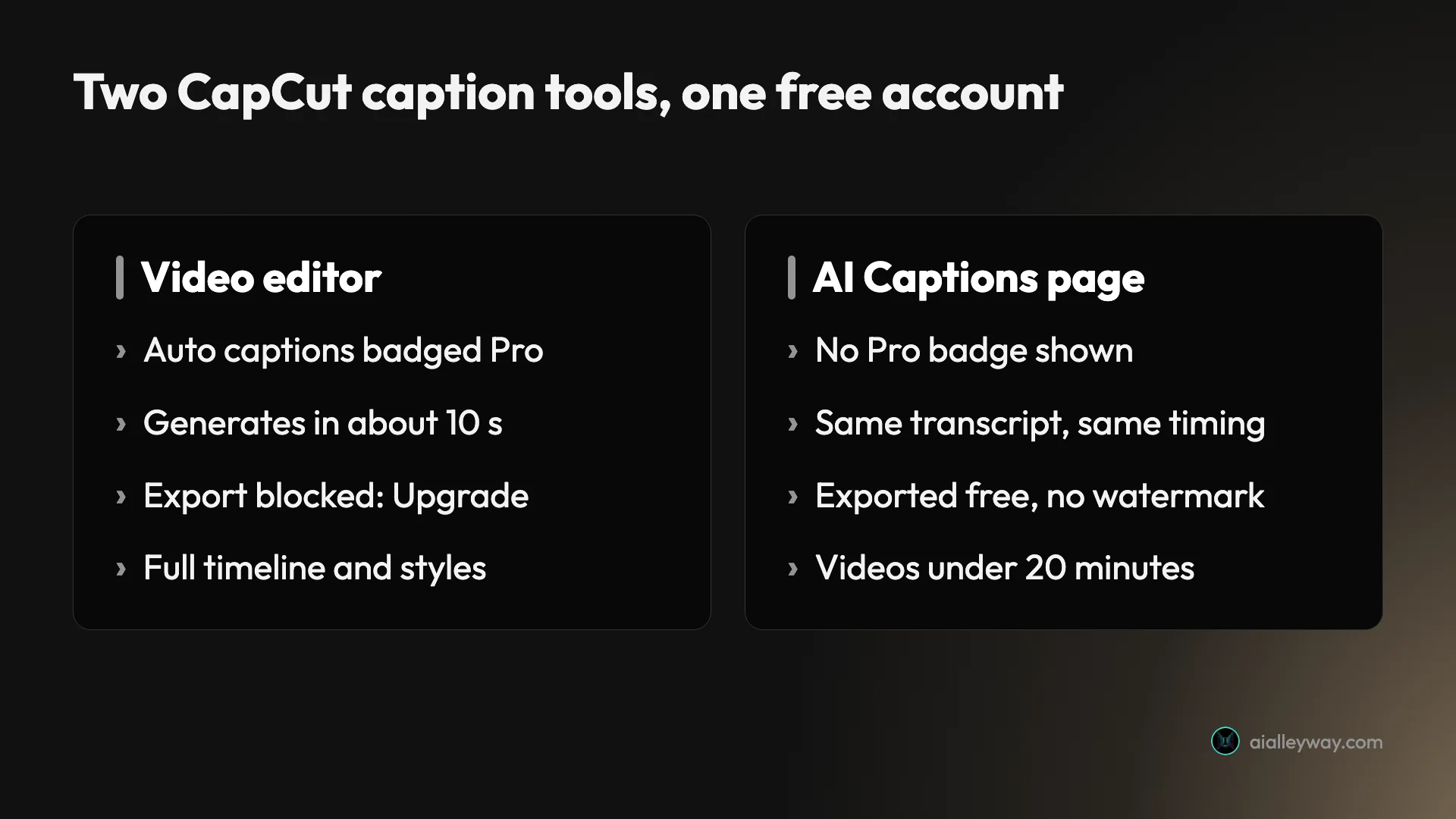
CapCut auto captions are no longer free in the web editor, but they still are on CapCut’s separate AI Captions page. I tested both on a free account on 31 October. In the editor, Auto captions now carries a Pro badge: the captions generate in seconds, and then Export stops you with an Upgrade button. On the AI Captions page, the same clip got the same captions and exported free, as a 720p video with no watermark.
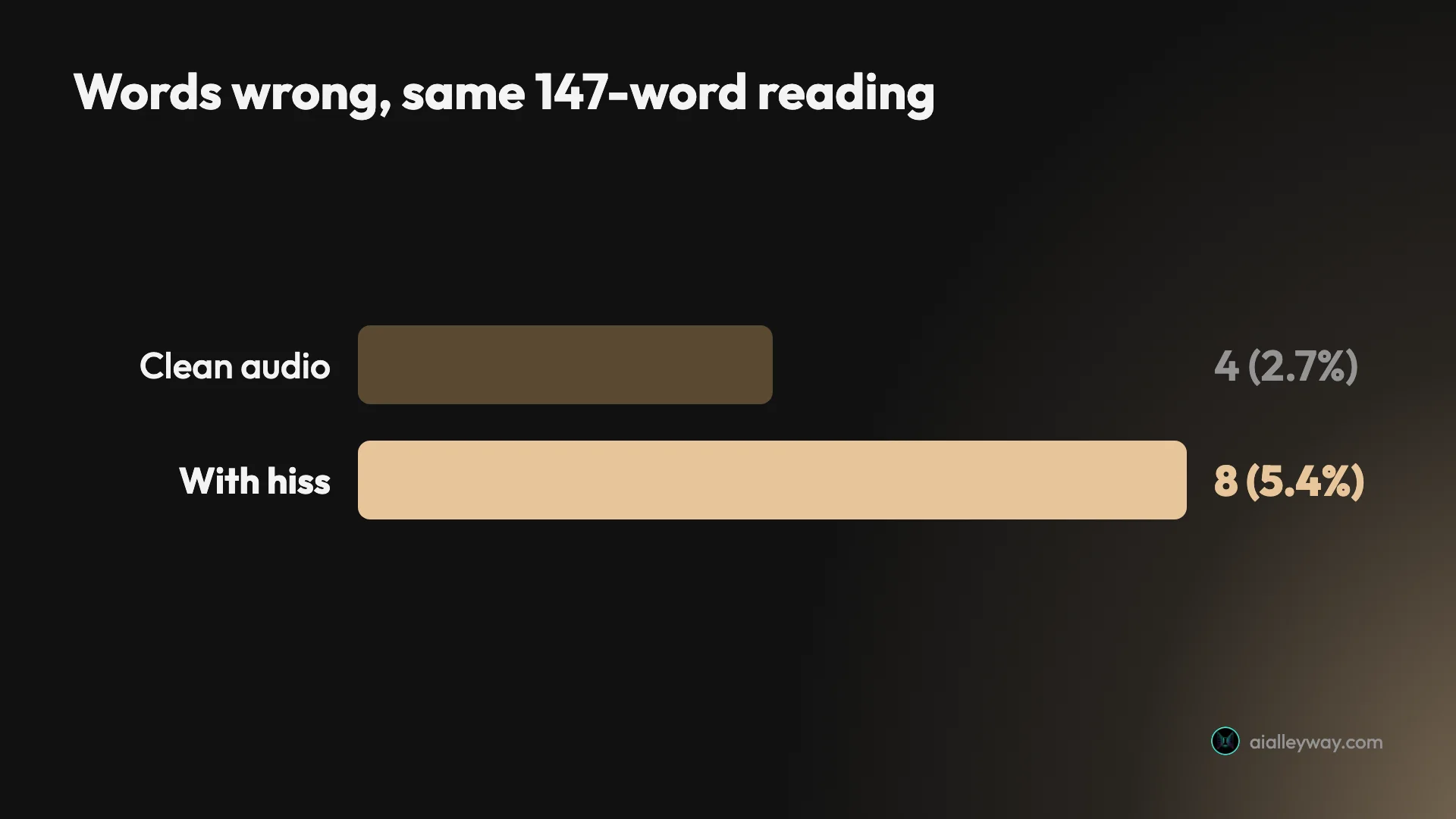
The captions themselves are good but not finished. On a clean recording of a 147-word poem, CapCut got 4 words wrong. With background hiss, it got 8 wrong. It wrote no full stops or commas between words, and it turned a brand name into an ordinary word.
So the advice is: make your captions on the AI Captions page if you are on the free plan, and read every line before you export.
| Web video editor | AI Captions page | |
|---|---|---|
| Pro badge on free account | yes, on Auto captions and Generate | none shown |
| Captions generated | yes, in about 10 seconds | yes, the same text and timings |
| Free export | blocked: “1 Pro benefit in use” | worked: 720p, no watermark |
| Length limit | none stated | videos under 20 minutes |
| Editing and styling | full timeline, 15 styles, templates | Subtitles list, style rows |
What changed since our review
This one surprised me, because our own review said the opposite. When we tested CapCut for our CapCut review on 14 September, the Captions panel in the web editor showed Auto captions badged Free. Six weeks later, on the same kind of free account, the same tile carries a purple diamond, and the Generate button wears a small Pro tag.
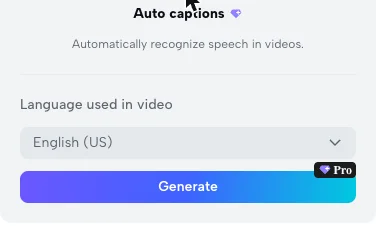
CapCut’s own marketing has not caught up. Its auto caption generator page still tells you to “use the video captions generator free of charge”, calls CapCut “an all-around, free auto-captioning application”, and promises “almost perfect accuracy”. Google’s AI Overview says the opposite, that CapCut moved auto captions behind Pro. Both are half right, and which half you get depends on the page you open.
I cannot tell you when the editor changed or whether every country sees the same badge. CapCut prices and packages its plans differently by market, which it says openly on its help pages, and our CapCut pricing guide covers that in detail. What I can show you is what one free account saw on 31 October.
Speech to text on two CapCut pages
Auto captions is speech-to-text that lands on your timeline. CapCut listens to the audio track, splits what it hears into short caption blocks, and gives each block a start and end time. The result is a list you can edit line by line, and a caption track that plays in sync with the video.
On the web there are two places to do this. The video editor is CapCut’s full timeline, with Captions in the left-hand rail. The AI Captions page is a stand-alone tool with its own upload box, a simpler editor, and a 20-minute limit per video. Both appear to use the same recogniser: on my scripted clip they returned identical text with identical timings, down to the frame.
The difference is the gate. The editor checks for Pro features when you export, and on a free account it now counts Auto captions as one. The AI Captions page did not ask.
Two other caption options in the editor matter because they stayed free. Manual captions lets you type your own. Upload caption file takes an .srt, .ass or .lrc file made somewhere else. Neither carried a Pro badge on my account, so a caption file from another tool is still a free way into CapCut’s editor.
How to add auto captions in the CapCut editor
These are the steps in the web editor at capcut.com, which is the only version I tested.
- Open the video editor and upload your clip. It lands on the timeline.
- Click Captions in the left-hand rail. The panel shows four tiles: Auto captions, Manual captions, Upload caption file and Auto lyrics.
- Click Auto captions, check the Language used in video box, and click Generate.
- Wait. My 63-second clip showed “Generating…” and then the caption list in about ten seconds.
- Edit the list. Click any line to fix the text. Each block shows its start and end time, with a play button and a delete button.
- Style the captions from Presets on the right: 15 static styles, plus a Templates tab of animated looks.
CapCut’s own guide describes a slightly different route, through the Text tab. On my account, Auto captions sat under Captions instead, so look in both places if the menu looks different on yours.
The export wall in the editor
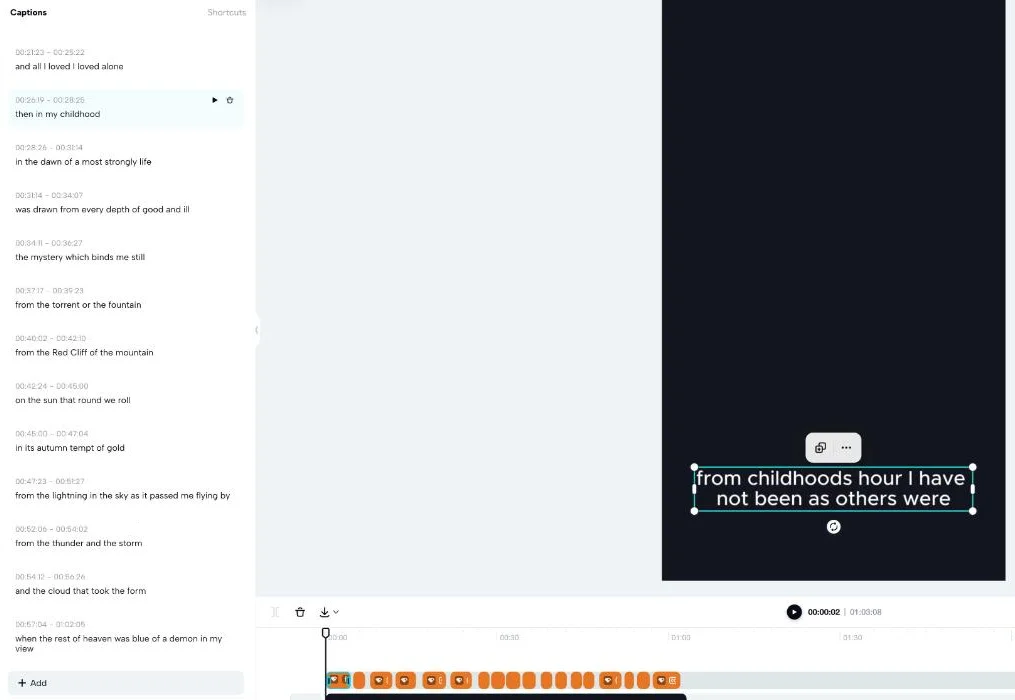
This is where the free plan stops. On the timeline, every caption block carries a small diamond icon. When you click Export, then Download, the next panel reads “1 Pro benefit in use”, lists Auto captions under Pro features, and offers one button: Upgrade. There was no option to export without the captions, and no free path from that screen.
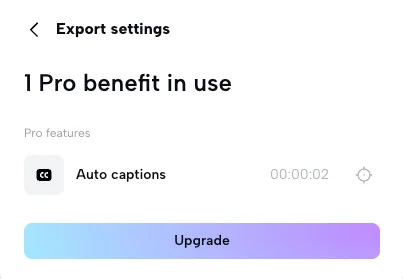
I did not press Upgrade. CapCut’s US page lists Pro at $19.99 a month or $179.99 a year, but CapCut says the price varies by region, device and promotion, as our CapCut pricing guide explains, so check your own upgrade screen before you pay.
How to get CapCut captions free: the AI Captions page
The free route is a different page, not a setting. Here are the steps I used on the same free account.
- Go to capcut.com/magic-tools/ai-captions while signed in.
- Click Upload video. The box says the video must be under 20 minutes. Leave Select spoken language on Auto detect, or set it.
- Wait for the editor to open. My 31-second clip was captioned within about 15 seconds of the upload.
- Open the Subtitles tab and correct the text line by line.
- Use the Style tab to pick a look. It offers Trending, Classic and Basic rows, plus a “Style captions with AI” option.
- Click Export, then Download. The settings default to 720p and “Recommended quality”. Click Export.
Mine rendered in about 40 seconds and downloaded itself, with a notice reading “Video will be downloaded in browser”. The file was a 720 × 1280 MP4, 31.3 seconds long and 0.9MB, with the captions burned into the lower third. I checked frames from the start, middle and end: no CapCut logo in any corner, and no end card.
Two catches. The page is for captioning a finished clip, not for editing: there is no timeline, so you cut first and caption last. And the export, like every CapCut web export, lands in your cloud storage first. On the free plan that store is 512MB, a ceiling our long video to shorts guide hit after four longer exports.
My test: three clips, one answer key
To measure accuracy you need to know exactly what was said, so I built three test clips with known text.
The first is a 63-second public-domain reading of Edgar Allan Poe’s poem “Alone”, from a LibriVox recording by Phil Chenevert. A poem is a hard test for captions: old-fashioned words, no context to lean on, and a printed text to check against. The second is the same reading with steady background hiss mixed in, loud enough to sit just under the voice. The third is a 31-second script read by the Mac’s built-in Samantha voice, packed with product names, numbers, a time and a web address.
I put each clip on a plain dark 1080 × 1920 background, uploaded it, and ran Auto captions with the language set to English (US). Then I compared CapCut’s text with the original, ignoring capital letters and punctuation, and counted every word it got wrong, dropped or added.
| Clip | Length | Caption blocks | Words wrong | Error rate |
|---|---|---|---|---|
| Poem, clean audio | 1:03 | 17 | 4 of 147 | 2.7% |
| Same poem, with hiss | 1:03 | 18 | 8 of 147 | 5.4% |
| Scripted voice, names and numbers | 0:31 | 9 | 2 names wrong, 2 styled wrong | not scored |
The scripted clip is not scored as a percentage because its errors are not equal. Getting “Vizard” wrong matters more than writing “1080” as “1,080”.
How accurate are CapCut auto captions?
Good enough to start from, and wrong in exactly the places a viewer notices. CapCut never lost its place in the poem: every one of the 22 lines came back, in order, with sensible timings. The errors were all sound-alike words.
On clean audio, 4 words in 147
On the clean reading, CapCut wrote “tint of gold” as “tent of gold”, “passed me flying by” as “past me”, and “a common spring” as “my common spring”. It also dropped the possessive from “childhood’s hour”. All four are the kind of error a reader catches in a single pass, but none of them would be caught by a spell-checker, because every wrong word is a real word.
It also made a styling choice I would not: it capitalised “Red Cliff” as if it were a place name, and wrote “heaven” in lower case. That is not counted as an error here, but on a caption it reads as one.
With background noise, the errors double
The hiss doubled the damage. “Sorrow” became “soul”. “A most stormy life” became “a most strongly life”. “From the sun that round me rolled” became “on the sun that round we roll”, three errors in one line. “Tint” became “tempt” this time.
The interesting part is what did not change. The timings moved by a few frames at most, the line breaks stayed almost identical apart from one extra split, and “passed” was actually right on the noisy run. Noise did not confuse where the words were. It confused what they were.
Names and numbers: the dates survive, the brands do not
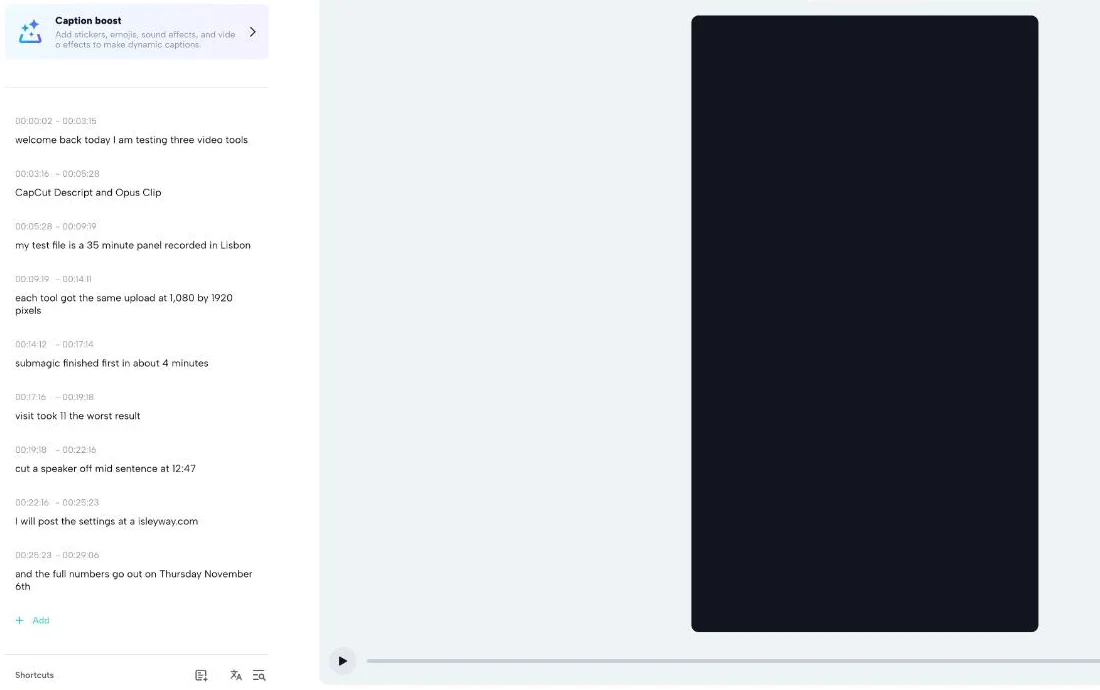
The scripted clip is the one that matters for most creators, because real videos are full of names. CapCut got CapCut, Descript, Lisbon, “Thursday November 6th” and the time “12:47” exactly right. It turned spoken numbers into digits, so “thirty-five” came out as 35.
Then it missed the two that a sponsor would care about. “Vizard took eleven” came out as “visit took 11”, and our own web address, aialleyway.com, became “a isleyway.com”. It also split OpusClip into “Opus Clip”, wrote Submagic in lower case, and put a comma in “1,080” but not in “1920”.
No sentence punctuation, and lines that end mid-sentence
None of the captions in any of my runs had a full stop, a comma or a question mark between words; the only punctuation came inside numbers, as in 12:47 and 1,080. On a poem that is a style. On a script it causes a real problem, because CapCut also chooses where each caption block ends. “Vizard took eleven. The worst result cut a speaker off” became two blocks: “visit took 11 the worst result” and then “cut a speaker off mid sentence at 12:47”. The first block reads as one sentence that means nothing.
Editing and styling your captions
Fixing captions is the part you should budget time for, and CapCut makes it reasonably quick. In both tools, each caption is a line of text you click and retype, with its timing shown above it. In the editor you can also add, merge and delete blocks, and play one block at a time to check it against the audio.
For looks, the editor’s Presets panel has two tabs. Styles offered 15 static looks on my account, from a plain white outline to boxed and coloured text, and none of them carried a diamond. Templates holds the animated, word-art looks, and the first four I could see carried a Pro diamond. The rest were still loading, so I cannot tell you how many are free.
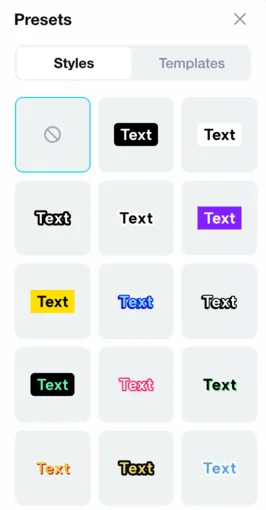
On the AI Captions page, styles sit in Trending, Classic and Basic rows, and there is a Caption boost option that adds stickers, emojis, sound effects and video effects. I did not use either, so the export I measured was the default white text.
Two habits save the most time. Fix names first, because those are the errors that embarrass you. Then read the captions with the sound off, the way most viewers will see them. A caption that is accurate but ends mid-sentence is easy to miss with the audio playing.
When CapCut auto captions don’t work
Most caption problems in CapCut come from four places, and I ran into three of them.
| Problem | Check first | What I saw on 31 October |
|---|---|---|
| Wrong words | the language box, then the audio | 4 wrong words clean, 8 with hiss |
| Out of sync | edits made after captioning | timings within a few frames between runs |
| Export asks for Upgrade | which page you captioned on | editor gated, AI Captions page did not |
| Export fails silently | your 512MB cloud store | two old failed exports marked “Insufficient cloud storage” |
The captions come out wrong or empty
Check the language first. The editor’s Language used in video box defaulted to English (US) on my account, and the AI Captions page defaults to Auto detect. A video in another language, or one that switches language halfway, needs that box set by hand. I only tested English, so I cannot tell you how well the other languages work.
Then check the audio itself. Captions are built from the audio track, so a clip with music over the voice, or a quiet speaker far from the microphone, gives the recogniser less to work with. My hiss test shows the cost: the same reading went from 4 wrong words to 8. If you can, caption from the clean voice recording before you add music, then add the music track afterwards.
The captions drift out of sync
On my clips the timings were tight: the clean and noisy runs placed the same lines within a few frames of each other. I did not edit any clip after captioning, so I cannot tell you how CapCut handles a trim made later. The safe order is to caption last, after the cut is locked, so the timings are made against the final audio. On the AI Captions page this is the only order available anyway, because there is no timeline.
Export fails or asks you to upgrade
If Export shows “1 Pro benefit in use”, the editor is treating Auto captions as Pro, as it did on my free account. If an export fails with no upgrade message, look at your cloud storage. Our CapCut long video to shorts guide logged the free plan’s “Couldn’t export — Your space is almost full” message after four longer exports, and the task bar on my account still showed two of those failed exports from September, marked “Insufficient cloud storage”.
Five traps with CapCut auto captions
1. The Pro badge appears only after the work
The editor lets a free account generate, edit and style a full set of captions, and only tells you at Export that they need Pro. If you are on the free plan, start on the AI Captions page instead, before you spend twenty minutes fixing lines you cannot export.
2. The marketing page and the editor disagree
CapCut’s auto caption generator page still says the captions are free of charge. The editor on my free account said Pro. Believe the badge in the product, not the page that sends you there.
3. Real words in the wrong place
Every error in my poem test was a real English word, which means a spell-checker will not flag any of them. “Tent of gold” and “my soul” look fine on screen until you know what was said. Read against the audio, not just for typos.
4. Brand names are the weakest point
The recogniser handled common names and tripped on niche ones. If your video names a product, a person or a website, check each one by hand. Our scripted clip lost two of its seven names, including a web address, and mangled the spelling of two more.
5. The 20-minute limit and the 512MB store
The AI Captions page takes videos under 20 minutes, and every export goes into your CapCut cloud storage before it downloads. On a free account that store is 512MB. Caption short clips there, and if an export fails, check your storage before anything else.
Editor, AI Captions page or another tool?
- You are on the free plan and want captioned short clips: use the AI Captions page. It made the same captions as the editor and exported them free on my account.
- You need to edit and caption in one place: the editor is the better workspace, but on a free account plan to pay for Pro, or bring a caption file from another tool and use Upload caption file, which stayed free.
- Your video is longer than 20 minutes: the AI Captions page will not take it. Cut it first, or caption in the editor with Pro.
- Your captions name a lot of products or people: any recogniser will need checking. A tool built for captioned clips, like Submagic or Captions, is worth comparing.
- Skip CapCut captions if you need punctuated, broadcast-ready subtitles with no editing. Every line I got needed a human pass.
If you are weighing CapCut against other editors altogether, our CapCut alternatives roundup covers the editors and clippers that replace it.
Final word
CapCut’s auto captions are still worth using on a free account, as long as you use the right page. In the editor they have become a Pro feature that reveals itself only at export. On the AI Captions page, the same recogniser produced the same captions and gave me a clean, watermark-free 720p file. Either way, read every line before you export: the recogniser gets the timing right, slips on sound-alike words, and gives you no sentence punctuation.
Frequently asked questions
Are CapCut auto captions free?
It depends which CapCut page you use. In the web video editor on my free account in October 2026, Auto captions carried a Pro badge. The captions still generated, but Export then showed "1 Pro benefit in use" with only an Upgrade button, so I could not save the video without paying.
CapCut's separate AI Captions page, at capcut.com/magic-tools/ai-captions, behaved differently on the same account the same day. It made the same captions from the same clip, showed no Pro badge, and exported a 720p video with the captions burned in and no watermark. It takes videos under 20 minutes. I only tested the web versions, so the mobile and desktop apps may have their own rules.
How accurate are CapCut auto captions?
Accurate enough to start from, not to publish untouched. On a clean 63-second recording of a 147-word poem, CapCut got 4 words wrong, a 2.7% error rate. With background hiss mixed into the same recording, the count doubled to 8, or 5.4%.
The mistakes were sound-alikes: "tint" became "tent" on the clean run and "tempt" on the noisy one, and "sorrow" became "soul". On a scripted clip full of product names, it got CapCut, Descript, a city, a date and a clock time right, but wrote Vizard as "visit" and our own web address as "a isleyway.com". None of the captions had sentence punctuation. Read every line before you export, and check names hardest.
Why can't I export my CapCut video with auto captions?
On a free account, the web editor now treats Auto captions as a Pro feature. You can generate and edit the captions, but when you open Export and choose Download, CapCut lists "Auto captions" under "1 Pro benefit in use" and offers only an Upgrade button. Every caption block on the timeline also carries a small diamond icon, which is CapCut's Pro marker.
You have three ways forward. Pay for Pro, which CapCut's US page lists at $19.99 a month. Use CapCut's separate AI Captions page, which exported free on my account. Or bring captions from elsewhere: Manual captions and Upload caption file, which takes .srt, .ass and .lrc files, carried no Pro badge in the same editor.
How do I add auto captions in CapCut?
In the web editor, upload your video, add it to the timeline, and click Captions in the left-hand rail. Choose Auto captions, set the language used in the video, and click Generate. On my 63-second clip the caption list appeared in about ten seconds, each line with its start and end time, ready to edit.
For a free export, go to capcut.com/magic-tools/ai-captions instead, click Upload video, and leave the spoken language on Auto detect or set it. The captions open in a simpler editor with Subtitles and Style tabs. Fix the text in the Subtitles list, pick a look under Style, then click Export and Download. CapCut's own guide describes a Text tab route in the editor; on my account the button sat under Captions.
Does CapCut add a watermark to auto-captioned videos?
Not on the free export I made. I exported a 31-second captioned clip from CapCut's AI Captions page on a free account and checked frames from start to finish. The corners and the top and bottom of the frame were plain background, with no CapCut logo, and there was no end card. The file was 720 × 1280 at 30 frames a second, 0.9MB, with the captions burned into the lower third.
That matches what I found in September, when free exports from CapCut's clipping tool also came out without a watermark. The web editor never got as far as a file in this test, because its Export screen asked for an upgrade first. The export used the default 720p setting; I did not try a higher resolution.
Keep reading
CapCut review: free 1080p exports, until 512MB stops you
I put a 35-minute panel through CapCut's AI clipping and exported all 8 clips. Watermark-free 1080p on the free plan, but the cloud ceiling bites at clip four.
CapCut pricing: there is no single price, and CapCut says so
CapCut publishes $19.99 a month on one page and says it has no fixed global price on another. Here is what the upgrade screen showed, and how to find yours.
CapCut alternatives: free editors are easy, free clipping isn't
CapCut alternatives by job: four free editors replace its timeline with no watermark. Replacing its AI clipper cost me $0.85 to $2.03 per 35-minute video.

Captions AI review: the pricing page hides half the plans
A Captions AI review from the published record: the pricing page shows three plans, the help doc lists six. Credits are 5 cents flat, and one clip costs $7.