
How to use Google AI Mode, and when an AI Overview is enough
How to use Google AI Mode on desktop, phone and Chrome, tested on a free account: every way in, what the + menu does, and where the sources thin out.
Contents
How do you use Google AI Mode? The short answer

To use Google AI Mode, go to google.com/ai, or search on google.com and click the AI Mode tab, then type a full question into the Ask anything box. Ask follow-ups in the same box and it keeps the context. If an AI Overview shows up on a normal search, typing a follow-up under it moves you into AI Mode too. It is free, and the + button adds images, files and Canvas.
| Where you are | How to open AI Mode |
|---|---|
| Any browser | Go to google.com/ai |
| A Google results page | Click the AI Mode tab, left of All |
| An AI Overview | Type a follow-up in the Ask anything box under it |
| Chrome on a computer | Click AI Mode in the address bar, or press Tab then Enter |
| The Google app on a phone | Tap AI Mode on the home screen |
I ran every step below on a free Google account in Chrome on 20 October 2026, on top of the five tests behind our Google AI Mode review. Where a step comes from Google’s help pages rather than my own use, I say so.
How AI Mode works, and how it differs from AI Overviews
AI Mode is a conversation inside Google Search. You ask in plain language, and instead of ten links you get one written answer with small source chips beside the sentences and a panel of source cards on the right. Google’s help page says it splits your question into subtopics and searches each at once, a method it calls query fan-out.
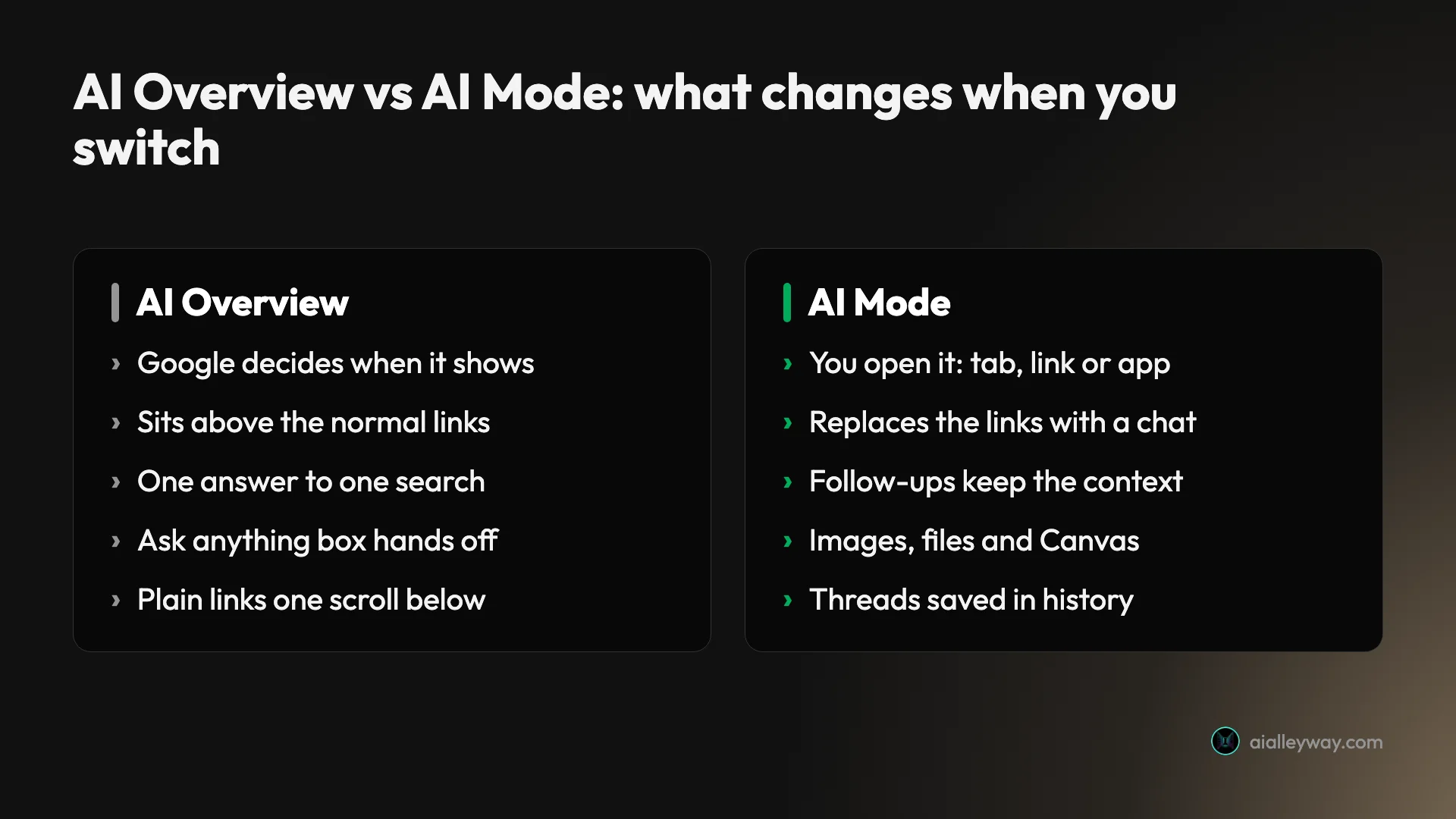
The AI Overview is its smaller sibling. It is the summary Google places above ordinary results when it decides one will help, and you never ask for it. AI Mode is somewhere you go on purpose, and it stays a conversation for as long as you keep asking.
Since I/O in May 2026, Google has run the two as one flow. In its words, it is “bringing AI Overviews and AI Mode into one” search experience. In practice that means an AI Overview now carries an Ask anything box, and the moment you use it, you are in AI Mode.
You need very little to start. AI Mode works in more than 200 countries and territories and nearly 100 languages, according to Google’s help page, and the default model for everyone has been Gemini 3.5 Flash since May 2026. You need a signed-in account to keep history, and Google limits some features, such as generating files, to users 18 and over.
How to open AI Mode on any device
There are five doors into AI Mode, and which one you use mostly depends on where you already are. The one most people will meet first is the AI Overview, so I start there.
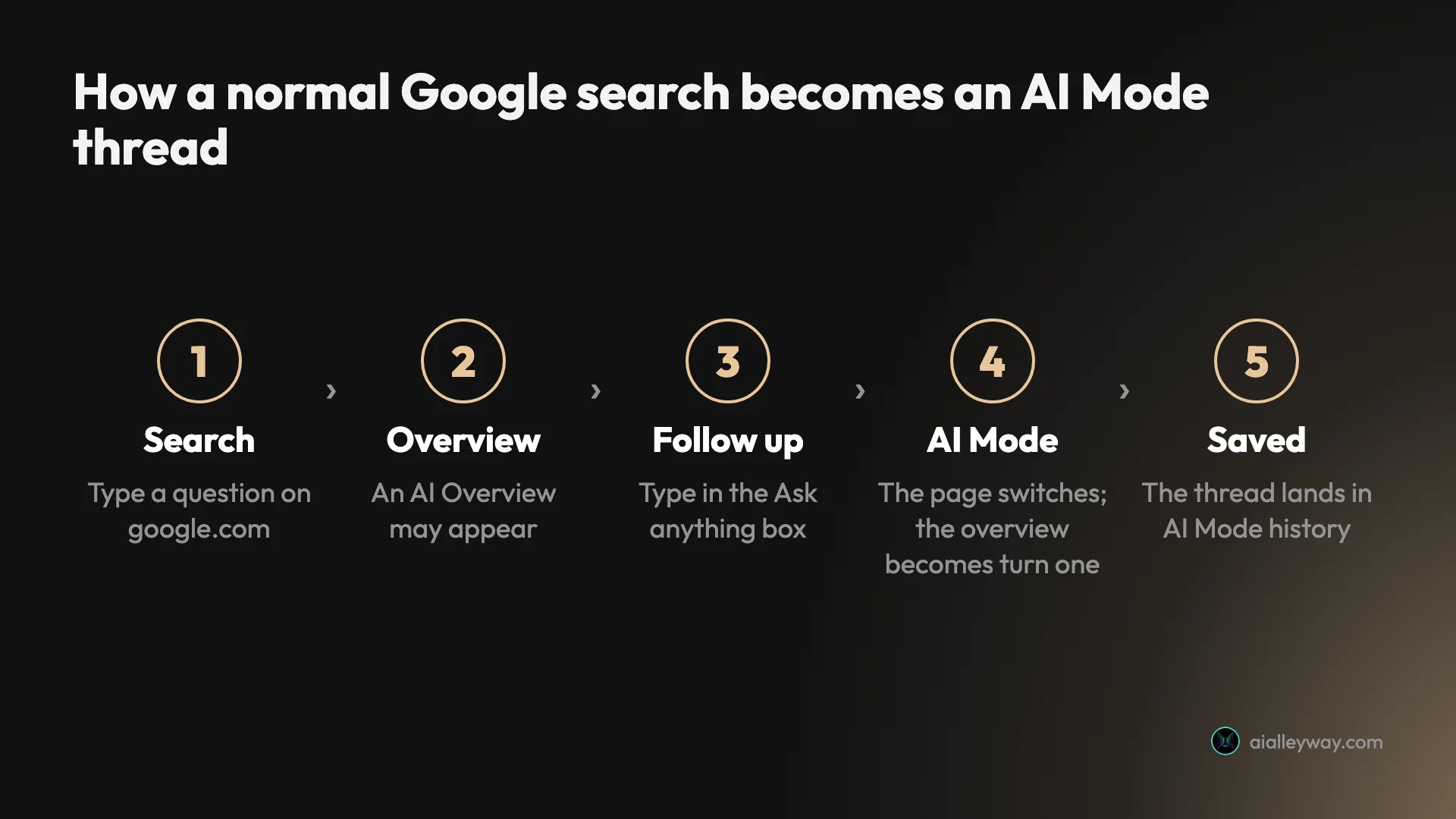
From an AI Overview
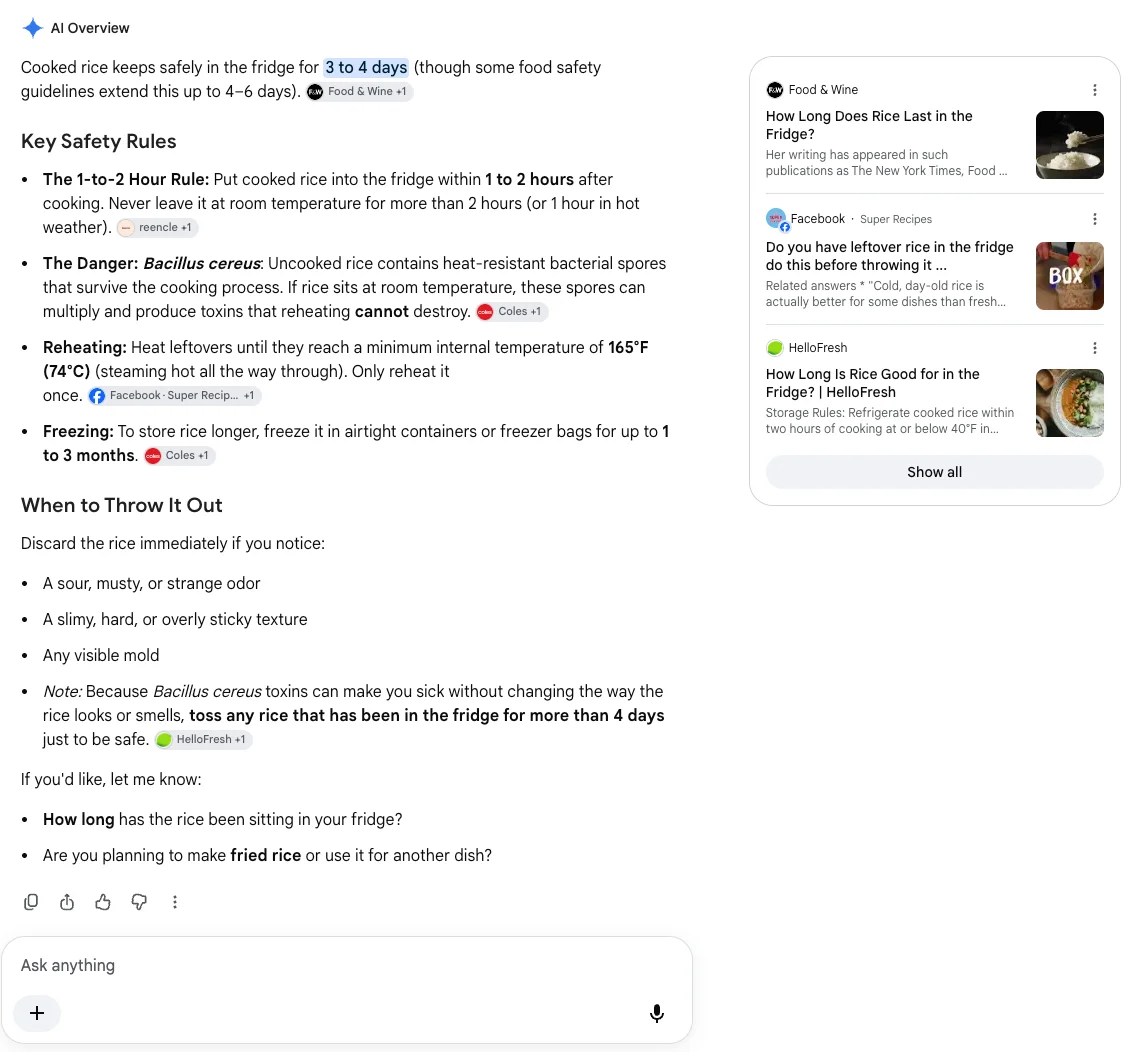
I searched “how long does cooked rice keep in the fridge” on an ordinary Google results page. An AI Overview opened with “3 to 4 days”, a set of safety rules with source chips, and two questions back to me. Under it sat an Ask anything box with a + button and a microphone, which is new since the May merge.
I typed a follow-up there: I had left the rice out overnight before refrigerating it, was it still safe? The page changed underneath me. The address gained udm=50, a sidebar appeared on the left, and the overview became the first turn of an AI Mode thread, with my follow-up as the second.
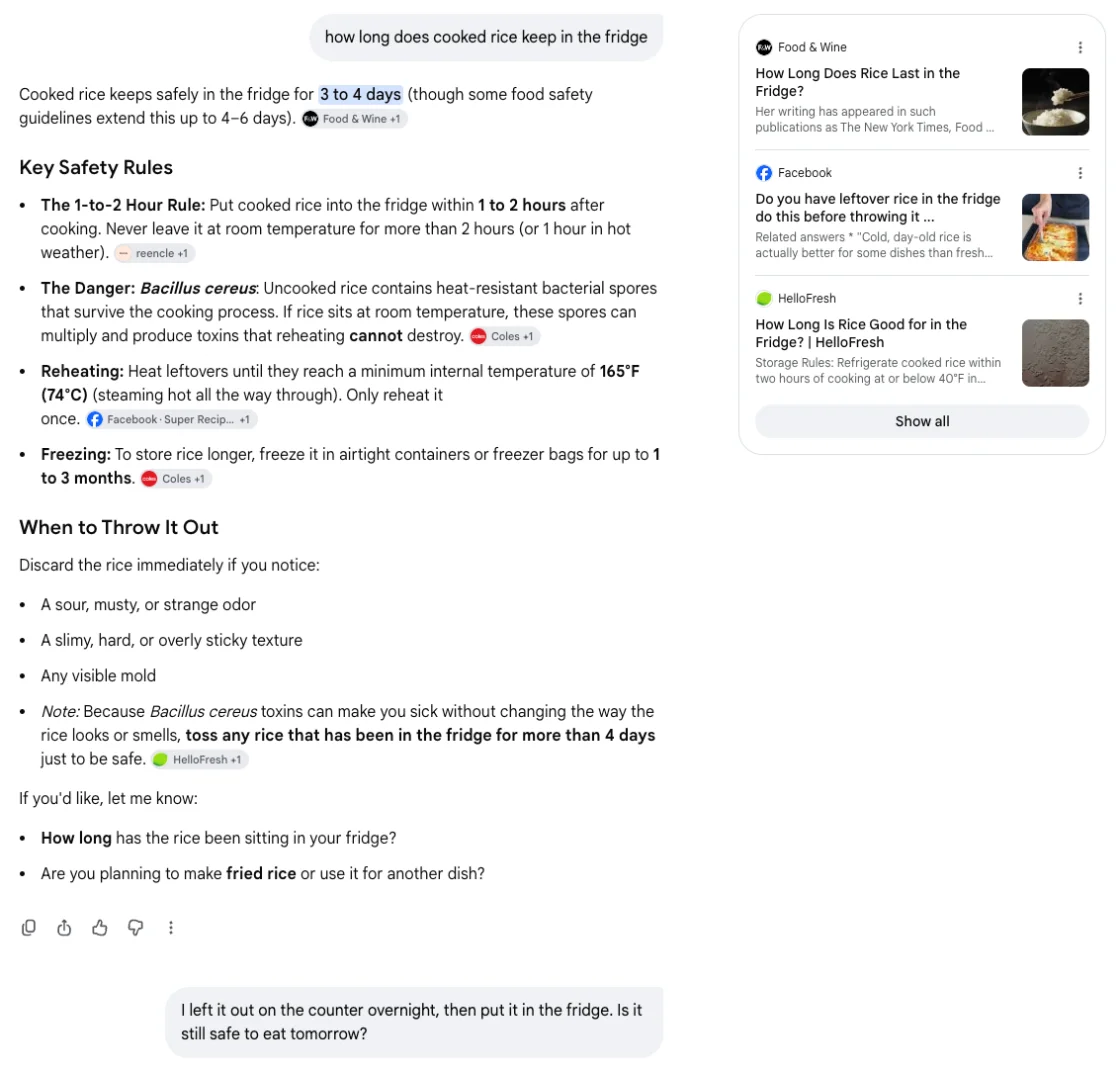
That is the door Google wants you to use, and it works well: you never decide to “go to AI Mode”, you just ask the next question. The thread was saved in the sidebar as “Cooked Rice Storage Duration” without my doing anything.
From the AI Mode tab
On the results pages I saw, AI Mode sat first in the row of tabs, left of All, Images and the rest. Google’s help page says to enter a question and tap AI Mode to carry it over. This is the quickest way in when Google showed no overview, or when you already know your question needs a conversation rather than a summary.
From google.com/ai
Typing google.com/ai into any browser opens AI Mode’s own start page. On my account it redirected to a search address containing udm=50, and showed an Ask anything box, three suggested questions and a row of tabs (AI Mode, All, Images, Videos, News). An Upgrade button sat in the top corner; you can ignore it, since nothing in this guide needs a paid plan.
If you use AI Mode often, that udm=50 parameter makes a handy shortcut. In Chrome, go to Settings, then Search engine, then Manage search engines and site search, and click Add next to Site search.
Enter a name, a shortcut such as @ai, and the URL https://www.google.com/search?udm=50&q=%s. Typing the shortcut and a question in the address bar should then open AI Mode; I did not set this up on the test account. Google does not document the parameter, so it could change.
In Chrome’s address bar
Chrome has its own button. Google’s Chrome help page says you can select AI Mode on the right of the address bar or the New Tab page’s search box, or press Tab then Enter. From there you can add open tabs, upload a file, or ask about the page you are reading, which opens the answer in a side panel.
The help page also warns that AI Mode in Chrome “is not available to everyone or on every device at this time”.
In the Google app on a phone
On Android and iPhone, Google’s help page says to open the Google app and tap AI Mode on the home screen. I did not test the app for this guide, so the app steps here are Google’s, not mine.
How to ask good questions in AI Mode
AI Mode rewards the kind of question you would ask a person, not the kind you type into a search box. Three keywords leave it guessing what you want to know. “Do heat pumps still work below -15°C, and what should I check before putting one in an old house?” got me four numbered checks and three questions back about my house.
Ask the whole question at once
Fan-out works on the parts of your question, so give it the parts. Say what you are deciding, the constraint that matters and the answer you want: a price, a ranking, a yes or no. In my review tests, a two-part question opened with a yes, then gave four numbered checks for the second part.
Use follow-ups for detail, not for new topics
Follow-ups are where AI Mode earns its place. In the heat pump test I answered its questions in one line (gas boiler, radiators, built 1925, single glazing) and it re-ranked its advice “for your 1925 property”. When the topic changes, start a new thread from the sidebar instead, so the earlier answers are not treated as background to the new question.
Say where you are and what currency you use
AI Mode does not ask your country. In my review’s follow-up it answered in pounds and named a British installer network, because several earlier sources were British. One clause, “I’m in the US, prices in dollars”, gives it what it needs; I did not rerun the test with it, but it removes the guess.
Ask for sources when they matter
This is the habit I would most like readers to keep. My rice follow-up came back with no source chips at all, only a confident “No, it is not safe to eat.” The first answer in the thread had chips from five sites; the follow-up had none.
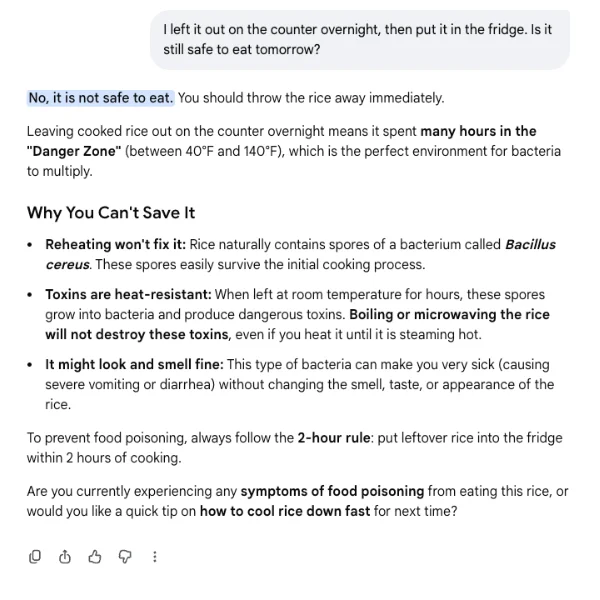
The advice matches standard food safety guidance, so no harm done here. But when a follow-up drops its sources, ask “what is your source for that?” or reopen the chips from the first answer before you rely on it.
How to use images, files and links in AI Mode
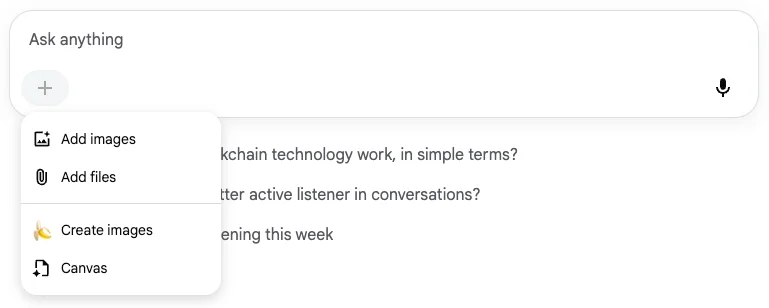
The + button at the left of the Ask anything bar is where AI Mode’s extra inputs live. On my free account it listed four: Add images, Add files, Create images and Canvas. There was no model menu; Google says subscribers choose Gemini 4 Argon from the same bar.
Ask about an image
I uploaded a screenshot of an upgrade pop-up from our Comet browser review: three panels promoting a feature called Computer, and an Upgrade to Pro button, with no product name or logo anywhere. I asked what the pop-up wanted from me and whether I could use the feature for free.
It read the image well. It called it an advertisement asking me to “Upgrade to Pro to unlock ‘Computer’”, and summarised the three panels correctly: agents that work around the clock, connections to apps such as Gmail, Slack and Notion, and scheduled tasks. It stretched one line, turning “research, build, and ship” into “research, code, build, and deploy”.
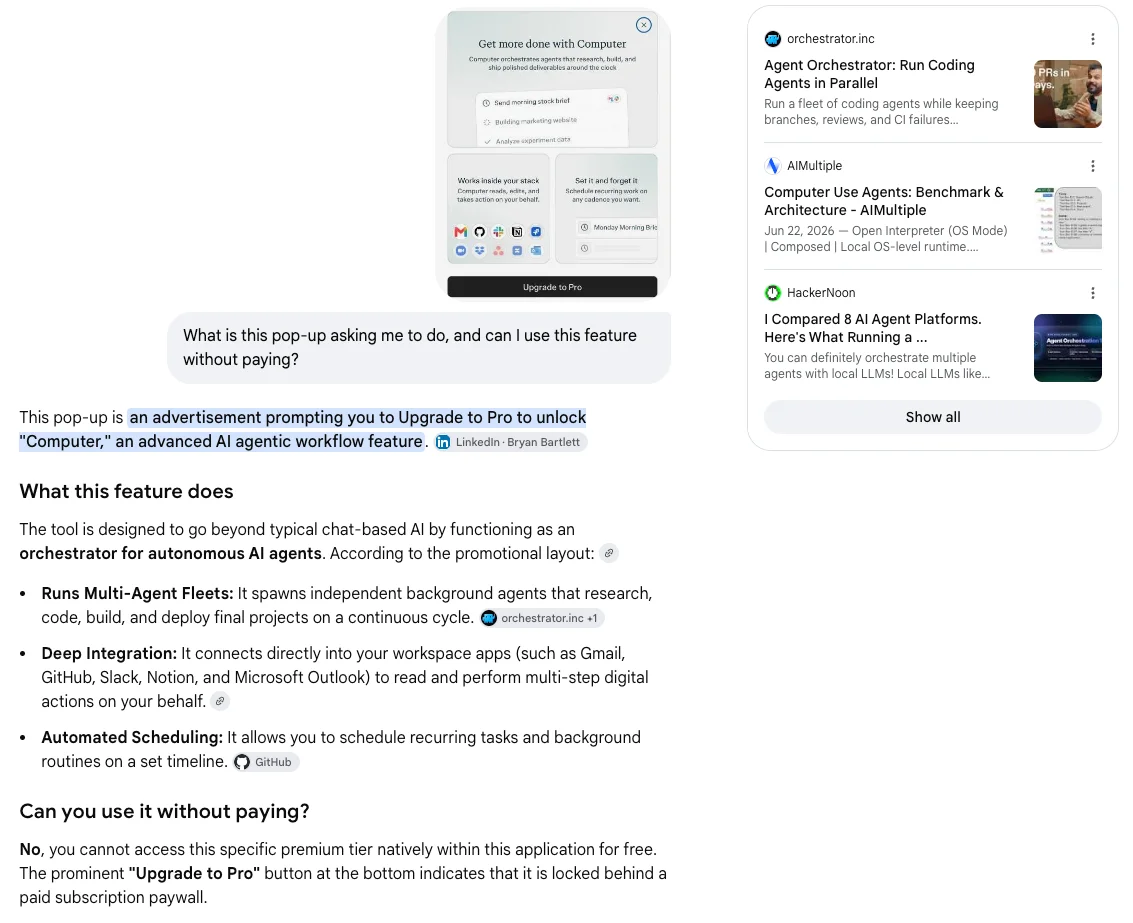
What it could not do was say whose pop-up it was, so its sources were general articles about AI agents, and its “can I use it free?” answer was a guess from the button. It then offered ways to “bypass the platform’s cost” with open-source agent tools. The lesson: add the context the image lacks, such as “this is from Perplexity’s Comet browser”, and the answer has something to search for.
Upload a PDF or file
Add files takes documents. Google’s help page says you can upload “one or more files, including PDFs, local files and Drive files”, and ask questions about them. Images can also be dragged in or pasted. I did not test file upload for this guide, so I cannot vouch for how long a PDF it will read.
What is not in the free menu
Three things Google advertises are not in the free + menu. There was no model choice, since Gemini 4 Argon is for Google AI Pro and Ultra subscribers. There was no Deep Search entry either; Google launched it in July 2025 for Pro and Ultra subscribers in the US, and no 2026 US plan card lists it.
Agentic tasks, such as booking a table or having Google call a business for prices, do not live in the menu at all. You ask for them in plain words, and Google’s help pages limit them to signed-in users 18 and over, with calls for price quotes in the US only. I did not test them, because they act in the real world.
Ask about a web page
You can paste a web address into the Ask anything bar and ask about that page, according to Google’s help page. In Chrome, you can also add open tabs to a question. For a long article it saves the read, though the same sourcing caution applies: check the parts you plan to quote.
Create images and generate files
Create images makes pictures from a prompt, and Google AI Plus, at $4.99 a month, buys more of it. AI Mode can also produce downloadable files, such as a PDF packing list or a spreadsheet; Google’s help page lists formats including PDF, Word, Excel, CSV and PowerPoint, and says the feature is for users 18 and over, in English.
How to use Canvas, voice and Search Live
These three tools turn AI Mode from a search box into something closer to an assistant. I tested Canvas for the review; voice and Search Live are described from Google’s pages.
| Tool | Where it lives | Platforms | Tested here? |
|---|---|---|---|
| Canvas | + menu in the Ask anything bar | Web (where I tested it) | Yes, in the review (19 October 2026) |
| Voice | Microphone in the Ask anything bar | Web and the Google app | No, from Google’s help page |
| Search Live | Live, below the Search bar in the Google app | Android and iOS only | No, from Google’s help page |
Canvas
Pick Canvas from the + menu and describe what you want to build: a plan, a study guide, a one-page sheet. It opens a document beside the chat with undo, redo and share buttons. Google made Canvas available to everyone in the US in English in March 2026, and it was in the + menu on my free account.
Use it at the start of a thread, not halfway through. In my review test, choosing Canvas as a follow-up loaded as a brand new search, lost the earlier answer about Perplexity’s prices, and built a sheet about Apple’s M5 Pro and M5 Max chips instead. Pasting the context into the Canvas request avoids that.
Voice
The microphone at the right of the Ask anything bar takes spoken questions, on a computer as well as a phone. Google’s help page says to tap the microphone and say your question. Voice suits long, rambling questions you would struggle to type, such as describing a noise your car makes; say it the way you would to a mechanic, then read the answer and follow up by voice or keyboard.
Search Live
Search Live is a spoken conversation, with the camera if you want it, and it is only in the Google app on Android and iOS. Google’s help page says to open the app and tap Live below the Search bar, then tap Video to show Search what you are looking at. Since March 2026 it has worked in every AI Mode market. Each Live conversation is saved as a transcript in your AI Mode history.
How to find, share and delete your AI Mode history
AI Mode keeps every conversation as a thread, which is handy until you want it gone. The sidebar icon at the top left opens the list.
Reopen or search old threads
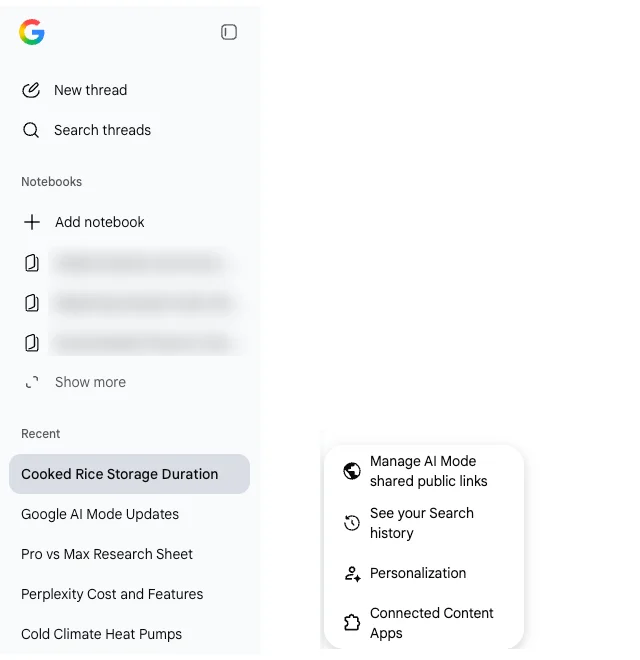
The sidebar showed New thread, Search threads, a Notebooks section and a Recent list, where my rice conversation sat at the top under a title AI Mode wrote for it. Click any thread to carry on where you left off. Notebooks group related work, and Google’s help page says “your notebooks automatically sync across AI Mode, Gemini, and Gemini Notebook”.
Share a thread
The share icon under each answer creates a link others can open and continue from, as Google’s August 2025 announcement put it, “right where you left off”. The settings gear at the bottom left has Manage AI Mode shared public links, which is where you revoke a link you no longer want public.
Delete a thread properly
Deleting takes two steps, and Google’s help page is frank about it. Remove a thread from AI Mode history with its More menu, or use Delete all. Then remove it from your Search history too, because a thread deleted in AI Mode “will still appear in your Search history”.
A search that began as an AI Overview can leave two entries, one for the original query and one for the switch into AI Mode. Google adds that deleted items may stay in My Activity for up to 24 hours.
Personal Intelligence
On my first visit, AI Mode offered to connect Gmail, Calendar, Drive and Photos for more personal answers. You can decline with Use without content apps, and nothing in this guide needed it. If you accept, Google’s consent wording covers more than one chat: “all Search services will be permitted to access Workspace and Google Photos”. The settings gear’s Connected Content Apps is where to review it later.
Three AI Mode sessions, start to finish
Here is how three real sessions from my tests ran, from the first question to the point where I would stop trusting the answer.
A quick fact that became a conversation
The rice question took two turns. The overview gave “3 to 4 days” with chips from Food & Wine, reencle, a Facebook recipe page, HelloFresh and Coles, an Australian supermarket chain. The follow-up gave a firm no, with the 40°F to 140°F danger zone and the 2-hour rule, and no chips. The right answer both times, with a source trail only for the first half.
A price check against a page I could verify
In the review, I asked what Perplexity Pro and Max cost. Every figure matched our Perplexity pricing guide: $20 a month or $17 billed annually for Pro, $200 or $167 for Max, and Max’s 10,000 monthly credits. Every named chip was a third-party site, none of them Perplexity’s own page. Right numbers, wrong trail, so I would verify on the vendor’s site before paying.
A screenshot I needed explained
The pop-up test above took one upload and one question. The description of the image was accurate; the advice around it was generic, because AI Mode had to guess the product. Adding one sentence of context is the fix, and it is the step most people will skip.
Six AI Mode traps to watch for
These are the traps to watch, each tied to one of my tests or a line on Google’s own pages.
Follow-ups can drop their sources
My rice follow-up carried no source chips or links, while the first turn had chips from five sites. If the follow-up is the answer you act on, ask for its source.
It assumes where you live
The heat pump follow-up assumed I was in the UK and priced the survey in pounds without asking. Put your country and currency in the question.
Canvas can start a new search
Choosing Canvas mid-thread started a fresh search and built a sheet about the wrong “Pro vs Max”, as our AI Mode review details. Start Canvas with the full context written out.
Chips often point at write-ups
In the review’s pricing test, all six named chips were third-party sites. Google’s help page says AI Mode “may misinterpret web content or miss context” and advises checking “important info in more than one place”. Open the chip and look for the primary source.
Deleting history takes two places
A thread removed from AI Mode history still sits in Search history, per Google’s help page. Delete from both.
There is no off switch
Google’s AI Overviews help page says the features “cannot be turned off” and points to the Web filter instead. The next section covers the workarounds.
How to turn AI Mode off, or avoid it
You cannot remove AI from Google Search, but you can make it rare. AI Mode only appears when you open it, so the real question is the AI Overview, which Google adds on its own.
- Use the Web filter. On a results page, the Web filter shows plain links without an AI Overview, as Google’s AI Overviews help page suggests.
- Make the Web filter your default in Chrome. Add a site search with the URL
https://www.google.com/search?udm=14&q=%sand set it as default; address-bar searches should then skip the AI Overview. I loaded the rice search withudm=14and got the Web tab with no AI Overview; Google does not document the parameter, so treat it as a workaround that could change. - Hide the Chrome button. Right-click the address bar and untick Always show AI Mode, per Google’s Chrome help page.
- Skip Personal Intelligence. Choose Use without content apps if the prompt appears, or review Connected Content Apps in AI Mode’s settings later.
- Change your default search engine. That keeps Google’s AI out of the address bar, though google.com itself still shows it.
Which AI Mode entry point fits your day?
Most people need only one door. Pick by what you are doing:
- You search Google all day anyway: let the AI Overview be your entry, and type a follow-up when you have one.
- You know the question needs a conversation: go straight to google.com/ai, or set the
udm=50Chrome shortcut. - You are reading a page in Chrome: use the address bar’s AI Mode button and ask about the current page.
- You want to point a camera at something: use Search Live in the Google app.
- Skip AI Mode if you need to cite the original source. Use it to find leads, then read the pages themselves, or use a tool built around citations, such as Perplexity.
Other AI search tools to try
If AI Mode’s habits do not suit the job, two alternatives are worth a look.
- Perplexity, if you want every answer built around sources you are meant to open. Our Perplexity review covers what the free tier includes.
- Comet, Perplexity’s browser, if you want an assistant that reads the page in front of you. Our Comet browser review found it careful on the free plan.
Our best AI search engine roundup puts all of them through the same question.
Final word
Using Google AI Mode is mostly a matter of asking the second question: type a follow-up under an AI Overview, or open google.com/ai, and keep talking. It is free, it keeps context, and the + menu handles images, files and Canvas without a subscription.
Bring two habits with you. Tell it where you are, and ask for the source whenever a follow-up comes back without one. Do that, and AI Mode is the fastest first answer on the web.
Frequently asked questions
How do I turn on Google AI Mode?
There is nothing to switch on. AI Mode is part of Google Search in more than 200 countries and territories, and it is free. Go to google.com/ai, or search as normal on google.com and pick the AI Mode tab at the left of the row of tabs, or tap AI Mode on the Google app's home screen.
If an AI Overview appears on your results, typing a follow-up into the Ask anything box under it also moves you into AI Mode. You do not need Search Labs, a paid plan or a waitlist. If it is missing, see the next question.
What is the difference between AI Mode and AI Overview?
An AI Overview is the AI summary Google puts above the ordinary links when it decides one will help. You do not choose it, and it answers that one search. AI Mode is a place you go on purpose: a conversation that replaces the links, keeps context across follow-ups, and has a + menu for images, files, Canvas and image creation.
Since May 2026 the two are joined. In my test, typing a follow-up into the box under an AI Overview switched the page to AI Mode and kept the overview as the first turn of the thread. So the overview is the quick answer, and AI Mode is where you go when you have a second question.
Why can't I see AI Mode?
Check the language first. Google's help page lists the countries and territories, more than 200 of them, and nearly 100 languages where AI Mode works, so a Google interface set to a language outside that list may not offer it. Switching Google's display language to one on the list, such as English, is the first thing to try.
In Chrome, Google's help page says the address-bar button is not available to everyone or on every device yet, so google.com/ai is the reliable route. Some features have extra rules: generating files and agentic tasks are for users 18 and over, and several tools started in the US only. AI Mode itself is free, so a missing tab is never about a subscription.
How do I get Google results without AI?
Use the Web filter. On a results page, picking Web shows plain links with no AI Overview, and Google's AI Overviews help page points people to it because AI Overviews themselves cannot be turned off. AI Mode only opens when you choose it, so the overview is the only AI you meet by default.
For a permanent fix in Chrome, add a site search with the address https://www.google.com/search?udm=14&q=%s and make it your default. In my test that address opened the Web tab with no AI Overview; Google does not document it, so it could change. Chrome also lets you hide the AI Mode button by right-clicking the address bar and unticking Always show AI Mode.
Does AI Mode save my searches?
Yes, if your account keeps Search history. Each conversation is saved as a thread in AI Mode history, in the left sidebar, where you can reopen it, search old threads or delete them one at a time or all at once. Without Web and App Activity turned on, Google says you can still use AI Mode but cannot pick up where you left off.
Deleting is a two-step job. A thread removed from AI Mode history still appears in your Search history, and a search that started as an AI Overview can leave two entries there. Google says deleted items may stay in My Activity for up to 24 hours.
Can AI Mode read images and PDFs?
Yes. The + button in the Ask anything bar has Add images and Add files, and Google's help page says files can be PDFs, local files or Drive files. You can also drag and drop or paste an image, or paste a web address and ask about that page.
In my test it read a screenshot of an upgrade pop-up accurately and summarised its three panels. It could not tell which product the pop-up belonged to, because nothing in the image named it, and its sources were general articles on AI agents. Give it the context the image lacks, such as the product name, and the answer improves.
Keep reading
Google AI Mode review: free, current and loose with its sources
A hands-on Google AI Mode review: news two days old, correct arithmetic, a Canvas that forgot the question, and citations that lean on blogs over sources.
Google Gemini review: the best free tier, sold as storage
A Google Gemini review from the free tier: four models including 3.1 Pro handed over for nothing, then paid tiers that are really 400GB, 5TB and 20TB of Drive.

Google Whisk AI Is Gone: Do It in Flow Instead, Tested
Google Whisk shut down on 30 April 2026 and now redirects to Flow. I rebuilt a Whisk subject, scene and style remix in Flow, free, and tested ImageFX prompts.

Google Flow Free: What 50 Daily Credits Buy, Tested
Google Flow free, tested on a free account: 50 credits a day bought four AI video clips, images cost nothing, and Veo 3.1 Quality was out of reach.