
Canva Background Remover: How to Use It, Tested on 3 Photos
Canva background remover, step by step: where the button is, what it costs, how to get a transparent PNG and how it did on three hard photos. Plus Magic Eraser.
Contents
How do you remove a background in Canva?
Select the photo, then select BG Remover on the toolbar above the canvas. That is the whole job. On my first test on 13 October 2026 the cutout was finished when I checked 3 seconds after the click.
The catch is the price. Canva’s help page for the tool says Background remover “is included with paid plans”, and the button carries the crown Canva puts on paid features. I ran it on a Canva Pro trial.
| What you want | Where it is | What I saw |
|---|---|---|
| Remove the whole background | Select photo, then BG Remover | One click; done within 3 to 19 seconds on three photos |
| Fix a bad edge | Click BG Remover a second time | Erase and Restore brushes |
| A transparent file | Share, Download, PNG, Transparent background | Switch is off by default and crown-marked |
| Remove one object only | Edit, then Magic Eraser | Good on a boat, poor on a mast |
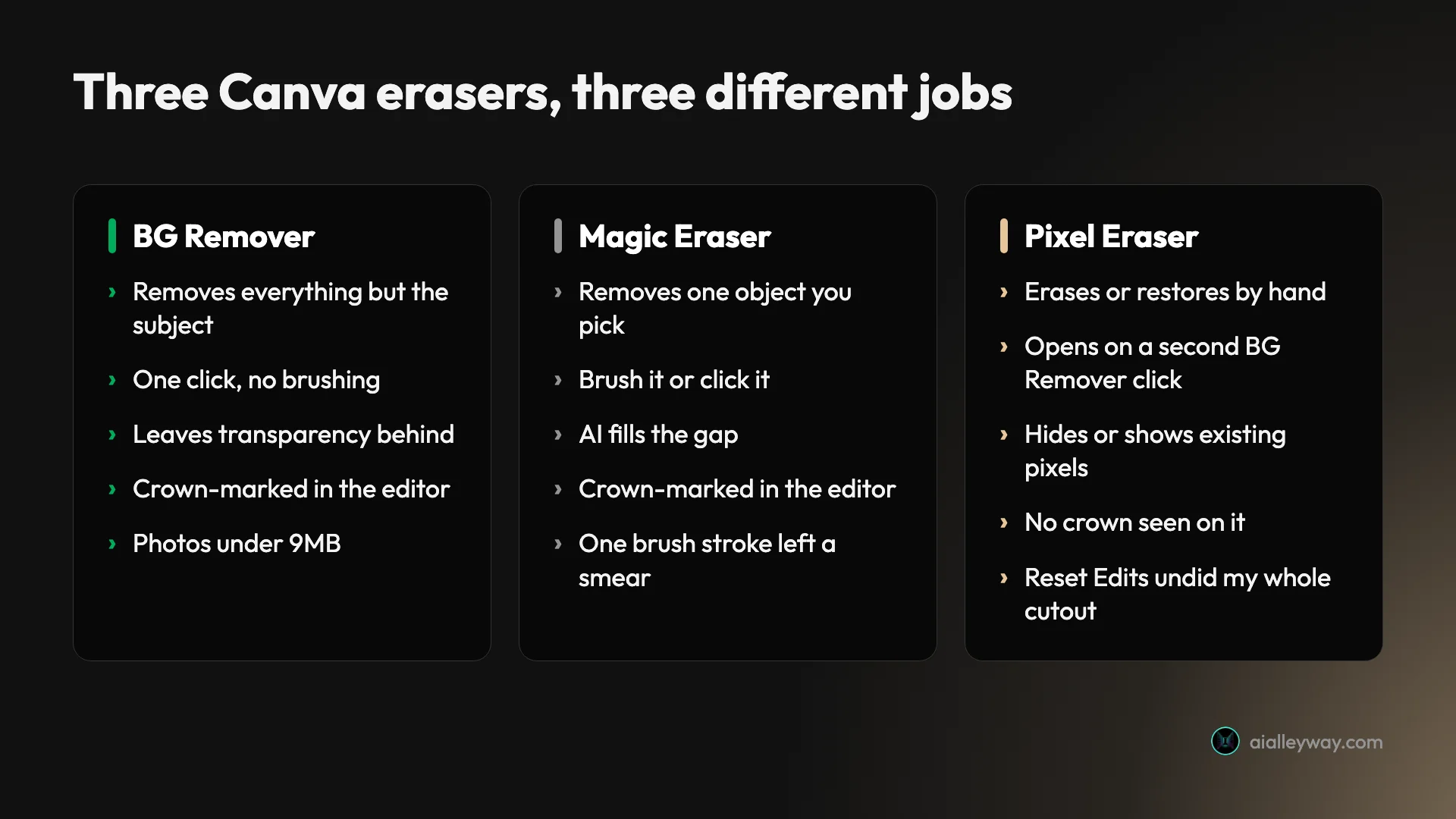
Three erasers, and which one the background remover is
Canva has three tools that sound alike and do different jobs.
BG Remover finds the subject and deletes everything else. You do not draw anything. What is left behind is transparency, not white.
Magic Eraser goes the other way. You point at one thing, a stray person or a sign, and it deletes that and paints in the background behind it. The rest of the photo stays.
Pixel Eraser is the manual one. It has an Erase brush and a Restore brush, and from what I saw it only hides or shows pixels that are already there. It is what opens when you click BG Remover a second time on a photo that already has its background removed.
Canva’s help page is plain that the first tool is AI. “Background Remover uses AI technology to detect and remove backgrounds automatically,” it says, and adds that it is “considered an everyday editing tool, and not a content generator.”
That distinction matters for one practical reason, covered in the FAQ below: Canva says the tool does not stamp your design as AI-generated.
The test: three photos on a Pro trial
I used the Canva web editor in Chrome on a Pro trial on 13 October 2026. I ran the background remover on three images and Magic Eraser on one of them, and read the account’s AI usage meter before, during and after.
The three images are our own AI-generated stand-ins, first published in our ChatGPT image generator review. I picked them because each has a different problem: a bearded man holding a fishing net, a black earbud case on wet black stone, and floury hands kneading dough.
I did not test a Free account, the mobile app or video. Where this guide covers those, it quotes Canva’s own pages and says so.
Remove a background in the Canva editor
This is the route most people need, and Canva’s help page gives it in three steps:
- “Select the photo you want to edit.”
- “From the editor toolbar, select BG Remover.”
- “Wait for the background to be processed.”
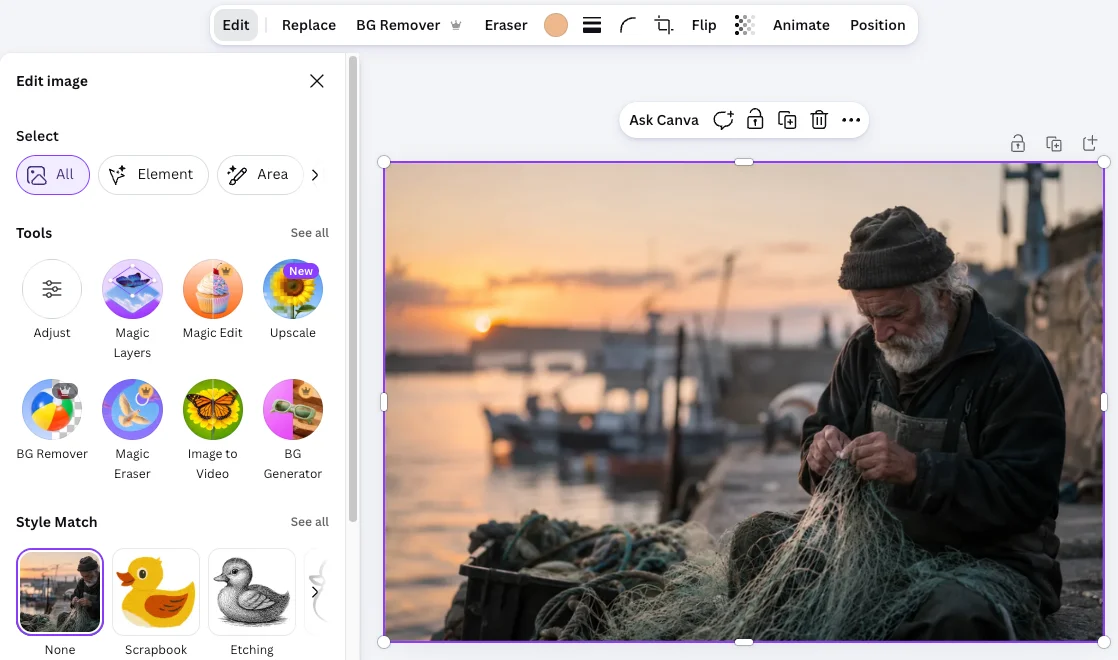
That matched what I did. The button sits on the toolbar that appears above the canvas once a photo is selected, between Replace and Eraser. The same tool is also in the panel that opens when you select Edit.
Canva’s marketing page for the tool says it “works on a range of images, from people and animals to objects”, and adds: “Upload in JPG, PNG, HEIC, or HEIF formats, or choose a stock photo from our library”.
From your uploads, without opening a design
You can skip the design entirely. In Projects, I opened the More menu on an uploaded image, and BG Remover was listed there with a crown, next to Edit image and Download.
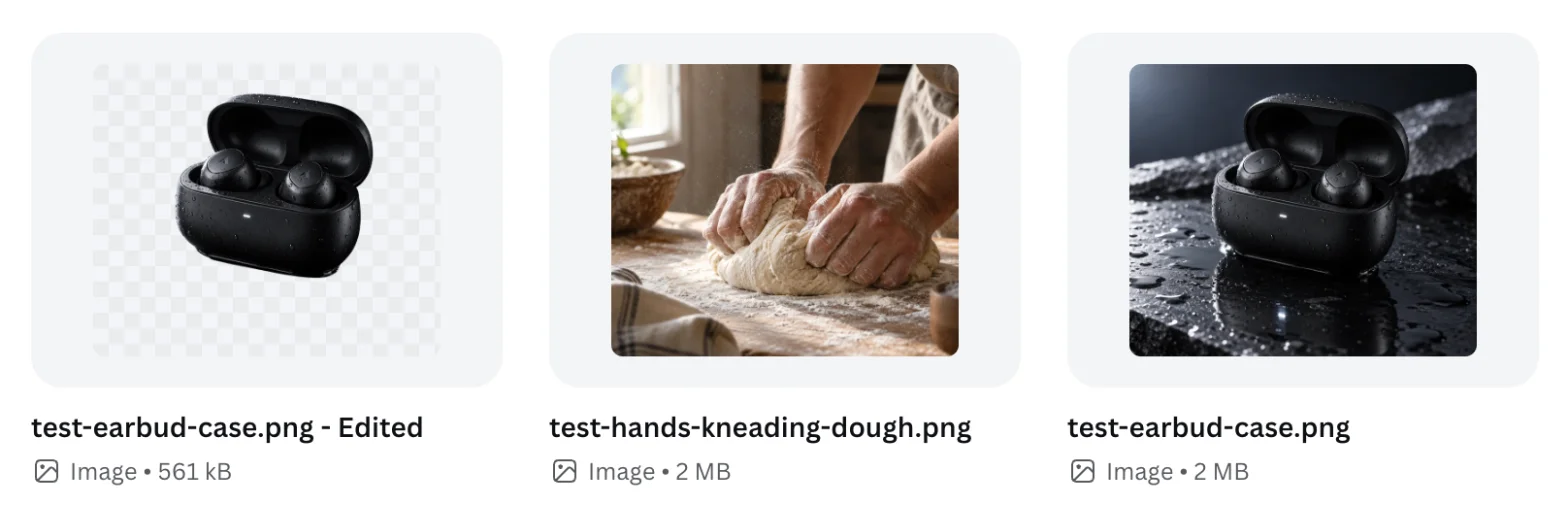
One click, and a message read “Removing the background. The result will appear in this folder shortly.” A new file named “test-earbud-case.png - Edited” was in the folder when I checked 4 seconds later.
The original was untouched. That is the useful part: this route did not overwrite my photo.
In Canva’s standalone photo editor
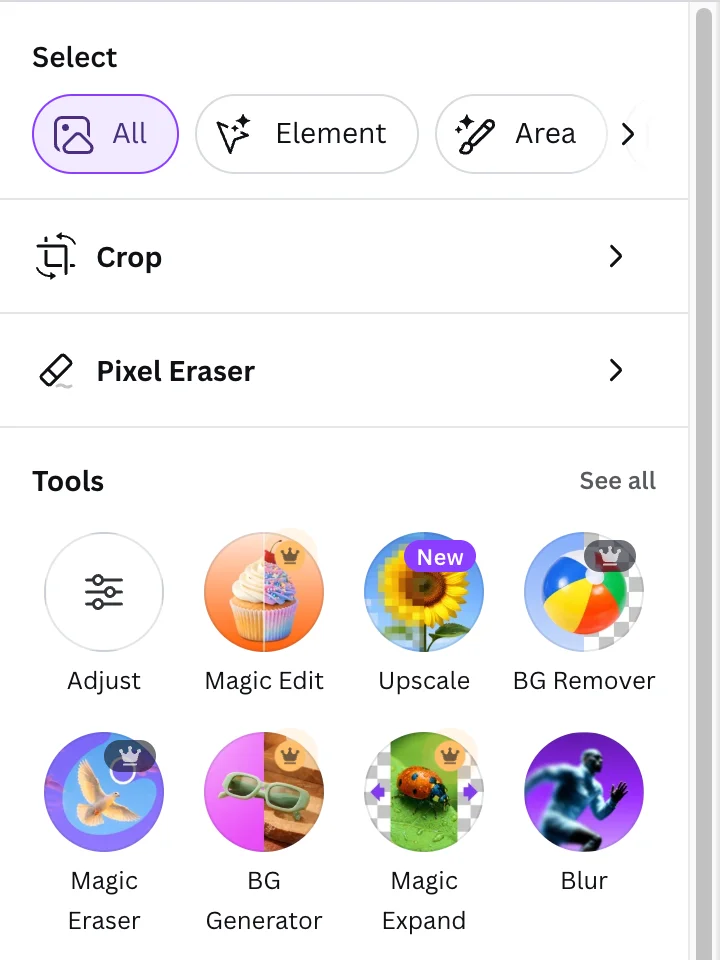
Choosing Edit image from the same menu opens a photo editor with no design around it. Its tool list is slightly different: Adjust, Magic Edit, Upscale, BG Remover, Magic Eraser, BG Generator, Magic Expand and Blur.
It was the slowest route for me. The tool panel took about 20 seconds to appear, and the removal itself took between 11 and 19 seconds, against a few seconds on the other two routes. One run each is not a benchmark, so treat that as what happened to me, not as a rule.
Pressing Save there showed “Saved to Uploads” and added a second file with Edited in the name. Again the original stayed.
On the Canva mobile app
I did not test the app. Canva’s help page gives the mobile steps as: “Tap the photo you want to edit”, then “From the editor toolbar, tap BG Remover”, then wait.
From the app’s home screen the route is longer. Canva lists Your Designs, then Type and Images, then the More menu on the photo, then Edit image, then “Image Tools, then tap BG Remover”.
Fix the cutout with the Erase and Restore brushes
No automatic cutout is right every time, so Canva gives you two brushes to correct it. They are easy to miss, because they sit behind a second click on the same button.
Select the cutout and click BG Remover again. A panel titled Pixel Eraser opens with two choices, Erase and Restore, a Size slider that started at 20, and a Reset Edits button. The canvas switches to a grey checkerboard wherever the background is gone.
I tried Restore on the fisherman photo, where Canva had removed a crate of rope I might have wanted to keep. Selecting Restore brought the old background back as a faint ghost, so I could see what I was painting over. One drag returned a band of the original, the width of the brush.
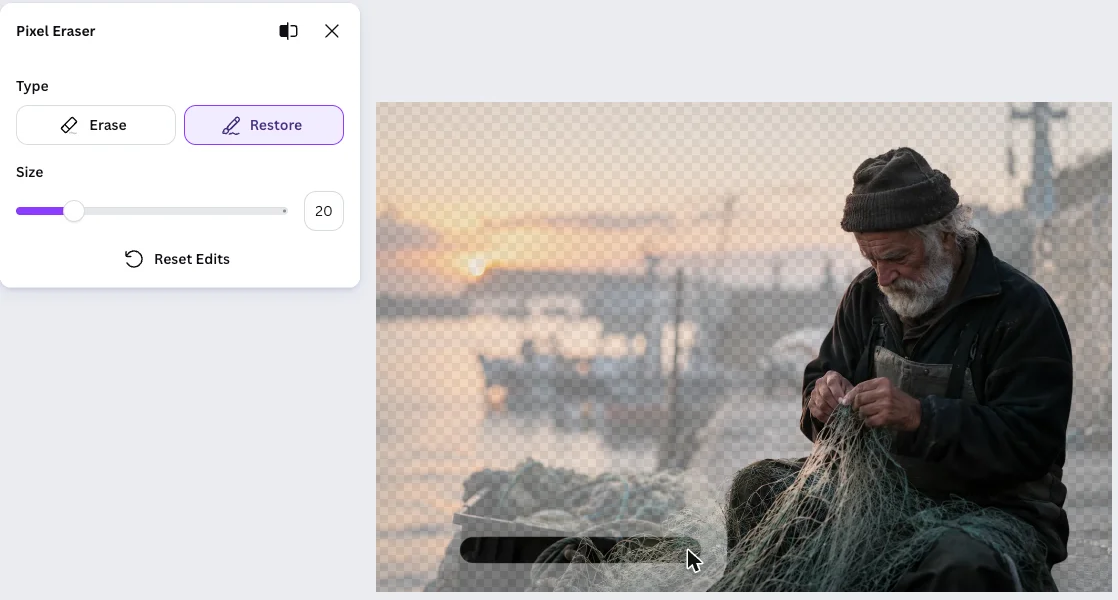
Then I pressed Reset Edits, expecting it to undo that one stroke. It restored the entire photo. The background was back, the cutout was gone, and the Restore button was greyed out.
That happened once, on one photo, so I cannot promise it always behaves that way. But I would not press Reset Edits to fix a brush mistake again.
Canva’s help page adds a limit of its own for this mode: “zooming and undoing or redoing brush strokes won’t work.” The same page also lists Undo and Redo icons for a brush stroke a few lines later, so the page disagrees with itself. I did not test undo.
Download a transparent PNG from Canva
A removed background is only useful if the file you download is transparent too. That is a second switch, in a different menu.
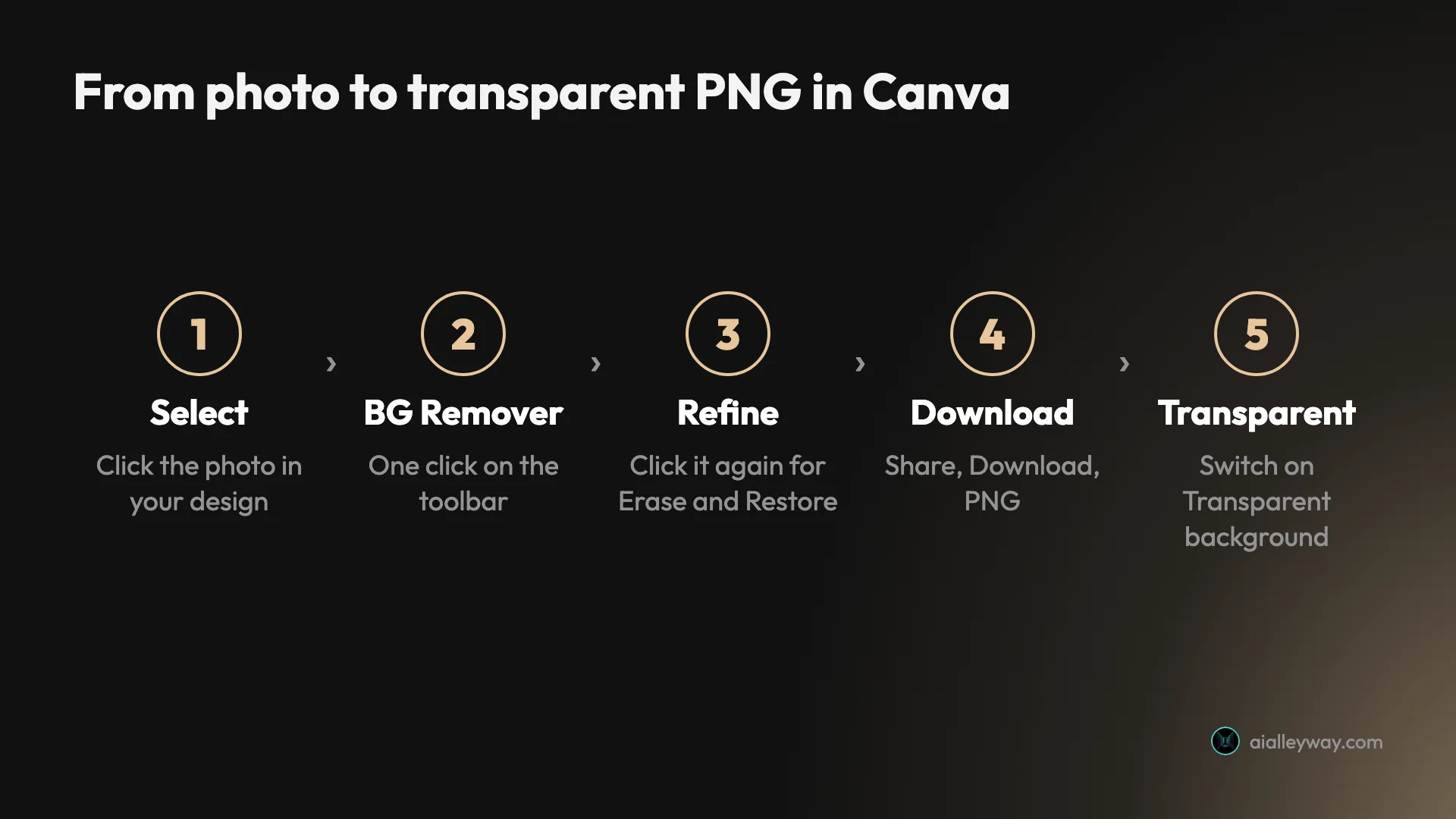
Choose Share, then Download. On my account the file type was already set to PNG, with a Suggested tag. Below it sat a switch labelled Transparent background, off by default.
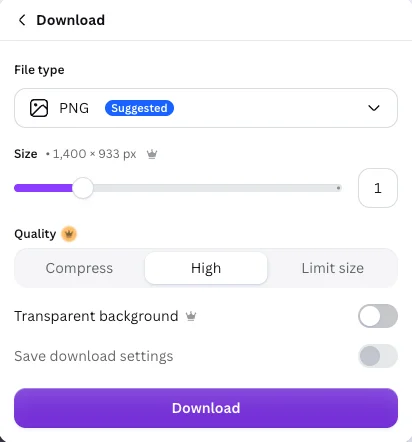
Leave it off and I would expect the page colour to be exported with your subject; I did not download a file to confirm it. A cutout on a white page looks finished in the editor, because white page and transparency look the same there. The download is where it would show.
The switch carried a crown, as did the Size and Quality settings. So on what I saw, a clean transparent file takes two paid features, not one. I opened this panel and read it. I did not download a file, so I have not checked the PNG outside Canva.
Canva also notes a size ceiling: “Any uploaded photo with a resolution of more than 10MP will also be downscaled to 10MP after removing its background.”
Is the Canva background remover free?
Not on what Canva publishes. The help page says it twice: “Background remover is included with paid plans”, and under limitations, “Paid plans only”.
The marketing page words it more loosely. “Sign up for Canva Pro for unlimited usage and access to more tools like Video Background Remover,” it says. I found no number of free removals on that page or on the help page.
I ran everything on a Pro trial, so I never saw what a Free account gets when it presses the button. If you are on Free, the crown on the button is the thing to look for.
| Where | What it says or shows |
|---|---|
| Canva help page | ”Background remover is included with paid plans” |
| Help page, limitations | ”Paid plans only” |
| Canva marketing page | ”Sign up for Canva Pro for unlimited usage” |
| Editor, 13 Oct 2026 | Crown on BG Remover and on Magic Eraser |
| Download panel | Crown on Transparent background |
Canva Pro cost $18 a month or $144 a year in the US when I read the pricing page on 11 October 2026. Our Canva pricing guide covers the plans, and the trial is the cheapest way to try the tool, as long as you cancel before it bills if you do not want to keep it.
Does it use up your AI allowance?
Hardly, in my session. The usage meter on the Billing page read 56% when I started. After one background removal and one Magic Eraser run it still read 56%.
After two more background removals and one more Magic Eraser run it read 57%. Five runs moved it one point, and I cannot say which run did it.
For scale, a single generated design took 16 points of the same allowance in our Canva review. Canva’s help page on AI usage lists its Standard, Premium and Ultra tools, and I did not find Background Remover or Magic Eraser in those lists.
Canva Magic Eraser: remove one object, keep the rest
Magic Eraser is the answer to a different question: the photo is fine, but something in it should not be there.
Select the photo, select Edit, then Magic Eraser under Tools. In the editor on 13 October 2026 the panel was headed “Select what to erase” and offered four modes: Area, Element, Foreground and Text.
- Area is a brush. Paint over the thing, with a Brush size slider that started at 40.
- Element detects objects. Hovering outlined them in purple, and one click selected one.
- Foreground selects the main subject, per Canva’s Magic Eraser help page. I did not use it.
- Text selects text in the image, per the same page. I did not use it either.
Then press Erase. A note under the button reads “This feature uses AI.”
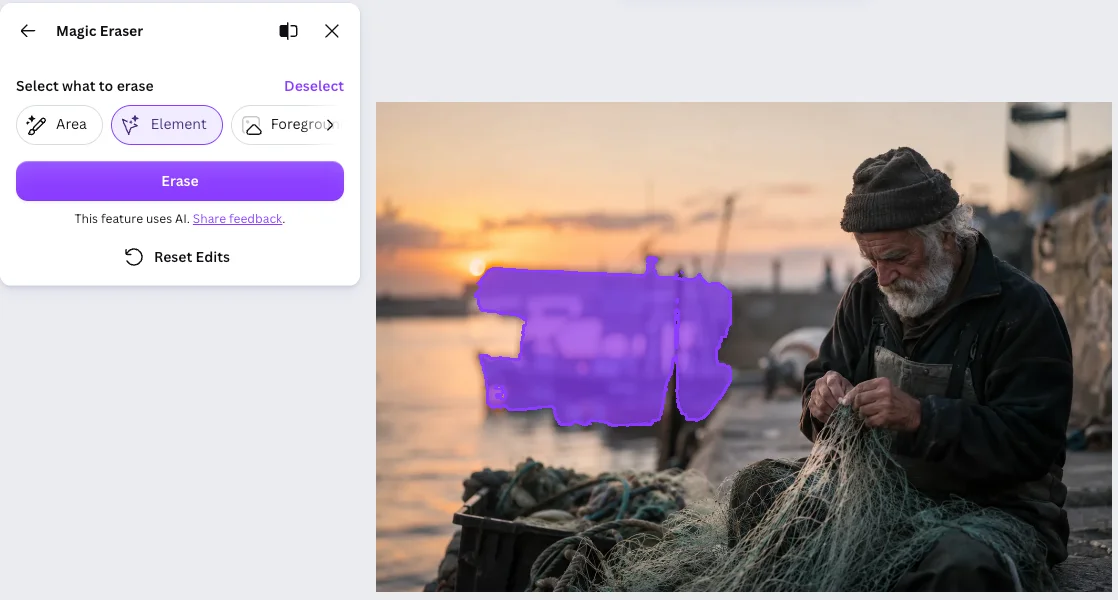
One thing to know if you follow Canva’s help page: it calls the first two modes Brush and Click. The editor I used called them Area and Element. They do what the help page describes; only the labels differ.
The tool had a crown in both editors I opened. Canva’s help page for it does not say which plans include it.
Canva’s own tip for a stubborn object is worth repeating: “If the object you want to erase is still there, try erasing a slightly larger area around it.”
Three photos, three cutouts: what I got
I chose three images that are each hard in a different way. All three came out usable on the first click.
| Photo | The hard part | Time | Result |
|---|---|---|---|
| Fisherman with a net | Fine mesh, loose grey hair | Done at 3 s check | Kept man and net; dropped a crate I had not asked about |
| Black case on black stone | No contrast, a reflection | Done at 4 s check | Clean outline, reflection removed |
| Hands kneading dough | Flour dust, arms cut by the frame | 11 to 19 s | Kept arms, hands and dough; flour on the table gone |
The fisherman and his net
A net is thin strands with background showing through every gap. Canva kept the net in the man’s lap and cleared the harbour from between its outer strands.
His loose grey hair by the ear survived with a soft edge. At the zoom I viewed it, on a white page, I saw no halo around him.
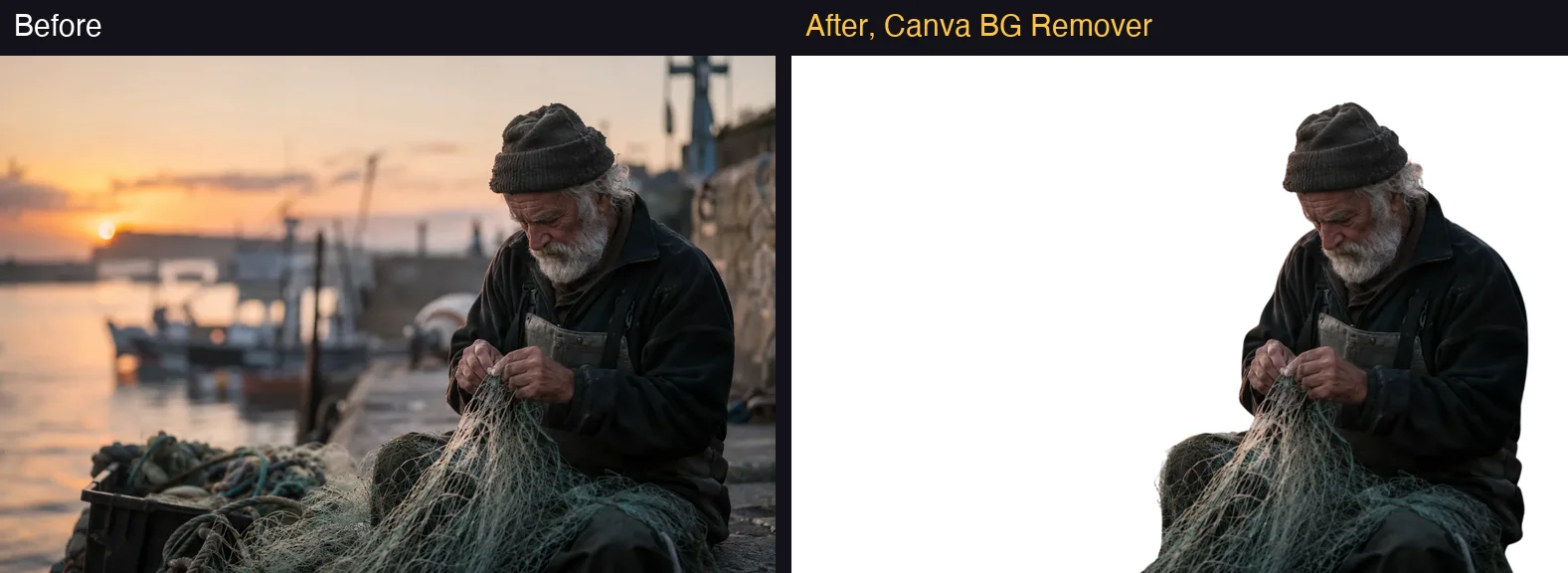
What it removed is the lesson. A crate of rope sat in the left foreground, close to the camera. Canva decided that was background and deleted it with the boats and the sky.
The black case on black stone
This was the one I expected to fail. A matte black earbud case sat on wet black stone, with its own reflection underneath and a dark backdrop behind.
It came back clean. The case and both earbuds stayed, water droplets included. The stone, the reflection and the backdrop went.
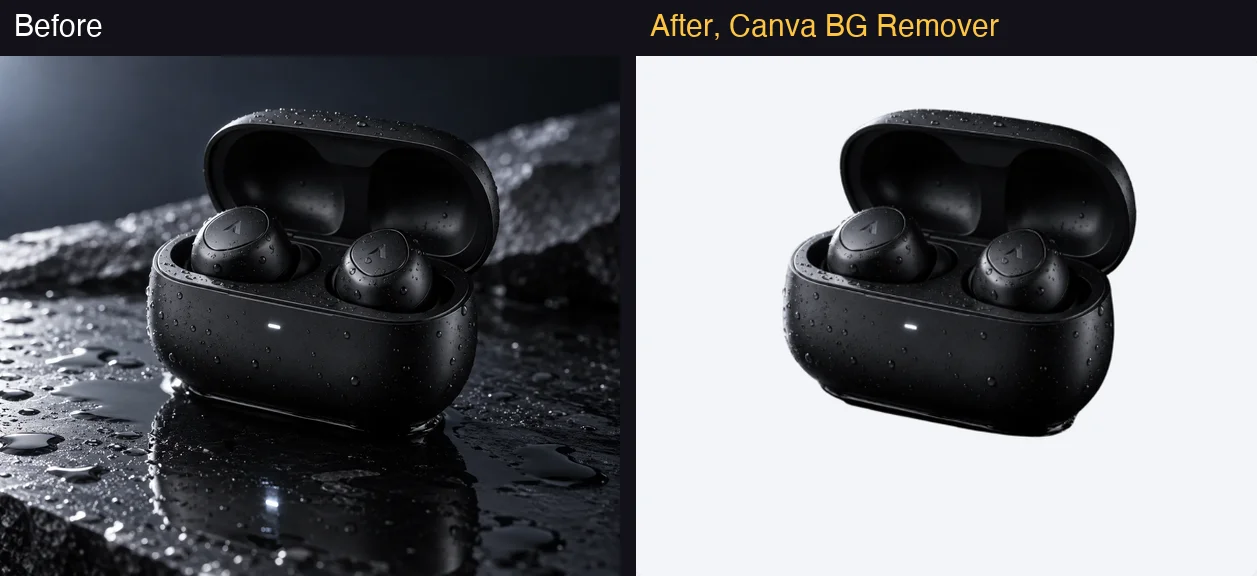
For product photos, that is the result that matters. The edited copy was 561 kB against a 2 MB original, as listed in the Uploads folder.
The floury hands
Two forearms reach into the frame and press a ball of dough into a floured table. Flour hangs in the air.
Canva kept both forearms, both hands and the dough, and kept the flour on the skin. It removed the table, the loose flour on it, the dust in the air, the bowl and the window.
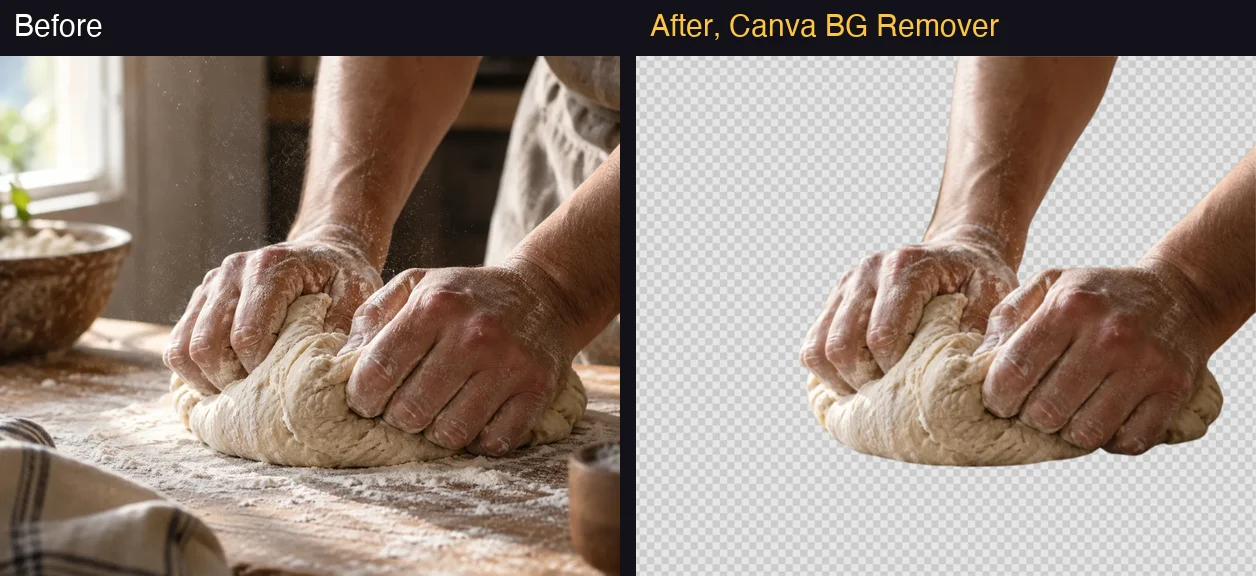
It also removed the baker’s apron and body at the right edge of the frame. The underside of the dough ends in a smooth cut where it met the table, which is correct but looks abrupt on a plain background.
What Magic Eraser did on the same harbour
I went back to the uncut fisherman photo and tried to tidy it instead of isolating him.
First, the brush. I made one vertical stroke over the top of a mast in the upper right corner and pressed Erase. It finished in 3 to 7 seconds and left a pale, blurred tower where the mast had been. That is not clean sky.
Second, Element mode. I clicked the fishing boat in the middle distance and pressed Erase. In 3 to 6 seconds the boat was gone, replaced by blurred quay and harbour wall that matched the scene.
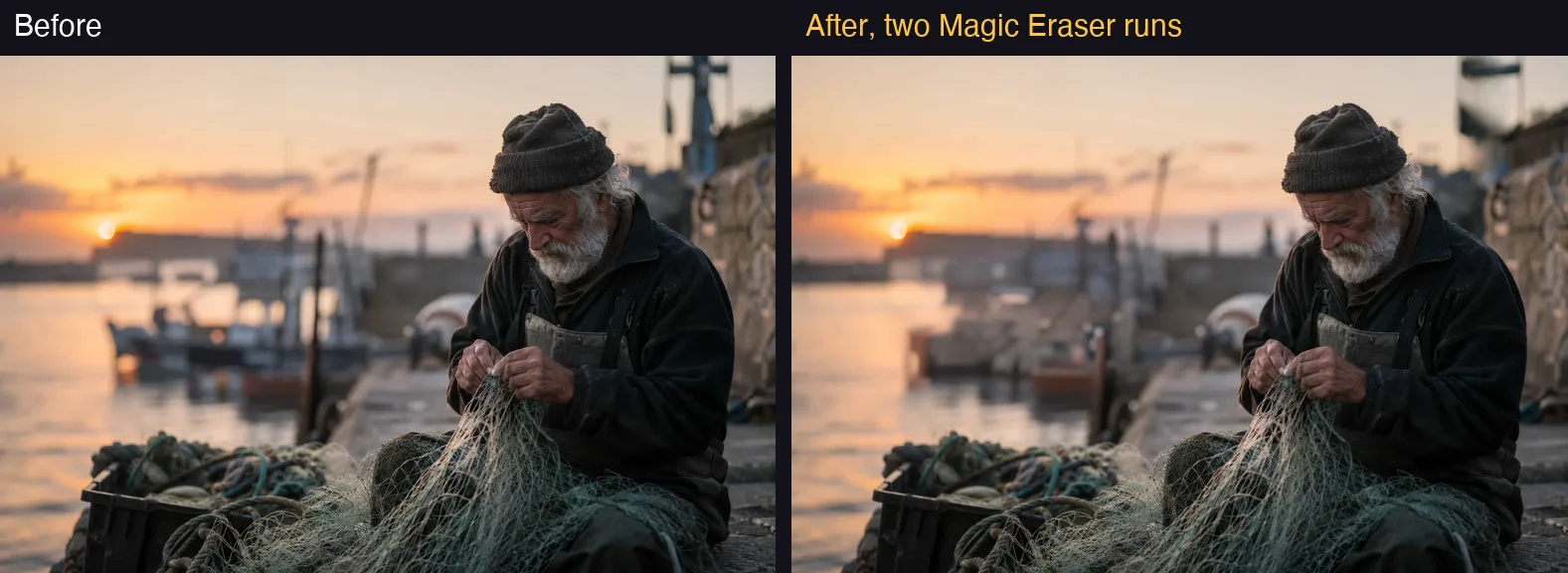
It took more than I asked for, though. A tall dark mooring pole in front of the boat disappeared with it, and a small reddish hull stayed behind at the waterline.
Two runs is a small sample. On those two, clicking a whole object beat brushing part of one, which fits Canva’s own advice to erase a larger area.
Canva background remover not working as expected? Six traps
The tool is simple. The mistakes around it are mostly about what it does not tell you.
| Trap | What happens | Source |
|---|---|---|
| Reset Edits | Undid my whole cutout, not one stroke | My test, 13 Oct 2026 |
| Transparent background switch | Off by default, crown-marked | Download panel, my account |
| Canva picks the subject | Removed a foreground crate | My test |
| File limits | 9MB cap, 10MP downscale, no vectors | Canva help page |
| Folder removal | 50 images, uploads only | Canva help page |
| Brush mode | No zoom, per Canva | Canva help page |
Reset Edits is bigger than it sounds
In the Pixel Eraser panel, Reset Edits gave me back the entire original photo. If you have spent five minutes brushing an edge, that is five minutes gone.
The transparent file is a separate switch
Removing the background and exporting a transparent file are two steps in two menus. Both were crown-marked on my account.
Canva chooses the subject, not you
It dropped a foreground crate from one photo and a body at the frame edge from another. I did not find an option to say “keep this too”. The Restore brush is how you get it back.
Big files and vectors are out
“Currently, Background Remover only works for photos under 9MB in size. It’s not available for Vector images,” Canva’s Background Remover help page says. Photos over 10MP are downscaled to 10MP.
Folder removal has four limits
Canva can clear every photo in a folder at once, but its help page lists the limits: paid plans only, up to 50 images, one folder at a time, and uploaded images only. Library photos and designs in the folder are skipped. I did not test folders.
Canva says the brushes lock the zoom
Canva says that in brush mode “zooming and undoing or redoing brush strokes won’t work.” Set your zoom before you open the panel.
Background remover, Magic Eraser or the brushes?
Match the tool to the job, not to the name.
- You need the subject alone, for a product listing, a logo or a headshot: BG Remover, then the transparent PNG switch.
- The photo is fine but something is in the way: Magic Eraser in Element mode, clicking the whole object.
- The cutout lost something you wanted: click BG Remover again and use Restore. Leave Reset Edits alone.
- You have a folder of product shots: Canva’s folder option, if there are 50 or fewer and they are your own uploads.
- Skip this if you only need one cutout a month and do not use Canva for anything else. A paid plan is a lot to pay for one button.
If you don’t have Canva Pro
The background remover is a reason to pay for Canva only if you want the rest of Canva too. If the cost adds up, here is where to look.
- Adobe Express. Its Remove background tool carried no Premium crown on our free account and cut a bicycle out of a street scene in one click, in our Adobe Express review. That was a different image from the ones here, so it is not a like-for-like result. The two tools side by side are in their own comparison.
- A free AI photo editor. Our free AI photo editor roundup covers five tools you can use without paying, with a background swap among its three test edits.
- Another design tool entirely. If Canva’s pricing is the problem, our Canva alternatives list covers nine.
Final word
Canva’s background remover did what it promises on three awkward photos, in seconds, from one click. The black case on black stone is the result that surprised me.
The parts to watch are around it: it is a paid tool, the transparent export is a second paid switch, Canva decides what counts as the subject, and Reset Edits can cost you the whole cutout. Magic Eraser is worth knowing for the opposite job, and worked better when I clicked an object than when I brushed one.
Frequently asked questions
Is the Canva background remover free?
Not as a standing feature. Canva's help page says Background remover is included with paid plans, and its limitations list repeats that it is available with paid plans. In the editor on 13 October 2026 the BG Remover button carried the small crown Canva puts on paid features.
Canva's marketing page for the tool says to sign up for Canva Pro for unlimited usage, and I found no number of free removals on that page or on the help page. I tested on a Pro trial, not on a Free account, so I cannot tell you what a free user sees after pressing the button. The trial itself is one way to use the tool without paying yet.
How do I remove a background in Canva?
Select the photo in your design, then select BG Remover on the toolbar above the canvas and wait for it to process. Those are the three steps on Canva's help page, and they matched what I did on 13 October 2026. My first cutout was finished when I checked 3 seconds after the click.
You can also skip the design. In Projects, open the More menu on an uploaded image and choose BG Remover. When I did this, Canva saved the result as a new file with Edited in its name and left the original alone.
Why is the Canva background remover not working?
Canva's help page gives the limits. Background Remover only works for photos under 9MB, and it is not available for vector images. If the tool isn't loading, Canva says to check your internet connection and try again.
For folders, the Remove background option is greyed out when a folder holds more than 50 images, and Canva library photos and designs in a folder are skipped. The tool is also paid, per the same page. I tested on a Pro trial, not a Free account, so I cannot say what a Free user sees; the crown on the button is the thing to look for. I did not hit any of these errors in my own three runs.
How do I download a transparent background from Canva?
Remove the background, then choose Share, Download, pick PNG as the file type and switch on Transparent background before you press Download. On my Pro trial on 13 October 2026 that switch was off by default and carried the paid crown.
If you forget the switch, I would expect the page colour to come along in the file. A cutout sitting on a white page looks transparent in the editor because the page is white, so the download is where the mistake would show. I opened the Download panel and read it; I did not download a file.
What is the difference between Canva Magic Eraser and background remover?
Background remover deletes everything except the subject it detects and leaves transparency behind. Magic Eraser deletes one thing you choose, by brushing over it or clicking it, and fills the hole with generated background so the rest of the photo stays.
In my test on 13 October 2026, the background remover isolated a fisherman and his net in one click. Magic Eraser then took a fishing boat out of the same photo after one click to select it and one on Erase, and patched the harbour behind it. A single brush stroke over a mast went worse and left a pale smear.
Does the Canva background remover use AI credits?
Barely, if at all, in my test. On a Canva Pro trial on 13 October 2026 the usage meter on the Billing page read 56% before I started and 56% after one background removal and one Magic Eraser run. After two more background removals and one more Magic Eraser run it read 57%.
So five runs moved the meter by one point, and I cannot say which run moved it. Canva's help page on AI usage lists its Standard, Premium and Ultra tools, and neither Background Remover nor Magic Eraser appears in the lists I read.
Can you remove a video background in Canva?
Yes, according to Canva's help page: select the video, select BG Remover on the editor toolbar and wait. The page says it only works on videos with an original length under 10 minutes, and that a video trimmed in Canva has to be downloaded and uploaded again first.
On mobile, Canva says the video must be uploaded through the Uploads tab, not the Camera Roll or Gallery. Its marketing page lists Video Background Remover among the tools you get with Canva Pro. I did not test video.
Will the background remover get my post labelled as AI content?
Canva says it shouldn't. Its help page says Background Remover uses AI but is considered an editing tool, and that it doesn't add Canva's AI-generated content metadata to your design. Canva adds that metadata only when a feature creates entirely new content or significantly changes it, and it names Magic Media and Magic Edit as examples.
If a design is flagged anyway, the same page says to contact Canva Support with the design link and where you posted it. I did not post anything to a social network to check this.
Keep reading
Canva Review: Great Editor, but the AI Runs on a Meter
A Canva review from a Pro trial: nine hands-on tests, exact US prices, and six AI requests that used 56% of the trial's allowance. Plus what the trial hides.
Canva Pro Price: $144 a Year, and What Canva Leaves Out
Canva Pro price in the US: $18 a month or $144 a year. Business is $25 per person. Plus the $100 AI Pass, seat billing and the refund rule, all sourced.
Canva vs Adobe Express: Same Prompts, Opposite Strengths
Canva vs Adobe Express on the same prompts: Canva's AI spelled 11 of 11 text lines, Adobe's default model 0 on its first image. Express costs less.
Free AI Photo Editor: 3 Edits on 2 Tools, 5 Ranked
The best free AI photo editor: Google Flow and Meta AI ran the same three edits on one photo, plus what Gemini, ChatGPT and Bing allow free, tested 8 October.