
Canva AI presentation review: right facts, no second draft
A hands-on Canva AI presentation review: 8 slides in 60 seconds with every fact right on the free plan, then a refused revision and a chart that exports flat.
Contents
Is Canva’s AI presentation maker worth it?
Yes, for a fast and accurate first draft: Canva’s AI presentation maker turned my nine-fact brief into eight clean slides in about 60 seconds on a free account, with every number right and no watermark on the export. It will not argue your case for you, and on the free plan it refused to revise the deck when I asked. Use it if you are happy to finish slides by hand in Canva’s editor; if you want the AI to keep editing, look at Gamma, or at Canva Pro, whose AI editing I did not test.
What does Canva AI do with a presentation brief?
You type what you need, and Canva builds the deck in its own editor, next to all your other Canva presentations. What comes out is an ordinary Canva design, so every text box, photo and colour can be changed with the same tools you would use on a poster or a social post.
Canva has renamed this feature more than once. Older pages call it Magic Design for Presentations, and its marketing page for AI presentations still does. The help centre now calls it Canva AI for Presentations, and you reach it by selecting Canva AI in the homepage’s side menu, or by going straight to canva.com/ai. Canva’s help page for the feature says it is “a premium AI tool that counts toward your monthly AI usage”.
Three ways in
There are three routes to an AI deck, and they behave a little differently.
- From Canva AI on the homepage. Pick Presentation or simply describe the deck. A plus menu lets you upload a file, add an existing Canva design, apply a Brand Kit or connect a third-party app. Canva says it “may provide a proposed outline” you can adjust before you select Generate presentation, and that outlines only appear when you start from the homepage.
- Edit with AI on a template. Choose a template in the editor’s Templates tab, or one of your brand templates, select Edit with AI and describe what you want. The template sets the style and your prompt sets the content. You can attach a PDF or Word file for context.
- Remix a design you already made. From Projects, select Edit with AI on a private design and prompt it into something new.
I used the first route, in the canva.com/ai chat, because it is the one most people will find first.
How did Canva AI do on a nine-fact brief?
The brief I gave Gamma and Beautiful.ai
To judge a Canva AI presentation on more than looks, I used the same brief I ran through Gamma, Beautiful.ai and ChatGPT for this series: an eight-slide quarterly review for Spoke & Chain, a small bike-repair shop, to be shown to the owner’s two staff and her bank manager.
It holds nine facts I can check line by line, from Q3 revenue of $48,200, up 12% on Q2, to 316 repairs, a repair mix of 41% tune-ups, 27% flat tyres and 18% brake work, an average ticket of $152, a move from 12 Elm Street to 48 Harbor Road with a reopening on Monday, November 9, two Q4 goals, and a closing ask for a $20,000 equipment loan. It ends with one instruction: “Do not invent any other numbers.”
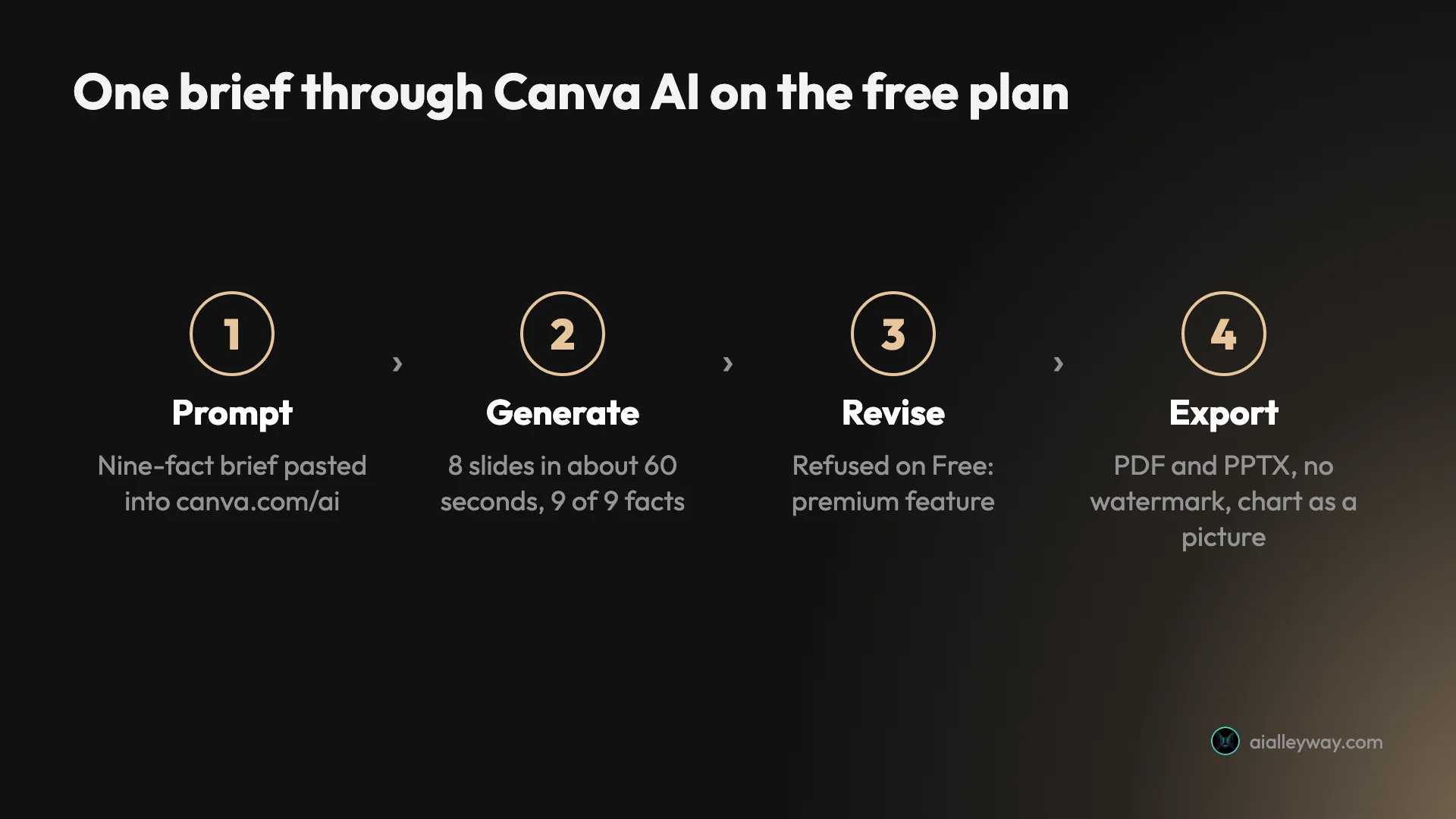
I ran it on 10 November 2026 on a Canva Free account. My earlier Canva Pro trial had been cancelled on 4 November, so this is what a free user gets. I pasted the brief into the Canva AI chat exactly as written and sent nothing else with it. This is one brief and one run, and AI output varies, so treat the results as a sample rather than a guarantee.
What the Canva AI presentation looked like a minute later
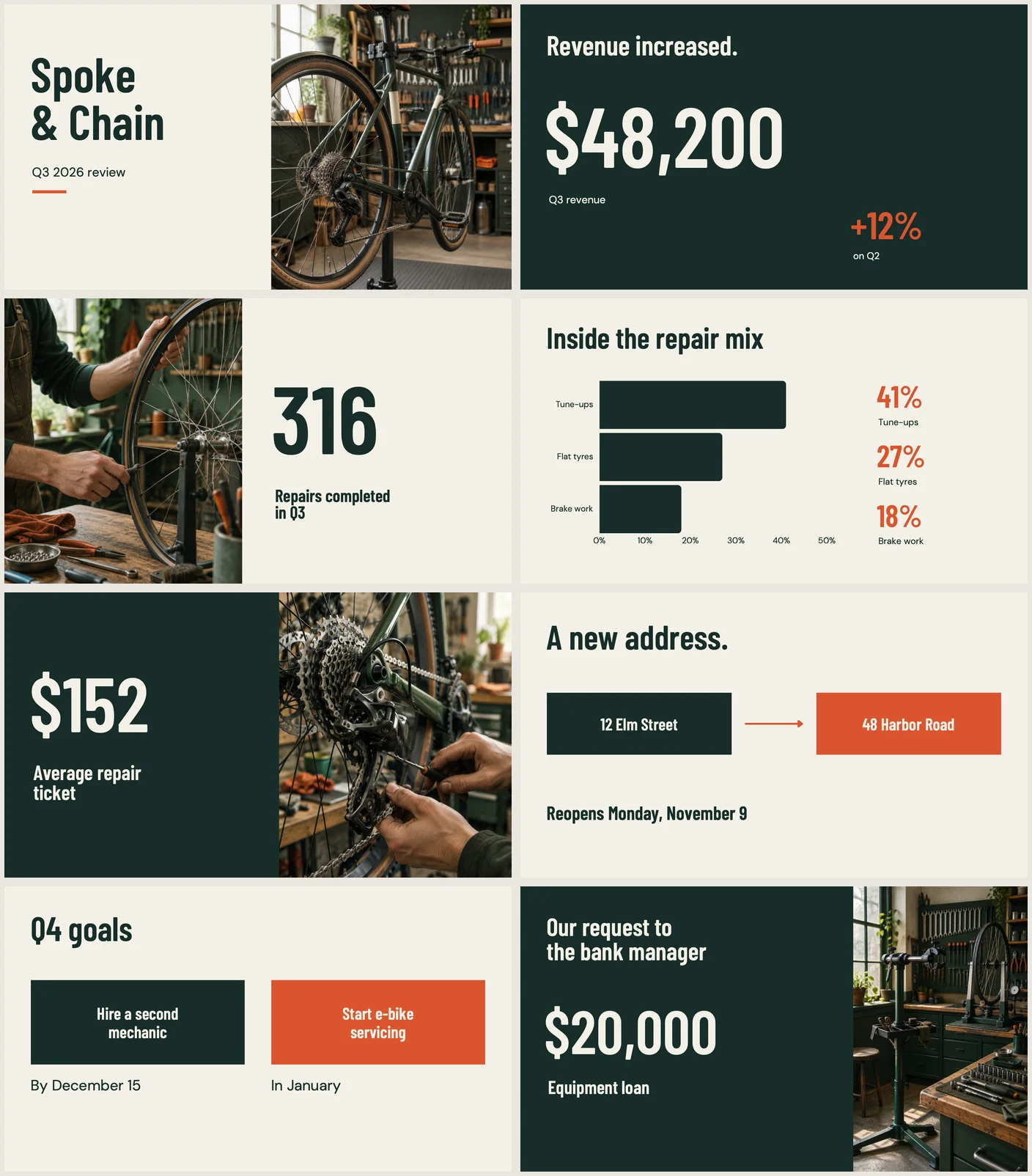
About 60 seconds after I sent the brief, Canva had eight finished slides. The design is consistent and calm: a cream and dark green palette with orange accents, a condensed headline font, and four photos of a bike workshop. It looks like a designer’s template rather than an AI experiment.
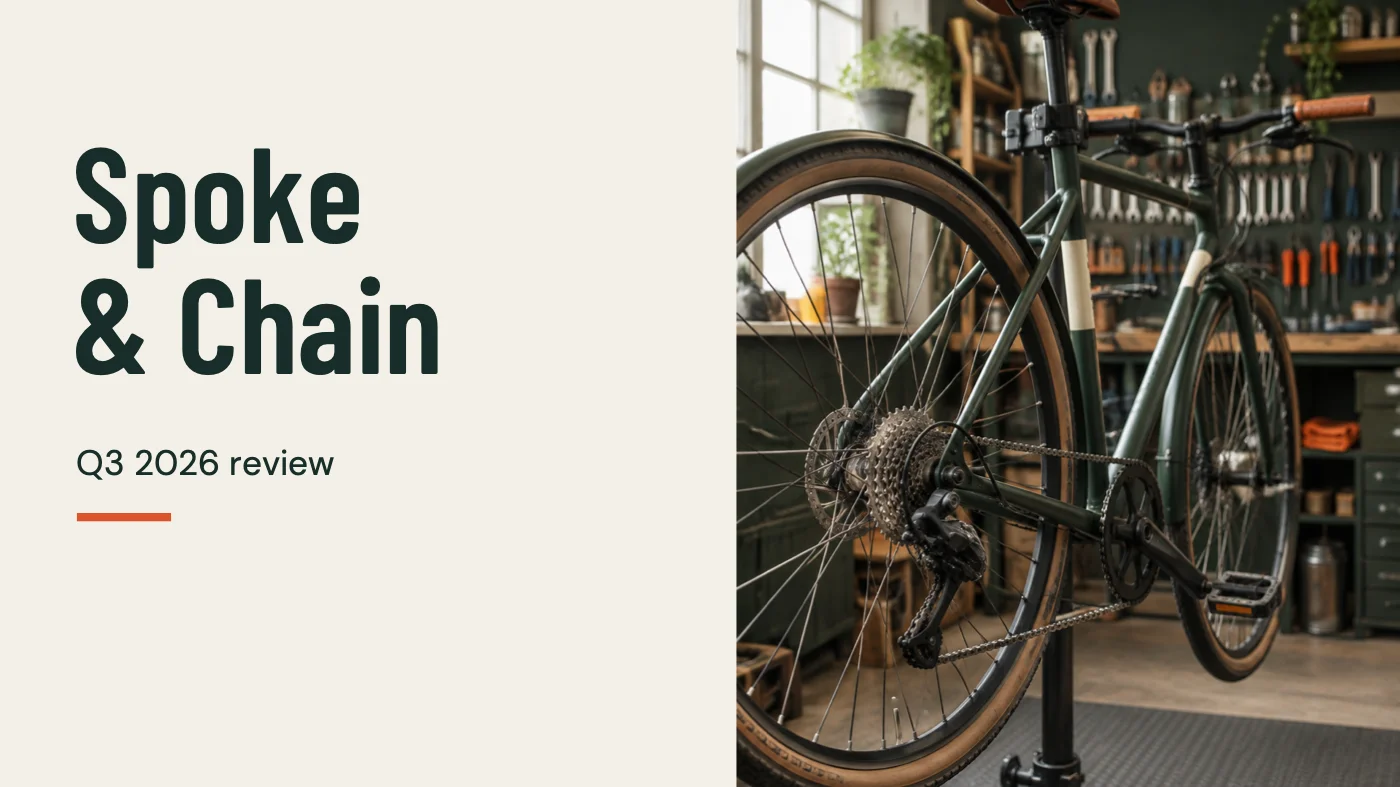
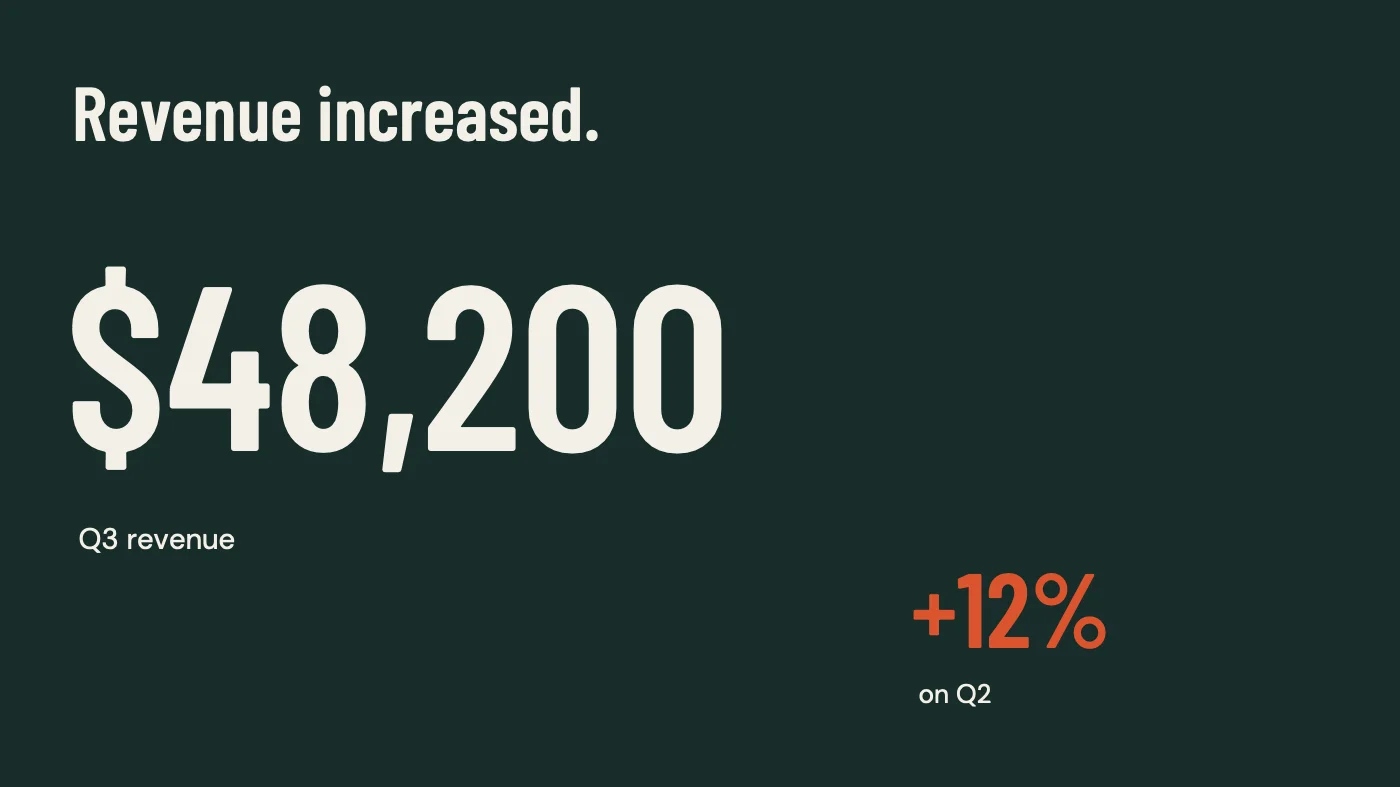
The slide order follows the brief exactly. After the title come Q3 revenue, repairs completed, the repair mix, the average ticket, the new address, the Q4 goals and the loan request. Every figure is where it should be.
Every fact, and nothing extra
Nine facts went in and nine came out exactly as written. No extra quarter appeared, no invented percentage filled out the repair mix, and the loan slide asked for $20,000 without inventing a purpose or a payback period. For a deck going to a bank manager, that is the result that matters most, and it is not a given: on the same brief, Beautiful.ai added a revenue bar for a quarter I never mentioned and a full-slide quote.
Canva also avoided the filler that Gamma added, lines such as “A clear baseline for the next quarter” that state no fact. Canva’s headlines are short and plain, such as “Revenue increased.”, “A new address.” and “Q4 goals”. None of them claims anything the brief did not say.
A real chart for the repair mix
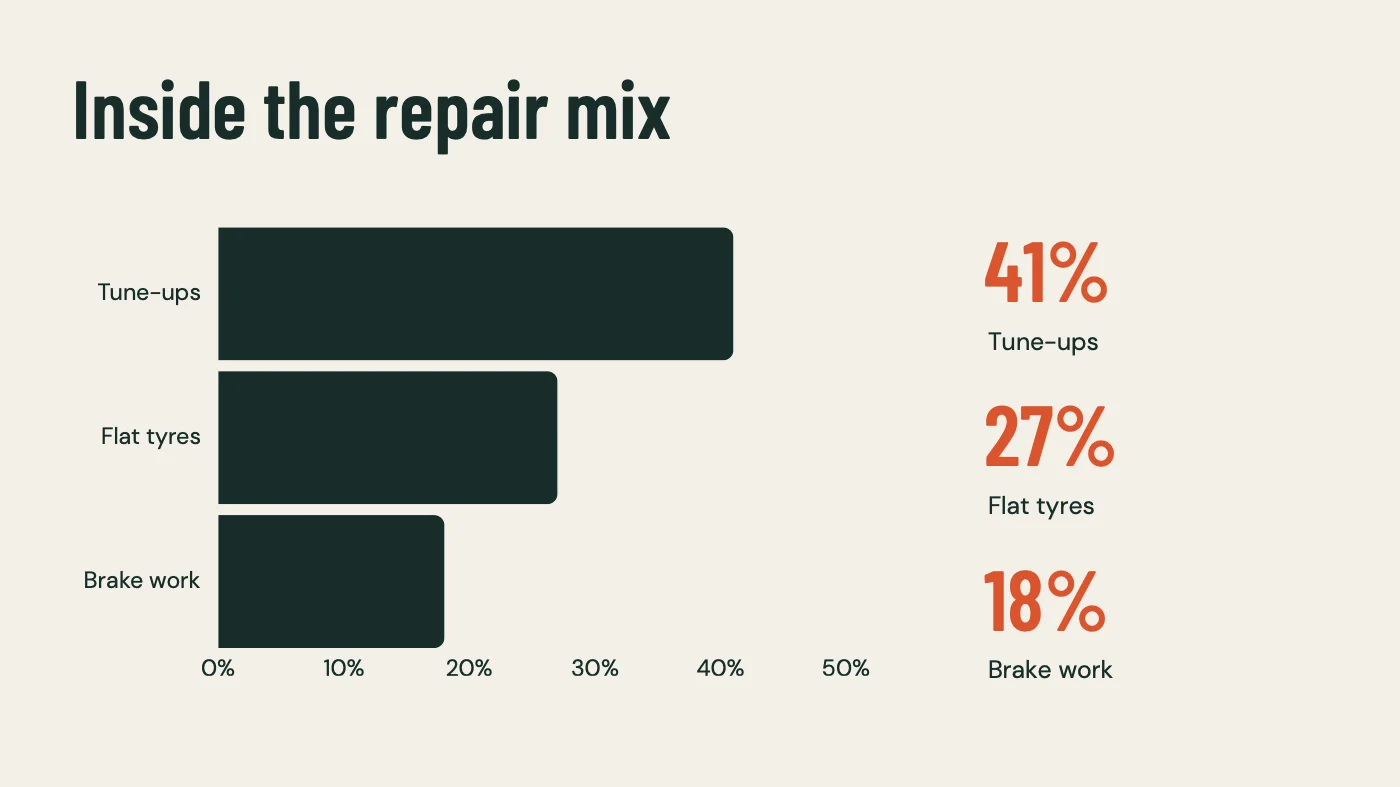
The repair mix is three percentages, and Canva drew them as a horizontal bar chart with an axis from 0% to 50%, and repeated each figure in large orange type beside its bar. Gamma first wrote the mix as three lines of text and only drew a chart after a second prompt, and Beautiful.ai’s revenue chart added a bar for a quarter I never gave. Canva got this one right first time.
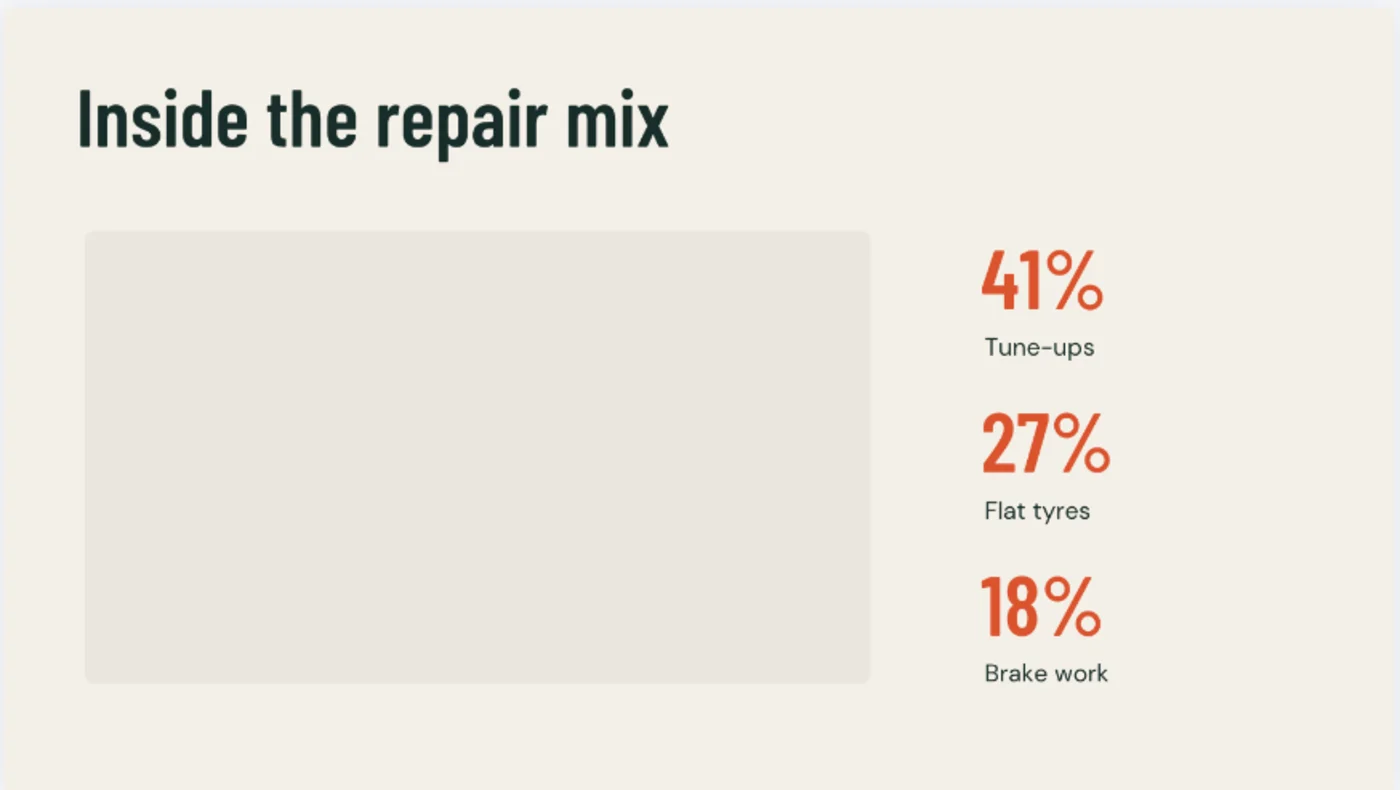
The chart was the last thing to appear. For a few seconds after the rest of the deck had loaded, the slide showed a grey placeholder box where the bars would go. If you open the slide at that moment, wait before you decide the chart is missing.
One fact per slide, and no pitch
The accuracy comes at a price. Canva’s deck says almost nothing beyond the facts: each content slide carries one fact or figure and a short label. The revenue slide is “$48,200, Q3 revenue, +12% on Q2”. The average ticket slide is “$152, Average repair ticket” and a photo.
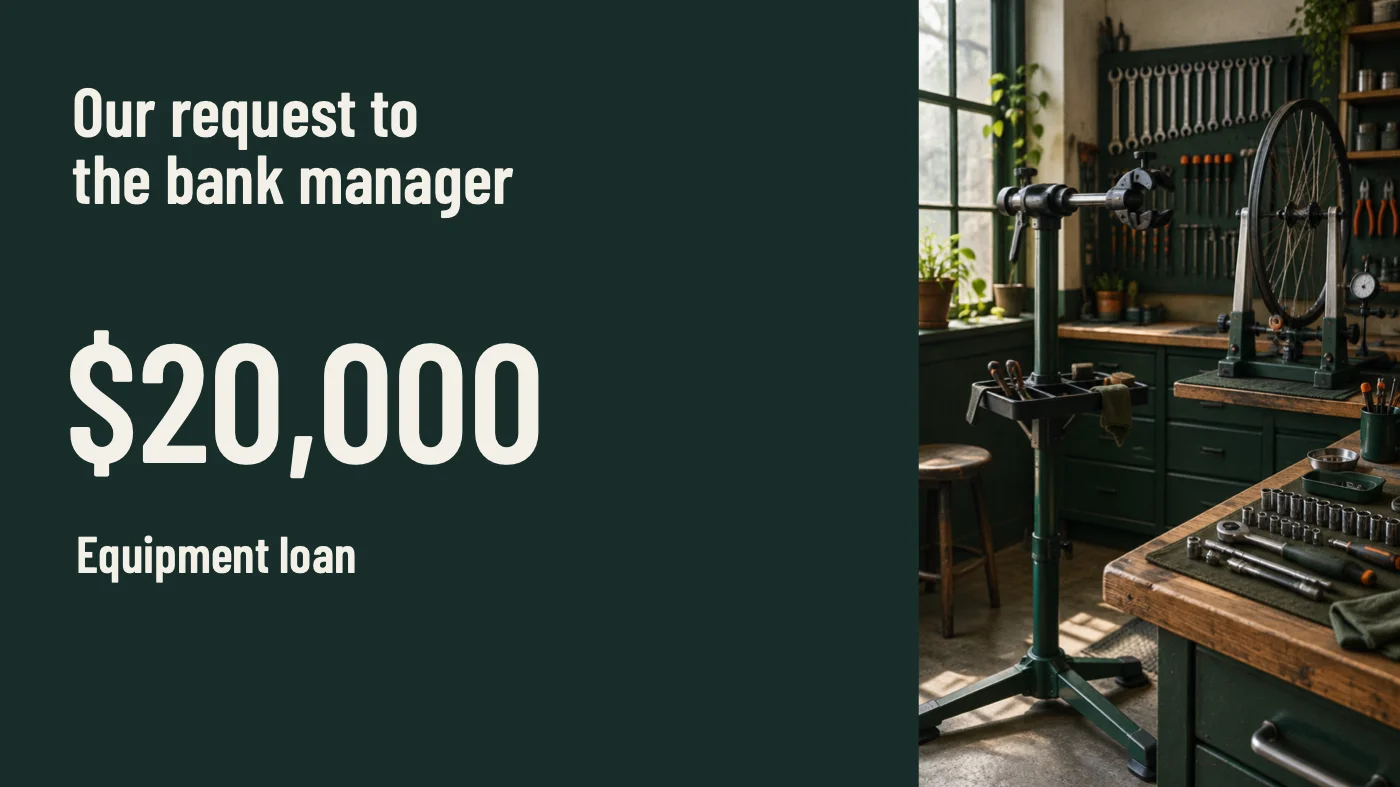
That is fine for the two staff, who know the business. It is thin for the bank manager. The final slide reads “Our request to the bank manager, $20,000, Equipment loan” and stops there, with no line on what the equipment is for or how the shop’s growth supports the request. The brief did not give those details, so Canva was right not to invent them, but it also did not use the facts it had to make the case: the 12% growth, the move to 48 Harbor Road and the e-bike plan never meet the loan slide.
Then I asked for a second draft
That last slide was the obvious thing to improve, so I asked Canva AI, in the same chat, to “Make the last slide more persuasive for the bank manager, using only the facts in my brief. Do not invent any numbers.”
On the free plan, it would not. The reply was a notice, in Canva’s words: “Just a heads up, completing this task requires a premium feature. To use it, you’ll need to upgrade your plan.” An Upgrade now link sat below it.
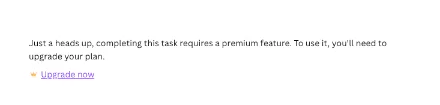
Canva does not say which feature the request needed. My best guess, and it is only a guess, is that editing a finished design by chatting with it counts as conversational design with Canva AI 2.0, which Canva’s AI usage page lists as an Ultra tool. That page says Free has no access to Ultra tools at all. Either way, the practical result is the same: on Free, the AI makes the first draft and you make the second.
I also could not see how much of the free allowance the deck had used. The free account did not show me a remaining balance, so I cannot tell you how many decks a month Free will make.
Where Canva’s deck fits against Gamma and Beautiful.ai
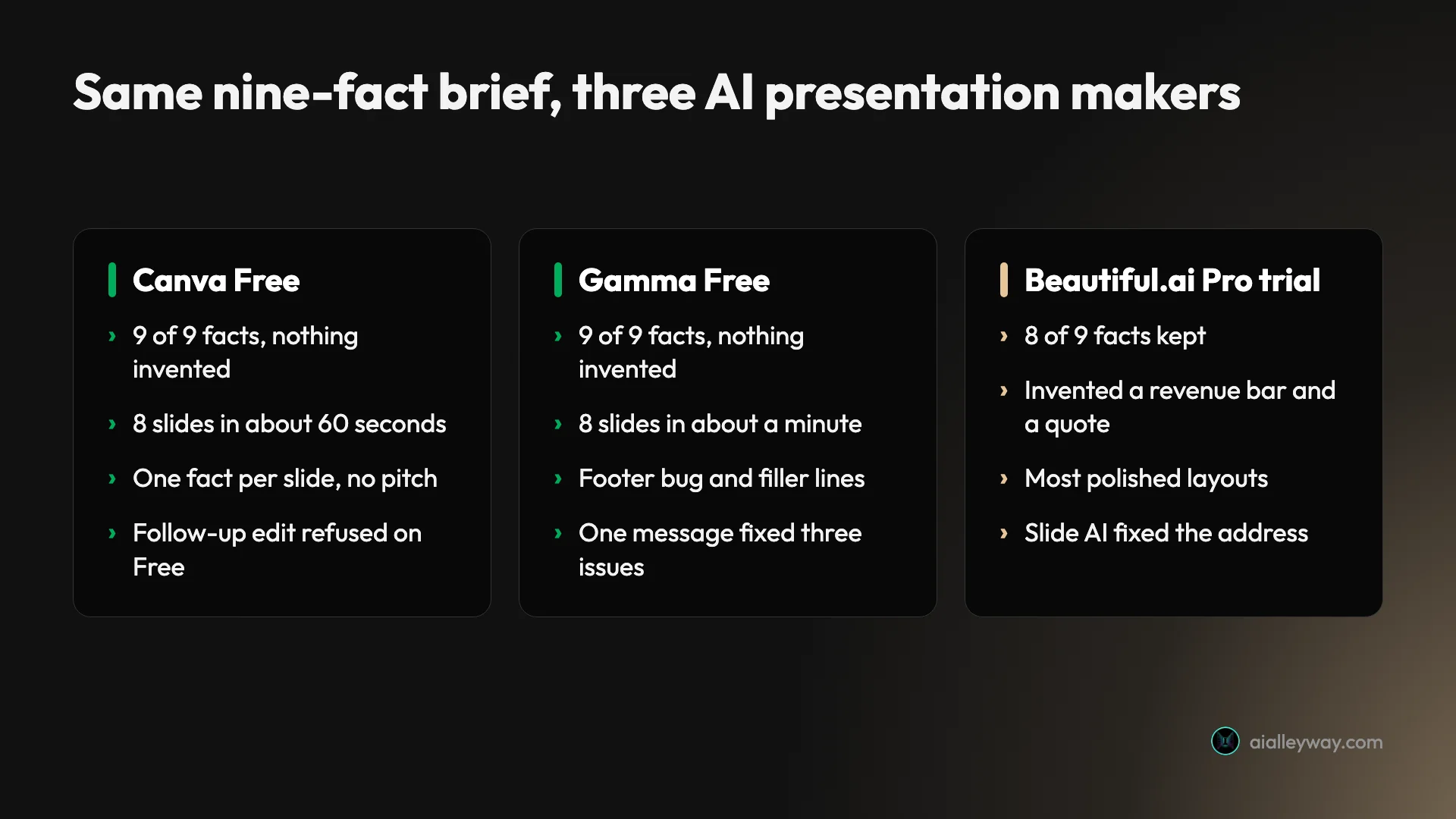
I have now run this brief through three AI presentation makers and ChatGPT. Canva and Gamma both kept all nine facts; Beautiful.ai kept eight and invented others. Gamma’s draft had more words and more bugs, but its free agent fixed them on request. Canva’s draft was cleaner and sparser, and its free plan would not revise it.
What do the PDF and PowerPoint exports look like?
Canva lets every plan download a presentation as a PDF or a PowerPoint file, and I downloaded both. The PDF came to 8.7 MB and eight pages, one per slide. There was no watermark and no Canva branding on any slide; only the file’s metadata lists Canva as the producer. That is a real difference from Gamma, whose free exports carry a Made with Gamma badge on every slide.
The PowerPoint file was 6.1 MB with all eight slides. I opened its contents: every headline, number and label sat in a normal, editable text box, and the file embedded the two fonts the design used, Barlow Condensed Semi-Bold and DM Sans. The bar chart did not survive as a chart. It arrived as a flat PNG picture, 1302 by 842 pixels, so changing a bar in PowerPoint means rebuilding it.
| In my PowerPoint export | Result |
|---|---|
| Headlines, numbers and labels | Editable text boxes |
| Fonts | Barlow Condensed Semi-Bold and DM Sans embedded in the file |
| Repair-mix bar chart | A flat 1302 by 842 pixel picture, not an editable chart |
| Workshop photos | Pictures 660 to 910 pixels wide and 1080 tall |
| Watermark or Canva badge | None on the slides |
Canva’s download help page adds its own warnings: PPTX downloads “may look different when opened in Microsoft Powerpoint”, you may need to install the fonts, and animations and embedded videos are not supported in PowerPoint. PDF Standard renders at 96 dpi; PDF Print gives 300 dpi with bleed and crop marks.
The photos only look blurry in the editor
In Canva’s editor, the photos on three slides looked low resolution and soft. I worried they would export that way. They did not. The exported photos are 660 to 910 pixels wide and 1080 tall and look sharp in the PDF, so the soft look was only the editor’s preview.

What does Canva add after the AI draft?
The editor tools
Once the draft exists, Canva’s strength is everything around it. I did not test these tools on this deck, so this is from Canva’s help centre rather than my account.
- Edit Page panel. Canva’s help page on refining presentations describes a panel that gathers layouts, styles and AI tools for the selected slide.
- Speaker notes. Magic Write can generate notes from a slide’s content or a custom prompt, from the Notes panel.
- Presenting. Presenter view puts your notes and the next slide in a second window. Canva also offers present-and-record, which records you on camera over the slides, plus a remote control and live audience questions.
- Brand Kits. The Apply brand option in the Canva AI plus menu sets your colours and fonts. Free gets one Brand Kit, limited to three colours; Pro gets five Brand Kits.
- Import. You can bring in an existing PowerPoint file of up to 300 MB and 300 slides and edit it in Canva, though fonts may not match exactly.
Getting the deck into Google Slides
There is no Google Slides button. Canva’s download page lists PDF, PPTX, image and video formats, but no Google Slides export, so the route is to download the PPTX, upload it to Google Drive and open it with Google Slides. Expect the same caveats as PowerPoint: the chart arrives as a picture, and the fonts may not carry over. If your audience only needs to watch, presenting from Canva or sending the PDF avoids the conversion entirely.
Your content and Canva’s AI
Canva’s Trust Center says it won’t use your content to improve its AI features “unless this is consistent with your Privacy Settings”, and its privacy policy, last updated in August 2026, points to a privacy controls page where you can manage that use. When I read Canva’s pages on 26 October, training was switched off and locked for Business (formerly Canva Teams) and Enterprise accounts, and never used for Education. None of the pages I read stated the default for an individual Free or Pro account.
If your deck holds client or financial figures, open Privacy controls under your account settings and check the toggle before you paste the brief. Canva’s AI FAQ adds that content you create with Canva AI belongs to you.
How much does Canva cost for AI presentations?
The free plan made my whole test deck, so the real question is what paying adds. Canva sells one plan for individuals and one for teams, and meters AI on top. These are the US prices on Canva’s pricing page on 11 October 2026, the last time I could read them in dollars; on 11 November the page served me a local currency instead, which is why the template and stock counts below are from November but the prices are from October.
| Plan | US price, monthly | US price, yearly | AI for presentations |
|---|---|---|---|
| Free | $0 | $0 | Limited access to Standard and Premium AI; no Ultra tools |
| Pro (one person) | $18 | $144 ($12 a month) | 10x Free’s allowance; Ultra tools included |
| Business (per person) | $25 | $250 | 20x Free’s allowance; AI top-ups available |
| Enterprise | By quote | By quote | Same as Business, plus custom options |
| AI Pass add-on | $100 per person a month | Yearly option for yearly plans | Extra AI for Pro or Business |
The hidden part is the meter. Canva puts AI tools in three tiers that share one monthly allowance. Generating a presentation, which Canva calls “Generate a design with Canva AI”, is a Premium tool. Conversational design with Canva AI 2.0 is Ultra, and Ultra is for paid plans only. On Free, Canva says, reaching the limit brings short pauses between generations for Standard and Premium tools.
Canva stopped publishing the numbers
In October, Canva’s AI usage page gave a figure for each plan: up to 20 Standard or Premium uses a month on Free, and up to 200 Premium or 20 Ultra uses on Pro. When I read the same page on 11 November, those numbers were gone. It now says Free and the Pro trial get “Limited access to Standard and Premium AI tools”, Pro gets “10x more AI allowance than Canva Free”, and Business 20x. The old counts fit the new wording, but Canva no longer commits to a number, so you cannot check how many decks a plan buys before you pay.
The page also says that the size of a design and the complexity of the task change how much allowance a request uses, and gives an example: with Canva AI 2.0, “a 40-slide presentation will use more than a 5-slide presentation”. In our earlier Canva review, on a Pro trial that had the free plan’s allowance, one generated Instagram post, not a deck, used 16% of that monthly allowance. A presentation is a bigger design, so do not read that as a deck count.
Is Pro worth it for presentations?
Consider Pro if you will make decks every week and want the AI to keep working on them after the first draft, keeping in mind that I did not test that part. Pro opens up the Ultra tier, where Canva’s conversational editing lives, and, per Canva’s pricing page on 11 November 2026, adds the paid editor tools: 3.6 million templates instead of 1.6 million, 141 million stock elements instead of 4.7 million, five Brand Kits and resizing. I did not test any of that on this deck, so I cannot tell you how well Canva AI 2.0 revises a presentation.
If you make a few decks a month and finish them by hand, Free did everything I needed, including clean exports. Before buying, note that Canva’s refund page says subscriptions are not refundable in most cases, and that a Pro trial gets the same small AI allowance as Free, with no Ultra tools, so a trial will not show you the paid AI. Our Canva pricing guide covers Business seats, AI Pass and the refund rules in detail.
Who is Canva’s AI presentation maker for?
Canva suits people who want a correct, tidy first draft and expect to finish the deck themselves.
- Small-business owners and managers who need a short update for staff or a lender. My test deck was exactly that, and every figure was right first time.
- Teams already designing in Canva. The deck lands next to your social posts and flyers, with your Brand Kit, templates and shared folders, so nothing has to move between apps.
- Teachers and trainers. Canva Education is free for eligible K-12 teachers, and Canva’s help page lets admins and teachers choose who in a class can use Canva AI for Presentations.
- Anyone who needs a PDF without a badge. The free export carried no watermark, which Gamma’s free plan cannot match.
- People who will present from Canva itself. Presenter view, recording and audience questions are built in, so the PowerPoint export’s chart problem never comes up.
It is not for you if you want the AI to write the argument or keep editing the deck for you on a free plan. On my brief, Canva stopped at the facts and refused the revision, while Gamma’s free plan kept editing on request. It is also a poor fit if the deck must end up in a company PowerPoint template with charts someone else will update.
How to get a better first draft
My test points to a few habits that make Canva’s first pass closer to finished.
- Put every fact in the brief. Canva kept all nine of mine and added none, so the content you get is the content you give.
- Write the argument yourself, in the brief. If the last slide needs to persuade, say why in the prompt: the growth, the new premises, what the loan pays for. Canva will not connect the dots on its own.
- Ask for everything in the first prompt. On Free, the follow-up may be refused, so the first request is the one that counts.
- Wait for charts. The repair-mix chart arrived a few seconds after the rest; do not judge the slide before it loads.
- Judge photos in the export, not the editor. My editor preview was blurry; the PDF was sharp.
- Rebuild charts in PowerPoint if you need to edit them there. The export turns them into pictures.
The good
It kept every fact, and invented nothing
Canva matched Gamma on accuracy, beat Beautiful.ai, and skipped Gamma’s filler, which makes it the safest of the three for a deck a bank manager will check.
Fast, and finished-looking
Eight designed slides in about a minute, in the brief’s order, with photos that fit the subject. The layouts are simple, but none of them broke.
A real chart, first time
Canva drew the repair mix as a chart in one pass, where Gamma needed a second prompt, and repeated the figures in large type so the slide reads from the back of a room.
Clean, free exports
Both downloads were free and badge-free, which Gamma’s free plan cannot match.
Editable PowerPoint with embedded fonts
Because the fonts travel with the file, someone without Canva can change the words in PowerPoint without the layout falling back to a default font.
It lives inside a full design editor
The AI deck is an ordinary Canva design, so Brand Kits, templates, presenter view, recording and team folders all apply. That is the reason to choose Canva over a standalone AI slide tool: the draft is only the start, and Canva’s editor is where it gets finished.
That is also how some professionals use it. An in-house designer in a July 2026 r/canva thread explained why they rebuild AI-generated decks in Canva: the brand kit, real placeholders and a few reusable layouts survive edits by non-designers. The same post conceded that Gamma is faster to a first look.
The bad
No second draft on the free plan
On Free, the AI makes the first draft and you make the second. Free plans are not all this strict: Gamma’s fixed three problems in one follow-up, though ChatGPT’s free plan also hit a limit.
| Same brief, one follow-up request | What happened |
|---|---|
| Canva Free | Refused: “requires a premium feature” |
| Gamma Free | Fixed a footer bug, a stray box and a missing chart in one message, for 6 credits |
| Beautiful.ai Pro trial | Slide AI fixed a misplaced address in one pass |
| ChatGPT Free | Refused with a data analysis limit that reset 24 hours later |
One fact per slide, and no story
For staff, a fact per slide is enough. For a lender it is a list, not a pitch, and you will write the argument yourself.
The chart becomes a picture in PowerPoint
Gamma and Beautiful.ai did the same in our tests, so this is common, but editing a value in PowerPoint still starts with deleting the chart.
You cannot see the meter, or what a plan includes
No balance on the free account and no per-plan numbers on Canva’s usage page mean you cannot work out how many decks a plan makes before you hit a pause.
The paid AI cannot be tried first
A Pro trial gets Free’s allowance and no Ultra tools, so the feature most likely to fix the gaps above is the one you cannot test before paying, and subscriptions are usually not refundable.
The interface keeps moving
Canva has renamed and moved this feature several times. In an April 2026 r/canva thread, a user asked whether Magic Design for presentations had been removed after an update, and the same poster wrote in August, “i think it changed again.” Canva’s own pages still mix the old and new names.
One regular user finds it no help for long decks
A user in an October 2026 r/canva thread said spreading content across 15 to 20 slides is their main pain, and that “Even the new AI feature isn’t of much help there”, preferring Gamma for decks. My test was eight slides, so I cannot confirm how Canva handles a long one.
Alternatives worth considering
If Canva’s presentation flow is not the right fit, these are where I would look.
- Gamma is the one to try if you want the AI to keep working after the first draft. On the same brief its free plan kept all nine facts, then fixed a footer bug, a stray box and a missing chart in one follow-up message, with a before-and-after view of each change. The catch is a Made with Gamma badge on free exports and one-time free credits. Our Gamma vs Canva comparison runs both on the same brief, and the Gamma pricing guide has the plan details.
- Beautiful.ai makes the most polished layouts of the three, built around Smart Slides that rearrange as you add content. On my brief it also invented a revenue bar and a quote, and it has no free plan, only a card-required trial, so check every number.
- ChatGPT is the free route if you need a native PowerPoint file. Given the same brief, its free plan returned an eight-slide .pptx with every fact intact, then hit a limit before I could revise it.
For a wider list, including Pitch and Copilot in PowerPoint, see our Gamma alternatives roundup. For Canva as a design tool rather than a slide maker, read our Canva review, and for other design editors, our Canva alternatives list.
Final word
Canva’s AI presentation maker did the hard part right: eight slides in a minute, every fact intact, a real chart and a clean, badge-free export, all on a free account. What it did not do is argue the case. It stated the numbers and stopped, and the free plan refused my one request to revise the slide with AI. It is a runner-up for presentations rather than our pick, which is Gamma for its free follow-up editing, and the 3.8 reflects that: a reliable first draft inside a full design editor, not a deck that finishes itself. Start free, put your argument in the brief, and plan to write the last slide yourself.
Frequently asked questions
Is Canva's AI presentation maker free?
Yes, within limits. A Canva Free account can generate a presentation with Canva AI: I made an eight-slide deck on the free plan in about 60 seconds and downloaded it as a PDF and a PowerPoint file without paying. Canva's help centre lists presentation generation as a Premium AI tool that draws on a monthly AI allowance, and Free gets what Canva now calls limited access to Standard and Premium tools.
The limit I hit was not the allowance but the follow-up. When I asked Canva AI, in the same chat, to make the final slide more persuasive, the free plan replied that the task requires a premium feature and offered an upgrade. So the first draft is free; asking the AI to keep editing it may not be. You can still edit every slide by hand in the editor at no cost.
How many slides does Canva AI make?
Canva does not publish a fixed slide count on its help pages. In my test the brief asked for eight slides, and Canva AI made exactly eight: a title slide, six content slides and a closing slide with the loan request.
If you leave the number out, expect Canva to choose for you. Its help page says Canva AI may first propose an outline you can adjust before you select Generate presentation, so that is the place to add or remove slides. Canva's usage page also notes that working on a 40-slide presentation with its conversational tool uses more of your AI allowance than a 5-slide one, so editing a long deck by chat costs more than editing a short one.
Can you export a Canva AI presentation to PowerPoint?
Yes, on the free plan as well. I downloaded my AI-made deck as a PPTX file and opened its contents. All eight slides were there, every headline and number sat in a normal editable text box, and the file embedded the two fonts the design used, Barlow Condensed Semi-Bold and DM Sans.
The bar chart did not survive as a chart. It arrived as a flat 1302 by 842 pixel picture, so changing a number means rebuilding it in PowerPoint. Canva's own download help page warns that PPTX files may look different in PowerPoint, that you may need to install the fonts, and that animations and embedded videos are not supported there.
Does Canva AI make up numbers in presentations?
It did not in my test. I gave it a brief with nine specific facts, from revenue of $48,200 to a reopening date of Monday, November 9, and told it not to invent any other numbers. All nine facts appeared exactly as written and no new figures crept in.
That put it level with Gamma, which also kept nine of nine on the same brief, and ahead of Beautiful.ai, which added a revenue bar for a quarter I never mentioned and a quote. The trade-off is that Canva said very little beyond the facts: one fact or figure per slide and no argument for the loan, so you will write the story yourself.
Does a Canva presentation have a watermark on the free plan?
Mine did not. The PDF of my AI-generated deck, made on Canva Free, had eight clean pages with no watermark or Canva branding on the slides; only the file's metadata names Canva as the producer.
Canva's help centre explains when a watermark does appear: premium elements, such as Pro-only photos or graphics, are watermarked for Free users until you buy the element or upgrade. Canva AI built my deck without any of those, but if you swap in a Pro photo afterwards, check the preview before you download.
Is Canva or Gamma better for AI presentations?
On my shared brief, both kept every fact, so the difference is what happens next. Gamma's agent fixed three problems in one message on its free plan and showed a before-and-after view of each change, but its free exports carry a Made with Gamma badge. Canva's free plan made a cleaner first draft with no badge, but refused my request to revise it with AI.
Pick Canva if you will finish the deck by hand and already use Canva for other design work. Pick Gamma if you want the AI to keep editing for you. Our [Gamma vs Canva](/gamma-vs-canva) comparison puts the two side by side.
Keep reading
Gamma vs Canva: Canva drafts cleaner, Gamma lets you fix it
Gamma vs Canva on the same nine-fact brief: both kept every number, Canva's free deck had no badge, and only Gamma would revise it with AI for free.
Gamma AI review: 8 accurate slides in a minute, then the fixes
A hands-on Gamma AI review: an 8-slide deck in a minute with every number right, a footer bug, a chart that exports as a picture, and what Plus costs.
Beautiful.ai review: polished slides, invented numbers
A hands-on Beautiful.ai review: eight Smart Slides in 30 seconds, then a made-up revenue bar, a Steve Jobs quote and a misplaced address. Prices and verdict.
ChatGPT PowerPoint: it made my deck free, then locked me out
Can ChatGPT make a PowerPoint? My free account got an 8-slide .pptx in a minute, then hit a limit. The add-in, ChatGPT Slides and Copilot, compared.
Canva Review: Great Editor, but the AI Runs on a Meter
A Canva review from a Pro trial: nine hands-on tests, exact US prices, and six AI requests that used 56% of the trial's allowance. Plus what the trial hides.
Canva Pro Price: $144 a Year, and What Canva Leaves Out
Canva Pro price in the US: $18 a month or $144 a year. Business is $25 per person. Plus the $100 AI Pass, seat billing and the refund rule, all sourced.
Gamma alternatives: 7 worth trying, and the one that's dead
The best Gamma alternatives, two run against Gamma on one nine-fact deck: Beautiful.ai invented numbers, ChatGPT kept them. Prices, free plans and when to stay.
Gamma pricing: $9 a month, and what the credits really buy
Gamma pricing in October 2026: Free, Plus $9, Pro $18, Ultra $90 and Business $40 a month billed yearly, plus what a deck costs in credits on my account.