
Beautiful.ai review: polished slides, invented numbers
A hands-on Beautiful.ai review: eight Smart Slides in 30 seconds, then a made-up revenue bar, a Steve Jobs quote and a misplaced address. Prices and verdict.
Contents
Should you pay for Beautiful.ai?

Only if you care more about layout than accuracy, and will check every slide: Beautiful.ai turned my brief into eight polished Smart Slides in about 30 seconds, but it also invented a revenue bar for a quarter I never mentioned, added a Steve Jobs quote, put an address in the wrong column and dropped one of my nine facts. For a deck you will rework anyway it is a fast start with good-looking layouts, but there is no free plan, the trial bills automatically, and Gamma kept the same facts straight.
What is Beautiful.ai, and how do Smart Slides work?
Beautiful.ai is an AI presentation maker for business decks. Its core idea predates the AI boom: Smart Slides, more than 300 layouts that, in Beautiful.ai’s words, “realign, resize, and animate your content automatically.” You add a point to a list or a bar to a chart, and the slide rearranges itself so spacing and alignment stay tidy. Classic Slides are the free-form option when you want to place things yourself.
On top of that sits AI. Create with AI, relaunched in March 2026 as Beautiful.ai 3.0 and given guided questions in September, builds a whole deck from a prompt. Slide AI regenerates one slide at a time, and an AI writing assistant, still labelled DesignerBot in places, rewrites, shortens, translates and fixes grammar. Beautiful.ai says it uses Gemini, Claude and other models for text, and Imagen and DALL-E for images.
What changed in 2026
Beautiful.ai has shipped steadily this year, according to its product updates page and, for the Claude connector, its blog. Several changes affect how you would use it.
| Date (2026) | Change |
|---|---|
| 17 March | Beautiful.ai 3.0: the staged prompt, outline and design workflow |
| 25 April | Five new Smart Slides, including ROI slides with live calculations and sliders |
| 30 July | A verified Claude connector, so Claude can build Beautiful.ai decks |
| 21 August | Threaded comments, and word clouds and sequence diagrams in AI generation |
| 11 September | Brand Kits, with AI preferences such as the default image source |
| 25 September | Team assets as an AI image source |
| 28 September | Guided Create with AI, the clarifying questions I saw |
| 29 September | A beta that turns a template into an AI-generated deck |
The Brand Kit change is the one teams will notice. A Brand Kit holds colours, fonts, logos, footers and default slides, only workspace owners and librarians can edit it, and its AI preferences steer the images the AI picks. The team-assets option means the AI can use your own photo library instead of stock or generated images.
My test: the same brief I gave Gamma
To compare presentation makers fairly, I give each one the identical brief. It asks for an eight-slide quarterly review for a small bike-repair shop, to be shown to two staff and a bank manager, and contains nine facts I can check: revenue of $48,200, up 12% on the last quarter; 316 repairs; a repair mix of 41% tune-ups, 27% flat tyres and 18% brake work; an average ticket of $152; a move from 12 Elm Street to 48 Harbor Road with a reopening on Monday, November 9; two goals with dates; and a closing request for a $20,000 equipment loan. It ends: “Do not invent any other numbers.”
I ran it on 26 October 2026 on a Beautiful.ai Pro trial. I did not test the Team plan, collaboration, the PowerPoint add-in, the Claude connector or the API, so those parts of this review come from Beautiful.ai’s own pages. Everything about the AI, the editor and the exports comes from my own run. The same brief went through Gamma a day earlier, so the two results line up directly.
A few quick questions first
Beautiful.ai’s first move was a good one. Before writing anything, it showed a screen headed “A few quick questions” with two questions built from my brief: whether to keep eight slides or expand to fifteen, and whether the repair numbers should be chart-heavy or narrative-first for a bank manager versus staff.
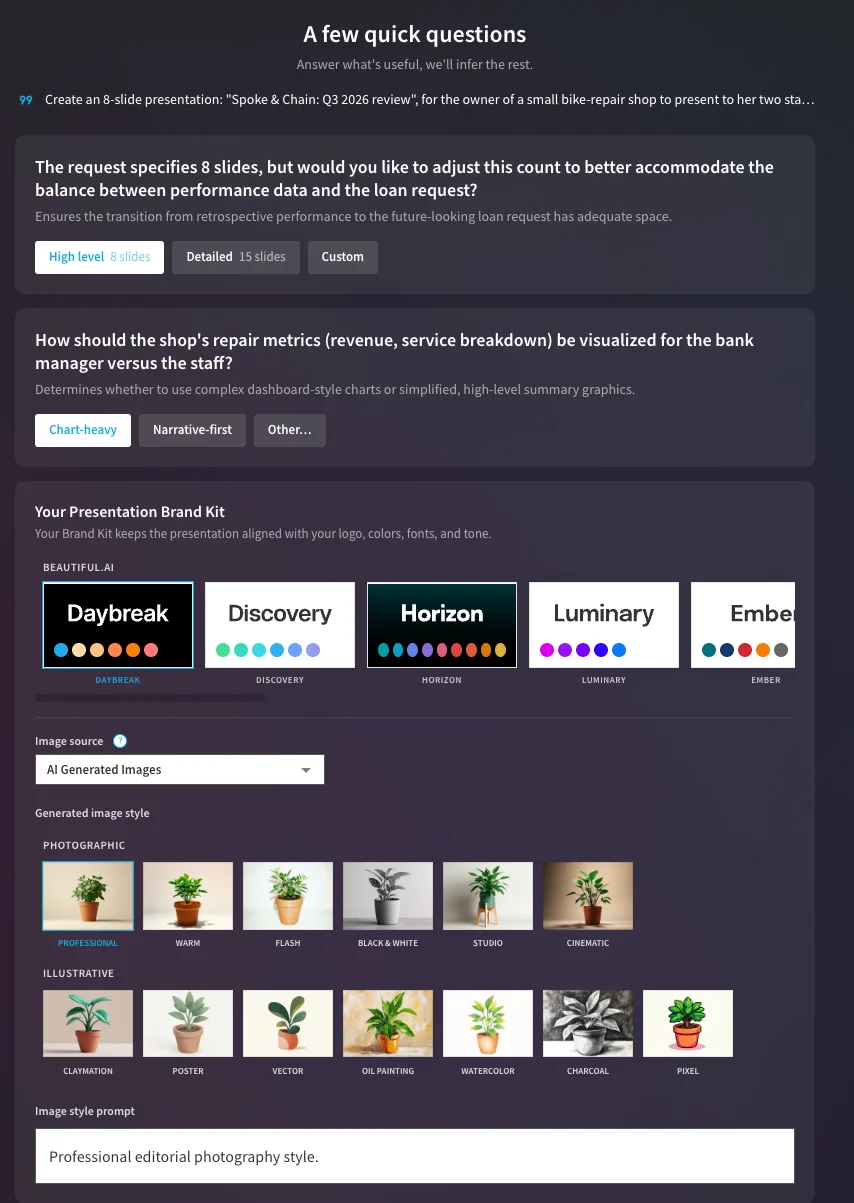
Below the questions sat the look of the deck: 16 brand kit themes, such as Daybreak, Horizon and Museum, an image source set to AI-generated images, and 13 image styles from editorial photography to claymation and pixel art. I kept every default, which meant eight slides, chart-heavy, the Daybreak theme and professional photography.
The outline: where the extras appeared
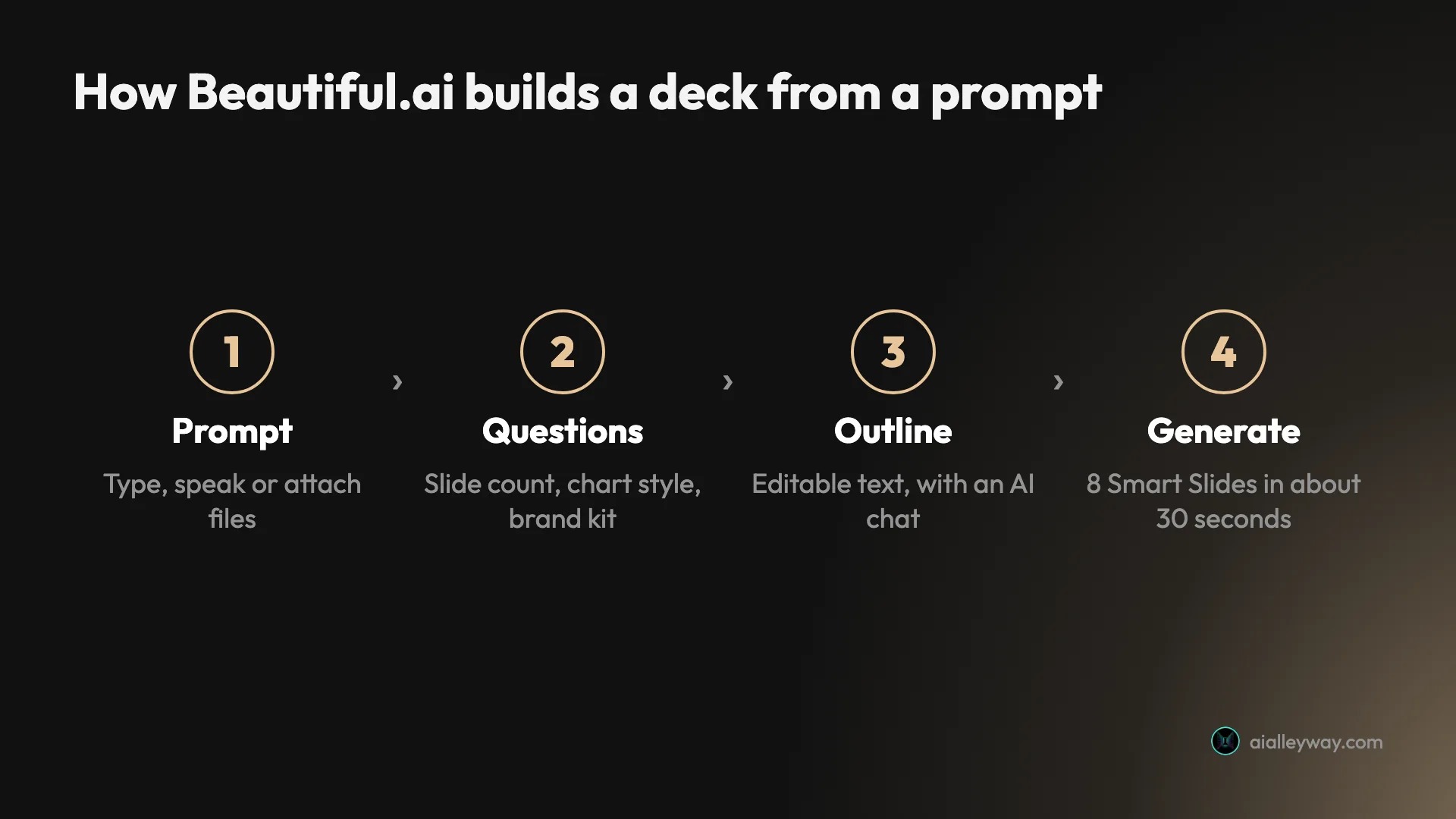
About 20 seconds later it showed an editable outline: eight slide cards with headlines, bullet points and a suggested visual for each, beside a chat box offering to revise the content or reorganise the story. This is the right place to catch problems, because nothing has been designed yet.
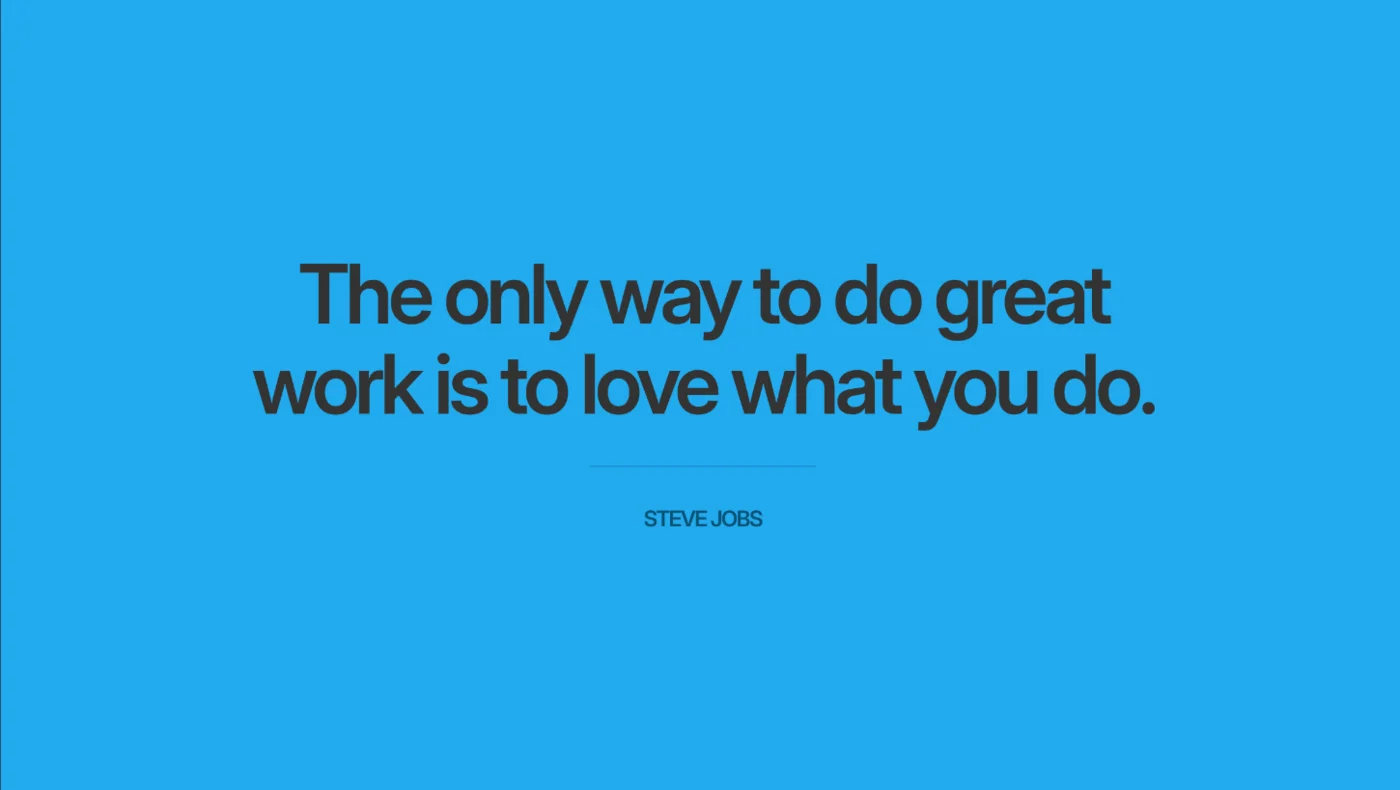
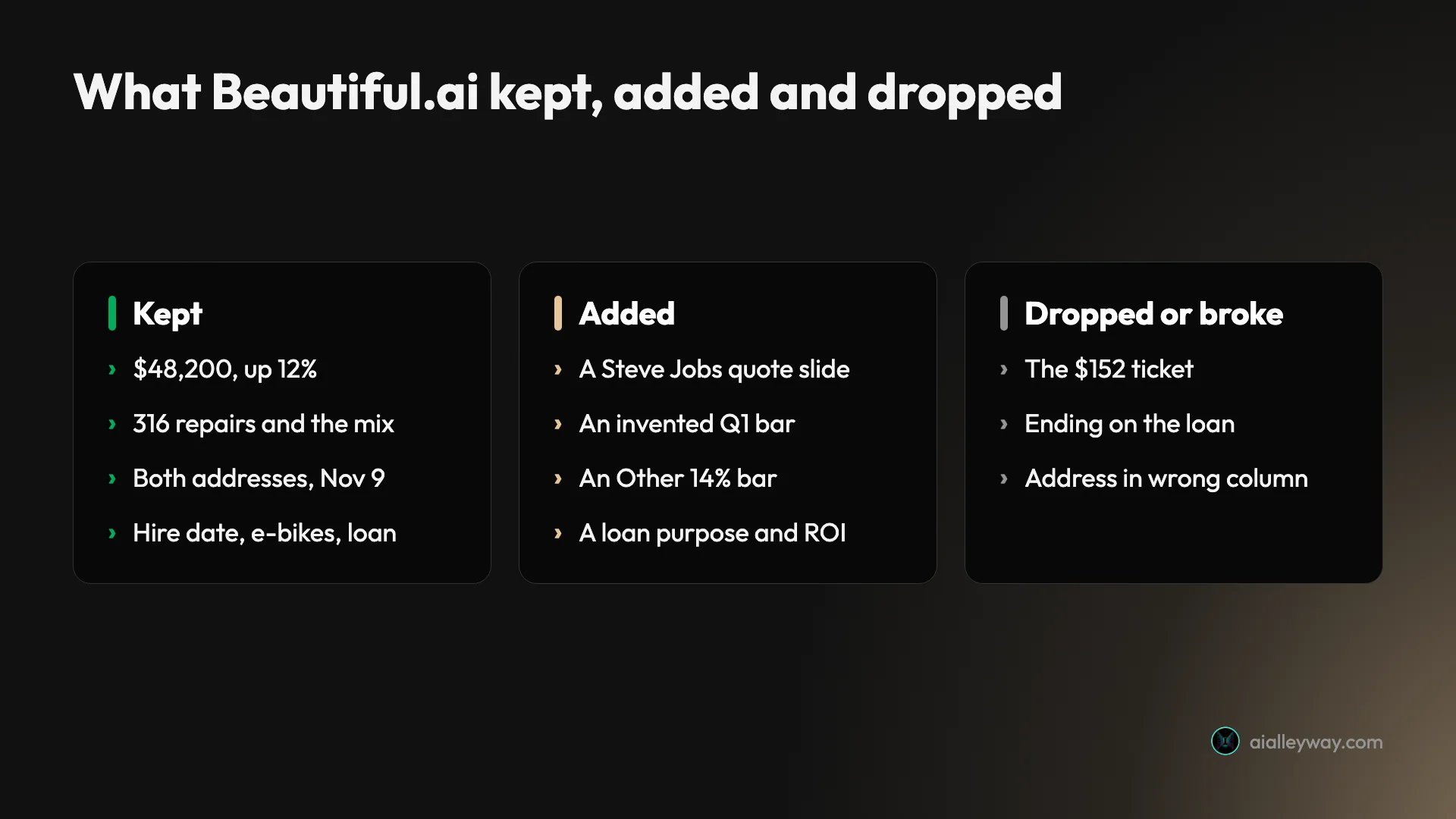
It was also where Beautiful.ai started adding things. Slide 2 opened with a quote I never gave: “The only way to do great work is to love what you do.” — Steve Jobs. The repair table gained a fourth row, “Other 14%”, which is just the gap left by the three percentages I gave. The relocation slide gained a “Strategic Benefit” about visibility. The loan slide gained a purpose, “Funding specialized tools for new e-bike service capabilities”, and a return on investment.
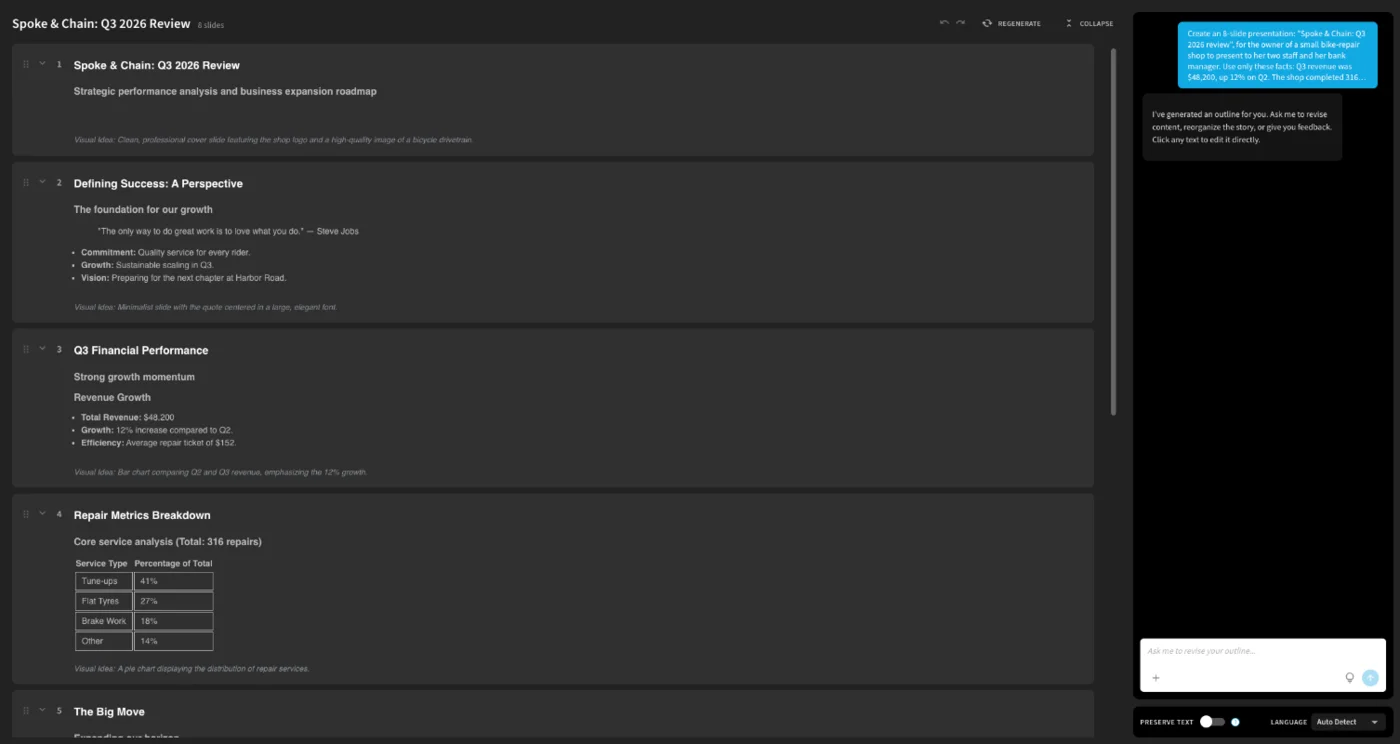
The outline screen has more controls than it first appears. Each card can be edited in place, dragged to reorder or collapsed, a Regenerate button rebuilds the whole outline, and a Preserve text switch at the bottom tells the design step to keep your wording exactly. The language is set to auto-detect. I left Preserve text off, as most people will, which gives the AI licence to rewrite.
And it ignored a direct instruction. The brief said to end on the loan request; the outline put the loan on slide 7 and closed with a summary slide headed “Looking ahead to 2027”. Every one of my nine facts was still in the outline at this stage.
The finished deck
I pressed Generate presentation, and about 30 seconds later the editor opened with eight designed slides. On looks alone it beat Gamma’s draft of the same brief: a dark theme, big confident headings, a road-shaped timeline for the Q4 goals, and four tinted cards for the loan.
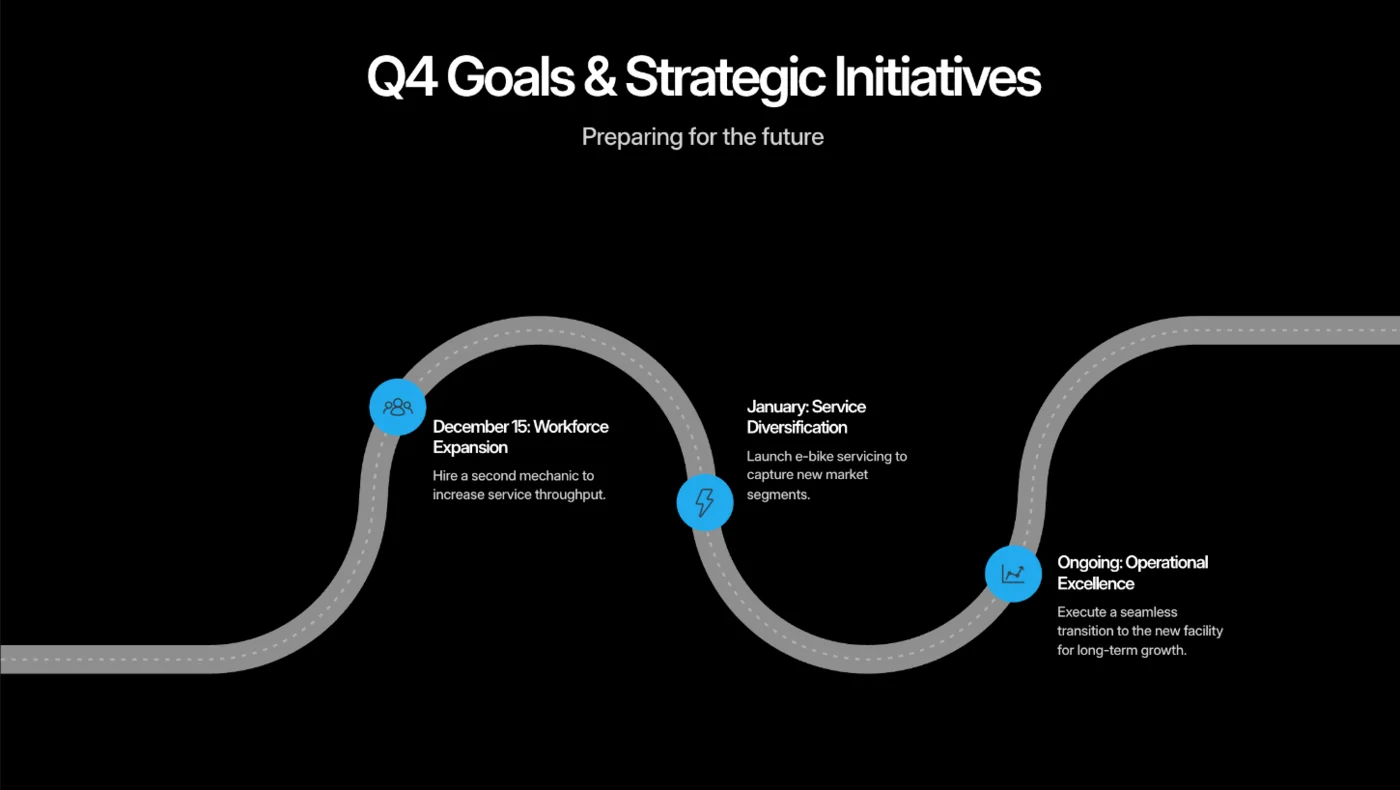
The cover used a close-up photo of a bicycle crankset, and a block of four generic “bicycle” badges sat in the corner as a stand-in for a logo. The crank in that photo carried a recognisable component maker’s branding, which is worth replacing before the deck goes anywhere public, whatever the image’s source. Slide 2 was the Steve Jobs quote, alone, in large type on a bright blue background.
The invented numbers
The revenue slide is the problem. It drew a bar chart of total revenue with three bars, for Q1, Q2 and Q3. My brief gave one revenue figure and a growth rate. A Q2 bar of about $43,000 can at least be worked out from “up 12%”, but the Q1 bar, at roughly $38,000, came from nowhere. Under the chart, a caption claimed the growth was “driven by high-value repair tickets”, which nothing in the brief says.
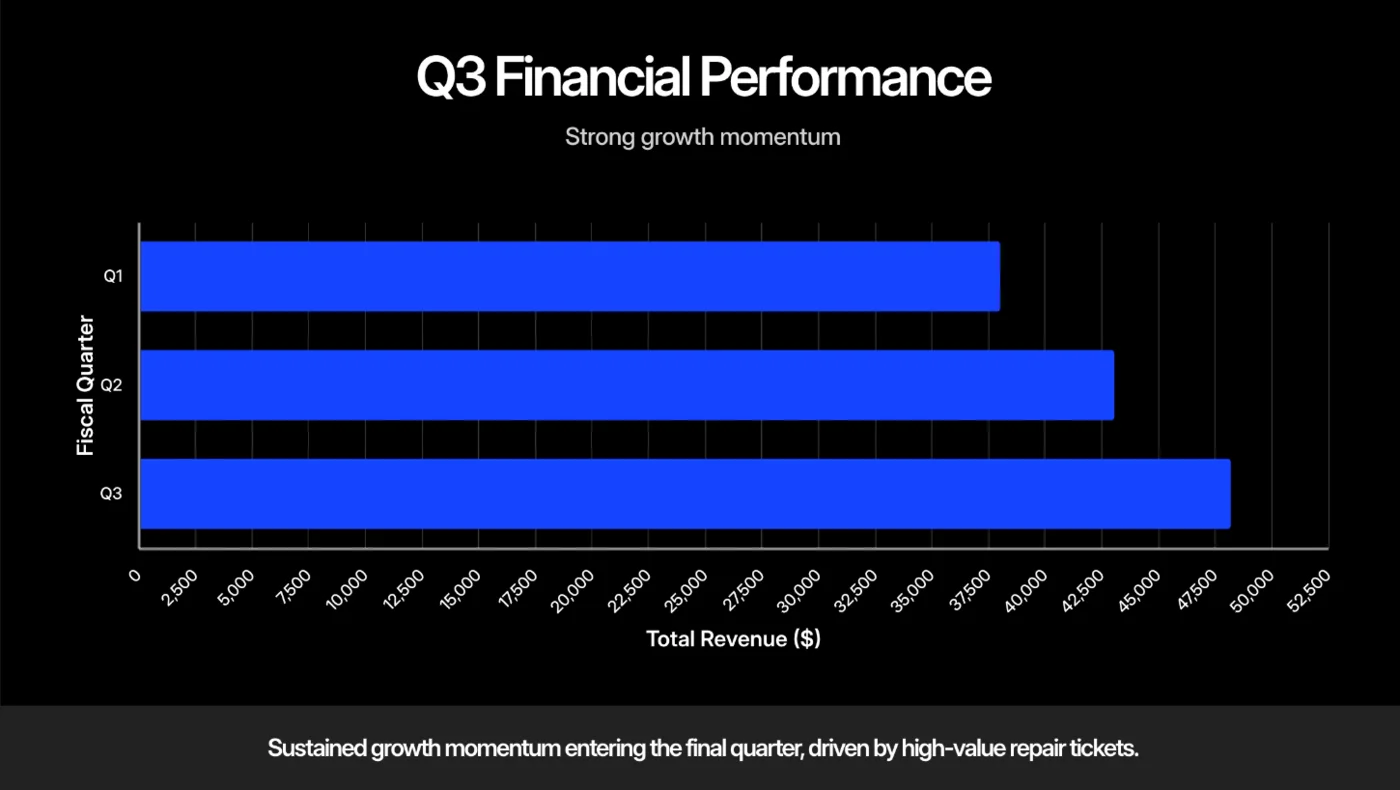
Shown to a bank manager, that Q1 bar is a number the shop owner would have to defend and could not. That is the failure I test for, and Gamma did not make it on the same brief.
The repair slide was a small dashboard: a bar chart, a 41% donut for tune-ups, the 316 total and a line saying tune-ups and tyre work made up “over two-thirds (68%)” of repairs, which is correct arithmetic. But the bar chart had four bars and only two labels, so two of the bars, including the invented Other, were unnamed.
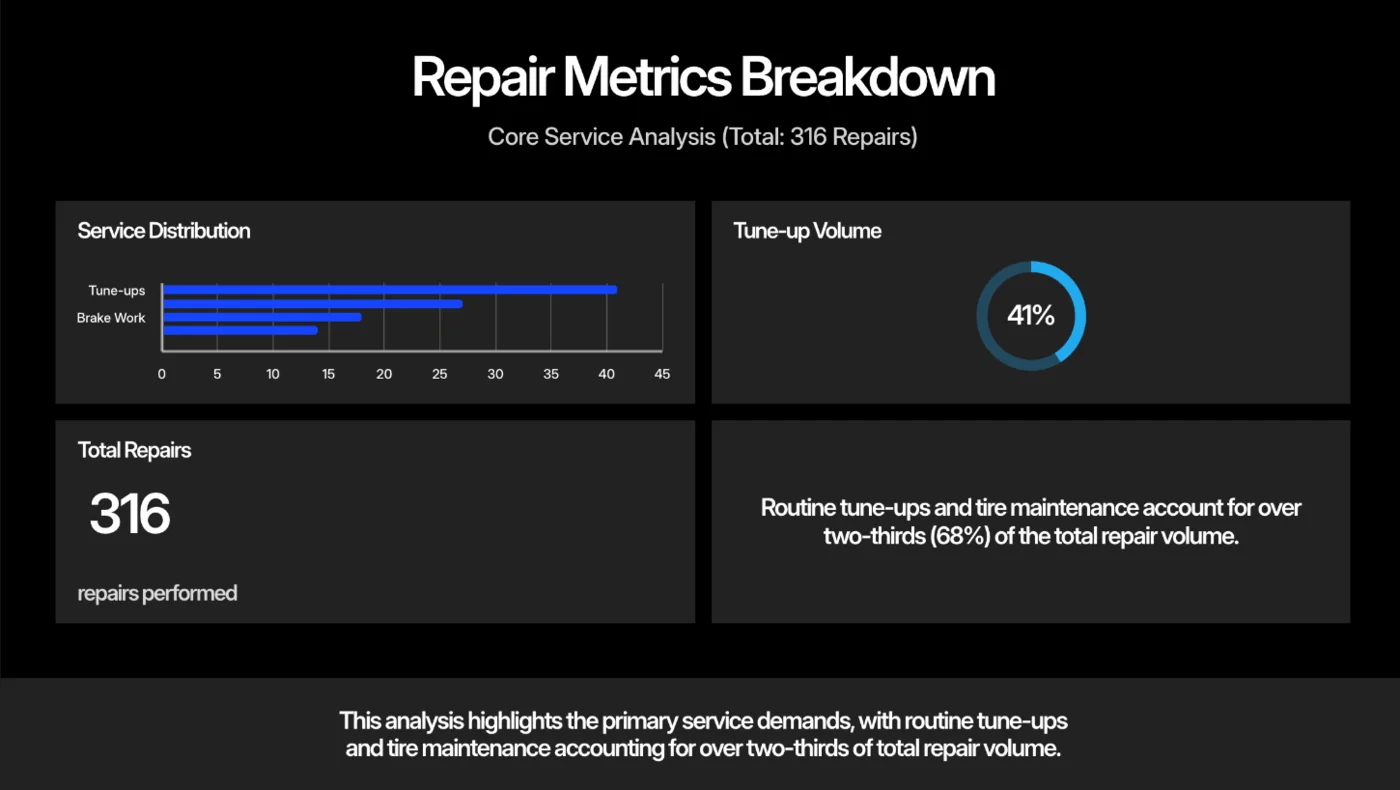
The $152 average ticket, one of my nine facts, was in the outline but appeared on no slide. I checked the text of every slide in the editor; the number is gone.
The address in the wrong column
The relocation slide had two columns, Current Location and New Location. Under Current Location it listed both 12 Elm Street and 48 Harbor Road. Under New Location it showed only the reopening date. Anyone skimming it would think the shop was staying put.
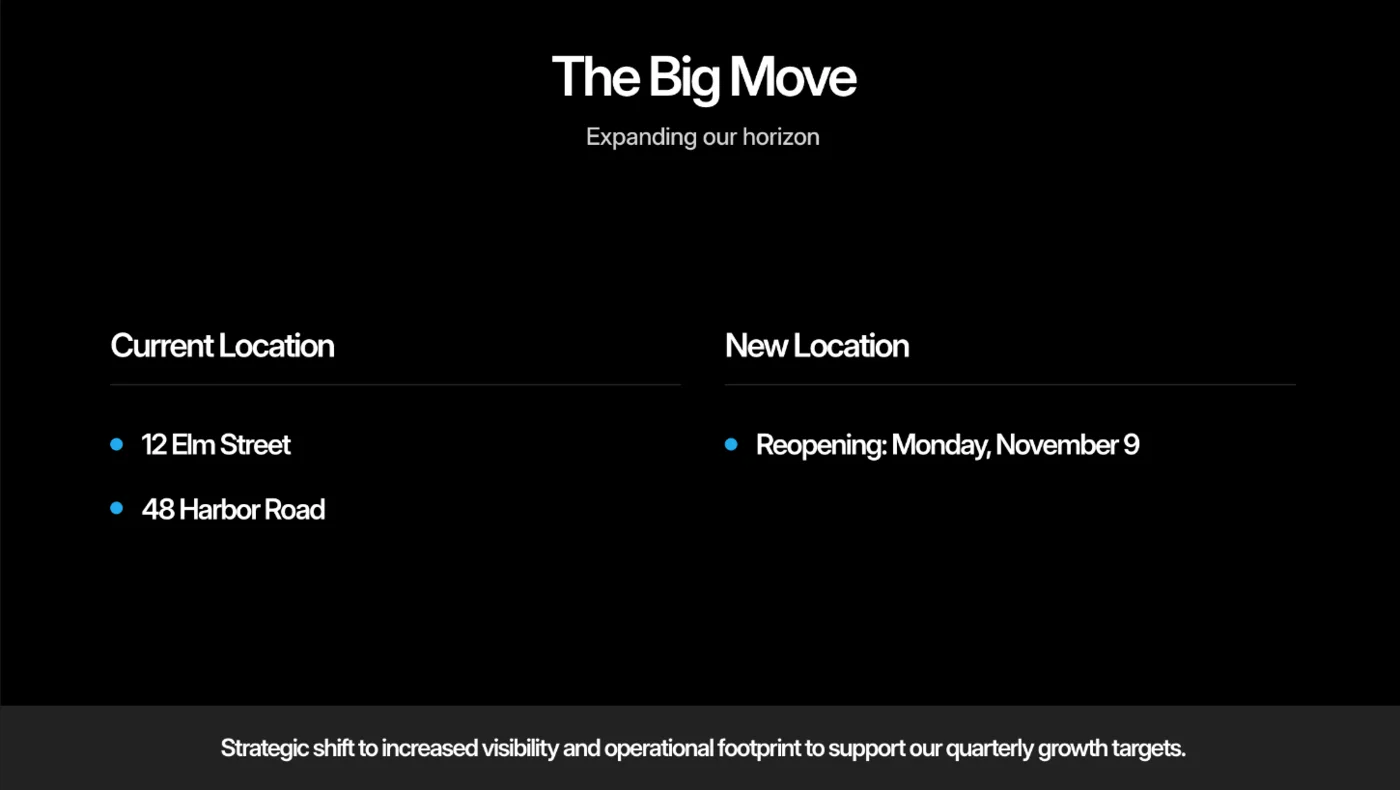
This one was a layout error, not an invention. When I opened Slide AI on that slide, its prompt still said “Current Location: 12 Elm Street” and “New Location: 48 Harbor Road”. The text was right; the Smart Slide put it in the wrong place.
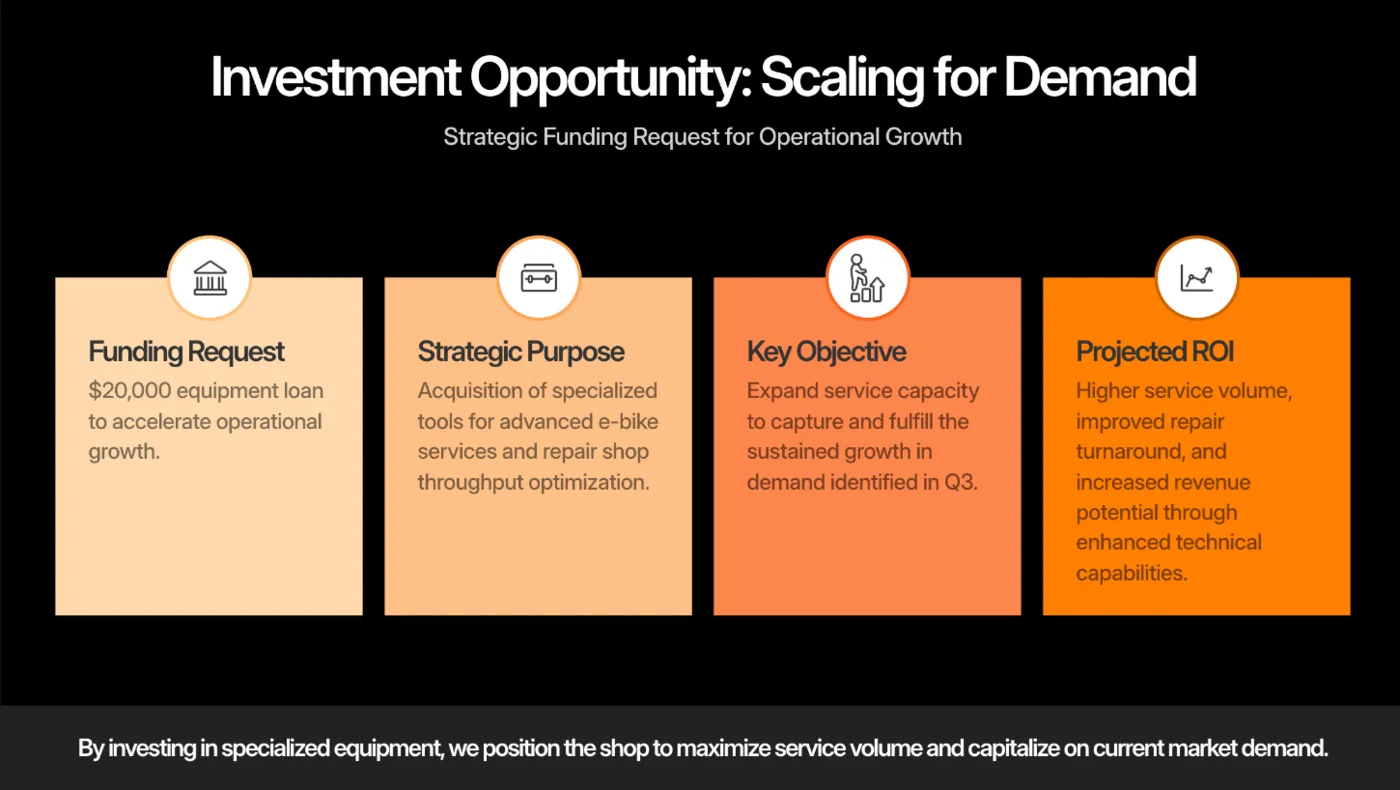
The loan slide kept the $20,000, but under it sat four cards: the request, a “Strategic Purpose” of specialized e-bike tools, a “Key Objective” and a “Projected ROI”, three of which I never supplied. It was followed by the summary slide, so the deck ended where Beautiful.ai wanted rather than where I asked.
Repairing slides one at a time
Beautiful.ai’s fix-up tool works one slide at a time. On the relocation slide I opened Slide AI and chose Generate Ideas, which showed the slide’s original prompt with options to preserve exact text, use the rest of the deck as context and pick an image source.
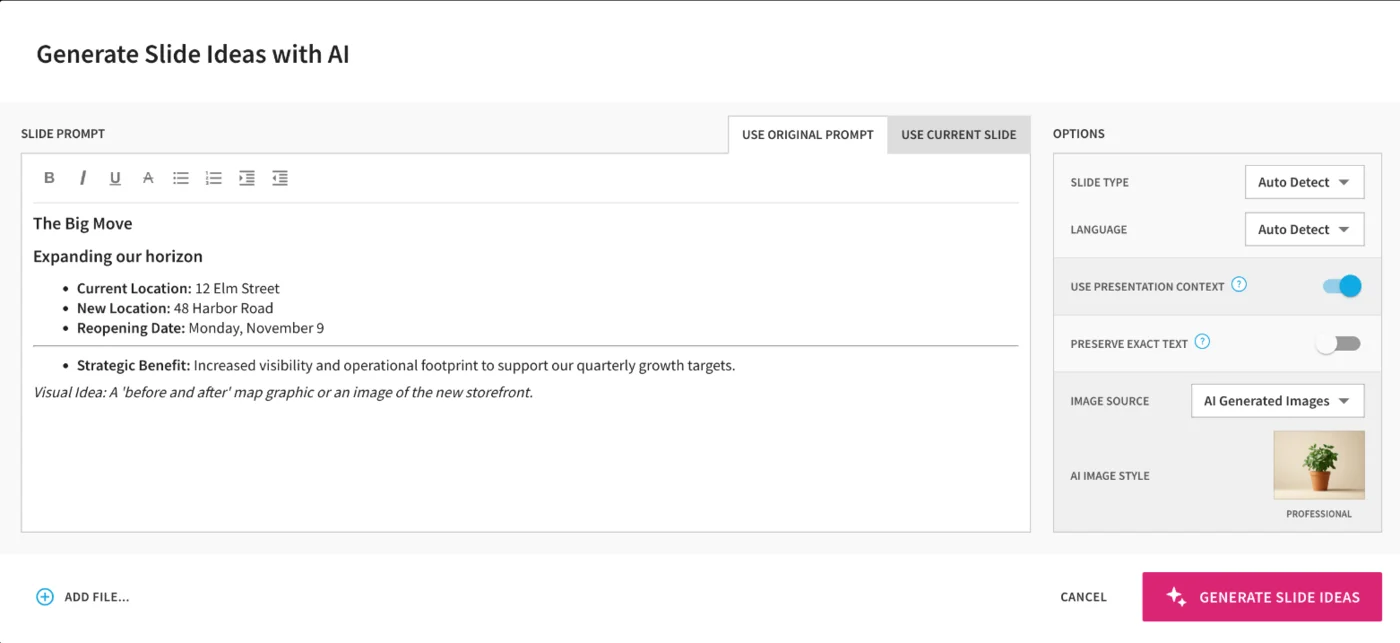
Two tabs at the top choose the starting point: Use original prompt, which rebuilds from the outline text, or Use current slide, which works from whatever is on the slide now, including your edits. I used the original prompt, because the outline text was the part that was right.
About 20 seconds later it offered a column of alternative designs. The first “before and after” layout repeated the same mistake, with both addresses under Current Location, while the second, with blue and peach cards, put each address in the right column. The plain text layouts got it right, and some came with an AI photo of a storefront whose sign read “Spoke & Chain”. I picked a text layout, and the slide was fixed in one click.
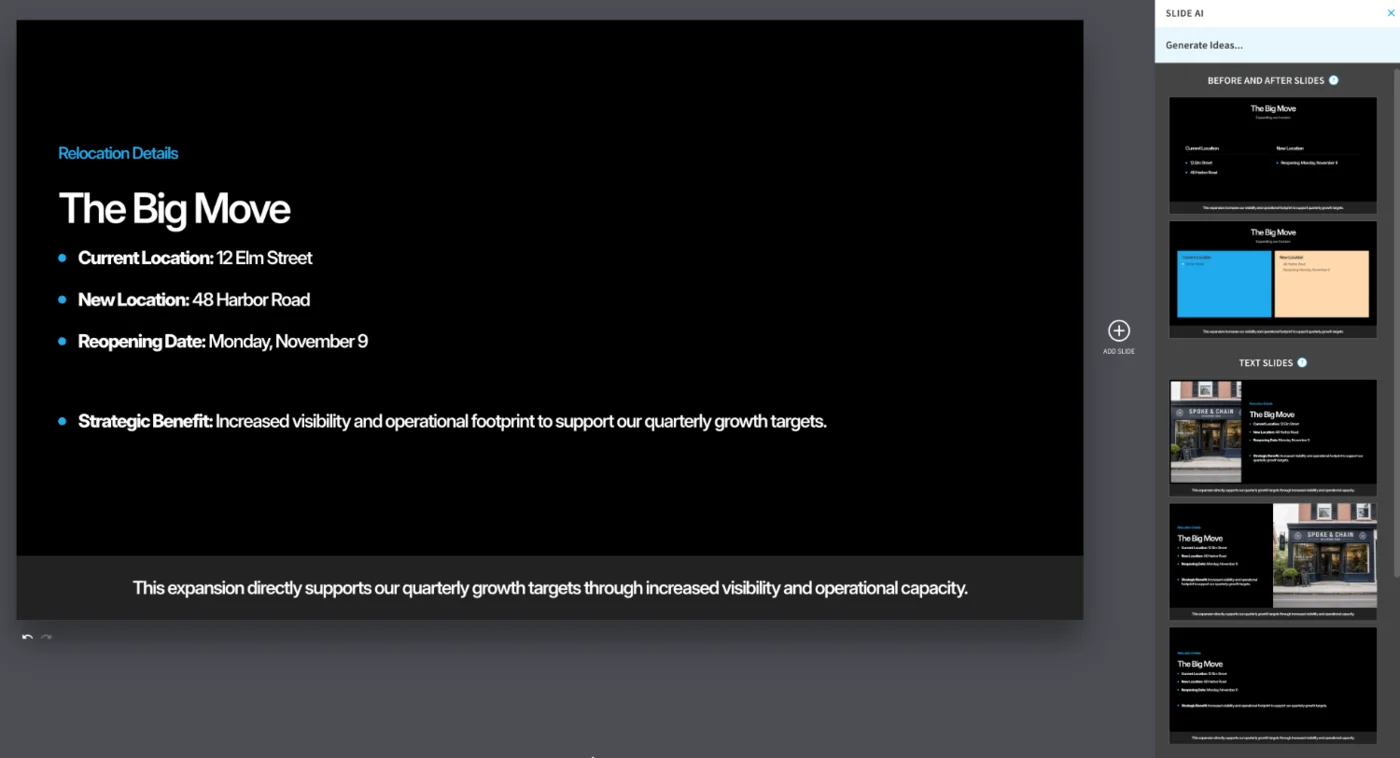
That is a useful tool, but it fixes layouts, not judgement. The invented “Strategic Benefit” line came along to the new version, and nothing in Slide AI would have told me the revenue chart contained a made-up quarter. You have to spot those yourself.
Inside the editor
The editor is built around the slide rather than a blank canvas. A toolbar under each slide offers Color, Layout, Edit, Ideas, Playback, Slide AI, Manage, Assign, Comments and Notes, so you change a Smart Slide by choosing a different layout or colour rather than dragging boxes around. The right-hand panel suggests alternative designs for the selected slide, sorted into groups such as title slides and text slides.
New accounts get a short “Discover the editor” video and a “Learn the Basics” checklist, both easy to close. The Present button opens a dropdown; I used Present from beginning to capture each slide. A Light/Dark switch sits in the top bar. If you need a Smart Slide to stop behaving smartly, Classic Slides give you a free-form canvas instead.
The AI tools inside the editor
Beyond Slide AI, the AI writing assistant sits on the text bar. Beautiful.ai’s help centre lists Generate new, Quick Rewrite, Shorten, Lengthen, Fix spelling and grammar, and Translate, which works on a selection, a slide or the whole deck. AI images became optional in December 2025, with style previews, and Slide AI can regenerate just a slide’s image, add a file or search the web.
One feature speaks directly to my test. Since July 2026, Enterprise decks built with web search can show source citations for AI claims. That would not have caught the invented Q1 bar, which came from no source at all, but it shows Beautiful.ai knows that unsupported claims are a problem. It is also the one plan most readers will never be on.
What survives the PowerPoint export
The export page warns up front that exported presentations “do not support animations or video”, and that fonts must be installed to keep the look. The dialog offers a share link, an offline player, PDF, Google Slides and PowerPoint, with PowerPoint in two forms: “Export as images” by default, or “Export as editable” with a note that “You may notice minor formatting differences.”
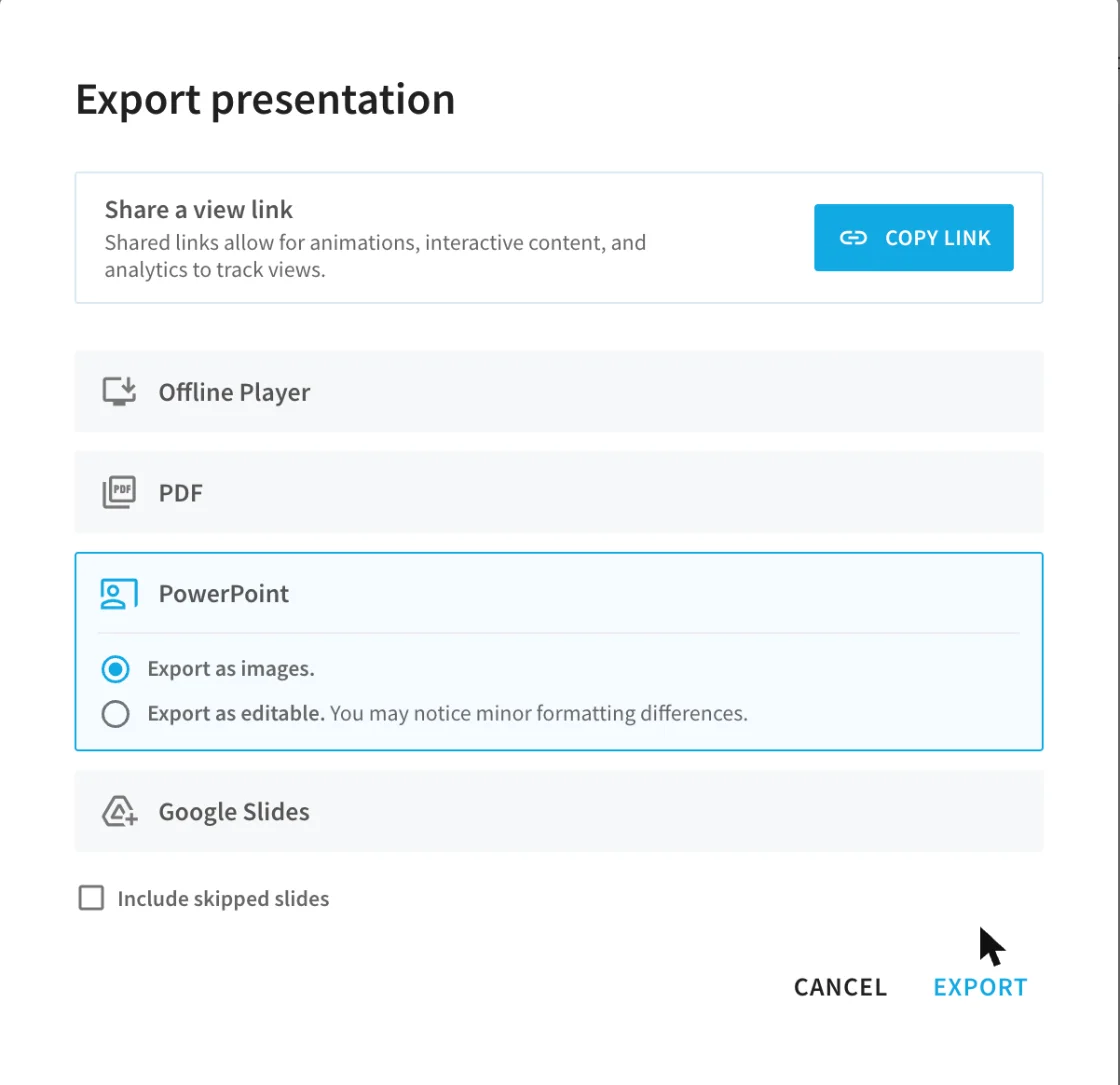
I exported the editable PowerPoint and a PDF and opened both. The PowerPoint’s headings, bullets and captions were normal editable text, and the fixed relocation slide came through correctly. Every chart was a picture, though: the revenue chart was a 1,220-pixel image, so the invented Q1 bar cannot even be deleted in PowerPoint without rebuilding the chart. The Inter fonts were not embedded. The PDF was eight pages of sharp vector text. Neither file carried Beautiful.ai branding on the trial.
How it compares with Gamma on the same brief
Running the same brief through two tools shows where each one’s priorities lie. Beautiful.ai optimises for how a slide looks; Gamma, tested the day before, optimised for keeping what you told it.
| Same nine-fact brief | Beautiful.ai | Gamma |
|---|---|---|
| Facts kept | 8 of 9 | 9 of 9 |
| Numbers not in the brief | An invented Q1 bar, an Other 14% bar | None |
| Design | Art-directed | Plain, text-led |
The design gap is real: Beautiful.ai’s dashboard and timeline slides looked more finished than Gamma’s text-heavy layouts. But the accuracy gap points the other way, and for a deck that goes to a lender or a client, accuracy is the one you cannot fix by eye. Gamma also has a free plan and embedded its fonts in the PowerPoint export, while Beautiful.ai has unlimited AI on paid plans and says it never trains on your content. Our Gamma vs Beautiful.ai comparison has the full side-by-side, prices, exports and terms included.
Beautiful.ai pricing: no free plan, and a card-first trial
Beautiful.ai has no free plan. These are the US prices on its pricing page in October 2026.
| Plan | Billed yearly | Billed monthly | Who it’s for |
|---|---|---|---|
| Pro | $14.50 a month ($174 a year) | $45 a month | One person |
| Team | $40 per user a month | $50 per user a month | 2 to 20 people |
| Enterprise | Custom | Custom | Larger companies |
Every paid plan gets what the pricing page calls “Unlimited AI content generation”, with no credits to count, plus PDF and editable PowerPoint and Google Slides export. Pro adds custom fonts, its own theme builder and viewer analytics, but no email support. Team adds real-time collaboration, shared themes and slide libraries, live data links and priority support. Enterprise adds single sign-on, audit logs and brand guardrails.
One detail to check before buying Team: its price card says “includes 3 users”, while the pricing FAQ describes $40 per user per month. Look at the total at checkout. Students with a .edu email can get Pro free for a year, according to the pricing page.
Monthly, yearly or Team?
Pick by how often you will build decks. For a single project, Beautiful.ai itself pitches the $45 monthly Pro option: its pricing page says “Our monthly option makes one-time projects a breeze. Cancel anytime.” Remember that monthly payments are never refunded, so cancel as soon as the project ships.
If you build decks every week, Pro billed yearly at $174 is far cheaper than paying monthly for long. Team only makes sense once several people need the same brand kit, shared slides and real-time editing; one person gains little from it. Enterprise is for companies that need single sign-on, audit logs, brand guardrails or source citations on AI claims.
The trial and refund terms
| Term | What Beautiful.ai’s pages say |
|---|---|
| Free plan | None |
| Trial | 14 days of Pro or Team, card required |
| End of trial | Charged in full unless cancelled |
| Annual refund | Partial, only within 24 hours, minus a processing fee |
| Monthly refund | Never |
| Cancelling | Desktop or laptop only |
| After cancelling | Basic: 100-slide cap and Beautiful.ai branding |
Read these before you start. The 14-day trial needs a card, and Beautiful.ai’s pricing FAQ says you “will be charged in full if you don’t cancel.” On the Pro trial I used, the billing page read “Your next bill of $174.00 will be due when your free trial ends”, with the billing period set to annual and a button to switch to monthly.
To cancel, Beautiful.ai’s help centre gives the path Profile, Manage Account, Billing, Manage Plan, and says you must use a desktop or laptop. Access continues until the end of the billing cycle. Team accounts cannot be deleted while their plan is active, so a team owner has to end the plan first.
Refunds are narrow. Beautiful.ai’s help centre says annual plans can get a partial refund only if you ask “within 24 hours” of the charge, that all refunds carry a processing fee, and that “Monthly subscriptions are not refundable.” If you cancel, your account drops to Basic, which caps you at 100 slides and adds Beautiful.ai branding to your presentations and their ending slide. The trial itself is not a cut-down version: the pricing FAQ promises “unrestricted access to everything in the plan”, which matched what I saw.
Those terms show up in reviews. Beautiful.ai’s Trustpilot page scored 2.9 from 249 reviews when I checked, with half of them one-star, and several recent reviewers said they were charged after cancelling during the trial. One reviewer in August 2026 wrote: “I cancelled during the trial period however they took money anyway.” I cannot check any individual case, but the pattern is consistent enough to plan for: set a reminder for day 13 if you try it, and keep a screenshot of the cancellation.
Who should use Beautiful.ai?
Beautiful.ai suits people who build business decks often and care most about consistent, tidy layouts.
| Reader | Fit | Why |
|---|---|---|
| Sales and marketing team | Good | Shared brand kits, slide libraries, live data and analytics |
| Consultant or founder | Good, with checks | Polished look fast, but every number needs checking |
| Data-sensitive company | Good | Never trains on your content, it says; Enterprise certifications |
| Finance or board deck | Poor | It invented a revenue bar in my test |
| Occasional user | Poor | No free plan, $45 a month, no refund on monthly |
In short, the more of your deck is design and the less is data, the better Beautiful.ai fits.
- Sales and marketing teams who reuse the same deck structure. Shared themes, slide libraries and live data links on Team keep everyone on brand.
- Consultants and founders who want a polished look without design skills, and will write and check the content themselves.
- Companies with strict data rules, because Beautiful.ai says it never trains on your content, and Enterprise is CCPA, PCI, SOC 2 Type II and GDPR certified according to the pricing page, with single sign-on and audit logs.
It suits less well anyone who wants the AI to do the writing faithfully. In my test the first draft needed a line-by-line check, and the errors were the kind that matter most in front of a lender. Skip it, too, if you mostly present other people’s numbers, such as a finance or board pack, where an invented bar is worse than an ugly slide; a tool that keeps your data as given, or plain PowerPoint, is the safer start. It is also a poor fit for occasional users: with no free plan and a $45 monthly price, a one-off deck is expensive unless you cancel in time.
What teams get on top of Pro
Team is where Beautiful.ai’s collaboration lives, and none of it is on Pro. The Team price card and comparison grid list real-time editing, shared folders, version control and locked slides, live data links to tools such as Smartsheet and Airtable, and priority support. Shared libraries are capped: five workspace themes, ten templates, 50 slides in the slide library and 100 items in the asset library.
Guests can edit decks they are invited to without a paid seat, and threaded comments with resolve and reopen arrived in August. Shared links carry viewer analytics on Pro, with engagement alerts on Team, and the export dialog notes that only shared links keep animations and interactive content. For a sales team that sends decks rather than presenting them, the link and its analytics may matter more than any export.
Checks to run before you present
A few habits would have avoided most of my deck’s problems.
- Read the outline before generating. The quote, the Other row, the loan purpose and the closing summary slide were all visible in the outline, where deleting a line is free. The invented Q1 bar and its growth caption only appeared at the design step, which is why the chart check below matters most.
- Use the outline chat. It accepts instructions such as removing a slide or rewriting one; I would have asked it to delete the quote and end on the loan.
- Turn on Preserve exact text when your wording matters, so the AI arranges your text instead of rewriting it.
- Check every chart. Open each chart’s data and compare it with your numbers, because a chart is where an invented figure looks most convincing. It is also far easier to fix there than after export.
- Export early. Charts become pictures in PowerPoint, so fix them in Beautiful.ai before you export.
- Delete what you did not write. Quotes, purposes and “strategic benefits” you never supplied are the easiest additions to miss, because they sound like something a presenter would say.
What Beautiful.ai does well
The most polished first draft
On looks, it beat Gamma’s first draft of the same brief. The road-shaped timeline, the tinted loan cards and the clean dashboard all looked designed rather than generated. Smart Slides keep spacing tidy as you edit, which is the product’s whole point and still its best feature.
It asks before it writes
The two clarifying questions, eight or fifteen slides and charts or narrative, were specific to my brief and changed the output. The editable outline afterwards is the right checkpoint.
Slide AI fixes layouts in one click
When a slide went wrong, Slide AI regenerated it with the original prompt, offered several layouts and fixed the misplaced address on the first try. It is a quicker repair than rebuilding a slide by hand.
Unlimited AI on paid plans
There is no credit meter. Beautiful.ai’s paid plans list unlimited AI content generation, and nothing in my test counted down. That is a real difference from tools that ration AI by credits, where experimenting with a deck costs you.
It says it never trains on your content
Beautiful.ai’s help article on AI says anything you put in “is never used to train the AI models.” Gamma, for one, trains on content from individual accounts unless you opt out, so for client work this is a meaningful difference.
Editable PowerPoint, PDF and Google Slides export
Every paid plan exports to editable PowerPoint and Google Slides, and the text came through as normal, editable text. The export dialog is clear about the trade-off between image and editable formats, and there are also per-slide JPEG images, a compressed PDF, printing and an offline player for presenting without a connection. Team admins can restrict who exports at all.
It plugs into the tools teams use
| Integration | What it does |
|---|---|
| PowerPoint add-in | Builds Smart Slides inside PowerPoint |
| Claude connector, ChatGPT custom GPT | Create decks from a chat assistant |
| Slack | Notifications about edits, comments and invites |
| Google Drive, Dropbox, Box, OneDrive | Brings in files and assets |
| Smartsheet, Airtable | Live data links for charts and tables |
| API and MCP connector | Build decks from code or AI agents (the API is in early access) |
Beautiful.ai lists integrations with Slack, Google Drive, Dropbox, Box, OneDrive, Smartsheet and Airtable, a PowerPoint add-in that builds Smart Slides inside PowerPoint, a ChatGPT custom GPT and, since July 2026, a verified Claude connector.
Where Beautiful.ai lets you down
It invents numbers and claims
This is the one that matters. Told not to invent numbers, it drew a revenue bar for a quarter I never gave, added an Other category, attached a purpose and a return on investment to a loan and wrote captions about growth “driven by high-value repair tickets”. A polished slide makes invented content more convincing, not less.
It dropped a fact and ignored an instruction
The $152 average ticket vanished between the outline and the deck, and the request to end on the loan slide was ignored at the outline stage. Both are easy to miss when you are admiring the design.
A layout put a fact in the wrong place
The relocation slide’s text was right but the Smart Slide put the new address under Current Location. One of Slide AI’s suggested replacements repeated the error. Layout automation is the product’s strength, which makes a layout error that changes the meaning more worrying.
Charts become pictures in PowerPoint
| In my editable PowerPoint export | Result |
|---|---|
| Headings, bullets and captions | Editable text |
| Revenue and repair charts | Flat pictures |
| Inter fonts | Not embedded |
| Animations and video | Not supported, per the export page |
| Beautiful.ai branding | None on the trial |
In the editable export, every chart was a flat image and the fonts were not embedded. If your company finishes decks in PowerPoint, you will rebuild the charts there.
No free plan, and tough trial terms
There is no free tier, the trial needs a card and bills a full year automatically on Pro, annual refunds close after 24 hours with a fee, monthly plans are never refunded, and cancelling only works on a desktop. Its Trustpilot page scored 2.9 when I checked, and several recent reviewers there say they were charged after cancelling a trial.
Pro has no email support
The plan comparison grid gives Pro self-serve help articles only; email support starts on Team. For a $174 annual plan with strict refund rules, that is thin.
Alternatives worth considering
If Beautiful.ai is not the right fit, these are the three I would look at first.
- Gamma is the one to try if accuracy matters more than polish. On the same nine-fact brief it kept every fact and invented nothing, though it had its own layout bugs, and it has a free plan with 400 one-time credits. Our Gamma pricing guide shows how far those credits go.
- Canva suits people who already design in it, with presentations inside the same editor as everything else and a large template library. Our Canva review covers the editor and its AI tools.
- ChatGPT can now make the deck itself: given the same brief, its free plan returned an eight-slide PowerPoint file with every fact intact. Our ChatGPT PowerPoint guide has that test, and our ChatGPT review covers its plans.
Our Gamma alternatives roundup covers more options, from Canva to Pitch.
Final word
Beautiful.ai made the better-looking first draft of the two presentation tools I have run this brief through, and the less trustworthy one: the design is ready to show, but the numbers and claims are not until you have checked every slide. It stays our runner-up for presentations on the strength of Smart Slides, unlimited AI and its no-training policy; the 3.6 is for the invented content and the trial terms. Use the outline step, check every chart, and cancel the trial in time if it is not for you.
Frequently asked questions
Is Beautiful.ai free?
No. Beautiful.ai has no free plan on its pricing page. You can try Pro or Team free for 14 days, but its help centre says a debit or credit card is required to start the trial, and the pricing page says you will be charged in full if you don't cancel. On the Pro trial I used, the billing page showed the first yearly bill of $174 due on the day the trial ends.
If you cancel, your account drops to a Basic level that caps you at 100 slides and adds Beautiful.ai branding to your presentations. Students with a .edu email address can get Pro free for a year, according to the pricing page. Cancelling has to be done from a desktop or laptop, not a phone.
How much does Beautiful.ai cost?
Pro costs $14.50 a month billed yearly, which is $174 a year, or $45 month to month. Team costs $40 per user a month billed yearly or $50 monthly, for teams of 2 to 20, and Enterprise is priced on request. Those are the US prices on Beautiful.ai's pricing page in October 2026.
The Team price card also says the plan includes three users, while the pricing FAQ describes $40 per user, so check the total at checkout. Refunds are tight: annual plans can get a partial refund only if you ask within 24 hours of the charge, minus a processing fee, and monthly plans are not refundable at all.
Does Beautiful.ai make up information?
In my test it did. I gave it a brief with nine facts about a bike shop and told it not to invent any other numbers. It kept eight of the nine, but added a revenue chart with a bar for the first quarter, which the brief never gave, plus a second-quarter bar it worked out from the growth rate, an Other category at 14% of repairs, a full-slide Steve Jobs quote, and a purpose and expected return for a loan that had none.
It also dropped the $152 average repair ticket and listed the new address under Current Location. The per-slide AI fixed the address when I regenerated that slide. Treat Beautiful.ai's first draft as a layout, and check every number and claim against your notes before you present it.
Can Beautiful.ai export to PowerPoint?
Yes, on Pro, Team and Enterprise. The export dialog offers PowerPoint as images, which cannot be edited, or as editable slides, with a warning that you may notice minor formatting differences. It also exports to PDF, Google Slides and an offline player.
I exported the editable version and opened the file. The headings, bullets and captions were normal editable text, but the charts were flat pictures, so you cannot change their numbers in PowerPoint, and the Inter font was not embedded, which the export page warns about. Animations and video do not survive any export.
Does Beautiful.ai use my content to train AI?
No, according to Beautiful.ai. Its help article on AI says anything you input into Beautiful.ai is never used to train the AI models, and names Gemini, Claude and other models for text and Imagen and DALL-E for images.
That is a stronger default than Gamma's, which trains on content from individual accounts unless you opt out. Beautiful.ai's privacy policy was last revised in June 2023 and does not mention AI, so the help article is the clearest statement. Enterprise plans add SOC 2 Type II and other certifications for teams with stricter rules.
Is Beautiful.ai better than Gamma?
For layout polish, Beautiful.ai is strong; for keeping your facts straight, Gamma did better on the same brief. I gave both the identical nine-fact brief. Gamma kept all nine and invented no numbers, though it had its own layout bugs. Beautiful.ai invented a revenue bar, a quote and a loan purpose, and dropped one fact.
They also differ on price and terms. Gamma has a free plan with 400 one-time credits, while Beautiful.ai has no free plan and a card-required trial, but Beautiful.ai's paid plans have unlimited AI with no credit meter and it says it never trains on your content. Our Gamma review and our Gamma vs Beautiful.ai comparison have the full results from that test.
Keep reading
Gamma AI review: 8 accurate slides in a minute, then the fixes
A hands-on Gamma AI review: an 8-slide deck in a minute with every number right, a footer bug, a chart that exports as a picture, and what Plus costs.
Gamma vs Beautiful.ai: one kept my facts, one looked better
Gamma vs Beautiful.ai, tested with the same nine-fact brief: which kept the numbers, which made the better-looking deck, which costs less, which trains on you.
Canva Review: Great Editor, but the AI Runs on a Meter
A Canva review from a Pro trial: nine hands-on tests, exact US prices, and six AI requests that used 56% of the trial's allowance. Plus what the trial hides.
Best AI Design Tools: 8 Picks, 5 Tested, Sorted by the Job
The best AI design tools by job: Canva for layouts, ChatGPT for images with exact text, Lovable for working apps. Five tested, three read, each one labelled.
Gamma pricing: $9 a month, and what the credits really buy
Gamma pricing in October 2026: Free, Plus $9, Pro $18, Ultra $90 and Business $40 a month billed yearly, plus what a deck costs in credits on my account.
Gamma alternatives: 7 worth trying, and the one that's dead
The best Gamma alternatives, two run against Gamma on one nine-fact deck: Beautiful.ai invented numbers, ChatGPT kept them. Prices, free plans and when to stay.

ChatGPT PowerPoint: it made my deck free, then locked me out
Can ChatGPT make a PowerPoint? My free account got an 8-slide .pptx in a minute, then hit a limit. The add-in, ChatGPT Slides and Copilot, compared.