
ChatGPT PowerPoint: it made my deck free, then locked me out
Can ChatGPT make a PowerPoint? My free account got an 8-slide .pptx in a minute, then hit a limit. The add-in, ChatGPT Slides and Copilot, compared.
Contents
Can ChatGPT make a PowerPoint?

Yes, and a ChatGPT PowerPoint doesn’t need a paid plan. I gave the free version of ChatGPT an eight-slide brief for a bike shop’s quarterly review and asked for a downloadable .pptx. About a minute later it handed back a real PowerPoint file, eight slides in navy, teal and orange, with every number from the brief in the right place and no invented numbers.
Then I asked it to fix three small layout faults, and the free plan said no until the next morning. That’s the whole story in short: ChatGPT makes a usable first draft of a PowerPoint quickly, but on the free plan you get the draft, not the revisions.
| Route | What you get | Who can use it |
|---|---|---|
| Ask in the ChatGPT chat | A .pptx file to download, with a preview panel | Every plan; my free account managed one deck a day |
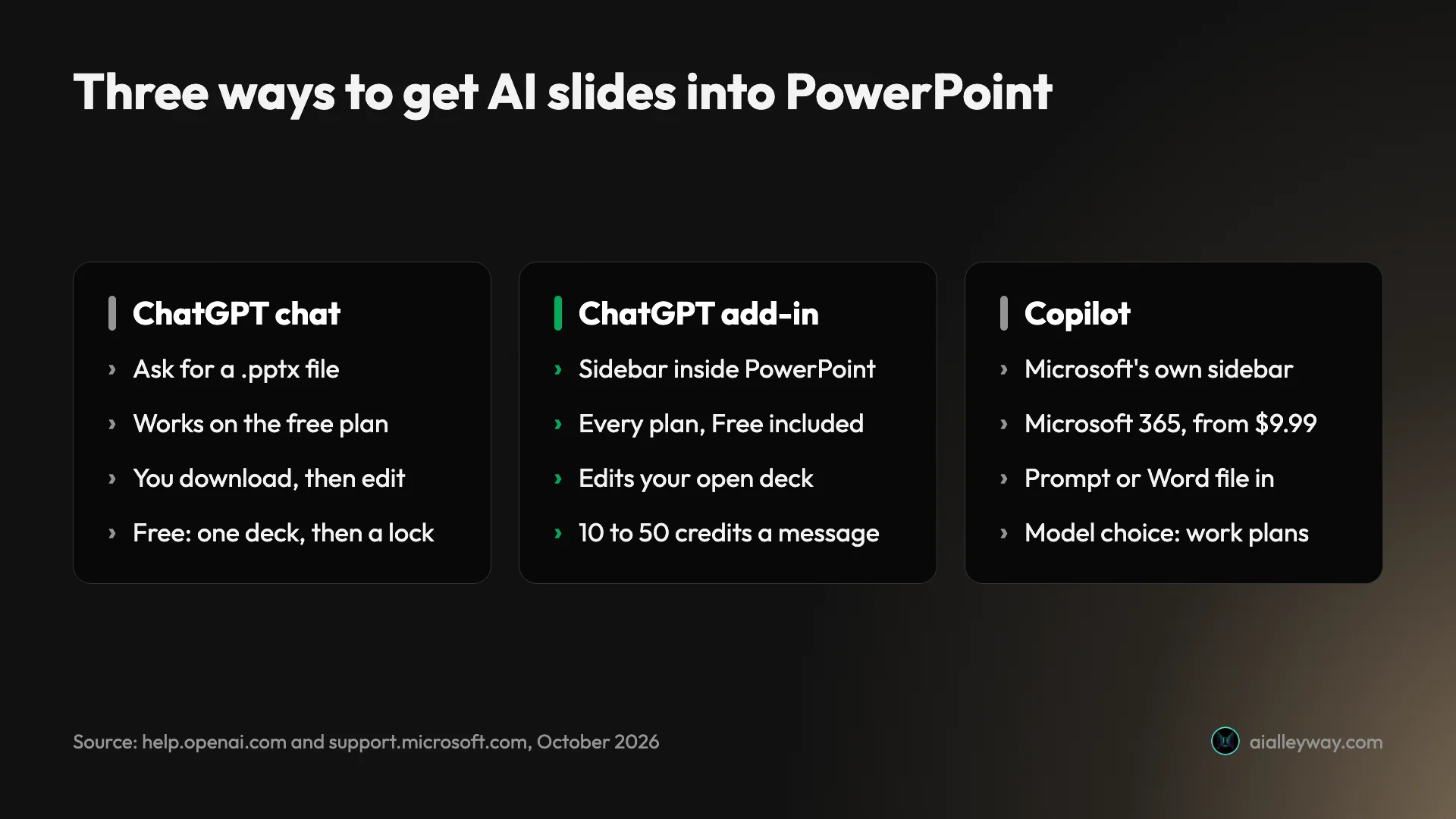
| ChatGPT for PowerPoint add-in | ChatGPT in a sidebar inside PowerPoint, editing the open deck | Every plan; Free and Go get limited use |
| ChatGPT Slides | An editable deck inside ChatGPT, exported to .pptx, PDF or Google Slides | Pro, Business and Enterprise only |
| Copilot in PowerPoint | Microsoft’s own assistant inside PowerPoint | Microsoft 365 Personal, Family or Premium, or a business Copilot license |
How ChatGPT turns a prompt into slides
The interesting thing about a ChatGPT PowerPoint is that the model never touches PowerPoint. In the chat, ChatGPT writes and runs code that builds the file, the same sandbox it uses for data analysis. The progress line in my session read “Thinking”, then “Analyzing”, then “Analyzed”, and the deck appeared as a file card with a download link.
That detail explains both what went well and what went wrong. Code builds slides from shapes and text boxes, so the layouts are tidy and the numbers are exactly what you typed. It also explains the limit, because my free account’s refusal came from the data analysis allowance, not from any slide counter.
The add-in works the other way round. OpenAI’s ChatGPT for PowerPoint help article describes “a PowerPoint-native AI experience that lives in a sidebar inside Microsoft PowerPoint”, which edits the deck you already have open “while preserving editable slide structure”. You keep your template, your fonts and your file. ChatGPT comes to PowerPoint instead of PowerPoint coming out of ChatGPT.
Copilot in PowerPoint is a third thing entirely: Microsoft’s assistant, bundled with Microsoft 365, running in the same app. Most guides blur these three together, and the price, the limits and the quality of the result differ for each.
I ran a real brief through ChatGPT’s free plan
I used the same brief I gave Gamma and Beautiful.ai for our presentation reviews, so the results line up. It asks for eight slides for the owner of a small bike-repair shop, Spoke & Chain, presenting a Q3 review to two staff and her bank manager. It lists nine facts: revenue of $48,200, up 12% on Q2; 316 repairs; tune-ups at 41%, flat tyres at 27% and brake work at 18%; an average ticket of $152; a move from 12 Elm Street to 48 Harbor Road, reopening Monday, November 9; two Q4 goals; and a closing ask for a $20,000 equipment loan. It ends with “Do not invent any other numbers.”
I pasted it into a new chat on a free ChatGPT account at 9:12 in the morning and added one line: give it to me as a downloadable PowerPoint (.pptx) file. I didn’t pick a model, switch on any tool or upload anything.
The file, a minute later
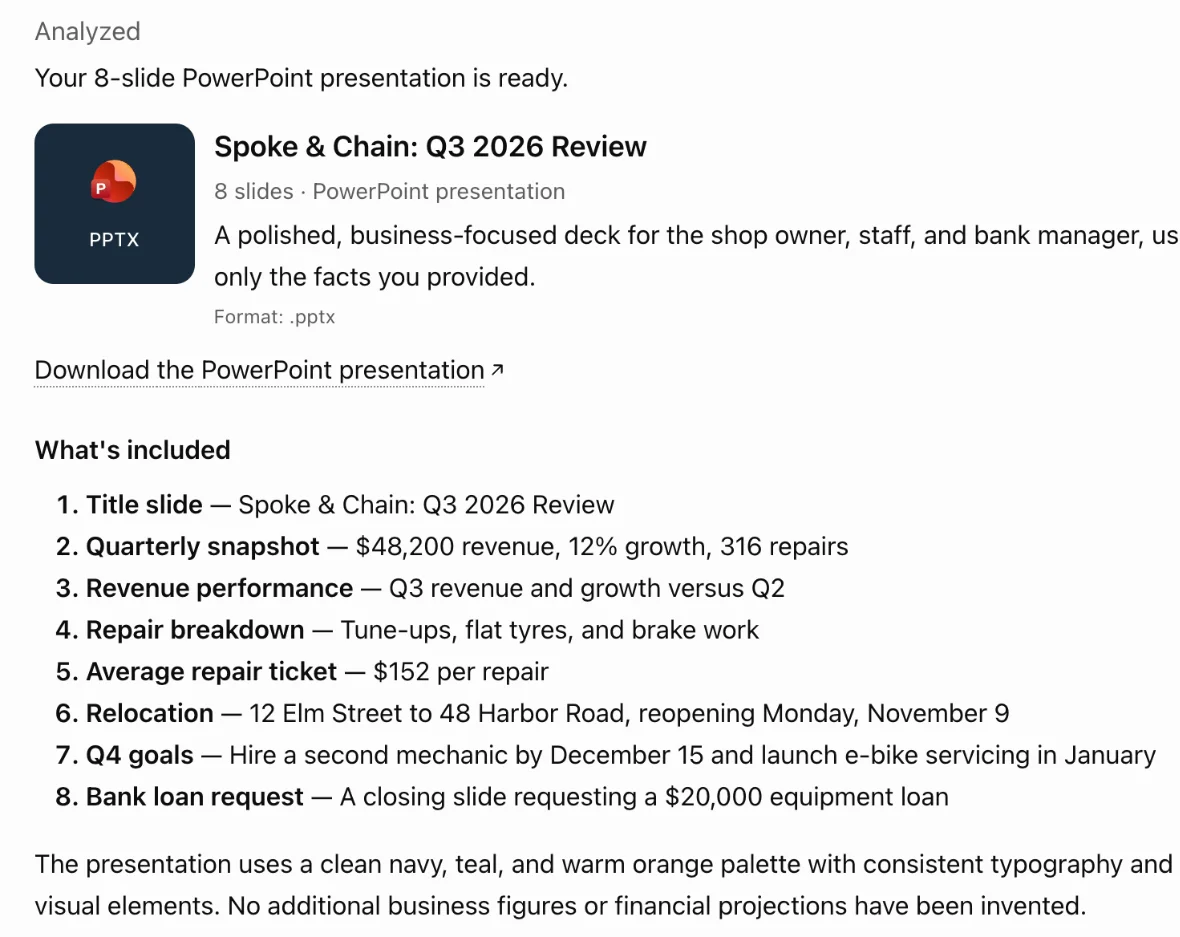
About a minute later ChatGPT replied with a file card titled “Spoke & Chain: Q3 2026 Review” and marked “8 slides”, a download link and a numbered list of what each slide covered. It closed by promising a navy, teal and orange palette and saying no extra figures had been invented.
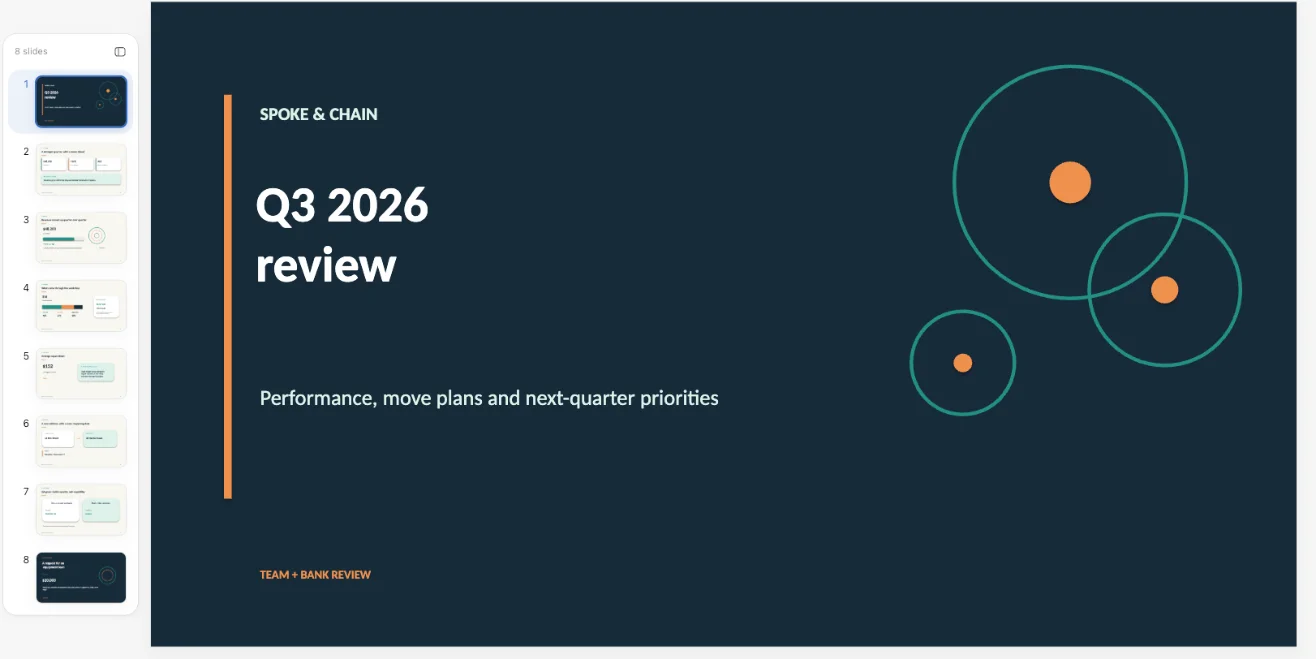
Clicking the file opened a preview panel beside the chat, with thumbnails down the left and the selected slide on the right, plus a present button and a download menu. That preview is genuinely useful: I could check all eight slides before deciding whether the file was worth downloading at all.
What it got right
Every number and date matched the brief. Slide 2 put revenue, growth and repairs in three stat cards. Slide 6 laid out the move as two address cards with an arrow and the reopening date underneath, and slide 8 closed on the loan with the $20,000 figure and a direct question to the bank manager. That’s the right story for that room.
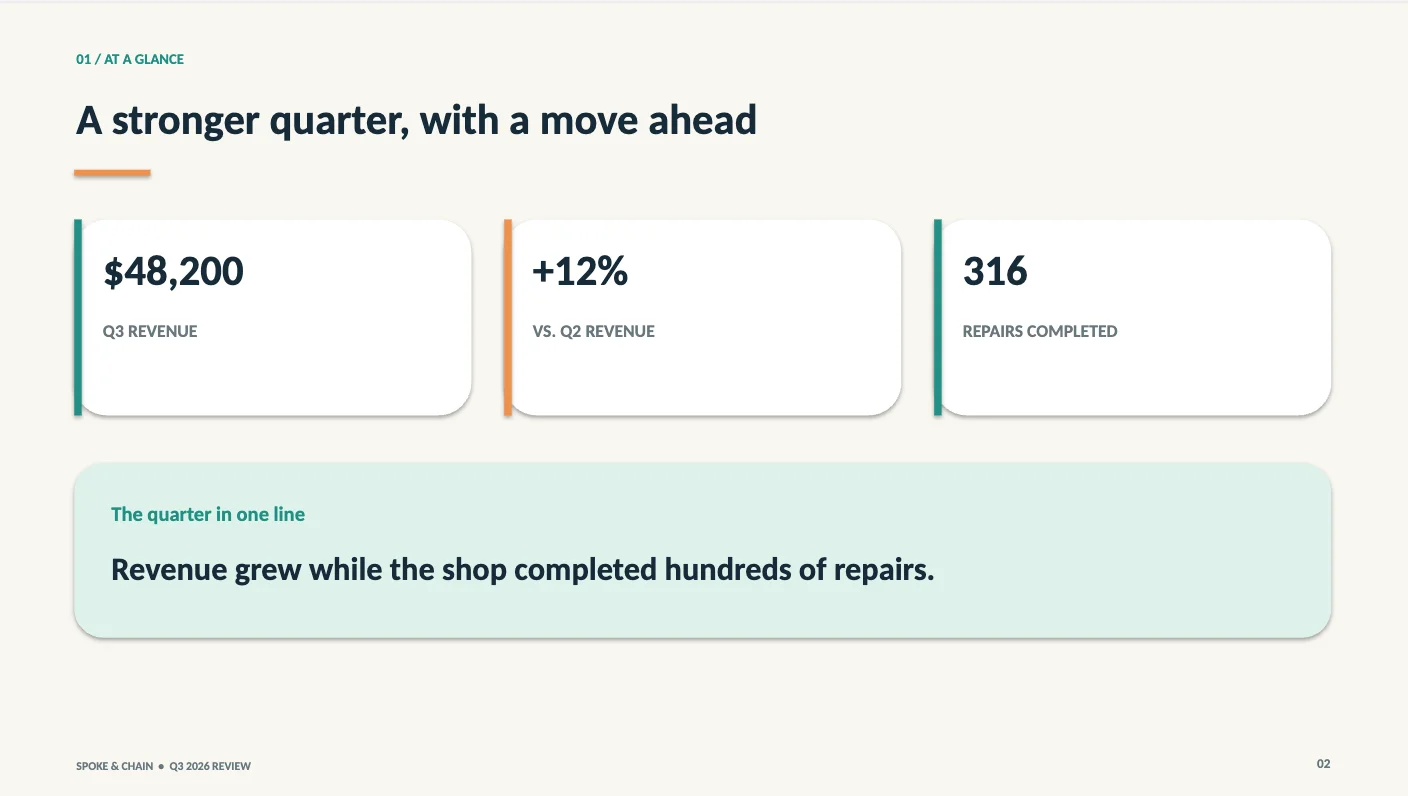
The design was also more than plain bullet points. Consistent section labels ran across the top of each slide (“01 / AT A GLANCE”, “05 / RELOCATION”), every content slide carried a footer and a page number, and the title and closing slides shared a dark navy look that bracketed the deck. For a file built by code in a minute, it looked like someone had cared.
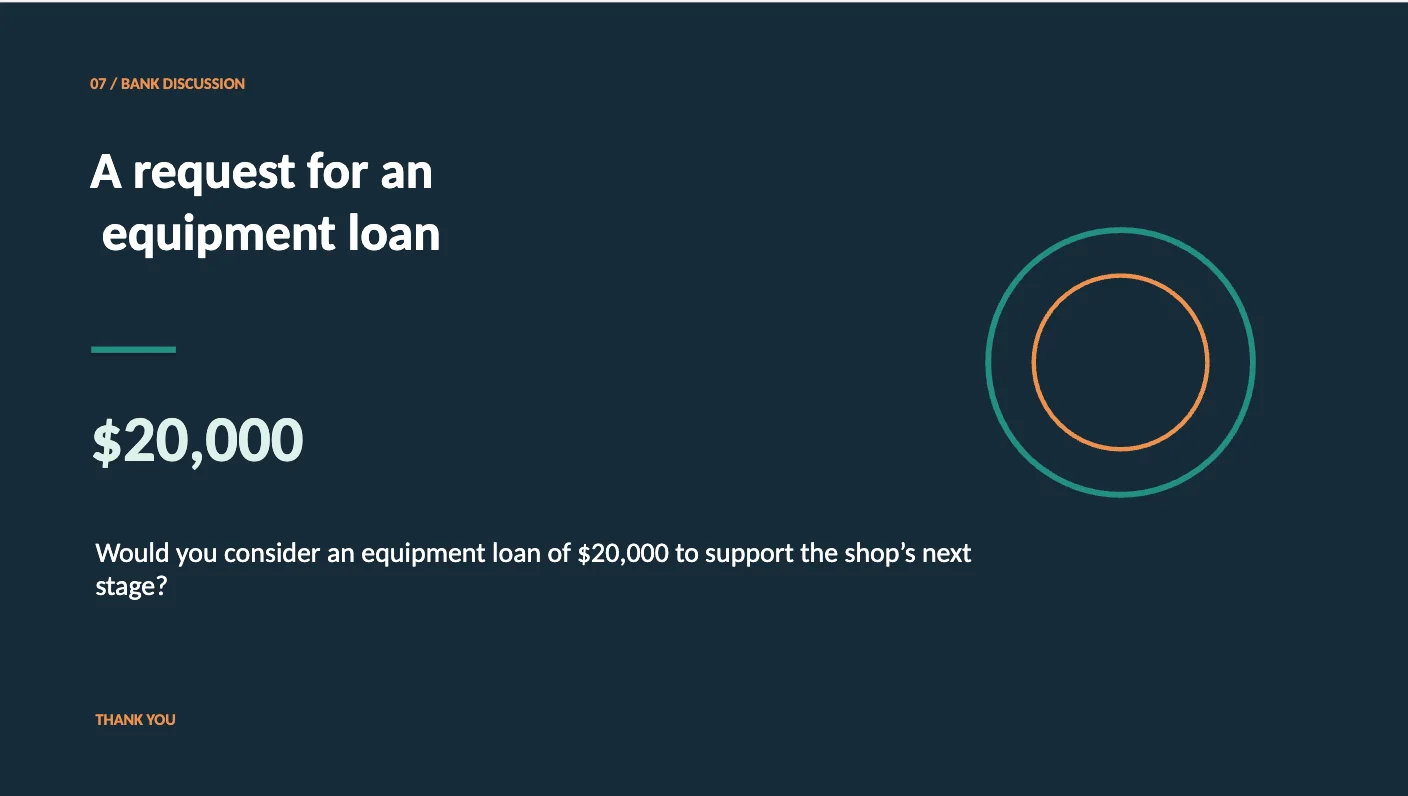
The closing slide shows both sides of that care. The ask is clear, the figure is big and the question is polite. But the title’s second line starts with a stray space, so “equipment loan” sits slightly indented under “A request for an”, the kind of slip you only see once it’s on a projector.
On accuracy it beat one of the dedicated tools. Beautiful.ai, given the identical brief, invented a revenue bar, a customer quote and a loan purpose. Gamma kept all nine facts, and so did ChatGPT.
What it got wrong
Beyond that stray space, three faults stood out, all of the kind a bank manager would notice.
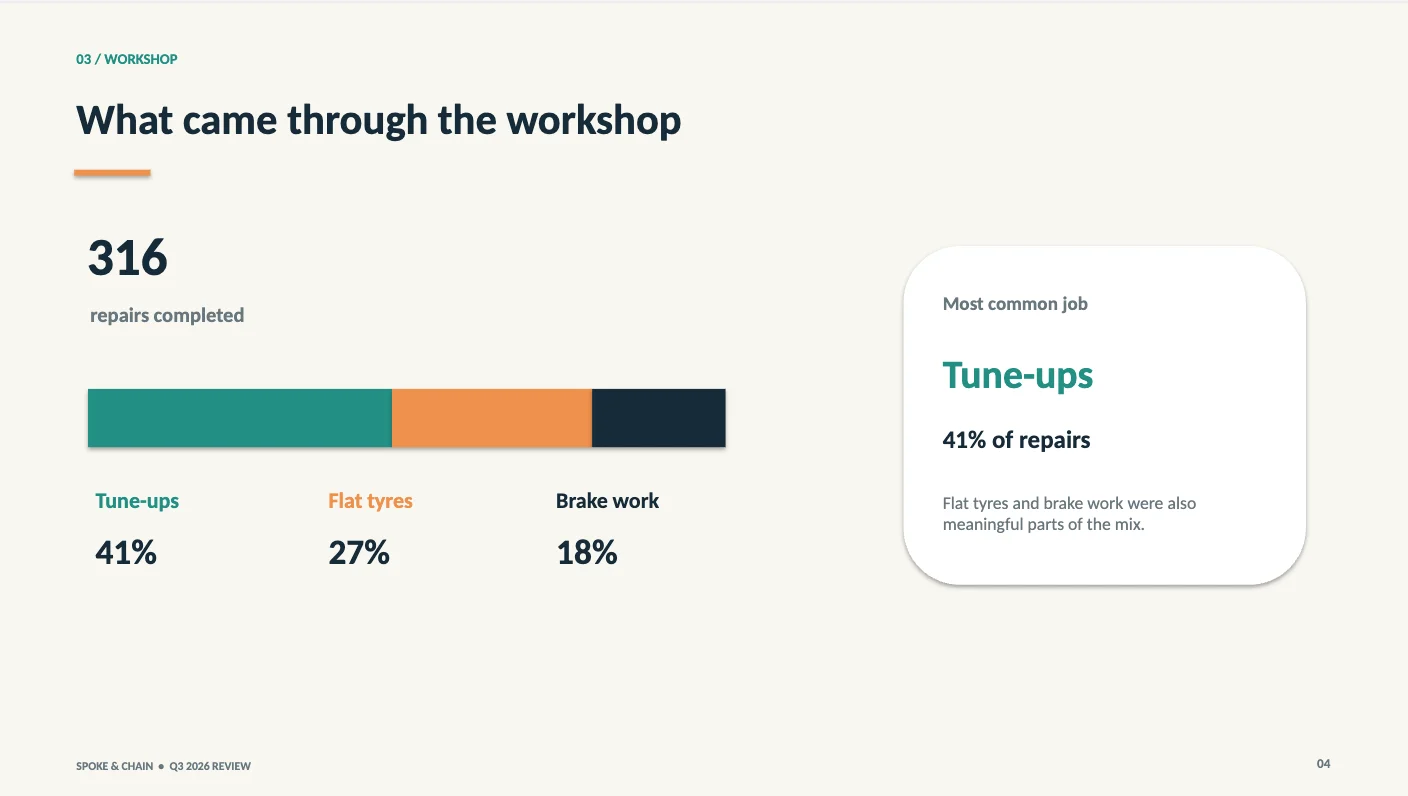
The repair-mix bar on slide 4 is the serious one. Tune-ups, flat tyres and brake work add up to 86% of repairs, but ChatGPT stretched the three segments across the full width of the bar. The missing 14% simply vanished, and the chart now tells the room those three jobs were the whole workshop.
Slide 3 had the opposite problem: a progress bar about three-quarters full under the revenue figure, measuring nothing. The brief contains no target to be three-quarters of the way towards. It’s decoration that looks like data, which is worse than no chart.
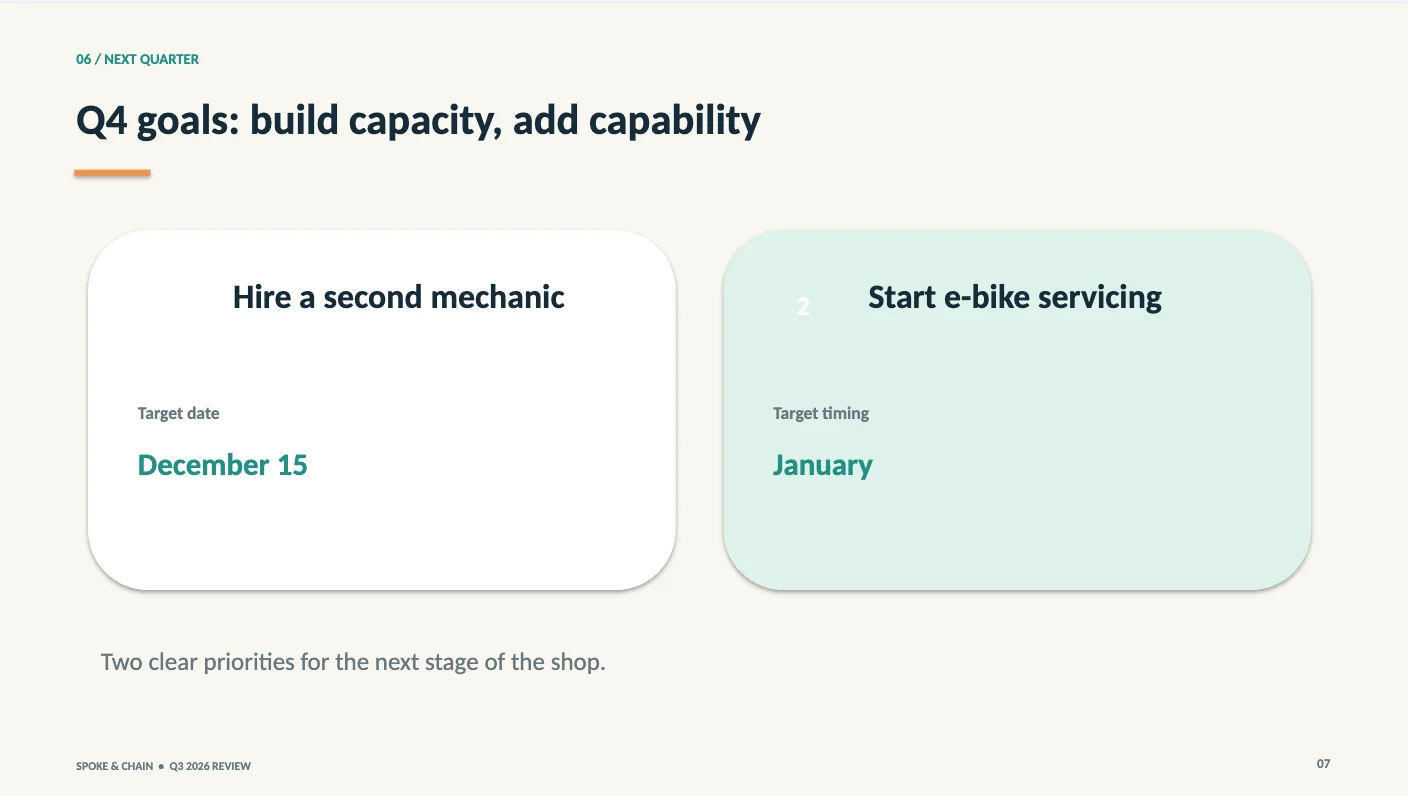
Slide 7 had a rendering slip. The two Q4 goal cards were meant to be numbered, but the “1” vanished white on white, leaving a stray “2” floating beside the second title.
There was also some padding. Revenue appears on two slides in a row, and 316 repairs on slides 2 and 4, so the eight-slide count came partly from repeating itself. A person writing this deck would have merged slides 2 and 3.
The edit round that never happened
So I asked for the three fixes in one message: add an “Other 14%” segment, drop the meaningless bar, fix the stray number. ChatGPT tried, paused, and errored: “It seems like I can’t do more advanced data analysis right now.” Underneath sat the real reason: “You’ve reached your data analysis limit. Upgrade to ChatGPT Plus or try again tomorrow”, followed by a clock time.
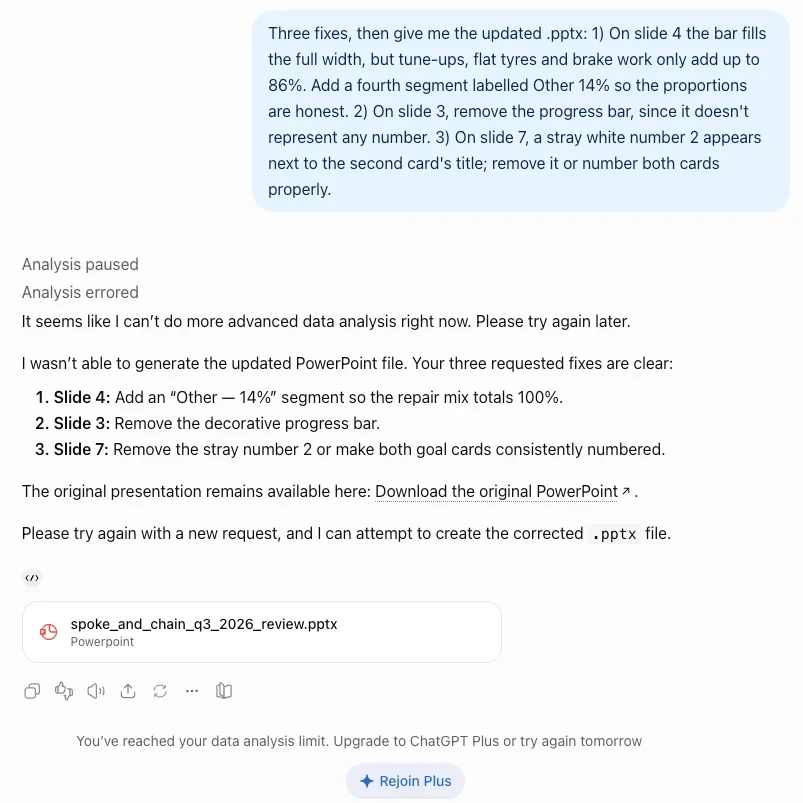
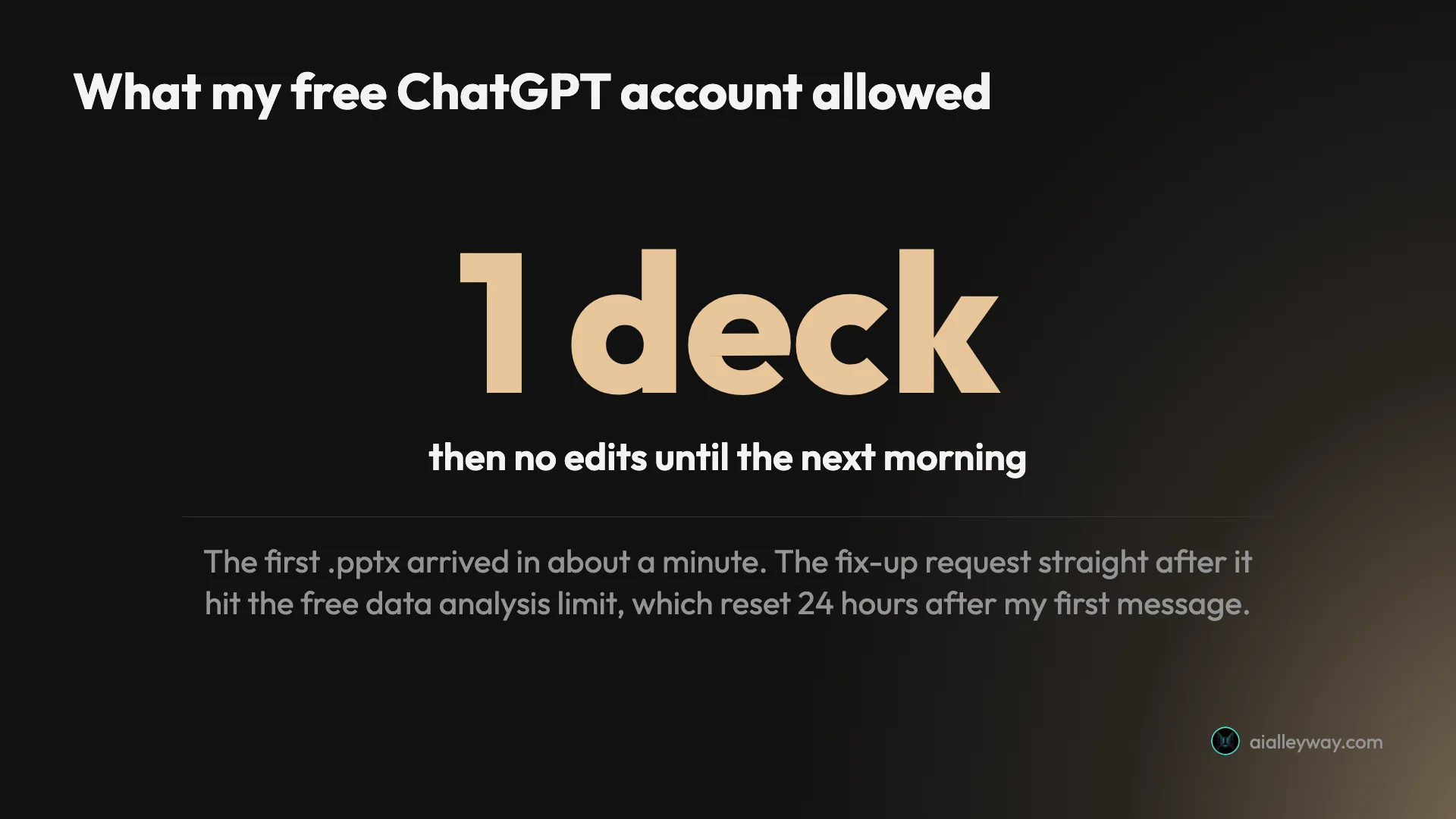
My first request went in at 9:12. The reset was 24 hours later, almost to the minute. OpenAI doesn’t publish a deck count for the free plan, so treat this as what one account showed rather than a rule. But on that account, the free plan produced one deck and zero revisions in a day.
The ChatGPT for PowerPoint add-in
If you already work in PowerPoint, the add-in is the route OpenAI is pushing, and it fixes the biggest weakness of the chat method: you never leave your own file. I couldn’t test it, because it needs PowerPoint itself and the account I tested with has no Microsoft 365 plan, so this section comes from OpenAI’s documentation.
Installing it
OpenAI’s steps are short. Open PowerPoint, go to Home, then Add-ins, search for ChatGPT, add it, open it from the ribbon and sign in with your ChatGPT account. A Microsoft 365 admin can also deploy it across an organization from a manifest file if the store is blocked.
Who gets it
The help article lists the add-in for “Free, Go, Plus, Pro, Business, Enterprise, ChatGPT Edu, and K-12 users”, which makes it one of the few ChatGPT features that reaches the free plan. The catch is in the next sentence: “Free and Go include limited usage access.” Plus, Pro and Business draw on their plan’s agentic usage allowance, the same pool as ChatGPT Work and the Excel and Word add-ins.
What a task costs
| Plan | Add-in access, per OpenAI | Price (US) |
|---|---|---|
| Free | Limited usage | $0 |
| Go | Limited usage | $8 a month |
| Plus | Agentic usage allowance | $20 a month |
| Pro | Agentic usage allowance | $100, $200 or $500 a month |
| Business, Enterprise, Edu | Workspace credit pool once flexible pricing applies | Per seat |
OpenAI’s credits article puts a number on it: “A typical ChatGPT for PowerPoint task may use 10–50 credits per message.” Bigger decks and multi-step edits use more. OpenAI doesn’t list a dollar price per credit on that page, and on Free and Go it says credit purchases are open only to “a limited group” of users so far; Plus and Pro can add credits once they hit a limit.
What OpenAI warns about
The help article is unusually frank about the limits. Generated slides “may not always match a preferred style perfectly”, and some advanced editing, chart, shape and formatting features “may be limited or still in development”. It also advises duplicating the file before big edits, because “ChatGPT can make mistakes, including when editing or deleting presentation content.”
One line is worth reading twice if your decks are confidential: under Microsoft’s add-in marketplace terms, “Microsoft may have the ability to read the content of your PowerPoint files.”
ChatGPT Slides and ChatGPT Work
The third OpenAI route is the newest. ChatGPT Slides builds a presentation inside ChatGPT’s Work mode, where you can edit text, images, shapes, tables and charts directly, then export to PowerPoint, PDF or Google Slides. The Slides help article says it is “available on ChatGPT Pro, Business, and Enterprise plans with Space access” and still “rolling out”, so even paying users may not see it yet.
That puts the polished in-ChatGPT editor behind a $100-a-month Pro plan at minimum. Plus subscribers at $20 get the chat method and the add-in, not Slides. One more caution: ChatGPT agent, which older guides recommend for building slideshows, has been retired. OpenAI’s agent page now says “ChatGPT agent is no longer available” and points to Work instead.
Copilot in PowerPoint: Microsoft’s own route
If you search for “Copilot PowerPoint”, you are asking a different question: does the Microsoft 365 subscription you already pay for build slides? It does, if you’re on the right plan. I haven’t used it, so this section rests on Microsoft’s support pages and pricing page.
Copilot’s slide features
Microsoft’s Copilot in PowerPoint support page says Copilot runs in PowerPoint for Windows, Mac and the web, opened from the Copilot icon at the bottom right. It can create a deck from a prompt or from a Word document, add and reorganize slides, generate images, summarize a deck and answer questions about it. Newer additions include interactive slides such as dashboards and timelines, and built-in skills called “Review this presentation”, “Visualize this slide” and “Prepare for Questions”.
Building from a Word file is the feature I’d test first. Microsoft says Copilot reads Word’s heading styles to decide where slides break, and works best with documents under 24 MB. Turning a report you’ve already written into a deck is a better job for an AI than inventing one from a paragraph.
Microsoft 365 plans that include it
| Plan (US) | Monthly | Yearly | Copilot in PowerPoint |
|---|---|---|---|
| Microsoft 365 Basic | n/a | n/a | No AI features |
| Microsoft 365 Personal | $9.99 | $99.99 | Yes, “higher than free” use |
| Microsoft 365 Family | $12.99 | $129.99 | Yes, subscription owner only |
| Microsoft 365 Premium | $19.99 | $199.99 | Yes, “extensive” use |
| Microsoft 365 Copilot Business add-on | $25.20 per user | $21 per user a month paid yearly; $18 on a promotion until 31 Dec 2026 (first year only) | For existing Microsoft 365 business plans |
Those are the prices on Microsoft’s comparison page and Copilot Business pricing page on 28 October 2026. Microsoft also sells a Microsoft 365 Pro plan at $99.99 a month with its highest Copilot usage. Copilot Pro, which several older guides still tell you to buy first, is gone: Microsoft’s Copilot Pro page says it “is no longer available for purchase” and that support for existing subscribers ended on 1 August 2026.
The ChatGPT inside Copilot
Here the two products meet. Microsoft says you can “choose between different AI models, including Claude from Anthropic and ChatGPT from OpenAI” when Copilot edits your deck. But its model page adds that “Using the model switcher when editing with Copilot in PowerPoint requires a commercial Microsoft Copilot subscription.” On a home plan you get Auto, and Microsoft picks.
ChatGPT or Copilot for PowerPoint?
They solve slightly different problems, and the cost of each depends on what you already pay for.
| ChatGPT (chat or add-in) | Copilot in PowerPoint | |
|---|---|---|
| Free option | Yes: chat file on the free plan, limited add-in use | No: needs a paid Microsoft 365 plan |
| Cheapest paid route | Go at $8 or Plus at $20 a month | Personal at $9.99 a month or $99.99 a year |
| Works inside PowerPoint | Add-in only | Yes, built in |
| Builds from a Word file | Upload the file to the chat | Yes, from Word’s heading styles |
| Model choice | OpenAI models | Auto on home plans; ChatGPT or Claude on work plans |
| Tested here | Chat route, free plan | Not tested |
If you already pay for Microsoft 365 Personal or Family (on Family, only the subscription owner gets Copilot), try Copilot first: it’s already in your bill and it works in the file you’re editing. If you don’t, ChatGPT’s free plan gets you a decent first draft for nothing, and a paid plan such as Plus at $20 gets you the revisions the free plan refused me.
A brief that gets a clean deck
My brief worked because it removed guesswork, and the faults appeared exactly where guesswork crept back in. Here is the shape I’d use again, with the two lines my test showed were missing.
- Slide count and audience. “An 8-slide presentation for the owner of a bike shop to present to her two staff and her bank manager.” The audience told ChatGPT to end on the loan and keep it plain.
- Every fact, in one list. Numbers, dates, addresses, names. ChatGPT used all nine of mine and spelled every one correctly.
- A ban on invention. “Do not invent any other numbers.” It held for text; it didn’t stop decorative charts.
- The charts you want, and what they measure. “Slide 4: a bar of tune-ups, flat tyres, brake work and other, adding to 100%.” Leave this out and you get charts that look like data and aren’t.
- Speaker notes. “Add speaker notes of two or three sentences per slide.” My deck had none, because I didn’t ask.
- The file format, last. “Give it to me as a downloadable PowerPoint (.pptx) file.” Without it, ChatGPT may just write an outline.
On the free plan, put everything into the first message. You may not get a second.
Turning a document into slides
Most real decks start from something already written: a report, meeting notes, last quarter’s deck. Both ChatGPT and Copilot can take that file as the source, and the limits are different enough to matter.
With ChatGPT
Upload the file to the chat and ask for slides from it. OpenAI’s file uploads FAQ lists PowerPoint files among the supported uploads, allows documents and presentations up to 512 MB each, and caps text at 2 million tokens per file. The number that matters on the free plan is smaller: “Free users are limited to 3 file uploads per day.” Paid plans can upload up to 80 files every three hours.
Upload limits and the data analysis limit are separate, so three uploads don’t mean three decks. On my account, one deck used the whole day’s file-making allowance. If you plan to feed ChatGPT a long report and get slides back, do it in one message, and say which sections each slide should cover.
On plans with ChatGPT Work, there’s a tidier way to keep your look. OpenAI’s Work article says you can “start with a Word document (.docx), Excel workbook (.xlsx), PowerPoint presentation (.pptx)” as a template, or pick one from a templates gallery, and ChatGPT will match it. The same article notes that PowerPoint isn’t part of Work’s desktop flow at launch, so Work builds the file rather than driving PowerPoint for you.
With Copilot
This is where Copilot is strongest on paper. Microsoft’s guide to creating a presentation with Copilot says it reads the heading styles in a Word document to decide how to split the content into slides, and works best with files under 24 MB. On Microsoft 365 home plans it works with files saved in OneDrive, and Microsoft says local file paths aren’t supported. Microsoft’s file-formats page lists PDF as a source too.
| Source file limits | ChatGPT | Copilot in PowerPoint |
|---|---|---|
| File types for slides | Word, PDF, PowerPoint and more, uploaded to the chat | Word or PDF |
| Size | Up to 512 MB per document | Works best under 24 MB |
| Daily cap | Free: 3 uploads a day | Plan usage limits; no published count |
| Where the file lives | Uploaded to ChatGPT | OneDrive on home plans |
The practical tip is the same for both: tidy the source first. Clear headings in a Word file become clear slide titles. A wall of notes becomes a wall of bullets, whichever assistant reads it.
What a deck costs this way
The money is simple; the allowances are not. Three worked cases, using each vendor’s own prices.
One deck a month, free. A student or a shop owner who needs the occasional deck can do it on ChatGPT’s free plan at $0, as long as the first draft is close enough to fix by hand in PowerPoint. Budget the edit time yourself: on my account, the free plan made the deck and left the corrections to me.
A deck a week, with revisions. ChatGPT Plus at $20 a month is $240 a year, with no annual discount, because OpenAI’s help article says Plus doesn’t support annual billing. That buys the chat method with a larger allowance than Free, plus the add-in drawing on the plan’s agentic allowance.
Already on Microsoft 365 at home. A home user on Microsoft 365 Personal at $99.99 a year gets Copilot inside PowerPoint along with the desktop Word, Excel and PowerPoint apps. That’s about $8.33 a month for the whole suite, cheaper than Plus on its own, though with Copilot’s usage limits rather than ChatGPT’s.
Mistakes to avoid with ChatGPT and PowerPoint
Planning a revision round on the free plan
My free account refused its second request with “You’ve reached your data analysis limit”, until 24 hours after the first. If you’re on the free plan, write the complete brief first, check the preview carefully, and expect to fix things yourself in PowerPoint.
Leaving decorative charts unchecked
The slide 4 bar quietly turned 86% into 100%, and the slide 3 bar showed a number that doesn’t exist. Text numbers were perfect; visual proportions weren’t checked. Look at every chart before it goes in front of someone who will ask questions.
Mistaking the slide count for content
I asked for eight slides and got eight, partly by showing revenue twice and repairs twice. Ask for fewer slides than you think you need, or list what each slide should hold.
Assuming your template survives
OpenAI’s own help article says add-in slides “may not always match a preferred style perfectly”, and the chat method ignores your template entirely, because it builds a new file. If brand matters, start from your own deck and use the add-in or Copilot, not a fresh .pptx from the chat.
Following old advice
| Old advice | Status in October 2026 |
|---|---|
| Use ChatGPT agent to build the slideshow | Retired; OpenAI points to ChatGPT Work |
| Buy Copilot Pro to get Copilot in PowerPoint | No longer sold; Microsoft 365 Personal, Family or Premium instead |
| ChatGPT can’t make .pptx files | It can, on the free plan, in the chat |
Two of these come straight from the vendors. ChatGPT agent, once the suggested way to build slideshows, “is no longer available”, per OpenAI. And Copilot Pro, still listed as step one in some Copilot guides, “is no longer available for purchase”, per Microsoft.
Feeding it confidential decks without reading the terms
The add-in runs under Microsoft’s marketplace terms, under which OpenAI says Microsoft “may have the ability to read the content of your PowerPoint files.” For a board deck or a loan application, decide that before you install it.
Picking a route for your situation
- You need one deck, now, and pay for nothing: ask ChatGPT’s free plan for a .pptx with a complete brief, then finish it by hand.
- You make decks every week: ChatGPT Plus at $20, using the add-in inside your own template, so revisions happen in your file.
- You already pay for Microsoft 365 Personal, Family or Premium: use Copilot in PowerPoint first, starting from a Word document if you have one.
- Your company runs Microsoft 365 for business: the Copilot Business add-on gets you Copilot with the ChatGPT and Claude model switcher, which home plans don’t have.
- Skip all of this if you want a designed deck rather than a tidy one. ChatGPT’s slides are clean but plain, and a dedicated presentation tool will look better out of the box.
Cheaper or better-looking options
If the free limit is the problem, or you want design rather than layout, two tools we’ve tested ran the same brief. Our Gamma alternatives roundup covers seven more.
Gamma has a free plan with 400 one-time credits, and on this brief it kept all nine facts and invented nothing. My Lite-effort deck cost 25 credits, so the free allowance covers a dozen or so similar decks, and it exports to PowerPoint, with a Gamma badge on the free plan. Our Gamma review has the full test and the Gamma pricing guide has the credit costs.
Beautiful.ai produced more finished-looking layouts than Gamma in our test, but has no free plan, and on this brief it invented figures the brief never gave it. Our Beautiful.ai review and the Gamma vs Beautiful.ai comparison cover both sides of that trade.
Final word
ChatGPT can make a PowerPoint, on the free plan, in about a minute, and the file it made me was accurate and better looking than I expected. What it can’t do on the free plan is fix the deck afterwards, and its charts need checking, because the one chart that mattered got the proportions wrong. Use the chat for a first draft, the add-in or Copilot for the revisions, and read every chart before the room does.
Frequently asked questions
Can ChatGPT make a PowerPoint presentation?
Yes, as a real .pptx file. I gave ChatGPT's free plan an eight-slide brief and asked for a downloadable PowerPoint file. About a minute later it handed back an eight-slide .pptx with a preview panel, every figure from the brief intact and no invented numbers.
There are two other routes. OpenAI's ChatGPT for PowerPoint add-in puts ChatGPT in a sidebar inside PowerPoint on every plan, Free included, with limited use on Free and Go. ChatGPT Slides builds an editable deck inside ChatGPT and exports to .pptx, but only on Pro, Business and Enterprise.
Is ChatGPT for PowerPoint free?
Partly. OpenAI's help center lists the ChatGPT for PowerPoint add-in for Free, Go, Plus, Pro, Business, Enterprise, Edu and K-12 users, but says Free and Go include limited usage access. Plus and Pro draw on the plan's agentic usage allowance, and OpenAI says a typical PowerPoint task may use 10 to 50 credits per message.
Making a .pptx in the ordinary chat also works on the free plan, but the allowance is small. My free account made one eight-slide deck, then refused the next request with a data analysis limit that reset 24 hours after my first message.
Is Copilot in PowerPoint the same as ChatGPT?
No. Copilot in PowerPoint is Microsoft's own assistant, sold with Microsoft 365 Personal, Family and Premium for home users and as an add-on for business plans. ChatGPT for PowerPoint is OpenAI's add-in, installed from PowerPoint's Add-ins menu and signed in with a ChatGPT account.
The two have started to overlap. Copilot can now run on a ChatGPT or Claude model inside PowerPoint, but Microsoft says that model switcher needs a commercial Microsoft Copilot subscription, so home users stay on Auto.
Do I need Microsoft 365 to use Copilot in PowerPoint?
Yes. Microsoft's comparison page lists Copilot in PowerPoint on Microsoft 365 Personal at $9.99 a month, Family at $12.99 and Premium at $19.99, with Premium getting the most use of the three. Microsoft 365 Basic has no AI features, and on Family only the subscription owner gets them.
Copilot Pro, the old add-on, is no longer sold. Microsoft's support page says existing subscribers could keep it until support ended on 1 August 2026 and points people to Microsoft 365 Premium instead.
What is the best prompt for a ChatGPT PowerPoint?
One that gives the slide count, the audience, every fact you want used and a ban on anything else. My brief named eight slides, the three people in the room, nine facts and the closing request, then said do not invent any other numbers. ChatGPT kept every figure.
Add two lines I would use next time: say which slides should hold charts and what each chart measures, and ask for speaker notes. Without the first, ChatGPT decorated slides with bars that meant nothing.
Keep reading
Gamma AI review: 8 accurate slides in a minute, then the fixes
A hands-on Gamma AI review: an 8-slide deck in a minute with every number right, a footer bug, a chart that exports as a picture, and what Plus costs.
Gamma vs Beautiful.ai: one kept my facts, one looked better
Gamma vs Beautiful.ai, tested with the same nine-fact brief: which kept the numbers, which made the better-looking deck, which costs less, which trains on you.
Beautiful.ai review: polished slides, invented numbers
A hands-on Beautiful.ai review: eight Smart Slides in 30 seconds, then a made-up revenue bar, a Steve Jobs quote and a misplaced address. Prices and verdict.
ChatGPT review: the free tier is the story, not the $20 one
A ChatGPT review from a year on the free tier plus one month of Plus. Six rungs from $0 to $500, and ads now run on both the Free and $8 Go tiers.
Gamma alternatives: 7 worth trying, and the one that's dead
The best Gamma alternatives, two run against Gamma on one nine-fact deck: Beautiful.ai invented numbers, ChatGPT kept them. Prices, free plans and when to stay.