
Gamma vs Canva: Canva drafts cleaner, Gamma lets you fix it
Gamma vs Canva on the same nine-fact brief: both kept every number, Canva's free deck had no badge, and only Gamma would revise it with AI for free.
Contents
Gamma or Canva: the verdict
Canva gave me the cleaner free first draft, and Gamma is the one you can keep editing with AI on the free plan. I gave both the same nine-fact brief on free accounts. Both kept every fact and invented nothing. Canva’s eight slides came out with no layout bugs, a real chart and no branding on the exports, but its AI refused to revise them without an upgrade. Gamma’s deck shipped with a broken footer and a stray box, and its agent fixed both, plus a missing chart, from one message.
| If you want | Pick | Why |
|---|---|---|
| A clean deck from one prompt, free | Canva | No layout bugs, a chart first time, no badge on exports |
| To keep revising with AI, free | Gamma | Its agent fixed 3 issues in 1 message on the free plan |
| The lowest price for one person | Gamma | Plus at $108 a year against Canva Pro at $144 |
| The lowest price for a team | Canva | Business at $250 a person a year against Gamma’s $480 |
| Decks next to the rest of your design work | Canva | Same editor as your social posts, documents and print |
Gamma vs Canva (or Canva vs Gamma) at a glance
The brief was the same one I have used across this series: an eight-slide quarterly review for a small bike-repair shop, to be shown to two staff and a bank manager. It held nine facts I could check, from revenue of $48,200 to a $20,000 equipment loan on the last slide, and ended with “Do not invent any other numbers.” I pasted it into Gamma’s agent on 25 October 2026 and into Canva AI on 10 November 2026, both on free plans.
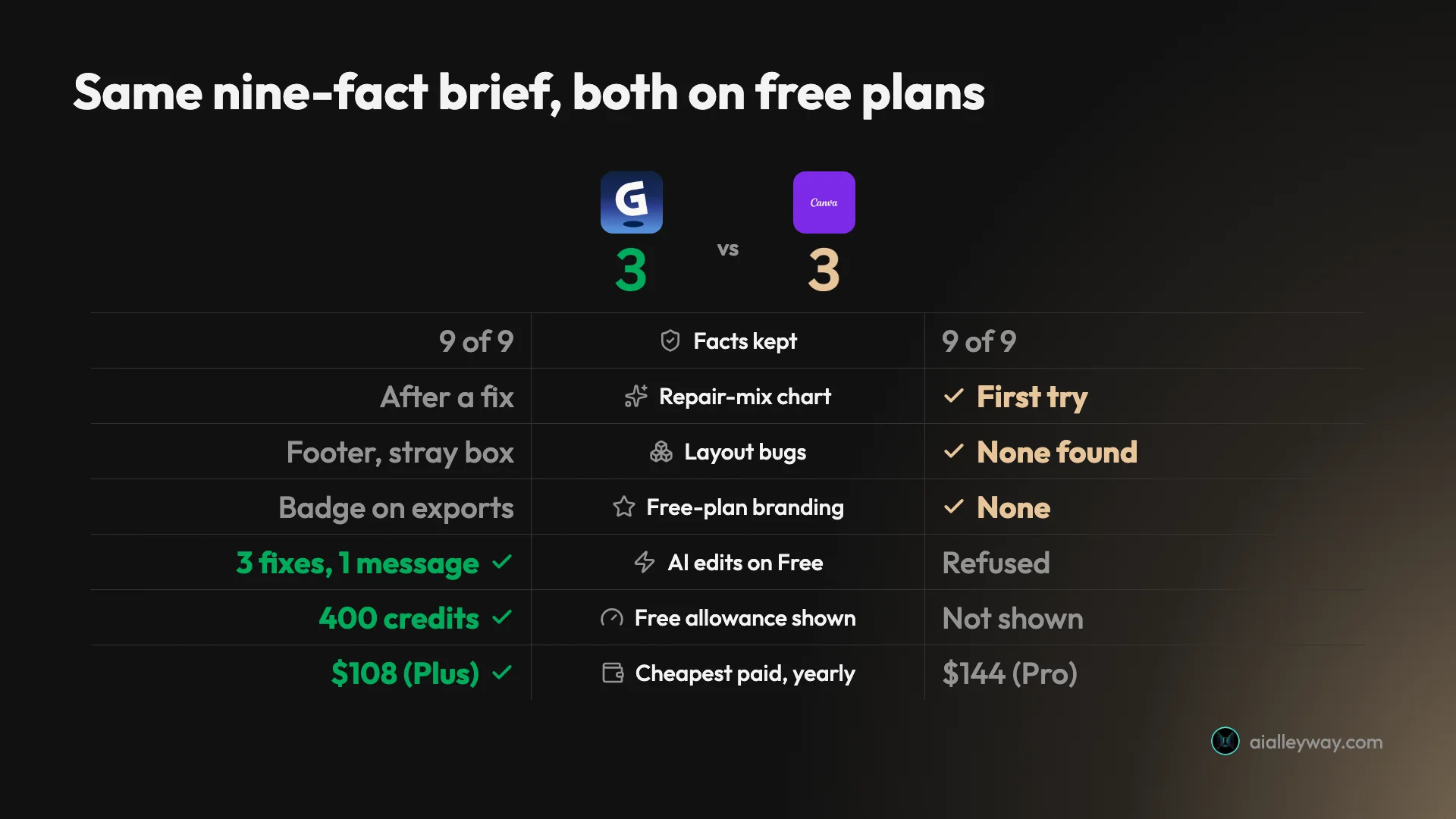
| Axis | Gamma | Canva |
|---|---|---|
| Facts kept from the brief | 9 of 9 ✓ | 9 of 9 ✓ |
| Numbers not in the brief | None ✓ | None ✓ |
| Other additions | Filler lines under headlines | Almost none: one headline figure per slide |
| Repair mix as a chart | After one fix | First try ✓ |
| Layout errors | Broken footer, stray “1” box | None found ✓ |
| Time to eight slides | About a minute, after a plan step | About a minute ✓ |
| Revising with AI on Free | 3 fixes in 1 message ✓ | Refused: “requires a premium feature” |
| Free-plan branding on exports | Made with Gamma badge | None ✓ |
| PowerPoint export | Editable text, fonts embedded, chart as a picture | Editable text, fonts embedded, chart as a picture |
| Free allowance | 400 one-time credits, shown ✓ | Monthly AI allowance, not shown in the chat |
| Cheapest paid plan, billed yearly | $108 a year (Plus) ✓ | $144 a year (Pro) |
| Team plan, per person a year | $480 (Business) | $250 (Business) ✓ |
A few things kept the test fair. The brief went in word for word, with no follow-up before the first draft. Gamma ran at its default effort setting, Lite, and Canva at its free-plan default. The two runs were 16 days apart, and both products change often, so treat this as a snapshot of late October to early November 2026 rather than a permanent ranking.
The scorecard image comes out level, three axes each and one tie; the full table leans Canva on finish and Gamma on what happens after the draft. The tools are good at different halves of the job: Canva at the first draft, Gamma at everything after it.
Gamma: strengths and gaps

Gamma is an AI presentation maker that, since its Gamma 5 release on 6 October 2026, works through an agent: it proposes a plan, waits for your approval, then builds the deck. Our Gamma review rates it 4.2.
Strengths
- It kept every fact. All nine figures and dates came through the plan and the deck exactly as written.
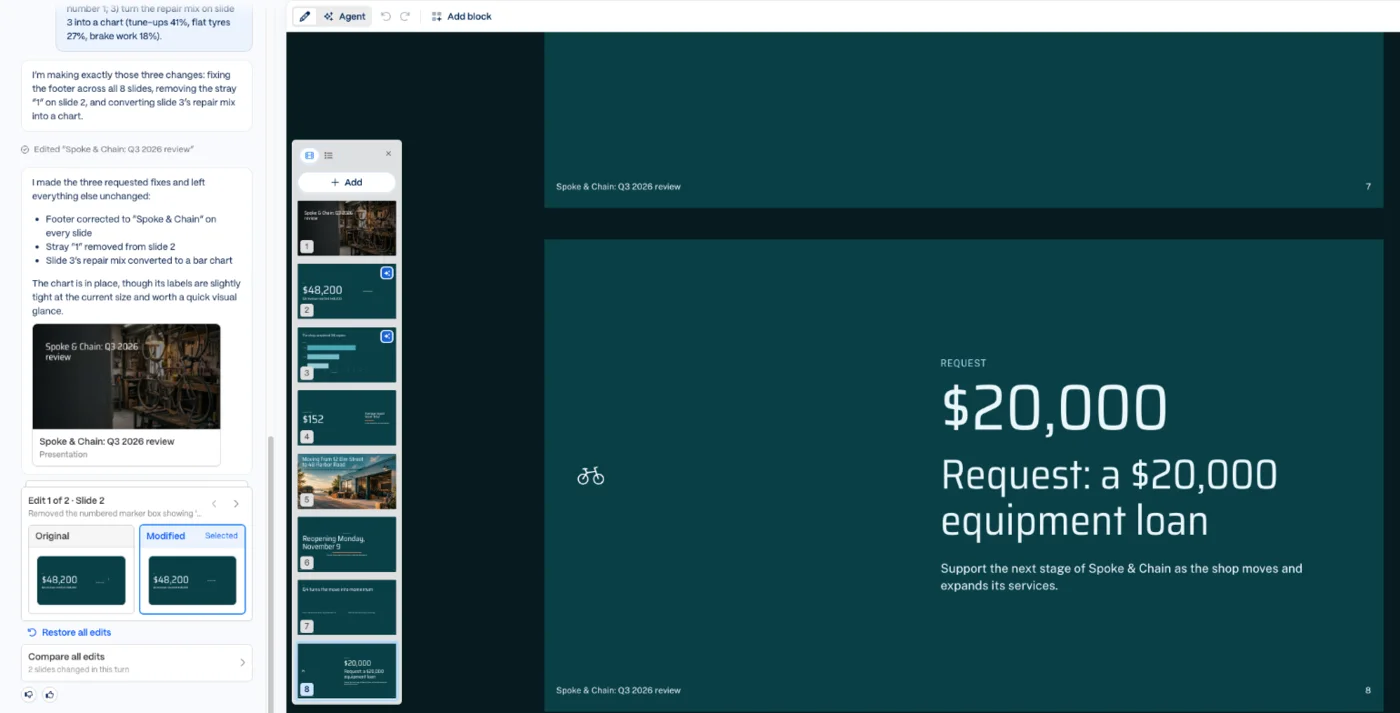
- Its agent fixes on the free plan. One message fixed a broken footer, removed a stray box and turned a list into a chart, with a before and after view of each slide it changed.
- You can see what you have left. The free plan’s 400 credits are counted on screen; my whole test used 31.
- Cheaper for one person. Plus costs $108 a year, $36 less than Canva Pro.
Gaps
- Polish bugs on a fresh deck: a literal “
&” in the footer of seven slides and a box containing only “1”. - Filler lines, such as “A clear baseline for the next quarter”.
- A badge on free exports, placed on the slide layouts where it is hard to find.
- Trains on your content by default on individual plans, with an opt-out under Data Controls.
Canva: strengths and gaps
Canva is a design editor first, used for social posts, documents, print and video, with presentations as one format among many. Its AI chat, Canva AI, can now build a whole deck from a prompt and hand it to the same editor. Our Canva review rates the editor 4.5.
Strengths
- The cleanest free first draft: eight slides with no layout errors, consistent type and a dark green and cream theme with orange accents.
- A real chart without asking: the three repair-mix percentages arrived as a labelled bar chart.
- No branding on free exports, in the PDF or the PowerPoint file.
- Cheaper for teams: Business costs $250 a person a year, against Gamma Business at $480.
Gaps
- Its AI would not revise the deck on Free. A follow-up request was refused as needing a premium feature.
- Very sparse slides: one headline figure per slide and no case for the loan beyond the amount.
- The AI allowance is invisible in the chat, so you cannot tell what a deck cost.
- More expensive for one person, at $144 a year for Pro.
Is Gamma or Canva cheaper?
For one person, Gamma is cheaper at the first paid tier; for a team, Canva is cheaper by a wide margin. Both start free, but their free plans limit different things. These are US prices from each company’s pricing page in October 2026, before tax, and both price by region. Our Gamma pricing guide and Canva Pro price guide go deeper on each.
| Plan level | Gamma | Canva |
|---|---|---|
| Free | 400 one-time credits, 10 slides per prompt, badge on exports | $0; limited Standard and Premium AI, no number published |
| Entry paid, billed yearly | Plus: $9 a month ($108 a year) | Pro: $144 a year ($12 a month) |
| Entry paid, monthly | Costs more; Gamma says yearly saves up to 28% | Pro: $18 a month |
| Next tier, billed yearly | Pro: $18 a month ($216 a year) | Business: $250 a year per person |
| Team or business | Business: $40 per member a month, yearly only | Business: $25 per person a month, or $250 a year |
| Top tier | Ultra: $90 a month ($1,080 a year); Enterprise custom | Enterprise by quote; AI Pass add-on $100 per person a month |
The free plans are where this comparison really sits, because both tools gave me a usable deck for nothing. Gamma’s free plan is a one-time allowance: 400 credits at signup that never refill. My deck, its plan and one round of fixes used 31 of them, so the free plan covers a dozen or so similar decks and then stops. Canva’s free plan renews every month instead, though its help page no longer gives the allowance as a number. In October it said up to 20 Standard or Premium uses a month; on 11 November it said only “limited access”.
The catch on Canva is that the chat did not tell me what my deck cost or how much was left. On Gamma, the counter is right there. If you plan around a budget, Gamma is easier to plan around; if you want a free plan that comes back next month, Canva’s does.
What each free plan leaves out matters more than the allowance. Gamma’s free exports carry a Made with Gamma badge, and removing it is the main reason to pay for Plus. Canva’s free exports carried no branding at all, but its AI refused my revision request on the free plan. So the upgrade pressure points in opposite directions: Gamma charges to clean up the file, Canva charges to keep talking to the AI.
At the first paid tier, Gamma Plus costs $108 a year against Canva Pro’s $144, a $36 gap. Plus removes the badge, raises the cap from 10 to 100 slides per prompt and adds monthly credits. Canva Pro adds far more than presentations: the larger template and stock libraries, five Brand Kits, social scheduling and 100GB of storage. If you already pay for Canva Pro for other design work, its presentation AI comes with it, and the cheapest Gamma plan is an extra bill rather than a saving.
Teams flip the order. Gamma Business costs $40 per member a month and is sold yearly only, which is $480 per person a year. Canva Business costs $250 per person a year. For three people that is $1,440 on Gamma against $750 on Canva, a $690 difference every year.
| Scenario | Gamma | Canva |
|---|---|---|
| One deck, once | $0 on Free, with a badge | $0 on Free, no badge, no AI revisions |
| A deck most weeks, one person | $108 a year on Plus | $144 a year on Pro |
| A team of three, billed yearly | $1,440 a year on Business | $750 a year on Business |
Heavy AI users should look at the ceilings too. Gamma meters its AI in credits, with paid plans adding a monthly allowance and selling top-ups of 1,500 credits for $6. Canva meters AI with a monthly allowance per plan, and sells an AI Pass add-on at $100 per person a month for people who need much more. Neither tool’s paid AI was part of my test, so I cannot say how far either allowance stretches on decks alone.
Which plan to pick
Start free on both, because the free plans are where the real difference shows. Move to Gamma Plus when the badge on exports starts to matter, which for most people is the first deck that goes to a client or a lender. Move to Canva Pro if you already use Canva for other design work and want its AI to keep revising decks; just know that I did not test whether Pro accepts the revision my free account refused. For a team, Canva Business is the cheaper seat, and Gamma Business is the plan where training on your content is always off.
Refunds are tight on both. Gamma refunds only within three days of subscribing and only below a credit-use threshold, such as 200 credits on Plus. Canva’s refund page says subscriptions are not refundable in most cases. With either, start on the free plan, and pay monthly first if you are unsure.
Which one makes the better deck?
Canva, on the first draft, and narrowly. Both kept every fact, which is the result that matters most for a deck going to a lender. The difference was in the finish: Canva’s draft had nothing to fix, while Gamma’s had three things to fix before I would show it to anyone.
Canva’s eight slides followed the brief in order: a title slide with a photo of a workshop bike, then $48,200 with “+12% on Q2”, 316 repairs, the repair mix, the $152 average ticket, the move from 12 Elm Street to 48 Harbor Road with the reopening date, the two Q4 goals with their dates, and the $20,000 loan. Every number was right, and nothing was added.
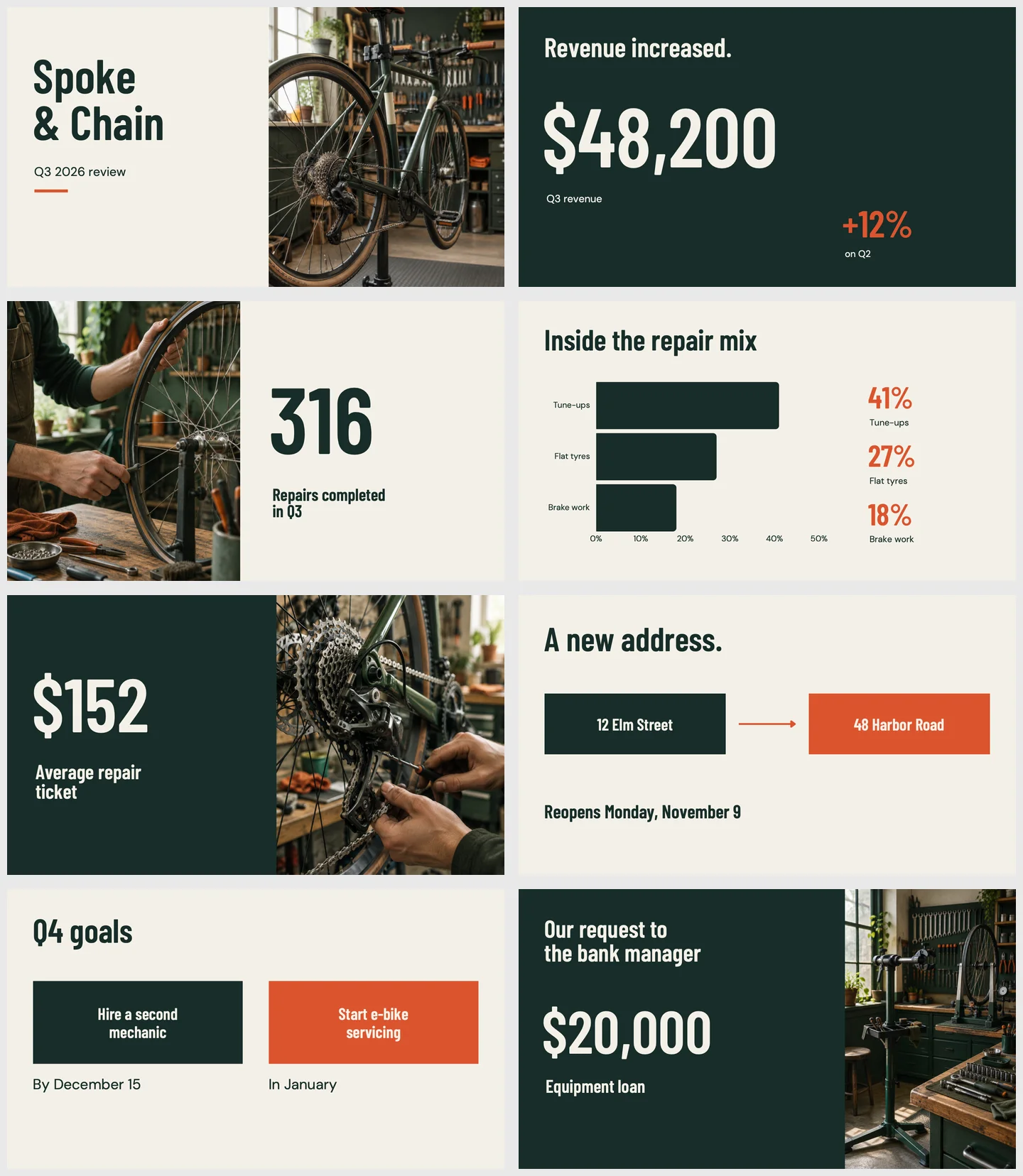
The repair mix is the clearest single difference. Canva drew the three percentages as a labelled bar chart on its first attempt, with the figures repeated in large type beside the bars. The chart appeared a few seconds after the rest of the deck, but it appeared without my asking.
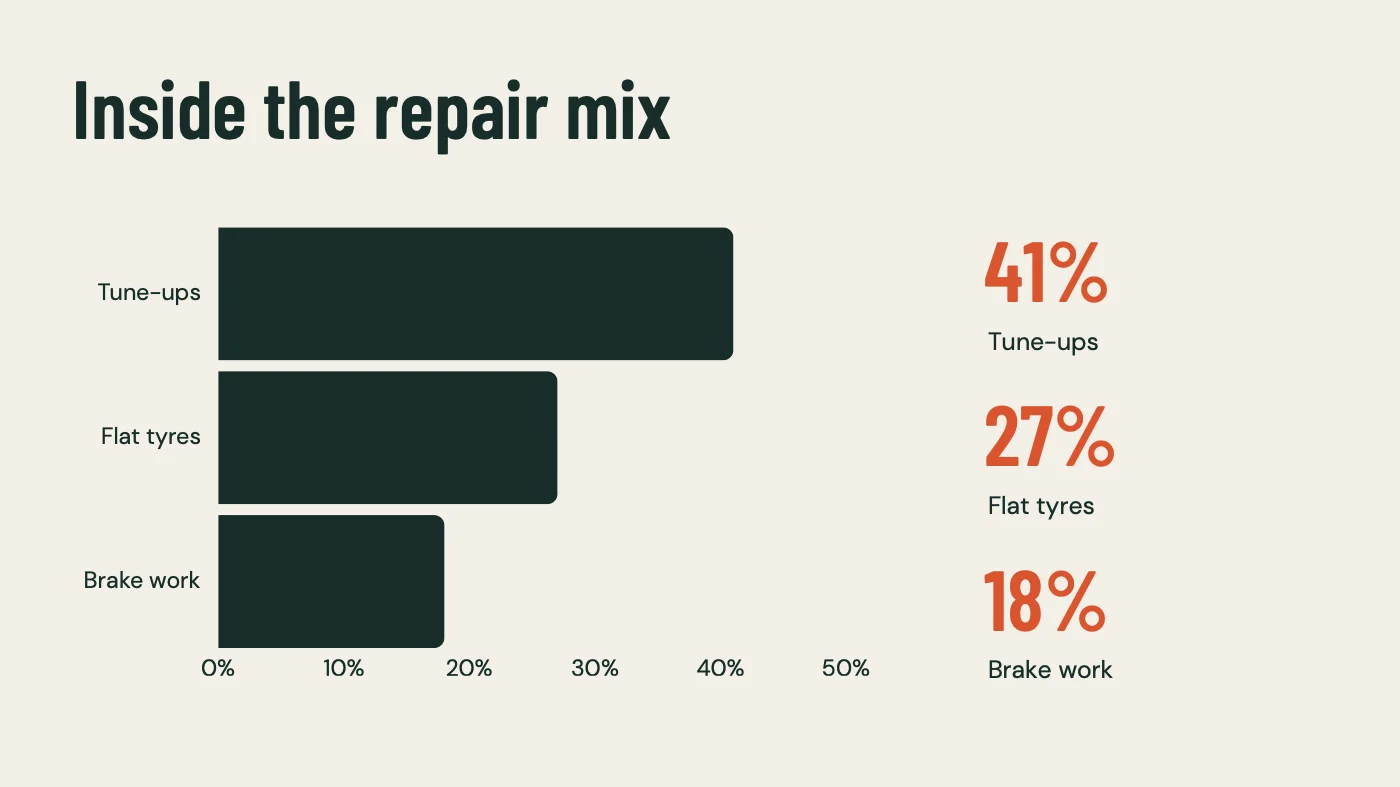
Gamma’s first version of the same slide listed the three percentages as text under small icons, a bicycle for tune-ups and an office building for both flat tyres and brake work. It became a chart only after I asked its agent for one.
Gamma also had two visible bugs. The footer on every slide after the cover printed a web-code version of the ampersand, and slide 2 carried a rounded box containing only the number 1. Its filler lines were the subtler problem: “The move creates the setting for the next phase of Spoke & Chain” says nothing, but sits on a slide meant for a bank manager.
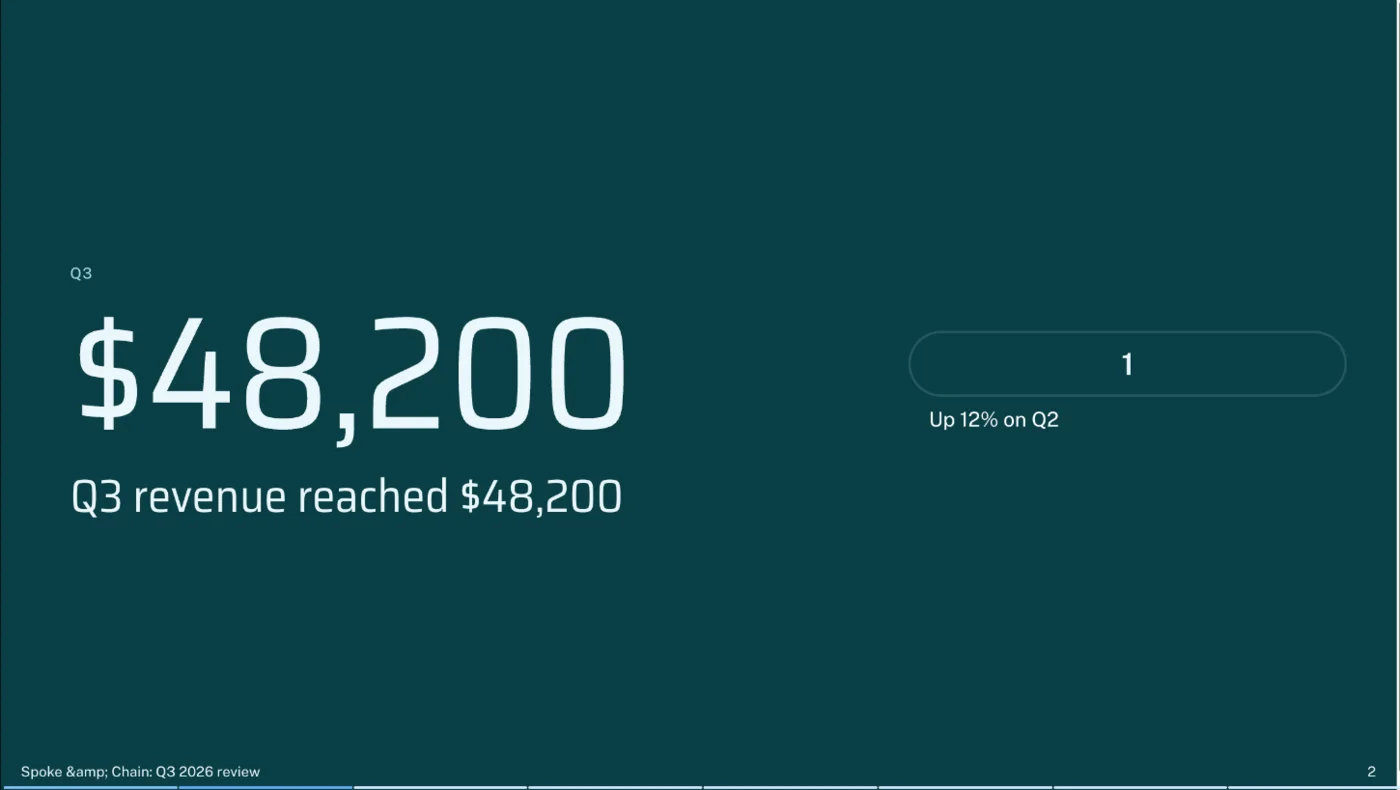
Canva’s weakness was the opposite of Gamma’s. Where Gamma padded, Canva went bare. Each slide carried one headline figure and a short label, such as “Revenue increased.” over $48,200, and the loan slide read “Our request to the bank manager” over $20,000 and “Equipment loan”. There was no line about what the equipment is for or how the loan would be repaid.
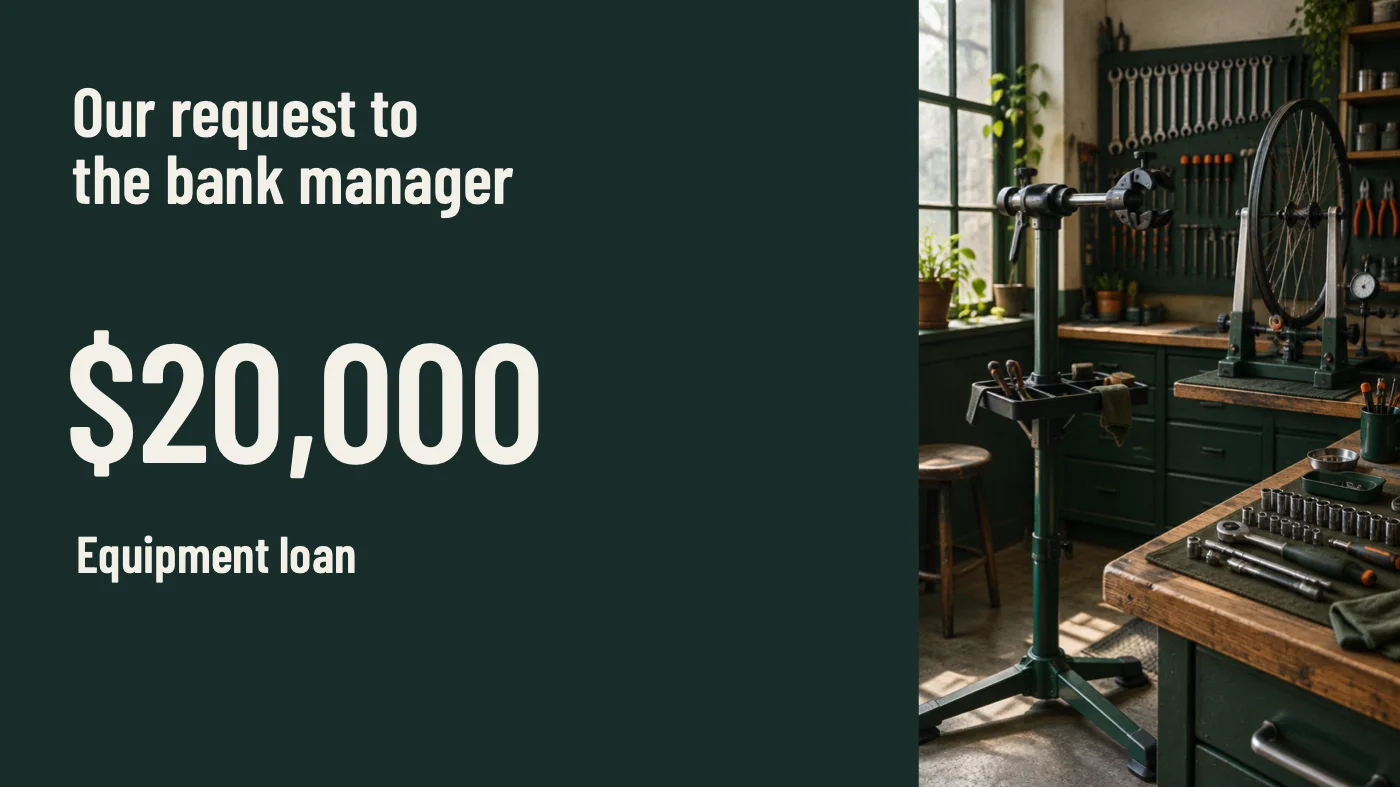
To be fair to Canva, my brief gave it no use of funds and banned invented numbers, so a bare slide is the honest result. Beautiful.ai filled the same gap with a loan purpose and a return on investment I never supplied, which is worse. But a bank manager will ask, and the persuasion has to come from you either way.
How the decks looked
On design, Canva’s deck looked more finished. It used a dark green and cream theme with orange accents, a condensed headline font, and workshop photos on four of the eight slides. The layouts varied, from a split photo slide to a two-box address slide with an arrow between the streets. In Canva’s editor preview the photos looked soft and pixelated, but in the exported files they sit at 660 to 910 by 1,080 pixels, so the soft look was the editor preview.
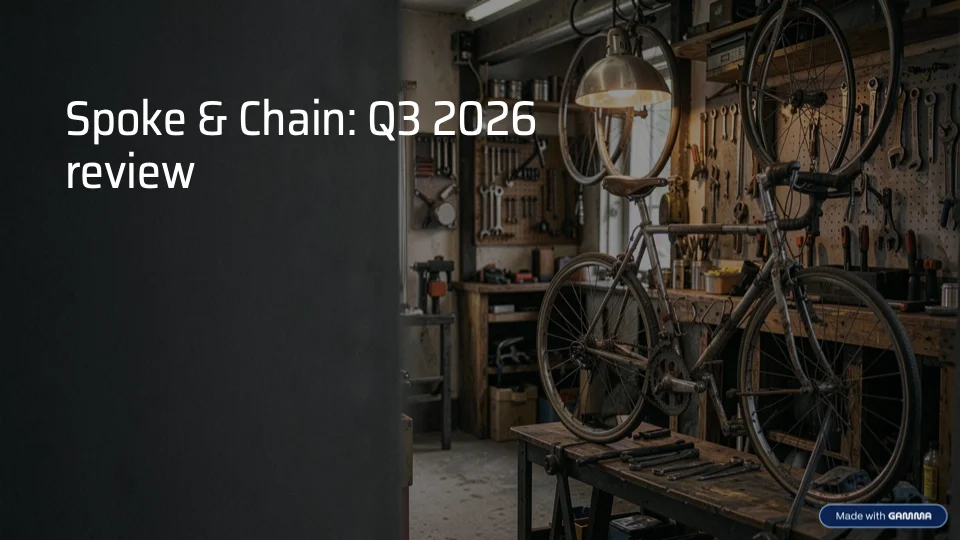
Gamma’s deck was darker and more text-led, in a teal theme called Quay Circuit, with two AI images: a bike on a workbench for the cover and a sunny shopfront by a harbour for the move. Its moving slide set dark text over the bright photo, which is hard to read on a projector, and its big numbers were repeated word for word in the headline beside them.
What neither tool did
Some things went wrong in both, and they are worth knowing before you pick either. Neither tool wrote a case for the loan, because neither had facts to write one from. Neither chart survived as a chart in PowerPoint. And neither tool asked me a question before it started, about the audience, the tone or what the bank manager would want to see; Gamma showed a plan, but the plan was its guess, not a question.
That last point matters more than it sounds. My brief named the audience, and neither deck spoke to the bank manager beyond stating the amount. If the deck has to persuade someone, say so in the prompt, give the tool the reasons in your own words, and then check it used only those.
Design has a second edge: how recognisable the deck is. A July 2026 thread on r/powerpoint complained that Gamma’s decks are “recognised by everyone from a mile away”. Canva’s deck looked less like a house style, partly because its template range is so large; its pricing page lists more than 1.6 million templates on the free plan.
Neither deck is something I would present untouched. Canva’s needs words added; Gamma’s needs bugs removed and filler cut. The work Canva leaves you is writing, and the work Gamma leaves you is checking.
Which one is faster to work with?
Both built eight slides in about a minute, so the real difference is what happens next. On the free plans, Gamma lets you fix the deck by talking to it, and Canva sends you to the editor.
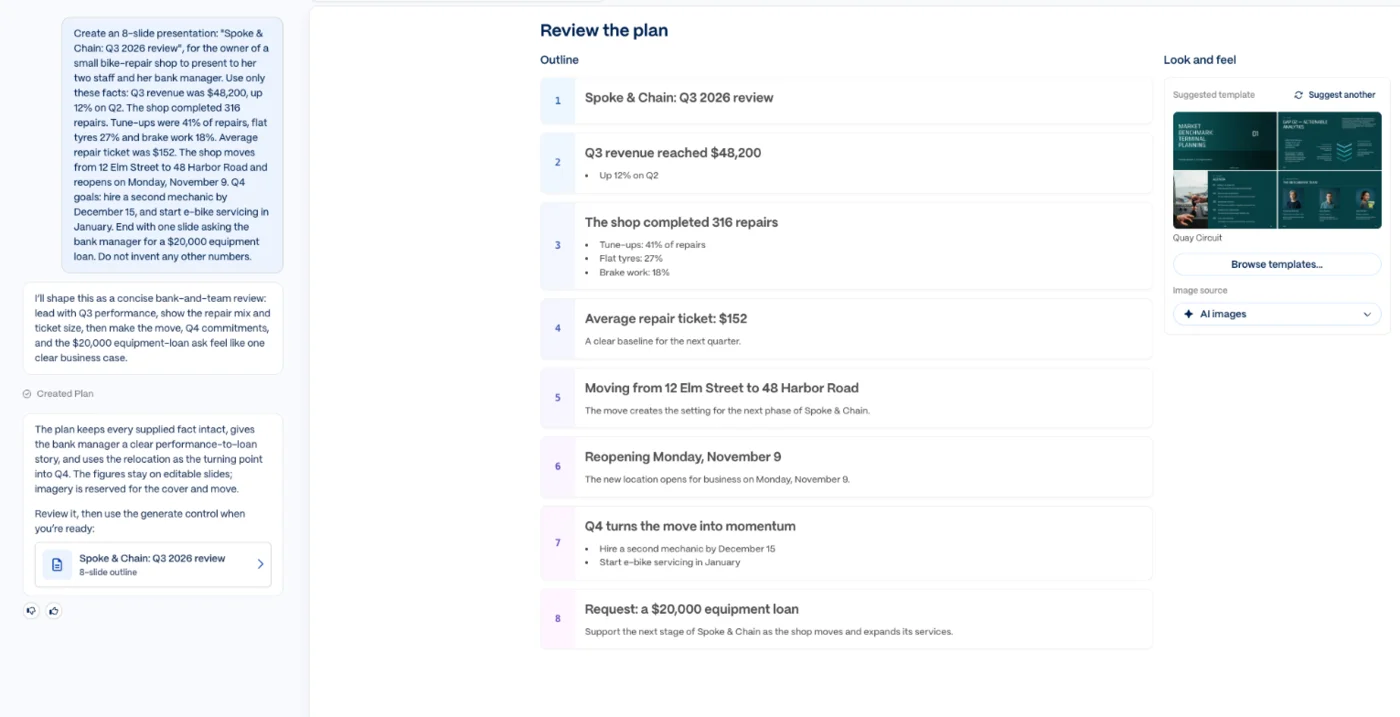
Gamma’s flow is chat-first with a plan step. I typed the brief, the agent replied with a one-line approach and an outline of eight slide cards, and I pressed Generate. The deck was ready about a minute later. The plan cost 3 credits and the deck 22. Gamma’s Express mode skips the plan if you want a draft straight away.
Canva’s flow is chat-first with no plan. I pasted the brief into Canva AI and the finished slides appeared about 60 seconds later, without a question or an outline to approve. That is quicker to a first look, but it also means there is no cheap point to catch a wrong structure before the slides exist.
The outline step
Gamma’s plan is worth more than it looks. Each slide appears as a card with its headline and points, so you can see whether the story runs in the right order and whether every fact made it in before you spend most of the credits. You can merge cards, keep talking to the agent, or accept the suggested theme and image source.
Canva skipped all of that. The trade is simple: Canva is a click faster to a first look, and Gamma is cheaper to correct when the structure is wrong.
The fix-up step is where they part ways. When I spotted Gamma’s problems, I sent one message with three numbered fixes and an instruction to change nothing else. The agent made all three and showed each slide it changed as an original and modified thumbnail, for 6 credits.
In Canva, I asked in the same chat: “Make the last slide more persuasive for the bank manager, using only the facts in my brief. Do not invent any numbers.” Canva AI declined.

That left me with Canva’s editor, which is the best part of Canva and a fine place to rewrite a slide by hand. I did not test whether Canva Pro would have accepted the request; the message only says the task needs a premium feature.
Exports
Exports took about the same effort, and gave closer results than I expected. Both tools offered PDF and PowerPoint downloads on the free plan, and I opened both PowerPoint files to check what survived. In each, the text sat in ordinary editable text boxes, the two theme fonts were embedded in the file, and the bar chart was a flat picture rather than a PowerPoint chart.
| In the PowerPoint export | Gamma | Canva |
|---|---|---|
| Text | Editable | Editable |
| Theme fonts | Embedded (Public Sans, Saira Semi Condensed) | Embedded (Barlow Condensed, DM Sans) |
| Bar chart | A picture, 2,946 pixels wide | A picture, 1,302 by 842 pixels |
| Branding on Free | Made with Gamma badge on every slide’s layout | None |
The PDFs differed in the same way. All eight pages of Gamma’s free PDF carried the badge; on the cover it sits in the bottom-right corner. Canva’s 8.7 MB PDF had no watermark or Canva logo on any slide.
If you plan to edit charts in PowerPoint afterwards, neither tool helps; fix the numbers inside the tool before exporting, or rebuild the chart. Whichever you use, open the exported file on the computer you will present from, before the meeting rather than during it.
Sharing and the rest of the workflow
Where the deck goes next tilts the choice too. Gamma is built around sharing a link: my workspace settings let me share with the workspace, invite guests or make a deck viewable by anyone with the link. Canva keeps the deck in the same editor as everything else you make there, so a team that already does its social posts and documents in Canva gets presentations without another tool or another login.
Gamma is the better pick if you will keep editing
Gamma suits people who expect to go back and forth with the AI, and who want to do that without paying.
- Founders and small-business owners drafting a pitch, who will refine the story over several rounds. Its agent made three precise fixes in one message on the free plan.
- Anyone who wants to budget their AI use, because Gamma shows the credit count; my deck cost 31 of 400.
- Solo users choosing a first paid plan, since Plus at $108 a year undercuts Canva Pro at $144.
- People who share decks as links, with workspace, guest and public sharing built in.
If you choose Gamma on a personal plan, switch off training under Data Controls before your first real deck, and check the footer and the filler lines before you present.
Canva is the better pick if you want a clean free draft
Canva suits people who want a good-looking deck from one prompt and are happy to finish it by hand.
- Students, teachers and occasional presenters who need one clean deck, for free, with no badge on the file.
- Teams already on Canva, who keep their brand kit, templates and other designs in the same place, and pay $250 a person a year for Business rather than $480.
- Designers and marketers who will restyle the slides anyway and want Canva’s editor and stock library under them.
- Anyone whose deck is mostly numbers, since Canva put each figure in large type and drew the chart without being asked.
Expect to write the persuasive parts yourself, especially for a deck that asks someone for money, and do not count on the free plan’s AI for revisions.
Final word
For most people making a one-off deck, Canva is the one to try first: on the free plan it kept every fact, drew the chart unprompted and handed over clean files with no badge. If you expect to keep reworking the deck with AI, start with Gamma instead, because its agent fixed its own mistakes on the free plan where Canva’s AI asked me to upgrade. Our Gamma review has the full Gamma test, our Canva AI presentation review covers Canva’s side in depth, and Gamma vs Beautiful.ai runs the same brief through a third tool.
If you will keep editing with AI, start here instead:
Frequently asked questions
Is Gamma or Canva better for presentations?
It depends on what happens after the first draft. I gave both tools the same brief with nine facts and an instruction not to invent numbers, on their free plans. Both kept all nine facts and added no numbers. Canva's deck was the cleaner one: no layout bugs, a real bar chart on the first try and no branding on the exported files.
Gamma's deck needed fixing, with a broken footer, a stray box and a list where a chart belonged, but its agent fixed all three from one message on the free plan. When I asked Canva's AI to revise one slide on the free plan, it refused and said the task needed a premium feature. If you will take the draft as it is, start with Canva. If you expect to keep asking an AI for changes without paying, start with Gamma.
Is Gamma cheaper than Canva?
For one person, yes, at the first paid tier. Gamma Plus costs $9 a month billed yearly, $108 a year, while Canva Pro costs $144 a year or $18 a month. Both have free plans: Gamma's gives 400 credits once, at signup, and Canva's gives a small monthly AI allowance that its help page calls limited access, without a number.
For teams the order flips. Gamma Business costs $40 per member a month and is sold yearly only, so three people pay $1,440 a year. Canva Business costs $250 a year per person, so the same three pay $750. These are US prices from the vendors' pages in October 2026, before tax; both companies price by region. Canva Pro's monthly AI allowance is 10x the free plan's, per its help page, while Gamma Plus adds a monthly credit allowance on top of the price.
Which one exports better to PowerPoint?
They came out close. I exported the same test deck from both free accounts. In both PowerPoint files the text was editable, the theme fonts were embedded in the file (Public Sans and Saira Semi Condensed in Gamma's, Barlow Condensed and DM Sans in Canva's), and the bar chart arrived as a flat picture rather than a chart you can edit. If you need to change the chart's numbers in PowerPoint, you will rebuild it either way.
The difference is branding. Gamma's free plan puts a Made with Gamma badge on the slide layouts every slide uses, and on every page of the PDF; only paid plans remove it. Canva's free exports carried no Canva watermark or logo on the slides, in either the PDF or the PowerPoint file. Open either file on the computer you will present from before the meeting.
Can Canva's free plan make a presentation with AI?
Yes. I pasted a nine-fact brief into Canva AI on a free account and got eight finished slides in about a minute, with every fact kept, nothing invented and a bar chart for the percentages. The deck downloaded as a PDF and a PowerPoint file with no watermark.
What the free plan would not do was revise it. When I asked Canva AI, in the same chat, to make the last slide more persuasive for the bank manager using only the facts in my brief, it replied that the task required a premium feature and offered an upgrade. Canva also did not show how much of the free AI allowance the deck had used, and its help page no longer says how big the free allowance is. Plan to make changes by hand in the editor, which is free and is Canva's strongest part, or pay.
Does Gamma or Canva make up numbers?
Neither did in my test. Both decks kept all nine facts from the brief, including revenue of $48,200, 316 repairs, an average ticket of $152 and the $20,000 loan request, and neither added a figure I had not given it. That is better than Beautiful.ai managed with the same brief, which added a revenue bar for a quarter I never mentioned.
They differed in what they did add. Gamma padded its slides with filler lines such as 'A clear baseline for the next quarter', which state nothing but can read like claims. Canva added almost nothing: one headline figure per slide with a short label, such as 'Revenue increased.' above $48,200 and 'Equipment loan' under $20,000. That kept it accurate, but it also left the loan slide with no case for the loan beyond the amount.
Keep reading
Canva AI presentation review: right facts, no second draft
A hands-on Canva AI presentation review: 8 slides in 60 seconds with every fact right on the free plan, then a refused revision and a chart that exports flat.
Gamma AI review: 8 accurate slides in a minute, then the fixes
A hands-on Gamma AI review: an 8-slide deck in a minute with every number right, a footer bug, a chart that exports as a picture, and what Plus costs.
Canva Review: Great Editor, but the AI Runs on a Meter
A Canva review from a Pro trial: nine hands-on tests, exact US prices, and six AI requests that used 56% of the trial's allowance. Plus what the trial hides.
Gamma vs Beautiful.ai: one kept my facts, one looked better
Gamma vs Beautiful.ai, tested with the same nine-fact brief: which kept the numbers, which made the better-looking deck, which costs less, which trains on you.
Gamma pricing: $9 a month, and what the credits really buy
Gamma pricing in October 2026: Free, Plus $9, Pro $18, Ultra $90 and Business $40 a month billed yearly, plus what a deck costs in credits on my account.
Canva Pro Price: $144 a Year, and What Canva Leaves Out
Canva Pro price in the US: $18 a month or $144 a year. Business is $25 per person. Plus the $100 AI Pass, seat billing and the refund rule, all sourced.
Gamma alternatives: 7 worth trying, and the one that's dead
The best Gamma alternatives, two run against Gamma on one nine-fact deck: Beautiful.ai invented numbers, ChatGPT kept them. Prices, free plans and when to stay.
ChatGPT PowerPoint: it made my deck free, then locked me out
Can ChatGPT make a PowerPoint? My free account got an 8-slide .pptx in a minute, then hit a limit. The add-in, ChatGPT Slides and Copilot, compared.