
AI notetaker for Zoom: AI Companion vs free apps
The best AI notetakers for Zoom — the native AI Companion, included on paid Zoom plans, vs free apps like Fathom — and how to set each one up.
Contents
Zoom is the one platform where the built-in AI notetaker is often the easiest answer, because Zoom AI Companion comes included with paid Zoom plans rather than as a separate purchase. If you already pay for Zoom, you may already have AI notes and not know it. If you are on a free Zoom account or you bounce between Zoom, Google Meet, and Teams, a free app like Fathom is the better fit.
What follows is both options laid out — Zoom’s native AI Companion and the best third-party notetakers that plug into Zoom — with what each costs, how to switch it on, and which suits your calls. The third-party picks are the ones we ran ourselves and scored in our reviews, not names lifted off a marketplace listing.
What are the two ways to get AI notes in Zoom?
Your two choices come down to whether you pay for Zoom and whether you want anything visible in the call.
Zoom’s native AI Companion. Zoom’s own assistant takes notes through a feature called My Notes, summarizes the meeting, and emails the recap with next steps after the call. Its headline advantage is price: the core note-taking is bundled into paid Zoom plans instead of sold on top.
A third-party notetaker. Tools like Fathom, Otter, Granola, and tl;dv connect to Zoom no matter what Zoom plan you are on, and several are free even on a free Zoom account. Most also cover Google Meet and Teams, so they win if you work across platforms or want a cleaner, more portable summary.
| The measure | Native AI Companion | Third-party notetaker |
|---|---|---|
| Cost | Bundled with a paid Zoom plan | Free options, any Zoom tier |
| Setup | Admin + host enable it | Install Zoom app or connect calendar |
| Works beyond Zoom | No, Zoom only | Usually Meet + Teams too |
| Output | Summary emailed after the call | Summary in the tool, with exports |
| Bot in the call | No (runs inside Zoom) | Usually a visible bot; some bot-free |
What are Zoom’s AI Companion and My Notes?
Zoom’s native notetaker is the part of AI Companion called My Notes. Switch it on and Zoom captures the meeting, then sends a summary with key points and next steps to the host and invitees once the call ends, and you can ask the in-meeting assistant questions like what you missed while you were away. The notes run inside Zoom, so nothing joins the meeting as a participant.
The reason it is worth a serious look is the pricing. Where Google charges for Gemini and Microsoft charges for Copilot, Zoom has bundled the core AI Companion note-taking into its paid Zoom Workplace plans, which run roughly $13 to $18 a user a month, at no extra cost. So if your organization already pays for Zoom, you very likely already have AI notes available; you may just need to turn them on. Zoom has started adding premium AI tiers for more advanced, agentic features, but the meeting summary most people want is part of the plan you already have.
In day-to-day use, the appeal is that the recap simply turns up: the summary and next steps arrive in the host’s and invitees’ inboxes after the call and stay searchable in Zoom, so there is nothing to open during the meeting and no separate app to check afterward. The in-meeting assistant adds a second layer, letting a latecomer ask what they missed without interrupting, which is the kind of thing only a notetaker built into the platform can do smoothly.
The catches are scope and the account tier. AI Companion is Zoom-only, so it does nothing for your Meet or Teams calls, the free Zoom Basic tier does not include it, and a host or admin has to enable it first. Some regulated environments also restrict the native AI for compliance reasons, so check your policy if you handle sensitive data. You can confirm the current behavior on Zoom’s AI Companion page.
| Zoom native AI notes (AI Companion / My Notes) | |
|---|---|
| What it does | Captures the call; emails an AI summary with next steps |
| Cost | Bundled into paid Zoom Workplace plans, no add-on |
| Works on | Zoom only |
| Bot in the call | No — runs inside Zoom |
| Best for | Anyone already on a paid Zoom plan |
So the native route is the obvious pick if you already pay for Zoom and your calls are mostly on Zoom. If you are on the free tier or want one tool for every platform, the third-party route is where most people land.
The best third-party AI notetakers for Zoom
Every leading notetaker plugs into Zoom, and none of them care which Zoom plan you have. Here are the four we would choose between, with how each handles Zoom. We tested the first three hands-on.
| Tool | How it joins Zoom | Free plan | Saves video | Our rating |
|---|---|---|---|---|
| Fathom | Visible bot (bot-free beta), Zoom app | Unlimited | Yes | 4.6 / 5 |
| Otter | Visible bot, calendar auto-join | 300 min/mo | Business tier | 3.8 / 5 |
| Granola | Bot-free, captures device audio | Limited history | No | 4.6 / 5 |
| tl;dv | Bot or bot-free desktop | Unlimited | Yes | Surveyed |
Fathom — the best free pick. Fathom is the one we would hand to most Zoom users who do not have AI Companion, and it has an edge on Zoom specifically: an official app in the Zoom Marketplace, so setup is a one-click install rather than a separate sign-up. It records and transcribes your Zoom call, then returns a clean structured summary with timestamped action items the moment it ends, on a free plan with no minute cap. It also saves the video and covers Meet and Teams. We rated it 4.6 out of 5, the highest in our testing. See our full Fathom review.
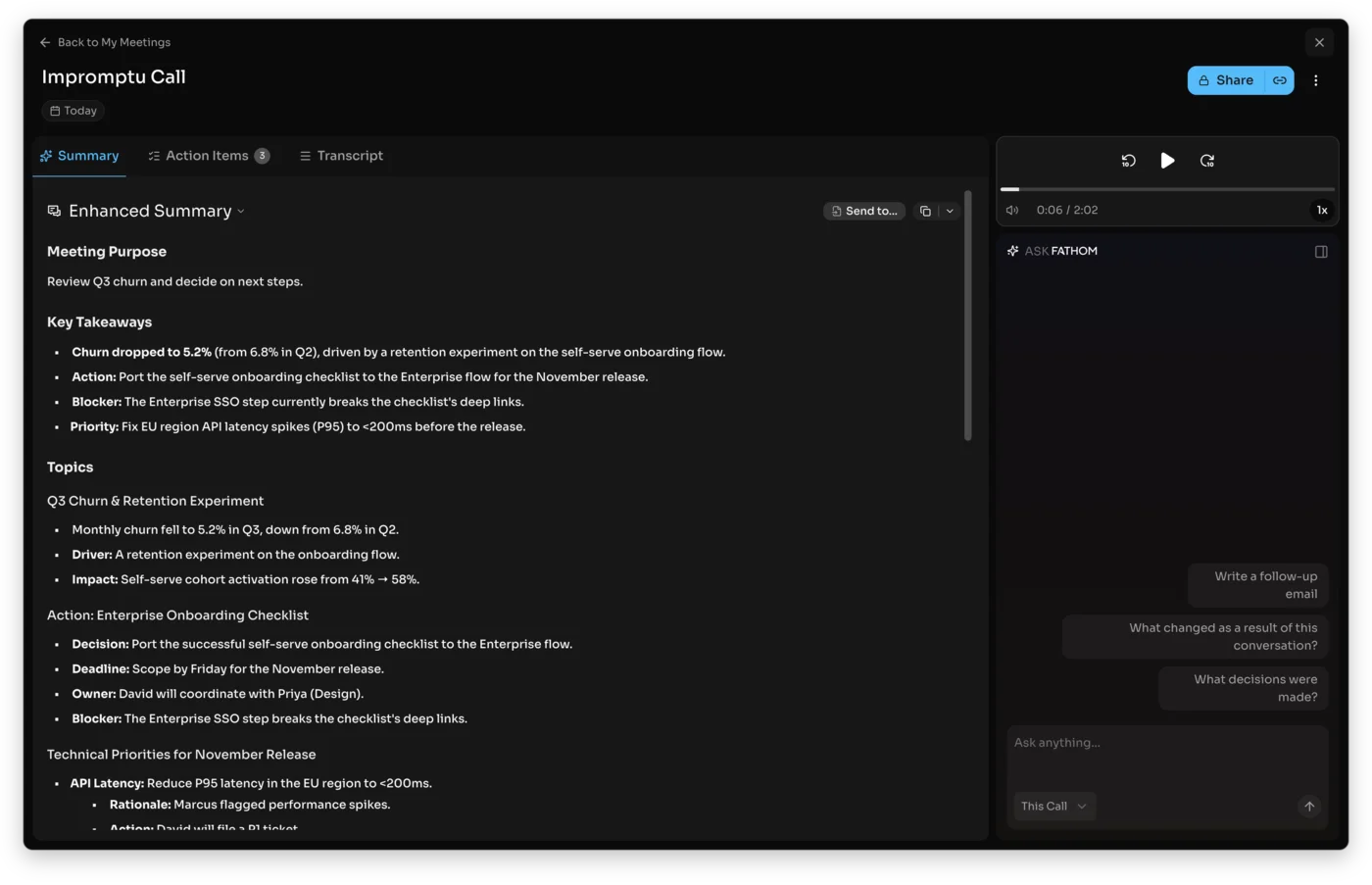
Otter — for live transcription and mobile. Otter joins your Zoom call as a bot and shows a live transcript with speaker labels as people speak, and it has the strongest mobile app of the group for recording in person. On Zoom it overlaps with what AI Companion already does, so it earns its place mainly if you want the real-time transcript view or you also meet off Zoom; its free plan is tighter at 300 minutes a month. Our Otter review and Otter pricing guide cover it.
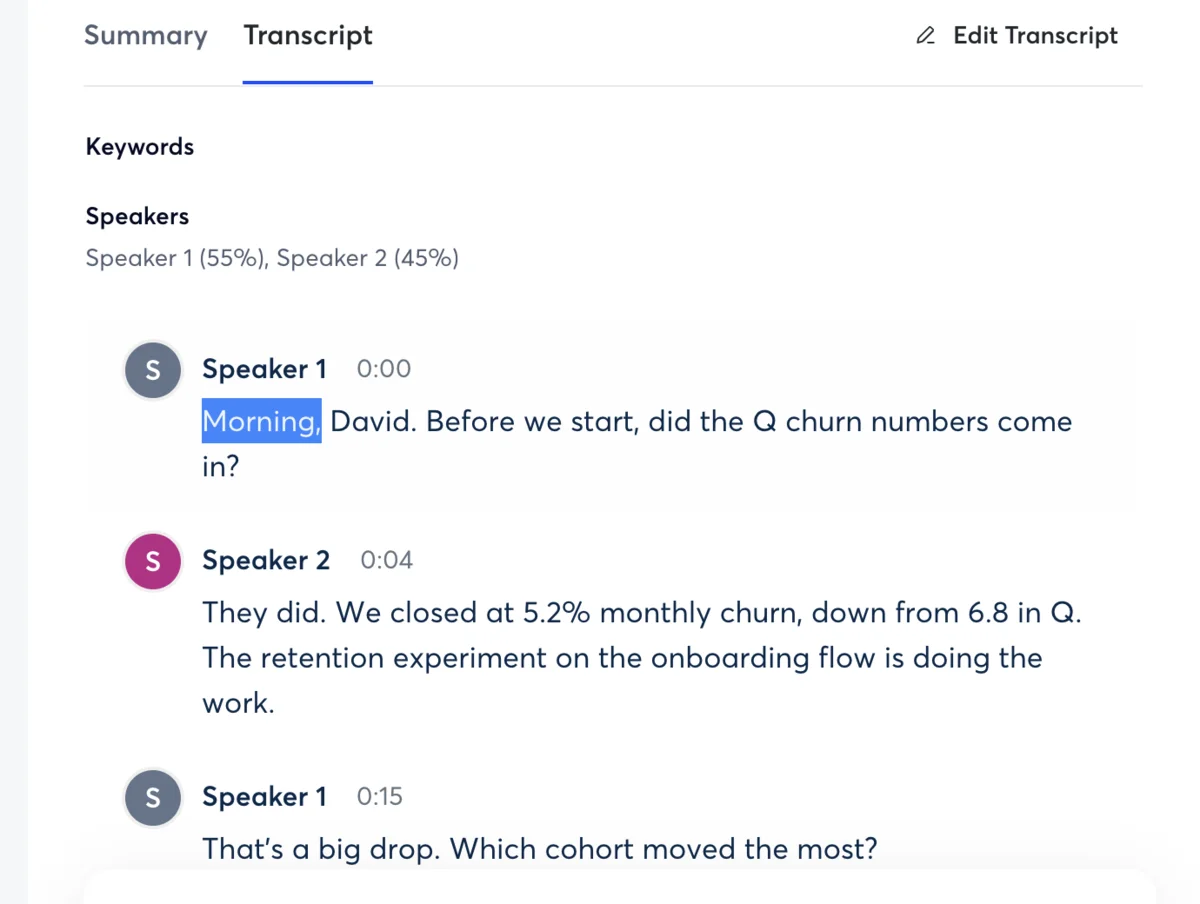
Granola — for a bot-free Zoom call. Granola is the answer to a problem Zoom users know well: calls where three or four visible “AI Notetaker” bots clutter the participant list. It adds nothing to the meeting, capturing your computer’s audio directly and folding your rough notes into a polished summary. It runs on Mac, Windows, and iPhone, keeps no video, and limits older history on the free plan, but for a quiet footprint on a busy Zoom it is the cleanest option. See our Granola review.
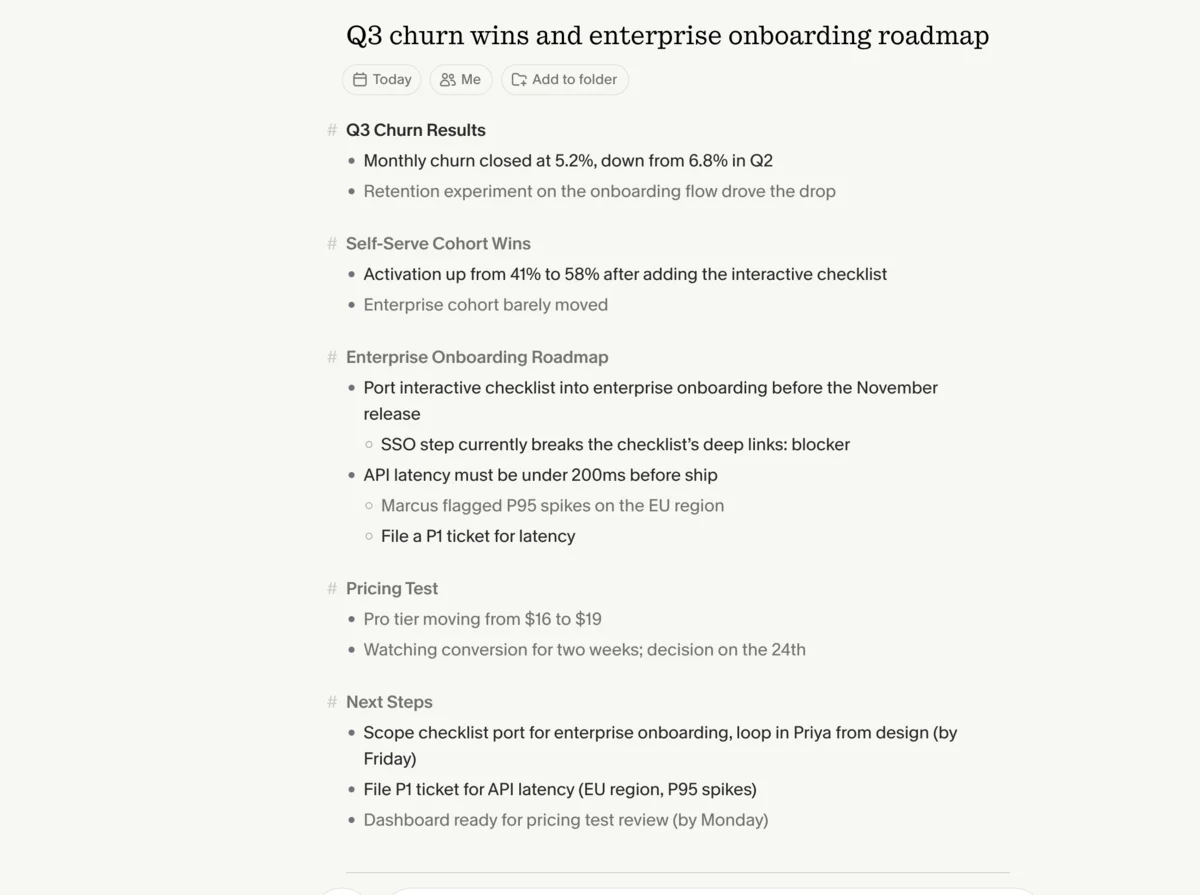
tl;dv — for saved video and clips. tl;dv records Zoom calls unlimited on its free plan, keeps the video, and turns moments into shareable timestamped clips, with a bot-free desktop mode as an option. It covers Meet and Teams as well, so a team that meets on several platforms gets one consistent recording tool. It is the pick when sharing a clip of what was said beats a tidy written recap, and the saved Zoom recording is handy when someone who skipped the call wants to watch the five minutes that concerned them rather than read the whole thing.
Beyond these four, the Zoom Marketplace and Chrome extensions add more choices. Tactiq transcribes the Zoom call from a browser extension without a bot, Krisp pairs note-taking with its noise cancellation, and other apps install directly from the Zoom Marketplace, all useful if you want capture without a separate desktop app, though the dedicated tools above generally produce richer summaries.
How to set up an AI notetaker on Zoom
The native route needs an admin to flip a switch once; the Marketplace route needs little more than a browser tab.
Turning on Zoom’s native notes:
- Admin or owner: in the Zoom web portal settings, enable AI Companion and the meeting summary feature for your account.
- Host, in the meeting: open the AI Companion control and start the meeting summary or My Notes.
- After the call: Zoom emails the summary with next steps to the host and invitees.
- If the control is missing: your account does not have AI Companion enabled, or you are on the free Zoom Basic tier, which does not include it.
Connecting a third-party notetaker needs no Zoom admin, and on Zoom it can be a true one-click install:
| Step | What you do |
|---|---|
| 1 | Install the tool’s Zoom Marketplace app, or sign up and connect your calendar |
| 2 | Choose whether it auto-joins every meeting or you start it manually |
| 3 | Join your Zoom call; the bot joins too, or the app captures in the background |
| 4 | Read the summary and action items in the tool after the call |
A bot-free tool like Granola skips the join step — you open it alongside Zoom and it captures the audio your computer plays — and an extension like Tactiq transcribes from your browser tab. However you go, your next Zoom call can take its own notes.
Bot or bot-free: which fits your Zoom calls?
The decision that matters most on Zoom is whether you want a recorder visible in the call, and Zoom raises the stakes because a meeting can quickly fill with everyone’s separate notetaker bots.
| On a Zoom call | Visible bot | Bot-free |
|---|---|---|
| Tools | Fathom, Otter, tl;dv | Granola, Tactiq, native AI Companion |
| In the participant list | Yes | No |
| Captures if you step away | Yes, it joins the call | No, it needs your device |
| Best for | Internal calls, hands-off capture | External calls, a clean participant list |
A visible bot, used by Fathom, Otter, and tl;dv, is the most reliable: it joins the Zoom call as a participant and captures everything even if your laptop sleeps or your tab closes. The downside is social as much as technical — on a client call, a box labelled as a recording bot can be awkward, and on a big internal call, several of them at once is the running joke of the Zoom era.
A bot-free approach — Granola, the extensions, or Zoom’s own AI Companion — keeps the participant list clean. Granola and the extensions capture what your device hears, so they are quiet but depend on you being in the call. AI Companion is the exception that is both bot-free and automated, which is a real point in the native option’s favour if you already pay for Zoom.
If your Zoom calls are internal and you want hands-off capture, a bot is fine. If they are external, or you simply do not want to add to the bot pile-up, lean bot-free, and Granola is the cleanest summary-quality option.
What should you know before turning one on?
An AI notetaker records and stores your conversations, so settle a few details before you let one into your Zoom calls.
Consent comes first. Recording crosses from a technical choice into a legal and social one. Two-party-consent regions generally require everyone’s agreement before a call is recorded, and announcing the notetaker is simply good manners anywhere. Zoom flags an active recording in the toolbar and a visible bot outs itself by joining, but a bot-free tool leaves no automatic banner, so on an external Zoom call the courtesy is yours to extend out loud.
Native may not meet compliance rules. Zoom AI Companion is convenient, but some regulated or HIPAA-bound environments do not approve the native AI for handling sensitive data, and some organizations vet which notetakers are allowed at all. If your calls touch regulated information, check your policy before turning anything on, native or third-party, since an approved third-party tool is sometimes permitted where the native AI is not, and sometimes the reverse, depending on the agreements your organization has in place.
Free does not mean unlimited. Among the third-party tools, free plans cap you differently. Otter’s free plan runs out at 300 minutes a month and limits a single call to 30, Granola’s free tier walls off your older notes and keeps no video to revisit, and only Fathom and tl;dv record without a cap for nothing. And remember the native AI Companion is only “free” once you are on a paid Zoom plan. Read the limits before a heavy week of calls.
| Before you record on Zoom | Why it matters |
|---|---|
| Get consent | Two-party-consent regions require it; announce it either way |
| Check compliance | Native AI may not be approved for regulated data |
| Mind the bot pile-up | Several visible notetakers in one call is intrusive |
| Check the free limits | Otter caps 300 min/mo; Granola hides older history |
Which AI notetaker should you use for Zoom?
On Zoom, the pick turns on your plan and your tolerance for bots:
- You already pay for a Zoom Workplace plan → use the native AI Companion. Its My Notes summary is included, runs inside Zoom, and lands in your inbox after the call.
- You are on free Zoom, or you want a genuinely free notetaker → Fathom, with its unlimited free plan and an official Zoom app.
- You want to avoid the crowd of notetaker bots → Granola, which captures the call with nothing in the participant list.
- You also meet on Google Meet or Teams → Fathom or tl;dv, so one tool covers every platform.
- You want a live transcript or to record in person → Otter, with its live captions and mobile app.
If you are unsure, the simplest path is the one most Zoom users overlook: check whether your paid Zoom plan already includes AI Companion before installing anything, and if it does not, start on Fathom’s free plan, which costs nothing and works on every platform. For the wider field, our best AI note taker roundup ranks the top picks side by side, and our Fathom and Otter pricing guides break down what each costs.
Final word
Zoom is the platform where the built-in option is most likely to be the right one, because AI Companion’s note-taking comes bundled with a paid Zoom plan rather than sold separately, so the first move is simply to check whether you already have it. If you do not — because you are on free Zoom, or you also meet on Google Meet and Teams — a third-party notetaker is the more flexible answer, and Fathom’s unlimited free plan and one-click Zoom app make it the one we would start with. Whichever you choose, the era of typing up the Zoom call by hand is over.
Frequently asked questions
Does Zoom have a built-in AI notetaker?
Yes. Zoom's built-in AI notetaker is part of Zoom AI Companion, and its note-taking feature, branded My Notes, captures the meeting and delivers an AI summary with next steps to your inbox after the call, plus an in-meeting assistant you can ask things like what you missed.
What makes it stand out from Google's and Microsoft's equivalents is the price: the core AI Companion note-taking has been included at no extra cost on paid Zoom Workplace plans, rather than sold as a separate add-on. Zoom has begun layering premium AI tiers on top for more advanced, agentic features, but the meeting summary most people want comes with a paid Zoom plan you may already pay for. It does need a host or admin to enable AI Companion, and it is Zoom-only.
If you already pay for Zoom, the native notetaker is the easiest option; if you are on a free Zoom account or work across platforms, a third-party app like Fathom is the better route.
Is Zoom AI Companion free?
Effectively yes, if you already pay for Zoom, but not on a free Zoom account. Zoom includes the core AI Companion features, including the My Notes meeting summary, at no additional cost on its paid Zoom Workplace plans, which run roughly $13 to $18 a user a month, so you are not buying the notetaker separately the way you would with Google's Gemini or Microsoft's Copilot. That makes it one of the more generous native options once you are on a paid Zoom plan.
The nuance is that the truly free Zoom Basic tier does not include AI Companion note-taking, and Zoom has started adding premium AI tiers for advanced agent features beyond basic summaries. So the meeting notes are free in the sense that they come bundled with a paid Zoom subscription, not free in the sense of working on a no-cost Zoom account.
If you want genuinely free AI notes on Zoom without a paid Zoom plan, a third-party tool like Fathom gives you that.
How do I enable AI notes in Zoom?
For Zoom's native notetaker, AI Companion usually has to be switched on at the account level first, then used per meeting. An admin or account owner enables AI Companion and meeting summary in the Zoom web portal settings; once it is on, the host starts it in a meeting by opening the AI Companion control and turning on the meeting summary or My Notes, and Zoom emails the summary to the host and invitees after the call. If the option is missing, your account likely does not have AI Companion enabled or you are on the free Zoom tier.
For a third-party notetaker the setup is different and needs no Zoom admin: you install an app like Fathom from the Zoom Marketplace or sign up and connect your calendar, and it then joins your Zoom calls automatically or captures them in the background.
Either way, you can have AI notes on your next Zoom call within a few minutes.
What is the best free AI notetaker for Zoom?
Fathom is the best genuinely free AI notetaker for Zoom, especially if you are on a free Zoom account where AI Companion is not available. Its free plan is unlimited, it has an official Zoom Marketplace app for one-click setup, and it records, transcribes, and summarizes your Zoom calls with no minute cap; we rated it 4.6 out of 5.
tl;dv is the other strong free option, with unlimited Zoom recording plus saved video and shareable clips and a bot-free desktop mode. Granola is the pick if you want nothing to appear in the Zoom participant list, since it captures your computer's audio with no bot, though its free plan limits older history. Zoom's own AI Companion is effectively free only once you pay for a Zoom Workplace plan.
So for free AI notes on any Zoom account, including the free tier, Fathom is the place to start, with tl;dv close behind if you also want saved video.
Is there a bot-free AI notetaker for Zoom?
Yes, and on Zoom it is worth caring about, because a call with several visible 'AI Notetaker' bots in the participant list has become a common annoyance. If you would rather add nothing to the call, Granola is the strongest bot-free pick: it captures your computer's audio directly, so the Zoom meeting stays clean, and it still produces a polished summary afterward.
Zoom's own AI Companion is bot-free too, since it runs inside Zoom rather than joining as a participant, though it needs a paid Zoom plan. Browser-based tools such as Tactiq transcribe the Zoom call from a Chrome extension without a bot. The trade-off with the bot-free desktop and extension tools is that they capture what your device hears, so they work best when you are an active participant in the call.
For a clean, bot-free summary on Zoom without paying for AI Companion, Granola is our pick.
Which AI notetaker is best for Zoom?
It depends on your Zoom plan. If you already pay for a Zoom Workplace plan, the native AI Companion is the easiest choice, since its My Notes summary is included at no extra cost and runs inside Zoom with nothing to install.
If you are on a free Zoom account, or you also meet on Google Meet or Microsoft Teams, a third-party notetaker is better, and Fathom is our top pick: its free plan is unlimited, its summaries are the cleanest we tested, it has an official Zoom app, and it works across all three platforms. Choose Granola instead if you want a bot-free footprint and to avoid the crowd of notetaker bots, Otter if you want a live transcript and a strong mobile app, or tl;dv if saved video and shareable clips matter most.
For most people on Zoom, the honest answer is native AI Companion if you already pay for Zoom, and Fathom if you do not.
Keep reading
AI notetaker for Google Meet: best picks and setup
The best AI notetakers for Google Meet — Google's native Gemini notes vs free apps like Fathom — plus how to set each one up in minutes.
AI notetaker for Microsoft Teams: Copilot vs free apps
The best AI notetakers for Microsoft Teams — the native Copilot and intelligent recap vs free apps like Fathom — and how to set each one up.
Best free AI note taker: which free plan actually lasts
Most free AI notetakers are trials in disguise. We tested the tiers: Fathom's stays unlimited forever, and Granola, Fireflies, and Otter each win a niche.
Fireflies AI alternatives: 5 tested, simpler and free
We tested the top Fireflies alternatives. Fireflies is powerful but heavy — leaving for a simpler tool, a real free plan, or no bot? Here's the one that fits.