
AI notetaker for Google Meet: best picks and setup
The best AI notetakers for Google Meet — Google's native Gemini notes vs free apps like Fathom — plus how to set each one up in minutes.
Contents
The fastest way to get AI notes on Google Meet depends on one thing: whether you already pay for Gemini in Google Workspace. If you do, Meet has a built-in notetaker, “Take notes for me,” that needs nothing installed. If you do not, a free third-party app like Fathom gives you the same result on Meet without the upgrade, and often a more generous one.
Below, both routes — what each costs, how to set it up, and which fits your calls. We tested the leading third-party tools hands-on, so those picks come from use rather than a feature list.
What are the two ways to get AI notes in Google Meet?
There are really only two paths, and which one you take comes down to your Workspace plan and whether you want anything joining the call.
Google’s built-in notetaker (Gemini). Meet has a native “Take notes for me” feature powered by Gemini. It is the most integrated option because it lives inside Meet and saves to Google Drive, but it is gated behind a paid Gemini-enabled Workspace edition and has to be switched on by an admin.
A third-party notetaker. Tools like Fathom, Otter, Granola, and tl;dv connect to Meet independently of your Workspace plan. Several are free, they often do more than the native option, and most also cover Zoom and Microsoft Teams, so they are the better choice if you do not have Gemini or you work across platforms.
| The measure | Native Gemini notes | Third-party notetaker |
|---|---|---|
| Cost | Paid Workspace tier with Gemini | Free options available |
| Setup | Admin enables it; on by toggle | Connect calendar or add app |
| Works beyond Meet | No, Meet only | Usually Zoom + Teams too |
| Output | Google Doc in Drive | Summary in the tool, with exports |
| Bot in the call | No (runs inside Meet) | Usually a visible bot; some bot-free |
Google Meet’s built-in AI notes: “Take notes for me”
Google’s own notetaker is the most integrated way to get AI notes on Meet, because it is part of Meet itself. Turn on “Take notes for me” and Gemini follows the meeting, then shortly after it ends drops an organized summary with the action items into a Google Doc saved to your Drive, so the notes land in the tools your team already lives in. Separately, Meet can also run a live transcript and translate captions across dozens of languages while the call is happening.
It is worth separating two things Google offers here, because they are easy to confuse. Live captions and a raw meeting transcript are one feature; “Take notes for me,” the AI summary with action items, is another. The notetaker is the one you turn on per meeting, and it produces the tidy Google Doc rather than a wall of transcript, which is what most people actually want from a notetaker.
The catch is access. The feature requires a Gemini add-on or a Workspace edition that bundles it — in practice the Business and Enterprise tiers — and your Workspace administrator has to enable AI note-taking in the Admin console before anyone can use it. It is also Meet-only, so it does nothing for calls you take on Zoom or Teams, and there is no free personal-Gmail version. You can confirm the current requirements on Google’s official “Take notes for me” page.
| Google Meet native notes | |
|---|---|
| What it does | Action items + an organized summary to a Google Doc, after the call |
| Requires | Gemini add-on / Business or Enterprise Workspace + admin enablement |
| Works on | Google Meet only |
| Bot in the call | No — Gemini runs inside Meet |
| Best for | Teams already paying for Gemini in Workspace |
So the native notetaker is the obvious pick if your organization already pays for Gemini and lives entirely in Google Meet. If you do not have it, or you want something free, the third-party route is where most people land.
The best third-party AI notetakers for Google Meet
Every leading notetaker works with Google Meet, and they do not care what Workspace plan you are on. Here are the four we would choose between, with how each one handles Meet. We tested the first three hands-on.
| Tool | How it joins Meet | Free plan | Saves video | Our rating |
|---|---|---|---|---|
| Fathom | Visible bot (bot-free beta) | Unlimited | Yes | 4.6 / 5 |
| Otter | Visible bot, calendar auto-join | 300 min/mo | Business tier | 3.8 / 5 |
| Granola | Bot-free, captures device audio | Limited history | No | 4.6 / 5 |
| tl;dv | Bot or bot-free desktop | Unlimited | Yes | Surveyed |
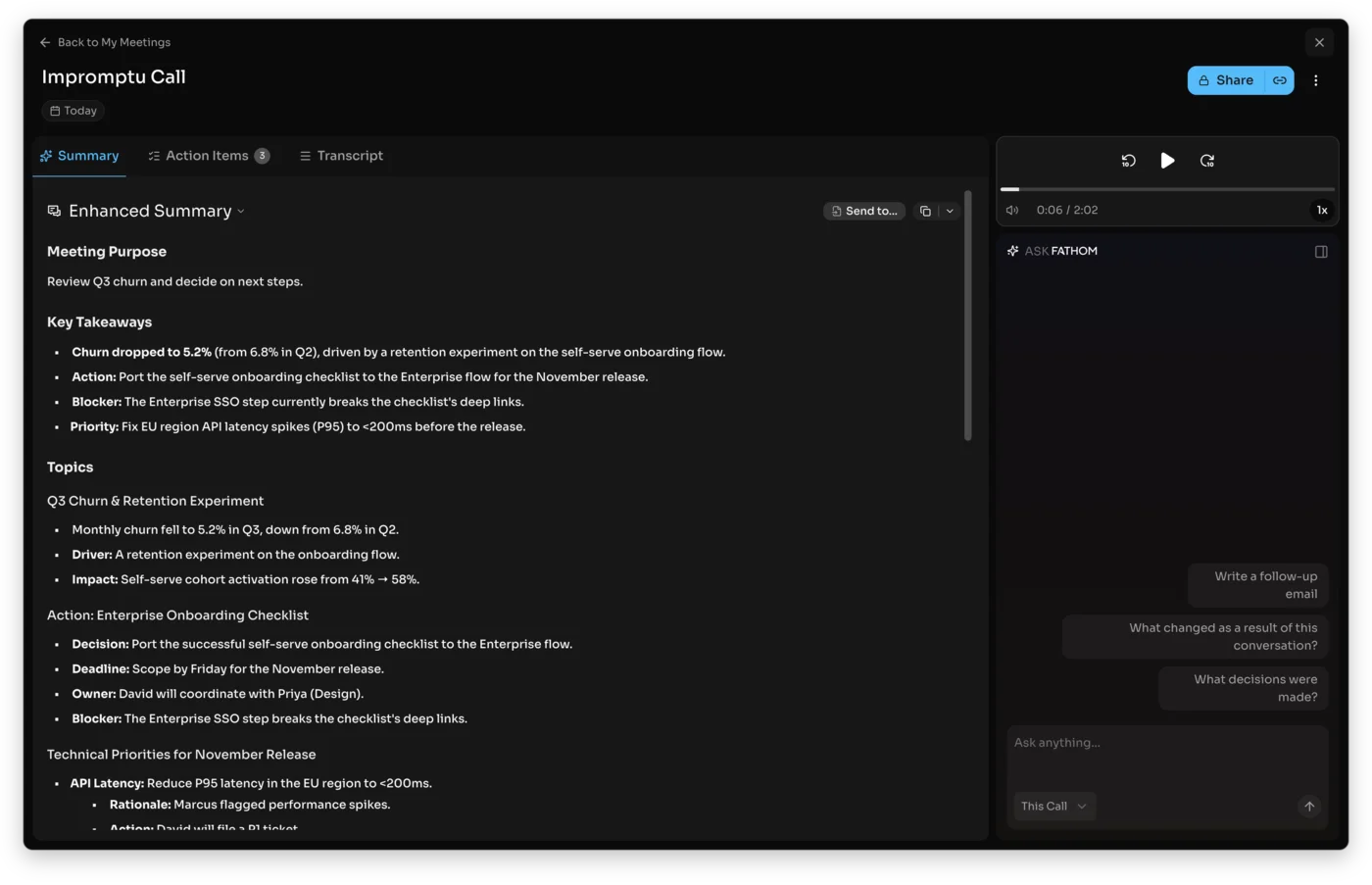
Fathom — the best free pick. Fathom joins your Meet call as a visible bot, records and transcribes it, and returns a clean, structured summary with timestamped action items the moment the call ends. Its free plan is genuinely unlimited, which is what makes it the default choice for Meet when you do not have Gemini, and it works on Zoom and Teams too. In our testing it produced the cleanest summary of any tool we ran, and because it saves the video, you can re-watch a Meet call later — something the native Gemini notes do not give you on their own. See our full Fathom review.
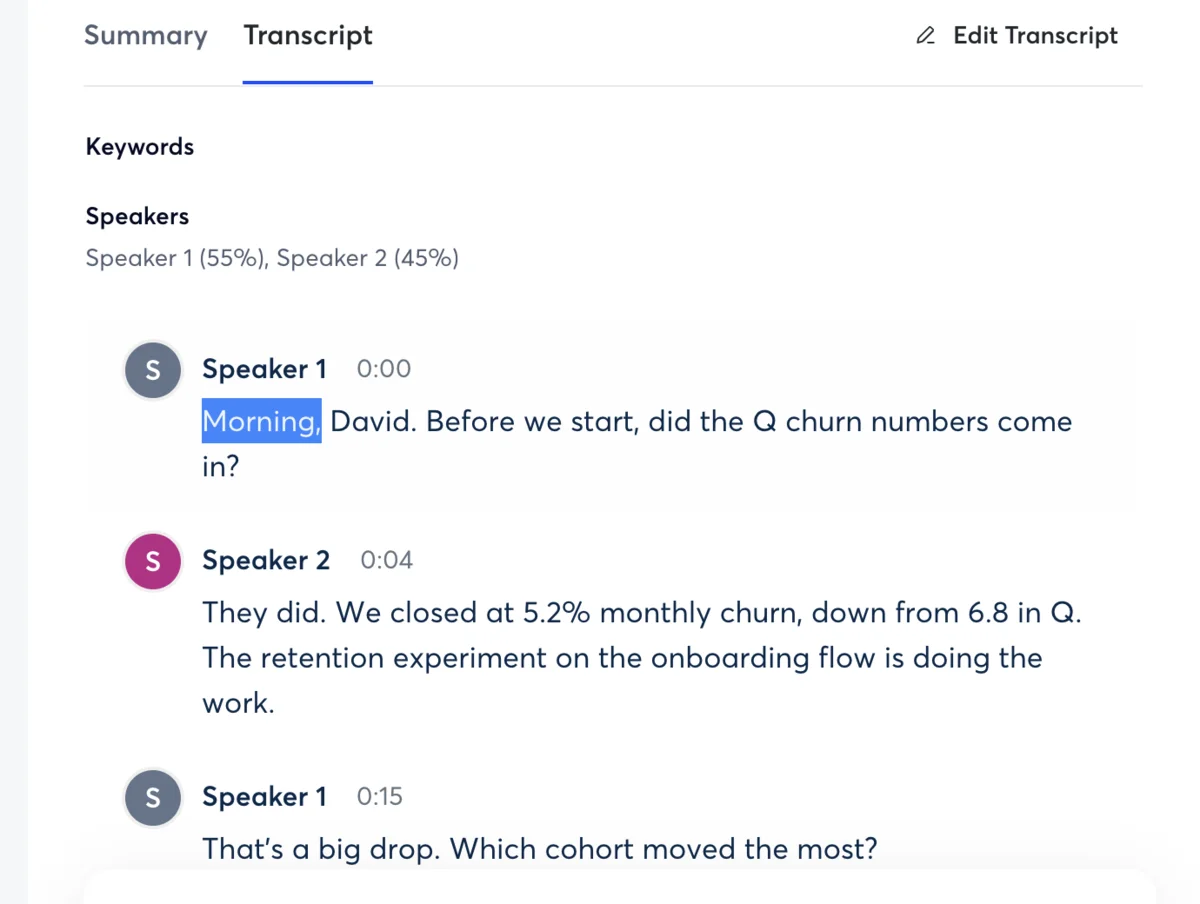
Otter — for live transcription and mobile. Otter’s OtterPilot connects to your Google Calendar and auto-joins your Meet calls, showing a live transcript with speaker labels as people speak. Its free plan is tighter, at 300 minutes a month, but it is the better pick if you want to read the transcript in real time or capture in-person meetings on mobile. The calendar auto-join suits Meet-heavy schedules: once it is connected, you never have to remember to start it, since it shows up to every Meet event you have booked. Our Otter review and Otter pricing guide have the detail.
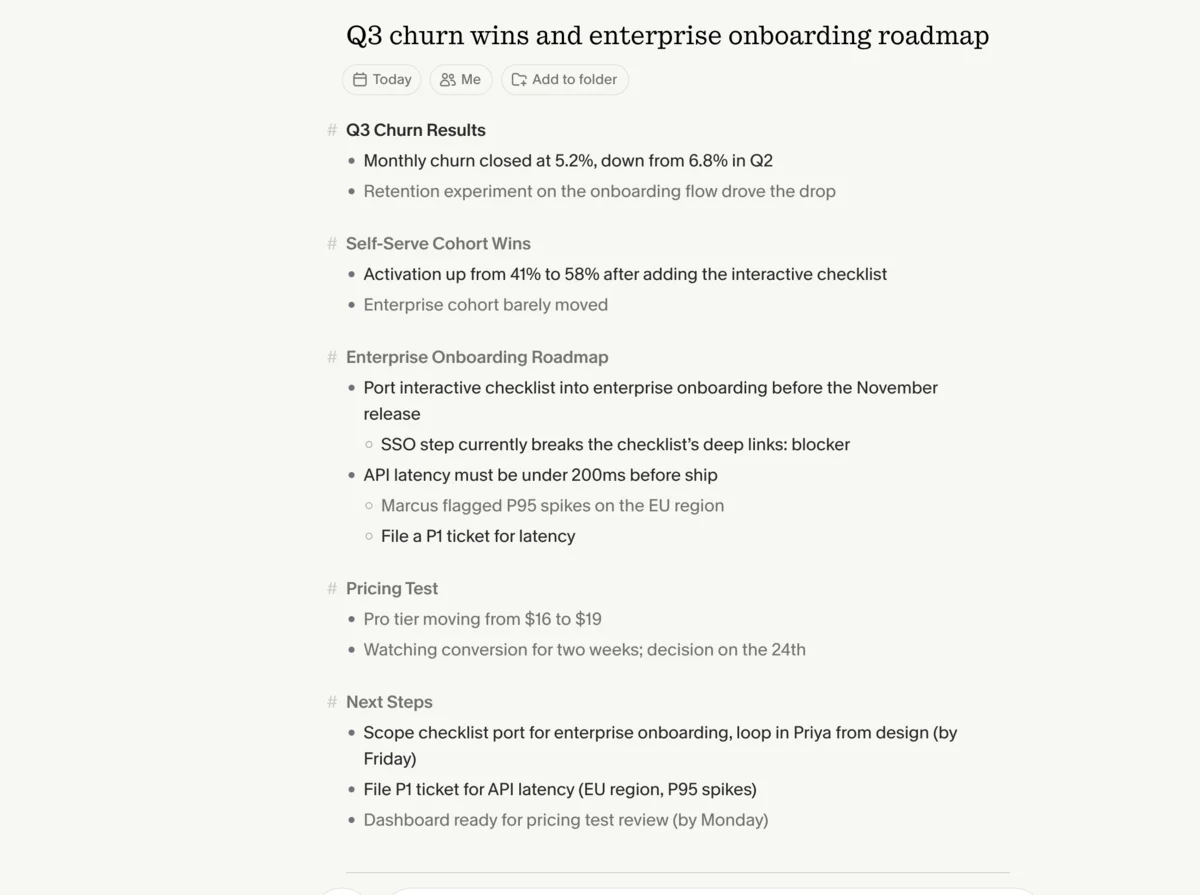
Granola — for bot-free Meet calls. If you do not want a recorder in the participant list, Granola captures your computer’s audio directly while you are on the Meet call, so nothing joins the meeting, and folds your rough notes into a polished summary. It runs on Mac, Windows, and iPhone, and because it never appears in the participant list, it is the tool we reach for on external Meet calls where a visible recorder would be awkward. The trade-off is that it relies on you being in the call and keeps no video to re-watch. See our Granola review.
tl;dv — for saved video and clips. tl;dv records Meet calls unlimited on its free plan, keeps the video, and lets you cut shareable timestamped clips, with a bot-free desktop capture mode as an option. It is the pick when re-watching and sharing moments matter more than the cleanest summary, and like Fathom it covers Zoom and Teams too, so one tool handles every platform you meet on.
Beyond these four, lighter Chrome extensions are worth knowing for Meet specifically, because they live in the browser tab where the call already happens. Tactiq and Scribbl add live, bot-free transcription right inside the Meet window and generate AI summaries without anything joining the call, and Read AI offers an official Google Meet add-on you install from the Workspace Marketplace. They are a good fit if you want capture without running a separate desktop app, though the dedicated tools above generally produce richer summaries.
How to set up an AI notetaker on Google Meet
Setup takes a few minutes either way. Here is the path for each route.
Turning on Google’s native notetaker takes two roles — an admin enables it once, then anyone runs it per meeting:
- Admin, one time: in the Google Admin console, open Gemini settings, find Google AI note-taking, and allow people to use it.
- In a call: open the activities or Gemini control, choose “Take notes for me” (or “Take notes with Gemini”), and press Start.
- After the call: Gemini saves the summary to a Google Doc in your Drive and can share it with the participants.
If the “Take notes for me” control never appears for you, AI note-taking has not been enabled for your account — your Workspace edition may not include Gemini, or an admin still needs to switch it on. That is the most common reason people cannot find it.
Connecting a third-party notetaker. The usual flow is faster and needs no admin:
| Step | What you do |
|---|---|
| 1 | Sign up for the tool (Fathom, Otter, and the others have free plans) |
| 2 | Connect your Google Calendar so it sees your scheduled Meet calls |
| 3 | Choose whether it auto-joins every meeting or you start it manually |
| 4 | Join your Meet call; the bot joins too, or the app captures in the background |
| 5 | Read the summary and action items in the tool after the call |
A bot-free tool like Granola skips the join step entirely — you open it alongside Meet and it captures the audio your computer plays — and browser extensions like Tactiq install once and then transcribe inside the Meet tab. Either route has you capturing notes on your next Meet call, not next week.
Bot or bot-free: which fits your Meet calls?
The one decision worth making up front is whether you want a recorder visible in the meeting. It shapes which tool you choose more than any feature.
A visible bot, used by Fathom, Otter, tl;dv, and most others, is the simplest and most reliable: it joins the Meet call as a participant, captures everything, and never depends on your own screen or audio staying open. The downside is that everyone sees it, which can be awkward or against policy on a client or sales call.
A bot-free approach — Granola, the Chrome extensions, or Google’s native Gemini — keeps the participant list clean. Granola and the extensions capture what your device hears, so they are quiet and private but rely on you being in the call. The native Gemini notetaker is the exception that is both bot-free and fully automated, which is part of why it is appealing if you already pay for it.
| On a Meet call | Visible bot | Bot-free |
|---|---|---|
| Tools | Fathom, Otter, tl;dv | Granola, Tactiq/Scribbl, native Gemini |
| In the participant list | Yes | No |
| Captures if you step away | Yes, it joins the call | No, it needs your device |
| Best for | Internal calls, hands-off capture | Client calls, a quiet footprint |
There is a reliability angle too. Because a bot joins the Meet call as its own participant, it keeps recording even if your laptop sleeps, your tab closes, or your connection drops, which makes it the safer choice for a long or important call. A bot-free tool captures only what your own device hears, so if you step away or your machine goes quiet, the capture goes with it. That is rarely a problem for a focused working call, but it is the reason teams that want hands-off, guaranteed capture tend to accept the visible bot.
If your Meet calls are internal, a bot is fine and usually easiest. If they are external and a recorder would be awkward, lean bot-free, and Granola is the cleanest summary-quality option.
What should you know before turning one on?
An AI notetaker records and stores your conversations, so a few details are worth settling before you let one loose on your Google Meet calls.
Consent comes first. Recording a meeting is a legal and courtesy question, not just a technical one. In two-party-consent regions everyone on the call generally needs to agree to being recorded, and even where it is allowed, telling people a notetaker is running is the decent thing to do. Google Meet itself shows a recording or note-taking banner when a tool is active, and a visible bot announces itself by joining, but a bot-free tool or extension can be quieter, so make the call explicit on external meetings.
Auto-join can surprise you. Tools that connect to your calendar and join every meeting are convenient, but they will also walk into one-on-ones, interviews, and personal calls you never meant to record. When you set up calendar auto-join on Otter or Fathom, decide whether you want it on for every event or only the ones you start manually, or you will end up with transcripts of meetings you would rather not have.
Free does not mean unlimited. Some free plans cap you in ways that bite mid-month. Otter’s free tier stops at 300 minutes with a 30-minute limit per call, and Granola’s free plan hides your older history. Fathom and tl;dv are the exceptions with genuinely uncapped free recording, which is part of why they lead our free picks for Meet. Read the limits before you rely on one for a busy week of calls.
Check where the notes live and who can see them. Google’s native notetaker drops the summary into a Google Doc that follows your Workspace sharing rules; third-party tools keep the notes in their own app with their own sharing controls. For sensitive calls, know which one you are using and who in your organization can open the result before you record.
| Before you record on Meet | Why it matters |
|---|---|
| Get consent | Two-party-consent regions require it; announce it either way |
| Control calendar auto-join | It captures one-on-ones and personal calls too |
| Check the free limits | Otter caps 300 min/mo; Granola hides older history |
| Know where the notes land | Native saves to a Google Doc; apps keep their own copy |
Which AI notetaker should you use for Google Meet?
Match the tool to your situation:
- You already pay for Gemini in Workspace → use the native “Take notes for me.” It is the most integrated option, lives inside Meet, and saves to Drive.
- You want a free notetaker and do not have Gemini → Fathom. Its unlimited free plan is the most generous, and it works on Meet, Zoom, and Teams.
- You take client calls and want no bot → Granola, which captures the call with nothing in the participant list.
- You want a live transcript or to record in person → Otter, with its live captions and mobile app.
- You want saved video and shareable clips → tl;dv, free and unlimited on Meet.
If you are unsure, the lowest-risk move is to start on Fathom’s free plan, since it costs nothing and works on every platform, and switch to the native Gemini notetaker only if your organization already pays for it. For the wider field, our best AI note taker roundup ranks the top picks side by side, and our Fathom and Otter pricing guides break down what each costs.
Final word
The whole decision on Google Meet turns on a single question: does your organization already pay for Gemini in Workspace? If it does, the native “Take notes for me” is the cleanest answer, integrated right into Meet and saving straight to Drive. If you do not have Gemini, or you also meet on Zoom and Teams, a third-party notetaker is the better and often cheaper path, and Fathom’s unlimited free plan makes it the one we would start with. Either way, your next Meet call can take its own notes.
Frequently asked questions
Does Google Meet have a built-in AI notetaker?
Yes — Google Meet has a native AI notetaker called 'Take notes for me,' powered by Gemini. When you turn it on, Gemini follows the meeting and, shortly after it ends, drops an organized summary with the action items into a Google Doc in your Drive, so you can focus on the conversation instead of typing.
The catch is that it is not free or automatic: it requires a Gemini add-on or a Workspace edition that includes it, typically the Business and Enterprise tiers, and your Workspace administrator has to enable AI note-taking before anyone in the organization can use it. It also only works inside Google Meet, so it does nothing for your Zoom or Microsoft Teams calls.
If you already pay for Gemini in Workspace, the built-in notetaker is the most integrated option for Meet. If you do not, a free third-party notetaker like Fathom gives you AI notes on Meet without the Workspace upgrade.
What is the best free AI notetaker for Google Meet?
Fathom is the best free AI notetaker for Google Meet for most people, because its free plan is genuinely unlimited: it records, transcribes, and summarizes as many Meet calls as you want with no minute cap, and we rated it 4.6 out of 5. It joins your Google Meet as a visible bot, captures the call, and hands you a clean structured summary the moment it ends.
tl;dv is the other strong free option, with unlimited recording on Meet plus saved video and shareable clips, and a bot-free desktop mode. Granola is the pick if you want nothing to appear in the call at all, since it captures your computer's audio with no bot, though its free plan limits how far back your history goes. Google's own 'Take notes for me' is effectively free only if you already pay for a Workspace tier that includes Gemini.
For a no-strings free notetaker that works on Meet today, start with Fathom.
How do I turn on AI notes in Google Meet?
For Google's native notetaker, your Workspace admin first enables it in the Admin console under Gemini settings, then in a meeting you click the 'Take notes for me' or 'Take notes with Gemini' option and press Start; the AI then captures the notes and saves them to a Google Doc in Drive after the call. This only works if your Workspace edition includes Gemini.
For a third-party notetaker, the setup is different and usually faster: you sign up for a tool like Fathom or Otter, connect it to your Google Calendar, and it then joins your scheduled Meet calls automatically and records them, or you start it manually from its app or browser extension when a call begins. A bot-free tool like Granola instead captures your device audio directly, so there is nothing to add to the meeting itself.
Either way you can be capturing notes on your next Meet call within a few minutes.
Can I use an AI notetaker on Google Meet without Gemini?
Yes, and most people do — you do not need Gemini at all to get AI notes on Meet. Google's native 'Take notes for me' needs a Gemini-enabled Workspace edition, but every leading third-party notetaker works with Google Meet independently of your Workspace plan.
Fathom, Otter, Granola, and tl;dv all capture and summarize Meet calls whether you are on a free Gmail account or a paid Workspace tier, and several of them are free. Fathom's free plan is unlimited and the simplest no-Gemini option; Granola captures the call bot-free without touching your Workspace setup; and browser extensions like Tactiq or Scribbl add live transcription to Meet without any admin involvement.
So if your organization has not bought the Gemini add-on, or you are on a personal account, a third-party notetaker is the normal way to get AI notes on Google Meet, and often the more generous one.
Is there an AI notetaker for Google Meet that does not use a bot?
Yes — if you do not want a recorder appearing in the participant list on your Meet calls, Granola and a couple of browser extensions give you bot-free options. Granola is the strongest: it captures your computer's audio directly, so nothing joins the meeting, and it turns your rough notes into a polished summary afterward, which is ideal for client or sales calls where a visible bot is awkward.
Browser extensions are the other route: Tactiq and Scribbl run inside your Chrome tab and transcribe the Meet call live without sending a bot, and Google's own 'Take notes for me' is technically bot-free too, since Gemini works inside Meet rather than joining as a participant. The trade-off with the bot-free desktop and extension tools is that they generally capture only what your device can hear and see, so they work best when you are an active participant.
For a clean, summary-quality bot-free experience on Meet, Granola is our pick.
Which AI notetaker is best for Google Meet?
It depends on your setup. If your organization already pays for a Workspace edition with Gemini, Google's built-in 'Take notes for me' is the most integrated choice, since it lives inside Meet and saves notes straight to Drive with nothing to install.
If you do not have Gemini, or you also take calls on Zoom or Teams, a third-party notetaker is better, and Fathom is our top pick: its free plan is unlimited, its summaries are the cleanest we tested, and it works across all three platforms, not just Meet. Choose Granola instead if you want a bot-free footprint on client calls, Otter if you want a live transcript and a strong mobile app for in-person meetings, or tl;dv if saved video and shareable clips matter most.
For most people on Google Meet, the honest answer is native Gemini if you already pay for it, and Fathom if you do not.
Keep reading
AI notetaker for Zoom: AI Companion vs free apps
The best AI notetakers for Zoom — the native AI Companion, included on paid Zoom plans, vs free apps like Fathom — and how to set each one up.
AI notetaker for Microsoft Teams: Copilot vs free apps
The best AI notetakers for Microsoft Teams — the native Copilot and intelligent recap vs free apps like Fathom — and how to set each one up.
Best free AI note taker: which free plan actually lasts
Most free AI notetakers are trials in disguise. We tested the tiers: Fathom's stays unlimited forever, and Granola, Fireflies, and Otter each win a niche.
Fireflies AI alternatives: 5 tested, simpler and free
We tested the top Fireflies alternatives. Fireflies is powerful but heavy — leaving for a simpler tool, a real free plan, or no bot? Here's the one that fits.