
Canva Code: What It Builds, and What One App Cost Me
Canva Code turns a prompt into a working web page. I built a pricing calculator on a Pro trial: correct sums, hard-to-read totals, 43% of the AI allowance gone.
Contents
Canva Code: an AI code generator inside Canva
Canva Code is the part of Canva AI that turns a sentence into a working web page. You describe a calculator, a quiz or a small landing page, and Canva writes the HTML and shows you the result, ready to click.
I built a pricing calculator with it on a Canva Pro trial on 13 October 2026. It was done within 40 seconds and every sum I checked was right. The totals were also dark text on a dark panel, and fixing that used the last of my AI allowance.
| Question | Short answer |
|---|---|
| What does it make? | Interactive pages: calculators, quizzes, trackers, landing pages |
| How long did a build take? | 30 to 40 seconds for my calculator |
| What did it cost? | 25 points of a trial’s monthly AI allowance per build |
| Can you edit it? | Text by typing on the canvas; layout and logic by prompting |
| Can you publish it? | Yes, per Canva; the publish panel showed a my.canva.site address. I did not publish |
| Can you take the code? | Copy it, yes. Export a file or edit code in Canva, no |
Not the code you meant?
If you came for a discount code, this is the wrong page. Our Canva pricing guide covers the ways to pay less. For print orders, Canva has its own help page on print coupon codes.
Two ways to build: a Code design or a Code element
Canva Code is a chat that ends in a page. You type what you want, Canva AI writes the code, and the result appears on a canvas beside the conversation.
Canva’s help page for Canva Code describes two ways to use it:
- A Code design. “Create full interactive designs like landing pages, dashboards, or portfolios, and edit and publish as websites in the Canva Editor”.
- A Code element. “Create interactive elements like quizzes, calculators, or charts to another design and reuse it across multiple designs”.
I tested the first. The second starts from Canva AI on the homepage, where you select Code and then “Use in a design”, per the same page.
Every build is metered. Canva’s help page on AI usage lists “Build interactive experiences with Canva Code” among its Premium AI tools, which draw from one shared monthly allowance. The same page says Style Match “can use less AI allowance than creating interactives with Canva Code”.
That turned out to be the most important fact about the tool, and it has its own section below.
The test
I used the Canva web editor in Chrome on a Pro trial on 13 October 2026. I ran one build and one follow-up edit, tried the result on desktop and mobile previews, and opened the Code and Publish panels. I read the account’s AI usage meter before and after each AI request.
I had built one earlier page on the same trial on 11 October, a tip calculator, for our Canva review. I did not publish anything, copy any code out, or test a Free account.
How to use Canva Code, step by step
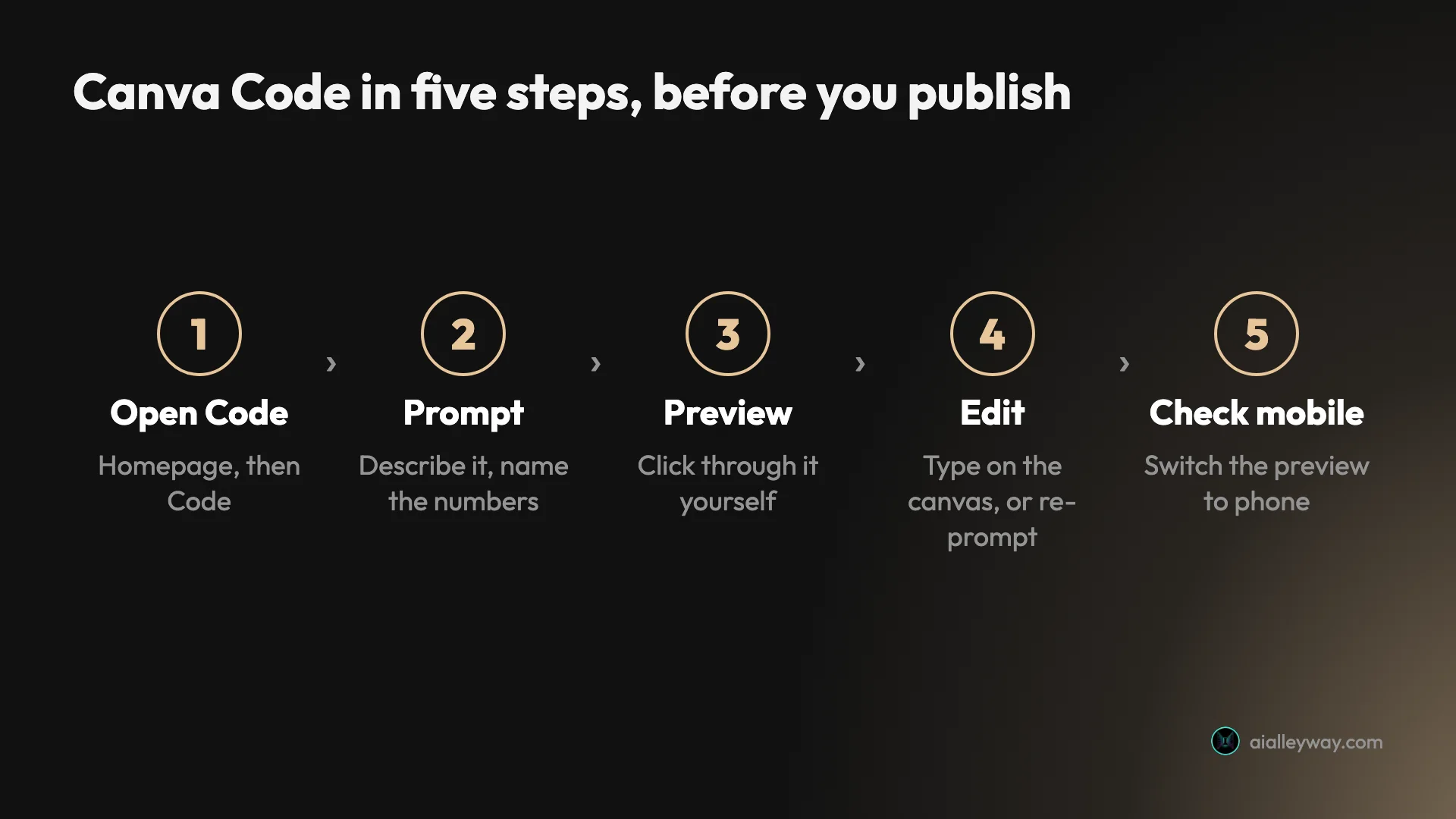
Getting to a working page took me five steps, and only the second one takes thought. Publishing comes after, and has its own section.
1. Open Code from the homepage
Canva’s help page starts here: “From the Canva homepage, select Code. This opens the Canva editor.”
Code sits in the row of design types on the homepage, between Sheet and Website on my account. Hovering it showed a “Create new” label, and clicking it opened a new browser tab.

2. Write a prompt that names the numbers
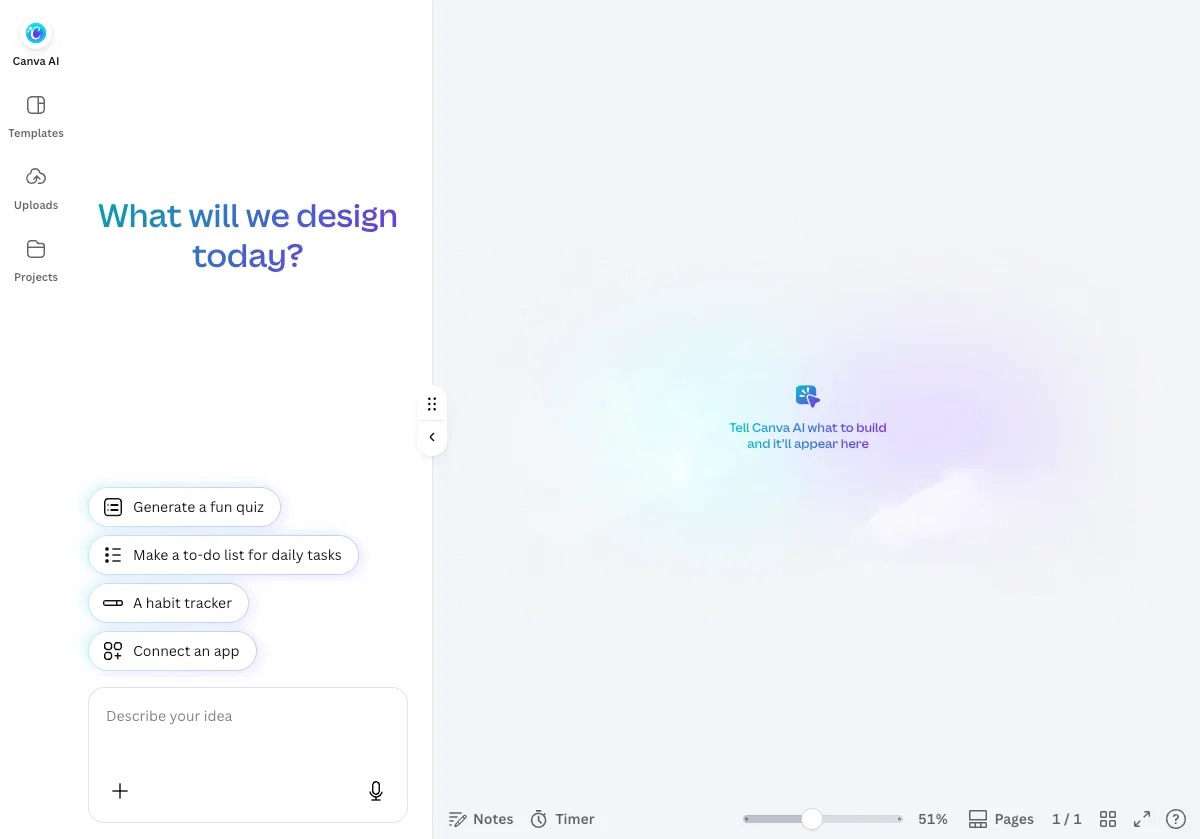
The editor opens almost empty. There is a chat panel headed “What will we design today?”, a prompt box that says “Describe your idea”, and a blank canvas that reads “Tell Canva AI what to build and it’ll appear here”.
Canva’s help page is blunt about what happens next: Canva Code “will only takes instructions from the description you entered or used. The more context and instruction you give, the better the result will be.”
So I gave it everything: the items, the prices, the rule and the colours.
Build a pricing calculator for a design studio. Three services withprices in US dollars: Logo design $300, Social media kit $150,Brochure $200. Give each a quantity field. Add a rush job checkboxthat adds 25% to the subtotal. Show the subtotal, the rush fee andthe total. Add a Reset button. Deep navy and amber colours.Naming the currency mattered. The tip calculator I built on 11 October had no currency in its prompt, and Canva picked my account’s local one by itself. This time I asked for US dollars and got them.
From two builds, this is the shape of prompt that worked for me:
- Name every item and its number. Three services, three prices, one percentage.
- State the rule in plain words. “Adds 25% to the subtotal” left no room to guess.
- Say what to show. I listed the subtotal, the rush fee and the total, and got all three.
- Ask for the controls. I asked for a Reset button and got one.
- Give the colours. Two were enough.
The prompt box also has a plus button and a microphone. Canva’s AI code generator page, its marketing page for the feature, says “Upload an image to visually guide the output” and that you can “use voice commands”. I typed, and tested neither.
3. Preview it and click everything
“Done” appeared between 30 and 40 seconds after I sent the prompt. Canva named the design “Design Studio Pricing Calculator” by itself and listed what it had built in the chat.
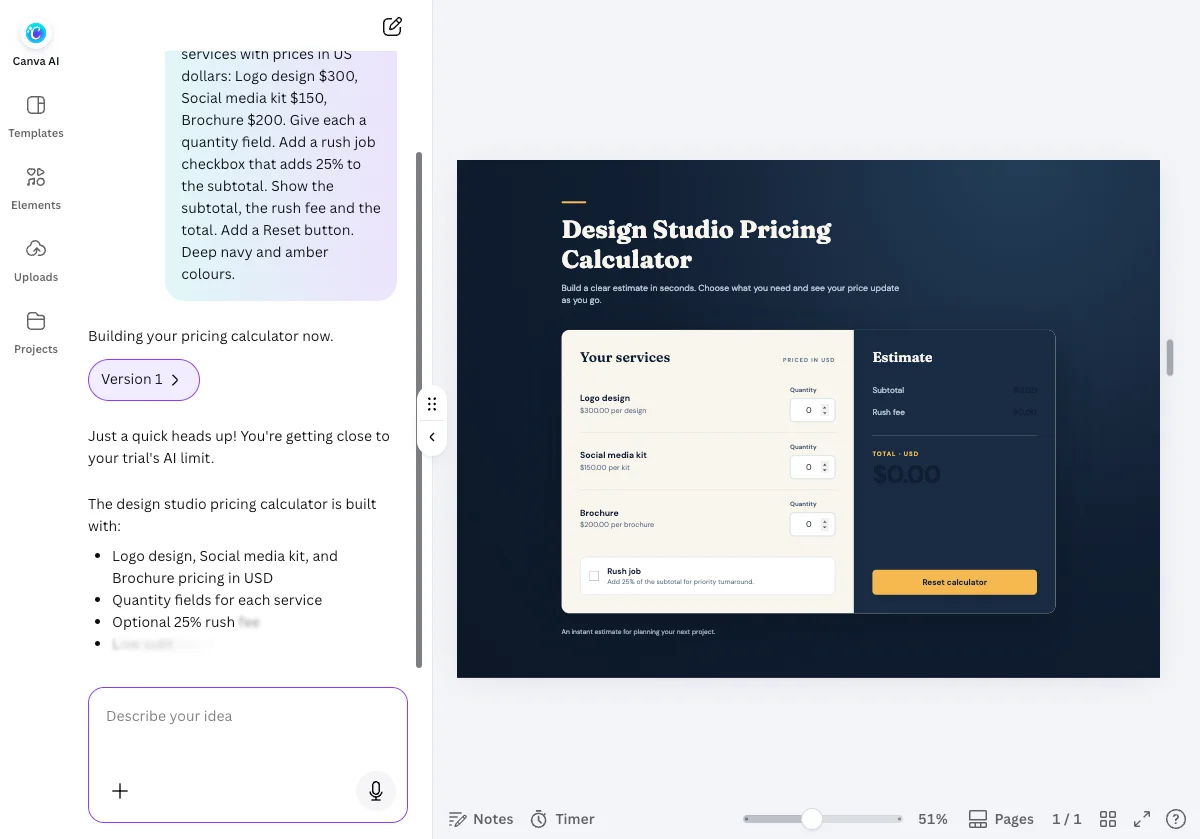
Then select Preview, in the top bar. Do not skip it. The preview is the real page, and Canva’s help page says to use it “to interact with your design”.
Mine opened blank for about four seconds before the page appeared. After that every field and button I tried responded.
4. Edit: type on the canvas, or re-prompt
There are two kinds of edit, and they cost different things.
Typing needs no prompt. I clicked the heading “Your services” and a text toolbar appeared with a font menu, size, colour, bold and italic. A double-click let me retype it as “Pick your services”. No prompt was involved.
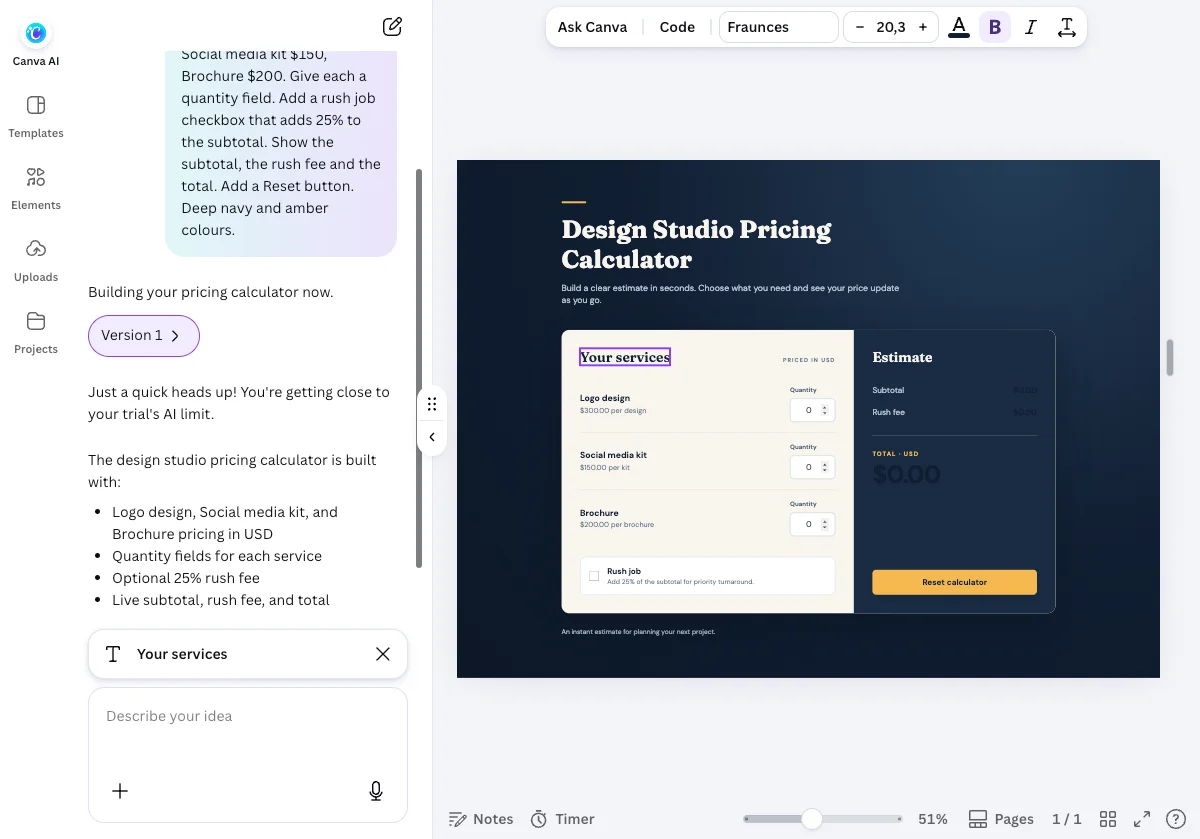
Prompting is metered. Select an element and its name appears as a chip above the prompt box, so your next instruction applies to that part.
Each prompt also makes a version. My first build carried a Version 1 chip in the chat and the edit added Version 2. Canva’s help page says it “automatically saves a new version within the same chat thread”, so you can go back to an earlier one. I saw the chips and did not roll back.
Not everything can be selected. I clicked the total amount twice and both times Canva selected the whole Estimate panel, not the number. Canva’s editing help page warns about this: “Not all design elements are directly editable due to the responsive structure.”
5. Check the mobile preview
The preview has a desktop and mobile switch. On mobile my calculator appeared inside a phone frame, stacked into one column: heading, services card, then the Estimate panel underneath.
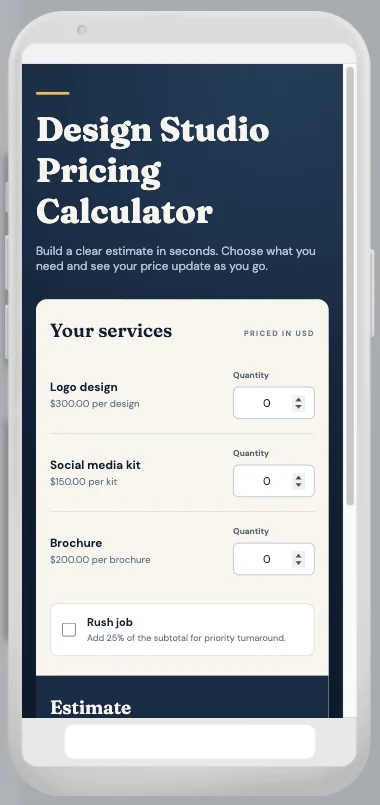
I did not ask for a mobile layout. Canva’s marketing page says every build “is automatically optimized for desktop, mobile, and tablet screens”, and on this one page that held.
Publishing a Canva Code page
A Code design becomes a live site from one button, according to Canva. I opened the panel and read it, and stopped before the last click.
Canva’s publishing help page gives the steps: select Publish, “customize your site address”, select Settings, set the title, then “Toggle Visible in search engines on or off” and “Configure Password protection if needed”. A final Publish makes it live.
In the editor on 13 October 2026, the panel behind the Publish website button showed an address field ending in .my.canva.site and a link reading “Get a custom domain”.
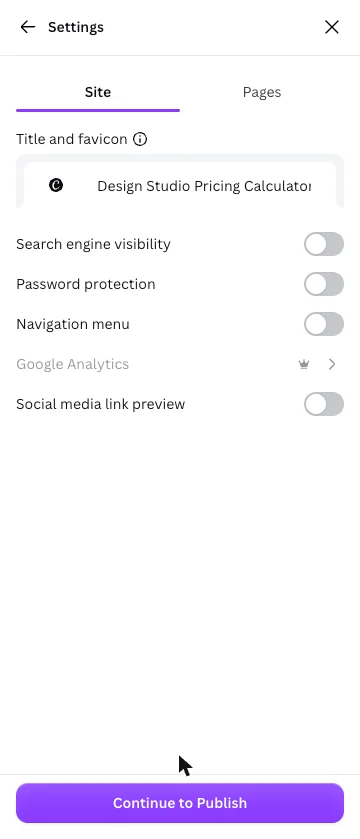
Below the title, Settings held five options. Search engine visibility, password protection, a navigation menu and a social media link preview were all switches, and all off. Google Analytics carried the crown Canva puts on paid features.
Three lines on Canva’s page are worth reading before you publish anything you care about:
- “If you delete the Canva Code thread, the published website will also be unpublished.”
- “Deleting the thread permanently removes the website. You won’t be able to recover the URL or content later.”
- “Websites published from code don’t appear in your Designs list.”
Copying the generated HTML out
You can copy it. You cannot export it as a file or edit it in place.
That is Canva’s own wording: “Code can be copied and reused externally, but can’t be exported as a file or directly edited within Canva.” The Canva Code help page adds that the code is “built for Canva” and that “you can adapt it for external tools or workflows”.
Selecting Code on the toolbar opened a panel with the source and a Copy code button.
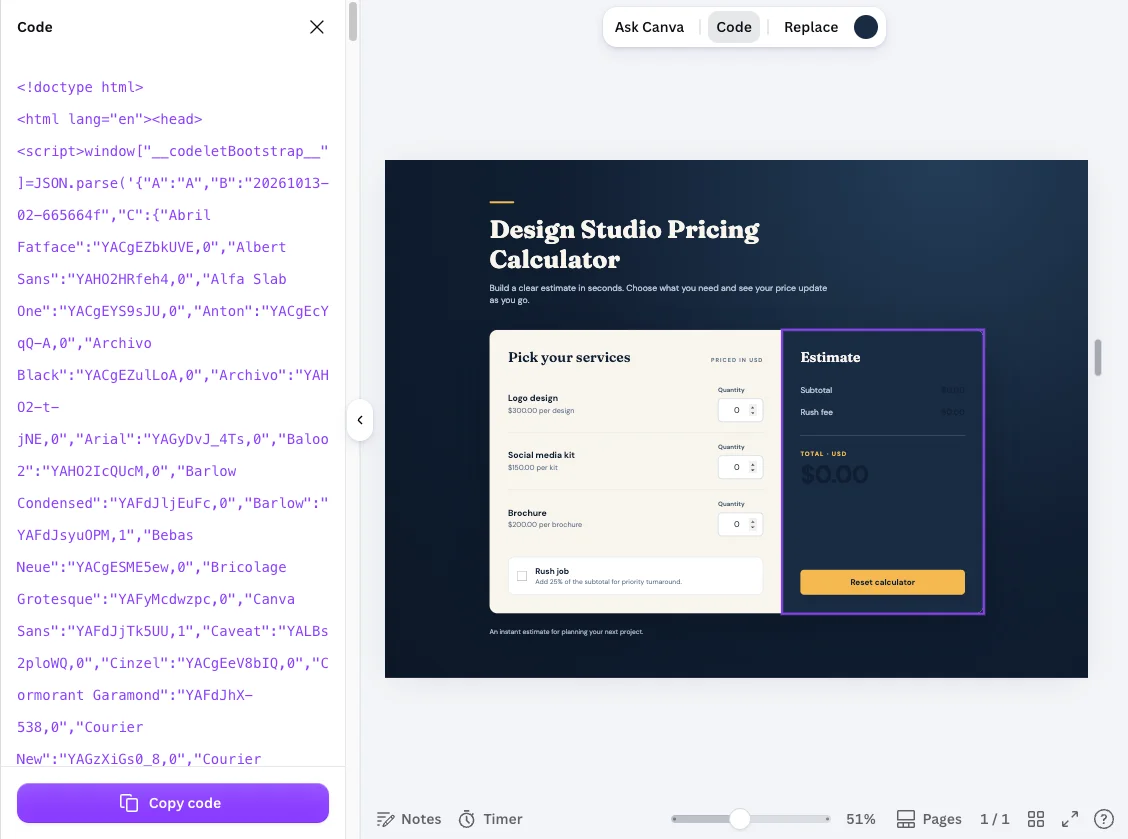
What I saw was one HTML document, about 13,600 characters as displayed. It opened with a Canva setup script listing font names, mentioned Tailwind, and used ordinary event listeners. I did not find React in it.
I did not copy it out or run it elsewhere. “Built for Canva” is a fair warning that it may need work before it runs on your own site, and I cannot tell you how much.
Canva Code on the free plan: what Canva says
Canva’s own page amounts to this: not yet for everyone. Its AI code generator page says:
Canva Code is a Premium AI feature available as part of Canva AI. Access is currently rolling out across plan types, starting with paid and Education plans, with Free plans to follow.
It then adds the part that matters more: “Once available on your plan, usage draws from your monthly AI allowance, which is shared across Canva AI features.”
| Plan | AI allowance, per Canva’s help page | Canva Code in it? |
|---|---|---|
| Canva Free | Up to 20 uses of Standard or Premium AI tools | Premium tool; access “to follow” per Canva |
| Pro trial | Up to 20 uses of Standard or Premium AI tools | Yes, on my trial |
| Canva Pro, paid | Up to 200 uses of Premium AI tools | Yes, per Canva |
| Canva Business | Up to 400 uses of Premium AI tools | Yes, per Canva |
Those “up to” figures come with a condition. Canva’s help page says the ranges assume a simple task and a tool “that uses the least power of AI tools in its category”. Canva Code is not that tool.
Some write-ups say Canva Code is already free for everyone. I could not check that, because I tested on a Pro trial. Canva’s own page, read on 13 October 2026, still says Free plans are to follow.
Canva Pro cost $18 a month or $144 a year in the US on 11 October 2026. Our Canva pricing guide has the full table.
What one small app cost: 43% of a trial’s AI allowance
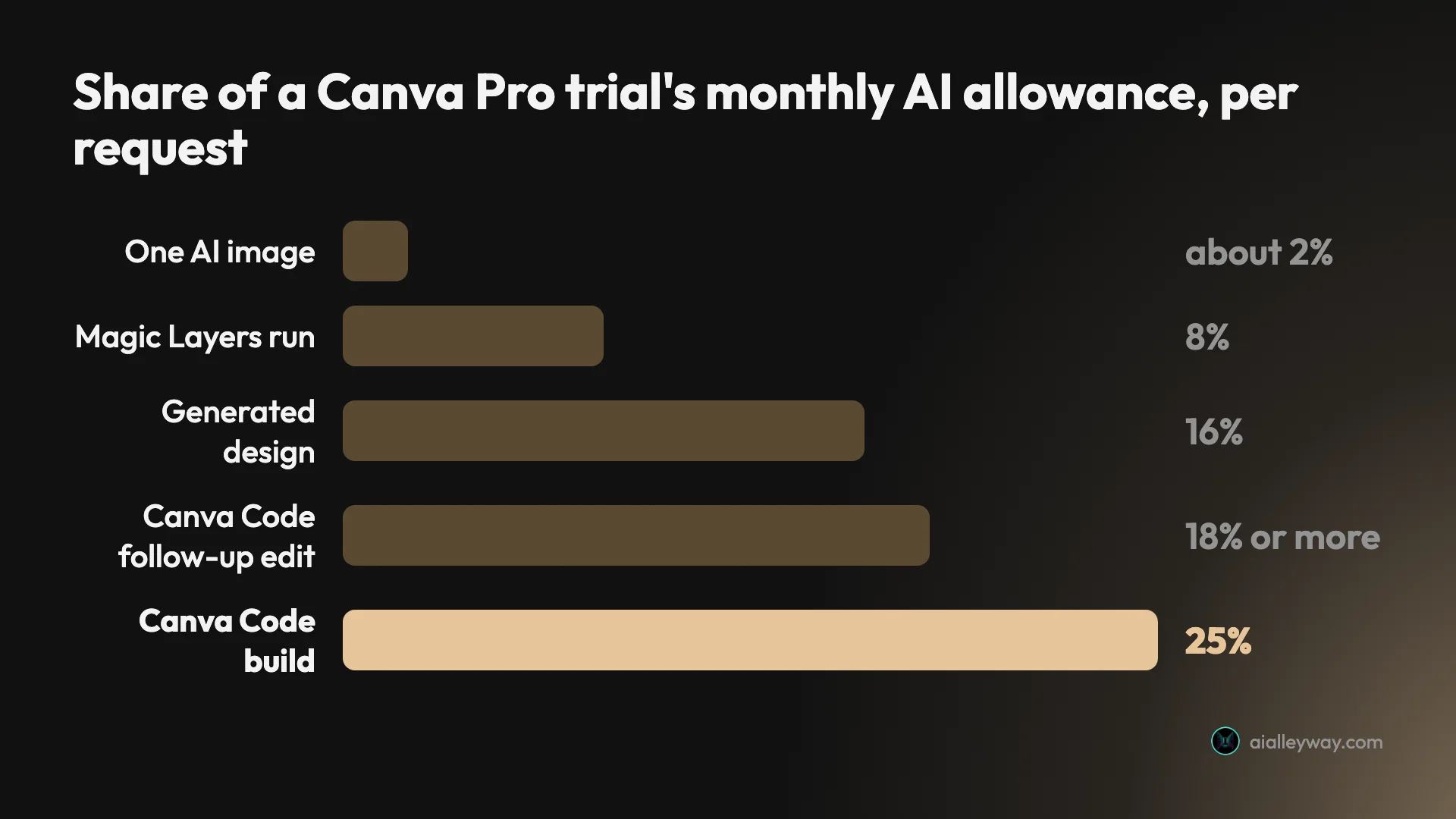
This is the number I would want before starting. On my Pro trial, a Canva Code build cost 25 points of the month’s allowance, both times I ran one. The image, Magic Layers and generated-design bars in the chart below come from the same trial’s meter, as reported in our Canva review.
The meter read 57% before the pricing calculator and 82% after it. The tip calculator on 11 October moved it from 23% to 48%. Same cost, two different prompts.
Then came the edit. I sent one short prompt asking for three numbers to be turned white. The meter went from 82% to 100%, and the reply came with a notice.
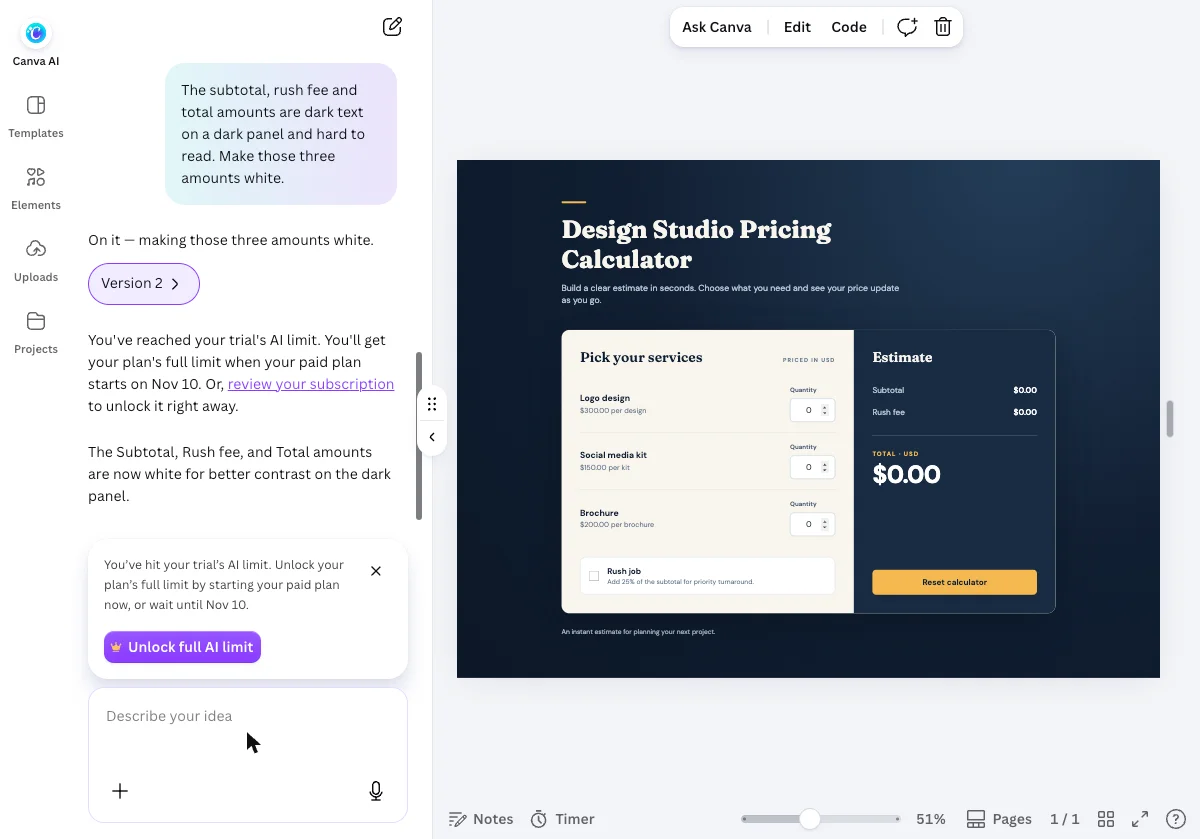
“You’ve reached your trial’s AI limit,” it read. “You’ll get your plan’s full limit when your paid plan starts on Nov 10.” A card offered to “Unlock full AI limit” by starting the paid plan early. I left it alone.
So the fix took the 18 points I had left. Because the meter hit its ceiling, I cannot say whether it would have cost more. Add the build and that is 43% of a month’s trial allowance for one calculator and one colour change.
A trial is the tight case. Canva’s help page gives a trial the same allowance as the free plan, and a paid Pro plan ten times the Premium uses. I have not measured a paid account, so I do not know how many builds it covers.
What I built, and how it held up
The first version did everything I asked, and one thing wrong.
Everything in the prompt was there: three services at the right prices, a quantity field for each, the rush checkbox, a subtotal, a rush fee, a total and a Reset button, in navy and amber. Canva added a heading and a line of helper text I had not asked for.
Then I checked the sums. Two logos and one social media kit came to $750.00. With Rush job ticked, the rush fee read $187.50 and the total $937.50. That is correct: 25% of 750 is 187.50.
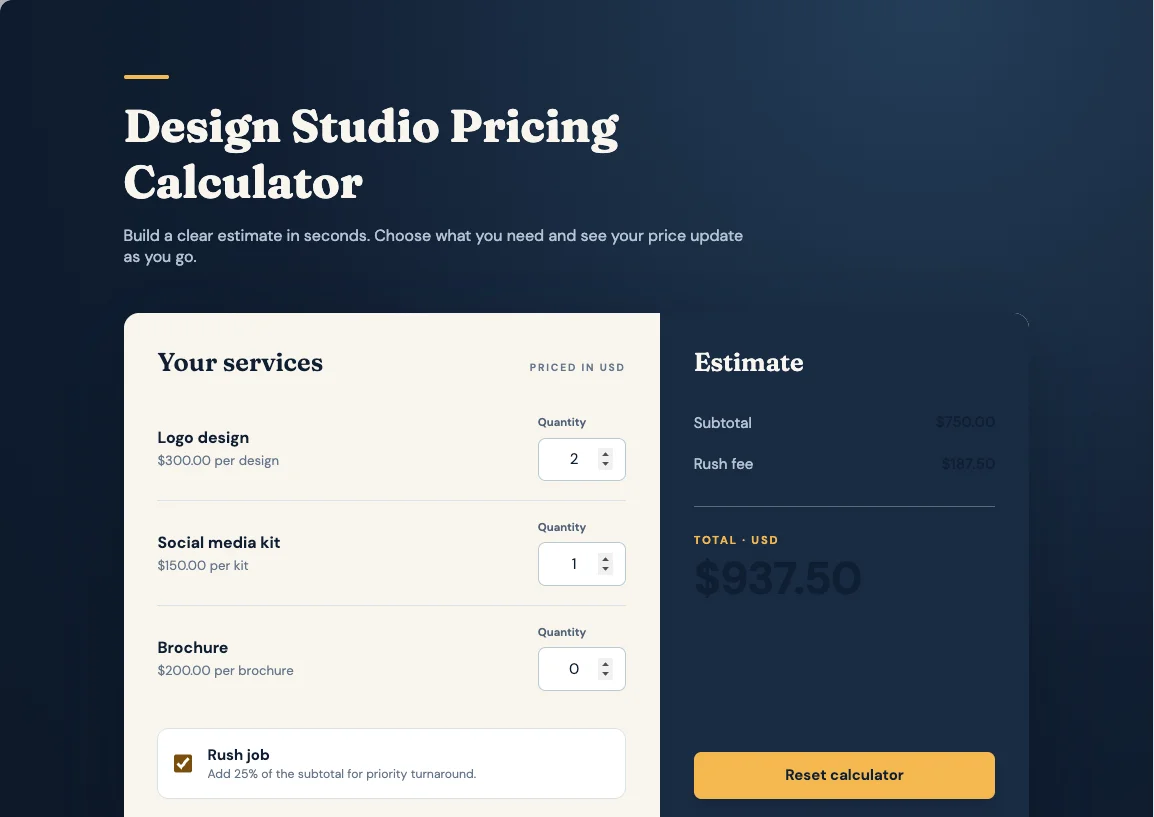
Reset cleared every quantity, unticked the box and returned the amounts to $0.00.
The flaw is visible in that screenshot. The three amounts were dark navy text on a dark navy panel. The calculator knew the answer and could barely show it.
I could not fix it by hand, because the amounts were not selectable. So I selected the panel and prompted: make those three amounts white.
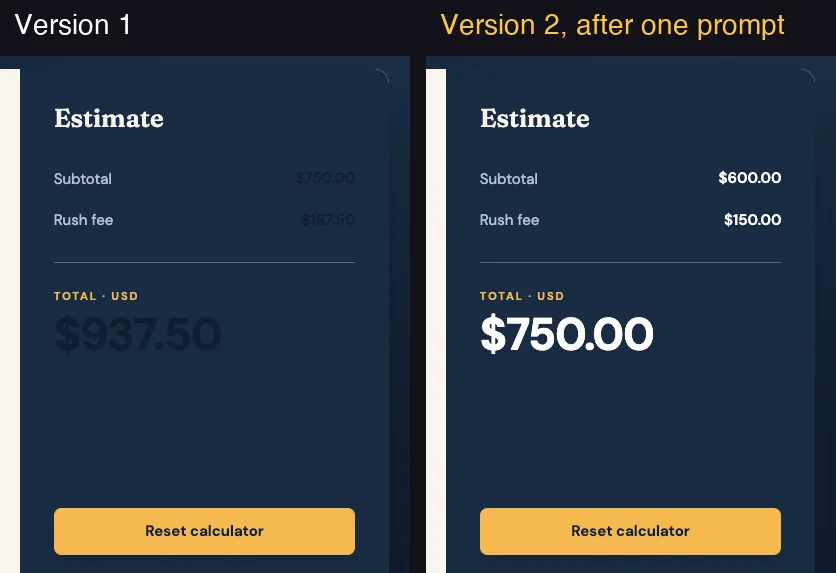
Version 2 arrived in 16 to 24 seconds with all three in white. My typed heading change was still there. I tested again with three brochures and a rush job: $600.00, $150.00 and $750.00, all correct.
The same thing happened in a smaller way on 11 October. That tip calculator took about 38 seconds and got its sums right in Preview. Two builds is a small sample, but both computed correctly on the first prompt.
Five things to watch
Canva Code is quick to like. These are the parts that cost me time or allowance.
| Trap | What happened | Source |
|---|---|---|
| Builds are expensive | 25 points each, twice | My meter, 11 and 13 Oct 2026 |
| Small edits are not cheap | One short prompt took the last 18 points | My meter |
| It can look wrong while being right | Correct sums in hard-to-read text | My test |
| Some parts can’t be clicked | The totals selected the whole panel | My test, Canva help page |
| Deleting the thread deletes the site | Address cannot be recovered | Canva help page |
Builds are expensive on a trial
A 25-point build means a trial’s month holds four of them and nothing else. Plan the prompt before you send it.
A small edit is not a small charge
Canva’s help page for Canva Code says it “now uses diff-based editing, meaning only the necessary lines of code are updated”. That may make edits faster. On my meter, one colour change still took every point I had left.
Check how it looks, not just what it computes
My calculator’s logic was right on the first try and its totals were close to invisible. Open the preview and read the page the way a visitor would.
Not every element can be selected
The one heading I selected, I could retype without a prompt. Clicking the live amounts selected the whole panel instead, so the only way I found to change them was a metered prompt.
The thread is the website
Canva’s publishing page says each code thread has one address, and that deleting the thread removes the site for good. Tidy your chat history with care.
When Canva Code is the right tool
It suits a narrow job well: a small interactive page, described clearly, by someone who already works in Canva.
- You need a calculator or a quiz for a campaign: yes. My calculator was built within 40 seconds.
- You teach and want a classroom activity: Canva pitches it at exactly this, naming “drag-and-drop games” and “countdown timers” on its marketing page. I did not test one.
- You want an interactive block inside a presentation: use the Code element route from Canva AI. I did not test it either.
- You are on a trial, or on the free plan once Canva Code reaches it: budget for about four builds a month at most, going by my trial’s meter.
- Skip this if you need a multi-page product, user accounts or a database. Canva’s own advice on its Canva Code help page, for sites that won’t publish, is to simplify them or split them into smaller ones.
If you need more than one page
I only built single pages with Canva Code. If the thing you are describing is an app, look at tools built for that.
- App builders. Our best AI app builder roundup puts five tools through one brief.
- Vibe coding tools. Best vibe coding tool puts eight tools through one brief.
- Bolt.new. Our Bolt.new review covers one prompt-to-app builder in depth.
Final word
Canva Code did the hard part without help. It turned one short paragraph into a working calculator within 40 seconds, with correct arithmetic and a layout that held up in the mobile preview.
It also shipped totals that were hard to read, and charged me the rest of my trial’s allowance to fix them. Write the prompt as if each build costs money, because on a metered allowance it does, then preview everything before you call it done.
Frequently asked questions
What is Canva Code?
Canva Code is the part of Canva AI that turns a written description into a working interactive page, such as a calculator, a quiz or a small landing page. Canva's help page says it lets you create responsive, interactive designs without the technicality of writing code.
You can use it two ways, per the same page: as a full Code design that you edit and publish as a website, or as an interactive element added to another design. I built a pricing calculator with it on 13 October 2026, and the page worked on the first try.
Is Canva Code free?
Canva's own page says access is still rolling out. Its AI code generator page calls Canva Code a Premium AI feature and says access is starting with paid and Education plans, with Free plans to follow. It adds that usage draws from your monthly AI allowance.
Canva's help page on AI usage gives Free accounts up to 20 uses of Standard or Premium AI tools a month, and lists Canva Code among the Premium tools. I tested on a Pro trial, not a Free account, so I cannot confirm what a Free user sees today.
How much AI allowance does Canva Code use?
A lot, on a trial. On a Canva Pro trial, each of my two Canva Code builds moved the usage meter by 25 points: one on 11 October 2026 and one on 13 October. One short follow-up prompt then took the meter from 82% to 100% and ended my allowance.
That is 25 points for the second build plus at least 18 for the edit, so 43% of a month's trial allowance went on one small calculator and one fix. A paid Pro plan has a larger allowance than a trial, per Canva's help page, and I have not measured a paid account.
Can you export the code from Canva Code?
You can copy it, not export it as a file. Canva's help page says code can be copied and reused externally, but can't be exported as a file or directly edited within Canva. It also says the code is built for Canva and can be adapted for external tools.
In the editor I opened the Code panel and found a single HTML document with a Copy code button under it. As displayed it was about 13,600 characters. I did not copy it out or run it anywhere else, so I cannot say how well it works outside Canva.
How do I publish a Canva Code website?
Select Publish, set the site address, check Settings, then select Publish again. Canva's help page lists those steps and says a confirmation appears with a link to the site. Settings covers the title, a switch for visibility in search engines and password protection.
In the editor on 13 October 2026 the panel showed an address ending in .my.canva.site and a link to get a custom domain. I opened the panel and closed it without publishing. One warning from Canva's page: deleting the Canva Code thread also unpublishes the site and the address cannot be recovered.
Can I put my own code into Canva?
Canva says yes, for HTML. Its AI code generator page says you can upload an HTML or code file and turn it into an editable Canva design, then customize colours, text and images.
What you cannot do, per Canva's help page, is edit the code directly inside Canva. Changes are made by typing on the canvas for text, or by prompting Canva AI for layout and styling. I did not test uploading a file.
Who owns what Canva Code makes?
Canva's help page says that, as between you and Canva and to the extent permitted by law, you own your input and output to its AI features, including Canva Code, and that Canva won't make any copyright ownership claim over them. It refers readers to its AI Product Terms for the full terms.
That is Canva's statement about its own claim, not legal advice about whether AI-written code can be copyrighted where you live. The same page says only you can see your conversations with Canva Code, that you can share a design made from one with the Share button, and that a published site's access follows the settings you choose when publishing.
Keep reading
Canva Review: Great Editor, but the AI Runs on a Meter
A Canva review from a Pro trial: nine hands-on tests, exact US prices, and six AI requests that used 56% of the trial's allowance. Plus what the trial hides.
Canva Pro Price: $144 a Year, and What Canva Leaves Out
Canva Pro price in the US: $18 a month or $144 a year. Business is $25 per person. Plus the $100 AI Pass, seat billing and the refund rule, all sourced.
Canva Background Remover: How to Use It, Tested on 3 Photos
Canva background remover, step by step: where the button is, what it costs, how to get a transparent PNG and how it did on three hard photos. Plus Magic Eraser.
Best AI app builder: 5 tools, one brief, every app used
The best AI app builder, measured. I gave five builders one brief and used every app. All five passed — what separated them was the cost of the second build.