
How to use Claude Code: setup, then the part that matters
How to use Claude Code, from the install command to the habits that decide whether it works. Every best practice descends from one constraint most guides skip.
Contents
How do you use Claude Code?
How to use Claude Code is three steps — then a much longer answer about the one that isn’t a step.

| Step | What you do |
|---|---|
| 1. Install | curl -fsSL https://claude.ai/install.sh | bash (macOS, Linux, WSL) |
| 2. Log in | cd into a project, run claude, authenticate in the browser |
| 3. Ask | Describe what you want in plain English |
That is genuinely it, and you can be running in two minutes. Anthropic’s own quickstart walks the same path in eight steps, and Google’s AI Overview compresses it to about four lines.
So the install is not where anyone gets stuck. What separates people who find Claude Code transformative from people who find it frustrating is a single constraint that most tutorials never mention, and everything below is downstream of it.
Disclosure before we go further: this site earns referral credits when someone signs up for Claude. I run it daily against a production repo, and the examples below come from that.
Once the basics are in place, Claude Code tips covers the habits that matter after eight months of daily use, and the best AI for coding shows how it ranks against the field.
The one constraint everything else descends from
Anthropic’s best-practices guide states it plainly: “Most best practices are based on one constraint: Claude’s context window fills up fast, and performance degrades as it fills.”
Read that again, because it reframes the whole tool. The context window holds your entire conversation — every message, every file Claude reads, every command output. A single debugging session can consume tens of thousands of tokens. And as it fills, Claude “may start ‘forgetting’ earlier instructions or making more mistakes.”
So Claude Code is not a chatbot you get better at prompting. It is an agent with a working memory you are responsible for managing. Almost every rule further down this page — write a lean CLAUDE.md, plan before you code, clear between tasks, delegate research to subagents — is the same rule wearing a different hat: keep the context small and relevant.
That is why “just learn the commands” is the wrong mental model. The commands take an afternoon. The judgement about what belongs in context is the actual skill, and it is what these guides mean when they say the tool has a learning curve.
How do you install Claude Code?
The native installer is the recommended path, and the one that keeps itself current without any help.
macOS, Linux, WSL:
curl -fsSL https://claude.ai/install.sh | bashWindows PowerShell:
irm https://claude.ai/install.ps1 | iexWindows CMD:
curl -fsSL https://claude.ai/install.cmd -o install.cmd && install.cmd && del install.cmdIf you see The token '&&' is not a valid statement separator you are in PowerShell, not CMD; if you see 'irm' is not recognized you are in CMD, not PowerShell. Your prompt shows PS C:\ in PowerShell.
Confirm it worked:
claude --versionIt prints a version number followed by (Claude Code).
The package-manager route, and what it costs you
If you prefer a package manager, the documented form is a cask:
brew install --cask claude-codebrew install claude-code works too — Homebrew resolves the token to the cask on its own, so the flag is precision rather than a requirement. I checked: brew info claude-code with no flag returns the cask happily, and the “no available formula” error only appears if you force it with --formula.
What does matter is which cask. claude-code tracks the stable channel, which runs about a week behind and skips releases with major regressions; claude-code@latest ships new versions as soon as they land. On my machine today the stable cask sits on 2.1.212 while my native install reports 2.1.220 — an eight-release gap.
On Windows, WinGet works too:
winget install Anthropic.ClaudeCodeThe real gotcha: package-manager installs do not auto-update by default. The native install refreshes itself in the background. Homebrew, WinGet, apt, dnf and apk leave you pinned until you upgrade: brew upgrade claude-code (or claude-code@latest, matching whichever cask you took) or winget upgrade Anthropic.ClaudeCode. You can hand that job back to Claude Code on Homebrew and WinGet by setting CLAUDE_CODE_PACKAGE_MANAGER_AUTO_UPDATE=1, which runs the upgrade in the background and prompts you to restart. The Linux package managers cannot opt in, because those upgrade commands need root. Given how fast this tool changes, that is worth two minutes of setup.
One Windows-specific note worth acting on: install Git for Windows alongside it. Without it, Claude Code falls back to PowerShell as its shell tool rather than Bash. WSL setups do not need it.
You cannot do this on a free plan
Claude Code requires a paid Claude subscription (Pro, Max, Team or Enterprise), a Claude Console account with pre-paid credits, or access through a supported cloud provider. The free Claude chat plan does not include it, and there is no Claude Code free tier.
Pro at $20 is a real entry point rather than a demo, and most of what you buy by upgrading is usage rather than capability — but not all of it. Two gaps are real and documented in model config: Pro defaults to Sonnet 5 where Max defaults to Opus 5, and Opus with the 1M-token context window is included on Max, Team and Enterprise while Pro reaches it only through usage credits. I’ve broken the whole ladder down in Claude Code pricing, including the limits that catch people out.
What happens in your first session?
Run it inside a project rather than a blank directory. It reads your files as needed; you do not add context manually.
cd /path/to/your/projectclaudeYou will be prompted to log in through the browser on first use. Then start by asking it to explain something rather than change something:
what does this project do?where is the main entry point?This costs almost nothing and tells you immediately whether it has understood your codebase. It is also, per Anthropic’s docs, a genuinely good onboarding workflow in its own right — ask it the questions you would ask a senior engineer on the team: how does logging work, how do I add an API endpoint, what edge cases does this class handle.
When you do ask for a change, the default permission mode asks for approval before each edit. Shift+Tab cycles the modes: acceptEdits auto-approves file edits and common filesystem commands inside your working directory — mkdir, touch, mv, cp, sed and rm among them — while plan lets Claude read and explore, and propose, without editing your source. Some accounts also get an auto mode, where a classifier reviews commands and blocks only what looks risky.
That permission prompt is safe and, by the tenth approval, theatre: you are clicking, not reviewing. There are three honest ways out, and they trade setup for attention rather than trading away safety.
auto mode puts a classifier in front of every command, catching scope escalation and hostile-content-driven actions. It is not unconditional: after three consecutive blocks, or twenty in a session, it hands the prompts back to you. /permissions allowlists specific commands you know are safe, like npm run lint or git commit. And /sandbox gives you OS-level isolation of filesystem and network access, so Claude can move freely inside a boundary you drew — though on Windows that needs WSL 2, and is unsupported on native Windows or WSL 1.
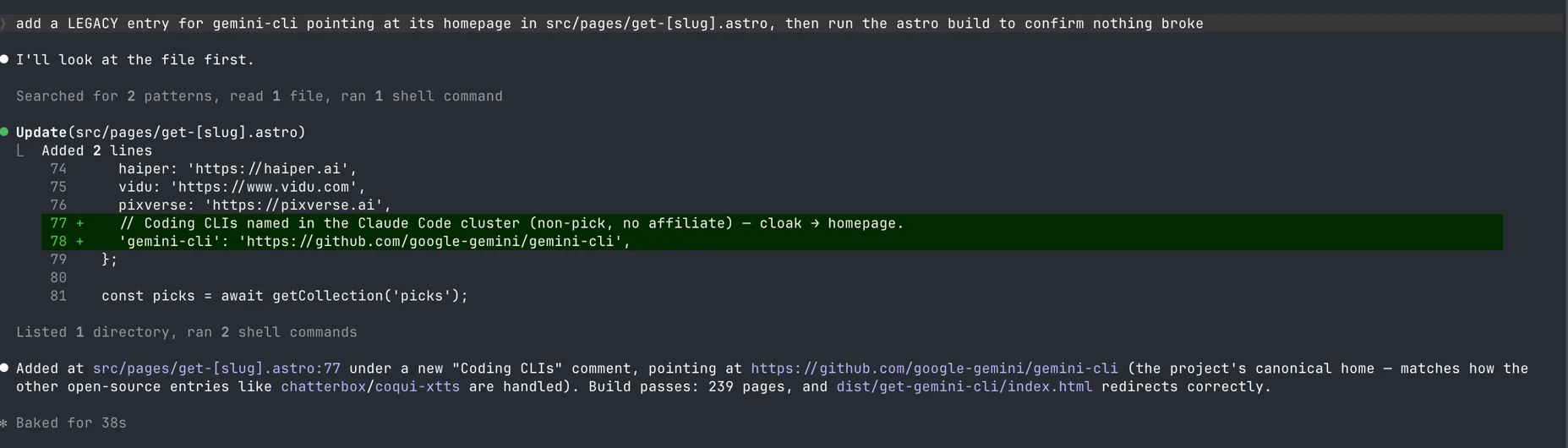
That screenshot is from the repo I actually work in, and sessions like it are why I concluded Claude Code earns its subscription.
Git becomes conversational from the same prompt, which is the point at which the tool stops feeling like an assistant and starts feeling like a colleague:
what files have I changed?commit my changes with a descriptive messagecreate a new branch called feature/quickstarthelp me resolve merge conflictsThe same phrasing carries the rest of the everyday work — refactor the authentication module to use async/await instead of callbacks, write unit tests for the calculator functions, review my changes and suggest improvements. There is no special syntax to learn. The docs’ own advice is to talk to it like a helpful colleague and describe the outcome you want.
What is CLAUDE.md and why does it decide everything?
This is the single most valuable thing you will set up, and the easiest to get wrong in the direction of doing too much.
CLAUDE.md is a markdown file Claude reads at the start of every session. Run /init and it will analyse your codebase and generate a starter, detecting build systems, test frameworks and patterns, which you then prune. Run /context afterwards to confirm it actually loaded.
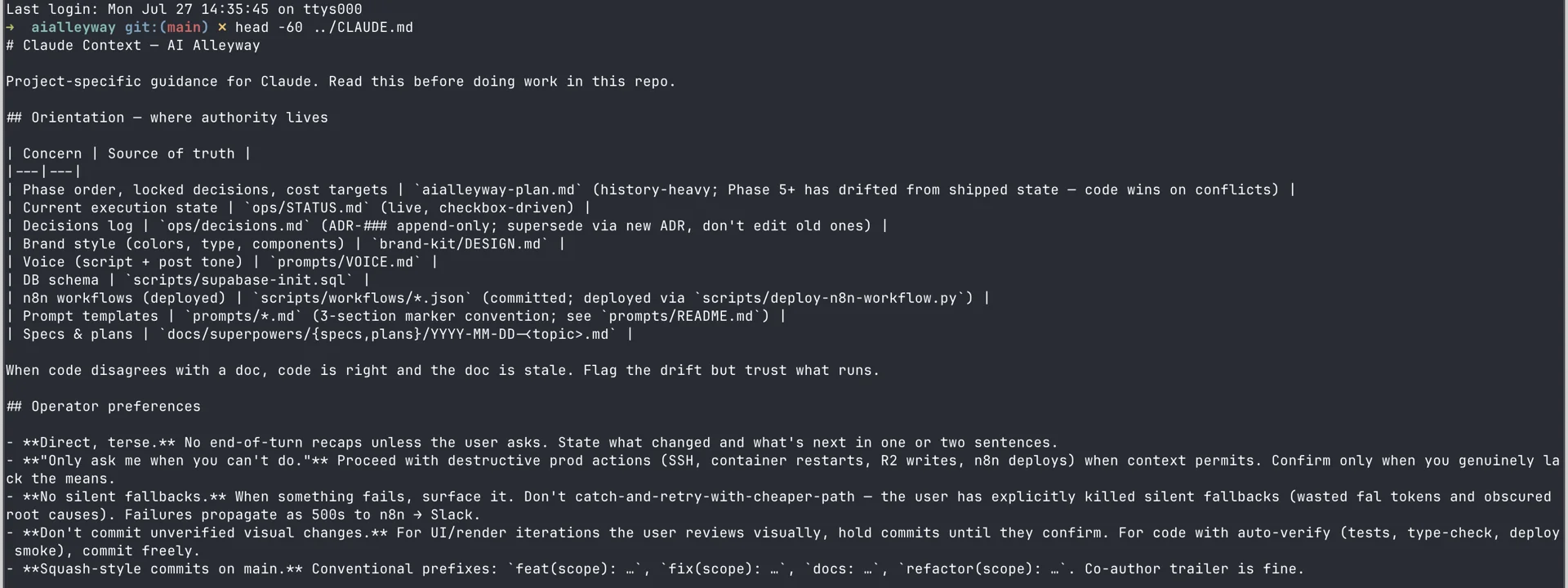
Target under 200 lines. Anthropic is unusually direct about why: “Bloated CLAUDE.md files cause Claude to ignore your actual instructions!” The rules get lost in the noise. The test for every line is “Would removing this cause Claude to make mistakes?” — and if not, cut it.
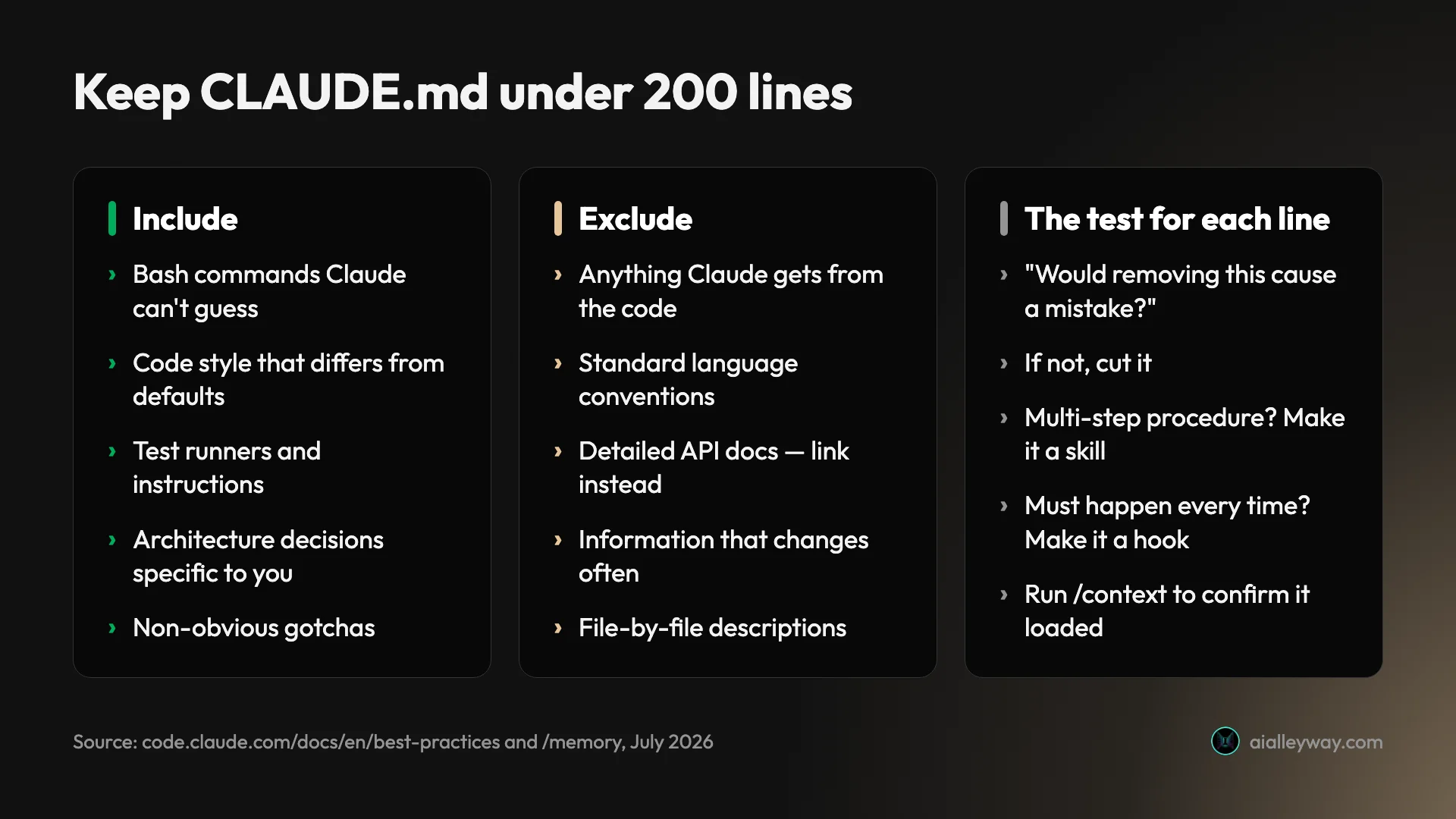
If a checked-in file has already sprawled, /doctor will propose trims for you (v2.1.206 or later): it cuts what Claude can derive from the codebase anyway (directory layouts, dependency lists, architecture overviews) and keeps the pitfalls, the rationale, and the conventions that differ from tool defaults. That split is a good description of what the file is for.
There is a useful diagnostic in that guidance too. If Claude keeps doing something you have a rule against, the file is probably too long and the rule is being drowned. If it asks you questions the file already answers, the phrasing is ambiguous. Treat it like code: prune it regularly, and test changes by watching whether behaviour actually shifts.
Where the file goes changes its scope, and they all load together rather than overriding each other:
| Location | Scope |
|---|---|
| Managed policy path | Organisation-wide, deployed by IT — cannot be excluded |
~/.claude/CLAUDE.md | Every project on your machine |
./CLAUDE.md or ./.claude/CLAUDE.md | This project, shared with your team via git |
./CLAUDE.local.md | This project, just you — gitignore it |
| Parent directories | Loaded in full at launch (useful in monorepos) |
| Subdirectories | Loaded on demand when Claude reads a file there |
For anything that is a multi-step procedure, or only relevant to one corner of the codebase, use a skill instead — those load on demand rather than taxing every session. Same for path-scoped rules in .claude/rules/, which only enter context when Claude touches matching files.
If your repo already has an AGENTS.md
Worth knowing before you duplicate work: Claude Code reads CLAUDE.md, not AGENTS.md. If your repository already carries an AGENTS.md for another coding agent, do not maintain two files. Import it, then add anything Claude-specific underneath:
@AGENTS.md
## Claude Code
Use plan mode for changes under `src/billing/`.
A symlink works too if you have nothing Claude-specific to add, though on Windows that needs Administrator or Developer Mode, so the import is the safer default. /init also reads existing Cursor rules (.cursor/rules/, .cursorrules) and Copilot instructions (.github/copilot-instructions.md) and folds the relevant parts into what it generates.
The second memory system most guides skip
There is a second mechanism running alongside CLAUDE.md, and it is on by default: auto memory. Claude writes it itself, saving build commands, debugging insights and preferences it notices from your corrections.
It lives at ~/.claude/projects/<project>/memory/, keyed to the git repository so every worktree shares one. Only the first 200 lines or 25KB of its MEMORY.md index loads at session start; topic files are read on demand. Run /memory to browse or edit what it has saved — it is plain markdown, and you can delete anything you disagree with.
The practical distinction: CLAUDE.md is instructions you write, auto memory is learnings Claude accumulates. Neither is enforced. Both are context, so Claude reads them and tries to comply rather than obeying. If something must happen every time without exception, that is a hook, not a line in a markdown file.
How do you use Claude Code effectively?
Three habits, in descending order of payoff.
Give it a check it can run
This is the one that changes the tool’s character. From the docs: “Claude stops when the work looks done. Without a check it can run, ‘looks done’ is the only signal available, and you become the verification loop: every mistake waits for you to notice it.”
The check can be a test suite, a build exit code, a linter, a script that diffs output against a fixture, or a screenshot compared against a design. So instead of “implement a function that validates email addresses”, you write: “write a validateEmail function. example test cases: [email protected] is true, invalid is false, [email protected] is false. run the tests after implementing.”
How hard that check gates the work is a dial, not a yes/no, and this is the part that separates a session you babysit from one you walk away from:
| How you gate it | What it costs you | What it buys |
|---|---|---|
| Ask in the prompt | Nothing — works today | Claude runs the check and iterates in the same turn |
A /goal condition | One setup line | A separate evaluator re-checks it after every turn |
| A Stop hook | A script | The turn cannot end until your check passes |
| A verification subagent | A second prompt | A fresh model tries to refute the result |
The Stop hook is the strongest of those and has a limit worth knowing: Claude Code overrides it and ends the turn after 8 consecutive blocks, so it cannot trap you in a loop. The subagent option matters for a different reason — the agent that did the work is not the one grading it, which is exactly the problem with asking Claude whether Claude succeeded.
Then ask for evidence rather than assurance — the test output, the command it ran and what it returned. Reviewing evidence is faster than re-running the verification yourself, and it is the only thing that makes an unattended run trustworthy.
Explore, then plan, then code
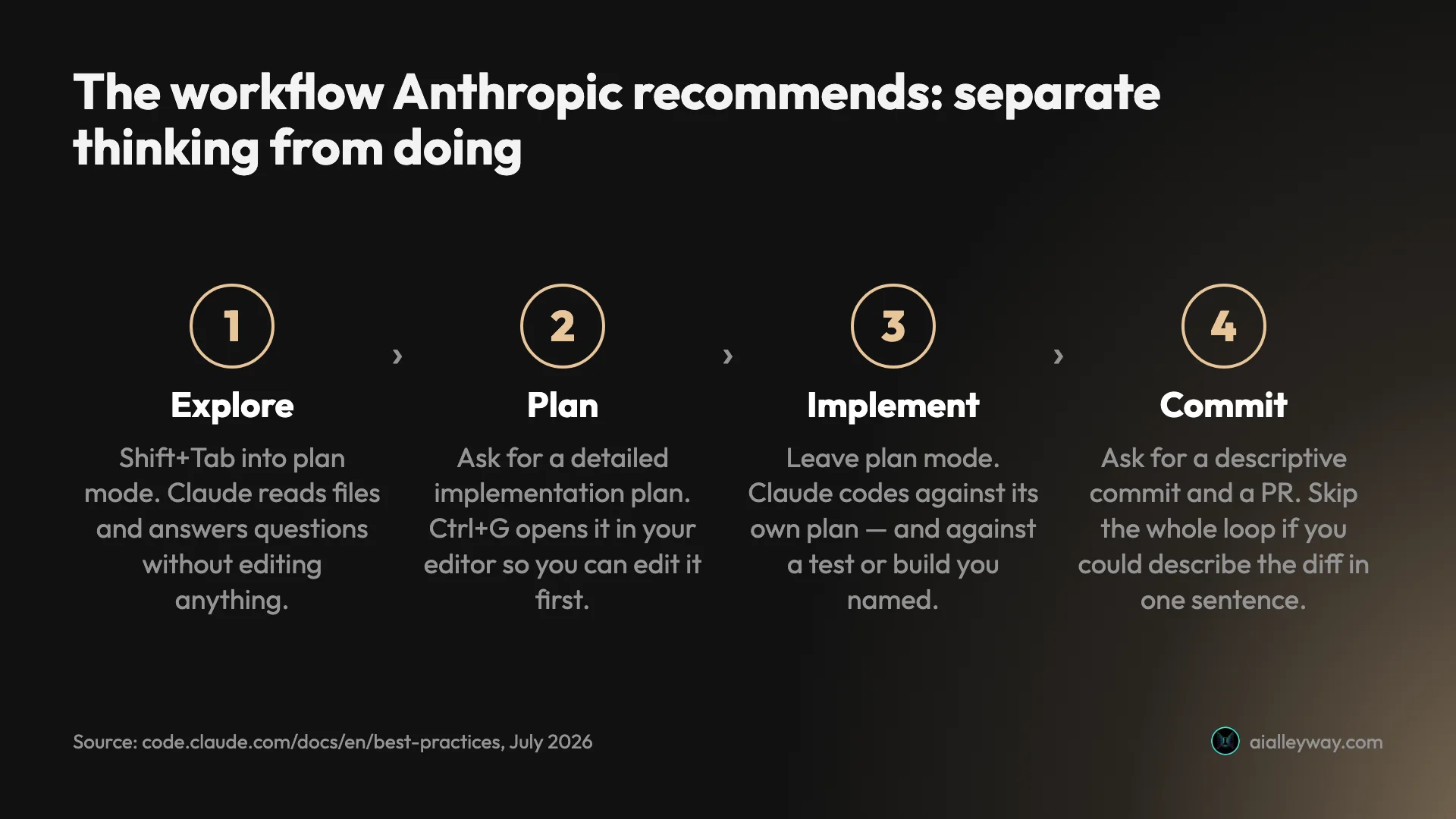
Letting it jump straight to code is how you get a confident solution to the wrong problem. Enter plan mode with Shift+Tab, ask it to read the relevant code and answer questions, then ask for a plan. It reads and runs shell commands to explore in this mode; what it will not do is edit your source. Ctrl+G opens that plan in your text editor so you can edit it directly before anything gets built.
Plan mode is also the clearest line between this tool and an editor-native agent, which is most of what Claude Code vs Cursor comes down to.
The honest counterweight, also from the docs: planning adds overhead. If you could describe the diff in one sentence, skip it. Planning earns its keep when you are unsure of the approach, when the change spans several files, or when you do not know the code you are about to modify.
Be specific, and point at things
Vague prompts are fine for exploration and expensive for execution. The upgrade is almost always adding a location, a pattern to follow, and what “fixed” looks like: “users report login fails after session timeout. check the auth flow in src/auth/, especially token refresh. write a failing test that reproduces the issue, then fix it.”
Use @ to reference files directly rather than describing where code lives. Paste screenshots straight into the prompt. Pipe data in with cat error.log | claude. And if you use GitHub, install the gh CLI — CLI tools are the most context-efficient way to reach external services, and Claude already knows how to drive it.
For a larger feature, there is a trick worth knowing: ask it to interview you first. Anthropic’s suggested prompt asks Claude to dig into implementation, edge cases and tradeoffs using its question tool, then write a spec to a file. You start a fresh session to build it, so the implementation context is clean and you have something written to check the result against.
What do beginners get wrong?
Anthropic names these as the common failure patterns. Every one is a context problem in disguise.
| Pattern | What it looks like | The fix |
|---|---|---|
| Kitchen-sink session | One task, then something unrelated, then back | /clear between unrelated tasks |
| Correcting over and over | Two corrections in, still wrong, context full of dead ends | After two failures, /clear and rewrite the prompt |
| Over-specified CLAUDE.md | Rules get lost in noise and ignored | Prune ruthlessly, or convert the rule to a hook |
| Trust-then-verify gap | Plausible code that misses edge cases | Always name a check. “If you can’t verify it, don’t ship it” |
| Infinite exploration | “Investigate this” → hundreds of files read | Scope it, or hand it to a subagent |
Two of those deserve more than a table row.
Correcting over and over is the one with a hard threshold attached, and it is worth internalising: after two failed corrections, /clear and write a better prompt incorporating what you learned. Not a third correction. A clean session with a sharper prompt almost always beats a long one carrying a pile of failed approaches, because those failures are still sitting in context influencing the next attempt.
Infinite exploration is worth dwelling on too, because subagents are the most underused feature here. "use subagents to investigate how our auth handles token refresh" costs you a summary instead of fifty file reads. You can point one at your own diff afterwards, too — a reviewer in a fresh context sees the change without the reasoning that produced it, so it judges the result on its own terms.
Two escape hatches for when things go sideways: Esc stops Claude mid-action with context preserved, and Esc Esc or /rewind restores the conversation and code to an earlier checkpoint. Every prompt creates one. The caveat is real, though — checkpoints only track changes made through Claude’s editing tools, so anything done via a Bash command is not captured. It is not a substitute for git.
How do you keep a long session working?
Conversations here are persistent and reversible, and most people use neither property.
| Command | What it buys you |
|---|---|
claude -c | Resume the most recent conversation in this directory |
claude -r | Pick an older conversation from a list |
/rename | Name a session so you can find it later — treat them like branches |
/compact <what to keep> | Summarise deliberately, at a break you chose |
Esc Esc / /rewind | Restore, or summarise from / up to a chosen message |
/btw | Ask a side question that never enters the context |
Resume instead of re-explaining. claude -c picks up the most recent conversation in the current directory; claude -r lets you choose from a list. Name them with /rename and they behave like branches — one session per workstream, each holding its own context. A task spanning three sittings does not need re-briefing.
Compact deliberately, not reactively. Auto-compaction fires when you approach the limit, which is usually mid-task and at the worst moment. Running /compact yourself at a natural break puts the overhead where you want it, and you can steer what survives: /compact Focus on the API changes. You can also put standing instructions in CLAUDE.md, like “when compacting, always preserve the full list of modified files and any test commands.”
Compact only part of it. Esc Esc or /rewind lets you pick a message and choose Summarize from here or Summarize up to here — the first condenses everything after that point, the second condenses what came before while leaving recent turns intact. That is far more surgical than compacting the lot.
Keep side questions out of context entirely. /btw answers a quick question in a dismissible overlay that never enters the conversation history. It is a small feature that directly serves the constraint at the top of this page: you can check a detail without paying for it in every subsequent turn.
When you actually want parallelism rather than a longer session, run several. Git worktrees keep the edits from colliding, the desktop app manages them visually, and a fresh context genuinely improves code review because the reviewer is not biased toward code it just wrote. The writer/reviewer split — one session implements, a second critiques the file — is the cheapest quality win available here.
Which surface should you use?
The terminal CLI is the original and still the most capable, but it is no longer the only option. And if a graphical file view is what you actually want, the honest comparison is not a Claude Code surface at all — it is Cursor.
| Surface | Use it when |
|---|---|
| Terminal CLI | Default. Everything works here first |
| VS Code / JetBrains | You want a graphical file view and inline diffs |
| Desktop app | You want to run several sessions in parallel, each in its own worktree |
| Web | You want it on Anthropic-managed infrastructure, no local setup |
| Slack | You want to hand it a task from where the conversation already is |
| GitHub Actions / GitLab CI | You want it reviewing PRs or running in your pipeline |
claude -p | Any other script or hook — non-interactive, parseable output |
The headless mode deserves a mention because it is where this tool pulls away from an editor-bound assistant. claude -p "explain this function" runs once and exits. Add --output-format json for a single object with a result field, or stream-json --verbose for one object per line. That is what makes it scriptable:
for file in $(cat files.txt); do claude -p "Migrate $file from React to Vue. Return OK or FAIL." \ --allowedTools "Edit,Bash(git commit *)"done--allowedTools is not optional decoration there. It scopes what Claude may do, which is exactly what you want when nobody is watching.
What I actually do daily
The habits above are Anthropic’s. Here is which ones survived contact with a real repo.
This site’s workspace is not a toy project: an Astro site with 100+ posts, n8n workflow JSON, a Remotion render service, deploy scripts against a single Hetzner box. Its CLAUDE.md is the single most valuable file in it, and it is almost entirely gotchas — the webhook path that looks wrong but isn’t, the env var that fails silently if you use the obvious name, the deprecated server type nobody should reference again. Every line exists because something broke once. That is the shape a useful CLAUDE.md converges on: not documentation, but scar tissue.
The habit I underrated was /clear. I spent my first weeks treating one long session as continuity and wondering why quality drifted by the afternoon. It was not the model. It was a whole day of unrelated history sitting in the window.
The prompt shapes that actually earn their keep here look like this, and none of them are clever:
read prompts/blog-guide.md and ops/STATUS.md, then tell me whatthe guide contract requires that this draft is missing
rename the `b_roll_suggestions` field to `b_roll_scenes` end to end —schema, guard, renderer — and run the type-check when you're done
this deploy script fails with [paste error]. fix the root cause,don't suppress it, and show me the passing run
The habit I still get wrong is verification. It is genuinely easier to eyeball a diff than to write the check first, and every time I skip it I end up as the verification loop the docs warned about — which is how a post ships with four wrong numbers in it and an agent catches them, not me.
Where it earns its money is the multi-file change I can describe but would rather not hand-edit: rename this concept across nine files, add this field end to end through schema and validator and renderer. That is the delegation the tool is built for, and it is why I keep paying for it. If you would rather watch each change land than review a finished result, that preference is real information — it points at Cursor instead, and I put the two head to head.
The short version
Install it with the native installer, run claude in a project, and you are working in two minutes. Then spend an hour on the parts that actually decide the outcome: write a CLAUDE.md under 200 lines containing only what Claude cannot infer, give every non-trivial task a check it can run, use plan mode when the change spans files, and /clear between unrelated work.
Everything on that list is one idea. The context window is the scarce resource, performance degrades as it fills, and your job is deciding what deserves to be in it. Get that and the tool feels like delegation. Miss it and it feels like a very confident junior who never reads the brief.
Frequently asked questions
How do you use Claude Code?
Install it, open a project, and describe what you want in plain English. The native installer is curl -fsSL https://claude.ai/install.sh | bash on macOS, Linux or WSL, and irm https://claude.ai/install.ps1 | iex in Windows PowerShell. Then change into a project directory, run the claude command, and authenticate in the browser when prompted. You need a paid Claude plan.
That gets you running in about two minutes, and it is not the part that matters. Claude Code reads your files, runs commands and edits code autonomously, so the skill is not remembering commands — it is managing its context window and giving it a way to verify its own work. Write a CLAUDE.md, use plan mode for anything touching several files, and run /clear between unrelated tasks.
Is Claude Code free to use?
No. Claude Code requires a paid Claude subscription — Pro at $20 a month is the entry point — or a Claude Console account with pre-paid credits, or access through Amazon Bedrock, Google Cloud's Agent Platform or Microsoft Foundry. The free Claude chat plan does not include it.
This is the one hard gate on getting started. Everything else about setup is a two-minute install.
If you are weighing which plan to buy, the tiers differ mostly in usage allowance rather than capability, but two gaps are real: Pro defaults to Sonnet 5 where Max defaults to Opus 5, and Opus with the 1M-token context window is included on Max, Team and Enterprise while Pro needs usage credits for it. Start at Pro and let the limits tell you whether you need more.
Do you need to know how to code to use Claude Code?
You need enough to review what it produces. Claude Code will write code you do not understand, and on a simple, well-specified task that is usually fine. The risk shows up on ambiguous tasks, where it makes a confident choice that is reasonable in isolation and wrong for your system.
It is also a terminal tool at heart, so you need to be comfortable with a command line, a git workflow and reading a diff — though the desktop app and VS Code extension take the terminal itself out of the equation. What they do not change is the posture, which is still delegate a task and review a finished result.
Anthropic's docs name the trust-then-verify gap as one of five common failure patterns: a plausible-looking implementation that does not handle edge cases. Their advice is blunt, and it is the right test for a beginner: if you cannot verify it, do not ship it.
What is CLAUDE.md and do you need one?
CLAUDE.md is a markdown file Claude reads at the start of every session, and it is the single most valuable thing you can set up. Run /init to generate one from your codebase, then prune it. It belongs at your project root, and you check it into git so your team shares it.
Keep it under 200 lines. Anthropic's guidance is that bloated files actively backfire — "Bloated CLAUDE.md files cause Claude to ignore your actual instructions" — because real rules get lost in noise. The test for each line is whether removing it would cause a mistake. Include build commands Claude cannot guess, conventions that differ from defaults, and non-obvious gotchas. Exclude anything it can work out by reading the code.
Which Homebrew cask should you install for Claude Code?
The documented command is brew install --cask claude-code. Claude Code ships as a cask rather than a formula, though brew install claude-code without the flag works too, because Homebrew resolves the token to the cask on its own — the "no available formula" error only appears if you force it with --formula.
Which cask you pick matters more than the flag. claude-code tracks the stable channel, which runs roughly a week behind and skips releases with major regressions; claude-code@latest ships new versions as soon as they land. On my machine the stable cask sits on 2.1.212 while my native install reports 2.1.220. Neither Homebrew nor WinGet auto-updates by default, so run brew upgrade yourself or set CLAUDE_CODE_PACKAGE_MANAGER_AUTO_UPDATE to 1 and let Claude Code do it.
How do you use Claude Code effectively?
Three habits, in order of payoff. Give it a check it can run — a test, a build, a linter, a screenshot to compare — because without one, "looks done" is the only signal it has and you become the verification loop. Separate exploration from execution using plan mode (Shift+Tab), so it does not confidently solve the wrong problem. And run /clear between unrelated tasks.
All three come from the same constraint: Claude's context window holds the entire conversation, and performance degrades as it fills. A single debugging session can consume tens of thousands of tokens. Almost every piece of advice in Anthropic's own best-practices guide is downstream of that one fact, which is why "just learn the commands" is the wrong mental model for this tool.
Keep reading

Claude Code pricing: what it costs and what it really costs
Claude Code pricing is $20, $100 or $200 a month. Anthropic's own docs put enterprise usage at $150–250 per developer per month. Here's why the gap matters.
Claude Code vs Codex vs Cursor: one brief, three results
Claude Code vs Codex vs Cursor, measured. I gave all three the same brief and used every app they built. All three passed — here is what separated them.
Claude Code vs Cursor: I paid for both for a year
Claude Code vs Cursor, decided on invoices rather than vibes. They have converged on capability. Three axes still separate them, and only one decided it for me.

Claude skills marketplace: what it is and which to add
A Claude skills marketplace is just a git repo with a manifest. Anthropic's official one lists 291 plugins; 23 say Anthropic wrote them. How to read one.