
NotebookLM vs Notion: I Gave Both the Same Four Articles
NotebookLM vs Notion AI on the same four articles and questions: Gemini Notebook's citation opened the passage and it is free; Notion builds pages, from $20.
Contents
NotebookLM vs Notion: the short verdict

Gemini Notebook, the new name for NotebookLM, wins for research: it answers from your sources, the citation I clicked opened the exact passage, and it is free. Notion AI wins for building: it turns the same notes into databases, briefs and decks inside the workspace your team already uses, but full AI starts at $20 a member a month. I gave both the same four articles and the same core questions, a day apart, and the split was clear.
| If you need | Pick | Why, from my tests |
|---|---|---|
| Cited answers you can check | Gemini Notebook | The citation I clicked opened the passage, highlighted |
| Finished work inside a team workspace | Notion AI | A 23-row database, a brief and a deck, all as Notion pages or files |
| The lowest cost | Gemini Notebook | Free; Pro is $19.99 for one person |
How the two compare, axis by axis
Both tests used the same four articles from this site: our Canva review, Canva pricing guide, Adobe Express review and Canva vs Adobe Express comparison. I wrote them, so I knew every right answer before I asked. Gemini Notebook got them as website links on a Google account with no AI plan on 14 October 2026. Notion AI got them pasted in as pages on a new Free workspace on 15 October 2026. Same questions where both were asked, first attempts only.
Two caveats shape the results. The imports differed: Gemini Notebook pulled the live pages, while Notion got the articles pasted in without images, buttons or FAQ boxes. And both ran on free tiers only. I did not test a paid plan of either, Gemini Notebook’s video overviews, slide decks, reports or quizzes, Notion’s meeting notes or agents, or how either works when a whole team shares it. Gemini Notebook’s timings are upper bounds, from when I checked; Notion’s are its own “Worked for” labels.
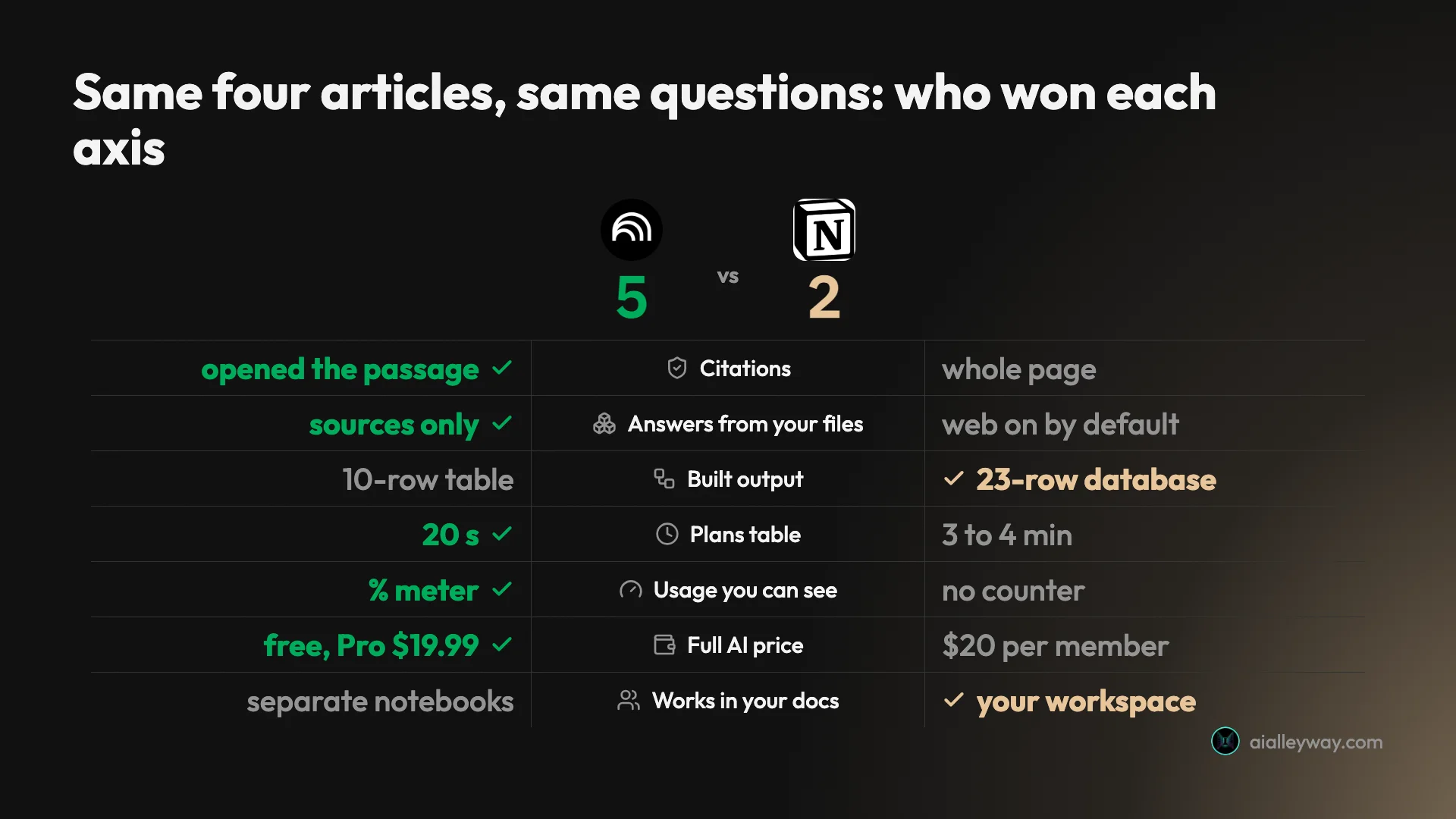
| Axis | Gemini Notebook | Notion AI |
|---|---|---|
| Where it lives | Separate notebooks of sources | Inside your Notion workspace |
| Prices from the articles | Right, cited to the articles | Right, cited to the vendors’ own websites |
| A question the sources can’t answer | Declined, offered web research | Not tested; web search was on by default |
| Counts and a false premise | Right; rejected the premise | Right; corrected the premise |
| Every disagreement between the articles | Missed the one real mismatch | Missed the same one |
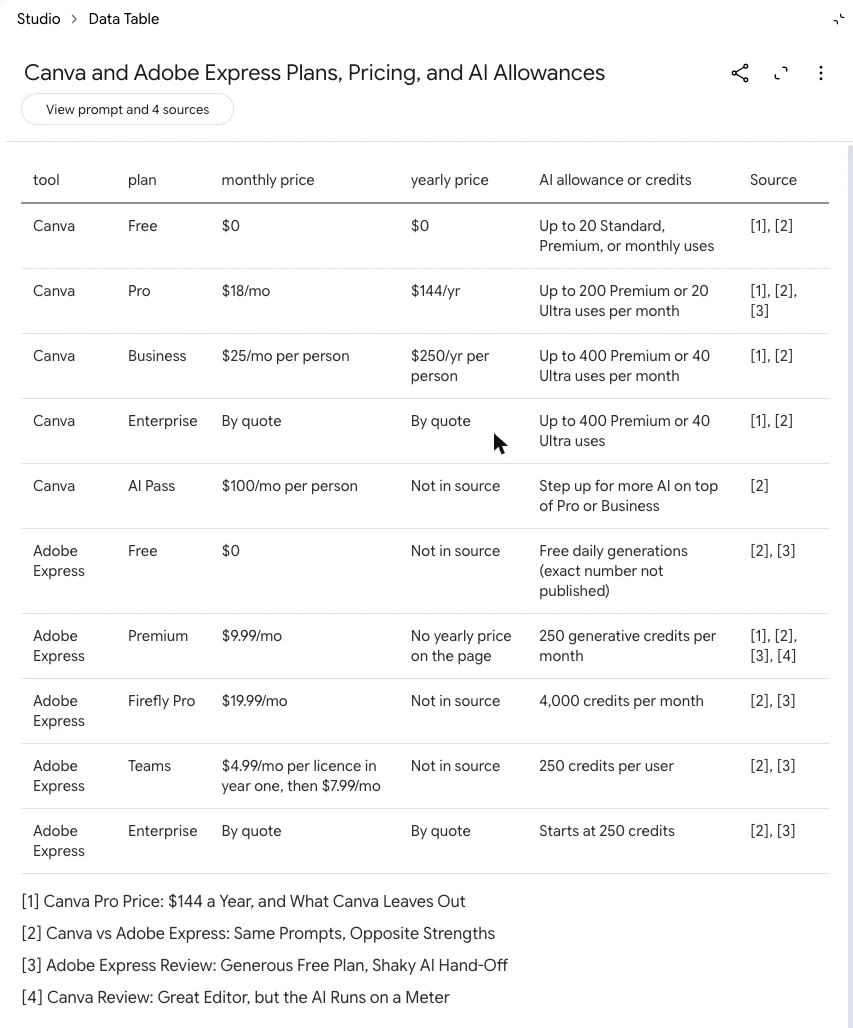
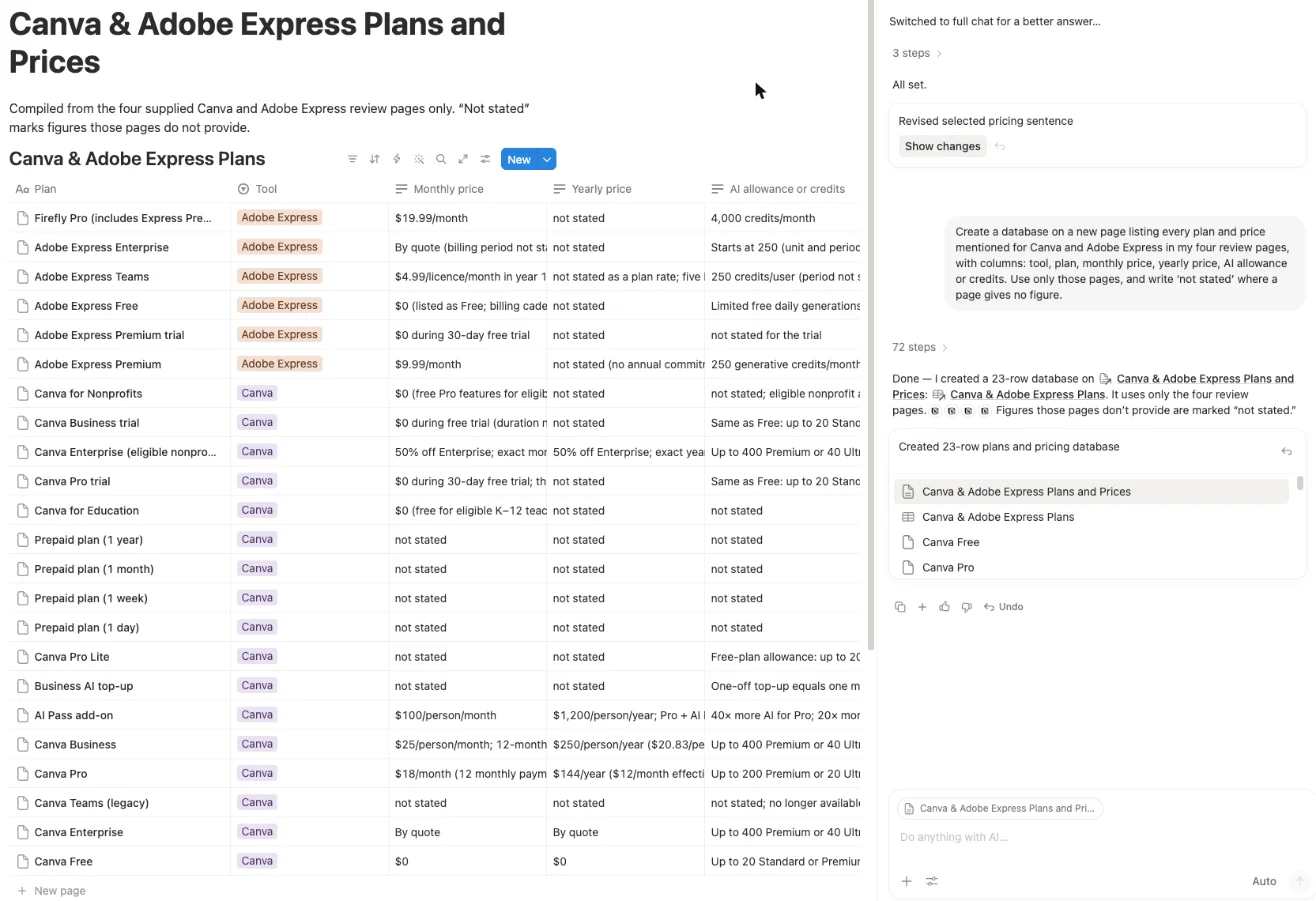
| Plans-and-prices table | 10 rows, within 20 s | 23 rows as pages, 3 to 4 minutes |
| Citations | Opened the passage (the one I clicked) | Opens the page, nothing highlighted |
| Wrong citations | Not checked beyond one click | One found, in 39 requests |
| Audio | Audio Overview, 1:42 Brief | Not among its chat modes |
| Slides | Not tested | Five-slide PowerPoint and PDF |
| Usage you can see on free | Percentage meter, cost shown before each output | No meter or counter |
| Full AI price | Free; AI Plus $4.99, Pro $19.99 | Business, $20 a member yearly or $24 monthly |
| Our rating | 4.5, best AI notes pick | 4.3, runner-up |
Gemini Notebook: strengths and gaps
Gemini Notebook is a research desk. You load sources into a notebook, ask questions and get answers built from those sources only, plus a row of “Studio” outputs such as audio overviews, mind maps and data tables. Our Gemini Notebook review has the full test.
Strengths
- Answers you can verify. Each answer about my articles carried citation numbers, and the one I clicked jumped to the highlighted lines.
- It stays in its lane. Asked the population of Lisbon, which none of the articles mention, it declined and offered web research instead of guessing.
- Fast. Answers were back within about 16 to 30 seconds, a mind map within about 15 and a 10-row data table within 20.
- Audio. A Brief Audio Overview of the four articles ran 1 minute 42 seconds and was ready in under 4.5 minutes.
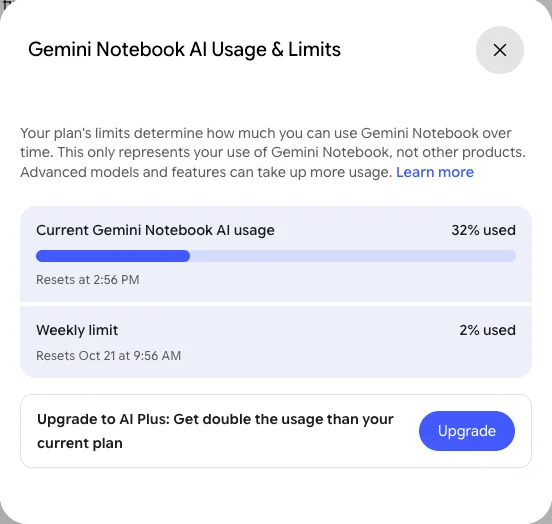
- Free, with a visible meter. Settings shows how much of the five-hour and weekly allowance you have used.
- A phone app for listening. Google’s help page says the Android and iPhone apps can download Audio Overviews for offline playback.
- Adjustable outputs. Every Studio tile opens its settings first; Audio Overview alone offers four formats, Deep Dive, Brief, Critique and Debate, plus language and length.
Gaps
- It missed a contradiction. Asked to list every disagreement between the articles, it said there were none; asked directly about the one there is, it found both figures.
- An infographic invented decoration, such as a promo code that appears in none of the sources.
- Audio is expensive on the meter. The dialog estimated one audio overview at 45% of a free five-hour window.
- It is not a workspace. Notebooks hold sources and outputs; your team’s documents live somewhere else.
- Exported notes are copies. Notes go to Google Docs, and Google says edits to the exported Doc “will not synchronize” back to the note; data tables offer Export to Sheets.
Notion AI: strengths and gaps

Notion AI is the assistant inside Notion, so it works where the notes already are. It answers questions about your pages, edits them, and builds new pages, databases and files. Our Notion AI review covers the 39-request test, and the rest of this Notion vs NotebookLM comparison uses its results.
Strengths
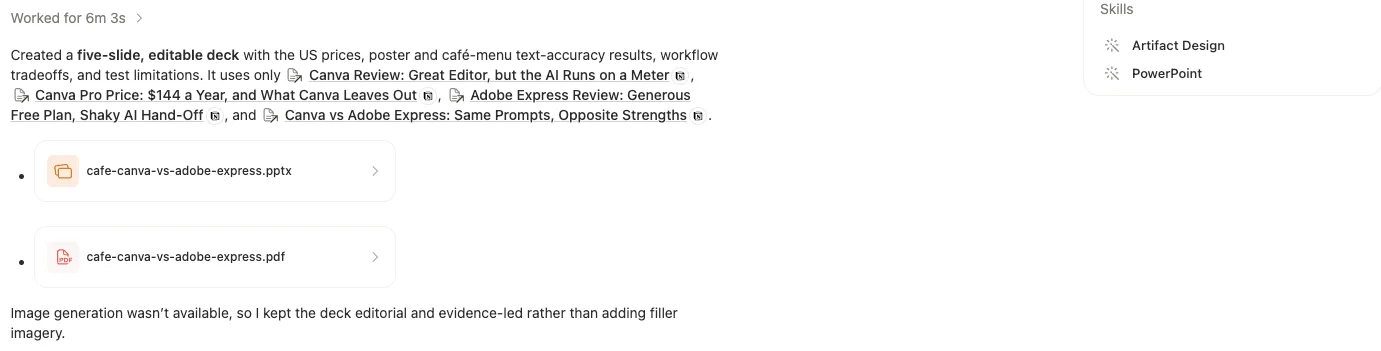
- It builds real things. From the four articles it made a 23-row database, every row of which I traced to a source, plus a one-page brief written straight into a page.
- Files, not just chat. A five-slide deck arrived as a PowerPoint file and a PDF.
- It shows its working. Its answers came with an expandable trail of searches, pages read and, when it went online, websites.
- The numbers held. Every price, count and sum I checked across its answers, brief, database and deck matched the articles.
- Research mode. A report on Gemini Notebook’s own limits and prices, built from Google’s pages in 56 seconds, matched every figure I had recorded from those pages.
- A wide model menu. My workspace’s settings listed 32 models from several providers, with Auto as the default.
- Your work is portable. Notion’s pricing table lists export of the entire workspace as HTML, Markdown and CSV on every plan, including Free.
Gaps
- Page-level citations. Clicking one opens the whole page at the top, so you hunt for the figure yourself.
- One wrong citation. It credited a correct fact to an article that never mentions it.
- Web sources by default. Asked for sources on my first question, it cited Canva’s and Adobe’s websites instead of my pages.
- Slow on big jobs and dear for teams. The database took 3 to 4 minutes and the deck 6 minutes 3 seconds, and full AI means Business or Enterprise for every member.
Is NotebookLM or Notion AI cheaper?
Gemini Notebook is cheaper or level at every comparable tier, and for a team it is much cheaper. The difference is in how each one charges: Google sells usage per person, Notion sells seats per workspace.
Gemini Notebook is free with a Google account. On Google’s US plans page on 15 October 2026, Google AI Plus cost $4.99 a month and Google AI Pro $19.99, and Google’s usage-limits help page puts them at two and four times the standard limits. Ultra costs $99.99 or $199.99. Each person buys their own plan, or stays on free. Our NotebookLM pricing guide has every tier.
Notion AI is a trial on Notion’s Free and Plus plans. On notion.com/pricing on 16 October 2026, the first plan with Notion AI included was Business, at $20 per member a month billed yearly or $24 billed monthly, and Notion charges it for every member of the workspace. Plus, at $10 or $12, still only has the trial. The two “Plus” plans are easy to confuse: Google AI Plus at $4.99 doubles Gemini Notebook’s usage, while Notion Plus at $10 or $12 adds collaboration features but not Notion AI. Our Notion pricing guide covers seats, credits and refunds.
| A year of AI, US prices | Gemini Notebook | Notion AI |
|---|---|---|
| One person, free | $0 | $0, trial of unpublished size |
| One person, paid | $239.88 on Google AI Pro, monthly | $240 on Business, yearly billing |
| Five people, paid | $1,199.40 if all five buy Pro | $1,200 on Business, yearly billing |
| Five people, two want AI | $479.76 for two Pro plans | $1,200, because every member pays |
The one-person totals are close: twelve months of Google AI Pro is $239.88 and a year of one Business seat is $240. What separates them is everything around the price. Google’s plans add cloud storage and other Google AI features. Notion’s seat adds the rest of Notion Business, from single sign-on to private teamspaces.
The team row is where Gemini Notebook pulls away. Notion charges the Business price for every member of the workspace, so a five-person team where two people use AI still pays for five Business seats. With Gemini Notebook, the three who do not care stay free.
Both have limits you cannot size in advance. Gemini Notebook’s paid plans are multiples of a free allowance that Google describes only as compute-based. Notion’s Business allowance runs in six-hour and monthly windows of unpublished size, with Notion credits at $10 per 1,000 for Custom Agents and premium models on top.
For students
Students get a better deal on both, but the deals are not the same. Notion’s pricing FAQ says the Plus plan, limited to one member, “is free for students and educators” who sign up with a school email address. Plus still has only the Notion AI trial, so the free student plan buys more guests, longer page history and larger uploads, not the full AI.
Google’s offer is the opposite shape. Its US students page offers Google AI Pro free for a year to eligible US college students aged 18 and over, with four times the standard usage limits in Gemini and 5 TB of storage. It needs a payment method at sign-up and, unless cancelled, charges $19.99 a month after the free year. The page talks about “study notebooks” without naming Gemini Notebook; Google’s plans page is what lists Gemini Notebook in Pro. I did not test either student offer.
So a student who wants AI for research gets more from Google, and one who wants a free place to organise coursework gets more from Notion. The two do not compete for the same budget, because both can be free.
Is either one free?
Gemini Notebook is, with limits rather than a trial. My free account had chat and all nine Studio formats, and Google’s sources help page allows up to 50 sources per notebook. What it does not get is room. The five-hour and weekly allowances are the cap. Google’s paid plans mainly multiply them and raise the source and notebook counts, and its plans help page lists a few paid-only extras, such as advanced sharing.
| What the free version gives you | Gemini Notebook | Notion AI |
|---|---|---|
| Kind of free | A permanent free tier | A trial on Free and Plus |
| How much | A five-hour and a weekly allowance, shown as % | A number Notion does not publish |
| Sources or pages | 50 sources a notebook, 100 notebooks | Your whole workspace |
| What it includes | Chat and all nine Studio formats | Chat, page edits, databases, decks |
| When it runs out | Wait for the window to reset, or upgrade | Business or Enterprise for every member |
Notion’s free AI works the other way. It is a trial on the Free and Plus plans, of a size Notion does not publish, and once it is used up the next step is Business or Enterprise for every member, with Notion credits on top, which are themselves only sold to Business and Enterprise workspaces.
What the free versions actually hold
Neither free tier publishes a usage number, so I measured what I could.
Gemini Notebook puts a price on nearly every output. My five chat questions together used 4.7% of the five-hour meter, so chat barely registers.
The Studio is another matter. Before each output, all but one of its nine dialogs showed what the output would cost: 45% of the window for an audio overview, 35% for a video overview, 11% for an infographic, and single figures for the other five. After the questions, an audio overview, a mind map, an infographic and a data table, Settings read 32% of the window and 2% of the week. The lesson for a free account is to ration audio: by Google’s own estimates, two audio overviews would take about 90% of a fresh window.
Notion AI gave me nothing to measure against. Its help pages promise only “a limited number” of complimentary responses, and 39 requests over about an hour, including the 72-step database build and the six-minute deck, produced no warning at all. That is generous in practice and impossible to plan around.
When the allowance runs out
The two handle the end of an allowance differently, and only one of them showed me what that looks like.
Gemini Notebook offered to queue the work rather than refusing it. With the meter at about 60% of the window, its Slide Deck dialog offered no Generate now button at all: it said “This content will generate in a few hours. Or, upgrade to get it sooner”, with a single Generate later button. I did not press it. The five-hour window then resets on its own, and the weekly limit sits behind it.
Notion’s Business plan sells its way past the limit instead. Notion’s credits help page says credits cover “additional Notion AI usage beyond the usage allowance”, along with Custom Agents and premium models, at $10 per 1,000 credits a month or $13 per 1,000 on annual billing. Unused monthly credits do not carry over. On the Free trial I never reached the end, so I cannot say what Notion shows when it does.
Which one gives better answers?
Gemini Notebook gave answers I could trust and check faster. Notion AI gave answers that were just as accurate on the numbers, but harder to verify and not always from the pages I gave it.
On the plain facts, they tied. Both got the Canva Pro and Adobe Express Premium prices right. Both counted 7 of 7 and 0 of 7 on the café-menu test and caught my false premise about Canva’s background remover. Both worked out that six designs at 16% each fit in a month, with 4% left.
They also failed the same way. My four articles disagree once: one says “nearly half” of the Adobe Express templates were premium, another says about 12 of roughly 22. Asked to list every disagreement, Gemini Notebook said the articles do not contradict each other, and Notion AI said it found “no substantive disagreements”. Asked about the templates directly, both found the two figures and worked out about 55%.
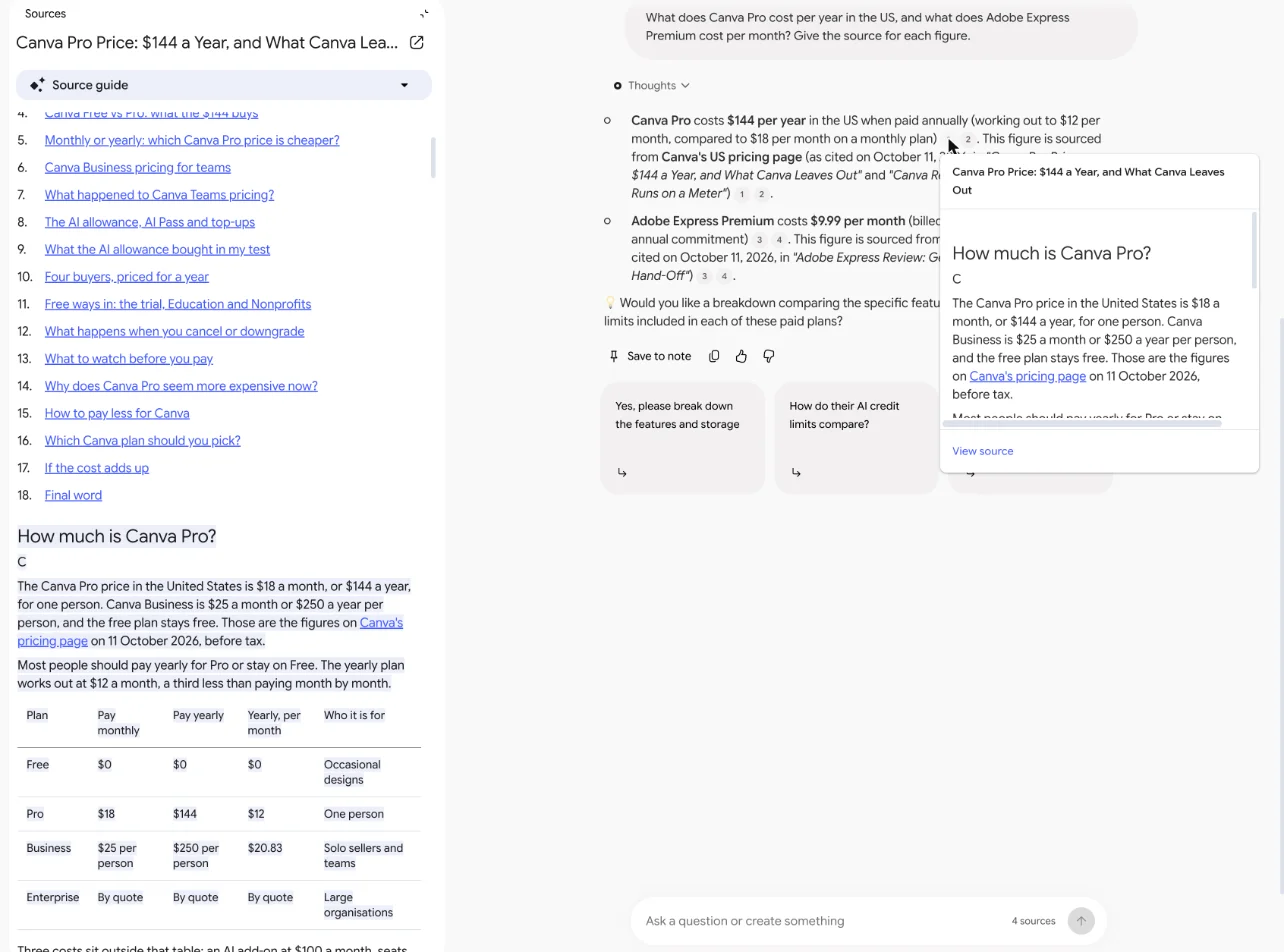
The difference is checking. In Gemini Notebook, the citation I clicked opened the article in the side panel with the passage highlighted. In Notion AI, hovering a citation names the page and section; clicking opens the whole page at the top with nothing marked, so in a long article you hunt for the line yourself.
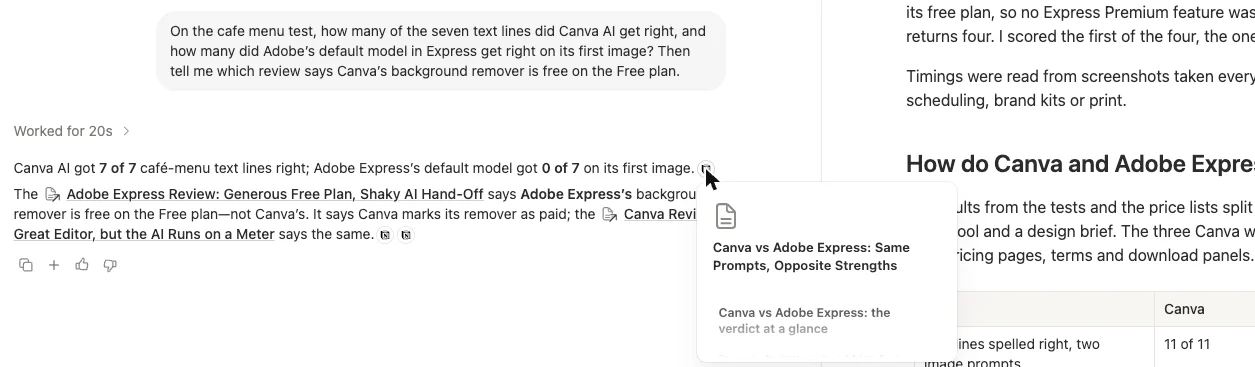
That matters because Notion did make a citation mistake. Asked which tool got a seven-part image scene fully right, it answered correctly but cited a comparison article that never mentions that tool. I clicked only one of Gemini Notebook’s citations, so I cannot say it never makes that mistake.
The other gap is where answers come from. Notion’s workspace had web search on by default, and my first question, which asked for sources, came back cited to Canva’s and Adobe’s own websites. Gemini Notebook answered from my articles and, when the articles could not answer, said so. Asked for the population of Lisbon, which none of them mention, it replied: “Your sources do not cover the population of Lisbon”, and offered to search the web instead. That refusal is the behaviour you want from a research tool: an honest gap rather than a confident guess drawn from somewhere you did not choose.
How each one shows its working
Notion AI shows far more of its process, and that helped me catch its mistakes. Its answers came with an expandable list of steps, and often with a “Worked for” time: the searches it ran, the pages it loaded and, when it went online, the websites it read. On my first question the steps showed its reasoning before it went to the web, that it wanted an external official source for each price, which is how I knew the citations would point at Canva’s and Adobe’s sites. The 23-row database took 72 steps.
Gemini Notebook shows less. Above the answers I captured sat a collapsed “Thoughts” line, and below it the numbered citations, which are what you actually check. For questions about your own sources that is usually enough, because every claim either carries a citation or does not.
| Shown with each answer | Gemini Notebook | Notion AI |
|---|---|---|
| Time taken | Not shown | “Worked for” label on some answers |
| Steps and searches | A collapsed “Thoughts” line | Steps, expandable |
| Websites read | None; answers stay in the sources | Listed when web search ran |
| Citations | Numbered; the one I clicked opened the source | Page icons, open the page |
When a question pointed Notion at my pages, it was also honest about gaps. Asked whether any page said how long Canva’s Business trial lasts, it answered “Not specifically” and explained what the pages did and did not say. Asked for three image prompts from the comparison article, it gave two and said the article did not print the third in full. That is the same behaviour that made Gemini Notebook’s Lisbon answer useful.
Summaries, drafts and edits
Both write well from sources; they differ in where the writing goes.
Gemini Notebook summarised the four articles in one paragraph about 5 seconds after they arrived, and the summary matched them. Its outputs live in the notebook’s Studio panel, though a data table offers Export to Sheets. The infographic was the weak spot, with correct headline figures beside invented decorative text such as a promo code.
Notion AI wrote into the workspace. Asked for a one-page brief for a café owner, it produced four sections with two tables, and every figure I checked matched the articles. Asked to improve one sentence, it kept the $72 figure and both links and showed the edit as tracked changes. Its slide deck had one wrong line, saying both paid plans were untested when one had been, and when I challenged it, it agreed straight away and offered a fix.
Which one is faster and fits your workflow?
On single questions, the two were close. On the one output both built, the plans table, Gemini Notebook was far faster, 20 seconds against 3 to 4 minutes, and Notion AI did more of the finishing work, inside the tool where the work ends up.
| Job | Gemini Notebook | Notion AI |
|---|---|---|
| A question about the articles | Within about 16 to 30 seconds | 4 seconds to about a minute; 68 seconds with a web check |
| A plans-and-prices table | Within 20 seconds, 10 rows | 3 to 4 minutes, 23 rows as pages |
| A visual summary | Mind map within about 15 seconds | Not tested |
| Audio | 1:42 Brief, under 4.5 minutes | Not among its chat modes |
| A slide deck | Not tested | 6 minutes 3 seconds, PowerPoint and PDF |
Speed is not the whole story. Gemini Notebook’s 10-row table stayed in its Studio panel, with an “Export to Sheets” option; the plans I mentioned only in passing, such as Canva’s Pro Lite and four prepaid plans, were not in it. Notion’s database had 23 rows because it found those too, and each row was a Notion page inside a database in the workspace.
The workflow question is where your notes live. If they are in Notion, Notion AI saves the copy-and-paste: the brief, the database and the deck landed where the team works. If they are PDFs, links and files scattered across drives, Gemini Notebook is the quicker place to load them and ask.
Getting your documents in
Gemini Notebook is built for loading sources. Its Add sources dialog offers five routes: upload files, paste website or YouTube links, Play Books, Google Drive, or copied text. My four links arrived within 8 seconds. The link dialog warns that only visible text is imported and that paid articles are not supported, and the import was not perfect: one article gained a stray letter under a heading. The free tier holds 50 sources per notebook; Pro raises that to 300.
Notion AI works on whatever is already in the workspace. I pasted each article into its own page, and headings and tables came through as Notion headings and tables. Its search then found the right pages without my pointing to them. The chat also offers to connect apps such as Slack, Gmail, Google Drive and GitHub; I did not connect any.
Sharing with other people
Both can be shared, and both were tested here by one person only, so this part comes from the vendors’ own pages.
Gemini Notebook shares a whole notebook. Google’s notebook help page describes viewers, who get “read-only access” to the sources and notes, and editors, who can add or remove sources and share the notebook further. You can also make a notebook public to anyone with a Google account, or send a Chat View link that hides the sources from view, though Google notes it “does not completely revoke a viewer’s underlying access”. A personal Gmail account can share one notebook with up to 50 people.
| Sharing, per the vendors’ pages | Gemini Notebook | Notion |
|---|---|---|
| Unit you share | A whole notebook | Pages in a workspace |
| Roles | Viewer or editor | Members, plus guests on invited pages |
| Outside people | Anyone with a Google account, by public link | Guests: 10 on Free, unlimited on paid plans |
| Who pays | Free to share; advanced sharing is for paid plans | Every member; guests are free |
| Limit | 50 people per notebook on personal Gmail | No seat cap listed |
Notion shares pages inside a workspace. Members pay per seat, while guests are free but, in Notion’s words, “can only access individual pages they are invited to”. The Free plan allows 10 guests and the paid plans unlimited guests. For a team that writes together every day, that is the stronger model: comments, page history and permissions all live on the same pages the AI is working on.
Moving work between the two
Google’s help pages document no Notion import. Notion does not appear in the source types on Google’s sources page, so the documented way for a Notion page to reach Gemini Notebook is as a file or as text.
The route that works on paper is short. Notion’s pricing table lists export of the whole workspace as HTML, Markdown and CSV on every plan, and Gemini Notebook accepts Markdown, PDF, CSV, Word and text files, as well as pasted text. Google Docs and Drive files added as sources sync automatically every few minutes, but files exported from Notion are a snapshot, so a changed Notion page has to be exported and added again.
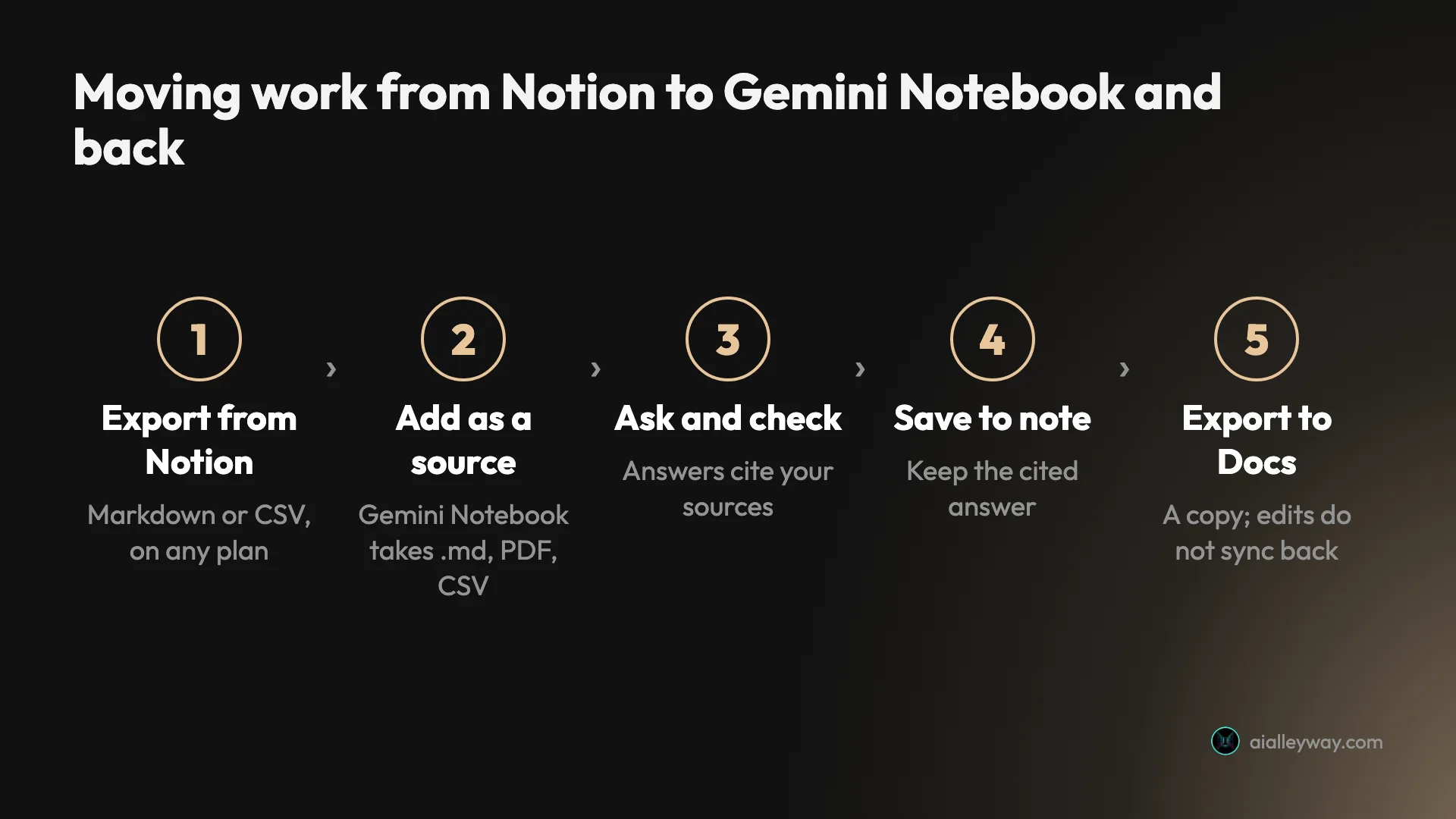
Going the other way, Gemini Notebook exports notes to Google Docs and data tables to Google Sheets, and Notion’s chat offered to connect apps including Google Drive and Gmail. I did not connect any apps or run this round trip, so treat it as the documented path rather than a tested one. For most people the simpler habit is to copy the answer you need, with its figures, into the Notion page where the work lives.
On your phone
Google’s mobile help page lists Android and iPhone apps that can ask questions about your sources, make infographics and slide decks, and download Audio Overviews for offline listening. It also lists what they cannot do yet: notes, mind maps, reports and data tables “are not yet available”, and only PDF, website, YouTube, audio and copied text can be added as sources. I did not test either tool on a phone.
What happens to your documents
Both say they do not train on your content by default. Google’s help page says your data “is not used to train Gemini Notebook unless you provide feedback”, and that work and school accounts are not reviewed by humans even when you do. Notion’s pricing FAQ says Notion AI “will not use your data to train our models unless you opt in”, and its pricing table lists 30-day retention with its AI providers on Free, Plus and Business, and zero retention on Enterprise.
Watching the meter is part of the workflow too. Gemini Notebook showed the expected cost of each output before I pressed Generate, and Settings showed exactly where my allowance stood. Notion showed nothing on the free trial, so I could not tell how close I was to the end of it.
Researchers and solo users: go with Gemini Notebook
- Research from documents. Students, analysts and writers who load PDFs, links and notes and need answers they can cite. Up to 50 sources a notebook on the free tier is enough for a thesis chapter or a client file.
- Need to check every figure. The citation I clicked went straight to the highlighted passage, which saves real time when a number goes into print.
- Want audio. Notion AI’s chat offered slides, spreadsheets, research and visuals, but no audio summary like an Audio Overview. On a phone, Google’s app can download those overviews to play offline.
- Pay for yourself, or nothing. It is free, and Pro at $19.99 is one person’s decision, not a workspace’s.
- Want to see your limits. The usage screen and the cost bar on each output tell you where you stand before you run out.
Teams already in Notion: go with Notion AI
- Already run your team in Notion. The AI works on the pages you have, without exporting anything, and its answers name the pages they came from.
- Want finished work, not answers. Databases, briefs and decks built from your notes, as Notion pages or files.
- Need admin and security features anyway. Business adds single sign-on and private teamspaces, so the AI comes with a seat you might buy regardless.
- Will use AI every day across the team. At that point $20 a member buys AI that lives where the work is.
- Want decks and documents out of your notes. The PowerPoint and PDF export and the brief written into a page save the copy-and-paste that a research tool leaves you with.
Final word
For most people, start with Gemini Notebook. It is free, it answers from the sources you give it, and the citation I clicked took me straight to the passage. Add Notion AI when your team already works in Notion and wants the AI to build the pages, tables and decks there, and when everyone in the workspace will use it enough to justify $20 a seat.
If you are choosing one for a team today, the test points one way: Gemini Notebook won five of the seven axes on the scorecard, and the two Notion won, building outputs and working in your own workspace, matter only if Notion is already where your team works.
Many people will end up using both: Gemini Notebook to find and check, Notion to write it up. That pairing costs nothing to try, since one is free and the other includes a trial, so run your own documents through both before anyone pays for a seat. Give each the same three or four files you know well, as I did, and ask the questions you already know the answers to. My whole Notion session of 39 requests took about an hour, and Gemini Notebook’s four Studio outputs were all ready within about six minutes of my starting the first.
Frequently asked questions
Which is better for a team, Notion AI or NotebookLM?
Notion AI, if the team already works in Notion and everyone will use the AI. It works on the pages the team already shares: in my test it built a 23-row database of plans, where every row traced back to the source articles, wrote a brief straight into a page and exported a slide deck as PowerPoint and PDF. The catch is cost, because Notion charges the Business price of $20 per member a month billed yearly for every member of the workspace.
Gemini Notebook, the name NotebookLM has had since July 2026, suits teams that mainly need to question shared documents and check figures. Each person can stay on the free tier or buy their own Google plan, so nobody pays for AI they do not use. I tested both on free tiers only, not in shared team use.
Can I use NotebookLM and Notion together?
Yes, and for many people that is the cheapest setup. Gemini Notebook is free with a Google account, and Notion's Free and Plus plans include a trial of Notion AI, so you can keep your notes and projects in Notion and load the documents you need to question into Gemini Notebook.
The split that worked best in my tests: ask Gemini Notebook the factual questions, because its answers stay inside your sources and the citation I clicked opened the exact passage, then write the result up in Notion. Pay for Notion Business only if your team wants AI working directly on its Notion pages every day.
Which is cheaper, NotebookLM or Notion AI?
Gemini Notebook. It is free with a Google account, and Google AI Pro, which Google rates at four times the standard limits, costs $19.99 a month for one person on Google's US plans page. Notion AI is only a trial on Notion's Free and Plus plans; full AI needs Business, at $20 per member a month billed yearly or $24 billed monthly, or Enterprise at a quoted price, for every member of the workspace.
For a single user the gap is small at the top end, $19.99 against $20 to $24. For a team it widens: five Notion Business seats cost $1,200 a year billed yearly, while each person on Gemini Notebook can stay free or buy their own Google plan.
Does Notion AI answer only from my pages like NotebookLM?
Not by default. In my test, web search was switched on for the new Notion workspace, and the first question asking for sources was answered from Canva's and Adobe's live pricing pages rather than from my pasted articles. Notion's reasoning said it wanted an external official source for each figure.
Gemini Notebook works the other way. Asked a question its four sources could not answer, it declined and offered to search the web instead. If you need answers that stay inside your own documents, Gemini Notebook does that out of the box; in Notion, ask it to use only your pages, which kept its steps to my pages in the runs where I did.
What are the downsides of NotebookLM compared with Notion?
Three, from my test and Google's own pages. It is not a workspace, so the notes and tables it makes live in a separate notebook; Google's notes help page says an exported Doc "will not synchronize" back to the note. Its free allowance runs out fastest on audio, with one Audio Overview estimated at 45% of a five-hour window. And asked to list every disagreement between my four articles, it missed the one real mismatch, though Notion AI missed it too.
Notion AI's matching weaknesses are different: its citations open a whole page rather than the passage, it cited the vendors' websites instead of my pages, and its full version costs $20 per member a month for the whole workspace.
Which one shows you how much AI use is left?
Gemini Notebook. Its Settings menu has a Usage screen that showed my free account at 32% of a five-hour allowance and 2% of the week after a full test session, each with a reset time, and every Studio dialog except one showed the expected cost of that output before I clicked.
Notion AI showed nothing comparable on a Free workspace. Notion's help page says Free and Plus get a limited number of complimentary AI responses without giving the number, and 39 requests over about an hour produced no warning or counter. On Business, Notion says usage is measured in a six-hour and a monthly window of unpublished size.
Keep reading
NotebookLM Review: Gemini Notebook Cites Well, Meters Hard
A NotebookLM review, now Gemini Notebook: five test questions, four Studio outputs, and an audio overview estimated at 45% of a five-hour limit.
Notion AI Review: It Builds Real Pages, but Full AI Costs $20
A hands-on Notion AI review on a free workspace: 39 requests, a 23-row database, a six-minute slide deck, one wrong citation, and what Business costs.
NotebookLM Pricing: Free, $4.99 or $19.99, and What You Get
NotebookLM pricing in the US: free, or $4.99, $19.99 or from $99.99 a month via Google AI plans. What each tier's limits buy, plus work and student routes.
Notion Pricing: $0 to $24 a Seat, and Where Notion AI Starts
Notion pricing in the US: Free, Plus at $10 or $12, Business at $20 or $24 per member a month. Where Notion AI starts, what credits cost and how seats bill.