
NotebookLM Review: Gemini Notebook Cites Well, Meters Hard
A NotebookLM review, now Gemini Notebook: five test questions, four Studio outputs, and an audio overview estimated at 45% of a five-hour limit.
Contents
Is Gemini Notebook (NotebookLM) worth it?

Yes, and it is still the best place to start if you want answers that come with receipts. In my test, Gemini Notebook backed every answer that drew on my sources with numbered citations, refused to answer from outside them, and got every price in its data table right. The catch is the new meter: one audio overview was estimated at 45% of a five-hour usage window before I pressed a button.
What does Gemini Notebook do?
It is built to answer questions from documents you give it. That is the whole idea.
The name is new. Google’s blog post of 16 July 2026 reads: “We’re renaming NotebookLM to Gemini Notebook. It’s the same standalone product.” This review uses both names.
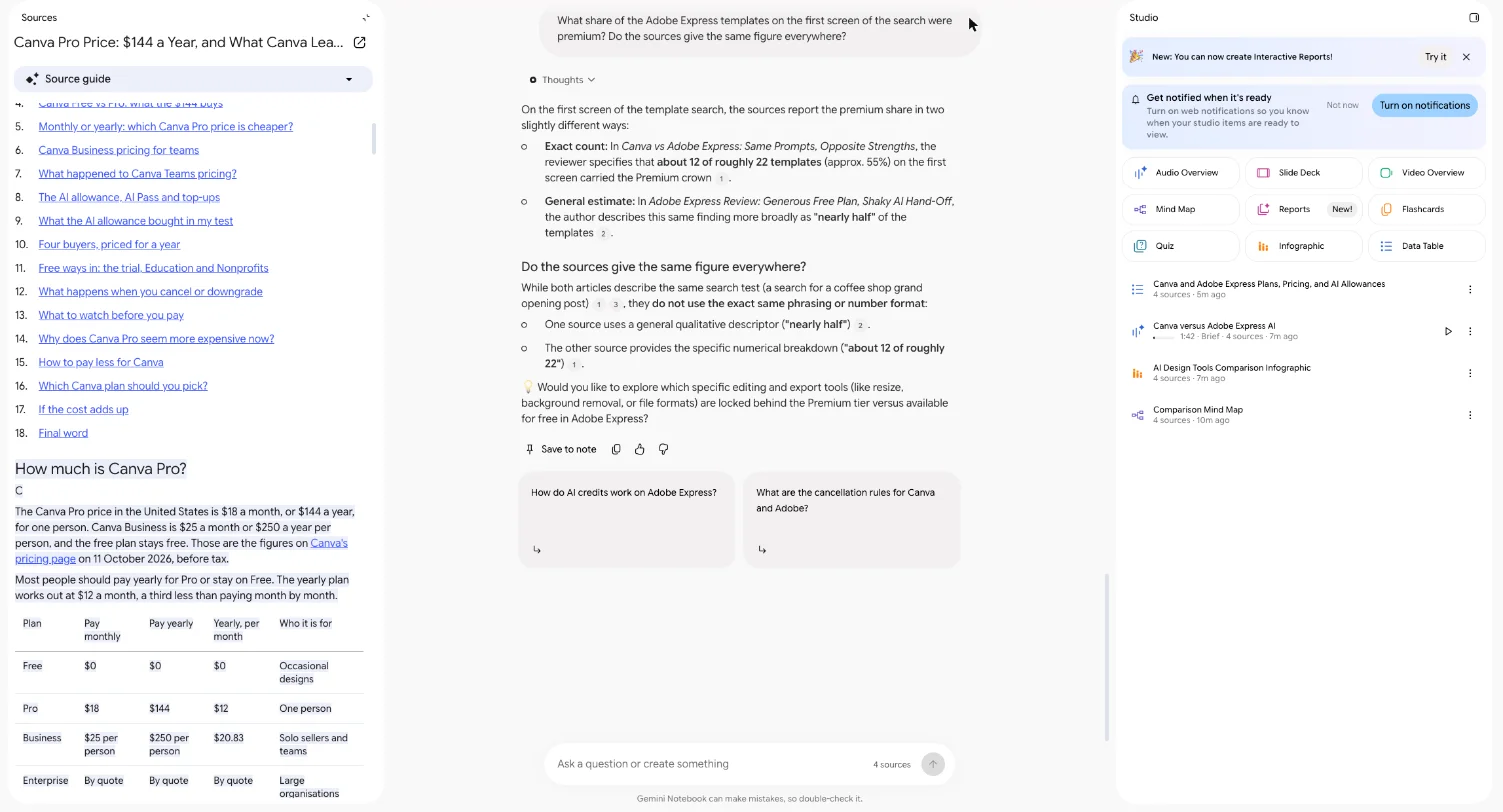
You start a notebook and add sources. Google’s help page lists PDFs, websites, YouTube videos, audio files, Google Docs and Google Slides. Then you get three panels: your sources on the left, a chat in the middle, and a Studio on the right that turns the sources into other formats.
What the rename brought
The blog post makes three promises beyond the name. Notebooks already sync between the Gemini app and the standalone app, so a notebook started in one shows up in the other. Notebooks are coming to AI Mode in Google Search. And every notebook is getting what Google calls “a secure cloud computer”, which lets it write and run code against your sources for data analysis.
Google said in July that the cloud computer launched for Google AI Ultra subscribers and would roll out to Pro users on the web over the coming weeks. I did not test it.
The blog also gives a scale figure: “more than 30 million people and over 600,000 organizations” use the product, per Google.
Adding sources
The Add sources dialog offers five routes: upload files, paste website or YouTube links, pick from Play Books, pick from Drive, or paste copied text. There is also a web search box with a “Fast Research” option that finds sources for you; I did not use it.
The link dialog lists its own limits. “Only the visible text on the website will be imported at this time.” “Paid articles are not supported.” For YouTube, “Only the text transcript in YouTube will be imported” and “Only public YouTube videos are supported.”
The import was not perfect. The imported version of our pricing article kept its headings and its pricing table, but a stray letter “C” sat under one heading, where the live page shows a logo.
The Studio has nine tiles: Audio Overview, Slide Deck, Video Overview, Mind Map, Reports, Flashcards, Quiz, Infographic and Data Table. Audio Overview is a generated podcast about your sources.
How I tested it
I used a Google account with no AI plan, in Chrome, on 14 October 2026. Its usage dialog offered Google AI Plus as double “your current plan”, and Google rates Plus at two times the standard limits, so this was the free tier. For sources I pasted the addresses of four of our own published articles about Canva and Adobe Express. We wrote them, so I know every figure in them, which makes wrong answers easy to spot.
All four arrived within 8 seconds. About 5 seconds later the notebook had named itself “Adobe Express and Canva Design Tools Reviewed” and written a one-paragraph summary that matched the articles.
Then I asked five questions, each a first attempt, and made four Studio outputs. Times below are when I checked, so they are upper bounds.
| Test | What I asked for | Result | Time |
|---|---|---|---|
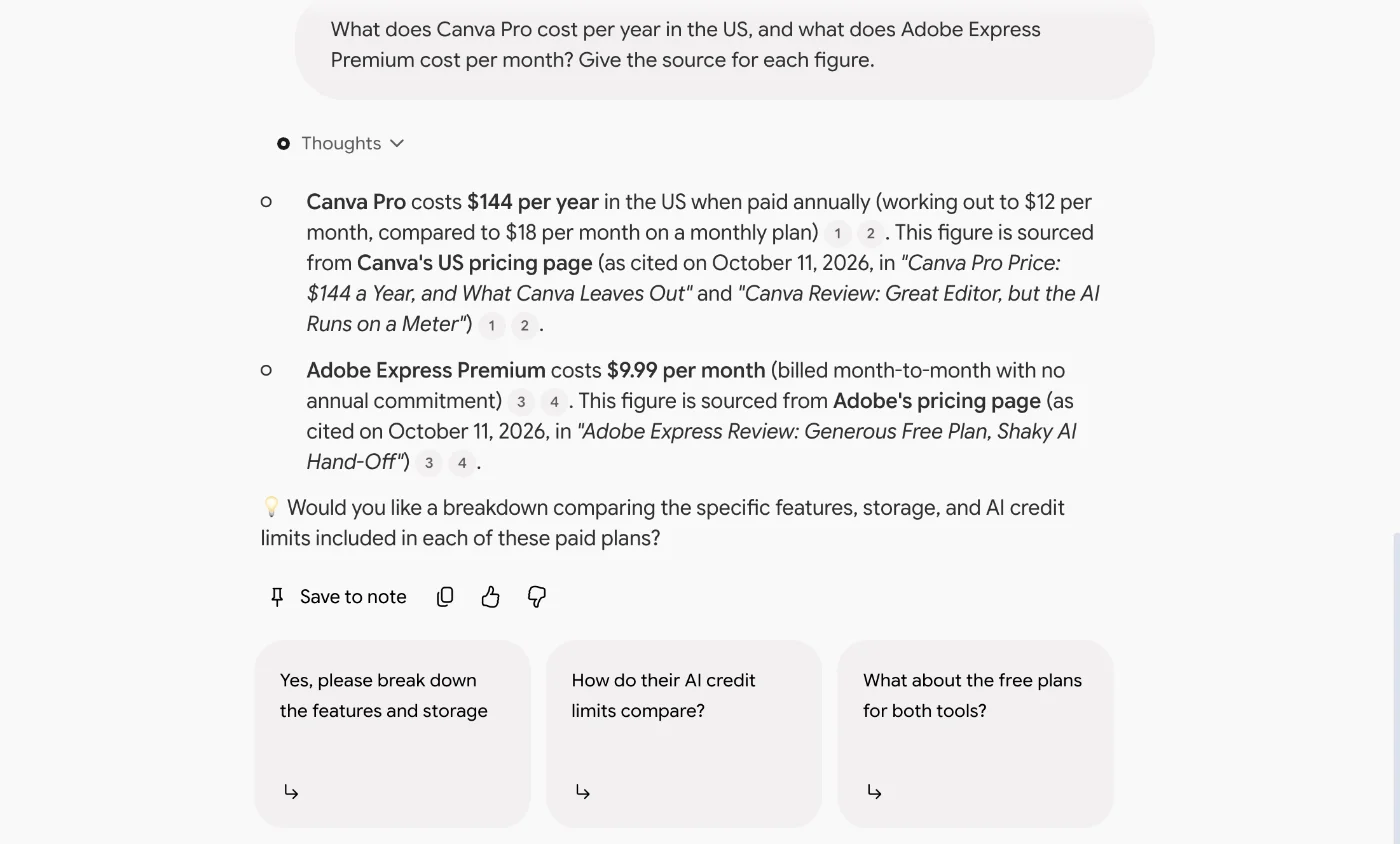
| Prices | Canva Pro per year, Adobe Express Premium per month, with sources | $144 and $9.99, each cited to the right articles | ~16 s |
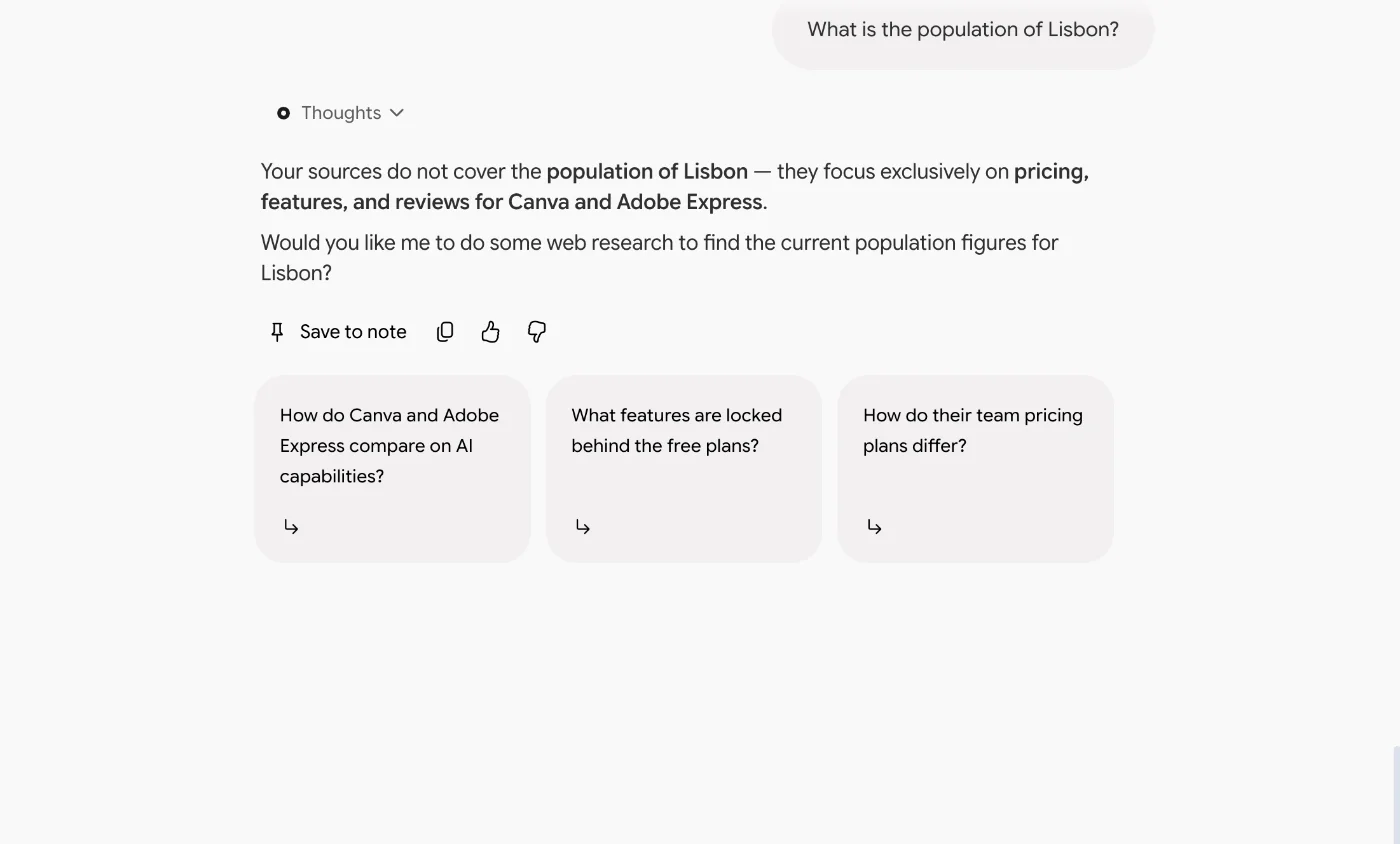
| Outside the sources | The population of Lisbon | Declined, offered web research | ~16 s |
| Counts and a false premise | Two menu-test scores, then “which review says Canva’s background remover is free?“ | 7 of 7 and 0 of 7, correct; said no review says that | ~20 s |
| Arithmetic and contradictions | Designs per month at 16% each, then every disagreement between the sources | 6 designs, 4% left; said the articles do not contradict each other | ~30 s |
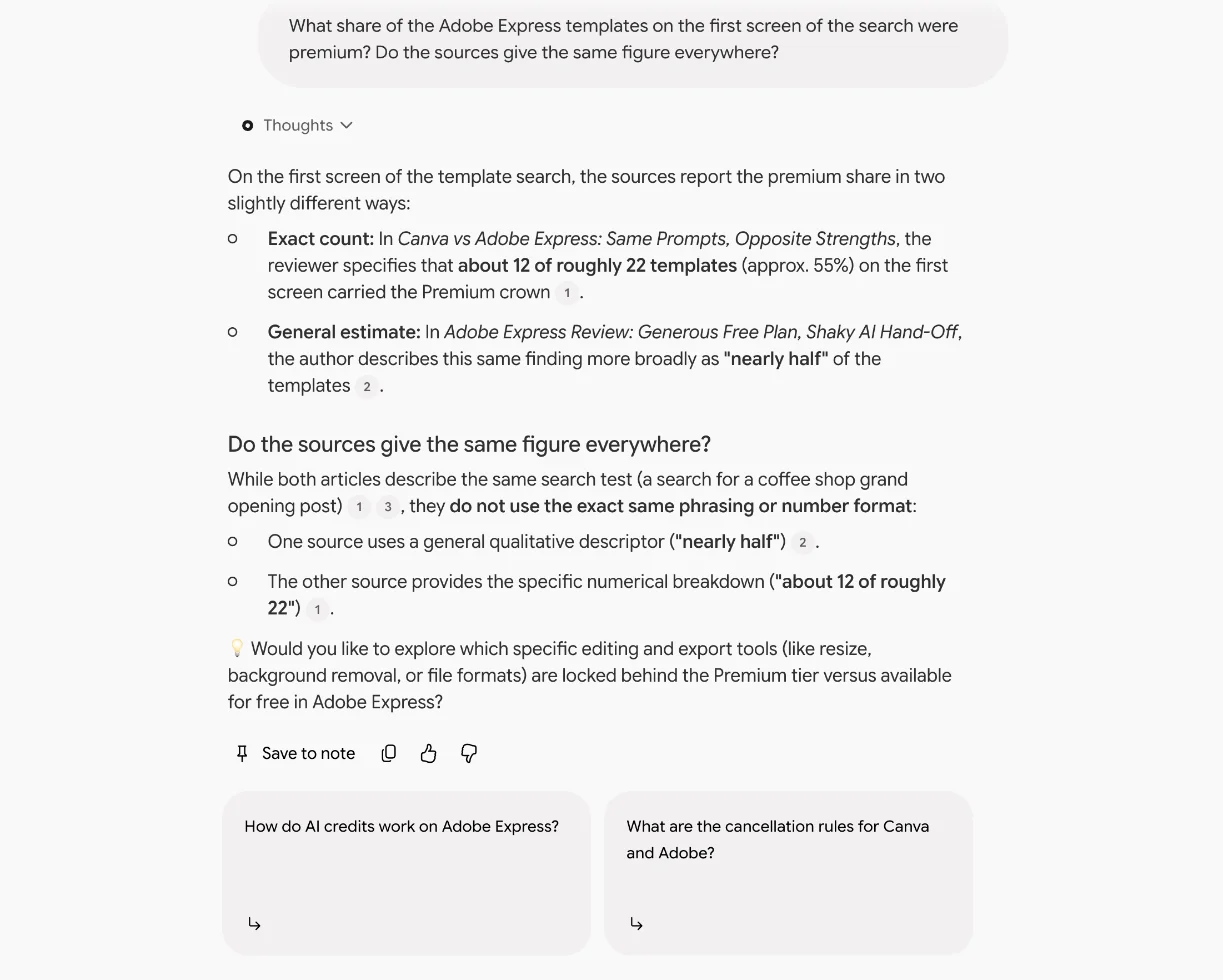
| Direct probe | The share of premium templates, and whether the sources agree | Found both figures and worked out about 55% | ~20 s |
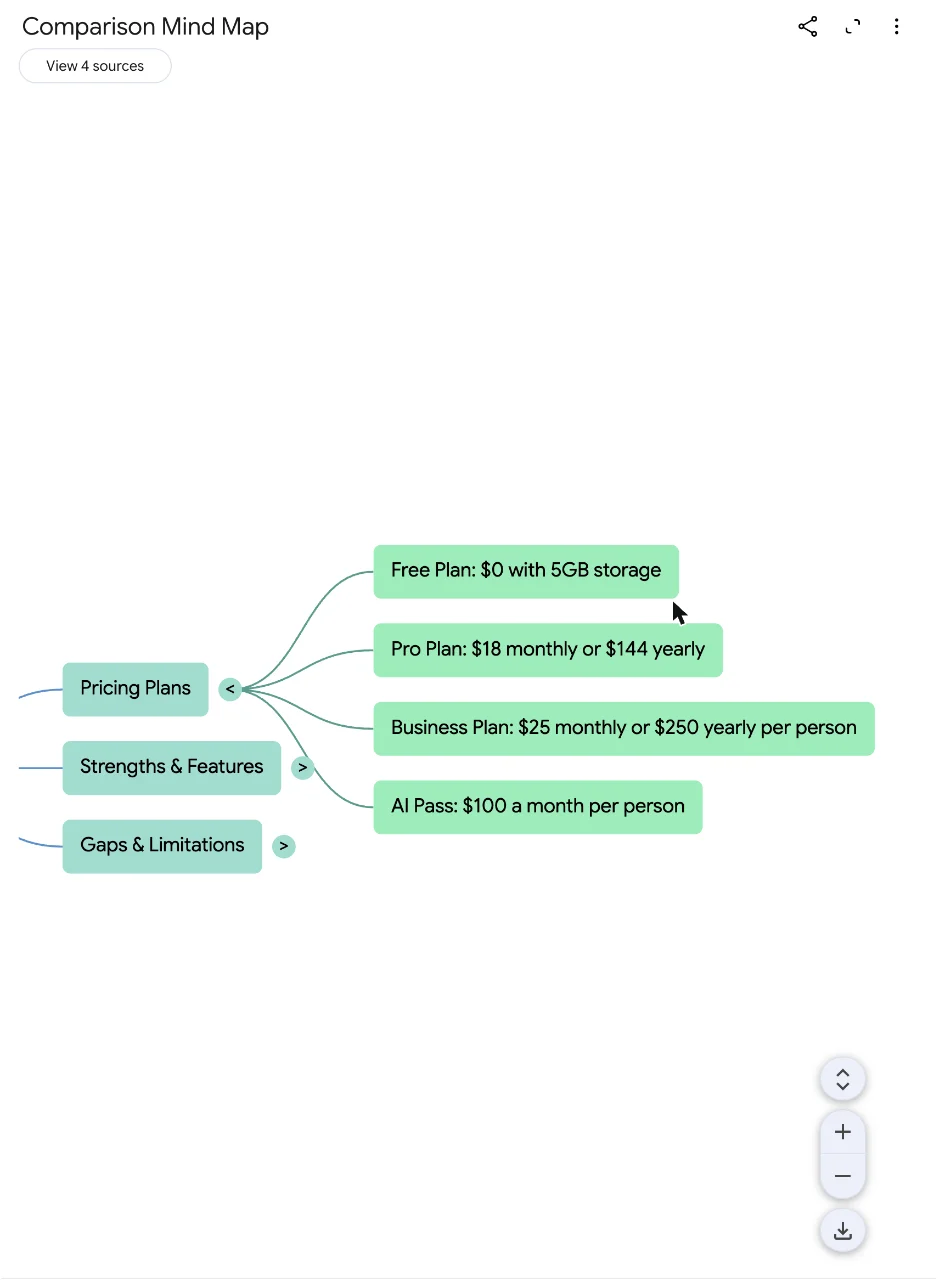
| Mind map | Default settings | Done within about 15 s; the branch I checked matched | ~15 s |
| Data table | Every plan and price, five named columns | Done within 20 s; prices right, gaps marked “Not in source” | ~20 s |
| Infographic | Default settings | Done in under 2.5 minutes; headline facts right, decoration invented | under 150 s |
| Audio Overview | Brief format | 1 minute 42 seconds of audio, ready in under 4.5 minutes; good on a listen | under 4.5 min |
I did not test Video Overview, Slide Deck, Reports, Flashcards or Quiz, file uploads, sharing, the mobile app or any paid plan.
The Studio formats, and their options
Each Studio tile opens a settings dialog before it generates, so the formats are more adjustable than the tile names suggest. I opened all nine.
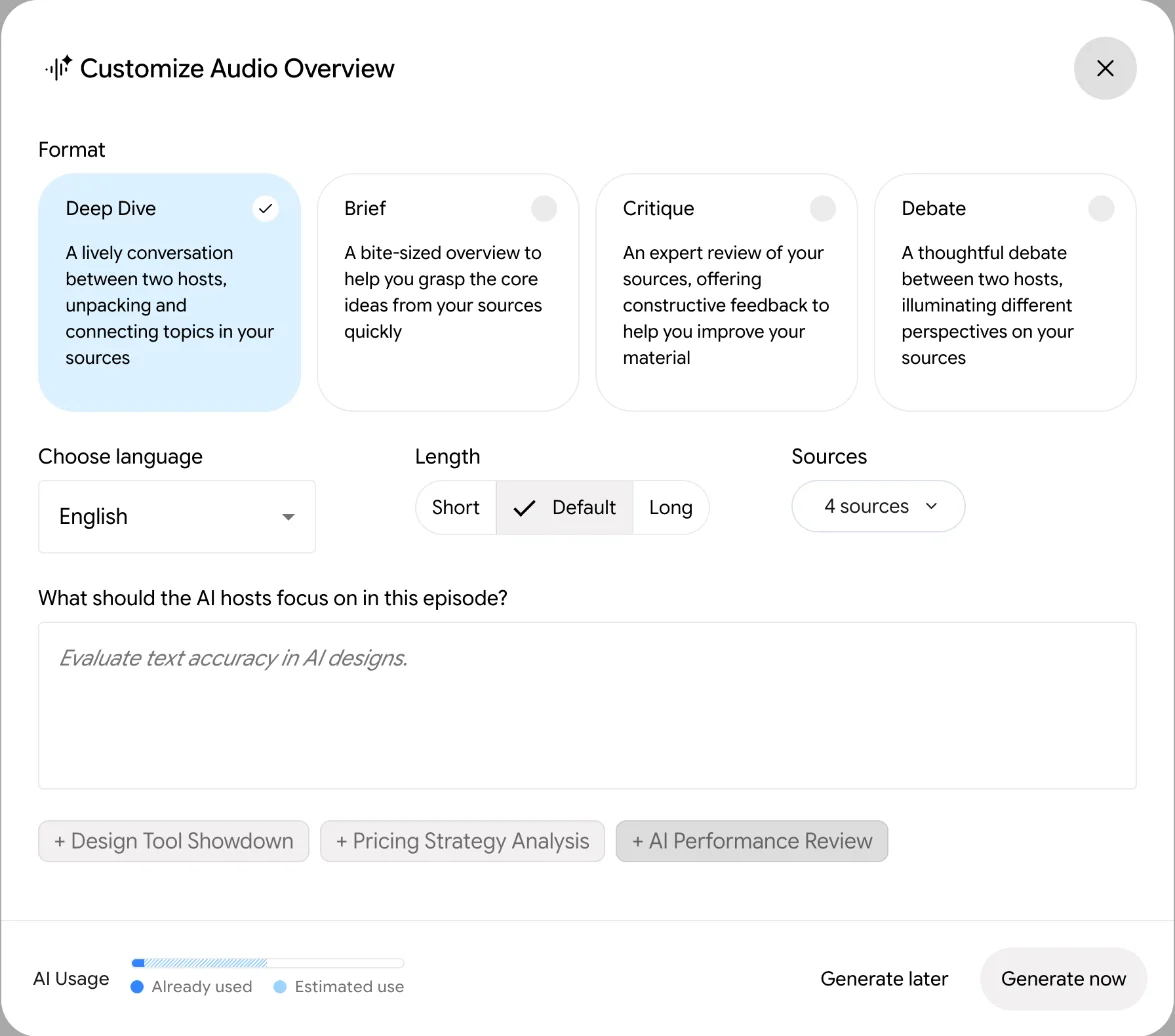
Audio Overview has four formats. Deep Dive is “A lively conversation between two hosts”. Brief is “A bite-sized overview”. Critique is “An expert review of your sources, offering constructive feedback”. Debate is “A thoughtful debate between two hosts”. You also pick a language, a length of Short, Default or Long, and what the hosts should focus on. The length setting disappeared when I chose Brief.
Video Overview offers Short, in a tall 9:16 frame and marked new, or Explainer, in a wide 16:9 frame. It suggested three focus topics drawn from my sources, such as “The $144 cost of Canva”.
Slide Deck offers a Detailed Deck, “perfect for emailing or reading on its own”, or Presenter Slides, “Clean, visual slides with key talking points”. Infographic offers landscape, portrait or square, a row of visual styles from Kawaii to Clay to Anime, and three levels of detail, the most detailed marked beta.
Reports offers an Interactive format with embedded Studio content, or a text-only Document. Flashcards and Quiz let you set the number of cards or questions and the difficulty, and Quiz can include images. Mind Map and Data Table take a topic or a description.
When it will not answer
Google’s help page gives three reasons the chat may decline. Safety flags can trigger on sensitive topics “even in historical contexts”. With many sources, it retrieves the most relevant passages first, so a vague question can miss. And it is designed to answer from what you supplied.
My Lisbon question hit the third reason, and the reply said so plainly. I did not run into the first two.
How much does Gemini Notebook cost?
The notebook itself is free. What Google sells is more room, through its general AI plans rather than a Gemini Notebook subscription.
These are the US prices on Google’s subscriptions page, read on 14 October 2026 with the region set to the United States. The notebook and source caps are from Google’s help page on Gemini Notebook plans the same day, which labels them “Subject to Change”.
| Plan | Price per month | Usage, per Google | Notebooks | Sources per notebook | Visible watermark removal |
|---|---|---|---|---|---|
| Free (standard) | $0 | Standard limits | 100 | 50 | No |
| Google AI Plus | $4.99 | Two times the standard limits | 200 | 100 | No |
| Google AI Pro | $19.99 | Four times the standard limits | 500 | 300 | Yes, with exceptions |
| Google AI Ultra | From $99.99; $199.99 tier | 5x or 20x AI Pro | 500 | 500 or 600 | Yes, with exceptions |
Two smaller notes from the same page. Some users may see a report, flashcards or an overview generated automatically when they first add sources, and Google says those “do not contribute to limits”. And businesses can buy access through Google Cloud instead, where Google promises “5X or more notebook artifacts”.
The plans also bundle cloud storage, from 400GB on Plus to 20TB and up on Ultra. If you already pay for one of them, you already have the higher notebook limits.
Which plan to buy depends on what runs out. If it is the five-hour meter, Plus at $4.99 is the cheap fix, at two times the standard limits. If it is sources, Pro is the step that matters: 300 per notebook against 50 on the free tier. Pro is also the first plan that lets you switch off the visible watermark, in most countries.
The watermark exception is worth knowing. Google’s plans page says a visible watermark is added to generated images and videos, that Pro and Ultra subscribers can switch it off, and that in a few named countries it is applied automatically regardless. My free account’s infographic carried a small Gemini Notebook mark in the corner.
The new limits: a five-hour window and a weekly cap
This is the part of the pricing that changed most.
When I opened my first notebook, a dialog announced it: “Instead of refreshing every 24 hours, your limits now refresh every 5 hours.” It added that Google is “replacing limits per feature with a flexible Notebook-specific limit.”
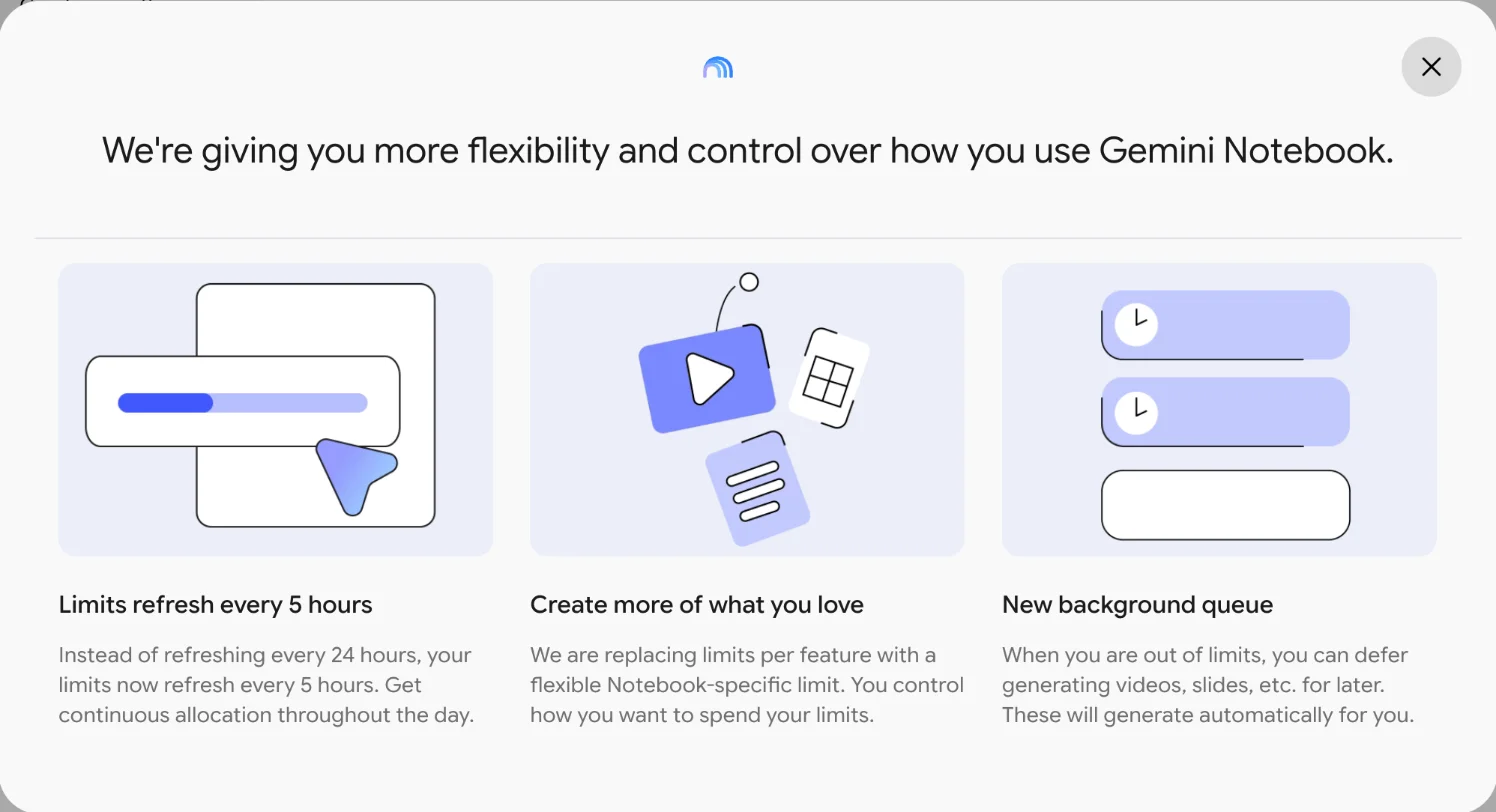
Google’s help page on usage limits describes them as “compute-based”, factoring in “the complexity of your prompt, the models and features you use, the length of your chat and specific features.” It says the quota “refreshes every 5 hours until you reach your weekly limit.”
So there are two meters. Settings, then Usage, shows both. After my whole session it read 32% of the five-hour window, resetting five hours after my first request, and 2% of the weekly limit, resetting a week after it.
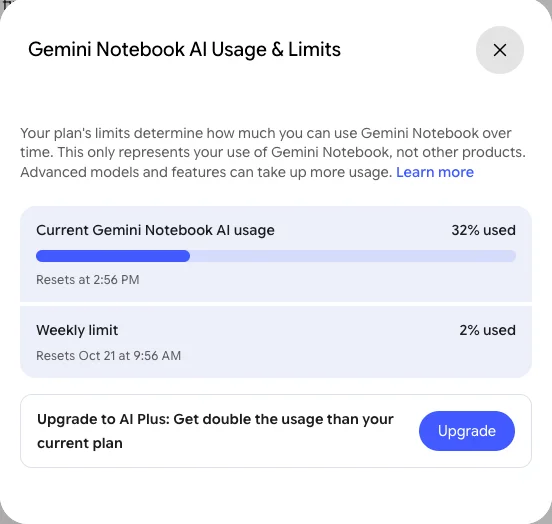
Neither meter gives a count. Google’s usage-limits help page gives multipliers between plans, not a number of questions or audio overviews per window, so in practice you learn what the free tier holds by spending it.
What one session cost on the meter
Eight of the nine Studio dialogs showed an “AI Usage” bar before generating; the ninth, Slide Deck, comes up below. It shows two shades, “Already used” and “Estimated use”, without numbers. I read both widths from the page itself, so the figures below are the app’s own values.
| Studio output, default settings | Estimated share of the five-hour window |
|---|---|
| Audio Overview | 45% |
| Video Overview | 35% |
| Infographic | 11% |
| Data Table | 6% |
| Reports | 5% |
| Quiz | 3% |
| Flashcards | 2% |
| Mind Map | 2% |
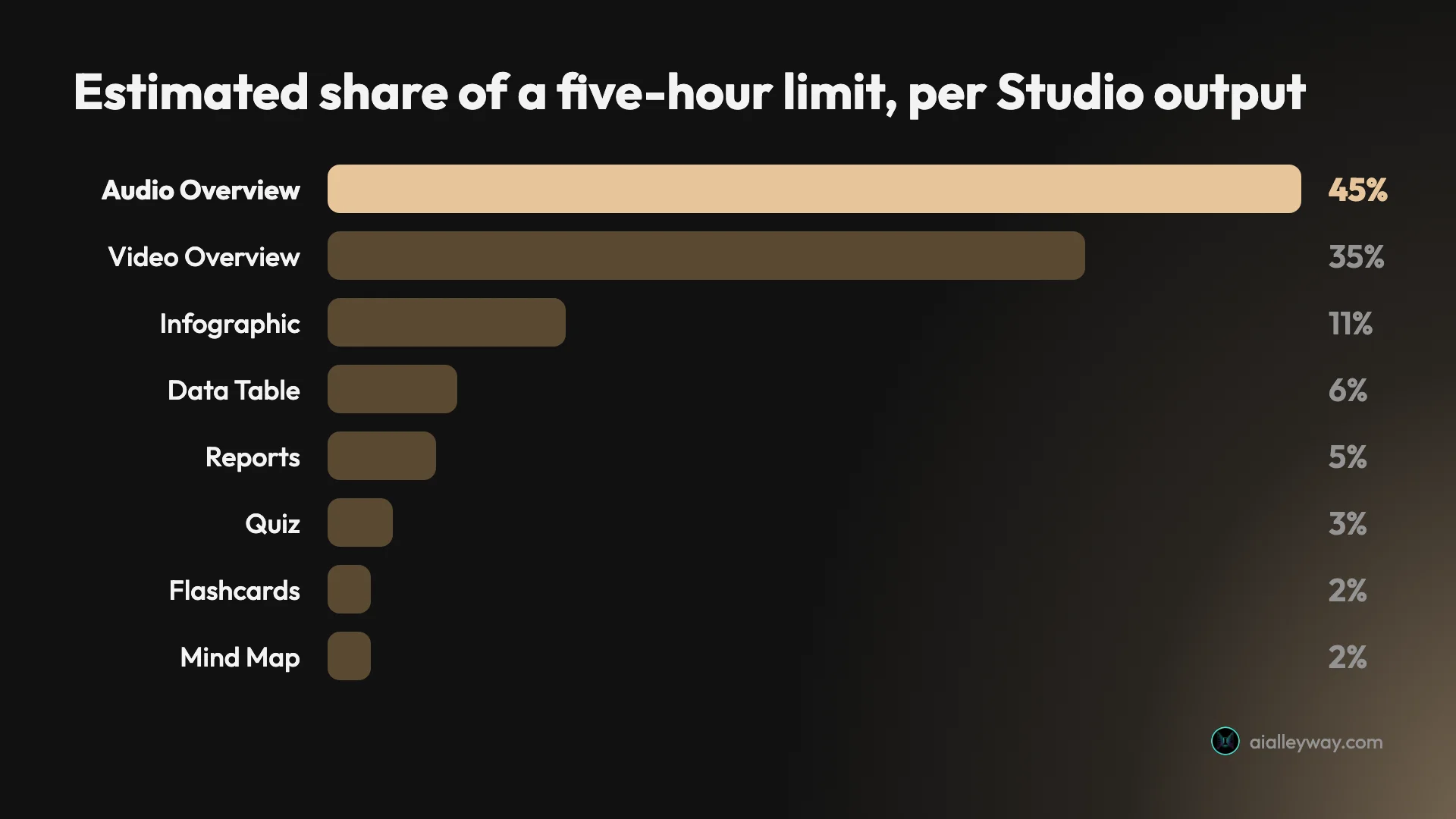
The estimates held up. Before any Studio output, after five chat questions, the meter read 4.7%. Starting the audio overview took it to 48.8%, the mind map to 50.34% and the infographic to 59.88%. Each of those three moved the meter by a little less than its estimate.
Then the meter did something I cannot explain. About five minutes later, with the audio finished, the next dialog read 30.19% used. Nothing on screen said why roughly 30 points came back. One reading is that part of the audio’s estimate was held while it generated and released afterwards, but that is my guess, not something Google says.
Who is Gemini Notebook for?
- Students and researchers who need answers tied to the reading, with a citation they can click and check.
- Anyone working from a pile of their own documents: contracts, reports, transcripts, a book’s worth of notes. The free tier takes 50 sources per notebook.
- People who learn by listening. Audio Overview turns sources into a short podcast, and the format picker offers a brief, a critique and a debate as well as the default conversation.
- Writers and editors checking their own work. I loaded four of our articles and, with a pointed question, it surfaced a figure two of them state differently. Load a draft with its sources and ask about each number.
- Teams already on Google Workspace, where Google says uploads and responses are not reviewed by humans or used to train models.
- Not for open-ended research on the live web, or for recording meetings; for that, see our best AI note taker roundup. Also not for anyone who needs to know exactly how many audio overviews a plan includes: Google’s usage-limits page does not give that number.
The good
Citations open the exact passage
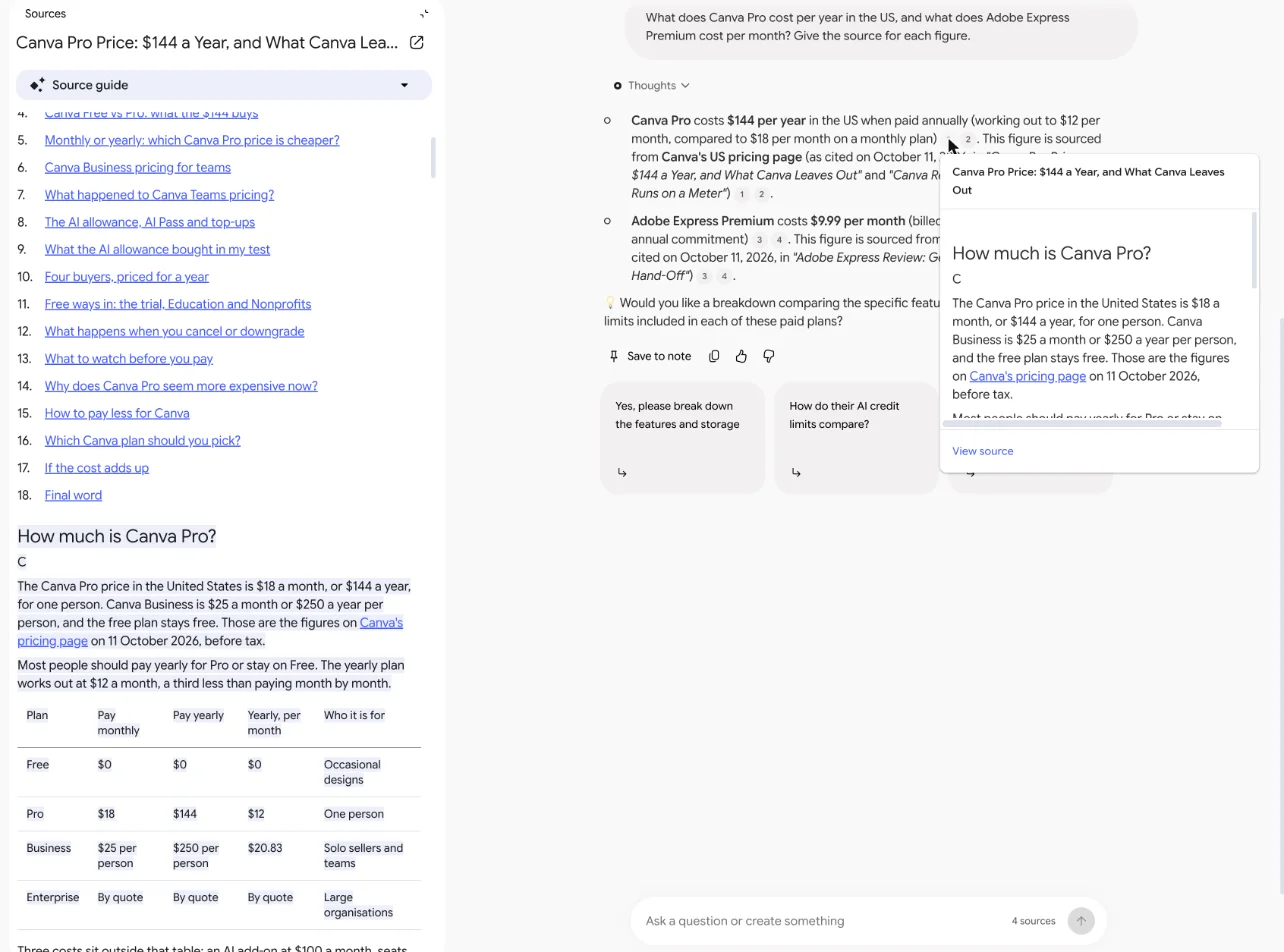
Every answer that drew on the sources came with small numbered markers. Clicking one opened a pop-up with the cited paragraph and, at the same time, turned the Sources panel into the full text of that article with the passage highlighted.
That is the difference between this and a chatbot. When it told me Canva Pro costs $144 a year, I could see the sentence it came from in one click, and it was the right one.
It says no when the sources do not cover it
I asked for the population of Lisbon, which none of my four articles mention. It replied: “Your sources do not cover the population of Lisbon — they focus exclusively on pricing, features, and reviews for Canva and Adobe Express.” It then offered to search the web instead.
A general chatbot would usually have answered. For research work, the refusal is the feature. Google’s help page says the same: it “is designed to answer questions based on the information provided in your uploaded sources.”
It caught a false premise and did the arithmetic
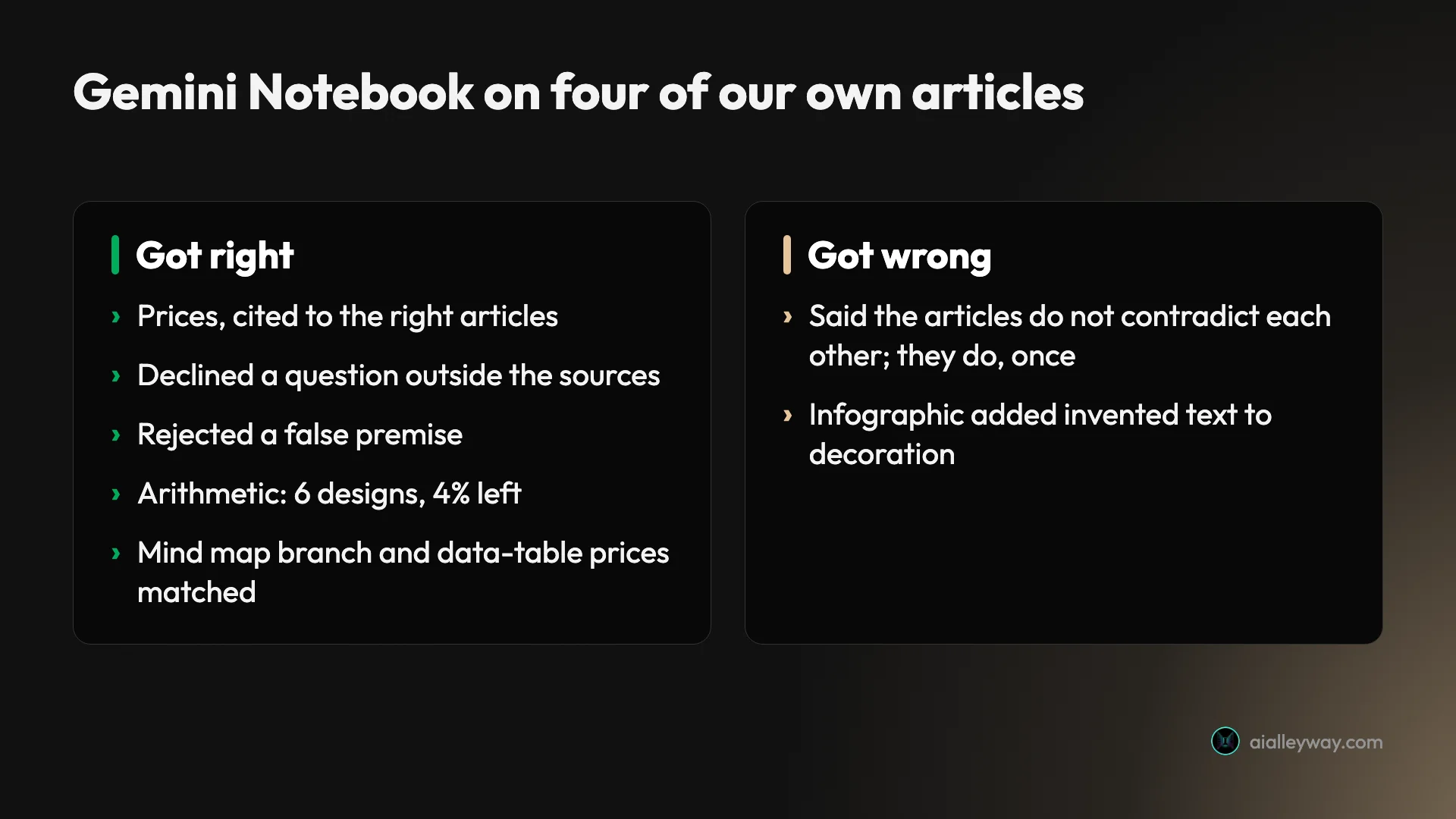
My third question smuggled in a claim that none of the articles make: that one of them calls Canva’s background remover free. It answered the honest half, 7 of 7 menu lines for Canva and 0 of 7 for Adobe’s default model, and then: “None of the reviews state that Canva’s background remover is free.” It added that the articles describe it as paid, which is correct.
The arithmetic question was simple but easy to fumble. If one generated design uses 16% of an allowance, it said 6 fit, using 96% and leaving 4%. That is right.
It shows the cost before you click
Eight of the nine Studio dialogs showed an estimate on the usage bar before I pressed Generate, and the three costs I could measure came in just under their estimates. When I later opened the Slide Deck, it offered only Generate later instead of a usage bar, which Google’s help page describes as the option when you are out of AI limits.
That is better than Canva, for one: it showed me no cost before I clicked in our Canva review, and I found out what a request cost only by reading the meter afterwards.
The mind map and data table matched the sources
The mind map was ready within about 15 seconds. I opened one branch, Canva’s pricing plans, and all four leaves matched the article: Free at $0 with 5GB, Pro at $18 monthly or $144 yearly, Business at $25 or $250 per person, and AI Pass at $100 a month per person.
The data table was better still. I asked for every plan and price across both tools in five columns, and it returned ten rows with a source column. Where a figure was not in the articles, it wrote “Not in source” instead of guessing. The table’s menu also offers Export to Sheets.
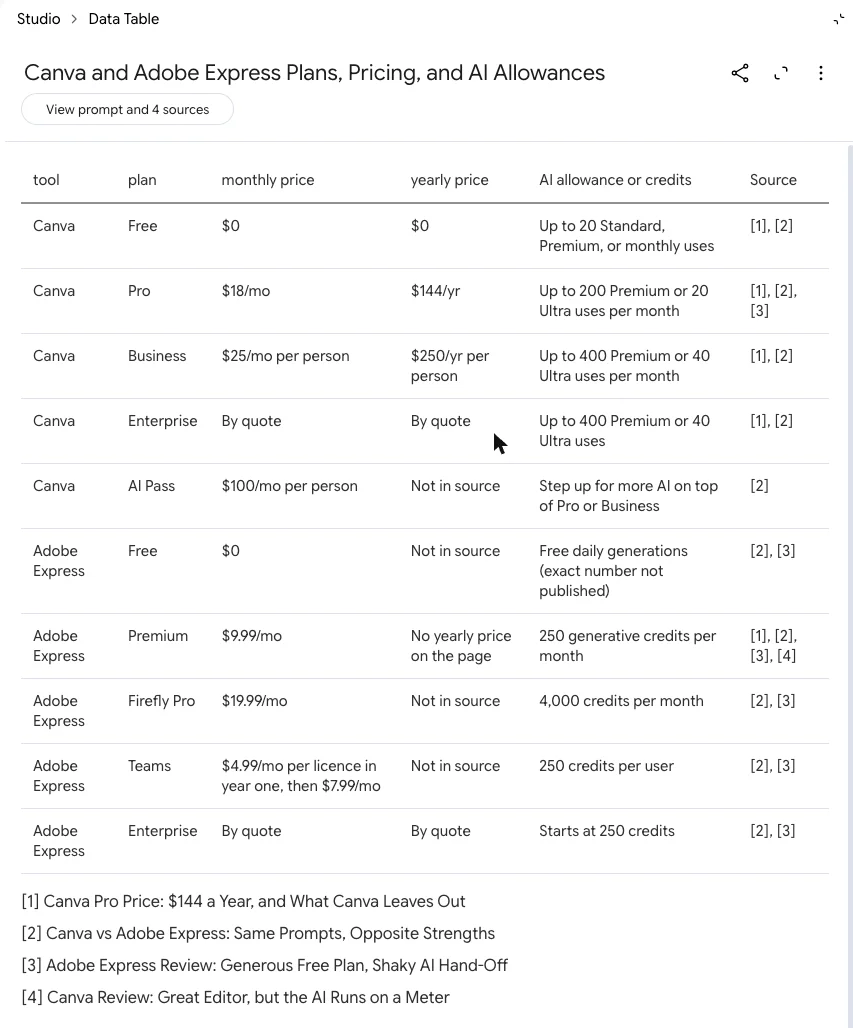
One cell was garbled. It gave Canva Free’s allowance as “Up to 20 Standard, Premium, or monthly uses”, where the article says up to 20 Standard or Premium uses.
It is quick
Nothing in the chat kept me waiting long. Four web sources were imported within 8 seconds, and the notebook had titled and summarised itself a few seconds after that. Simple questions were answered within about 16 seconds, and the longest, a two-part question that produced a long list, was complete within 30.
The light Studio outputs were as fast. The mind map was ready within about 15 seconds and the data table within 20. Only the heavy formats asked me to wait: the infographic took under two and a half minutes and the audio overview under four and a half.
Your uploads are not training data by default
Google’s help page says your data “is not used to train Gemini Notebook unless you provide feedback.” If you do give feedback, Google may review the whole interaction, including uploads. For a tool built around your own documents, that default matters, and it is stated plainly.
The bad
Asked an open question, it missed a real contradiction
I asked it to “list every place where these four sources disagree with each other”. It replied that “the articles themselves do not contradict each other”, then listed conflicts the articles report on vendor pages and trade-offs between the two tools, which is not what I asked.
The articles do disagree in one small place. One says “nearly half” the Adobe Express templates on the first screen of a search were premium. Another counts “About 12 of roughly 22”, which is more than half.
When I asked about that figure directly, it found both passages, cited each and worked out about 55%. So the information was retrievable. The open-ended question is where it fell short, and that is the question a researcher most wants answered.
One audio overview is nearly half a window
Audio Overview is the headline feature, and on the free tier it is expensive. Its dialog estimated 45% of the five-hour window, for both the Deep Dive and Brief formats. My Brief came out at 1 minute 42 seconds.
After an audio overview, a mind map and an infographic, the Slide Deck tile had no usage bar at all. It offered only “Generate later”, with the line “This content will generate in a few hours. Or, upgrade to get it sooner.” Google’s help page says generating later “may take a couple hours”.
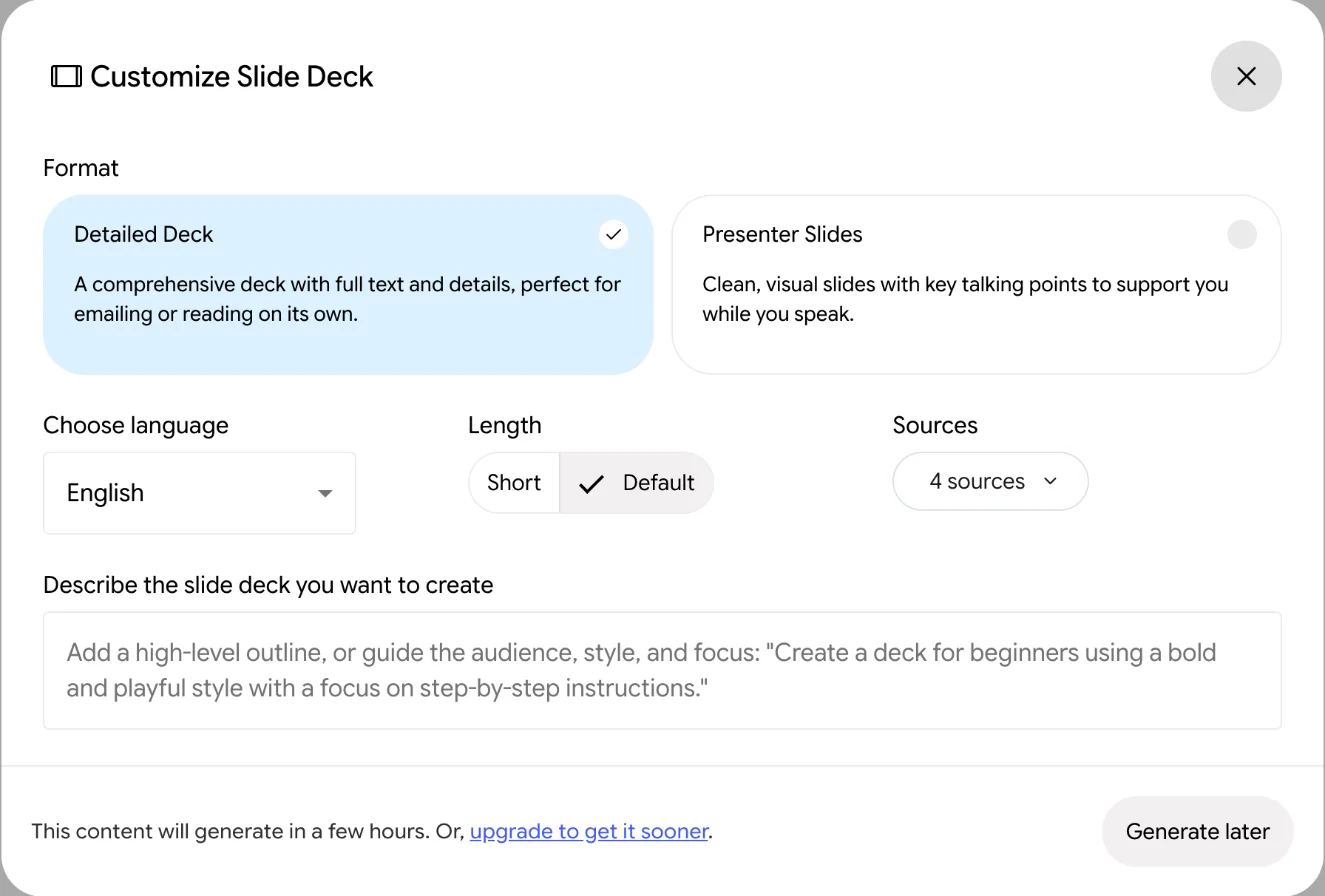
So on a free account, plan your session. In mine, an audio overview, a mind map and an infographic took the meter to about 60% before it fell back.
Besides waiting for the five-hour refresh, there are two ways around it, and both cost something. Generate later queues the job and, per Google, may take a couple of hours. Or you pay: Google AI Plus at $4.99 a month is the cheapest step up, and Google’s help page puts it at two times the standard limits.
The infographic invents decoration
The infographic was striking, and its headline facts were right: 11 of 11 text lines for Canva, 0 of 11 for Adobe’s default model, $18 a month against $9.99, background removal paid on Canva and free on Express.
The decoration was not from the sources. Mock thumbnails carried text that appears in none of my articles: “SALE 50% OFF!”, “Grand Opening: Oct 15” and “Storewide Promo Code: SAVE20”. One mock text box read “Text tont”. It also tied PSD export to Adobe Express Premium, which my article does not do.
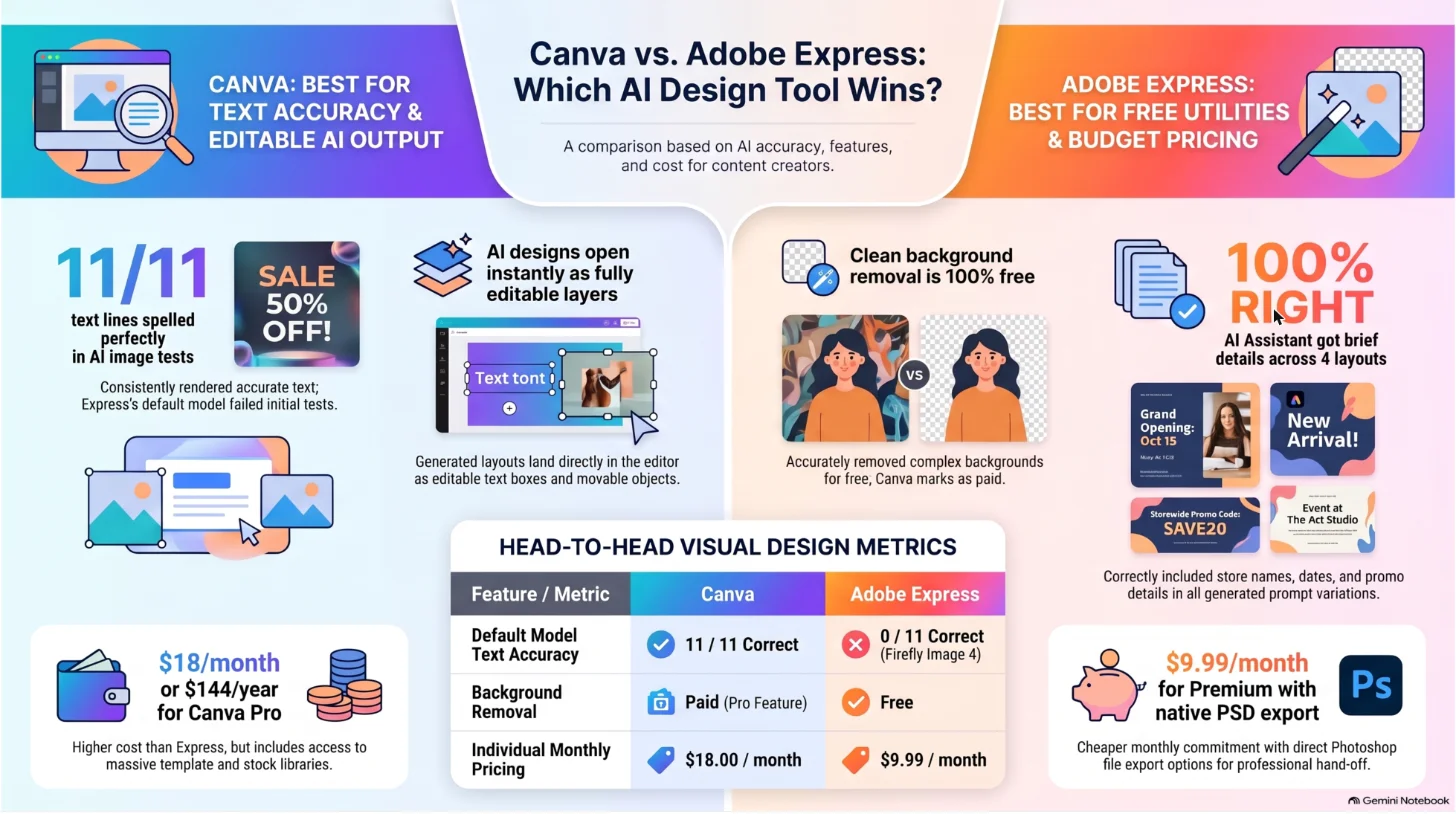
If you plan to share one, read every word on it, including the small print in the pictures.
The limits are a percentage, not a number
Google’s usage-limits page describes the plans as multiples of “standard limits” but does not say what a standard limit holds. The meter shows a percentage. To know how many audio overviews you get, you have to make them.
Google’s own pages also use two different multiples for Pro. The help page says AI Pro is “Four times higher than standard limits”, and the subscriptions page’s Pro card says “Get 4x higher usage access than Free”. The same card’s notebook line says “5x more Audio Overviews, notebooks, and more”.
The audio played aloud the moment I opened it
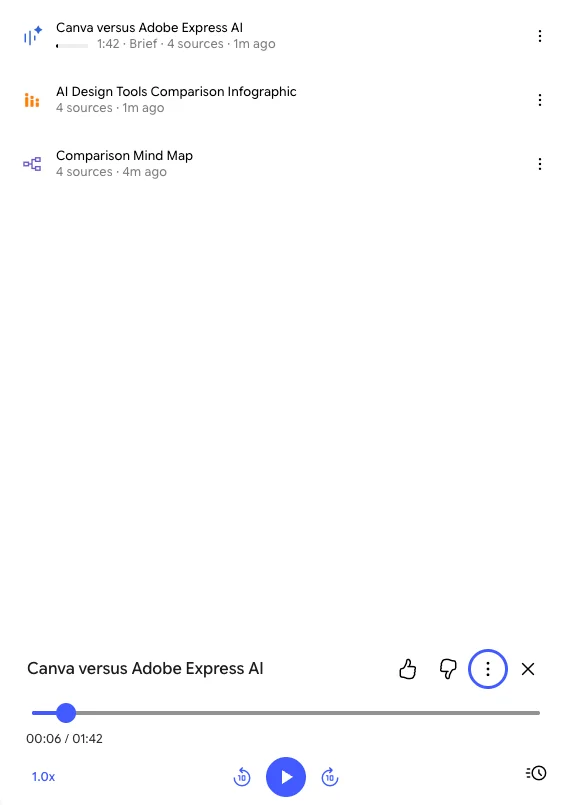
Clicking the finished audio overview opened a player and started playback straight away, out loud. The player has speed and skip controls, and a download option in its menu, but I found no transcript in the player or its menu.
When I listened to the episode afterwards (“Canva versus Adobe Express AI”), it was good. But with no transcript, I could not check its claims against the sources line by line the way I checked the chat answers, so treat that as a listening verdict rather than a fact check.
Alternatives worth considering
If you decided Gemini Notebook is not for you, these are where I would look. Each trades away some of the source-only discipline for something else.
- Notion AI, our runner-up pick for AI notes, if your documents already live in a Notion workspace and you want answers across all of it rather than one notebook at a time. Its full AI needs the Business plan, per our picks page.
- Gemini, the assistant. Our Google Gemini review found notebooks folded into the Gemini app’s free sidebar, and Google says they sync with the standalone app. Use it if you want your notebooks inside a general assistant.
- ChatGPT, if you want a general assistant that is not limited to your sources. Choose it when you want answers beyond your documents. Our ChatGPT review has the plans.
Final word
Gemini Notebook is still the AI tool I would trust with my own documents: in chat it cites its sources, refuses to answer beyond them, and it is free to start. It scores 4.5, a Power Tool, rather than Category Leader because an open question about contradictions got a wrong answer, its infographic invented decoration, and the meter gives no counts; grounding answers in your own documents is the job, it did that job well in my test, and so it keeps our pick for AI notes. Use pointed questions, read generated visuals closely, and watch the meter before you press Audio Overview.
Frequently asked questions
Is NotebookLM free?
Yes. Gemini Notebook, the new name for NotebookLM, is free with a Google account. Google's help page on plans lists the free tier at 100 notebooks per user and 50 sources per notebook, and it uses the same chat, citations and Studio tools I tested.
The catch is the usage limit. Google's help page says the quota refreshes every 5 hours until you reach a weekly limit. On my account with no AI plan, on 14 October 2026, five questions and four Studio outputs left the five-hour meter at 32% and the weekly meter at 2%. An audio overview was the expensive part: its dialog estimated 45% of the five-hour window before I pressed Generate.
Is NotebookLM now called Gemini Notebook?
Yes. Google's blog announced on 16 July 2026 that it was renaming NotebookLM to Gemini Notebook, describing it as the same standalone product. The app now lives at notebook.google.com, and the tab, header and help centre all use the new name.
The blog also says notebooks sync with the Gemini app, are coming to AI Mode in Search, and that every notebook is getting a secure cloud computer that can run code on your sources. Google said in July that the last feature launched for Google AI Ultra and would reach Pro users on the web over the following weeks; I did not test it.
How much does Gemini Notebook cost?
Nothing to start. Paid access comes through Google's AI plans, which on Google's US subscriptions page on 14 October 2026 were Google AI Plus at $4.99 a month, Google AI Pro at $19.99 and Google AI Ultra from $99.99, with a $199.99 tier above it.
What you buy is mostly higher limits. Google's help page puts AI Plus at two times the standard limits and AI Pro at four times, and raises the cap on sources per notebook from 50 on the free tier to 100 on Plus and 300 on Pro. Pro also lets you switch off the visible watermark on generated images and videos, outside a few countries where Google says it stays.
Is NotebookLM accurate?
On my test it was accurate about what its sources said. With four of our own articles loaded, it got two prices, two text-accuracy scores and one piece of arithmetic right, declined a question the sources did not cover, and rejected a false premise. Every answer that drew on the sources carried numbered citations, and the one I clicked opened the exact passage.
It was weaker at judging the sources as a set. Asked to list every disagreement between them, it said the articles did not contradict each other and missed one that they do. Asked about that specific figure, it found both versions, cited each and worked out about 55%. Its infographic also added invented text, such as a promo code, to decorative panels. So check generated visuals, and ask pointed questions rather than open ones.
Does Google train on what I upload to Gemini Notebook?
Not by default, according to Google. Its help page says your data is not used to train Gemini Notebook unless you provide feedback, and that if you do, Google may review the full context of that interaction, including your queries, uploads and the model's responses.
Work and school accounts on Google Workspace get a stronger promise: Google says their uploads, queries and responses are not reviewed by human reviewers, even with thumbs up or down feedback, and are not used to train AI models. On a personal account, the practical rule is to leave the thumbs buttons alone on anything sensitive.
Keep reading
Google Gemini review: the best free tier, sold as storage
A Google Gemini review from the free tier: four models including 3.1 Pro handed over for nothing, then paid tiers that are really 400GB, 5TB and 20TB of Drive.
Best AI note taker: 4 top tools, tested head-to-head
We ran one meeting through Granola, Fathom, Fireflies, and Otter. The best AI note taker depends on whether you take client calls, want it free, or run a team.
ChatGPT review: the free tier is the story, not the $20 one
A ChatGPT review from a year on the free tier plus one month of Plus. Five rungs from $0 to $200, and ads now run on both the Free and $8 Go tiers.
Canva Review: Great Editor, but the AI Runs on a Meter
A Canva review from a Pro trial: nine hands-on tests, exact US prices, and six AI requests that used 56% of the trial's allowance. Plus what the trial hides.