
NotebookLM video overview: I asked for 5 minutes, got 9
I made a NotebookLM video overview in both formats on a free account. The 72-second Short got the science right. The Explainer ran 8:57 and ignored my limit.
Contents
The short answer: free, slow, and shorter is better

A NotebookLM video overview turns the sources in a notebook into a narrated video, and on a free Google account it costs nothing but time and a third of your usage window. I made one of each free format from the same two Wikipedia articles. The Short ran 1 minute 12 seconds, was ready in about 10 minutes, and explained the Calvin cycle correctly. The Explainer ran 8 minutes 57 seconds and took about 13.
The Explainer also showed me the limits of steering it. Before it rendered, I asked for one extra slide and for the whole thing to stay under five minutes. I got the slide. I did not get the five minutes.
So my advice is simple. Make a Short first, check it against your sources, and only spend an Explainer on material you would happily watch for nine minutes.
Google renamed NotebookLM to Gemini Notebook in July 2026, so the product you open today carries the new name, at notebook.google.com. The feature is still called Video Overview. For the rest of the product, see our Gemini Notebook review and how to use NotebookLM.
How a video overview works
Think of it as a slide deck that writes and narrates itself. You add sources to a notebook, open Video Overview in the Studio panel, pick a format and a few options, and Gemini Notebook researches the sources, plans the video, draws the visuals and records a voice over them.
There are three formats. Explainer is the long, wide one, which Google’s help page describes as “a structured, comprehensive overview that connects the dots within your sources”. Short is a vertical clip of about 60 seconds. Cinematic is the animated one, built on Gemini, Nano Banana Pro and Veo 3, which Google’s March announcement limits to Google AI Ultra subscribers, aged 18 and over, in English. My free account showed only Short and Explainer.
What is a Cinematic video overview?
Cinematic is the animated version, and I could not test it. Google’s announcement on 4 March 2026 describes Gemini acting as a creative director that makes structural and stylistic decisions, working with Nano Banana Pro and Veo 3, so the result plays as a short film rather than a slide deck. It is limited to Google AI Ultra subscribers aged 18 and over, in English only, on web and mobile. Google gives no length or daily limit for it.
What comes out of the two free formats is closer to a narrated presentation than to a film. In the Explainer, the same image often stayed on screen for 40 to 80 seconds while the voice talked over it. The Short moved faster, with simple drawings and word-by-word captions.
How to make one, step by step
The steps are short, and most of the decisions sit in one dialog. This is the order I would follow on a free account.
First, build a notebook with only the sources the video should cover. Every source in the notebook is ticked by default, so a notebook full of loosely related material gives you a loosely focused video. Two or three tight sources beat a dozen broad ones.
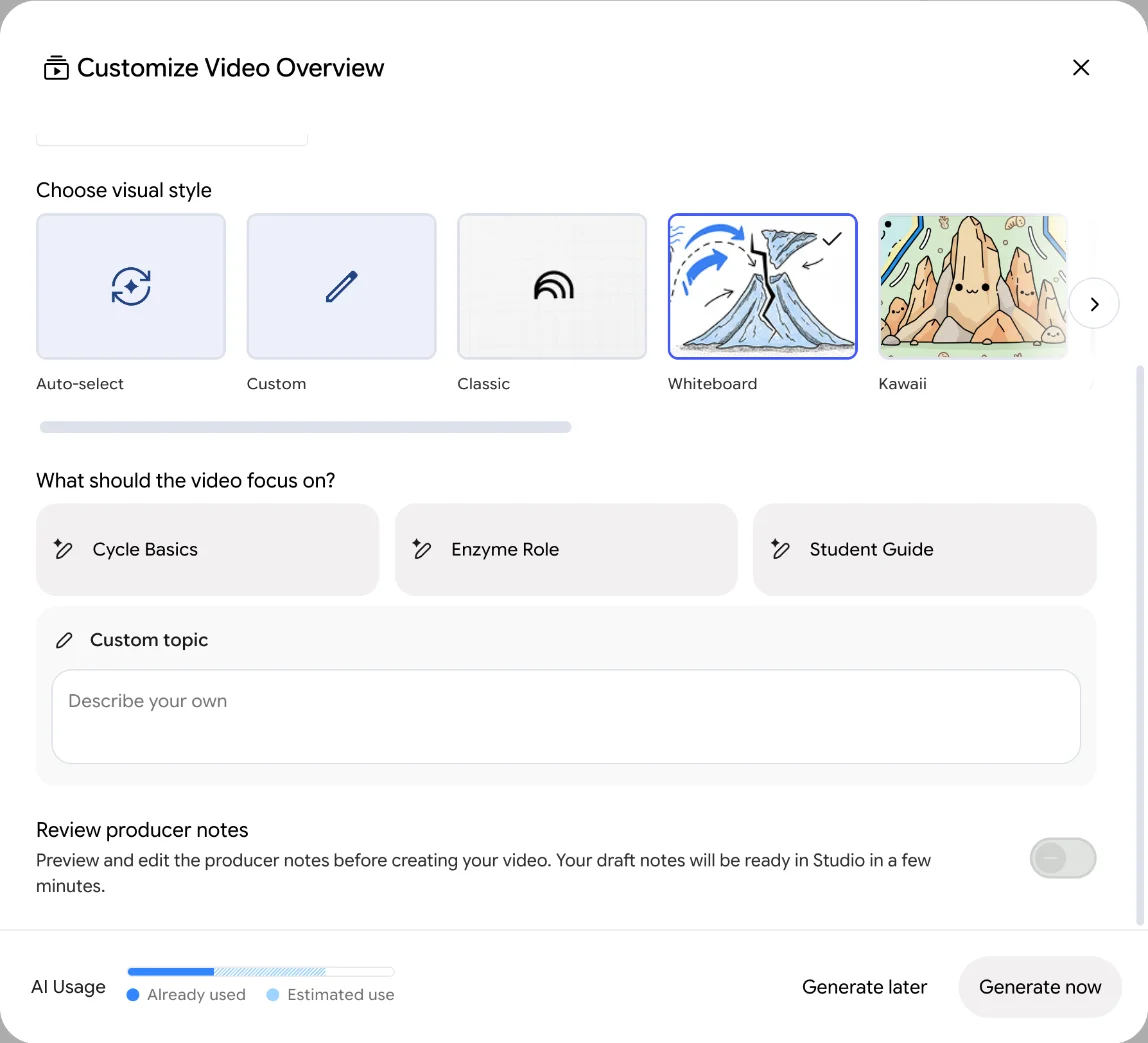
Second, open the Studio panel on the right and click Video Overview. The Customize dialog opens before anything is generated, so nothing is spent yet. Pick Short or Explainer, set the language, and check the source count.
Third, choose a focus. Type one in Custom topic if you know what you want, such as a single question you are revising for. If you leave it blank, my Short shows that Gemini Notebook may pick one of its own suggestions for you.
Fourth, for an Explainer, turn on Review producer notes and click Generate now. Read the outline when the Review button appears in the Studio panel, add every change you want in one message, and click Proceed. Then wait. Mine took about ten minutes for a Short and about thirteen for an Explainer, and Google says it can take more than 30.
Last, open the finished video from the Studio list, check View prompt to see what it was made from, and watch it against your sources before you share it.
My test: one notebook, two videos
I wanted a source set anyone can check, so I used two Wikipedia articles, Photosynthesis and Calvin cycle, added to a new notebook as website links. Biology is a fair test because the facts are specific and the numbers are fixed: either the video says three turns of the cycle make one exported sugar unit, or it does not.
I made the Short with the default settings. For the Explainer, I chose the Whiteboard style, picked the Student Guide focus that Gemini Notebook suggested, and turned on producer notes so I could steer the plan before it rendered. Both ran at the same time on 31 October.
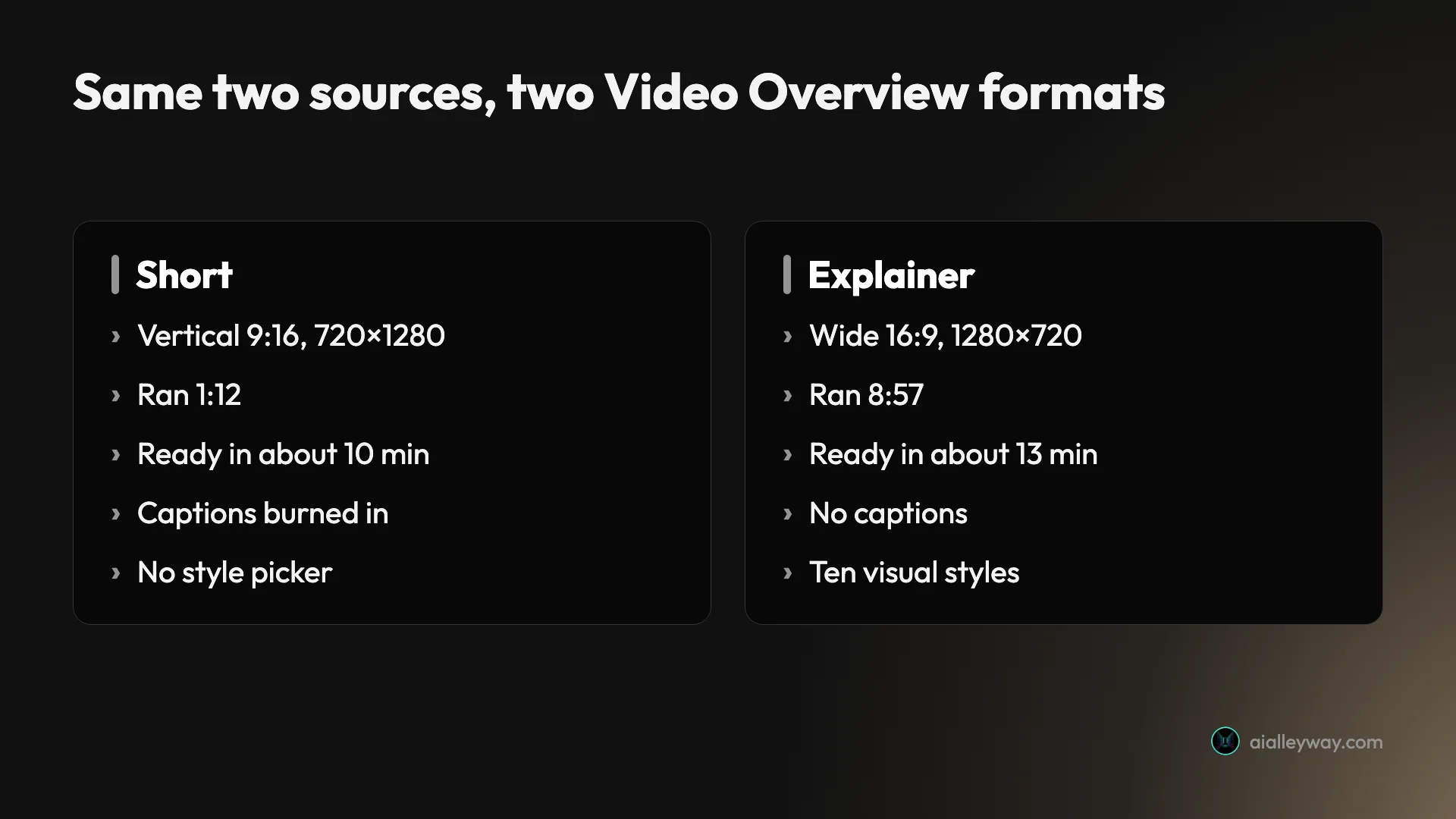
| Short | Explainer | |
|---|---|---|
| Frame | 720 × 1280, vertical | 1280 × 720, wide |
| Length | 1:12 | 8:57 |
| Clicked Generate to ready | about 10 minutes | about 13 minutes |
| Usage estimate before | 33% of a window | 42% of a window |
| Captions | burned in, word by word | none |
| Visual style choice | none | ten options |
| Watermark | Gemini Notebook, bottom right | Gemini Notebook, bottom right |
The Short: 72 seconds that got the science right
The Short is the format most people should start with. Mine opened on a pencil-drawn leaf with carbon dioxide bubbles floating above it and a caption reading “transforms carbon dioxide into solid plant matter”, and it never slowed down from there.
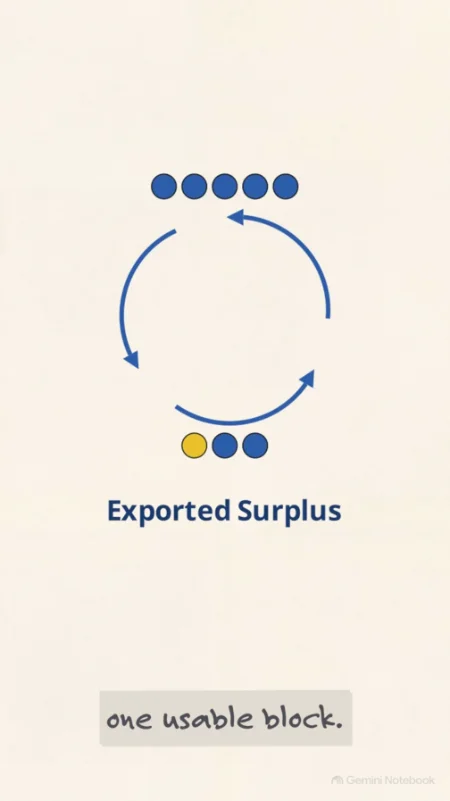
Because the narration runs as captions on screen, I could read the whole script off the frames. It describes the cycle as a factory. An enzyme called RuBisCO catches a carbon dioxide molecule and attaches it to a five-carbon chain, the six-carbon result “instantly snaps in half”, most of the pieces are rebuilt into new five-carbon chains, and only the surplus is “exported out” as food. It then says the cycle “must turn three full times just to build one usable block”.
All of that matches the Calvin cycle article, which gives three carbon dioxide molecules in for one exported glyceraldehyde-3-phosphate out, and five of every six of those molecules recycled. The factory metaphor works, and nothing in the Short contradicts the sources.
Where the Short simplified too far
The last line is the weak one. It says the carbon dioxide molecule from the start is now “a solid sugar, permanently locked in to build the plant’s next leaf”. The sources do not say that, and a plant can burn that sugar for energy as easily as build with it. It is a neat ending that a biology teacher would mark down.
The Short also skips the numbers. The energy comes from “chemical” power “from sunlight”, with no ATP or NADPH counts, and the third focus Gemini Notebook had suggested, why the so-called dark reactions need light, never comes up.
It picked a focus I did not choose
I left the focus empty for the Short. Afterwards, View prompt showed that the video had been made with the prompt “How plants transform carbon dioxide”, which was the first of the three topics the dialog had suggested. If you want a different angle, choose one, or type your own, rather than assuming an empty box means no steer.
The Explainer: producer notes, one extra slide, nine minutes
The Explainer is where the controls are, and the most useful one is easy to miss: the Review producer notes switch at the bottom of the dialog. With it on, Gemini Notebook shows you its plan before it draws anything.
My notes were ready in under a minute. They came as a five-part outline with the title “The Calvin Cycle and Photosynthesis”: the light-independent factory, carbon fixation, reduction, regeneration of RuBP, and a section on photorespiration and how cacti and corn get around it. Below the outline was a box marked “Add feedback to refine notes” and a Proceed button.
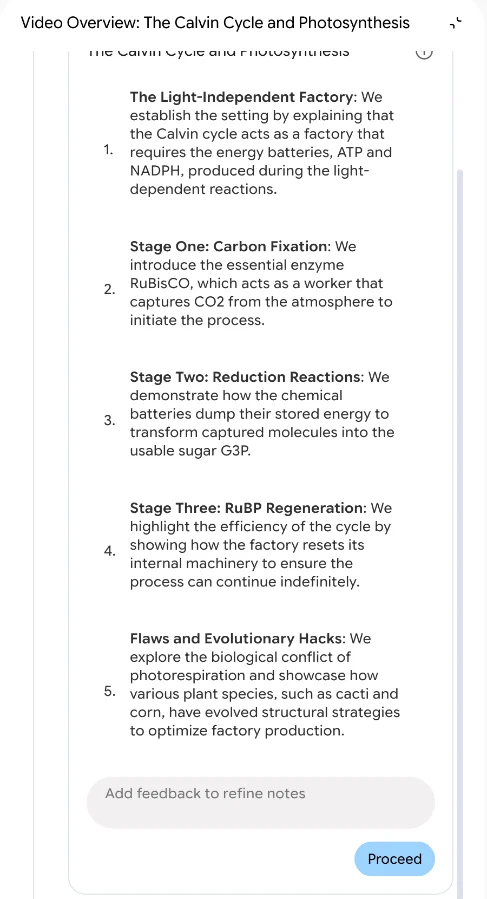
One oddity. Google’s help page describes producer notes under a section headed “Co-create video overviews with Gemini Notebook”, which it says is “only available for Google AI Ultra subscribers”. My free account had the switch, and it worked. Either the feature has reached free accounts ahead of the help page, or the Ultra version does more than I saw. I would not count on it staying free.
The feedback test
Google says you should add all your feedback at once, because you cannot refine the notes after Proceed. I typed two requests in one line: “Add one slide that states the cost per CO2 fixed: 3 ATP and 2 NADPH. Keep it under five minutes.”
The first request landed perfectly. About five minutes in, the Explainer opens a chapter called “The Energy Bill” and shows a table with two rows, ATP 3 and NADPH 2, per carbon dioxide molecule. Under the table it scales the cost up correctly: 9 ATP and 6 NADPH for one exported sugar unit, and 18 ATP and 12 NADPH for one glucose. Those figures match the Calvin cycle article.
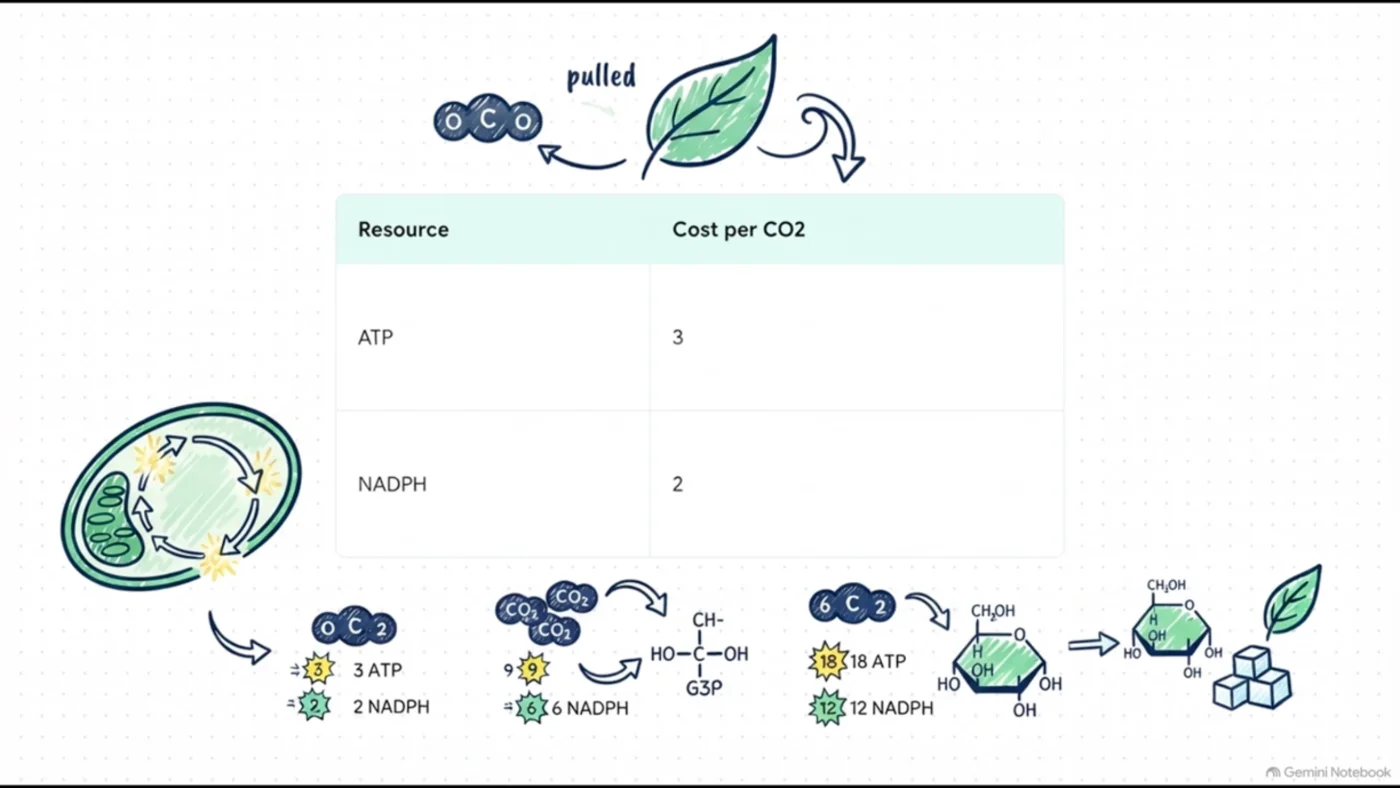
The second request was ignored. The finished video ran 8 minutes 57 seconds. Explainer has no length setting, and in my test, feedback could change the content but not the running time.
How to write feedback that sticks
My two requests point to a rule. A request that names a piece of content, such as one slide with two specific numbers, is something the plan can absorb as an extra section. A request about the shape of the whole video, such as its length, did nothing in my test.
So write feedback the way you would brief a colleague on a slide deck. Name the slide you want added or cut, give the exact figures or terms it must use, and say which outline section to drop if you want less. “Drop section 5 on photorespiration” is far more likely to shorten a video than “keep it under five minutes”, although I did not test that wording. Put everything in one message, because there is no second round.
What nine minutes looks like
I sampled a frame every 20 seconds. The video moves through about a dozen scenes: a title card, an opening question (“How do plants build themselves out of thin air?”), a history slide, a conveyor belt diagram of fixation, reduction and regeneration, two whiteboard sketches of the cycle, the energy bill, a section on what happens “when the factory gets too hot”, a leaf cross-section next to a cactus at night for the C4 and CAM workarounds, and a closing question.
The style was a mix. Some scenes looked like whiteboard pen drawings, others like clean slide cards with coloured panels. The history slide included an AI-drawn portrait of a scientist, which is worth knowing if you plan to show the video in class: the face is invented, not a photograph.
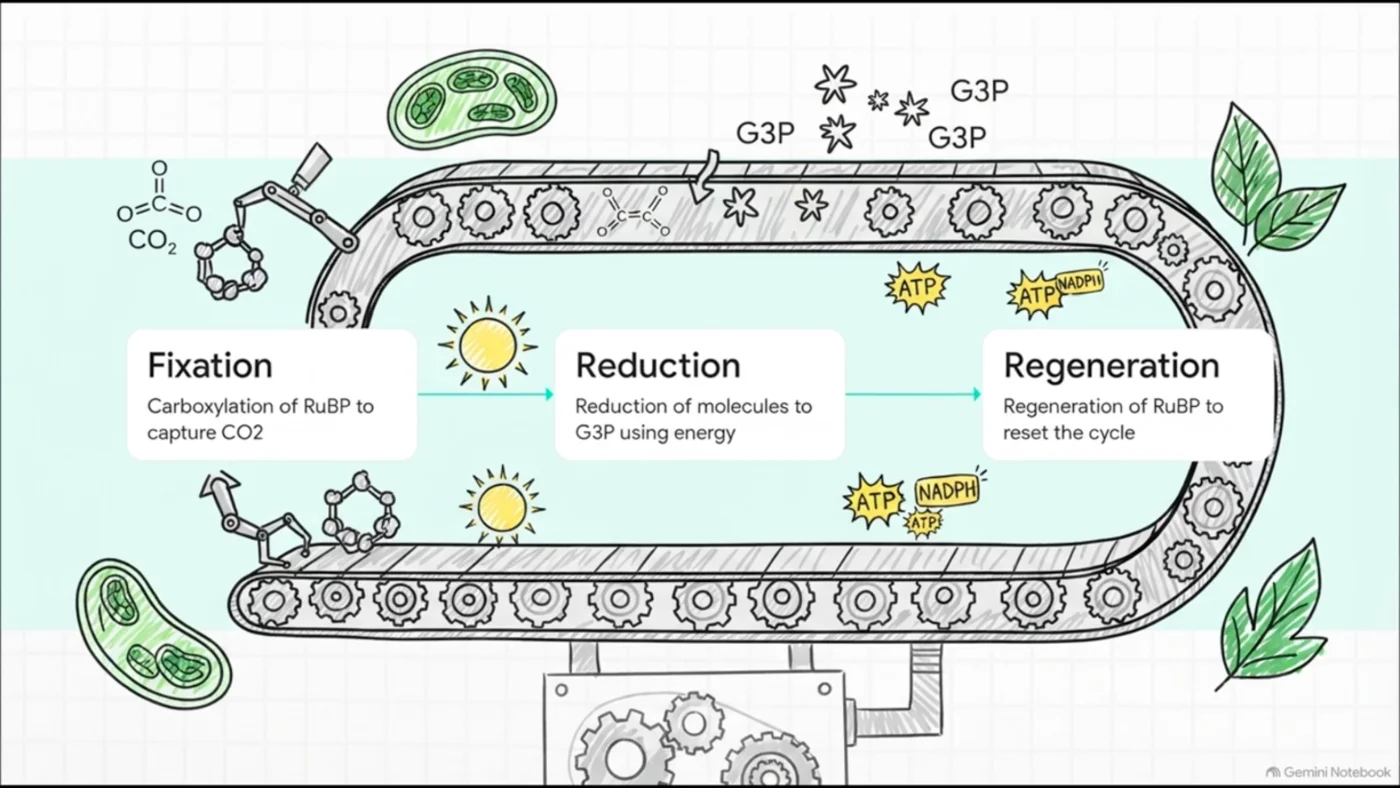
Every on-screen claim I read matched the sources. I could not check every spoken line, because the Explainer has no captions, and I did not get a copy of the file.
How much of the free allowance a video uses
Video Overviews are free, but they are the most expensive thing you can make in Gemini Notebook. Google’s usage-limits page calls the limits “compute-based”: your allowance refreshes every five hours until you reach a weekly limit. The Customize dialog shows a bar with what you have used and what the next output is expected to use.
On my account, the Short was estimated at 33% of a window and the Explainer at 42%. After the Short, the meter read 32.37%. After both, it read 64.21%, so the Explainer came in well under its estimate. When I opened the dialog again, a second Explainer was still estimated at 42% on top of what I had used, which would have run past the window. The dialog showed no warning, so check the bar yourself.
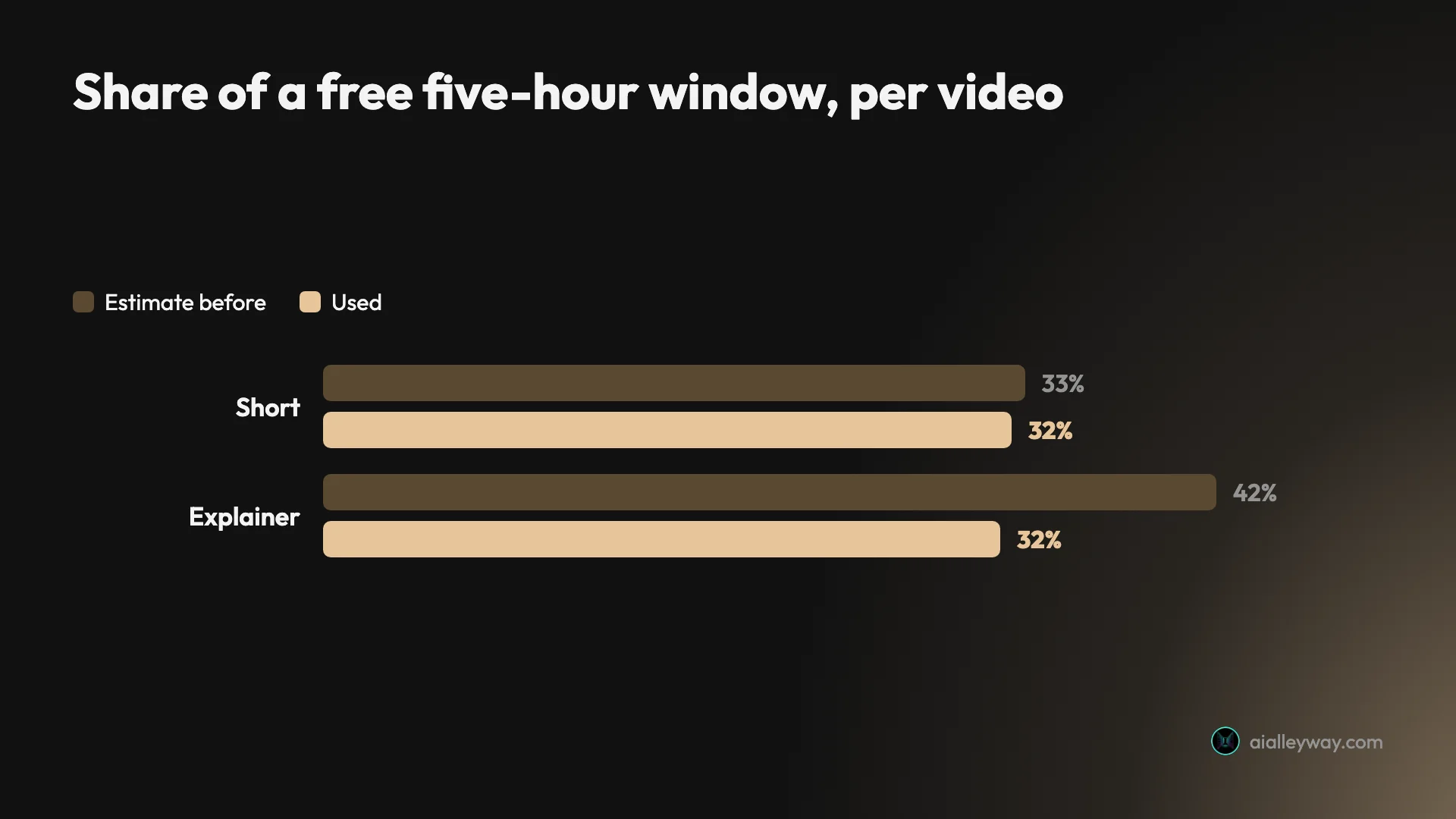
In practice, that means about two videos per window on a free account if you go by the estimates, with little room left for chat. By what the two videos actually used, about 32% each, three Shorts would just fit. In our earlier tests, an audio overview was estimated at 45% of a window and flashcards at 2%, so a video costs about as much as a podcast episode.
Paid plans scale the same meter. Google’s usage-limits page says Google AI Plus doubles the standard limit, Pro quadruples it, and Ultra multiplies Pro’s allowance by five or twenty, depending on the plan. On Google’s US plans page in October, Plus cost $4.99 a month and Pro $19.99. Our NotebookLM pricing guide has the full table.
Settings that change the result
The Customize dialog has more options than the tile suggests, and they do not all apply to both formats.
- Format. Short or Explainer on a free account. Cinematic appears only for Ultra subscribers.
- Language. Narration can be in any of Google’s supported languages; Cinematic is English only. Google’s help page links a separate article on setting the output language.
- Sources. By default the video uses every source in the notebook. You can untick some, which should give the Explainer less to cover; I did not test how much it shortens the result.
- Visual style. Explainer only, and by Google’s help page only for users over 18. The free account offered Auto-select, Custom, Classic, Whiteboard, Kawaii, Anime, Watercolor, Retro print, Heritage and Paper-craft. Custom takes a written description.
- Focus. Three suggested topics drawn from your sources, plus a box for your own. The suggestions differed by format: the Short offered “The complex power of RuBisCO”, the Explainer “Enzyme Role”.
- Review producer notes. Shows the plan before the render and accepts one round of feedback. It works with Generate now; Google says Generate later skips it.
Watching, sharing and downloading
A finished video opens in the Studio panel with Share and Download buttons, a playback speed control, and Good video and Bad video ratings. View prompt shows the focus and sources it was made from, which is how I spotted the focus the Short chose for itself.
Sharing works through the notebook. Google’s help page says you can share the notebook with specific people or open it to anyone with the link, and that public links work only on personal accounts, not on Workspace Enterprise or Education. Deleting the video breaks the link.
Downloading works, though not on my first try. Google’s help page says the download icon saves the file. During the test my first click produced nothing, and no dialog opened. A second try later the same day saved both videos as ordinary MP4 files: the Short at 720 × 1280, the Explainer at 1280 × 720 and about 46MB for nine minutes. If nothing happens, wait a moment and click again before you assume the feature is broken.
Both videos carried a small Gemini Notebook watermark in the bottom right corner, and it is burned into the downloaded files too, so you cannot crop it off in the player. Google’s plans page lists watermark removal only on Pro and Ultra, with some regional exceptions.
Five traps in video overviews
There is no length control
Short is about a minute, and Explainer runs as long as it likes. My request to stay under five minutes was ignored, and Audio Overview’s length setting has no video equivalent. Narrow the sources or the focus if the Explainer runs long.
Feedback is one round, then locked
Google’s help page says you add all feedback at once and cannot refine the notes after Proceed. My content request worked; my length request did not. Write the feedback as a short list of concrete changes, not a general instruction.
No captions in the Explainer
The Short burns its narration into the frame as captions. The Explainer has none, so a reader who cannot play sound loses the narration, and you cannot check its script without listening to every line.
The meter estimate is a guess
The Explainer was estimated at 42% and used about 32%. That is the friendly direction, but the dialog does not stop you from starting a video the window cannot cover, and Google’s usage-limits page says a job queued with Generate later may take a couple of hours.
It can invent pictures
The Explainer drew what appears to be a portrait of a real scientist from scratch. Check the visuals as well as the words before you share a video, especially for a class or a client.
Which format should you use?
- Revising for an exam: the Short. It covers one idea in about a minute, the captions make it readable on a phone with the sound off, and it costs about a third of a free window.
- Teaching or briefing a group: the Explainer, with producer notes on, a named focus and only the sources you want covered. Use the feedback box for one or two specific additions.
- Sharing outside your notebook: either format, but plan for the watermark on free and Plus accounts, and know the watermark stays in the downloaded file.
- You need it short and exact: the Short, or a NotebookLM audio overview with its length setting, rather than an Explainer.
- Skip it if you need a polished video with real footage, your own branding or a set running time. A video overview is a study aid built from slides. For presenter-led video, look at an avatar tool such as the ones in our HeyGen review.
Final word
The NotebookLM video overview is worth a free test, and the Short is the best part of it: fast to make, quick to check, and on my two sources, right. The Explainer is a nine-minute narrated deck. Producer notes make it steerable on content, but not on length. Start with a Short, read it against your sources, and spend the Explainer’s third of a window only when you need the long version.
For the rest of the product, read our Gemini Notebook review, or compare the best NotebookLM alternatives.
Frequently asked questions
Is NotebookLM video overview free?
Yes. The Explainer and Short formats both worked on my free Google account in October 2026, with no plan and no trial. What limits you is the usage meter, not a paywall. Gemini Notebook's free tier refreshes a compute-based allowance every five hours, up to a weekly limit, and each video I made took about a third of one window.
The Cinematic format is the paid one. Google introduced it in March 2026 for Google AI Ultra subscribers, aged 18 and over, in English only, and it did not appear in the format picker on my free account. The visual style picker is free but, by Google's help page, limited to users over 18. Paid plans raise the usage allowance rather than unlocking the two standard formats: Google's usage-limits page says Plus doubles the free limit and Pro quadruples it.
How long does a NotebookLM video overview take to generate?
In my test, about 10 minutes for a Short and about 13 for an Explainer, from clicking Generate to a playable video. The Explainer total includes a review step: its producer notes, a five-part outline, were ready in under a minute, and the render took about 11 minutes after I approved them.
Google's help page warns that a video can take more than 30 minutes, so treat my times as a light-load example from two Wikipedia articles, not a promise. You can leave the notebook while it works; the Studio panel shows a Generating line, and the item appears with its length once it is done. Generate later queues the job instead, which Google says can take a couple of hours, and it skips producer notes.
Can you control the length of a NotebookLM video overview?
Only by choosing the format. Short is Google's roughly 60-second option, and mine ran 1 minute 12 seconds. Explainer has no length setting at all, unlike Audio Overview, which offers three lengths.
I tried to set a length another way. With producer notes turned on, I typed feedback asking for one extra slide and for the video to stay under five minutes. The slide appeared exactly as asked. The length did not: the Explainer ran 8 minutes 57 seconds. So feedback can change what the video covers, but in my test it did not change how long it runs. If you need something short, pick the Short format, or narrow the sources and the focus prompt so there is less for the Explainer to cover.
Can you download a NotebookLM video overview?
Google's help page says yes: open the video in the Studio panel and select the download icon, then share the file. The icon was there on my free account, next to Share. My first click during the test produced nothing, but a second try later the same day saved both videos as MP4 files: the Short at 720 × 1280 and the Explainer at 1280 × 720, about 46MB for its nine minutes.
Two other limits matter if you plan to reuse the video. Both of mine carried a small Gemini Notebook watermark in the bottom right corner, and it stays in the downloaded file, and Google's plans page lists watermark removal only on the Pro and Ultra plans, with some regional exceptions. Google also notes that Play Books sources may block downloads.
Are NotebookLM video overviews accurate?
Mine were accurate on the facts I could check, and loose in places. The 72-second Short, which carries its narration as on-screen captions, described the Calvin cycle correctly: RuBisCO fixing carbon dioxide onto a five-carbon chain, the unstable six-carbon molecule splitting, most of the products recycled, and three turns of the cycle to export one sugar building block. Its closing line overreached, saying the carbon was permanently locked into the plant's next leaf.
The Explainer's slides matched the sources, including a cost table of 3 ATP and 2 NADPH per carbon dioxide molecule. It has no captions, so I checked its on-screen text, not every spoken line. Google's own help page warns that videos may contain inaccuracies or audio glitches. Treat a video overview as a study aid you check against the sources, not as the source.
Keep reading
NotebookLM Review: Gemini Notebook Cites Well, Meters Hard
A NotebookLM review, now Gemini Notebook: five test questions, four Studio outputs, and an audio overview estimated at 45% of a five-hour limit.
How to Use NotebookLM: Seven Steps, From First Source to Quiz
How to use NotebookLM, now Gemini Notebook: add sources, ask questions you can check, make audio overviews and quizzes, and stay inside the usage meter.
NotebookLM Pricing: Free, $4.99 or $19.99, and What You Get
NotebookLM pricing in the US: free, or $4.99, $19.99 or from $99.99 a month via Google AI plans. What each tier's limits buy, plus work and student routes.
NotebookLM Alternatives: 9 Picks, Sorted by Why You're Leaving
The best NotebookLM alternatives by reason for leaving: Notion AI for teams, Copilot Notebooks for Microsoft 365, Open Notebook to self-host. Prices in US$.