
How to Use NotebookLM: Seven Steps, From First Source to Quiz
How to use NotebookLM, now Gemini Notebook: add sources, ask questions you can check, make audio overviews and quizzes, and stay inside the usage meter.
Contents
How do you use NotebookLM? The short answer
Make a notebook, add the documents you want to work from, and ask questions in the chat. Answers drawn from your sources cite them, and clicking a citation shows you the passage. Then use the Studio panel to turn the same sources into an audio overview, a mind map, flashcards or a quiz.
NotebookLM is now called Gemini Notebook. Google renamed it on 16 July 2026, and it lives at notebook.google.com. It is free with a Google account. I tested it on a free account for our NotebookLM review, and went back on 17 October 2026 to capture the steps below.
| Step | Where | What to know |
|---|---|---|
| 1. Create a notebook | Home page, New notebook | One project per notebook; notebooks cannot see each other |
| 2. Add sources | Sources panel, Add sources | Up to 50 on the free tier; 500,000 words each, 200MB per uploaded file |
| 3. Or find sources | Sources panel search box | Fast Research or Deep Research (18+) |
| 4. Ask and check | Chat panel | Hover a citation for the quote, click it for the passage |
| 5. Set the chat style | Notebook menu, Configure Chat | Default, Learning Guide or Custom |
| 6. Save notes | Save to note under any answer | Notes become sources you can cite |
| 7. Make something | Studio panel | Most outputs show their cost on the meter first |
How NotebookLM works: one notebook, one set of sources

Think of a notebook as a closed room, or a closed system. You bring the documents in, and the AI answers from those documents only. Google’s help page puts it plainly: “Chat responses in Gemini Notebook only use data from your sources.” Ask about something they do not cover and it should say so.
In my test it did: it declined a question about the population of Lisbon and offered to research the web instead. Google’s chat help page also describes experimental agentic features that can search the web and run code, so this may loosen over time, but in normal chat on my free account, answers stayed inside the sources.
Each notebook is its own room, too. Google’s help page says it “can’t access information across multiple notebooks at the same time”. So plan one notebook per project, per course or per client, not one big notebook for everything.
Inside a notebook you get three panels: your sources on the left, the chat in the middle, and the Studio on the right, where the same sources become audio, video, maps, tables and study aids.
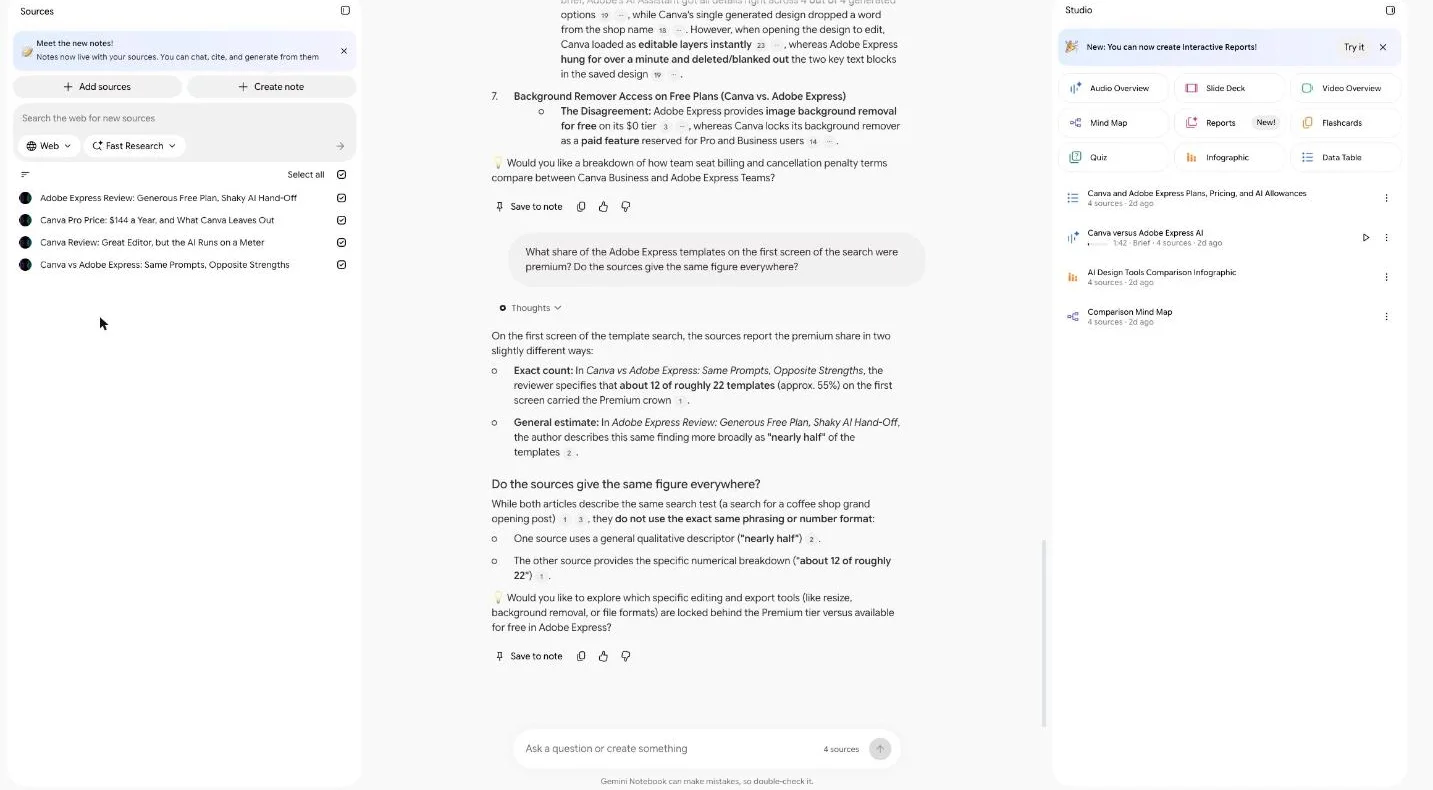
The one thing that runs across all of it is a usage meter. On a personal account, usage refreshes every five hours up to a weekly limit, and most Studio outputs show what they will cost before you make them. Our NotebookLM pricing guide covers the plans if you outgrow the free tier.
Steps 1 to 6: from an empty notebook to saved answers
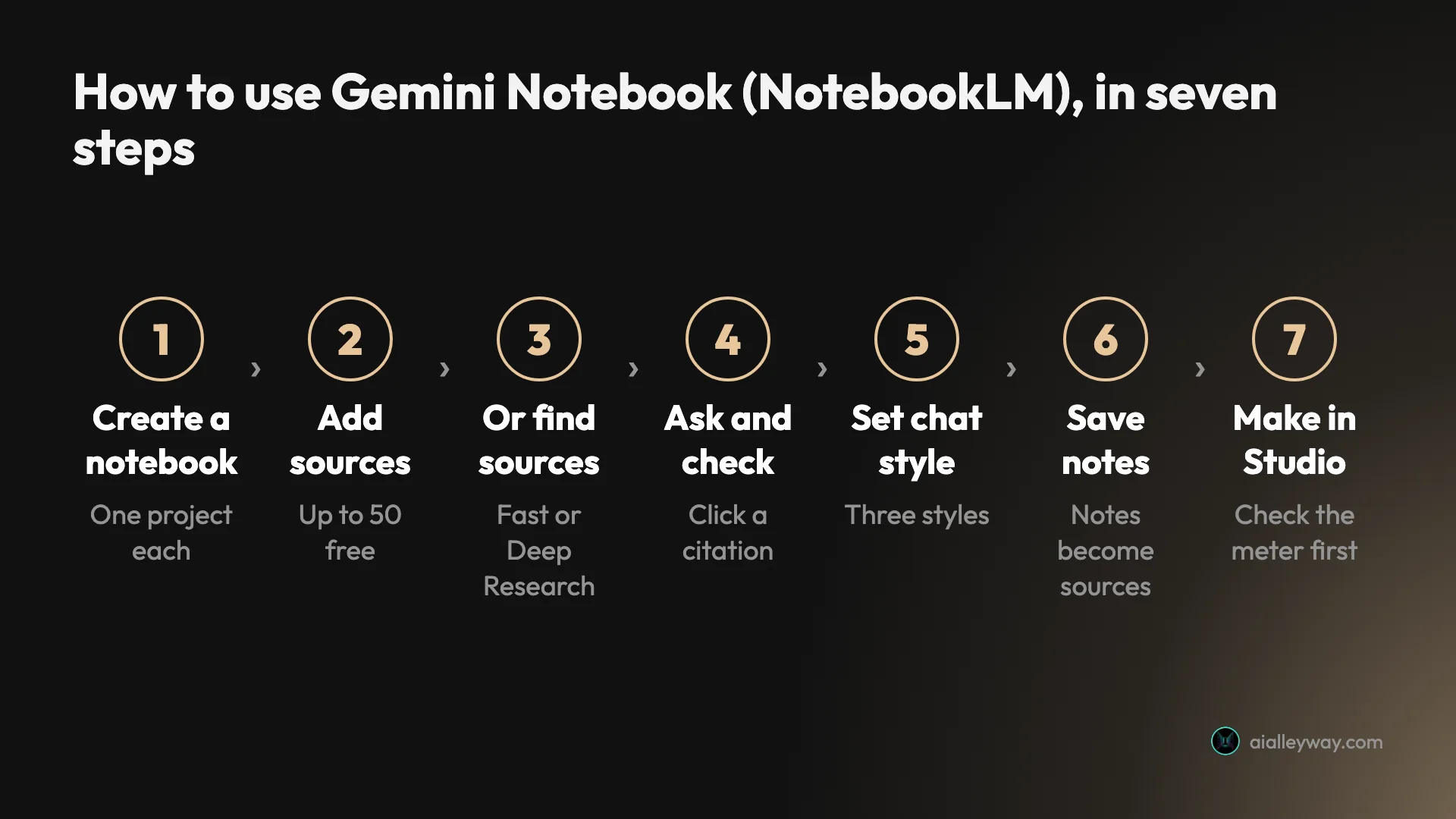
These are the steps in the order you will meet them. Screens below are from the free account I used for the review.
1. Create a notebook
On the home page, click New notebook. Google’s help page calls it Create new notebook. A window then opens for your first sources. Once you add them, Google says the notebook gets an emoji, and it may sometimes make a starter output, such as a report or flashcards, automatically. Those starter outputs do not count against your limits.
2. Bring in files, links and videos
Click Add sources. You can upload files, paste website or YouTube addresses, add ebooks you bought on Google Play, pick files from Google Drive, or paste text.
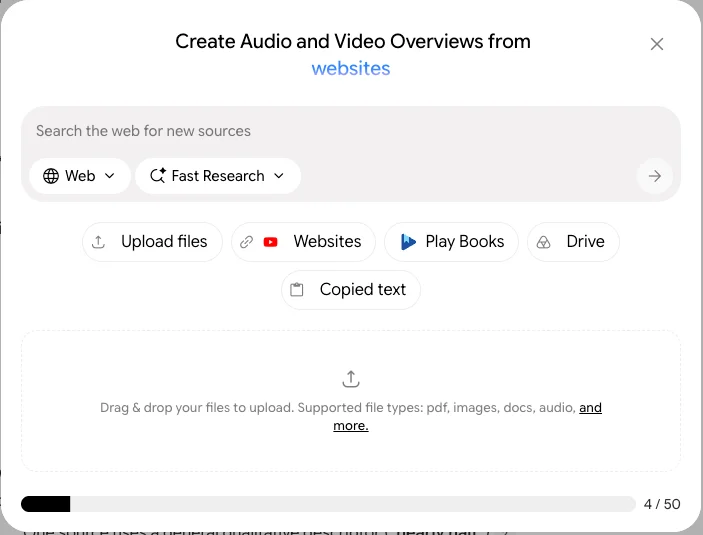
Google’s help page lists PDF, Word, PowerPoint, Markdown, text and CSV files, Google Docs, Slides and Sheets, images, audio files and ePub books. Each source can hold up to 500,000 words, uploaded files can be up to 200MB, and there is no page limit. The free tier takes 50 sources per notebook, and the counter in the window shows how many you have used.
A few rules decide what actually gets read:
- Websites come in as text only. Images, embedded videos and linked pages are left out, and paywalled pages are not supported.
- YouTube needs a public video with captions, and only the transcript is imported.
- Google Drive files stay in sync. Google says they update every few minutes, and you can force a sync from the source.
- Audio files are transcribed when you add them, and the text becomes the source.
- Pasted text is now saved as a note, which sits with your sources.
For my test I pasted the addresses of four of our own articles. We wrote them, so every wrong answer would be easy to spot.
3. Or let it find sources for you
If you are starting from a question rather than a folder, use the search box at the top of the Sources panel. It has two modes.
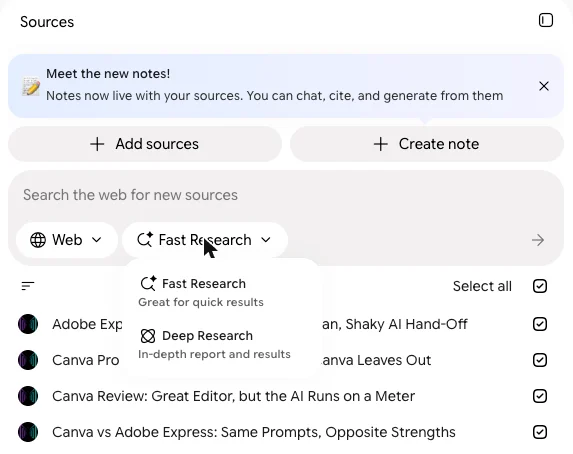
Fast Research searches the web, or your Google Drive, and lists results with a line on how each relates to your question. You tick the ones to import. Deep Research browses up to hundreds of websites and writes a multi-page report with all the relevant sources it found, cited or not. Google says it can take a couple of minutes and is available only to users over 18. Anything you do not import is discarded.
4. Ask a question, then check the citation
Type in the box at the bottom of the chat. Answers come with small numbered markers. Google’s help page says hovering over one shows the full quote, and selecting it takes you to the quote in context.
That second part is the reason to use Gemini Notebook at all. When I clicked a citation on a pricing answer, the source opened on the exact paragraph, highlighted.
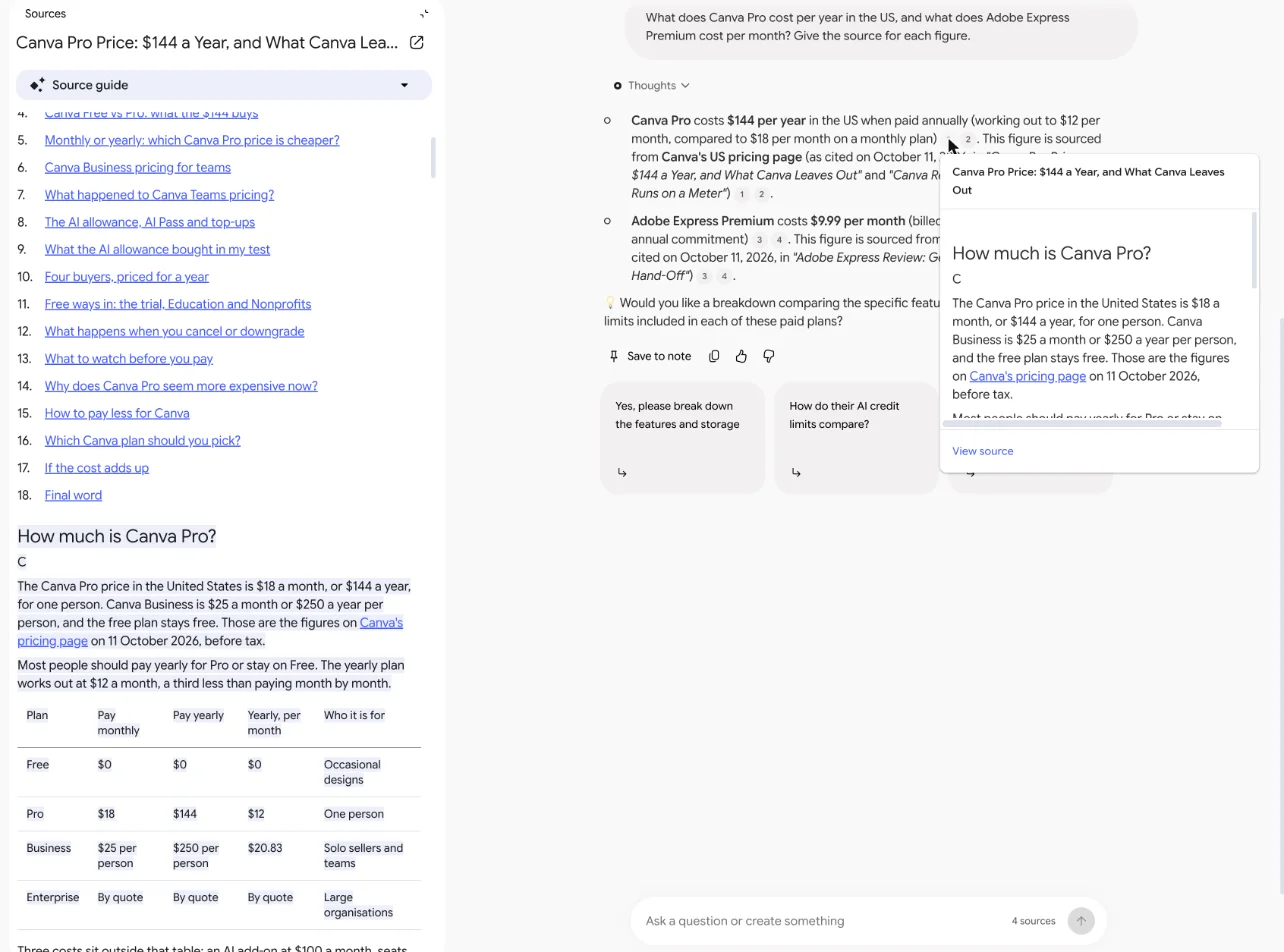
Make a habit of clicking at least one citation per answer. It takes seconds, and it is how you catch an answer that leans on the wrong passage. To ask about only some sources, untick the others in the Sources panel first.
5. Set the chat style
Open the menu at the top right of the notebook and choose Configure Chat. There are three styles and three lengths.
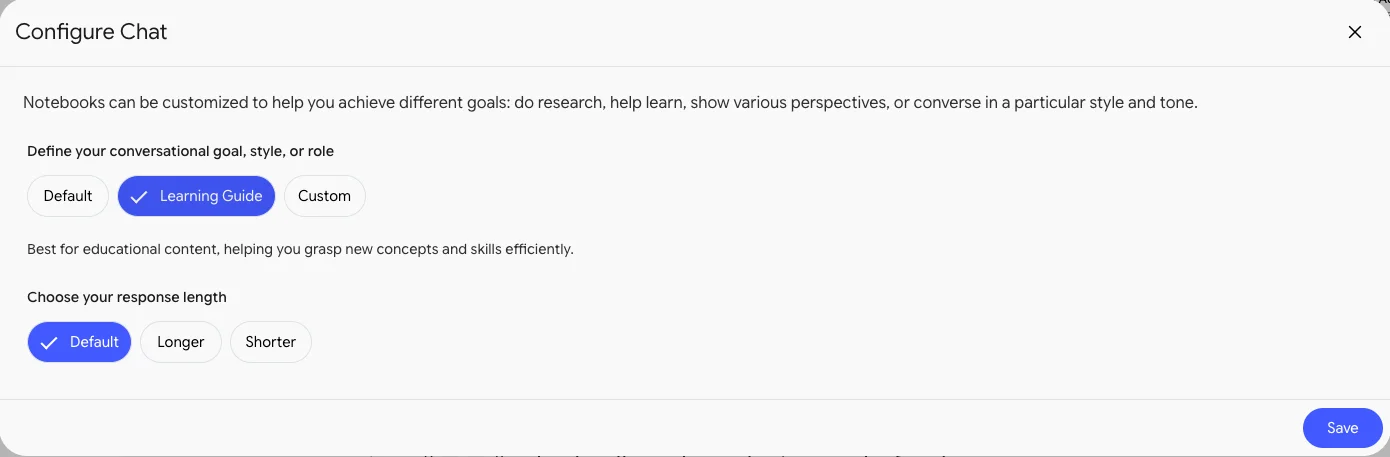
Default suits research and brainstorming. Learning Guide is for studying, and is described in the window as “helping you grasp new concepts and skills efficiently”. Custom lets you set a role or a voice. One of Google’s examples is “Respond like a PhD student”.
6. Save the answers worth keeping
Under every answer there is a Save to note button. Google says the note keeps the original format, including tables and clickable citations. You can also write your own note with Create note in the Sources panel.
Notes now live with your sources, which changes how they work. A note can be cited in later answers and used in Studio outputs, and a checkbox decides whether the chat includes it.
Two cautions from Google’s help pages: a saved answer can only be edited once its citations are removed, and there is no way to recover a deleted note. To take a note out of the notebook, use Export to Docs; Google says later edits in Docs do not sync back.
Step 7: make something in the Studio
The Studio panel turns the same sources into nine kinds of output. Each tile opens a window of options first. In my test, eight of the nine showed an AI Usage bar with the expected cost; the Slide Deck window, opened when the meter was near 60%, offered only Generate later. Otherwise you choose Generate now, or Generate later to queue it.
Audio overviews
The best-known feature, and the most expensive one. There are four formats: Deep Dive, a conversation between two hosts and the default; Brief, which Google describes as a single speaker delivering the key points in under two minutes; Critique; and Debate. You choose a language and one of three lengths, and you can type a focus for the hosts. The length setting disappeared when I chose Brief.
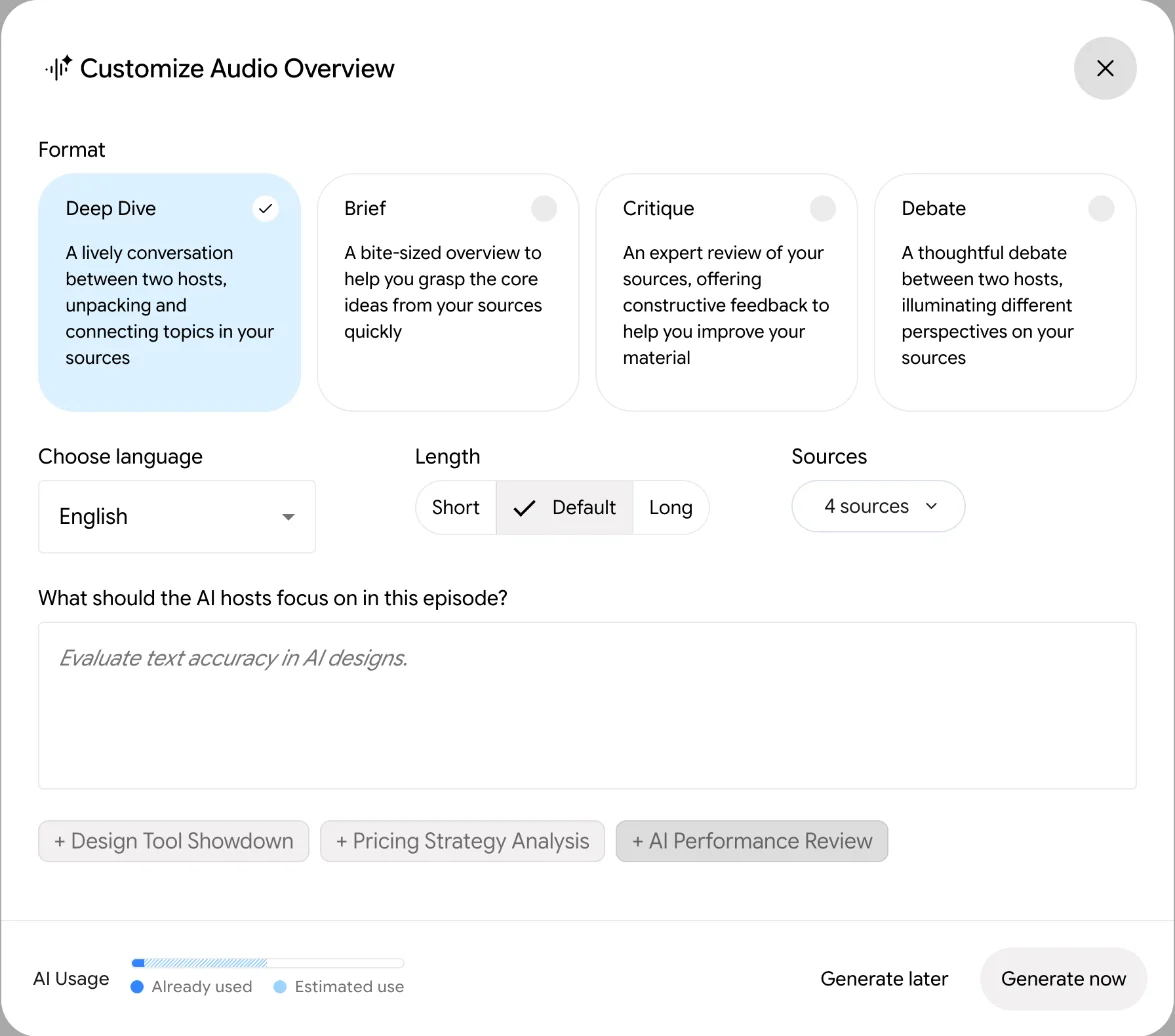
On my free account, the window estimated one audio overview at 45% of a five-hour window. The Brief I made ran 1 minute 42 seconds, was ready in under four and a half minutes, and sounded good on a listen.
I found no transcript in the player or its menu, so I could not check the spoken claims against the sources line by line. Google’s help page also documents an interactive mode, in English only, where you can join the conversation and ask the hosts a question.
Mind maps, reports and data tables
These are the cheap ones. A mind map was estimated at 2% of a window and finished within about 15 seconds; Google says you can click any node to ask the chat about it. Reports come in two kinds: Interactive, which embeds other Studio outputs, and Document, with templates such as a study guide, a briefing document or an FAQ.
A data table pulls figures from your sources into rows and columns. Mine listed every plan and price across the four articles, and wrote “Not in source” where the articles gave no figure rather than inventing one.
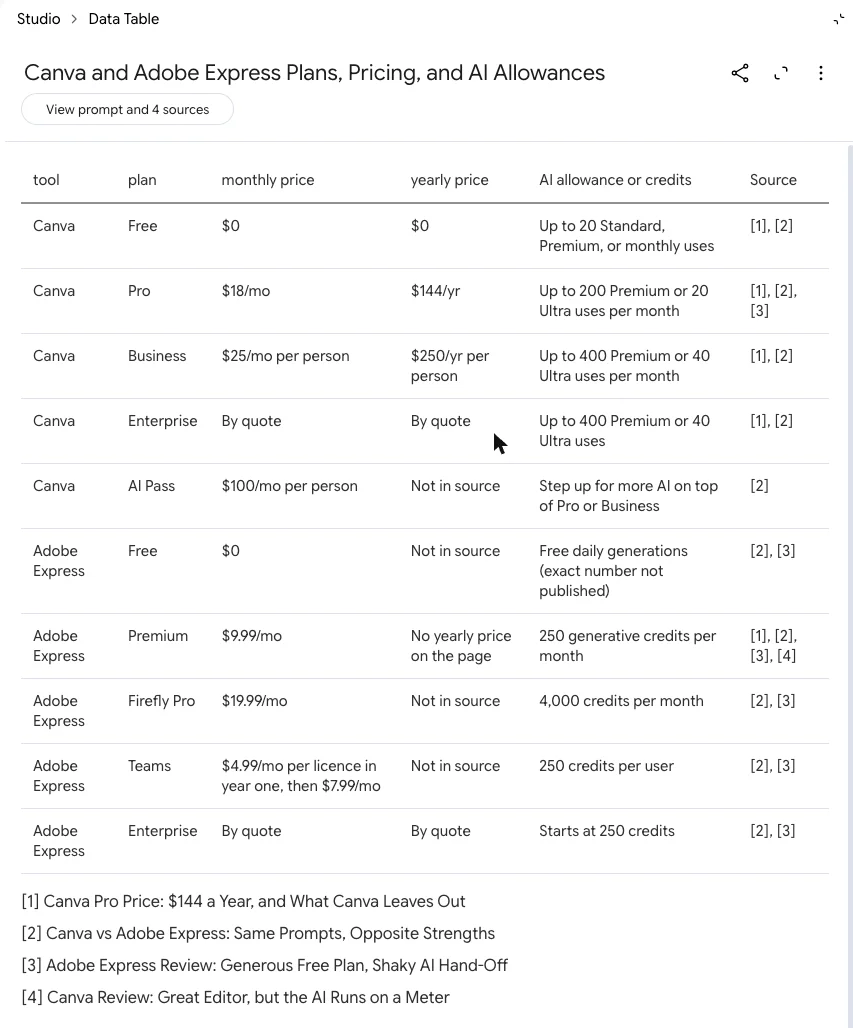
Google’s help page says a data table exports to a new Google Sheet, with the citations on a second tab, and a report with tables in it can do the same.
Video overviews, infographics and slide decks
Video and infographics cost more on the meter, and some of these outputs are restricted. Video comes as Explainer, Short (about 60 seconds) or Cinematic, which Google limits to users over 18 and to English; it says a video can take more than 30 minutes. Infographics and slide decks are also for users over 18.
To make a presentation, open Slide Deck in the Studio. Google’s help page says you pick a format, an output language, a length and the sources, then describe the deck you want. On 14 October the window offered two formats, Detailed Deck and Presenter Slides.
When it is ready, Start slideshow presents it full screen, and you can download it as a PDF or a PowerPoint file. To change it, choose Revise and type instructions on each slide. Google says revisions ignore your sources and produce an entirely new deck each time, so get the brief right first.
Share it, change its language, open it in Gemini
Once a notebook works, three settings decide who sees it and where you use it.
Share it, or keep it private
Notebooks are private until you share them. Click Share and add people by email as a Viewer, who can read the sources and notes, or an Editor, who can also add and remove them and share the notebook further. Google’s help page says a personal Gmail account can share with up to 50 people, but not with Google Groups.
| Access | What they can do | Notes |
|---|---|---|
| Viewer | Read the sources and notes | Added by email |
| Editor | Add or remove sources and notes, share further | Added by email |
| Anyone with the link | View the notebook | Must sign in to Google; personal accounts only |
| Chat-view link | See the chat without the materials | Does not fully remove access |
You can also open a notebook to anyone with the link, who then needs to sign in to a Google account to view it. A globe icon next to the Share button tells you a notebook is public. Google says public links work only on personal accounts and are turned off for Workspace Enterprise and Education.
Your chat history stays private to you either way, and the same menu that holds Configure Chat has Delete chat history.
There is a middle option for teachers and team leads: a chat-view link, which hides the notebook’s materials and leaves the chat. Google warns that it does not fully remove a viewer’s access to the contents, so do not use it to hide anything sensitive. If you want someone to have their own version, the owner can allow copies. Google says a copy brings the sources and Studio outputs but not the chat history or notes.
Change the language, and find your notebooks in Gemini
Gemini Notebook answers in the language set in your Google Account. To change it, open Settings at the top right and choose Output language. Google says the setting covers chat answers, study guides and audio and video overviews, across more than 80 languages, though not every feature supports every language.
Your unshared notebooks also appear in the Gemini app. Google says shared ones, even those you own, do not.
Google’s help page says notebooks sync both ways, so a source added in one place shows up in the other. The difference is what each can do. In the Gemini app, answers can also draw on web search and other tools, but the app cannot make audio overviews, videos, infographics or slide decks. For Studio outputs, come back to notebook.google.com.
How to use NotebookLM for studying
This is where Gemini Notebook is most generous, because the study tools are cheap on the meter. Flashcards were estimated at 2% of a window and a quiz at 3%, against 45% for one audio overview.
Start by setting Configure Chat to Learning Guide. Then open Flashcards in the Studio panel.
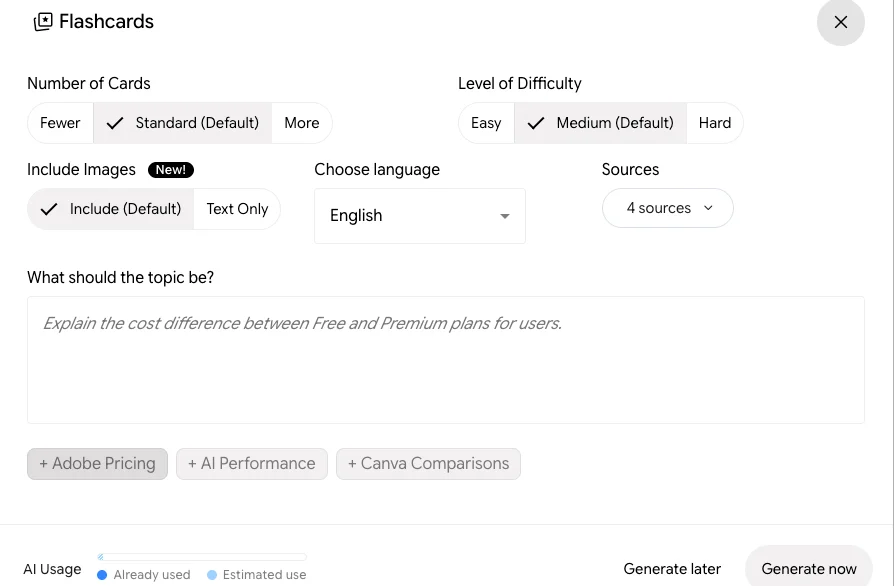
You choose the number of cards, the difficulty and whether to include images, and can type a topic. Google’s help page says you can mark each card as got it or missed it, practice only the ones you missed, ask for an explanation of any card, shuffle, and download the deck as a CSV file.
The quiz window has the same controls plus question types. When I opened it on 17 October, it offered multiple choice, multiple select, fill in the blank and short answer, with the first two ticked by default.
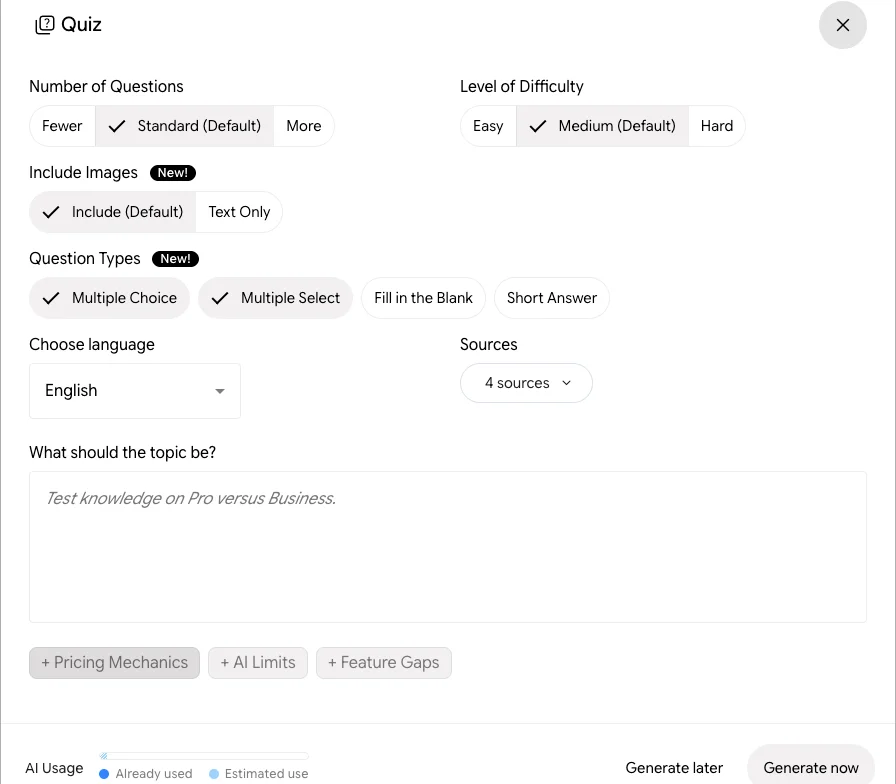
Two more tools are worth knowing. An interactive report with the Learning Overview template weaves a summary together with quizzes and flashcards, on the web only. And Google’s September blog announced an audio recorder in the mobile app for lectures, and said you can photograph handwritten notes to use as sources.
Age matters here. Google’s help page says Gemini Notebook is for users above the age of consent where they live, with stricter content rules under 18 and some features for over-18s only. Students on Workspace for Education can use it at any age. Eligible US college students can get a year of Google AI Pro free if they redeem by 31 December 2026, according to Google’s blog.
A worked example: four articles, one session
Here is what one real session looked like, so you can judge your own allowance. On 14 October 2026 I made a notebook on a free Google account, pasted four article addresses, asked five questions and made four Studio outputs.
All five chat questions were answered within about 30 seconds, most within about 16 to 20, and the meter read 4.7% of the five-hour window before I made anything in the Studio. Then came the Studio: the Brief audio overview, a mind map, an infographic and a data table. Afterwards, Settings, then Usage, read 32% of the window and 2% of the weekly limit.
The meter is not simple addition. It reached about 60% after the audio overview, mind map and infographic had started, and read about 30% a few minutes later, and nothing on screen explained the drop. Treat the estimates as a guide to which outputs are expensive, not as exact charges.
So a free account comfortably holds a study session of questions and cheap outputs. What drains it is audio and video. If you want an audio overview, make it first in a fresh window, and use flashcards, quizzes and mind maps for the rest.
Pitfalls to watch
The meter shows percentages, not counts
Google’s usage-limits help page describes the limits on personal accounts as compute-based, refreshing every five hours up to a weekly limit, and gives no number of questions or overviews. Check Settings, then Usage, before a big output, and read the estimate in most Studio windows.
Answers come only from what you add
If a fact is not in your sources, normal chat will not supply it. That is a strength for checking, and a trap if you forget to add the one document that matters. Google’s help page also notes that when a source is very short, the citation points to the whole document rather than a passage.
Websites and videos lose most of themselves
Only the text of a web page and the transcript of a video come in. A chart, a diagram or an on-screen table in a video will not be there to cite.
Some features are over-18 only
Deep Research, infographics, slide decks, Cinematic video and mobile voice chat are all restricted to over-18s on Google’s help pages. A younger student’s notebook will have fewer tiles that work.
The phone app does less
Google’s help page says the mobile app cannot yet make notes, mind maps, reports or data tables, and accepts fewer source types. Do the setup on the web and use the phone to listen and review.
Pick a routine for your situation
- Studying for an exam: Learning Guide chat, then flashcards and quizzes, which are cheap on the meter. Skip audio until the night before.
- Researching a topic from scratch: start with Fast Research, import the best results, then ask pointed questions and click the citations.
- A literature review or research paper: add the papers as PDFs, ask about each claim, and export a data table of findings to Sheets.
- Checking a draft against its sources: add the draft and the sources, ask about each figure, and save the answers as notes.
- Commuting or walking: make one audio overview on the web, then listen in the phone app.
- Skip it if your work needs answers from the open web or across all your files at once. In normal chat, a notebook stays inside one set of sources.
Final word
Add your sources, ask, and click the citation: that loop is what Gemini Notebook does better than a general chatbot, and the rest of the Studio is a bonus you pay for on the meter. Every number from my session, and the misses, are in our NotebookLM review.
Frequently asked questions
How do I start using NotebookLM for free?
Go to notebook.google.com, sign in with a Google account, and click New notebook. NotebookLM is now called Gemini Notebook, and the free tier needs no plan: Google's plans page lists 100 notebooks with up to 50 sources each. Add a PDF, a web page, a YouTube link or some pasted text, then ask a question in the chat box.
AI usage on the free tier is metered rather than capped by count. Usage refreshes every five hours up to a weekly limit, and Settings, then Usage, shows both as percentages. In my test on a free account, five questions used under 5% of a window, while one audio overview was estimated at 45%. Chat first, and pick your Studio outputs carefully.
Can NotebookLM read YouTube videos and websites?
Yes, but it reads words, not pictures. A web address brings in the page's text, and a YouTube link brings in the video's transcript, so the video must be public and have captions, whether the uploader wrote them or YouTube generated them. Pages behind a paywall will not import.
Three YouTube details are worth knowing from Google's help page. A video with no speech has nothing to import. A brand-new upload may not be available for about three days. And if the video is later deleted or made private, it disappears from your notebook within 30 days, so save a note of anything you rely on.
How do I use NotebookLM for studying?
Load the course material, switch the chat to Learning Guide in Configure Chat, and lean on the cheap study outputs. On my free account, a set of flashcards was estimated at 2% of a five-hour window and a quiz at 3%, while one audio overview was estimated at 45%. So drill with cards and quizzes during the week, and save audio for revision.
Both tools let you set how many items you get and how hard they are, and when I opened the quiz window on 17 October it offered four question types. For a single page that brings it together, try an interactive report with the Learning Overview template on the web. College students in the US should check Google's free Google AI Pro offer for students.
Does NotebookLM work on a phone?
Yes, through the Gemini Notebook app for Android phones and tablets, iPhone and iPad, with fewer features than the web. Google's help page says the app accepts only PDFs, websites, YouTube links, audio files and copied text as sources, and cannot yet make notes, mind maps, reports or data tables. You cannot change the chat settings in the app either.
What it does well is listening. You can play audio overviews in the background and download them for offline playback, though not as a file you can move. Google lists voice chat with your notebook as a mobile-only feature for users aged 18 and over, and its blog says it is reaching paid plans first. Notebooks sync between the app and the web, though Google says syncing can sometimes be delayed.
Can NotebookLM search the web for sources?
Yes, as a way to add sources. The search box in the Sources panel has two modes: a quick one that returns a list of pages, or files from your Google Drive, for you to pick from, and a slower one that researches the question in depth and returns a written report with its sources. You choose what to import.
The slower mode, Deep Research, is for users over 18, according to Google. Deep Research results you do not import are discarded. Once a page is imported it behaves like any other source. When I asked my test notebook about something outside its sources, it declined. Google also documents an experimental agentic chat that can search the web itself.
How do I share a NotebookLM notebook?
Use the Share button and invite people by email, choosing Viewer for read-only access to sources and notes, or Editor for someone who can add and remove sources and invite others. On a personal Gmail account Google allows up to 50 people per notebook, and Google Groups cannot be added.
To reach more people, set access to anyone with the link; they still sign in with a Google account to view it, and work or school accounts may not offer this. A chat-view link is lighter, but Google warns it does not fully remove access. If someone needs their own version, the owner can let them make a copy, which brings the sources and Studio outputs but not your notes.
Keep reading
NotebookLM Review: Gemini Notebook Cites Well, Meters Hard
A NotebookLM review, now Gemini Notebook: five test questions, four Studio outputs, and an audio overview estimated at 45% of a five-hour limit.
NotebookLM Pricing: Free, $4.99 or $19.99, and What You Get
NotebookLM pricing in the US: free, or $4.99, $19.99 or from $99.99 a month via Google AI plans. What each tier's limits buy, plus work and student routes.
NotebookLM vs Notion: I Gave Both the Same Four Articles
NotebookLM vs Notion AI on the same four articles and questions: Gemini Notebook's citation opened the passage and it is free; Notion builds pages, from $20.
Notion AI Review: It Builds Real Pages, but Full AI Costs $20
A hands-on Notion AI review on a free workspace: 39 requests, a 23-row database, a six-minute slide deck, one wrong citation, and what Business costs.