
How to use Suno: the free account, honestly
How to use Suno step by step, from your first prompt to getting a file out — including the two results you can't play and the seven downloads you get.
Contents
The short version

Open Suno, type one sentence into the Song Description box, press Create. About seventy seconds later you have finished music with vocals. That is the entire first run, and nothing below is required to complete it.
The rest of this guide is the part the interface does not tell you: that half of what a free generation returns is unplayable, that you get one model out of six, that there is no way to ask for a specific song length, and that a free account can only ever download seven files.
Everything here comes from a free account: one generation run on 3 September 2026, and a fresh pass through the interface the following day.
How Suno actually works
You describe a song, Suno writes and records the whole thing, and you pick from what comes back. There is no timeline, no instrument list and no arrangement view in the main flow. It is closer to commissioning than to composing.
Three mechanics govern everything you do:
Credits. Every generation spends them. A free account gets 50 a day, which Suno converts for you as about ten songs, so roughly five credits per generation. The allowance renews daily and the free plan has no monthly ceiling.
Rolls, not results. One prompt returns several complete tracks and you choose. This is why the credit maths misleads: at three or four attempts per track you would actually keep, a finished piece of music costs 15 to 20 credits, not five. A free day is two or three keepers, not ten, at about seventy seconds a batch.
Models. The generator has versions, and which one you get depends on what you pay. That single fact shapes how you should read your own results, and we come back to it below.
Step 1: Start in Simple mode
Suno opens on the Create page in Simple mode, and for a first song you should stay there.
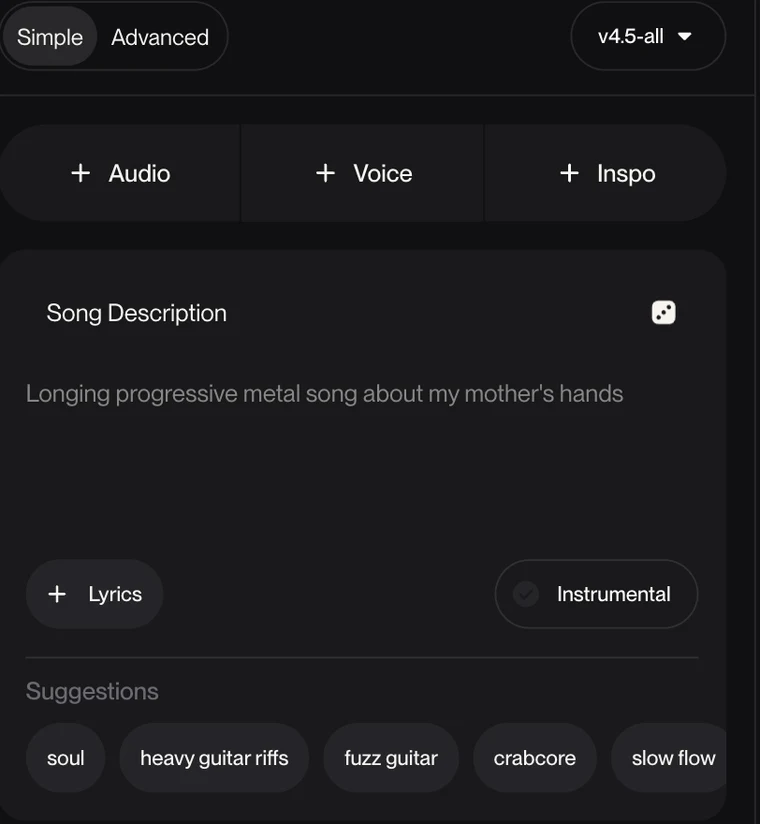
There is one box, labelled Song Description. Underneath sit a Lyrics button, an Instrumental toggle for music with no vocal, and a Suggestions row of style chips. The dice icon in the corner rolls a random prompt, which is the quickest way to see the shape Suno expects.
Above the box are three inputs that are easy to miss. Audio lets you upload a clip to build from — up to 8 minutes on a free account, 30 on paid. Voice attaches a voice to the generation, and is a paid feature — more on that below. Inspo pulls a starting point from a playlist.
Write your sentence and press Create. You do not need to touch anything else.
One thing shapes how the day feels rather than what it costs: the queue. Suno’s plan comparison puts free accounts in a shared creation queue with 4 songs generating at once, against 10 in a priority queue on either paid tier. Our four results took about seventy seconds, so the shared queue is not painful at that scale — but it is the difference between firing several variations at a problem and working through them one batch at a time.
Step 2: Write a prompt Suno can act on
Write the brief as things you could point at. Ours was deliberately literal:
Upbeat indie pop for a product demo video, bright electric guitars,warm female vocal, hopeful but not saccharine, clean endingEvery clause is doing a job. Genre gives the model its starting point. Instruments constrain the arrangement. Vocal description picks a voice type. And the last clause is there because we wanted a defined ending and asked for one explicitly rather than leaving it to the model.
One piece of evidence for writing it that way, from the single run this guide is built on: our brief’s “bright electric guitars” came back near-verbatim in the descriptions Suno attached to both results, while “hopeful but not saccharine” was reduced to “hopeful tone”. One prompt is not a rule, but it is what we can show you.
A workable formula is genre, then mood, then two or three instruments, then the vocal, then anything about structure or ending. Beyond that, two habits will teach you more than any Suno prompt guide can:
- Change one clause at a time. If you rewrite the whole description between attempts you learn nothing about which word moved the result.
- Use the suggestion chips. They are a live vocabulary of terms Suno recognises. We did not test whether a chip appends to your description or rewrites it, so add one and read the box before you press Create.
If you want to supply your own words rather than describing a song, switch to Advanced, which separates the fields.
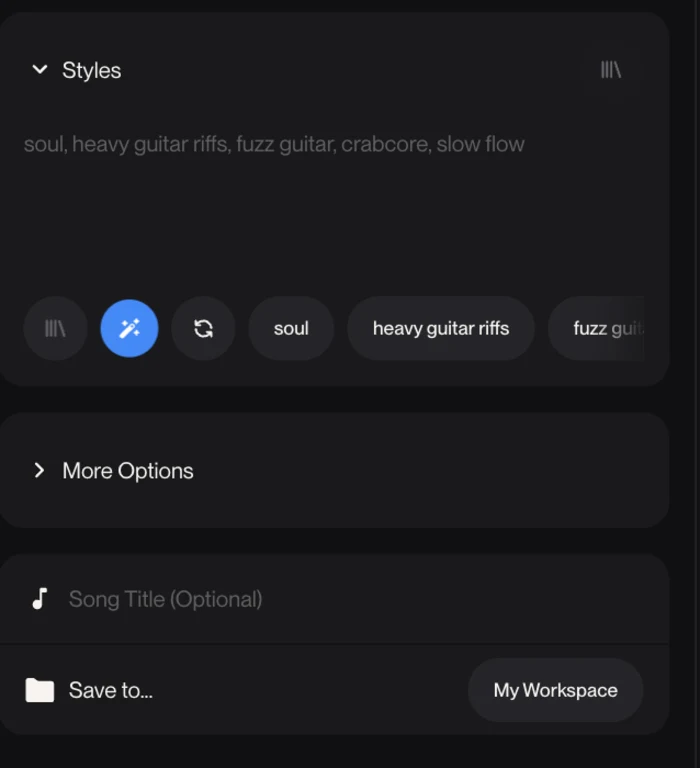
Advanced gives you a Lyrics box, which you can leave blank for an instrumental, a Styles box for the sound, More Options, an optional Song Title, and a workspace to save into. Same engine, more separated controls.
Step 3: Read what comes back, including what you cannot play
This is the step every other guide skips, and it is the one that changes how you judge the tool.
Our single prompt returned four results in about seventy seconds. Two were complete tracks we could play. The other two were one-minute previews generated by v5.5, the newer paid model, sitting in the same list with an Upgrade for full song button where the play control should be.
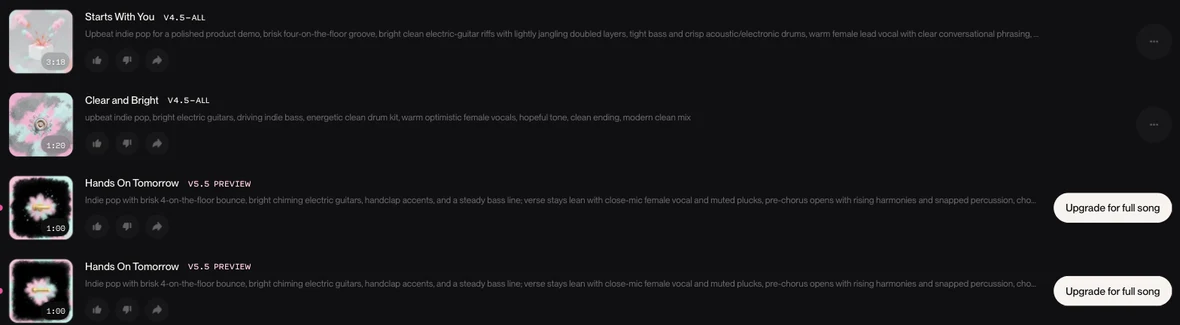
So a free generation is half output and half advertisement. Suno runs your prompt through the model you are not paying for, shows you the result, and stops it at a minute. It is effective merchandising and it is easy to miss, because the previews look exactly like songs in the list.
Judge the free tier on the two you can hear. If you count four, you will overrate what a free account gives you and misjudge what an upgrade adds.
The model list explains why:
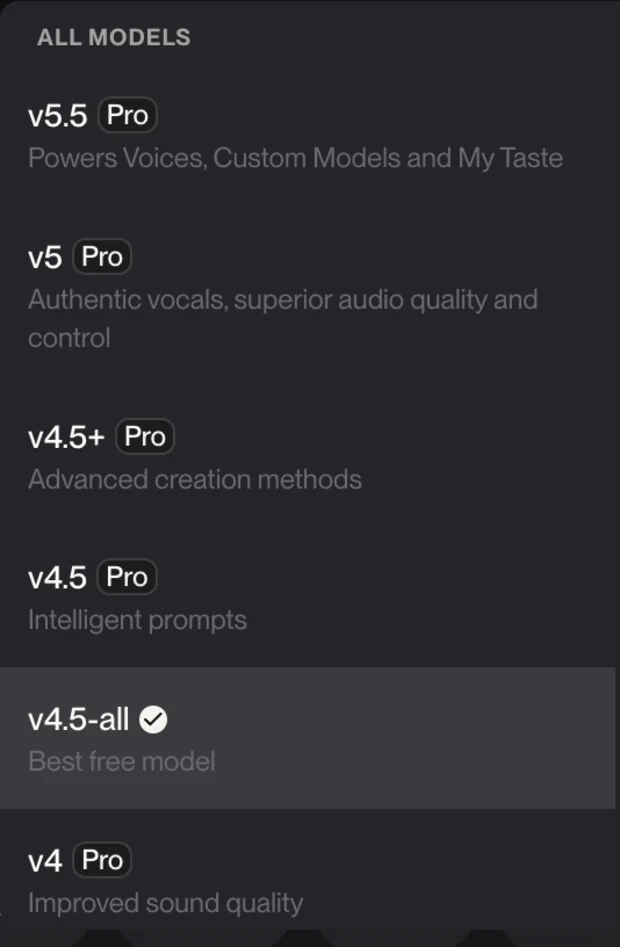
Six models, and five of them are Pro. Suno’s own taglines: v5.5 “Powers Voices, Custom Models and My Taste”, v5 “Authentic vocals, superior audio quality and control”, v4.5+ “Advanced creation methods”, v4.5 “Intelligent prompts”, v4 “Improved sound quality”. Free accounts get v4.5-all, tagged “Best free model” — true in the narrow sense that it is the only one you can pick.
Read your own results with that in mind: the free plan runs the one model out of six that Suno does not sell. Suno has also announced a new generation of models, and said the existing ones retire the day those arrive — so the lineup above comes with a published shelf life.
Step 4: Get the length you need
Suno has no duration control. Not in Simple mode, not in Advanced, not anywhere in the free interface.
That absence is worth stating plainly, because most Suno tutorials teach the workaround without ever naming the problem. Our identical prompt, in a single run, produced tracks of 3:17 and 1:20. Same words, same model, same moment, wildly different lengths. Duration is something Suno decides, not something you request.
If you need a specific length, you have two routes:
Generate and pick. Run the prompt several times and choose whichever lands nearest your target. Straightforward, and it burns credits fast — this is the single biggest reason a free day yields two or three usable tracks rather than ten.
Extend. Suno’s feature table lists extending a track as part of Remix, so the documented route to something longer is to add sections onto a result you already like rather than gambling on a fresh roll. It spends credits like any generation. We did not run Extend on the free account, so treat it as the route Suno names rather than one we measured.
If your project has a hard duration — a 30-second spot, a 60-second cut — plan on several attempts, or edit the export in whatever you already use for video.
Step 5: Refine the track you liked
You rarely want the raw first result, and the tools for improving one are not in the create panel — they live on the track itself.
Open the menu on a finished song and you get Remix, which Suno’s comparison table describes as “Remix songs (extend, cover, adjust speed)”, with Co-write with Suno listed as a separate row. We saw the menu on a free account but never ran either, so treat their free-tier availability as Suno’s own table rather than as something we tested.
What is clearly gated is anything that changes the voice or the parts. Suno lists “Add new vocals or instrumentals to existing songs” and “Record, upload and create with your own voice” among the features Pro and Premier add, and the Free plan card says “No stem separation” outright. So the free workflow is: generate, pick, refine, and accept the vocal you were given.
The practical loop, once you have run a few prompts, looks like this:
- Write a description and generate.
- Play the results Suno lets you play, and keep the best one.
- Remix or extend that track rather than starting a new prompt from scratch.
- Only rewrite the description when the track is wrong in kind, not in degree.
Step 3 is where most credits get saved. Starting over is a fresh roll of the dice at full price; building on something that already half-works spends credits against a known result.
Step 6: Get the file out, and count carefully
You have made something you like. Now the part that will actually shape your decision.
A free account can download seven files, for the lifetime of the account. Not seven a month. Seven, ever.
Suno’s plan card phrases this as “No monthly song downloads”, which is literally true and reads like zero. Its announcement of the change is where the real number lives: up to 7 trial downloads for the life of a free account, one-time, never resetting. Suno’s footnote limits that to accounts joined before 3 September 2026; free users who join on or after that date “may occasionally receive trial downloads” rather than a guaranteed seven. Suno also says those trial downloads are for personal use only, with commercial rights attaching to songs downloaded on a paid plan.
| Plan | Downloads | Resets? |
|---|---|---|
| Free | 7 | Never — lifetime allowance |
| Pro, $10 or $8 annually | 20 | Monthly |
| Premier, $30 or $24 annually | 60, or no limit inside Suno Studio | Monthly |
Suno says extra downloads are purchasable on any tier, that the limits apply to everything you export from 3 September onward including songs generated long before that date, and that your library itself stays playable and shareable on every plan. None of that is ours to confirm — it is the announcement’s wording rather than our test.
What comes out is an MP3 at 48 kHz stereo, around 190 kbps across our two exports. Forty-eight kilohertz is what video runs at, so nothing needs converting before you cut to picture. WAV files, stems and video exports each carry a Pro badge in the download menu.
Spend the seven deliberately. They are the free tier’s real limit — not credits, which renew every morning.
Working from your own audio, or your own voice
Two of the most-asked questions about Suno have different answers, and the difference is the paywall.
Can you put your own song into Suno? Yes, on a free account. The Audio button above the prompt box takes an upload — up to 8 minutes on Free, rising to 30 on either paid tier — and generates from it rather than from a text description. We did not run upload-to-generate ourselves, so take the 8-minute ceiling as read off the plan card rather than exercised.
Can you use your own voice? Not on the free plan. The Voice input sits right next to Audio, but “Record, upload and create with your own voice” is one of the features Suno lists as arriving with Pro and Premier. The free tier will let you upload a clip to build music from; it will not let you attach a voice to sing it.
Worth separating these in your head before you plan a project around either one, because the buttons sit side by side and look equally available.
Which route should you take?
| If you are | Do this | Why |
|---|---|---|
| Curious, one song, no deadline | Simple mode, free | One sentence and seventy seconds is the whole job |
| Scoring a video with some give in the length | Generate several and pick | There is no duration field anywhere in the free interface; expect to spend attempts |
| Building a library to publish | Pro before you export | Commercial rights attach to downloads on a paid plan |
| Working from a track you already have | Upload via Audio, free | 8 minutes on free, 30 on paid |
| Set on using your own voice | Not the free plan | “Record, upload and create with your own voice” is sold with Pro and Premier |
Skip Suno entirely if the brief arrives with a tempo, a key or an exact runtime already attached. It has a field for none of them, and no amount of prompting substitutes for a control that does not exist.
What a month of Suno actually costs
| Free | Pro, $8 annually | Premier, $24 annually | |
|---|---|---|---|
| Credits | 50 a day | 2,500 a month | 10,000 a month |
| Songs, advertised | ~10 a day | ~500 a month | ~2,000 a month |
| Finished tracks, realistically | 2 to 3 a day | 125 to 167 a month | 500 to 667 a month |
| Downloads | 7, lifetime | 20 a month | 60, or unlimited in Studio |
| Commercial use | No | Yes | Yes |
| Concurrent generations | 4, shared queue | 10, priority | 10, priority |
The pattern to notice: on every paid tier the credits are generous and the downloads are not. Pro hands you enough credits for hundreds of songs and lets you keep twenty of them. Budget by finished songs, not by credits — the Suno pricing guide runs that division for every tier.
What to watch out for
- Half of a free generation is a preview you cannot play. Count two results, not four.
- You are auditioning an older model. Whatever you conclude on the free tier is a conclusion about v4.5-all.
- There is no meter. Suno never displays a credit balance in the free interface, so you learn what a generation cost by watching the day run out.
- Seven downloads, then nothing. And they carry no commercial rights.
- Commercial rights are not retroactive. Suno attaches them to songs downloaded on a paid plan, so a free-tier favourite may need re-doing once you subscribe — ask before you publish one. The download limits, by contrast, are retroactive.
- Duration is not an input. Plan for Extend or for several attempts.
- The voice is not yours to choose on free. Suno sells “record, upload and create with your own voice” as a paid feature, so you take the singer the model gives you.
When Suno is the wrong tool
If you need to specify tempo, key or an exact runtime, Suno will frustrate you — it has no field for any of them. Its closest rival gives you a song-length slider free, and tempo and a negative prompt on a paid plan; we ran both on the same brief in Udio vs Suno. The wider field is in Suno alternatives.
If you need a licence you buy once and stop thinking about, a stock music library is still the more sensible purchase. And if you want to hear what the tool actually produced before you commit, both free tracks from our test are embedded in the full Suno review.
Final word
The honest version of “how to use Suno AI” is short: type a sentence, wait a minute, pick from what comes back. It is genuinely that easy, and the interface deserves credit for getting out of the way.
What takes longer to learn is the shape of the free plan. It is generous where you would not expect — fifty credits every morning, forever, no monthly ceiling — and tight exactly where it counts, at seven files for the life of the account and one model out of six. Make things freely, and decide early whether your project needs a file or only a link.
If you get to the end of the free tier and want to know what else is out there, the best AI music generator roundup covers eleven tools on one brief.
And spend the seven downloads on purpose. They are the one resource here that does not come back tomorrow, and the moment you want a track in a video editor rather than on a share page, they are the only thing standing between you and a subscription.
Frequently asked questions
How do you use Suno for the first time?
Type one sentence describing the song into the Song Description box on the Create page and press Create. About seventy seconds later you have finished music with vocals.
That is genuinely the whole first run. Suno opens in Simple mode, which is a single description field, a Lyrics button, an Instrumental toggle and a row of suggestion chips. You do not need to write lyrics, pick a tempo or choose a model.
What you should know before you start is what comes back. One free prompt returned four results for us: two full tracks we could play, and two one-minute previews from the newer paid model with an Upgrade for full song button where the play control should be. Judge the free tier on the two you can actually hear.
How does Suno work?
You describe a song in words, Suno generates several complete recordings from that description, and you pick one and refine it. There is no timeline and no instrument editing in the basic flow.
Every generation costs credits. A free account gets 50 a day, which Suno translates as about ten songs at roughly five credits each. The daily allowance renews and there is no monthly ceiling on the free plan.
The part that surprises people is that a generation is a roll, not a result. One prompt gave us a 3:17 track and a 1:20 track in the same batch, because nothing in the interface lets you ask for a length. Allow three or four attempts before you get something you would keep, and a finished track really costs 15 to 20 credits rather than five.
What makes a good Suno prompt?
Name the genre, the mood, the instruments and the vocal, then say how it should end. Write the brief as things you could point at rather than as adjectives about feeling.
The brief we used was: upbeat indie pop for a product demo video, bright electric guitars, warm female vocal, hopeful but not saccharine, clean ending. Every clause there is doing a job — the genre sets the model's starting point, the instruments constrain the arrangement, the vocal description picks a voice type, and 'clean ending' is there because we wanted a defined ending and asked for one rather than leaving it to the model. In our single run, 'bright electric guitars' came back near-verbatim in the descriptions Suno attached to both results, while 'hopeful but not saccharine' was reduced to 'hopeful tone'.
Two practical habits. Change one thing at a time between attempts, or you will not learn which clause caused the change. And use the suggestion chips under the box: they are a live vocabulary of terms Suno recognises, though we did not test whether a chip appends to your description or rewrites it, so read the box before you press Create.
Can you make a longer song in Suno?
Not directly, because there is no length control anywhere in the free interface. The route Suno names for making a track longer afterwards is Extend.
This is the single most confusing thing about Suno for newcomers. You cannot ask for a 60-second track or a three-minute one. Our identical prompt produced 3:17 and 1:20 in the same run, which is the clearest possible demonstration that duration is an output, not an input.
If you need a specific length, you have two options. Generate several times and pick the one closest to your target, which spends credits fast. Or take a track you like and use Extend to add sections onto it, which also costs credits but builds on something that already works rather than starting over. We did not run Extend on the free account, so treat it as Suno's documented route rather than one we measured.
How many songs can you download from Suno for free?
Seven, for the lifetime of the account, and they carry no commercial rights.
Suno's plan card says free accounts get no monthly song downloads from 9/3/26, which is accurate but easy to misread as zero. Its announcement of the change sets the free allowance at up to 7 trial downloads for the life of the account. They do not reset each month. Once they are spent, downloading means upgrading or buying more.
Paid plans are metered monthly instead: 20 downloads on Pro, 60 on Premier, and Suno says Premier subscribers working in Suno Studio have no limit at all. One more thing worth knowing before you spend the seven: Suno ties commercial rights to songs downloaded on a paid plan, so a track you pulled on the free allowance is for personal use.
Which Suno model does a free account get?
One, called v4.5-all, which Suno labels the best free model. Every other model in the list carries a Pro badge.
Open the model selector and you see six entries, each carrying Suno's own tagline. Five are Pro: v5.5 "Powers Voices, Custom Models and My Taste", v5 "Authentic vocals, superior audio quality and control", v4.5+ "Advanced creation methods", v4.5 "Intelligent prompts", v4 "Improved sound quality". The one you can use is v4.5-all, tagged "Best free model".
That matters for how you read your own results: you are hearing the one model of six that Suno gives away, not the ones it sells. Suno has announced a new generation of models and said the current ones retire when those ship, so this lineup has a published shelf life.
How do you upload a Suno song to YouTube?
Download it from Suno first, then pair the audio with a picture or video, because YouTube publishes video rather than bare audio files.
The Suno side is the part with limits. A free account has seven downloads for the life of the account, so export the version you actually intend to publish rather than testing several. What comes out is an MP3 at 48 kHz stereo, which is the sample rate video runs at, so the audio drops into an editor without conversion.
Settle the rights question before you publish, and especially before you monetise. Suno ties commercial rights to songs downloaded on a paid plan, and says trial downloads on the free allowance are for personal use. A track pulled on one of the seven is not licensed for a monetised upload.
Does Suno delete your songs?
No. Suno's own announcement of the September terms is explicit that your library is not going anywhere.
The wording is that every song stays playable and shareable on Suno, on every plan, including songs made before the download limits took effect. What changed is export, not storage: the limits apply to downloads from 3 September onward, including tracks you generated long before that date.
So the practical risk is not losing music, it is not being able to take it with you. A free account can keep generating and listening indefinitely on 50 credits a day. Getting files out is the metered part, and it is worth deciding early whether your project needs files or only links.
Keep reading
Suno pricing: the number that isn't credits
Suno sells credits, but caps something else: downloads. Seven for the lifetime of a free account, 20 a month on Pro, 60 on Premier. What each plan really costs.
Suno review: the free tier is good, and it's shrinking
One prompt on Suno's free plan returned four tracks. Two were playable, two were paywalled previews. What that tells you about paying, tested 3 September 2026.
Suno alternatives: the one I actually tested, and eight I didn't
Every Suno alternatives list claims it tested everything. This one tested one rival properly, labels the rest, and fixes two entries the others get wrong.
Best AI music generator: the three we ran, and what the rest are for
We gave Suno and Udio the same brief on the same day. Suno wins on output. On the licence the field splits three ways, and one tool grants nothing at any price.