
The best script-to-video AI tools, by job
The best script-to-video AI tools ranked by job: Fliki wins overall, InVideo for generative footage, Pictory for blog-to-video, plus avatar and editing picks.
Contents
The best script-to-video AI tools at a glance
“Script to video” now covers four genuinely different jobs, and the mistake most roundups make is ranking a dozen tools on one axis as if they all did the same thing. They do not. Some assemble stock footage around your narration, some put a realistic presenter on screen, some generate original footage from a prompt, and some edit footage you shot yourself. Ranking those on a single “best” scale is like ranking a hammer against a screwdriver: the answer depends entirely on what you are building. So this list is ranked by job, not by one leaderboard.
We tested Fliki, InVideo, Pictory, and Descript hands-on, running real scripts through each and scoring them on a consistent yardstick; the rest, Lumen5, Synthesia, HeyGen, Steve AI, Runway, VEED, and CapCut, are assessed from their pricing and positioning, not first-hand, and we flag that in every section so you always know whether a verdict comes from testing or synthesis. Here is the short version, by job.
| Your job | Best tool | Starts at |
|---|---|---|
| Best overall (voice + value) | Fliki (4.3) | $8/mo |
| Most powerful all-rounder / generative | InVideo (4.2) | $20/mo |
| Turning blog posts into video | Pictory (4.1) | $25/mo |
| Blog-to-video on a budget | Lumen5 | ~$19/mo |
| Avatar video for training | Synthesia | $18/mo |
| Realistic spokesperson avatars | HeyGen | $29/mo |
| Animation & explainer video | Steve AI | $15/mo |
| Generating original footage | Runway | $12/mo |
| Editing your own footage | Descript (4.0) | $24/mo |
| Quick browser editing + subtitles | VEED | ~$20/mo |
| Free social & mobile editing | CapCut | Free / $9.99/mo |
How we chose
The category is wider than it looks, so our first job was to separate the approaches. A true script-to-video tool takes text and returns a narrated, captioned video; that is the core of the list, and it is where our top three sit. But the same search surfaces avatar tools, generative models, and editors, because they all answer some version of “I have a script, now make it a video.” We kept the ones creators genuinely reach for and cut the near-duplicates.
We tested four of these hands-on, running real scripts through Fliki, InVideo, Pictory, and Descript and scoring each on output quality, voice, pricing clarity, and ease of use against one consistent rubric. Those scores (4.0 to 4.3, all “Power Tools”) come from that testing, not from vendor claims. For the other seven, Lumen5, Synthesia, HeyGen, Steve AI, Runway, VEED, and CapCut, we did not run the same hands-on test, so those sections are a synthesis of their pricing pages and category reputation, and we say so plainly rather than dressing it up as first-hand experience.
Ranking, then, is by fit for the core job first, capability second, and price third, never by affiliate payout. That is why Fliki tops the list even though InVideo is the more powerful tool, and why an avatar specialist like Synthesia ranks below a stock-assembly tool despite being excellent at what it does: it is answering a narrower version of the question. Read the “best for” line on each, because the right tool is the one that matches your job, not the one highest on the list.
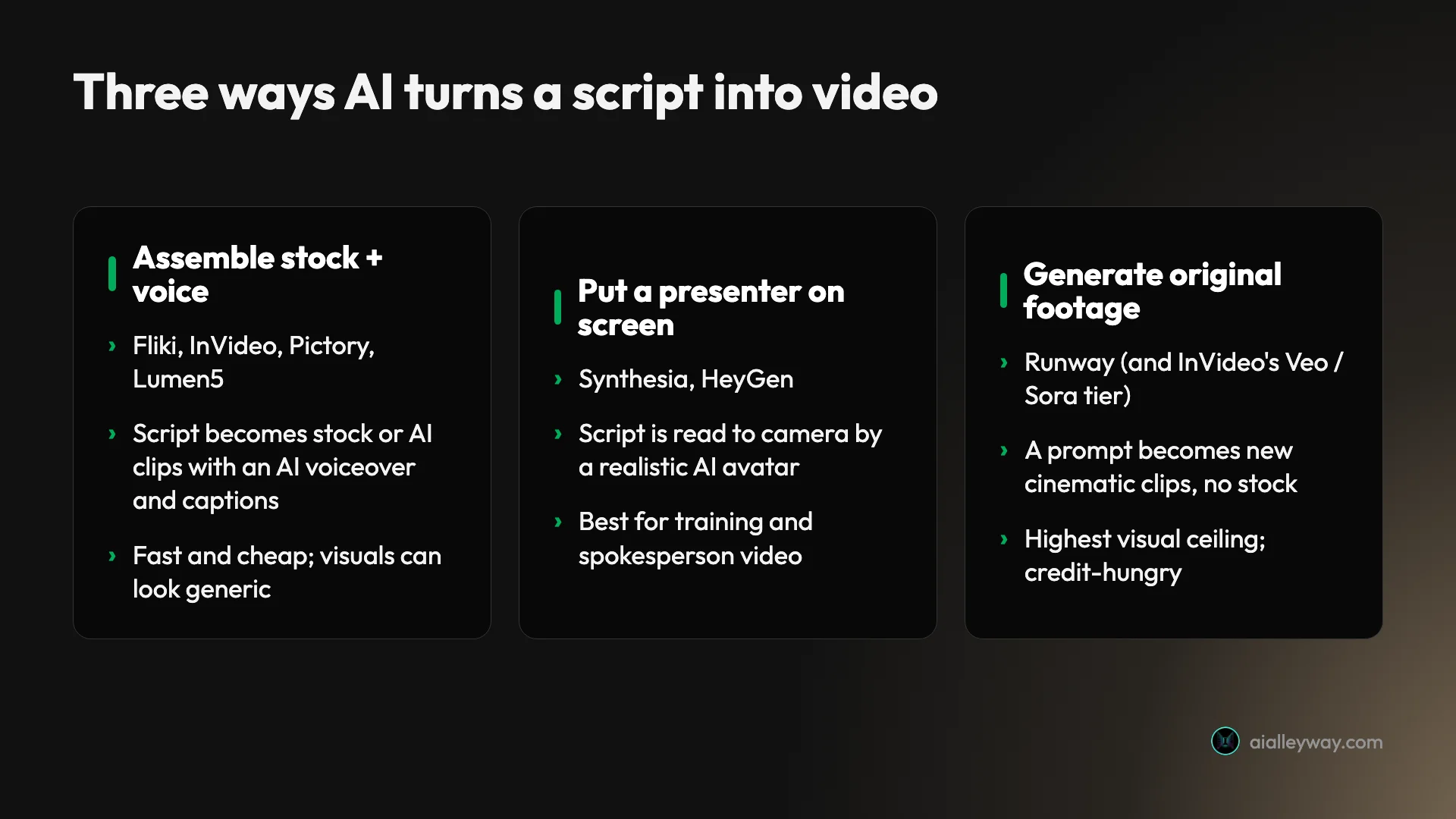
One trend worth naming, because it shapes the whole category: classic script-to-video, stitching stock clips under a voiceover, is being squeezed from above by true generative video. Models like Runway, Veo, and Sora now create original footage from a prompt, and the center of gravity in “AI video” is drifting from assembly toward generation.
The assembly tools still do their specific jobs well and remain far cheaper per finished video, so they are not going anywhere soon, but it is why we included a generative model and treat the stock-and-caption aesthetic as a known limitation rather than a neutral fact. Buy the tool that fits the video you need to make this quarter, and re-evaluate in a year, because this lane is moving faster than most.
A note on what we deliberately left off. This SERP is full of near-duplicate picks, several avatar tools, several browser editors, several frontier generative models, and stacking all of them would pad the list without helping you decide. We kept one strong representative per job and cut the rest, so if a tool you expected is missing, it is usually because another pick here does the same job better or cheaper. The goal is a decision, not an inventory.
| Tool | Best for | Starts at | Free tier | Tested |
|---|---|---|---|---|
| Fliki | voice-first, multilingual video | $8/mo | exports watermarked video | yes |
| InVideo | prompt-to-video, generative range | $20/mo | can’t export usable video | yes |
| Pictory | blog/article-to-video | $25/mo | trial paywalls export | yes |
| Lumen5 | blog-to-video on a budget | ~$19/mo | 5 videos watermarked | no |
| Synthesia | avatar video for training | $18/mo | 10 min watermarked | no |
| HeyGen | realistic spokesperson avatars | $29/mo | 3 one-min videos | no |
| Steve AI | animation & explainer video | $15/mo | free-forever tier | no |
| Runway | generating original footage | $12/mo | 125 one-time credits | no |
| Descript | editing your own footage | $24/mo | 60 min watermarked | yes |
| VEED | browser editing + subtitles | ~$20/mo | yes, watermarked | no |
| CapCut | free social & mobile editing | Free | yes, no watermark | no |
1. Fliki — best overall for voice-first video

Fliki is our top pick because it does the core script-to-video job better than anything else at the price, and it leads on the part most tools get wrong: the voice. We scored it 4.3 out of 5 in our hands-on Fliki review, the highest in this lane.
Paste a script and Fliki returns a captioned, narrated video in minutes, choosing from a library of 2,000+ AI voices across 80+ languages, with hundreds of ultra-realistic options and voice cloning on paid tiers. In our test the default voice sounded natural rather than robotic, which is exactly where cheaper rivals fall down, and the multilingual range plus one-click translation turns one script into a stack of localized clips.
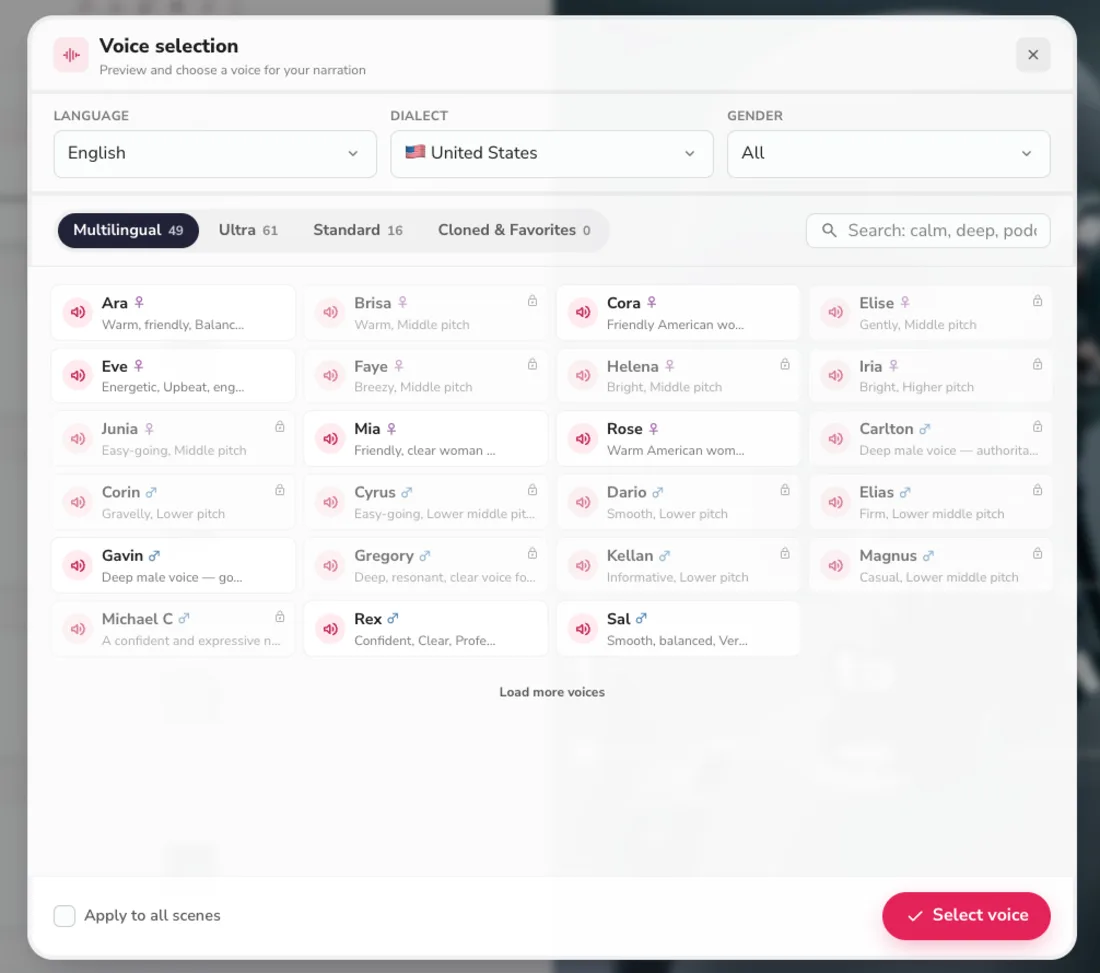
In practice that depth shows up fast. Testing it, I pasted a six-sentence script and Fliki returned a captioned 22-second vertical in a couple of minutes, having picked a natural-sounding voice and timed the captions to it with no input from me. It even read the script first and proposed a sensible format and tone off that, which is the kind of small touch that makes the tool feel easy rather than fiddly. The one budgeting note is that every generation spends from a yearly credit pool, so the credits, not the $8 sticker, are what a heavy user actually plans around.
It is also the most honest on price and free tier. Fliki starts at $8 a month, the lowest here, and its free plan actually exports a finished (watermarked, 720p) video where most rivals only preview. Its multilingual reach is the other half of the pitch. The 80-plus languages come with native-sounding voices, and paid tiers add one-click translation of a finished video, so a single script becomes a stack of localized clips. For anyone running a non-English or multi-language channel, that alone can be the deciding factor, and it is something the avatar and generative tools here do not match at Fliki’s price.
The trade is visual: its AI-generated images and stock are basic, so if the picture is the point of your video rather than the voice, you want InVideo or Runway instead. For voice-led faceless content, though, nothing else matches the value.
Pricing: Free (exports a watermarked 720p clip); Basic $8/mo; Standard $28/mo; Premium $88/mo. Annual billing plus its promo roughly halves those.
Best for: voice-first and multilingual faceless creators who want the best narration at the lowest price, with a free tier they can actually test.
2. InVideo — best all-rounder and for generative footage

InVideo is the most powerful tool on this list, and the one to pick when you want range rather than a single strength. We scored it 4.2 out of 5 in our InVideo review. It builds a whole video from a single sentence, and it is the only tool here that reaches Google’s Veo 3.1, OpenAI’s Sora 2, Kling, and Seedance from one workflow, so you can generate original footage without leaving the app.
That breadth is the draw. Its Agent One writes a script, matches or generates footage, narrates it, and lays in captions automatically, and its Explore gallery shows finished examples with the prompts behind them so you can start from a proven format. Editing is strong too: revise with plain-English commands or drop into a full timeline.
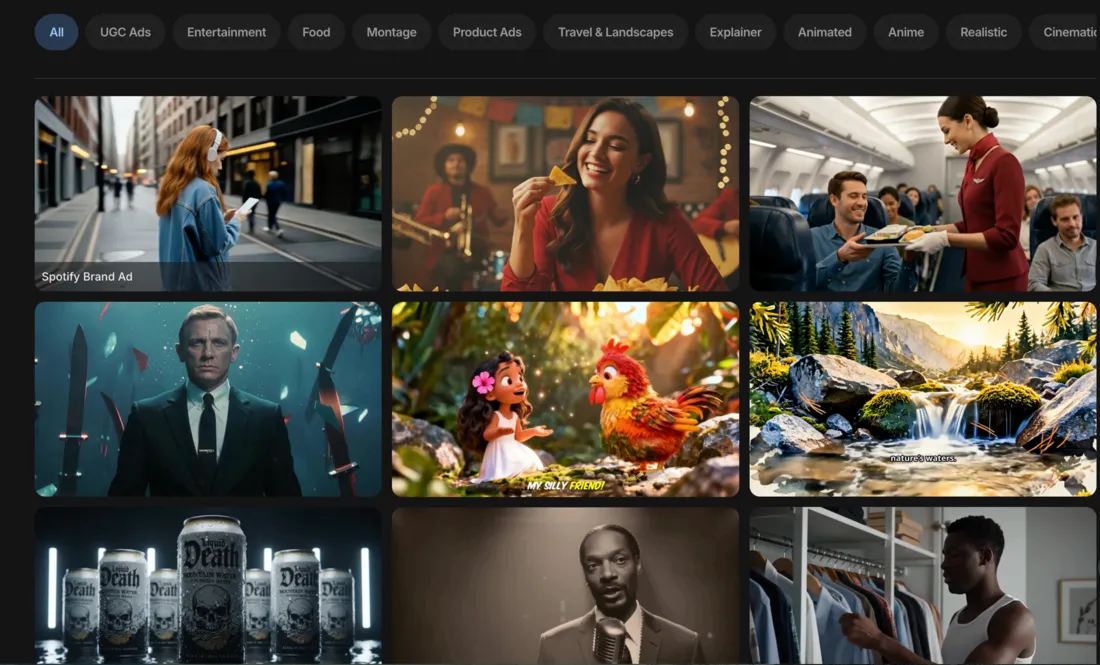
In our test the speed was the headline: one sentence produced a complete, captioned, narrated 9:16 video in a few minutes, and switching the same brief from stock footage to the premium generative setting turned recognizable stock into original, cinematic Veo and Sora shots that looked filmed rather than assembled. That range in a single $20 workflow is something no direct rival offers.
The catch is the credit economics, and our test made it concrete. A stock clip costs about 2 credits, but a premium Veo or Sora clip costs 40 of the $20 Plus plan’s 75 monthly credits, with no discount when you regenerate, and the free plan cannot export a usable video at all. That means dozens of stock videos a month but fewer than two premium generative ones, so the credit meter, not the monthly price, is the real ceiling. So InVideo is the pick when you want the most capability and the deepest model access in one place, as long as you budget the credits and treat the premium generative tier as an occasional splurge.
Pricing: Free (cannot export a usable video); Plus $20/mo (75 credits); Max $100/mo; Generative $200/mo. Annual billing trims about 15%.
Best for: creators who want one workspace that can do stock, generative, and everything between, and who can manage a credit meter.
3. Pictory — best for turning blog posts into video

Pictory is the specialist for one job a lot of people have: turning existing written content into video. We scored it 4.1 out of 5 in our Pictory review. Its signature feature is URL-to-video: paste a blog post and it reads the page, keeps your real argument, and builds a scene-by-scene video around licensed stock, and in our test it named every tool in one of our roundups and kept the ranking rather than just paraphrasing the title.
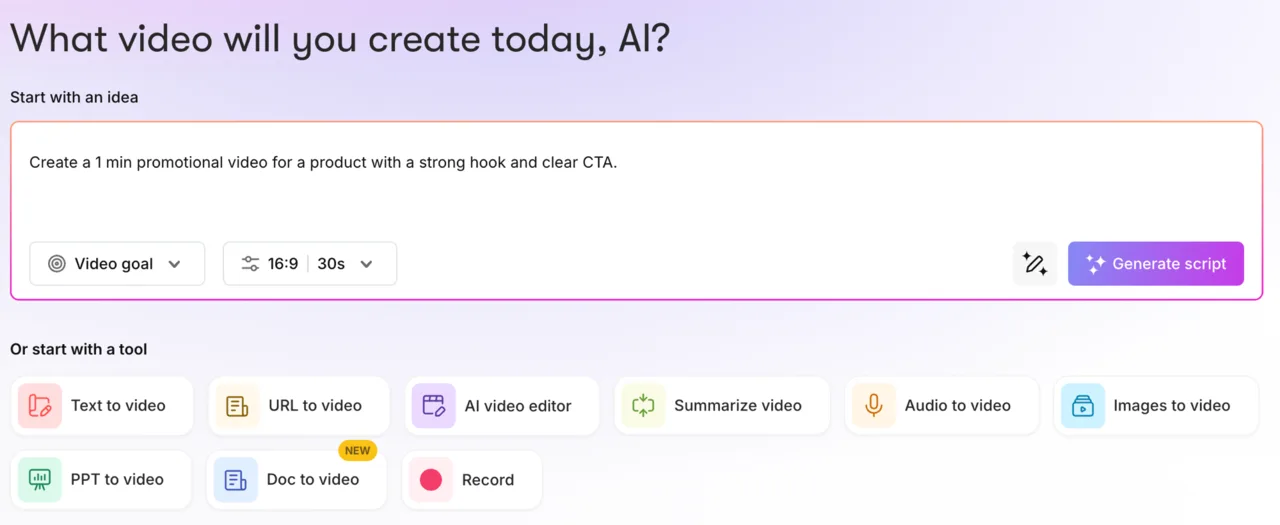
Its stock library is the deepest here, 5 to 18 million Getty and Storyblocks clips, so scenes rarely come up empty, and it handles more input types than most: text, URL, audio, slide decks, and documents all route into one editor. On voice it leans on metered ElevenLabs minutes on paid plans, which are good but rationed.
In our test the repurposing fidelity was the standout: pointed at one of our own published roundups, Pictory built a 13-scene vertical video in about two minutes that named every tool and kept our actual ranking, rather than hallucinating or paraphrasing the headline. The auto-matched B-roll needed a few one-click swaps where a generic clip landed under a specific line, so the “zero-editing” pitch is really light-editing, but the argument came through intact, which is genuinely uncommon at this price.
That input variety matters for a specific audience beyond bloggers: course creators and trainers sitting on years of slide decks and webinar recordings. Pictory’s PPT-to-video and audio-to-video flows rebuild that old material into narrated lessons without re-recording anything, which is a repurposing job as valuable as the blog-to-video one, and one none of the other tools here handle as directly.
The knocks, from our testing, are that the default voice is robotic, the 14-day trial paywalls a clean export, and the stock-and-caption aesthetic reads as last-generation next to the generative tools. But if your workflow is repurposing a back catalogue of articles into social video, Pictory is the most focused, most reliable tool for that exact job.
Pricing: Starter $25/mo, Professional $35/mo, Teams $119/mo (billed annually; monthly is $29/$59/$199). 14-day trial, no permanent free plan.
Best for: bloggers and content marketers repurposing written articles into video at volume.
4. Lumen5 — best for blog-to-video on a budget

Lumen5 is the veteran of the blog-to-video category, and it does the same core job as Pictory more cheaply, which makes it the budget pick for turning written content into video. We have not tested Lumen5 hands-on, so this is a synthesis read from its pricing page and long-standing reputation rather than a first-person verdict.
The workflow is Pictory’s, aimed at marketing teams: paste a URL or a script, pick a template, and Lumen5 auto-matches stock footage to your text and lays in captions. Where it leans harder than Pictory is templates and brand consistency, with a deep library of on-brand layouts and brand kits, so a team can turn a blog post into an on-brand social clip in minutes and keep every video looking like the same channel.
| Lumen5 at a glance | |
|---|---|
| Core job | blog / text-to-video, template-led |
| Free tier | Community: ~5 watermarked videos/mo, 2-min cap |
| Paid from | ~$19/mo (billed annually, 25% off) |
| Weakness | basic voices and visuals |
The trade is quality: like Pictory, Lumen5’s voices are basic text-to-speech and its stock is generic, and there is no generative footage. Its free Community plan caps you at around five short watermarked videos a month, and paid plans start near $19 a month billed annually, though published rates have shifted across sources, so confirm the current tier. It is a sideways move on output quality and a step down on price, which is exactly right if a cheaper workflow and a real free tier are what you are after.
The Lumen5-versus-Pictory call comes down to fidelity against budget. Pictory’s URL-to-video reads an article more accurately and its stock library is deeper, so it wins when the quality of the repurposing is the point. Lumen5 wins when price and a free tier matter more than that last increment of fidelity, or when you want the deepest template and brand-kit library for keeping a channel visually consistent. They are close cousins, and most people should pick on budget first, since the output quality is comparable.
Pricing: Free Community plan (watermarked, capped); paid tiers from roughly $19/mo billed annually, up to a Professional tier for teams.
Best for: bloggers and marketing teams who want Pictory’s template-driven blog-to-video workflow at a lower price.
5. Synthesia — best for avatar video for training

Synthesia answers a different version of the question: what if the script should be delivered by a person on camera rather than a voiceover over stock? It generates a realistic talking-head avatar that speaks your text in 160+ languages, and it is the category standard for corporate training, onboarding, and explainer video. We have not tested Synthesia hands-on, so this is a synthesis read from its pricing page and reputation.
For instructional content, an avatar delivering the script is often more effective than stock B-roll, and Synthesia’s library runs to well over 100 stock avatars (180-plus on its Creator plan), with custom avatars of yourself or a colleague on higher tiers so a course can feature a consistent host without anyone filming.
| Synthesia at a glance | |
|---|---|
| Core job | avatar / talking-head video |
| Free tier | 10 min/mo, watermarked, 9 avatars |
| Paid from | $18/mo (billed annually) |
| Weakness | narrow scope, pricier at volume |
How it compares to HeyGen, the other avatar tool here, comes down to tone. Synthesia is polished and corporate, tuned for training modules, onboarding, and internal comms, where a consistent, professional presenter matters more than personality. If your video is a course lesson or a policy walkthrough, its library and structured workflow fit the job.
The trade is price and scope. Its free plan gives 10 minutes of watermarked avatar video a month; Starter is $18 a month billed annually and Creator jumps to $64. That is steep once you produce at volume, and it is a narrow tool, brilliant at talking-head video and not built for the stock-montage social clips the top three make.
Pricing: Free (10 min/mo, watermarked, 9 avatars); Starter $18/mo annual; Creator $64/mo annual; Enterprise custom.
Best for: training, e-learning, and internal-comms teams who want a presenter delivering the script.
6. HeyGen — best for realistic spokesperson avatars

HeyGen sits in the same avatar lane as Synthesia but leans toward realism and marketing: lifelike spokesperson avatars, UGC-style talking-head ads, and video translation that keeps the speaker’s own voice. If Synthesia is the training-video standard, HeyGen is the one creators reach for when the avatar needs to feel like a real person selling something. This is a synthesis read from its pricing page, not a hands-on test.
Its pitch is the quality of the avatars and the breadth of the free tier: even the free plan includes 500-plus avatars, one custom clone, and 30-plus languages, though it caps you at three one-minute videos a month. Paid plans add watermark removal, voice cloning, higher resolution, and up to 175+ languages.
| HeyGen at a glance | |
|---|---|
| Core job | realistic spokesperson / UGC avatars |
| Free tier | 3 videos/mo, 1-min, 500+ avatars |
| Paid from | $29/mo (Creator, 600 credits) |
| Weakness | credit-metered, avatar-only |
One feature worth calling out is video translation: HeyGen can take a talking-head video and re-voice it into another language while keeping the speaker’s own voice and matching the lip movement, which is a genuine reason marketers reach for it over Synthesia when localizing ads. Where Synthesia reads corporate, HeyGen reads like a real person selling something, so the two split cleanly by tone rather than competing head-on.
The trade is that it is credit-metered and avatar-only: the Creator plan at $29 a month gives 600 credits, and heavy use climbs quickly toward the $49 Pro and $149 Business tiers. Like Synthesia, it does not make stock-montage or generative video, so it is a pick for a specific format, not a general script-to-video tool.
Pricing: Free (3 videos/mo, 1-min); Creator $29/mo (600 credits, 1080p, watermark removal); Pro $49/mo (4K); Business $149/mo.
Best for: marketers and creators who want a realistic AI spokesperson for ads, UGC, or product videos.
7. Steve AI — best for animation and explainer video

Steve AI covers a corner none of the others do: turning a script into an animated or cartoon video, not just live-action stock or avatars. If your explainer, ad, or training clip wants an illustrated style rather than footage, it is the pick, and it also does talking-head and live-action AI video from text. This is a synthesis read from its pricing page and reputation, not a hands-on test.
Its pitch is breadth of output style from one script: animation, live-action, and typography-led video, with a large asset library and voices, aimed at marketers and educators who want an on-brand animated look without a motion designer. For a certain kind of explainer, animation communicates a process or concept more clearly than stock footage can, and that is Steve AI’s lane.
| Steve AI at a glance | |
|---|---|
| Core job | script-to-animation + live-action video |
| Free tier | free-forever, watermarked |
| Paid from | ~$15/mo Basic (100 min/mo, 720p) |
| Weakness | animation style is not for every brand |
It is worth being honest about that aesthetic. A cartoon explainer can make an abstract process click in a way stock footage never will, which is why edtech and SaaS onboarding lean on it, but it also announces “explainer” loudly and is the wrong choice for anything that needs to feel premium or cinematic. Steve AI is the pick when the illustrated style is a deliberate feature, not a fallback because you had no footage.
The trade is that the animation aesthetic is specific, great for playful explainers, wrong for a serious corporate or cinematic look, and the lower tiers cap resolution at 720p with metered generative credits. It has a free-forever plan (watermarked), and published tiers run roughly $15 Basic, $45 Starter, and $60 Pro billed annually, climbing with video minutes and resolution, though its rates and caps shift, so confirm the current numbers before committing.
Pricing: Free-forever (watermarked); published tiers roughly Basic $15/mo, Starter $45/mo, Pro $60/mo (billed annually; monthly higher). Confirm current caps and rates.
Best for: marketers and educators who want animated or cartoon-style explainer video from a script.
8. Runway — best for generating original footage

Runway is not a script-to-video assembler at all, and that is exactly why it earns a place: it is the tool you reach for when you want to generate original, cinematic footage rather than arrange stock. It is a generative video model, turning a text or image prompt into new clips that look filmed rather than pulled from a library. This is a synthesis read from its pricing page and reputation, not a hands-on test.
Where the assembly tools give you a whole narrated video, Runway gives you the shots. You would use it alongside a script-to-video tool, generating a few hero clips that need to look original and dropping them into a Fliki or InVideo timeline, or building an entire piece shot by shot if the look is the whole point.
| Runway at a glance | |
|---|---|
| Core job | generative video from a prompt |
| Free tier | 125 one-time credits, watermarked |
| Paid from | $12/mo (Standard, ~52s of video) |
| Weakness | not a full script-to-video pipeline |
In practice, most creators pair Runway with a tool higher on this list rather than choosing between them: a Fliki or InVideo backbone for the narrated structure, and a few Runway shots dropped in where the footage has to look original and cinematic. Seen that way it is less a rival to the script-to-video tools than a supplier of hero footage for them, which is the honest way to place a pure generative model in this lineup.
The trade is that it does not do narration, captions, and scene-assembly for you the way the others do, and generative video is credit-hungry: the $12 Standard plan’s 625 monthly credits buy roughly 52 seconds of its latest model. It is the best pick here for original footage and the wrong one if you want a finished narrated video out of the box.
Pricing: Free (125 one-time credits, watermarked); Standard $12/mo annual; Pro $28/mo annual; Max $76/mo annual.
Best for: creators who want to generate original, cinematic footage rather than assemble stock.
9. Descript — best for editing your own footage

Descript is for the creator who realized they do not want to assemble stock or generate avatars at all, they want to record themselves and edit it well. It is a different kind of tool: you edit video by editing its transcript, deleting words to cut the footage, which makes it the pick when you are filming your own script rather than faking a produced video. We scored it 4.0 out of 5 in our Descript review.
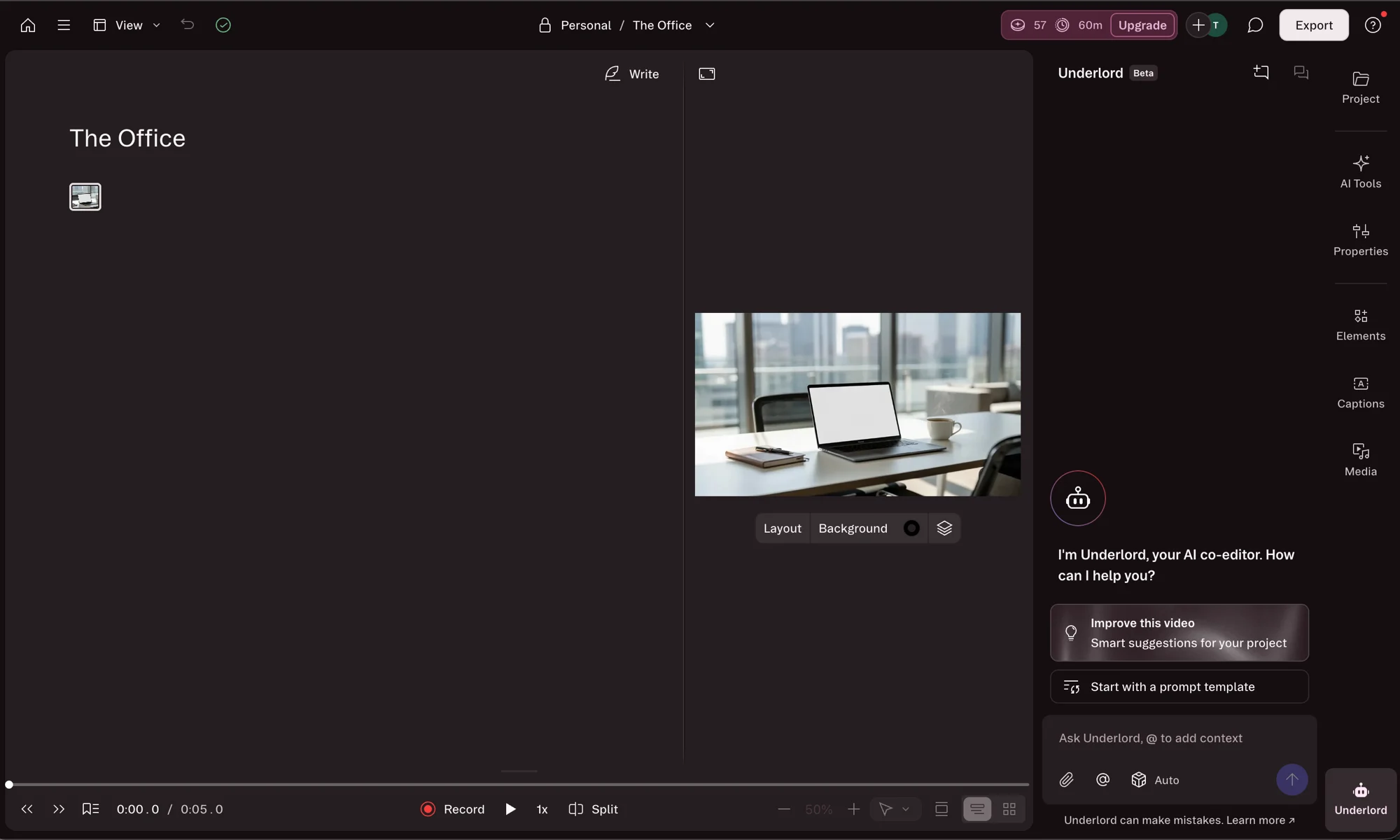
Where the other tools generate or assemble, Descript polishes: transcript editing, filler-word removal, studio-sound cleanup, an “Underlord” AI assistant, and voice cloning via Overdub. For anyone who was using a stock tool to disguise having no footage but would rather just record and edit their own, it is a real step up in control, and it is approachable for a non-editor.
In our test the transcript workflow was the real payoff: cutting a sentence in the text cut it from the video, and removing every “um” was a find-and-delete rather than a timeline scrub. That turns editing from a specialist skill into something a writer can do, which is the whole reason a script-first creator would pick it over an assembler. Overdub, its voice clone, also lets you fix a flubbed line by typing the correction rather than re-recording, which is a small piece of magic the first time it works.
The knock, from our testing, is the AI-credit system: heavy AI users burn through their monthly credits and hit a wall, and top-ups are only on higher plans. Its free plan gives 60 media minutes and 100 AI credits with a watermark, enough to judge the editor.
Pricing: Free (60 media min/mo, watermarked); Hobbyist $24/mo; Creator $35/mo; Business $65/mo. Annual billing cuts roughly 30%.
Best for: creators recording and editing their own footage with AI assistance, rather than assembling stock.
10. VEED — best for quick browser editing and subtitles

VEED rounds out the list as the browser-based editor for fast, social-first video: auto-subtitles, quick trims, templates, and a growing set of AI features, all in a web app with nothing to install. It overlaps Descript on editing but leans lighter and more social, the tool for captioning a clip and shipping it rather than producing a polished long-form piece. This is a synthesis read from public pricing, which its site renders dynamically, so treat the exact numbers as directional.
Its strength is speed and accessibility: paste or upload a clip, auto-generate subtitles, trim and brand it, and export, without a learning curve. For creators who mostly need captions and quick edits on short-form video, it removes the friction of a desktop editor.
| VEED at a glance | |
|---|---|
| Core job | browser editing + auto-subtitles |
| Free tier | yes, watermarked, limited AI |
| Paid from | |
| Weakness | per-seat pricing, credit-gated AI |
Against the other editors here, VEED sits between Descript and CapCut. It is lighter and more browser-first than Descript’s transcript studio, but more feature-rich and team-oriented than CapCut’s free social editor. If you work in a browser, collaborate with a small team, and mostly need captions and quick cuts, it is the comfortable middle ground; reach for Descript if you want the deepest AI editing, or CapCut if free is the priority.
The caveats are that its free plan watermarks exports, its paid plans are billed per seat so a small team adds up fast, and its AI features run on a credit system. As a script-to-video generator it is the weakest here, it is really an editor, but for subtitle-first social editing it is a genuinely convenient pick.
Pricing: Free (watermarked, limited AI); Creator from about $20/mo ($10 billed annually), billed per seat; higher Pro and Studio tiers for teams.
Best for: social creators who mostly need fast browser editing and automatic subtitles.
11. CapCut — best for free social and mobile editing

CapCut earns the last spot as the free default for social video, the editor a huge share of TikTok and Reels creators actually use to cut, caption, and ship short-form clips from their phone or browser. It is not a script-to-video generator, but it is where a lot of these videos get finished, and its free tier is unusually generous. This is a synthesis read from public pricing, not a hands-on test.
Its strength is that the free plan is genuinely usable: 1080p exports with no watermark on standard edits, a deep template and effects library, and a growing set of AI features including auto-captions and background removal. For a creator who just needs to trim, caption, and add music to a clip, it does the job for $0, which nothing else on this list matches.
| CapCut at a glance | |
|---|---|
| Core job | free social / mobile video editing |
| Free tier | 1080p, no watermark on standard exports |
| Paid from | $9.99/mo Standard, $19.99/mo Pro (4K, AI) |
| Weakness | an editor, not a script-to-video generator |
For a lot of creators CapCut is not a rival to the others at all but the finishing step after them: generate a draft in Fliki or InVideo, then trim it, add trending audio, and tune the captions in CapCut before posting. As the free default a huge share of short-form creators already have open on their phones, it earns its place on ubiquity as much as features, the tool the video passes through on its way out the door.
The caveats are that its AI-generated content and some templates do carry a watermark on free, its full commercial license and 4K export need the $19.99 Pro plan, and it is fundamentally an editor rather than a tool that builds a video from your script. But as the free finishing tool for social video, and the on-ramp many creators start on, it belongs on the list.
Pricing: Free (1080p, no watermark on standard exports); Standard about $9.99/mo; Pro about $19.99/mo (roughly $15/mo effective on an annual plan). Buying direct on capcut.com is cheaper than via the app stores.
Best for: social and mobile creators who need free, fast editing and captions for short-form video.
Which script-to-video AI tool is right for you?
The whole list collapses to one question: what does your video actually need? The fastest way to answer it is to pick your output type first. Do you want a narrated montage of stock or generated clips, a presenter delivering the script to camera, original footage that looks filmed, or a polished cut of something you recorded yourself? Those four choices eliminate most of this list in one step, and only then does price or specific feature matter. Match your answer to the job below, not to the ranking.
- A great voice over simple visuals, on a budget → Fliki. The best narration in the category, a working free tier, and the lowest price.
- The most capability, including generative footage, in one tool → InVideo. Just budget the credits.
- To turn existing blog posts and articles into video → Pictory. Its URL-to-video is unmatched for repurposing.
- The same blog-to-video job, more cheaply → Lumen5. Template-led, with a real free tier.
- A presenter delivering the script, for training → Synthesia. The avatar standard for e-learning and internal comms.
- A realistic spokesperson for ads or UGC → HeyGen. Lifelike avatars and video translation.
- An animated or cartoon-style explainer → Steve AI. Script-to-animation none of the others do.
- Original, cinematic footage rather than stock → Runway. A generative model, best paired with a script-to-video tool.
- To edit footage you shot yourself → Descript. Transcript-based editing with AI cleanup.
- Fast browser edits and auto-subtitles for social → VEED. Lightweight and web-based.
- Free editing and captions on your phone → CapCut. The social-video default, at no cost.
The one mistake to avoid is buying capability you will not use. It is tempting to reach for the most powerful tool, the one with generative models and avatars and a timeline, but if your actual job is turning a weekly blog post into a narrated clip, that power is a monthly cost you never touch and a learning curve you did not need. The reverse also bites: picking a cheap assembler when the video genuinely needed a presenter or original footage means fighting the tool for the whole project. Right-size the tool to the job, in both directions.
If you are starting from scratch and just want the safest first pick, begin with Fliki: it is cheap, it has a free tier you can test today, and it covers the most common job, turning a script into a narrated, captioned video, better than anything else at the price.
The verdict
There is no single best script-to-video AI tool, because the category is really four jobs wearing one name. But if you want one recommendation for the most common of those jobs, turning a script into a captioned, narrated video, it is Fliki, our highest-rated pick at 4.3, on the strength of its voice, its price, and a free tier you can actually publish from. Read our full Fliki review for the hands-on detail.
If budget is the constraint, the shortlist narrows: Fliki at $8, plus the free tiers on CapCut, Steve AI, and Lumen5, all produce something publishable at little cost, while the premium generative tools (InVideo’s Veo/Sora tier, Synthesia, HeyGen, Runway) earn their price only when you specifically need what they add. Start free, then pay for the one tool that fits the job you do most.
From there, let the job decide: InVideo for generative range, Pictory for repurposing articles, Synthesia or HeyGen for a presenter, Runway for original footage, and Descript for editing your own.
For the closest calls, see our head-to-heads (Pictory vs Fliki, Pictory vs InVideo, Fliki vs InVideo), the Pictory alternatives guide, and our Pictory and Fliki pricing breakdowns.
Frequently asked questions
What is the best AI script-to-video tool?
For most creators, Fliki, which is our highest-rated tool in this lane at 4.3 out of 5. It turns a script into a captioned, narrated video with the best voice library in the category (2,000+ AI voices across 80+ languages), a genuinely free tier that exports a real video, and the lowest entry price at $8 a month. That combination makes it the easiest recommendation for narration-led social and explainer video.
But 'best' depends on the job. InVideo is the more powerful all-rounder and the pick if you want generative footage from a prompt; Pictory is cleanest for turning existing blog posts into video; Synthesia and HeyGen are the picks if you want a presenter or avatar on screen; Runway is for generating original cinematic clips; and Descript is for editing your own footage. There is no single winner for everyone, only the best fit for what your video actually needs.
What is the best free script-to-video tool?
Fliki has the most useful free tier: unlike most rivals it actually builds and exports a finished video, watermarked and capped at 720p and one minute, but a real clip you could post. That makes it the best way to try script-to-video before paying. Runway's free plan gives 125 one-time credits to generate a few watermarked clips, HeyGen's allows three one-minute avatar videos a month, and Synthesia's grants 10 minutes of watermarked avatar video.
The notable exception is InVideo, whose free plan cannot export a usable video at all, so treat it as a preview rather than a free tool. None of these free tiers removes its watermark without a paid plan, and all of them cap output tightly, so they are for evaluation rather than ongoing publishing. If a working free tier is your deciding factor, Fliki is the clearest pick, with Runway a close second for anyone who wants to test generative footage.
Which AI video tool is best for faceless YouTube videos?
Fliki, for most faceless creators, because faceless video lives or dies on the narration and Fliki leads on voice. Its 2,000+ voices across 80+ languages, one of which likely fits your channel's tone, plus captions and stock or AI visuals, cover the whole faceless pipeline at a low price and with a working free tier. For voice-led social and explainer content without a camera, it is the natural home.
If your faceless channel leans on visuals rather than voice, the pick shifts: InVideo if you want generative, cinematic footage from a prompt, or Pictory if you are repurposing written articles into video. And if 'faceless' just means you do not want to be on camera but you still want a human presenter, Synthesia or HeyGen put a realistic AI avatar on screen instead. Match the tool to whether voice, footage, or a presenter carries your videos.
Can AI really turn a script into a video automatically?
Yes, and that is exactly what this category of tools does. You paste a script (or a blog URL, or a one-line prompt, depending on the tool), and the AI writes it out as a sequence of scenes, matches each line to footage or generates it, adds an AI voiceover and captions, and assembles a draft video in minutes. In our hands-on testing, tools like Fliki, InVideo, and Pictory each produced a watchable captioned video from a short script with no manual editing.
The honest caveat is that 'automatically' gets you a draft, not a finished masterpiece. The auto-matched visuals often need a swap, the AI can misread an instruction, and the free tiers watermark the output. So the realistic workflow is generate-then-tweak: the AI removes the blank-page problem and does the assembly, and you spend a few minutes polishing rather than building from scratch. For volume social and explainer content, that trade is the whole appeal.
What is the difference between script-to-video and generative video like Runway or Sora?
Script-to-video tools assemble a video around your words. You give them a script, and they match each line to existing stock footage or simple AI images, add an AI voiceover and captions, and stitch it into a narrated clip. The footage is not created new; it is selected and arranged. Fliki, Pictory, and InVideo's stock mode all work this way, which is why they are fast and cheap but visually generic.
Generative video tools like Runway, and the Veo and Sora models InVideo can reach, create original footage from a prompt: there is no stock library, the model paints each frame. The result looks filmed rather than assembled, but it costs far more in credits and gives you less control over the exact narration-to-scene structure. In practice many creators use both: a script-to-video tool for the backbone and narration, and a generative model for a few hero shots that need to look original.
Keep reading
The 5 best Pictory alternatives, ranked by job
The best Pictory alternatives, ranked: Fliki for voice, InVideo for generative video, Lumen5 for blog-to-video, Synthesia for avatars, Descript for editing.
Fliki vs InVideo: I tested both — voice or visuals?
Fliki vs InVideo, both tested hands-on: Fliki (4.3) wins on voice, languages, price, and a free tier; InVideo (4.2) wins on generative visuals and speed.
Fliki pricing: what $8 a month really gets you
Fliki starts at $8/mo (or about $4 with the annual promo), and its free tier actually exports a video. The real per-plan cost, the credits, and the catch.